Configure Embedded Barcodes
Last updated: Sep 17, 2026, 4:20 PM
- Embedded Barcodes Overview
- Supported Formats
- Set Up Embedded Barcodes
- Scale Certification
- Additional Resources
Embedded Barcodes Overview
Embedded barcodes are barcodes that change depending on the weight of the item sold and are printed by scales. An embedded barcode consists of a prefix, a product number, an optional check digit, an amount, and a final check digit. Most digital scales support printing labels with a variety of formats and can embed either the weight or price of an item as the amount in the embedded barcode.
This article will cover supported formats for embedded barcodes and the steps to configure your barcode setup to read your embedded amount type.
For general information on how to enable barcodes and add them to an item, and for menu best practices for delis and markets, please see the following Support Center articles:
Supported Formats for Embedded Barcodes
Embedded barcode formats are typically described using barcode masks. A barcode mask contains characters which specify which digits of the barcode represent a prefix, product number, check digit, or amount. The masks described here use these characters:
| Character Symbol | Type of Data |
| X | Required prefix |
| P | Product number |
| C | Check digit |
| A | Amount |
- Prefixes are dictated by barcode format standards and are usually 02 or 2.
- Product numbers correspond to the SKU number of a Toast menu or retail item and must be five digits.
- A check digit is an extra number added to a barcode to help detect errors. Embedded barcodes can have two check digits: one for the whole barcode, and an optional check digit for the amount embedded in the barcode. Toast can be configured to ignore the amount check digit if your scale cannot be configured to include it correctly.
- Toast interprets amounts to have two digits after a decimal. For example, the amount 1045 is interpreted as 10.45, and the amount 0145 is interpreted as 01.45. The amount can be configured to represent a weight or a price. Learn more in the Configure Embedded Amount Type section of this article.
Toast supports several embedded barcode masks:
| Format | Example | |
| 0 | (X)X PPPPP C AAAA C | 298765699991 |
| 1 | (X)X PPPPP AAAAA C | 298765999992 |
| 2 | X PPPPPP AAAAA C
Must begin with prefix 2 (13-digit only). Only available in Toast app version 2.73 and later. | 2987654999998
Prefix: 2 |
If you need to use embedded barcodes for prices or weights more than 99.99, use mask 1 or 2, which supports five-digit amounts.
Note: Toast also supports quantities and prices embedded in Code 128 barcodes. Only the price or the quantity may be specified.
Choose a Barcode Mask
Mask 0 is the default mask. You can configure Toast to use mask 1 or 2.
- Navigate to Menus > Settings > Barcode config.
- Select the mask you would like to use.
- Save and publish your changes.
Ignore the Check Digit
If you use mask 0 and can't configure your scale to generate the correct amount check digit, you can disable verification of the digit within Toast.
- Navigate to Menus > Settings > Barcode config.
- For the Validate that the check digit on the amount is correct? setting, select No, that digit will be ignored.
- Save and publish your changes.
Set Up Embedded Barcodes
You can set up embedded barcodes in Toast Web or when you're filling out the Toast Retail import template (see Toast Retail: Build Your Import Template). Both setup processes are outlined below.
Set Up Embedded Barcodes in Toast Web
Settings for embedded/deli barcodes in Toast Web can be found on the item details page in Toast Retail, or in the menu editor if your business doesn't use Toast Retail. Note that barcode scanner configuration and unit of measure settings can be set at the category group/category/subcategory (menu/menu group) level and inherited by all items within. Here are the settings to pay attention to:
- If the Prompt for Quantity setting is set to No for any item, all of the quantity information is held in the barcode.
- The Barcode scanner configuration setting is where you will indicate the type of embedded barcode (either weight, price, or price composed). See more in the section below.
- The Unit of measure setting indicates how an item is weighed. Again, this tends to be the same for all weighed items as it is set on the scale.
- Tare weight is not needed for embedded barcode items, as items are tared on the scale before the label is printed.
- Base price for an item is the price per unit (e.g. $5 per pound).
Set Up Embedded Barcodes on the Retail Import Template
When adding items with embedded barcodes to your Toast Retail import template, pay attention to these columns:
- Barcode: Five-digit product number
- Price: Per-unit price
- Selling strategy: Embedded barcode
- Embedded amount type: The type of embedded barcode (either weight, price, or price composed - see more in the section below).
- Unit of measure: This is either LB, OZ, KG, or G
Note: Prompt for quantity should not be set to true since employees will not need to manually enter a quantity value on the POS.
Select the Embedded Amount Type
A barcode's embedded amount type can be configured on the category (menu group for restaurants) or item level. This setting is inherited like other category (or menu group) properties: if an embedded amount type is set on a category, it will apply to all items in that category unless the item specifically overrides it.
There are three embedded amount types, and one must be chosen in order for embedded barcodes to scan correctly. If you're using Toast Retail, you can find this setting in the POS configuration section of the item details page. Otherwise, it appears on the item details page in your menu editor, under the Barcode Scanner Configuration section.
| Amount Type | Description | Examples |
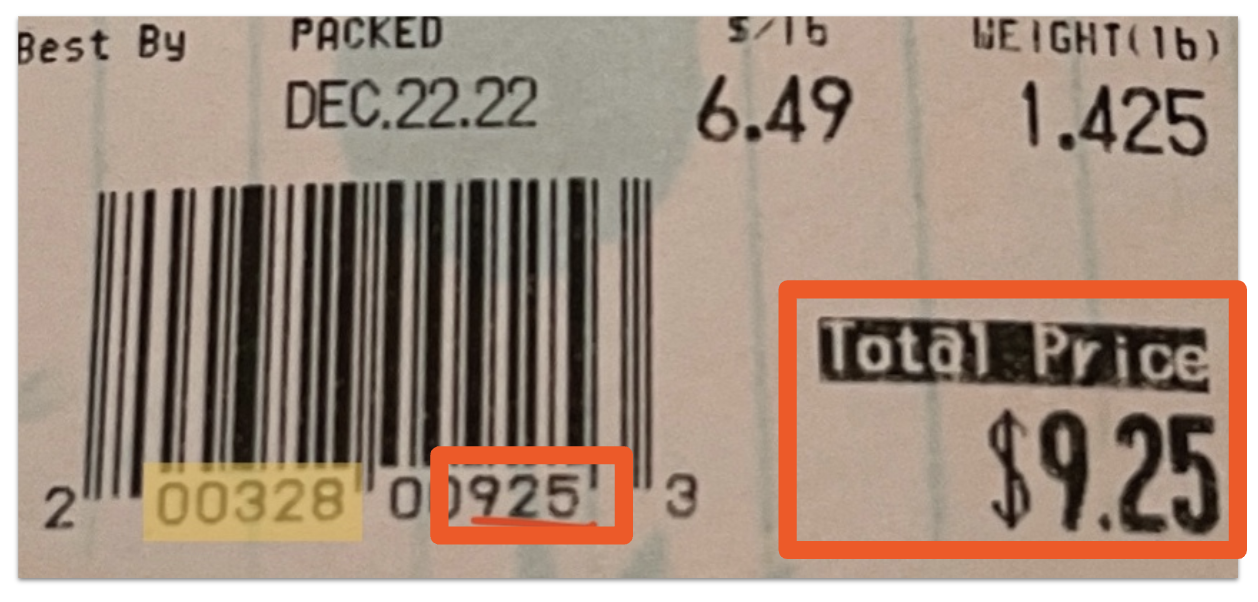
| Price | The amount is interpreted as a price, and a quantity is calculated by dividing the price by the base price of the item. | An item with amount 1264 is scanned and has a base price of $6.32. The item is added to the order with a price of $12.64 and a quantity of 2.
In the example below, the product number is highlighted in yellow within the barcode (00328) and the price is in the orange box (925, or $9.25)
|
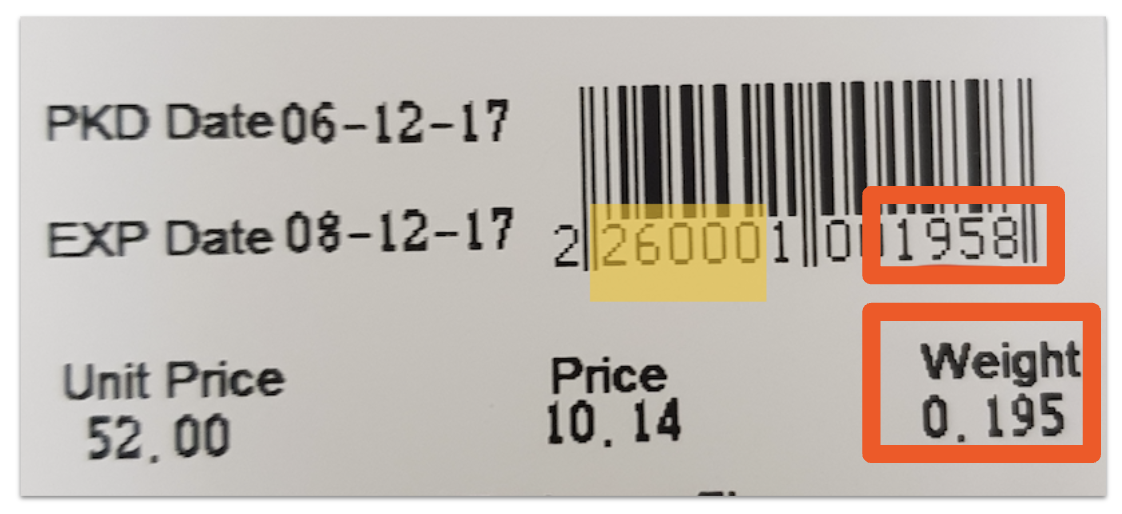
| Weight | The amount is interpreted as a weight, and the price is calculated by multiplying the weight by the base price of the item. | An item with amount 1050 is scanned and has a base price of $6.32. The item is added to the order with a price of $66.36 and a quantity of 10.5.
In the example below, the product number is highlighted in yellow within the barcode (26000) and the weight is in the orange box (0.1958).
|
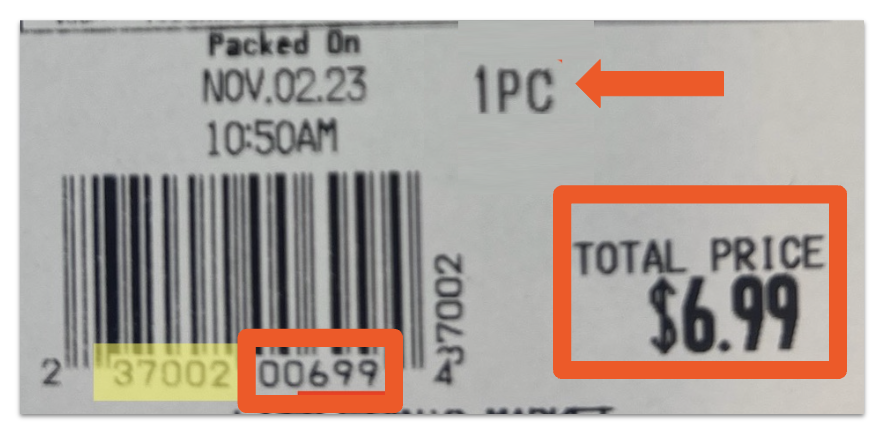
| Price Composed | The amount is interpreted as a price and the quantity is always one (1). The Price Composed type allows you to skip entering prices in Toast Web for items sold by weight, and instead only keep prices up to date on your scale. Toast will not resolve the quantity of the item sold in reports or on receipts beyond the count of items sold. | An item with amount 1264 is scanned. The item is added to the order with a price of $12.64 and a quantity of 1.
In the example below, you can see that the barcode indicates the amount is one unit (1 pc), and the total price is represented as the 699 in the barcode ($6.99).
|
Choose an Amount Type: Real-World Scenarios
Since all three amount types can technically represent the same sale, choosing between them comes down to where you want pricing and quantity tracking to live: on the scale, or in Toast. Here are some real-world scenarios to help decide.
Price
Example: Your specialty bulk foods store sells roasted almonds.
- The scale prints a barcode with the total price (say $6.40), but the POS already knows almonds are $8.00/lb.
- Toast divides $6.40 ÷ $8.00/lb = 0.8 lb.
Why choose this:
- Your business wants accurate quantity tracking for inventory (e.g., how many pounds of almonds sold).
- Pricing is centrally controlled in Toast (same price across all locations or registers).
- Scales don't need constant price updates — they just calculate totals.
Weight
Example: Your grocery store sells marinated olives at $5.00 per pound.
- The barcode encodes weight (e.g., 1.25 lb).
- Toast calculates price: 1.25 lb × $5.00/lb = $6.25.
Why choose this:
- Your business wants full control of pricing in Toast and flexibility to change it anytime.
- Ensures consistent pricing across all scales and stores without reprogramming scales.
- Still provides accurate weight-based inventory and reporting.
Price Composed
Example: Your co-op sells pre-packed containers of fresh-cut fruit (priced by weight on the scale).
- The scale calculates and embeds the final price (e.g., $4.75).
- Toast treats it as 1 item at $4.75, without calculating weight.
Why choose this:
- Your business wants all pricing handled on the scale, not in Toast.
- Useful when prices change frequently (e.g., different mixes, seasonal ingredients, or variable prep costs).
- Simpler operations: no need to maintain item pricing in Toast.
- Tradeoff: no visibility into actual weight sold, only item counts.
For barcodes with weight embedded, you'll specify the unit of measure (pounds, ounces, kilograms, grams) in either the POS configuration section of your retail item settings or the Weighing section of your menu item settings, depending on where you're setting up your item details.
| If you're setting up embedded barcodes with weighed items for the first time, contact Customer Care to get Weighed Items Configuration enabled for your account. |
Example of Embedded Barcode Setup
Here's an example of an embedded barcode and the steps to determine the configuration needed within Toast to support scanning this barcode.
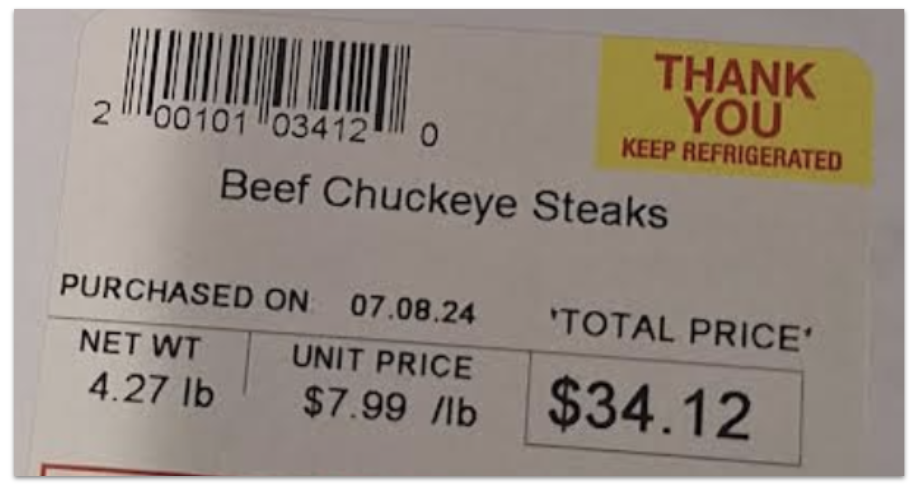
The barcode is in the top left corner of the label: 200101034120. To add this item to Toast and enable proper scanning of embedded barcodes like this, follow the steps below:
- Determine the barcode mask. This is a 12-digit barcode that begins with 2 (the "prefix"), so it must use mask 0 or 1 (see mask ID table here).
- Choosing between mask 0 or 1 depends on the use of the 7th digit in the barcode. If it is part of the price, you should use mask 1; if it is a calculated check digit, you should use mask 0.
- Determine what kind of embedded barcode this is. You can do this by looking at the amount digits. In this barcode example, that is 3412 or 03412, depending on the mask. Because this matches the price of the item, it is a price-embedded barcode.
Here is a breakdown of the parts of the barcode:
- 2 is the prefix. It is not used for item-level configuration.
- 00101 is the product number (sometimes called item identifier or PLU on scales). Enter this as the item's SKU (in a menu item editor) or barcode (in the retail item editor).
- 03412 is the embedded amount, and this is a price-embedded item.
- 0 is the check digit calculated based on the rest of the barcode. It is not used for item-level configuration.
Scale Certification
Toast can be configured to verify that your scale weighs items using the same units for which your items are configured. Contact Toast Customer Care to set up this configuration. Learn more in these Support Center articles: