Toast POS: FAQ and Troubleshooting
Last updated: Oct 1, 2026, 5:25 PM
Check out some frequently asked questions and recommended solutions/troubleshooting steps for using Toast's POS experience.
POS Display Settings
Can I use my POS terminal in portrait (vertical) mode?
Toast POS does not support portrait (vertical) mode on terminals — the POS experience is designed for landscape (horizontal) orientation only. If your terminal screen is rotated or not displaying correctly, set the Display Size setting on your Android device to Default to restore the expected layout.
Also asked as:
-
- "How do I rotate my POS screen back to landscape?"
- "Can my terminal be set to vertical mode?"
- "Why won't my screen rotate to portrait?"
Why are buttons missing from the bottom of my POS screen?
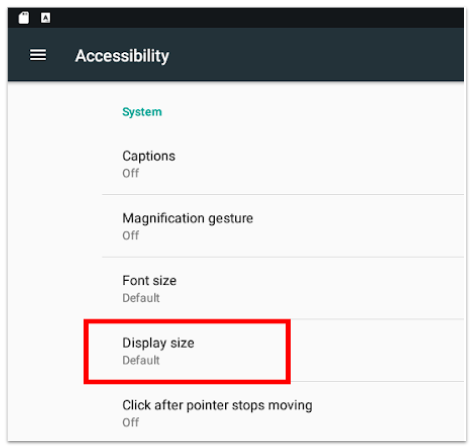
Missing buttons at the bottom of your POS screen are usually caused by the Android display or font size being set above the default, which causes the device to behave as if it is a smaller handheld device.
To fix missing buttons:
- On your Android device, navigate to Device Settings > Accessibility > Display size.
- Set both Display and Font sizes to Default.
- Confirm that buttons reappear on the POS screen.
Also asked as:
-
- "Why are my payment buttons missing?"
- "Why are buttons cut off on my POS screen?"
- "The bottom of my POS screen is missing options."
I'm using BlueStacks and the experience looks wrong.
If you are running Toast POS through BlueStacks and the display looks incorrect, change the resolution output in the BlueStacks emulator settings to a 1440p × 720p custom resolution. For instructions on adjusting BlueStacks resolution, see How to change screen resolution on BlueStacks 5 (external link).
Can I remove the search bar on my menu/order screen?
Yes, you can remove the search bar from the POS menu/order screen.
- In Toast Web, navigate to Front of House > Order Screen Setup.
- Toggle the Search bar for POS menu setting off.
- Save and publish your changes.
How do I change to dark mode or light mode?
To change between dark and light mode, navigate to Device Setup on the main menu of your Toast app. Scroll down to the POS Display Theme setting and select your preferred mode.
For side-by-side examples of light and dark mode, see Customize Your POS Experience.
Also asked as:
-
- "How do I switch my POS to dark mode?"
- "Where is the dark mode setting?"
- "How do I change the POS display theme?"
Why does my ordering screen look different?
If your menu or order screen appears in a new column-based layout, your device may have been switched from focus view (the classic order screen layout) to open view (a simplified layout that shows more menu items at once).
To learn more about open view or to switch back to focus view, see Get Started With Open View.
Also asked as:
-
- "Why does my POS look different than before?"
- "My order screen changed to a different layout."
- "What is the column view on my POS?"
Can I rotate my handheld device to landscape mode to view my table layout?
No. At this time, handheld devices cannot be rotated to landscape mode to view the table layout.
Manage Your Orders
How does order by seat work on the POS?
Order by seat is the default workflow for entering orders with seat numbers in Toast POS. After selecting a seat number on the check details screen, any items you add to the order are automatically assigned to that seat.
To learn more, see Use Order by Seat.
Also asked as:
-
- "How do I ring in orders by seat number?"
- "How do seat numbers work on the POS?"
- "How do I assign items to a seat?"
How do I disable order by seat?
To disable order by seat, navigate to Front of House in Toast Web and toggle the Order by seat setting to the Off position. For detailed steps, see Use Order by Seat.
Also asked as:
-
- "How do I remove the seat number requirement?"
- "How do I stop the POS from asking for seat numbers?"
- "How do I turn off seat assignments?"
Why are some items held and not being sent to the kitchen?
Items held and not sent to the kitchen are controlled by the server item firing feature, which gives servers full control over meal pacing. With server item firing enabled, held items must be individually selected and sent from the POS — they will not fire automatically.
To send a held item, select the item on the check and select Send.
For a full overview of server item firing and how to configure it, see Use Server Item Firing at Your Restaurant.
Note: Server item firing and course pacing cannot be enabled at the same time. If you want to use course pacing instead, disable the Individually Hold and Send Items setting on the Front of House page in Toast Web.
Also asked as:
-
- "Why aren't my orders going to the kitchen?"
- "How do I send held items to the kitchen?"
- "Items are stuck on hold — how do I fire them?"
Items on my check are appearing red. What does this mean?
Items appearing red on a check means they are held and have not yet been sent to the kitchen. To send a red (held) item to the kitchen, select the item on the check and select Send.
If server item firing is enabled at your restaurant, all held items must be manually sent by the server. See Use Server Item Firing at Your Restaurant to learn more or to change this setting.
Also asked as:
-
- "Why are my check items showing in red?"
- "What does a red item on the check mean?"
- "Items turned red on my POS — what do I do?"
Why am I being prompted to assign a course before sending an order?
Being prompted to assign a course before sending an order means required courses are enabled at your restaurant. When enabled, you can set coursing to Required, Optional, or Off for both Quick Order and Table Service modes.
To change the coursing setting, navigate to the Front of House page in Toast Web and find the Coursing setting for each mode. For detailed instructions, see Manage Course Firing Options.
Note: When course pacing is enabled, all kitchen tickets are separated by course by design. There is no way to display all items on a single kitchen ticket while course pacing is active. To remove course separation from kitchen tickets, disable course pacing.
Also asked as:
-
- "How do I turn off the coursing prompt?"
- "How do I remove the required courses setting?"
- "Why does my POS ask me to pick a course for every item?"
Why are more payment options now showing on my payment screen?
Additional payment options that were previously hidden by default may now be visible on your payment screen. To hide specific payment options, see Set Up Other Payment Options.
Can I prevent staff from splitting checks?
Yes. By default, any employee with the 1.1 Table Service Mode permission was also given the 1.20 Split Checks permission. You can disable the 1.20 Split Checks permission for specific jobs or employees in Toast Web.
Employees without this permission are prompted to enter a manager passcode (also called a manager code) when they select Split Checks on the order screen.
Note: This restriction is not available on Elo V1 devices.
How do I let servers split checks without a manager code?
To let servers split checks without entering a manager code, enable the 1.20 Split Checks permission for the server's job or employee profile in Toast Web. Employees with this permission can split checks without manager approval.
- In Toast Web, navigate to Team > Settings > Jobs (or Team > Employees for an individual employee).
- Select the job or employee you want to update.
- Find the 1.20 Split Checks permission and enable it.
- Save your changes and resync data on your POS devices.
Also asked as:
-
- "How do I allow servers to split checks?"
- "How do I remove the manager code requirement for splitting checks?"
- "Why do my servers need a manager code to split a check?"
Why did the Split Check button move to the overflow menu?
The Split button was moved to the check overflow menu (the three vertical dots in the upper right corner of the check details) as part of a recent POS update. To split a check, select the overflow menu icon on the check details screen and choose Split.
Also asked as:
-
- "Where did the split check button go?"
- "I can't find the split check option anymore."
- "How do I split a check after the update?"
During shift review, can I close multiple checks at once?
Yes, you can close multiple checks at once during shift review. See Manage Checks in Bulk on the POS for instructions.
Manage Your Tables
Why do I have to select "Update" to open a table?
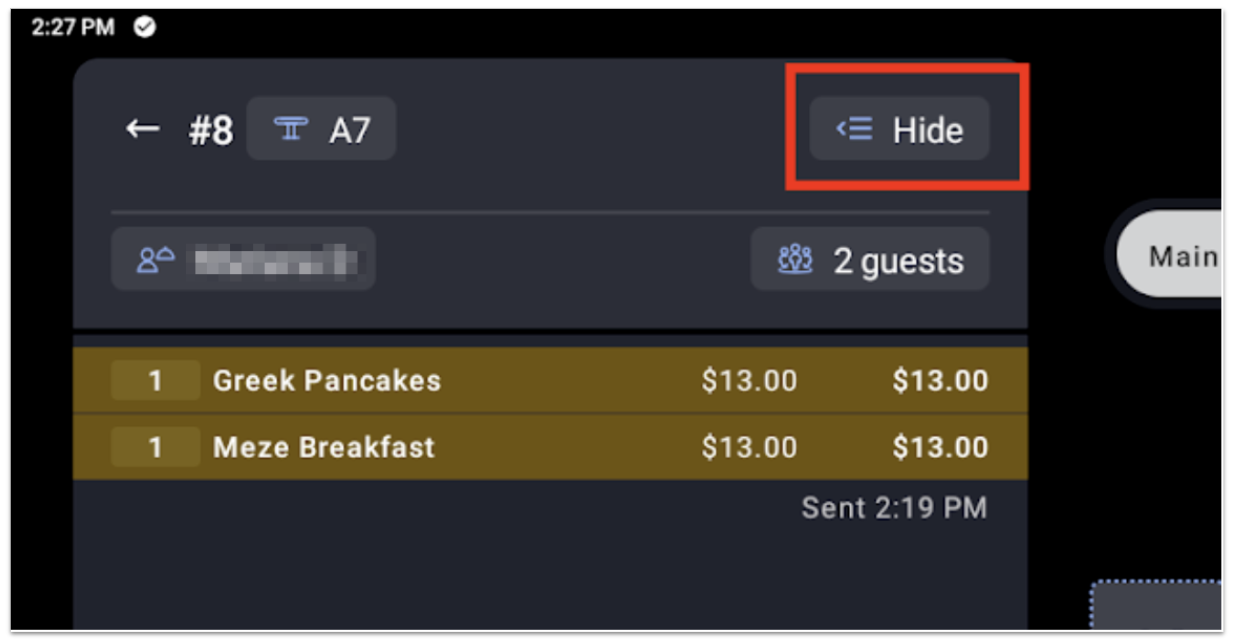
The table details pane is open by default in Table Service mode. When the pane is visible, selecting a table shows a preview of the check rather than opening the order screen directly — you then need to select Update to proceed.
To open a table directly without selecting Update, close the table details pane by selecting Hide in the top right corner of the pane. When the pane is hidden, selecting a table opens the order screen immediately.
For a full overview of the table details pane, see Manage Tables With Toast POS.
Also asked as:
-
- "Why do I have to click Update to open a table?"
- "How do I open a table without the Update button?"
- "How do I hide the check details pane?"
How do I hide the total table spend from other servers?
The total table spend is always visible for a server's own tables. To hide total table spend and other check details for tables owned by other servers, disable the 1.8 View Other Employees' Orders permission for the relevant job or employee in Toast Web.
Disabling this permission also removes other employees' checks from the All checks and Payment Terminal screens.
Also asked as:
-
- "Can I turn off the total table spend?"
- "How do I stop servers from seeing other tables' spending?"
- "How do I hide table data from my staff?"
Why aren't my tables showing up on the POS?
If you've built your table layout and your settings are correct but tables still don't appear on the POS, confirm you built actual tables — not barriers and labels only. Barriers and labels are layout elements; they don't create sections you can seat guests at or ring in orders against.
Also asked as:
-
- "My tables aren't showing on the POS even though I set them up."
- "Why is my table layout empty on the POS?"
Related Articles
- Manage Orders With Toast POS
- Manage Tables With Toast POS
- Customize Your POS Experience
- Manage Checks in Bulk on the POS
- Use Server Item Firing at Your Restaurant