Customize Your POS Experience
Last updated: Sep 21, 2026, 1:39 PM
Learn how to set up your POS experience, switch between light and dark modes, and customize your POS passcode screen with your restaurant logo.
- Switch Between Dark and Light Mode
- Set the Screen Your POS Opens To
- Customize Your POS Passcode Screens
- Additional Resources
Switch Between Dark and Light Mode
You have the option to toggle between Light mode, which uses white/gray backgrounds and buttons, or Dark mode, which uses black backgrounds and buttons on the POS.
Dark and light mode settings are unique to each device, so if you need a darker terminal by the bar but a brighter terminal in the dining room, you can set them up separately.
Modes can be changed by navigating to Device Setup on the device:
- Navigate to Setup > Device Setup on your POS main menu. To get to your POS main menu from the ordering screen, select the back arrow in the top left corner of the screen.
- Scroll down and select POS Display Theme from the Device Setup section.
- Once selected, a new screen will appear, allowing you to select Light mode or Dark mode.
- Select Save to confirm your selection.
Note: Once configured, you can confirm a device’s POS Display Theme (Light/Dark mode) remotely via the Settings tab in Device Hub, without walking up to each terminal.
Set the Screen Your POS Opens To
Each device can open to the screen your staff uses most. This is the device's Primary Mode, and it is the screen that appears right after someone enters their passcode. Like light and dark mode, Primary Mode is set per device, so a bar terminal can open to Payment Terminal while a server station opens to Table Service.
- Navigate to Setup > Device Setup on your POS main menu. To get to your POS main menu from the ordering screen, select the back arrow in the top left corner of the screen.
- Select Primary Mode.
- Select the screen you want this device to open to.
- Select Save to confirm your selection.
Note: Once configured, you can confirm a device's Primary Mode remotely via the Settings tab in Device Hub, without walking up to each terminal.
For the full list of available modes and every other device-level setting, see POS Device Setup Overview.
Customize Your POS Passcode Screens
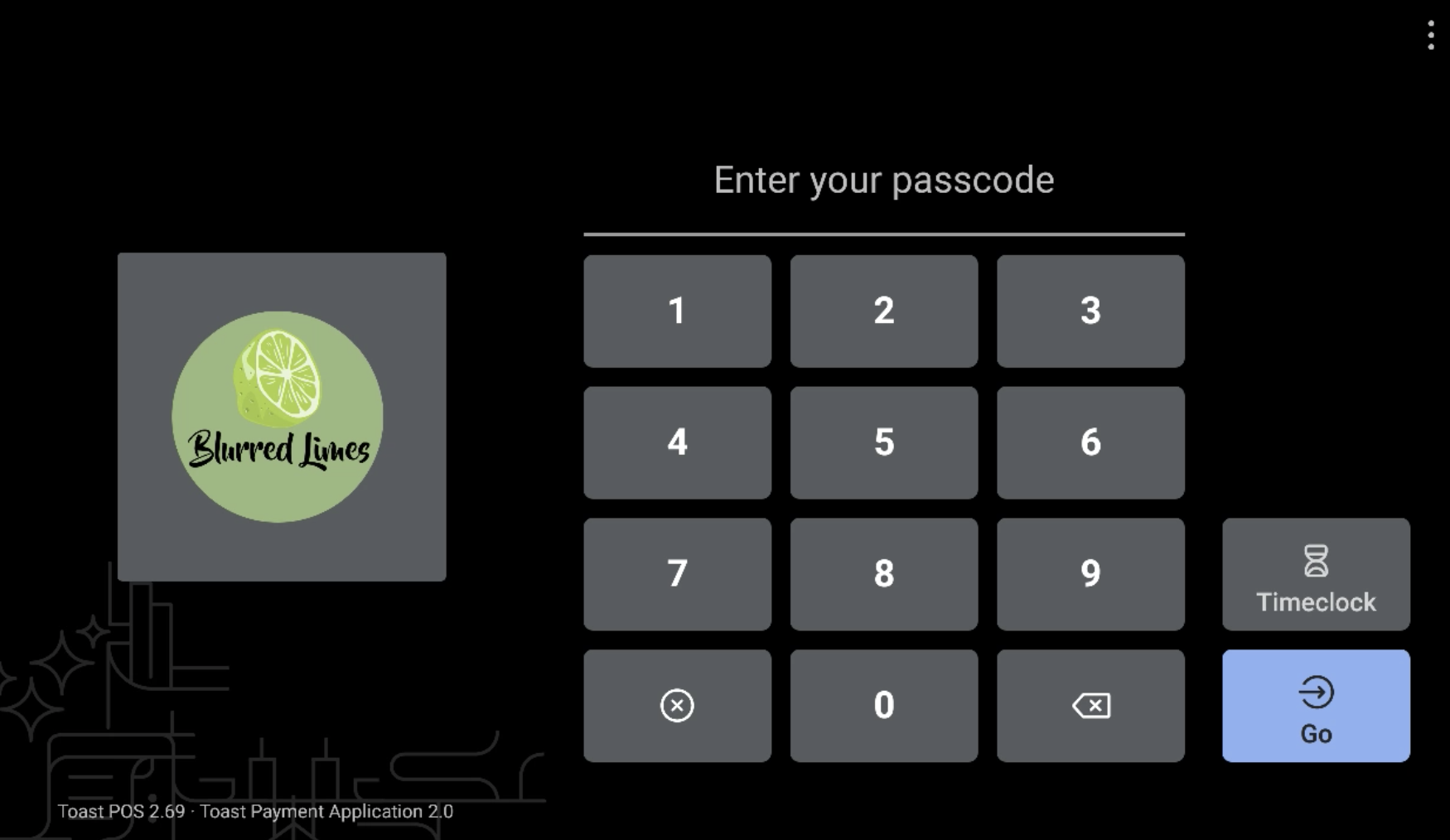
With Toast's revamped POS passcode screen, you can now upload your restaurant's logo on the passcode screen (login screen).
- In Toast Web navigate to Takeout & delivery > Toast order sources > Restaurant info.
- Scroll down to Restaurant Logo setting and select Choose Image. Find the image you would like to use as your logo and add it here. See our logo specifications:
- Square image at least 304 px x 304 px (1:1 aspect ratio)
- Must be .png files
- The image looks best with a transparent background instead of a colored background
- Save and publish your changes.
Your logo will appear on your POS passcode screen.