Order Ready Board Overview & Configuration
Last updated: Sep 17, 2026, 2:23 PM
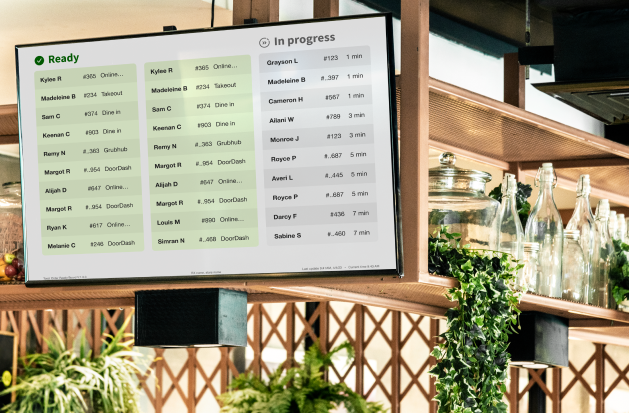
- Order Ready Board Overview
- Connect a PC stick to a monitor/TV
- Configure the Order Ready Board
- Select a Color Theme
- Select an Order Font Size
- Select How to Sort Ready Orders
- Choose to Show the Dining Option Name on Ready Orders
- Choose to Show the Estimated Fulfillment Time for In Progress Orders
- Turn On and Configure How Long Ready Orders Are Shown
- Choose to Show the Information Bar
- Select Dining Options
- Display the Order Ready Board
- Install the Display for the Order Ready Board
- Using the Order Ready Board
- Frequently Asked Questions
- Why aren't my orders moving from the In Progress column to the Order Ready column?
- What are the minutes listed next to my In Progress order?
- I have multiple TVs/monitors in my restaurant, can I use one TV/monitor to display Takeout orders, and another for Delivery orders? Or can I have one set to just show in In Progress orders and the other show Order Ready orders?
- How do orders get removed from the Order Ready Board?
- The Order Ready Board is timing and logging out to the main Toast screen. What can I do?
- Previous orders are still appearing on the Order Ready Board. How can I remove them?
- Can you use the Order Ready Board in both portrait or landscape mode?
- Are software updates for the Order Ready Board automatic?
- Can I use my smart TV's built-in browser instead of a PC stick?
Order Ready Board Overview
Using an Order Ready Board provides many benefits to you and your guests:
- Offer guest and driver visibility - shows guests and delivery drivers their order status to minimize wait and ensure food is fresh.
- Reduce labor needs - let your staff focus on critical tasks rather than just checking in on the status of takeout and delivery orders.
- Optimize your footprint - use the screen that best fits your space and needs to match your restaurant aesthetic.
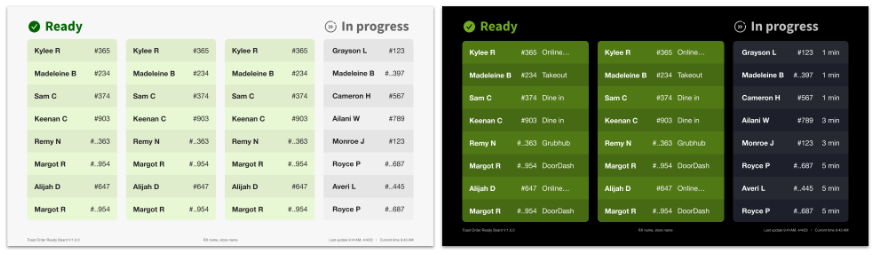
Each Order Ready entry displays detailed order information on the Order Ready Board. The following information listed below can be shown. Note that certain information, such as the dining option name, may not appear if no dining option is selected.
- Guest first name and last initial (tab name will appear if there is no guest name available)
- Order number
- Dining option name (for example, Toast Online Ordering, Takeout, DoorDash, etc.)
- Fulfillment time (only for In Progress orders)
Note: If overflow orders do not fit on one screen, the Order Ready Board updates and paginates to show these orders.
Back to top
Connect a PC stick to a monitor/TV
To display the Order Ready Board, connect a PC stick to a monitor or TV, or use your smart TV or monitor's built-in web browser instead.
Note: The Intel Windows 11 Mini Stick is no longer sold by Intel. Until this article is updated with a new recommended device, use any current Windows 11 mini PC stick with an HDMI output and enough USB ports for a wired keyboard and mouse, or skip a separate PC stick entirely by opening https://toasttab.com/order-display directly in your smart TV or monitor's built-in web browser.
The steps below use the Intel Windows 11 Mini Stick for illustration. If you're using a different Windows 11 mini PC stick, the general steps are the same, but menus, ports, and button placement may vary slightly by device.
Intel Windows Mini Stick components
The Intel Windows Mini Stick contains the following components:
- Intel Windows Mini Stick
- HDMI extender cable
- USB-C wall power cable and block
Back to top
Install and connect the mini PC stick
To install and connect the Intel Windows Mini Stick, the following must be provided by the customer:
- A USB-B wired keyboard
- A USB-B wired mouse
To install the Intel Windows Mini Stick:
- Connect the HDMI extender cable to the HDMI port located on either the side or the back of the monitor/TV.
- Connect the USB-C wall power cable to the Intel Windows Mini Stick.
- Plug the USB-C wall power cable and block into a power outlet.
- Plug the keyboard and mouse into a USB-B port on the Intel Windows Mini Stick. There are 3 sets of USB-B ports on the Intel Windows Mini Stick. You can use any of the ports.
- Press the Power button on the Intel Windows Mini Stick.
- Turn on the monitor/TV. The monitor/TV should display the Intel Windows Mini Stick on-screen setup instructions. Follow the on-screen setup instructions.
- Select your country or region. Select Yes to continue.
- Select your preferred keyboard or input method. Select Yes to continue. Skip the secondary keyboard input prompt.
- Review the License Agreement. Select Accept to continue.
- Enter a name for the Intel Windows Mini Stick. For example, Toast ORB.
- Create a password and configure 3 security questions.
- Choose how to connect to the internet. You can choose to either:
- Connect an Ethernet cable to the Ethernet port on the Intel Windows Mini Stick. Toast support recommends you connect via Ethernet if possible.
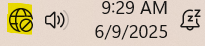
- Configure Wi-Fi settings on the monitor/TV. To connect to Wi-Fi, select the connection icon at the bottom right of the screen next to the time and date icons.
- Configure your Wi-Fi settings and password.
- Select the Windows button (
) on the bottom of the screen and select Settings.
- Navigate to the Find Settings search box, and type Power.
- Select the Power, sleep, and battery setting:
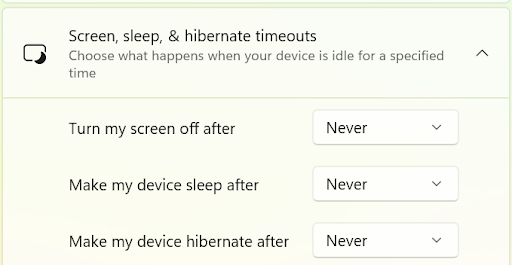
- Select Screen, sleep & hibernate timeouts.
- Select Turn my screen off after and change the setting to Never.
- Select Make my device sleep after and change the setting to Never.
- Select Make my device hibernate after and change the setting to Never.
- Turning these settings to Never ensures that the Order Ready Board does not turn off during operation.
- Navigate to the Find Settings search box, and type Notifications.
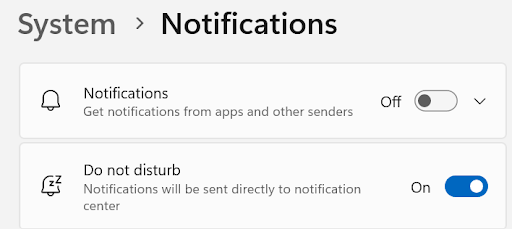
- Select the Notifications & actions setting:
- Select Notifications and toggle the setting to Off.
- Select Do not disturb and toggle the setting to On.
- Open a web browser (Google Chrome, Mozilla Firefox, or Microsoft Edge). Toast support recommends you use the Microsoft Edge web browser.
- Navigate to https://toasttab.com/order-display.
- Note: Prior to configuring Order Ready Board settings, Toast support recommends you create a separate employee account to configure settings. This account should only have 8.4 Order Ready Board Access permission.
- Log in to the employee account and, using the mouse, select the location to display the Order Ready Board.
- Press the F11 button on the keyboard to toggle the web browser to full screen.
Configure The Order Ready Board
| To access the Order Ready Board configuration page, you must have 6.6 Restaurant Operations Setup permission. This permission also allows you to access and display the Order Ready Board. To only access and display the Order Ready Board in your restaurant, you must have 8.4 Order Ready Board Access permission. For Toast Web permissions information, visit the Permissions Reference Guide article. |
- In Toast Web, navigate to Takeout & delivery > Order ready board > Order ready board settings.
- On the Order Ready Board configuration page, you can complete the following actions:
- Launch the Order Ready Board
- Select color theme
- Select display orientation
- Select the order font size
- Select how to sort ready orders
- Choose if dining option names show on ready orders
- Choose to show estimated fulfillment time on In Progress orders
- Enter the number of minutes orders that are ready are shown on the Order Ready Board
- Choose to show an information bar
- Select the dining options to be shown on the Order Ready Board. Only orders with the selected dining options are displayed
- Save and publish any changes.
Select a Color Theme for the Order Ready Board
Select either light mode or dark mode for the Order Ready Board.
- Light: White and gray with black text
- Dark: Black and gray with white text
Restaurants, bars, and breweries with a darker color scheme may benefit from enabling dark mode.
Select an Order Font Size
Select an order font size. The order font size adjusts the size of text on your orders. You can choose from:
- Small: Recommended for smaller restaurant and store layouts, or if you have a large average number of orders
- Medium: Recommended for most restaurant and store layouts
- Large: Recommended for larger restaurant and store layouts, or if you have a small average number of orders
Select How to Sort Ready Orders
Select which order to show Order Ready orders on the Order Ready Board. You can choose from:
- Newest (orders) on top
- Oldest (orders) on top
Choose to Show the Dining Option Name on Ready Orders
Choose to show the dining option name on ready orders. The dining option name appears in line with the guest’s first name and last initial. To choose to show the dining option name on ready orders:
- Toggle the setting from the Off to the On position.
- Select the Save button and then Publish all changes.
Choose to Show the Estimated Fulfillment Time for In Progress Orders
Choose to show the estimated fulfillment time for In Progress orders. The fulfillment time is based on the quoted time set in Toast Web.
- Toggle the setting from the Off to the On position.
- Select the Save button and then Publish all changes.
Turn On and Configure How Long Ready Orders Are Shown
Note: Removing orders from the Order Ready Board does not affect their status or remove them from the POS.
Choose to turn on and configure a timer for how long Order Ready orders are shown before they are removed from the Order Ready Board.
- To enable the timer, toggle the setting from Off to On.
- In the numeric field, enter the length of time in minutes. This field is required, and the number must be greater than zero.
- Select the Save and Publish buttons to finalize your changes.
Choose to Show the Information Bar
Note: Toast recommends you display the information bar. The information in the bar can be used to assist with troubleshooting and customer support questions.
Choose to show or hide the Order Ready Board information bar. The information bar displays the version number, store name, location, and the last update time and date. Displaying the information bar does not reduce the space used to show orders.
Select Dining Options
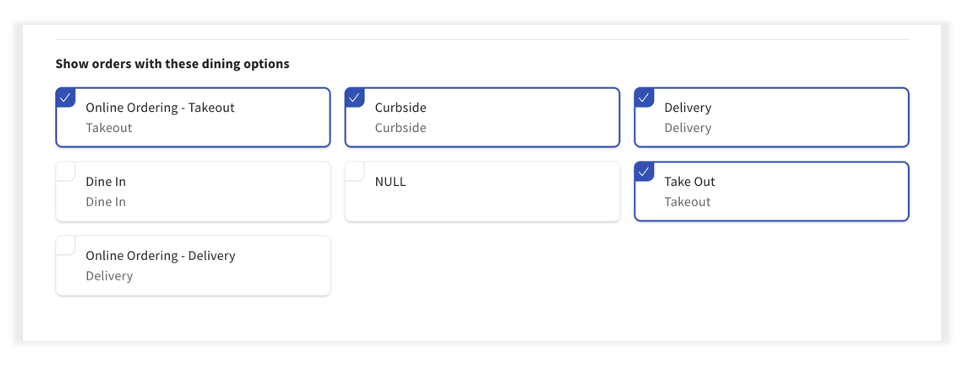
Choose all the dining options you want to be shown on the Order Ready Board. Only orders with the selected dining options appear on the Order Ready Board. At least one dining option must be selected to be displayed on the Order Ready Board, but multiple dining options can be selected. The default setting will reflect all dining options selected in Toast Web. For more information on setting dining options, see Configure Custom Dining Options.
Display the Order Ready Board
You can choose to show the Order Ready Board in a variety of ways, including:
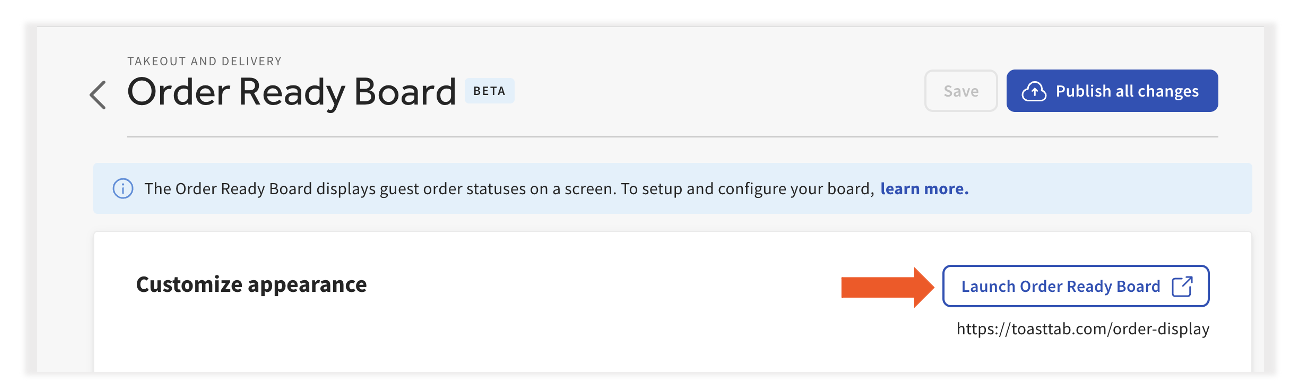
- Logging into the Order Ready Board on a computer/device and connecting it via an HDMI cable. Select the Launch Order Ready Board button to launch and show the Order Ready Board.
- Casting the Order Ready Board onto a screen or TV.
- Logging into the Order Ready Board on a Smart TV browser.
Note: Toast no longer supports the use of the Order Ready Board with the Amazon Fire TV Stick.
See the following sections of this article for guidance on selecting a location for your Order Ready Board and mounting your screen, if applicable.
Install the Display for the Order Ready Board
Readability and Screen Location for the Order Ready Board
Set up your screen in a location that:
- has high guest traffic and visibility
- has a sturdy mounting surface, if applicable
- is within a reasonable distance of a reliable power source (electrical outlet)
- is away from lighting fixtures and or windows that can cause glare. Reduce glare by purchasing anti-glare screens, adjusting lighting, or tilting and rotating the screen or TV.
- is in a location that does not have signage or another screen nearby. Placing the Order Ready Board nearby other signage may distract from the Order Ready Board.
- matches the ambiance of the restaurant/room to the Order Ready Board. Select either light or dark mode for your Order Ready Board.
- allows it to be easily read from 10-15 feet away. Note that this is a recommendation, and that you should place the Order Ready Board in a location that best fits your restaurant’s layout and space.
Make sure to test the readability of the Order Ready Board before going live or opening your restaurant. You can configure your on-screen readability in Toast Web.
| Screen size | 32 inches | 43 inches | 48 inches | 55 inches | 65 inches |
| Distance from screen to guest | 6 feet | 10 feet | 12 feet | 16 feet | 18 feet |
Mounting and Cable Management for the Order Ready Board
Note: You cannot stack or align multiple TVs or screens to show overflow orders. The Order Ready Board can only be shown on one screen or TV.
- Determine the best mounting surface for your setup, if applicable. To determine how to mount your screen, along with following all applicable third-party instructions and guidance relevant to your mounting solution, look for the VESA pattern on the back of the screen. The VESA pattern corresponds to the type of mount/stand for the screen. The VESA pattern can be one of the following sizes:
- 75 x 75
- 100 x 100
- Find and implement a cable management solution to organize cords and reduce potential safety hazards. Remember to follow all applicable third-party cable guidance and instructions.
- Place your screen or TV near a reliable power source (electrical outlet). Place your screen or TV within three to six feet of a grounded electrical outlet.
- Consult with an electrician to ensure you are following electrical best practices and policies before mounting your screen or TV.
To help you provide a better guest experience, Toast recommends that you take the following into consideration when determining the mounting solution appropriate for your restaurant:
- Fixed/tilt functionality mounts that allow screens or TVs to be tilted or rotated for visibility and viewing comfort.
Using the Order Ready Board
Log Into and Launch the Order Ready Board
Once all customization selections are complete, you are now ready to launch your Order Ready Board.
Note: You can launch the Order Ready Board by selecting the Launch Order Ready Board button in Toast Web.
You can log in and launch the Order Ready Board through Toast Web or via the Toast authentication link: https://www.toasttab.com/order-display. Copy and paste the link into your browser.
Use your Toast credentials to log in and launch the Order Ready Board.
After logging in, select the restaurant you want to display orders. Select the Submit button to save your selection and launch the Order Ready Board.
Note: The Order Ready Board software version is at the bottom of the page. Toast recommends you reference the software version if you have problems or issues with the Order Ready Board.
Switch Restaurants for the Order Ready Board
If you have multiple restaurant locations, you can switch between locations on the Order Ready Board. To switch restaurants:
- Refresh the https://www.toasttab.com/order-display page. A Toast logo appears.
- The Order Ready Board homepage shows all your restaurant locations. Select the restaurant location where you want to display orders.
- Select the Submit button to save your selection and launch the Order Ready Board.
Mark KDS-Fulfilled Orders as Order Ready
You can choose to have orders fulfilled by the Kitchen Display System (KDS) automatically marked as Order Ready in Orders Hub. On the Order Ready Board, this moves the order from the In Progress column to the Order Ready column.
Note: Only orders fulfilled on an expediter KDS device can be marked as Order Ready in Orders Hub.
To enable the KDS configuration:
- In Toast Web, navigate to Takeout & delivery > Orders Hub > Order ready guest messaging to open the Kitchen Display System (KDS) configuration page.
- To turn on the KDS configuration, toggle the Mark KDS-fulfilled orders as Order Ready setting to On.
- Save and publish changes.
- A Confirm Publish dialog box will appear. Select Publish to publish your changes or Cancel to cancel the dialog box.
Note: To turn off the KDS configuration, select the toggle to Off, then Save and Publish your changes.
Frequently Asked Questions - Order Ready Board
Why aren’t my orders moving from the In Progress column to the Order Ready column?
Orders may not be moving from the In Progress column to the Order Ready column for various reasons. Check the following Toast settings:
Orders Hub:
-
- If you're using the Orders Hub, check that you are marking orders as Order Ready.
- If you are not using Orders Hub, verify that you have the Mark KDS-fulfilled orders as Order Ready toggle set to On. For more information, see Order Ready Text Messaging from the Orders Hub.
Order fulfillment:
-
- Check that you have a device that can mark orders as fulfilled on the expediter level.
- If you're using use multi-level fulfillment, check that you are using a level-2 KDS expediter. For more information, see Set Up KDS Two-Level Fulfillment.
- If you're using a single-level fulfillment, ensure that the Individual item fulfillment setting is disabled. To disable it, navigate to Kitchen > Printer Tickets, & KDS Devices > Kitchen > scroll down to the Ticket Screens section in Toast Web. In the Fulfill item section, select "Disable individual item fulfillment" and select "Save".
- Check that you have a device that can mark orders as fulfilled on the expediter level.
What are the minutes listed next to my In Progress order?
In Progress orders show the fulfillment time to the right of the guest name. The fulfillment time is based on the preparation time for each order. For Takeout, Curbside, or Delivery orders, the preparation time is based on the quote times set in Toasts Web. For more information on quote times, see Manage Your Quote Time Strategy. For Dine-In orders, a preparation time can be assigned using the Schedule order button on the Quick Order screen.
I have multiple TVs/monitors in my restaurant, can I use one TV/monitor to display Takeout orders, and another for Delivery orders? Or can I have one set to just show in In Progress orders and the other show Order Ready orders?
At the time of publication, the Order Ready Board can be shown on multiple TVs/monitors, but will show the same content. The content that is shown cannot be customized per TV/monitor.
How do orders get removed from the Order Ready Board?
Orders are automatically removed from the Order Ready Board at the closeout hour (4 a.m. local time). Order Ready orders can be configured to be removed from the Order Ready Board after a specified amount of time with the Order Ready timer. You can also choose to bulk update in the Orders Hub by using the multi-select option. For more information, see the Multi-Selecting Orders in the Orders Hub section of Manage Off-Premise Orders With Orders Hub article.
The Order Ready Board is timing and logging out to the main Toast screen. What can I do?
Customers may periodically be logged out of the Order Ready Board. Toast recommends you log into the Order Ready Board with your Toast credentials. If you have any questions, contact Toast Customer Care.
Previous orders are still appearing on the Order Ready Board. How can I remove them?
Toast recommends that you try the following to remove previous orders from the Order Ready Board:
-
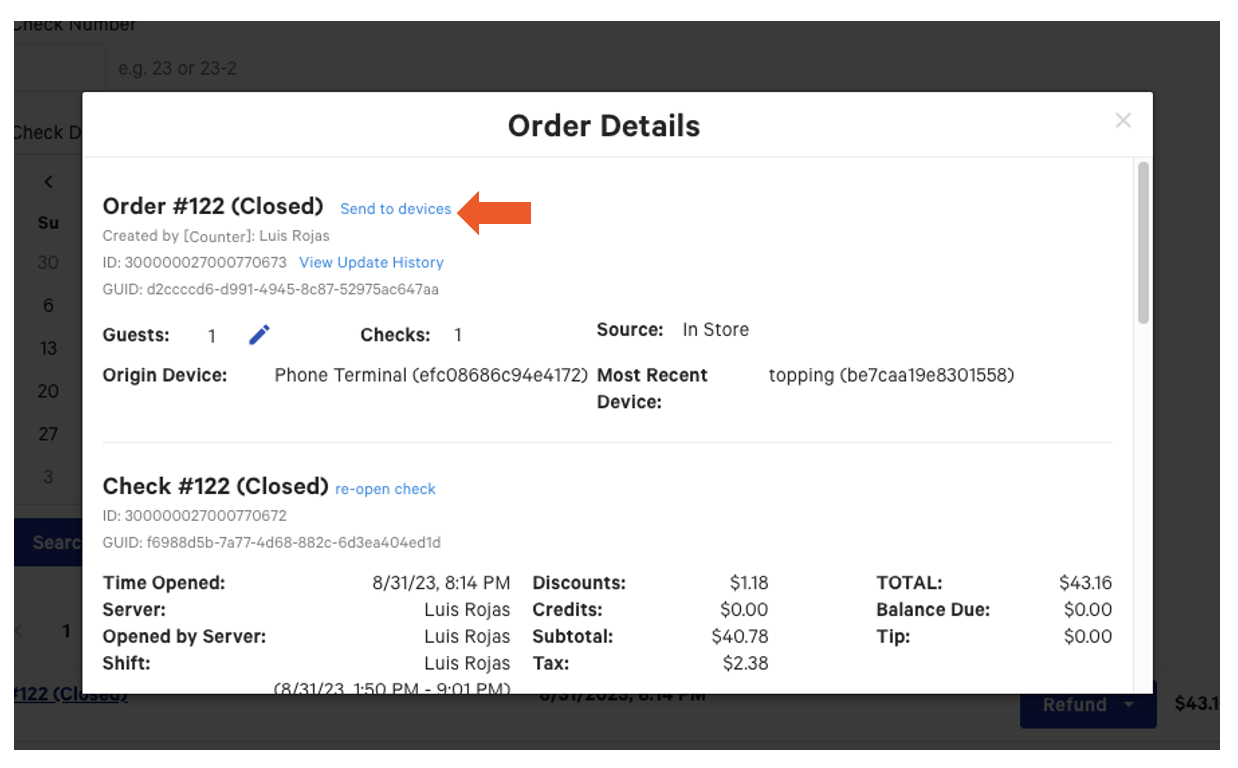
- Use the Find checks feature in Toast Web.
- Locate the check. This opens a dialog box.
- In the dialog box, select the Send to devices button.
- Locate the check in Orders Hub.
- Mark the order as Order Ready in Orders Hub.
Can you use the Order Ready Board in both portrait or landscape mode?
The Order Ready Board can be used in either portrait or landscape mode if connecting via HDMI or a smart TV browser.
Are software updates for the Order Ready Board automatic?
Yes, software updates for the Order Ready Board are completed automatically.
Can I use my smart TV's built-in browser instead of a PC stick?
Yes. If your TV or monitor has a built-in web browser, you can open https://toasttab.com/order-display directly on the smart TV and skip installing a separate PC stick. A dedicated PC stick does give you more control over the display's power, sleep, and notification settings, so if your smart TV's browser doesn't let you disable sleep mode or notifications, orders may temporarily disappear from view.