Pool Tips and Tipping Out
Last updated: Oct 2, 2026, 2:20 PM
| If your restaurant uses Toast Tips Manager (TTM), do not use this article. TTM is the canonical tip pooling product and uses a different setup. Go to Get Started With Toast Tips Manager instead.
Toast Tipout is a separate product — an instant-payout debit card for tipped employees. This article covers the tip-out action (the manager workflow for sharing tip earnings). If you are looking for the Toast Pay Card, read Toast Payroll: Get Started With Toast Pay Card - Employer Guide. |
- Before You Begin
- Share Cash Tips Among Staff Using Negative Declared Tips
- Set Up Percentage Tip-Out by Sales Category
- Pool Tips Among Servers Using the Pooled Tips Report
- Pool Tips for Online Orders
- Frequently Asked Questions
- Related Articles
Before You Begin
Applies to: Toast POS, Toast Web, restaurants without Toast Tips Manager
Permissions needed:
- 3.13 Negative Declared Tips (for managers approving negative declared cash tips)
- 3.12 Shift Review (for editing declared cash tips on closed shifts)
- Toast Web access to Team > Settings > Advanced shift review setup
What you'll accomplish: Configure one or more non–Tips Manager workflows so your staff can share tip earnings — using negative declared cash tips for ad-hoc redistribution, percentage tip-out by sales category for rules-based shares, the Pooled Tips report for tip-pool calculations, or shared-employee setup for online order tip distribution.
Share Cash Tips Among Staff Using Negative Declared Tips
In some restaurants, servers and bartenders share part of their cash earnings with bussers, food runners, or dishwashers at the end of each shift. You can record those transfers in shift review by allowing tipped employees to declare a negative cash tip amount when they have paid that money to a co-worker, while the receiving co-worker declares a positive amount.
When to use this: You handle tip-outs informally between employees (servers hand cash to bussers), and you want the transfers to show up correctly in shift review and payroll.
Set Up Negative Declared Cash Tips
- In Toast Web, navigate to Team > Settings > Advanced shift review setup.
- Under the Declare cash tips section, select Tipped employees must declare cash tips for Declare cash tips.
- Select Allow for Negative Cash Tips to allow negative declared tips in shift review with manager approval.
- Select Save and Publish to apply your changes.
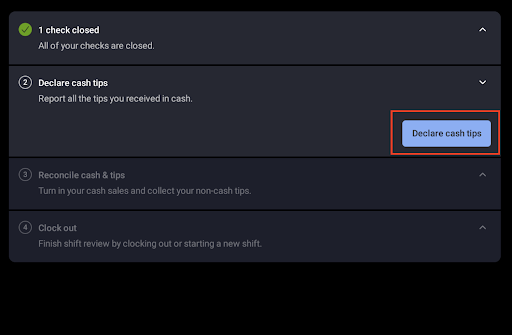
- During shift review, the employee selects Declare to declare cash tips.
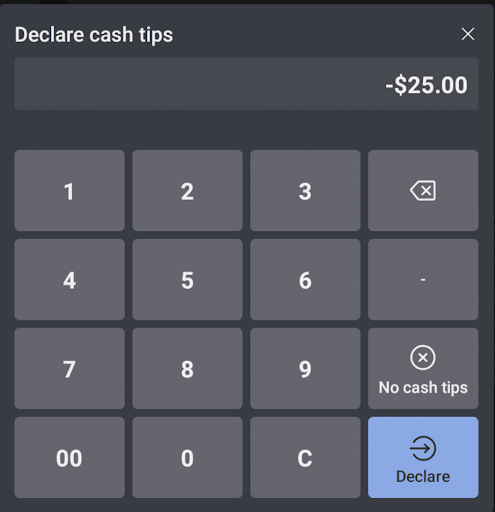
- To record a negative amount, the employee enters the negative sign followed by the numeric value. The employee selects Declare to record the entry.
- The negative declared cash tip value appears below Credit/Non-Cash Tips in that employee's Shift Review Report.
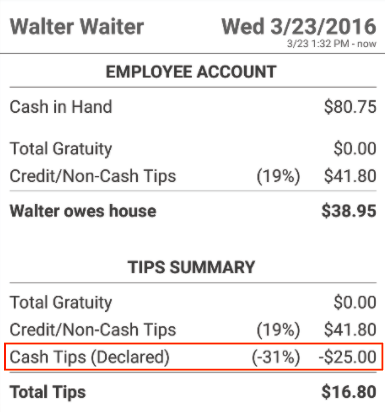
Expected outcome: Tipped employees can declare a negative cash tip amount when they hand cash to a co-worker. The receiving employee declares a matching positive amount on their own shift review. Both entries flow into shift review reporting and payroll.
Example: Bartender Mike Shares Cash With Busser John
- Bartender Mike has $200 in tips (cash or non-cash) and owes Busser John 10%.
- Bartender Mike declares -$20 in cash tips on his shift review and hands the money to Busser John.
- Busser John declares +$20 on his clock out.
The net is correct in each employee's shift review report.
Edit Declared Cash Tips After the Fact
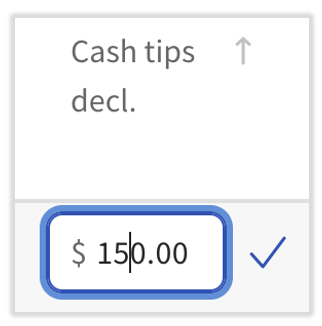
If you need to view or change declared cash tip entries after the shift has closed, that workflow lives in a dedicated article. Go to Manage Cash Tips in Shift Review for the full edit procedure on both Toast Web and the Toast POS.
Reporting Net Tips During Payroll
When negative declared cash tips are involved, the manager reports a net tip number per employee to payroll. Continuing the Bartender Mike example:
- Bartender Mike has $200 in Non-Cash Tips and -$20 in Declared Cash Tips. The manager enters $180 net for Mike.
- Busser John has $0 in Non-Cash Tips and +$20 in Declared Cash Tips. The manager enters $20 for John.
For the canonical primer on how declared cash tips flow into payroll across all scenarios, see Declare Cash Tips Overview.
Set Up Percentage Tip-Out by Sales Category
In some restaurants, total tip earnings are divided among employees using percentages tied to job roles and sales categories. For example, barbacks may receive 6% of bar sales as tips for a shift. If the bar makes $15,000 in sales, barbacks earn 6% of that — $900 — to split among the barbacks working that shift.
When to use this: You want a rule-based tip-out where one job (servers, bartenders) shares a fixed percentage of a sales category (bar sales, food sales) with another job (barbacks, food runners, bussers).
Set Up a New Percentage Tip-Out
- In Toast Web, navigate to Team > Settings > Advanced shift review setup.
- Scroll down to Shift Review Report > Tip Sharing.
- Select the checkbox next to Tip Sharing.
- Select Details.
- Select +Add New.
- Select your Sales Category from the dropdown.
- Add your desired tip percentage and a description if you'd like. For example, "Bar Tip Percentage of Food Sales."
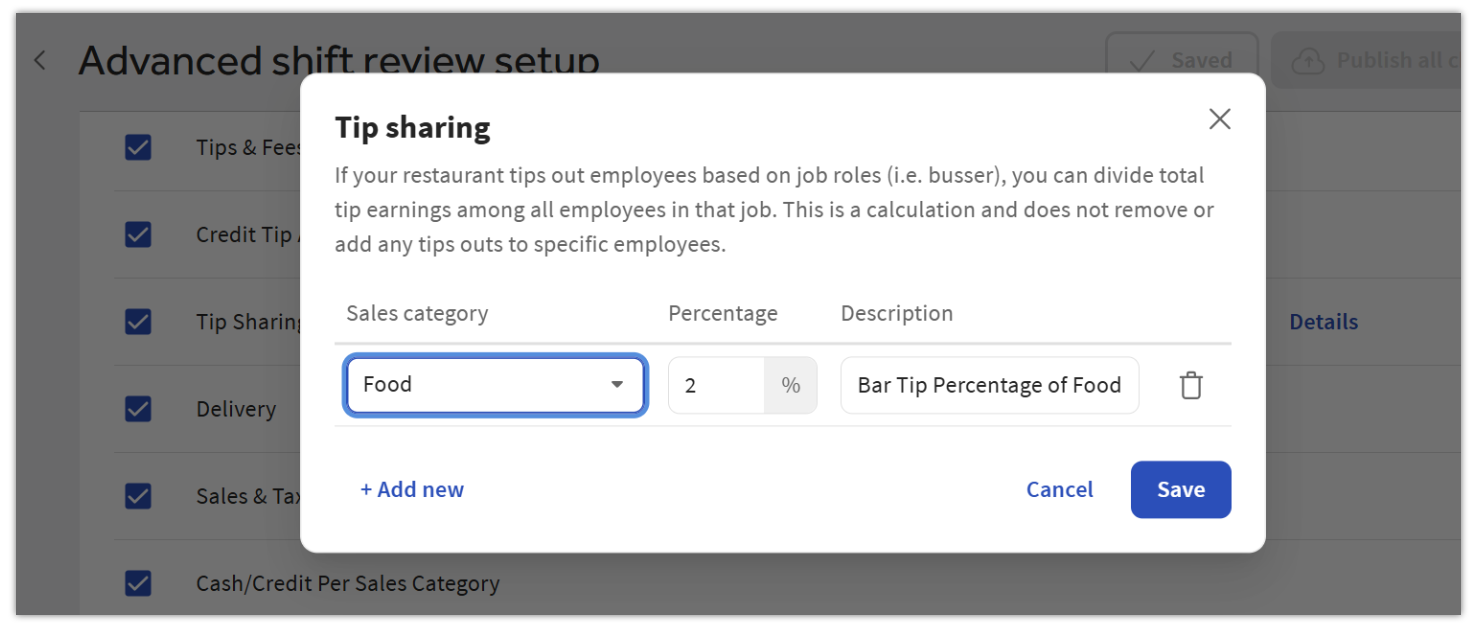
- Repeat for each Sales Category Tip Percentage you need.
- Select Save and Publish to apply your changes.
Expected outcome: Each Sales Category Tip Percentage you added appears in the Tip Sharing details panel. The configured percentage shows up in the appropriate shift review reports the next time a tipped employee runs a shift review.
Note: This is calculated based on net sales, not gross sales. The calculated sales category tip amount appears on the shift review of the person responsible for dispersing the tips, not the person receiving the tips. This money must be manually dispersed by you or your staff. Toast POS calculates the amount owed per percentage assigned to the sales category but does not disperse this automatically to the employees who receive the tips.
Edit an Existing Percentage Tip-Out
When your tip-out structure changes — for example, raising barback tip-out from 5% to 7%, or removing a sales category from the share — you edit the percentage in the same Tip Sharing detail panel where you set it up.
- In Toast Web, navigate to Team > Settings > Advanced shift review setup.
- Scroll to Shift Review Report > Tip Sharing and select Details.
- Locate the row for the Sales Category whose percentage you want to change.
- Update the percentage field with the new value.
- To remove a category from tip-out entirely, delete the row.
- Select Save and Publish to apply your changes.
Expected outcome: The updated percentage applies to shifts going forward. Past shifts already calculated at the old percentage are unaffected.
Verify Which Sales Categories Are Tipping Out
If a menu item — like a mocktail or a non-alcoholic beverage — is not generating an expected tip-out amount, the underlying cause is usually that the menu item's Sales Category does not match a category set up under Tip Sharing. Check the configuration in two places.
- In Toast Web, navigate to Team > Settings > Advanced shift review setup and review the list of Sales Categories under Tip Sharing > Details. Note each Sales Category that has a percentage configured.
- In Toast Web, find the menu item that is not tipping out as expected and verify its assigned Sales Category. The menu item's Sales Category must match one of the categories in your Tip Sharing setup to generate a tip-out amount.
Expected outcome: Every menu item you expect to contribute to tip-out is assigned to a Sales Category that appears in your Tip Sharing list. Items whose Sales Categories are not in the list will not generate a tip-out amount.
How Percentage Tip-Out Appears in Shift Review
The tip-sharing percentages appear in the shift review report — either under the credit card tip audit section (if enabled) or under Total Tips (the default). The percentages also print on the physical shift review. This is a calculation only — it does not move tips from one employee's earnings to another's.
Toast does not report the amount transferred from one job to another or report the tip share amounts per employee on the Toast Labor Summary report at this time. If you need to track this, save your printed shift reviews.
Pool Tips Among Servers Using the Pooled Tips Report
The Pooled Tips report gathers all of the credit card tips (non-cash tips) attached to checks for a shift and splits them among servers who were clocked in during the period the checks were open. The system does not actually pool tips and pay them out — it shows a recommended way you could split tips among servers.
When to use this: You want a sample calculation of how non-cash tips could be divided among the servers who worked overlapping check windows. You will still need to disperse the tips manually based on what the report shows.
How the Tip Pool Calculation Works
Tips are attached to the check open time and are only split among servers who were clocked in at the time the check was opened. Once the system identifies which servers are eligible (based on open checks and clock-in times), the tips are calculated based on hours worked.
Example One: Overlapping Clock-Ins
Server A clocks in at 9:00 a.m. and takes two orders (so there are two open checks). Server B clocks in at 9:31 a.m., and Server C clocks in at 9:35 a.m. Only Server A receives tips from the two orders opened between 9:00 a.m. and 9:30 a.m. Server A clocks out at 11:00 a.m. Tips on any orders opened between 9:35 a.m. and 11:00 a.m. are split between all three servers, because those orders were opened after all three were clocked in.
Example Two: Large-Party Check
There is a large party in the dining room at noon. Server A opens a check for the party and begins taking drink orders. Server B clocks in at 12:31 p.m. to assist with the large party. Because Server B was not clocked in at the time the check was opened, Server B is not included in the tip pool calculated for that check. In this situation, tip pooling for that check must be calculated manually.
Note: Tip pool functionality is a sample calculation. It does not remove tips from any employee's earnings or add tips to any employee's earnings.
Configure Tipped Jobs
For the Pooled Tips report to populate, every job role that collects tips in your restaurant must be set to require cash tip entry at closing.
- In Toast Web, navigate to Team > Settings > Jobs.
- Select the job role you want to edit. For example, select Server.
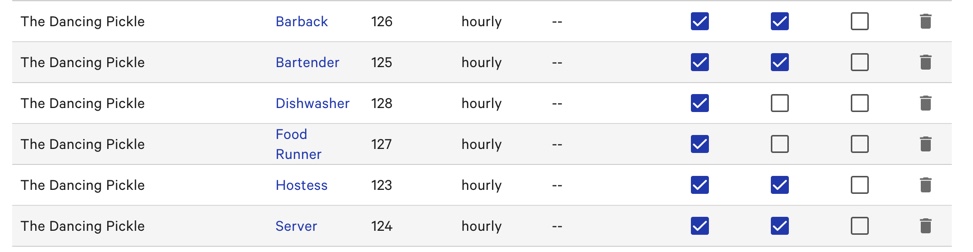
- Enable the Tipped employee setting for each tip-collecting job role.
- Repeat for every tip-collecting job role. Do not enable this setting for non-tipped, salaried roles.
Expected outcome: Each tip-collecting job in your restaurant has Tipped employee toggled on, and the Pooled Tips report will include those jobs in its calculation. Pooled tips include both cash and non-cash gratuity entered on the payment screen.
View the Pooled Tips Report
The report shows the Restaurant Summary and the Employee Summary with total tips and gratuities. Set the date range filter at the top of the page. You cannot pull more than two weeks at a time, but you can pull any two-week window since you first enabled pooled tips.
- In Toast Web, navigate to Reports > Labor > Labor summary for the canonical pooled tips view.
- Set the date range using the filter at the top.
- Review the Restaurant Summary and Employee Summary for total tips and gratuities. The Declared Tips column reflects declared tips from closed shift reviews across the chosen window. The Tips and Gratuity columns reflect tips and gratuities from all closed checks in all closed shift reviews across the chosen window.
Expected outcome: You can see total tips, gratuities, and declared tips per employee for any two-week window, derived from closed shift reviews only.
Note: Non-Cash Tips plus Gratuity are calculated on the Pooled Tip Report.
Pool Tips for Online Orders
Without Toast Tips Manager, you can include online order tips in the pool by creating a generic Online Ordering employee who is assigned to all online orders. The non-cash tips collected through online ordering flow through that shared employee and into the pool calculation for the shift.
When to use this: You take online orders, and you want the tips from those orders to be included in your Pooled Tips report or distributed across the employees working the shift.
Note: If you use Toast Tips Manager, the workflow is different. See How to Set Up Tip-Sharing for Online Ordering with Toast Tips Manager instead.
Set Up the Shared Online Ordering Employee
For new-employee creation steps, see Add and Manage Employees in Toast Web, and for the online ordering setup, see Get Started with Online Ordering.
When you create the shared Online Ordering employee, make sure that:
- The job associated with the Online Ordering employee is set to Hourly.
- Under the Reporting section in the job, select Exclude from reports.
- On the Permissions tab, set any other permissions the role requires (for example, 1.7 Cash Drawer Access) at this time.
- Once the shared employee is created and linked to the Online Ordering job, return to the Online Ordering page and select your new employee as the Online Order Server.
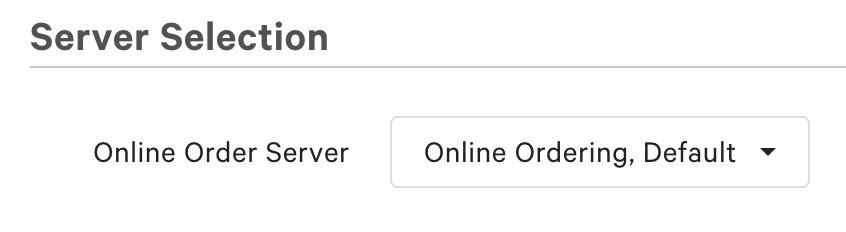
Expected outcome: All online orders are assigned to the shared Online Ordering employee regardless of who logs into the auto-firing device. The non-cash tips on those orders flow into your Pooled Tips report and can be distributed across the employees working the shift. The shared employee itself does not appear in the report because of the "Do not include hours and pay" setting.
Frequently Asked Questions
How do I find Advanced Shift Review Setup?
You find Advanced Shift Review Setup in Toast Web, in this exact path: Toast Web > Team > Settings > Advanced shift review setup. The page contains the Declare cash tips, Negative Cash Tips, and Tip Sharing sections that are referenced throughout this article.
Also asked as:
-
- "where are the advanced options in tip pooling"
- "where do I find the tipout settings"
- "where are tipout percentages in BOH"
Why isn't a sales category tipping out to my bartenders?
A sales category does not tip out to bartenders when one of two configuration issues is present: either the sales category itself is not added to the Tip Sharing setup, or the menu items you expect to contribute are assigned to a different Sales Category that is not in the Tip Sharing list. Use the steps under Verify Which Sales Categories Are Tipping Out to confirm both conditions.
Also asked as:
-
- "my mocktails dont tipout to the bartenders when servers ring them in"
- "how do I check if a category is tipping out to the bartenders"
Are to-go orders included in tipshare?
To-go and online orders are only included in tipshare if you assign them to an employee — for example, the shared Online Ordering employee described under Pool Tips for Online Orders. Without that assignment, to-go tips are credited to whoever logged in to the auto-firing device and may not be evenly distributed across the shift.
Also asked as:
-
- "how does tipshare work with togo orders"
- "are take out orders included in tipshare calculations"
Where can I see who got what in tips?
For pooled tips, the per-employee breakdown lives on the pooled tips view in Toast Web at Reports > Labor > Labor summary. The Employee Summary section shows tips, gratuities, and declared tips per employee for the date range you choose. For percentage tip-out by sales category, Toast does not currently report the amount transferred from one job to another in Labor Summary — save the printed shift reviews to track those transfers.
Also asked as:
-
- "where do I find a report on tipshare? who is getting what?"
- "how do I review the tip pooling breakdown by job"
- "where can I see tipout totals"
Can I set up tip pools for different service periods, like brunch and dinner?
Without Toast Tips Manager, no — the Pooled Tips report and the percentage tip-out flows in this article calculate per shift, not per service period within a shift. If you need separate tip pools for brunch, happy hour, and dinner on the same day, that capability is part of Toast Tips Manager. See Get Started With Toast Tips Manager.
Also asked as:
-
- "can I configure tip pooling rules that separate gratuities by service period within the same business day"
- "can tip pooling be down by the week"
Related Articles
- Get Started With Toast Tips Manager
- Declare Cash Tips Overview
- Manage Cash Tips in Shift Review
- Change Shift Review Tip Out Settings
- Pool Tips for Delivery Orders
This content is for informational purposes only and is not intended as legal, tax, HR, or other professional advice. Please contact an attorney or other professional for advice.