Split Checks on the POS
Last updated: Sep 17, 2026, 1:11 PM
Looking for a live training experience with a Toast Training Expert? Sign up for a Toast Classroom session to help you set up and get started with Front of House! Select the button below to sign up.
- Split Checks Permission
- Split Checks Using Different Forms of Payment
- Split Payments Evenly on a Check
- Split Checks by Item
- Split Items Between Selected Seats (Australia, Canada, Ireland, and the U.K.)
- Move Items to Another Check (Australia, Canada, Ireland, and the U.K.)
- Split a Check More Than Nine Ways
- Additional Resources
Split Checks Permission
Toast created a new permission to restrict staff from being able to split checks. This is completely optional.
This new permission will be split off of the Table Service Mode permission (1.1 Table Service Mode), meaning all users with this permission will get access to the new 1.20 Split Checks permission. Owners and managers can then choose to disable this permission for employees in Toast Web. When they do that, those employees will be required to enter a Manager Passcode when they choose the split checks button on the order screen.
Note: This will not be available on ELO v1 devices.
Back to top
Split Checks Using Different Forms of Payment
It's common for guests to pay with multiple forms of payment to satisfy their check. For example, a guest has a gift card with a small value they'd like to use up and pay cash or credit card for the remainder. To handle this situation, you must enter the partial amount being tendered before selecting a payment type.
Note: You must have the 1.20 Split Checks permission to be able to perform these functions.
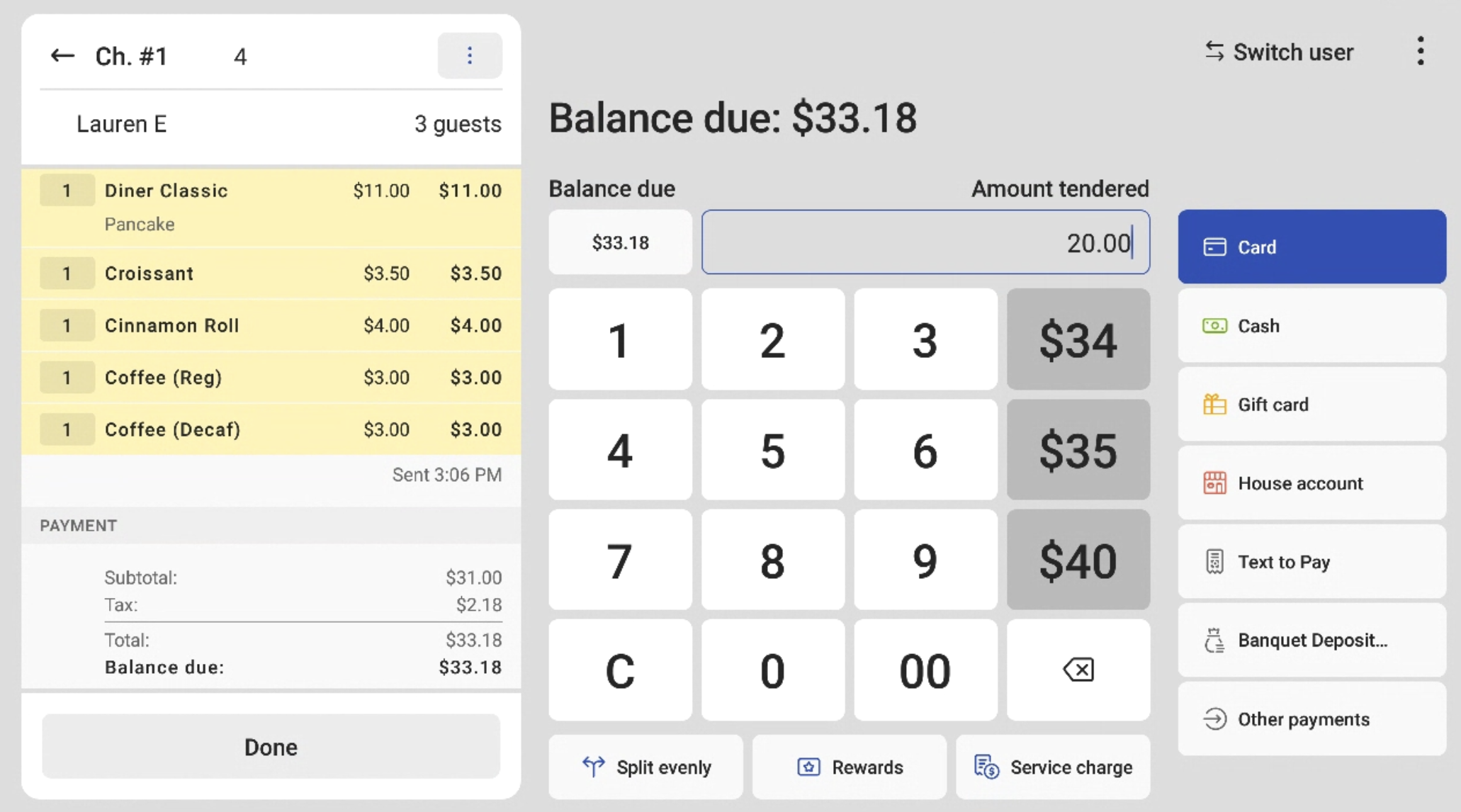
- From the payment screen of your POS, enter the partial amount in the Amount tendered field above the keypad.
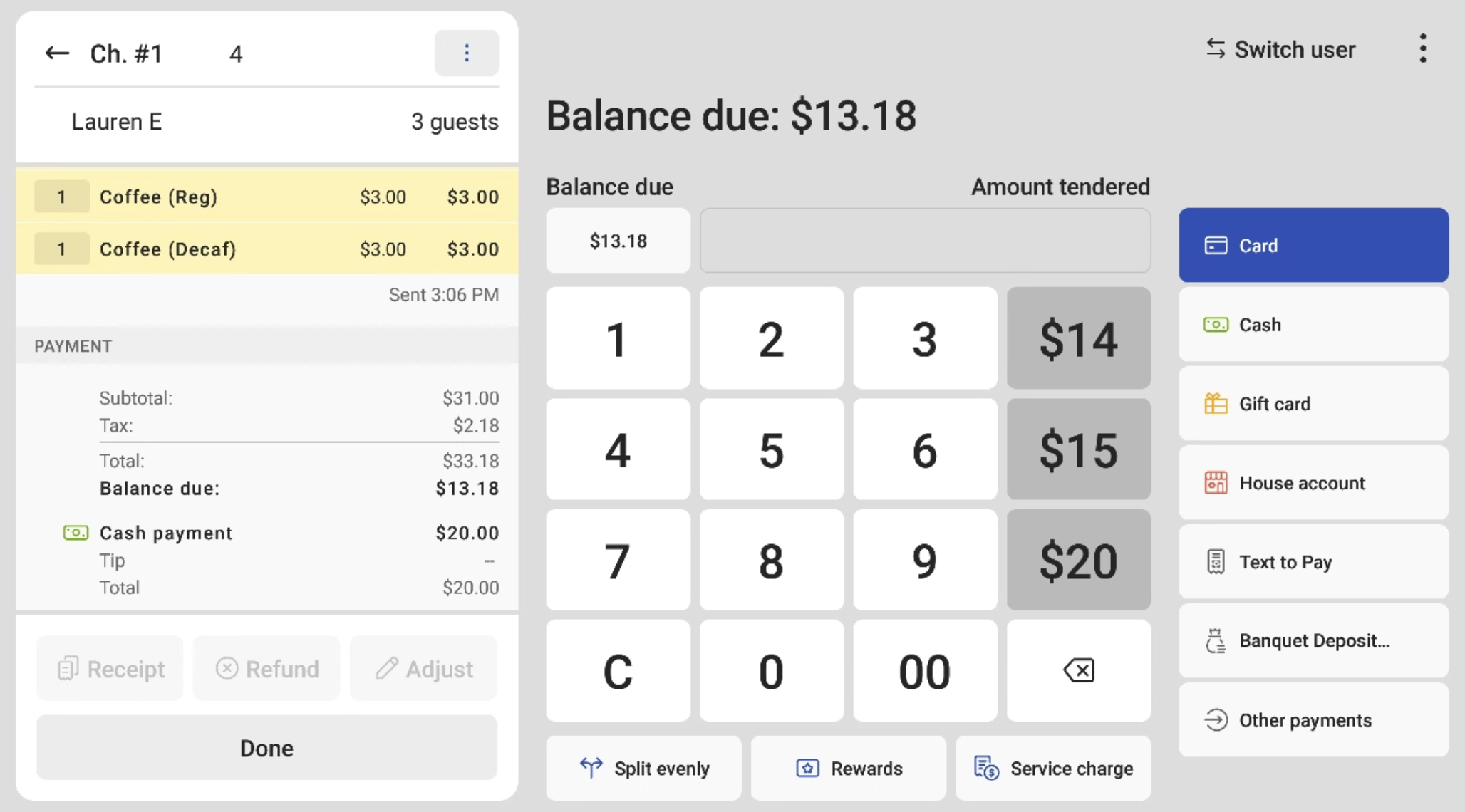
- Select the payment type being used for the partial payment. In the example below we input $20.
- Once the amount tendered has been input, a new screen will appear showing that there is a remaining balance. The pay screen will show the remainder due in Balance due ($13.18 as shown below) and the check remains in open status until the balance due is paid in full.
- Select the payment method for the remaining balance to continue the process.
Note:
- If guests wish to earn loyalty points across multiple loyalty accounts on a single order, checks should be split using the method described above. If the payment is split instead of the check, loyalty points will not accrue properly.
- Checks that have been fully paid or closed will have a green PAID or CLOSED payment status flag.
Split Payments Evenly on a Check
How many times have you been handed 2-10 credit cards and have been asked Can you split this evenly? Watch the video below to learn how to do this with Toast.
Simply navigate to your payment screen and you'll see the Split evenly button on the bottom of the screen. Here you can select the number of ways you'd like to split the check. The Balance due shows the total amount due and the Amount tendered shows the equal amount each person now owes. If the first person paid in cash then the balance due is now two-thirds of the total check. Once paid in full by all parties check will move to the Closed check of your previous checks.
Want to practice? Select the button below! For an optimal interactive experience, we suggest accessing with a computer.
Split Checks by Item


- On any check, begin by selecting the Split button (as seen in the image below). You can also find this option in the overflow menu (three vertical dots) in the top right corner of your check. You can create empty checks and simply keep dropping items into that check as items are ordered throughout the guest's dining experience.
- The Split screen shows the items on the check. To Split by item, the options are:
- Tap and drop - In Split mode, simply tap individual items and move to a new check.
- Split evenly - Tap this with an item selected to be prompted to divide the item by any number.
- Split by seat - If the server has designated seat numbers for each item, this will split the check by seats with one tap.
- Done - To complete changes and exit the Split screen
- To undo the split, select the item(s) and move them back to the original check.
- To view the split checks, swipe from left to right.
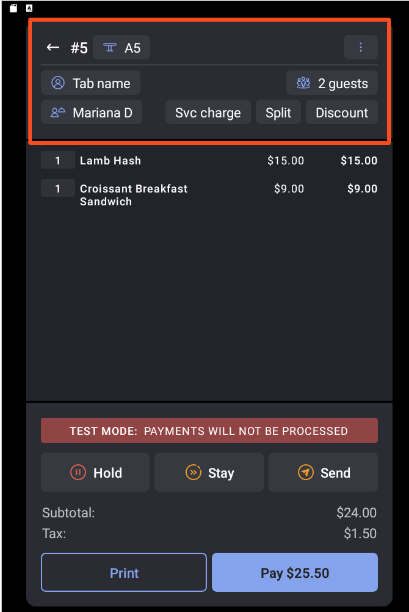
If this step is taken before sending the order to the kitchen, it will be sent to the KDS device/printer as separate tickets. If you just want to allow your guests to pay separately, you should use the Split by seat option when taking payment.
Note: When you are splitting a check by items, you will have to add a service charge on each split check manually. They will not translate over from the original check to each subsequent check. Item-level discounts also do not carry over when you split a check — the discount is removed from the item once it moves to the new check, so you'll need to reapply any discounts on each split check individually.
Want to practice? Select the button below! For an optimal interactive experience, we suggest accessing with a computer.
Back to top
Split Items Between Selected Seats (Australia, Canada, Ireland, and the U.K.)
| The functionality described below is currently being rolled out as a limited release to customers in Australia, Canada, Ireland, and the U.K. |
With the Actions button, you can automatically split a single item (e.g., a bottle of wine) among all, or selected seats, with a single click. This feature saves time and reduces the risk of errors when settling large, complex check. Watch the video below to learn how to do this with Toast.
- On any check, begin by selecting the Split button.
- Locate the shared item you wish to split and highlight it to select it.
- Select the Actions button.
- Select Split item between selected seats.
- On the next screen, choose the seats that should receive a portion of the item.
- Select Done to complete changes and exit the Split screen.
If a guest has paid and their check is closed, and you need to split the check out further, when you select Split items between selected seats again, the system will automatically skip the closed check and distribute the item among the remaining open checks.
Move Items to Another Check (Australia, Canada, Ireland, and the U.K.)
The Move items to another check feature allows you to quickly consolidate items from multiple checks into a single one. For example, if particular guests want to pay together at the end of the night, you can select all their items from different seats and move them to a single check with just a few taps, eliminating the need to move each item individually.
To move items to another check:
- From the check screen, select the Split option.
- Highlight the items you want to move to another check.
- Select the Actions button.
- Select Move items to another check.
- In the list of checks, select the destination check where the items should be moved.
- Select Done and confirm the move.
Note: When combining seats and then attempting to split a new item among them, the system will not recognise the original individual seats within the newly combined check, which can cause the creation of a new check for the split item. We suggest combining seats after the check has been split accordingly.
Split a Check More Than Nine Ways
You can only use the Split Check button nine ways. However, don't use the Split Check button if you need to split checks further. Instead, follow these steps:
- Pull up a check that remains combined, but a guest would like to split.
- Start by entering one of the guest’s payment amounts and tender types. You or the guest will have to calculate the amount each guest incurred, and the respective guests can pay for those items individually.
- Repeat until the amount owed is resolved.
Customers in Canada, Ireland and the U.K. can access this enhanced splitting option by navigating to the payment screen and following these steps:
- Pull up a check that remains combined, but a guest would like to split.
- Select the Split button (the icon with two split arrows below the guest count).
- Select Split evenly - Choose this with an item selected to be prompted to divide the item by any number.
- Enter the number of guests.
- Select the payment method and continue the process until each guest has paid.

When using this enhanced split option:
- The Amount Tendered field will automatically populate with the calculated equal share.
- If a guest wishes to pay more than their calculated share, the server can manually adjust the amount in the Amount Tendered field.
- Each guest will have the opportunity to add a tip during their individual payment process.
- If a service charge was already applied to the check, it will be divided equally among the number of guests.
Note: Split Checks is only available in Table Service and Quick Order modes. Retail mode does not support splitting a check; a check that was already split elsewhere can be opened in Quick Order mode, but a new split cannot be started there.
Back to top