Terminate or Archive an Employee in Toast Web or Toast Payroll
Last updated: Sep 30, 2026, 2:20 PM
This article explains how to terminate or archive an employee in Toast Web or Toast Payroll.
- Before You Begin
- Overview Steps
- Quick Fix
- Step 1: Decide Which Path Applies
- Step 2: Archive an Employee in Toast Web (Toast Web Only)
- Step 3: Terminate an Employee in Toast Payroll
- Step 4: Confirm Toast Web and POS Access Were Revoked
- Step 5: Handle Common Issues
- Archive Blocked Because the Employee Is Your Primary User
- Terminated in Toast Payroll, but Toast Web Still Shows Active
- Wrong Termination Date or Last Day of Benefits
- Multi-Location Employee: Terminate at One Location Only
- Severance or Final Paycheck
- Recording a Quit, Resignation, No-Call No-Show, or Deceased Employee
- Before You Contact Customer Care
- Frequently Asked Questions
- Related Articles
Before You Begin
Applies to: Toast Web, Toast Payroll | Permissions needed: Toast Web: 4.9 Employee Info permission, Toast Payroll: manager or HR+ role
What you'll accomplish: Remove a former employee's access to Toast POS, Toast Web, and Toast Payroll while keeping their record available for historical reporting and year-end tax documents.
Overview Steps
This article applies to restaurant owners and managers using Toast Web, Toast Payroll, or both. You need either the 4.9 Employee Info permission in Toast Web or a manager / HR+ role in Toast Payroll.
The quickest path covers most situations:
- If you use Toast Payroll, terminate the employee in Toast Payroll. Toast Web access and POS access are revoked automatically.
- If you use Toast Web only (no Toast Payroll), archive the employee in Toast Web.
- Employee profiles cannot be deleted. Archive or terminate is the only way to remove access.
- Former employees keep limited Toast Payroll login access so they can retrieve paystubs and year-end documents like Form W-2.
Quick Fix
| Symptom | Most Common Cause | Quick Fix | Self-Service? |
|---|---|---|---|
| I need to remove an employee who quit, was fired, or no longer works for us | Right method depends on which Toast products you use | If you use Toast Payroll, follow Step 3. If Toast Web only, follow Step 2. | Yes |
| The archive button won't let me archive—the employee was set up as my primary user | Toast Web blocks archiving the restaurant's primary user | The owner or restaurant admin should contact Customer Care to change the primary user before archiving. | No (Customer Care) |
| I get "Something went wrong, contact support" or a 403 error when I try to terminate or archive | A backend permission or sync issue that the in-product flow cannot resolve | Contact Customer Care with the employee name and a screenshot of the error. | No (Customer Care) |
| I terminated in Toast Payroll, but the Toast Web profile still shows active | The Toast Payroll → Toast Web sync can take up to two hours, or the profiles may not be mapped | Wait up to two hours, then verify mapping per Toast Payroll: Sync Information With Toast Web. If still active, archive the Toast Web profile manually. | Yes |
| I put in the wrong termination date or last day of benefits | The date fields are locked once you select Finish | Contact Customer Care. Editing termination dates after submission is not self-service. | No (Customer Care) |
| Can I just delete this employee profile? | Toast does not allow profile deletion, even for employees with no timesheets or payroll | Archive (Toast Web) or terminate (Toast Payroll). For duplicate profiles, see Toast Payroll: Delete an Employee Profile. | Yes |
| The employee is coming back—I need to rehire or unarchive | Rehire and unarchive are separate flows from terminate / archive | If you use Toast Payroll, follow Toast Payroll: Rehire Guide. Toast Web only, follow Reinstate an Archived Employee. | Yes |
| The employee is going on leave, not leaving the company | Leave of absence (LOA) is a separate status from termination | Use the LOA status change in Toast Payroll instead of Termination. See Toast Payroll: Make an Employee Status Change. | Yes |
Step 1: Decide Which Path Applies
Different Toast products use different methods to remove employee access. Pick the path that matches your setup before you start.
- If you use Toast Payroll (with or without Toast Web): Terminate the employee in Toast Payroll. See Step 3. Terminating in Toast Payroll automatically archives the mapped Toast Web profile within two hours.
- If you use Toast Web only (no Toast Payroll): Archive the employee in Toast Web. See Step 2.
- If the employee never worked for you or was added by mistake: Use the same path above. Employee profiles cannot be deleted in either system.
- If the employee is on leave (not leaving): Use the LOA status change in Toast Payroll instead. See Toast Payroll: Make an Employee Status Change.
- If you are rehiring a former employee: Use the Rehire flow, not unarchive. See Toast Payroll: Rehire Guide.
Important: Terminating an employee in Toast Payroll before the end of the pay period deactivates their direct deposit. The final wages are paid by paper check instead.
Step 2: Archive an Employee in Toast Web (Toast Web Only)
Use this path only if you do not use Toast Payroll. Archiving a Toast Web profile revokes the employee's Toast Web login and POS access code while keeping their record visible in labor reports for historical reporting.
- A user with the 4.9 Employee Info permission should log into Toast Web and navigate to Team > Employees.
- Locate the employee you want to archive and select the archive button on the far right side of the page.
- On the pop-up, select Archive to confirm.
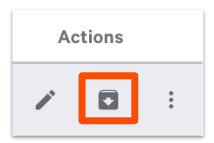
Expected outcome: The employee no longer appears in the active Employees tab. They appear under the Archived tab of the Employees page with the user who archived them shown in the Archived By column. The employee's POS access code is disabled, and they can no longer log into Toast Web or any Toast device.
If the archive action fails with an error, see Step 5: Archive Blocked Because the Employee Is Your Primary User.
Step 3: Terminate an Employee in Toast Payroll
Use this path if you use Toast Payroll, with or without Toast Web. Terminating in Toast Payroll stops the employee from being included in your monthly invoicing and automatically archives the mapped Toast Web profile within two hours.
- A manager or HR+ user should log into Toast Payroll. Navigate to the employee's profile using the Team page or the Search employees bar.
- In the Status tile, select the caret icon.
- On the pop-up, choose Termination and select Next.
- Choose a termination template and select Next. The Standard Template is available to all customers. If your company built custom templates, the steps you see may differ from the example below.
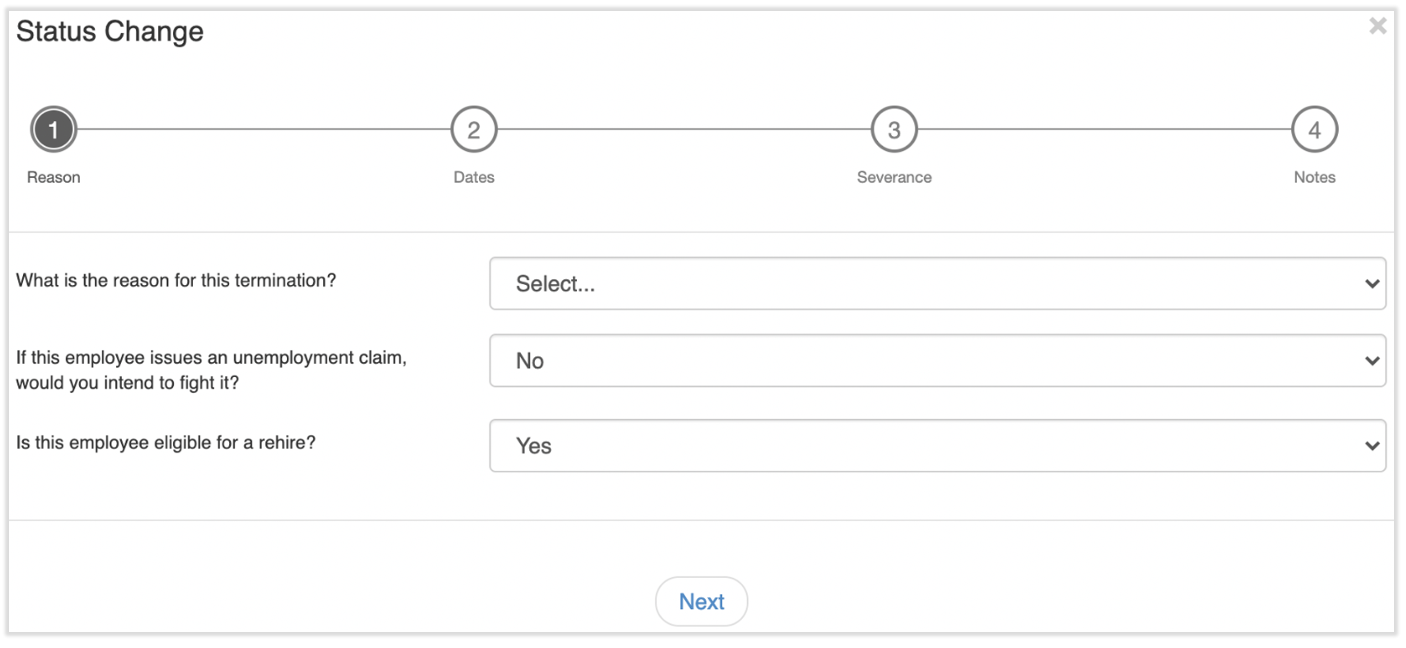
- Select a reason from Reason for this termination. Answer the follow-up questions and select Next.
- Choosing No for Is this employee eligible for rehire? does not block rehiring them later.
- Your answers to these questions are not reported to any agencies.
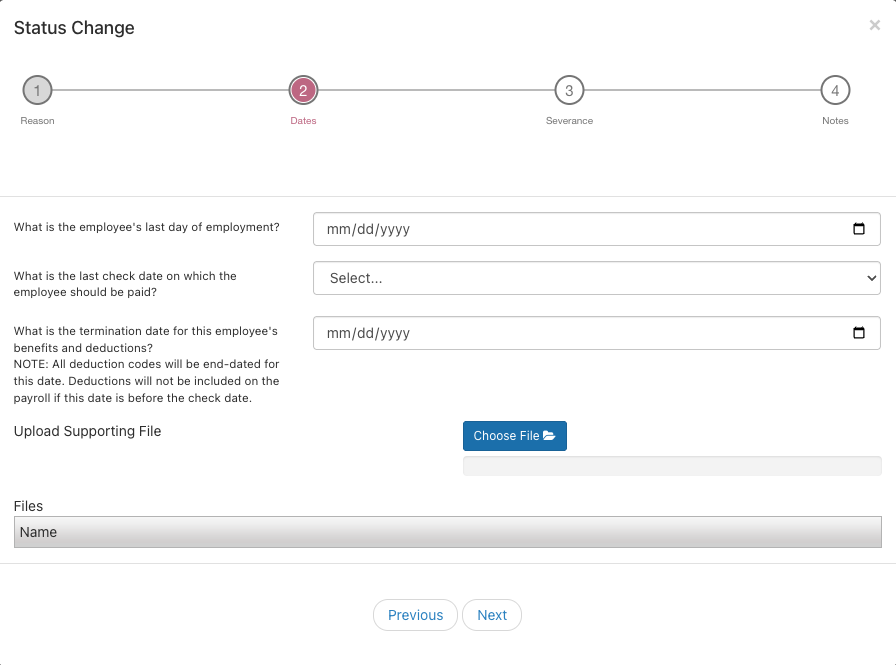
- Enter the three required dates, then select Next:
- What is the employee's last day of employment? The last day this person is considered an employee.
- What is the last check date on which the employee should be paid? The check date of the last pay period the employee is eligible for. This is not the last day worked. In most cases, it is the top date in the drop-down. Select Employee has already been paid if the final check has already been issued.
- What is the termination date for this employee's benefits and deductions? Often the last day of the month. Check with your HR department to confirm.
- Upload supporting file is optional. Select Choose file to attach a document.
- If Would you like to issue a severance payment? is set to Yes, enter the amount, payroll, and earning code, then select Next. If set to No, select Next to continue.
- You can still add a former employee to a payroll after termination. See the Add an employee on the Employee Earnings step instructions.
- You can still add a former employee to a payroll after termination. See the Add an employee on the Employee Earnings step instructions.
- Add any related notes and select Finish.
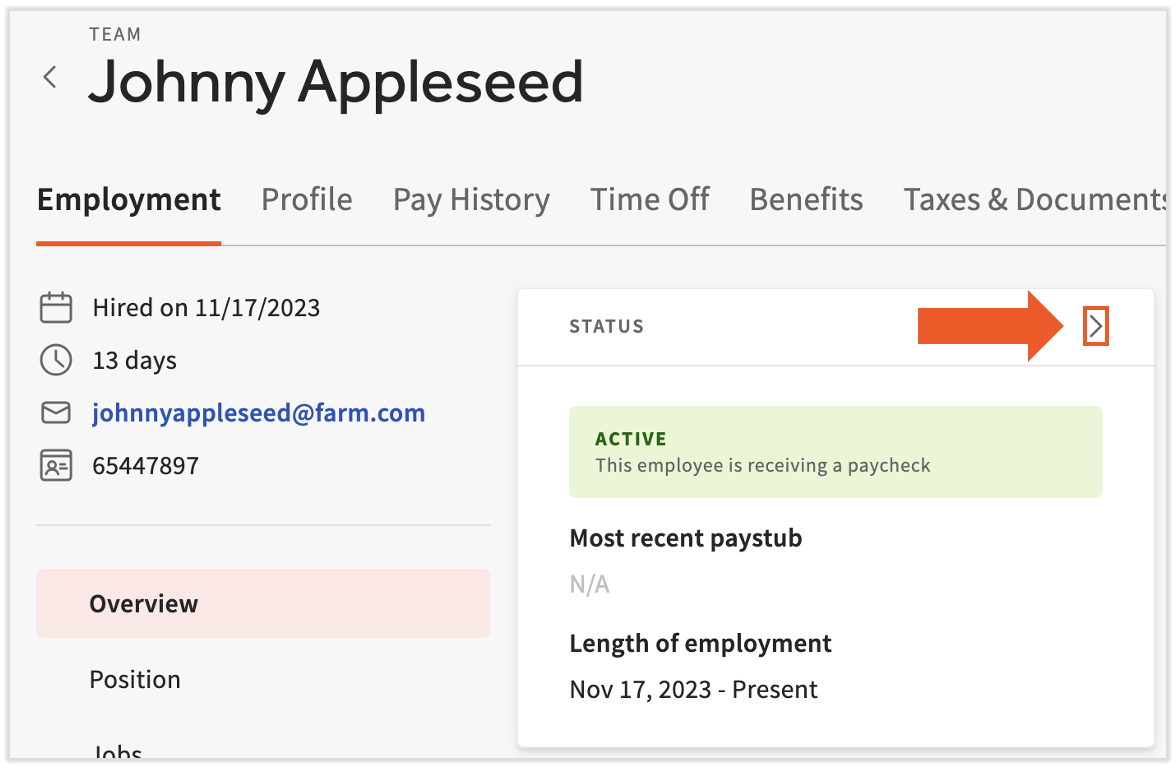
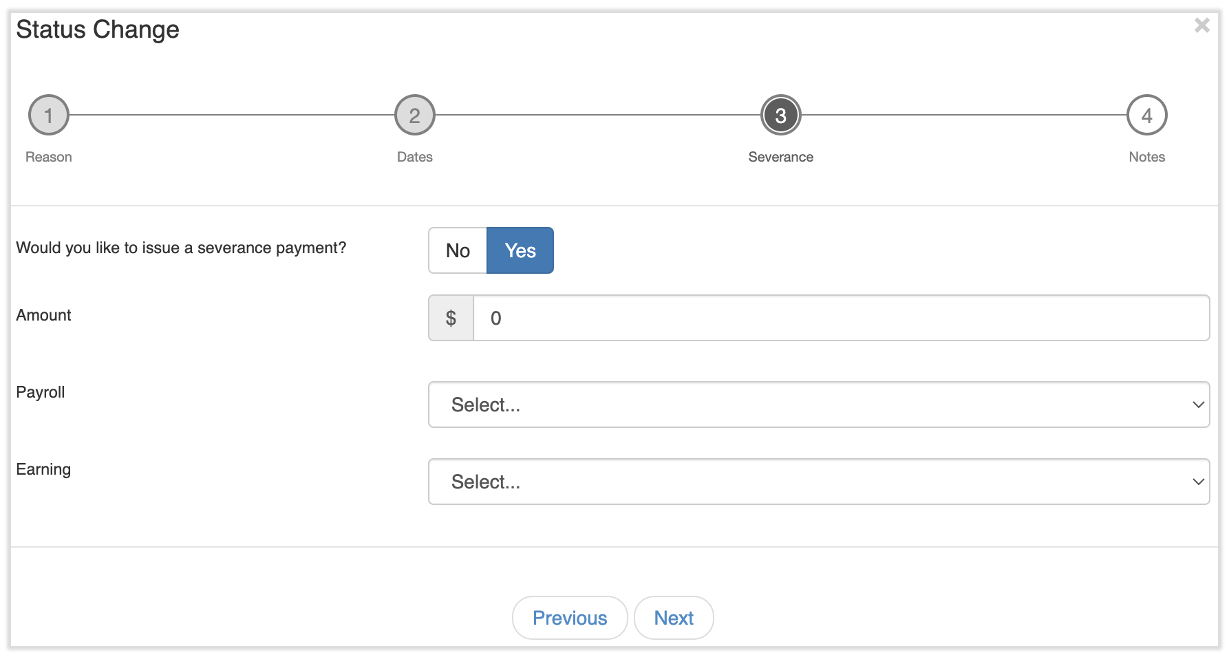
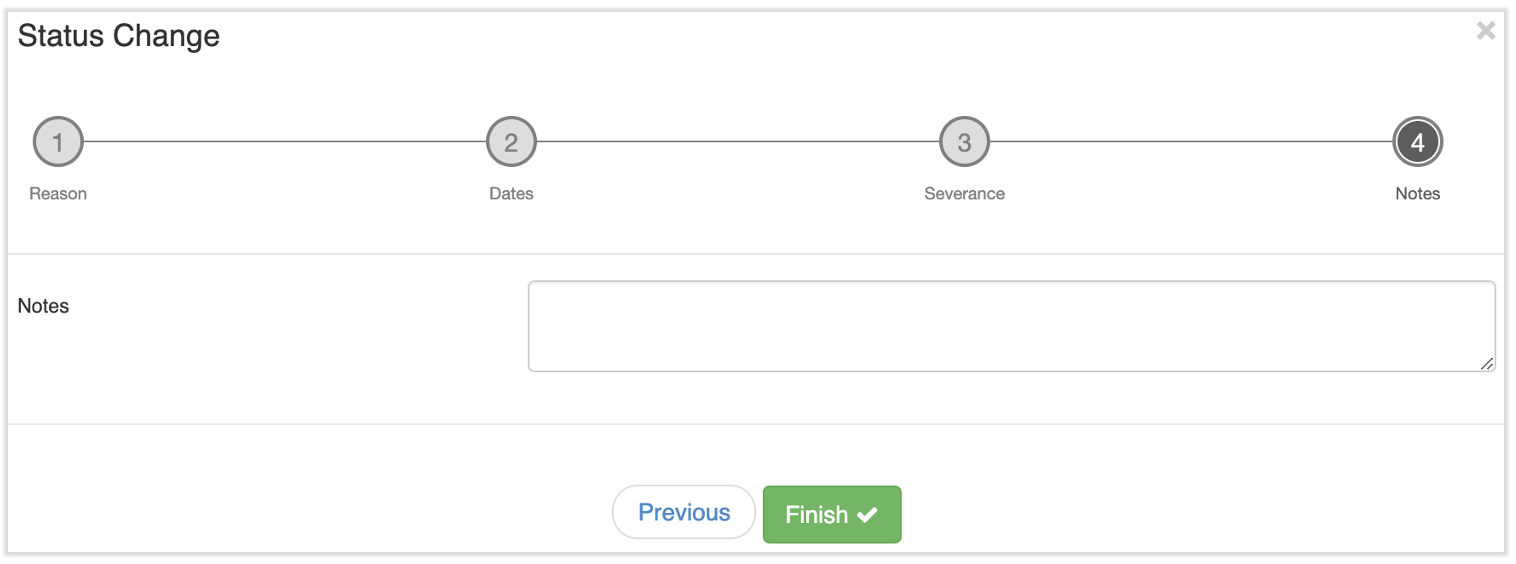
Expected outcome: The employee's Status tile shows Terminated. Within two hours, the mapped Toast Web profile is automatically archived, and the employee loses Toast POS, Toast Web, and Toast Payroll administrative access. Former employees keep limited Toast Payroll login access for paystubs and year-end documents like Form W-2—see Toast Payroll: Accessing Your Year-End Tax Documents.
Important: Terminating an employee before the end of the pay period deactivates their direct deposit. The final wages will be paid by paper check.
Note: State and local laws may govern the timing of an employee's final check or direct deposit. Toast Payroll cannot advise on these matters. Consult a lawyer or the free HR toolkit from Mineral for your jurisdiction's rules.
Step 4: Confirm Toast Web and POS Access Were Revoked
After terminating in Toast Payroll, confirm the Toast Web profile is archived and the POS access code is disabled.
- Wait up to two hours for the Toast Payroll → Toast Web sync to complete.
- In Toast Web, navigate to Team > Employees > Archived. The terminated employee should appear in this list.
- The Archived By column will be blank when an employee was terminated through Toast Payroll. A name only appears when the Toast Web profile was archived directly through Toast Web.
Expected outcome: The employee profile appears in the Archived tab of Toast Web. The employee can no longer use their POS access code or log into Toast Web. If the employee uses Toast Payroll, they can still log in to retrieve paystubs and tax documents.
To see who terminated the employee in Toast Payroll, open the employee's Toast Payroll profile, select the caret icon at the top of the Status tile, then close the pop-up. The status change audit shows the User who made the Terminated entry.
Step 5: Handle Common Issues
Archive Blocked Because the Employee Is Your Primary User
If Toast Web returns an error when you try to archive an employee, the most common cause is that the employee is set up as the restaurant's primary user. Toast Web blocks archiving of the primary user as a safeguard.
The restaurant owner or admin should contact Customer Care to request a change to the primary user. After the primary user is updated, return to Step 2 and try the archive action again.
Terminated in Toast Payroll, but Toast Web Still Shows Active
When you terminate an employee in Toast Payroll, the mapped Toast Web profile is automatically archived within two hours. If the Toast Web profile still shows as active after two hours, the most common cause is that the Toast Payroll and Toast Web profiles are not mapped to each other.
- Confirm the Toast Web ↔ Toast Payroll mapping using Toast Payroll: Sync Information With Toast Web.
- If the profiles are not mapped, map them and wait up to two hours for the sync to complete.
- If the profiles are correctly mapped and the Toast Web profile is still active after two hours, manually archive the Toast Web profile using the steps in Step 2.
Wrong Termination Date or Last Day of Benefits
If you saved a termination with the wrong date (last day of employment, last check date, or benefits termination date), the date fields are locked once you select Finish. These dates cannot be edited or changed.
- A manager or HR+ user should log into Toast Payroll. Navigate to the employee's profile using the Team page or the Search employees bar.
- In the Status tile, select the caret icon.
- Click the X button to close the window. You'll be prompted: "Are you sure you'd like to exit? You will lose your progress." > Select the green check box.
- Delete the Termination Record with the wrong dates. This only deletes the record. The termination is still intact.
- You'll need to rehire them, and then add a new termination record and resubmit the termination status change with the correct dates.
Multi-Location Employee: Terminate at One Location Only
Terminating an employee in Toast Payroll applies the termination to every location the employee is assigned to in Toast Payroll. The single Toast Payroll profile cannot be terminated at one location while staying active at another.`
If the employee is leaving one location but moving to another within your restaurant group, do not terminate. Instead, update their location assignment in Toast Payroll.
Severance or Final Paycheck
The termination flow includes an optional severance step. If you skipped it during termination, you can still pay severance or a final paycheck. Review the Schedule a Final Paycheck Off-Cycle section of Toast Payroll: Set Up and Configure Off-Cycle Payrolls.
Once the pay period that contains the termination date has passed, the former employee will not appear on future payroll runs automatically.
Recording a Quit, Resignation, No-Call No-Show, or Deceased Employee
Toast Payroll uses one Termination status for all departures (voluntary and involuntary). The reason you choose during termination is how you record the termination status reason, whether the employee quit, was released, abandoned the job, or passed away. Termination reasons can be created or edited under Settings > Status Changes. For more information, see Toast Payroll: Create Termination Templates and Reasons.
- Quit / resignation: Use a Voluntary termination reason.
- No-call no-show / job abandonment: Create or use a termination reason like Job abandonment in your template. The status is still Termination.
- Deceased employee: Create a termination reason like Deceased in your template.
For setting up new reasons, see Toast Payroll: Create Termination Templates and Reasons.
Before You Contact Customer Care
A small set of issues cannot be resolved through the in-product flow. Contact Customer Care for these only:
- The employee is your restaurant's primary user—Customer Care must change the primary user before you can archive.
- You see "Something went wrong, contact support" or a 403 error during the termination or archive flow.
- A Toast Payroll profile still has not synced to Toast Web after two hours, and the profiles are confirmed to be mapped correctly.
- You have duplicate Toast Payroll profiles for the same employee that need to be merged.
When contacting Customer Care, include:
- The employee name
- A screenshot of the error (if any)
- The action you were trying to complete
Start a chat by selecting the blue chat button in the lower-right corner of any Toast Payroll page, or follow Contact Customer Support.
Frequently Asked Questions
Can I delete an employee profile in Toast Payroll or Toast Web?
No, you cannot delete an employee profile in Toast Payroll or Toast Web, even if the employee has no timesheets or payroll records. The only ways to remove an employee's access are to archive the profile in Toast Web or terminate the profile in Toast Payroll. For duplicate profiles, contact Toast Payroll using the blue chat button in the lower-right corner of any Toast Payroll page. See Toast Payroll: Delete an Employee Profile.
How do I rehire or reactivate a former employee?
Rehiring or reactivating a former employee uses a separate Rehire flow, not unarchive. If you use Toast Payroll, follow Toast Payroll: Rehire Guide—the Toast Web profile will be unarchived automatically. If you use Toast Web only, follow Reinstate an Archived Employee.
Does terminating in Toast Payroll also remove Toast Web and POS access?
Yes. Terminating an employee in Toast Payroll automatically archives the mapped Toast Web profile within two hours, which disables both the Toast Web login and the POS access code. If you need to revoke access immediately rather than waiting up to two hours, archive the Toast Web profile manually after completing the Toast Payroll termination—see Step 2.
What happens to a terminated employee's paystubs and Form W-2?
Former employees keep limited Toast Payroll login access so they can retrieve their paystubs and year-end documents like Form W-2. If Toast Payroll files taxes on your company's behalf, terminated employees can retrieve Form W-2 using the steps in Toast Payroll: Accessing Your Year-End Tax Documents.
Can I terminate an employee at one location but keep them active at another?
No. A single Toast Payroll profile cannot be terminated at one location while staying active at another, because Toast Payroll uses a single profile per employee across locations. If the employee is moving between locations within the same restaurant group, update their location assignment in Toast Payroll instead of terminating.
Who terminated or archived an employee?
In Toast Web, navigate to Team > Employees > Archived. Check the Archived By column; it displays the user who archived a profile. This column is blank for employees whose Toast Web profile was archived as a result of a Toast Payroll termination. To see who terminated an employee in Toast Payroll, open the employee's Toast Payroll profile and select the caret icon at the top of the Status tile, then close the pop-up to see the status change audit. Review the User column for the Terminated entry.
How do I record a quit, resignation, or job abandonment?
Toast Payroll uses one Termination status for all departures. The reason you select during the termination flow is how you record whether the employee quit, was released, or abandoned the job. Mark voluntary departures using a Voluntary termination reason like Resigned, and create reasons like Job abandonment through Toast Payroll: Create Termination Templates and Reasons.
Can I schedule a termination for a future date?
The termination flow accepts future-dated values in the last day of employment, last check date, and benefits termination date fields. Confirm with your HR advisor before scheduling a future-dated termination, since access and final paycheck timing depend on these dates. Future-dated terminations cannot be edited or changed after they are created.
Does Toast Payroll handle unemployment claims for terminated employees?
No, Toast Payroll does not handle unemployment claims. State agencies do not have access to Toast Payroll to view an individual's employment status. Once an employee files for unemployment, the state agency reaches out to you directly to confirm whether they qualify. For termination paperwork or a terminated-employee report, select the blue chat button in the lower-right corner of any Toast Payroll page. See Toast Payroll: Terminated Employees and Unemployment.
What if the employee is going on leave instead of leaving?
Use the LOA (leave of absence) status change instead of Termination. LOA employees keep their profile but their earnings do not populate on payroll. Recurring deductions like benefits costs continue to appear so they can be recorded. LOA employees are not counted as active and are not invoiced under the per-employee-per-month model. See Toast Payroll: Make an Employee Status Change.
Related Articles
- Toast Payroll: Make an Employee Status Change
- Toast Payroll: Rehire Guide
- Reinstate an Archived Employee
- Toast Payroll: Create Termination Templates and Reasons
- Toast Payroll: Sync Information With Toast Web
This content is for informational purposes and is not intended as legal, tax, HR, or any other professional advice. Please contact an attorney or other professional for advice.