Terminate or Archive an Employee in Toast Web or Toast Payroll
Last updated: Apr 3, 2026, 4:18 PM
Question
- How do I archive an employee in Toast Web or terminate an employee in Toast Payroll?
- How do I remove an employee who no longer works for us?
Answer
- If you have Toast Payroll, skip to step 2 below. If not, use the following steps to archive an employee profile in Toast Web. This will no longer allow the employee to log into Toast Web or Toast devices, but their data will still be visible in labor reports for historical reporting.
- A user with permission 4.9 Employee Info can log into Toast Web and navigate to Employees > Employee management > Employees.
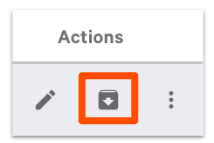
- Locate the individual you wish to archive and select the archive button (box with a downward arrow) on the far right side of the page.
- On the pop-up, select Archive to confirm this action.
- If you receive an error message when trying to archive an employee, it may be because you're attempting to select your restaurant's primary user. The owner or restaurant admin should contact Customer Care to request a change to your primary user.
- Skip to step 3 and 4 for additional information.
- If you use Toast Payroll, employees who quit or are terminated will need to be terminated in Toast Payroll to avoid being included in your monthly invoicing. Terminating a Toast Payroll profile will automatically archive the mapped Toast Web profile within two hours, but you can also immediately archive the Toast Web profile after following these steps if you need to limit system access asap. Note: If you terminate an employee before the end of the pay period, their direct deposit information will be deactivated. You will be sent a paper check instead of the employee receiving their wages via direct deposit.
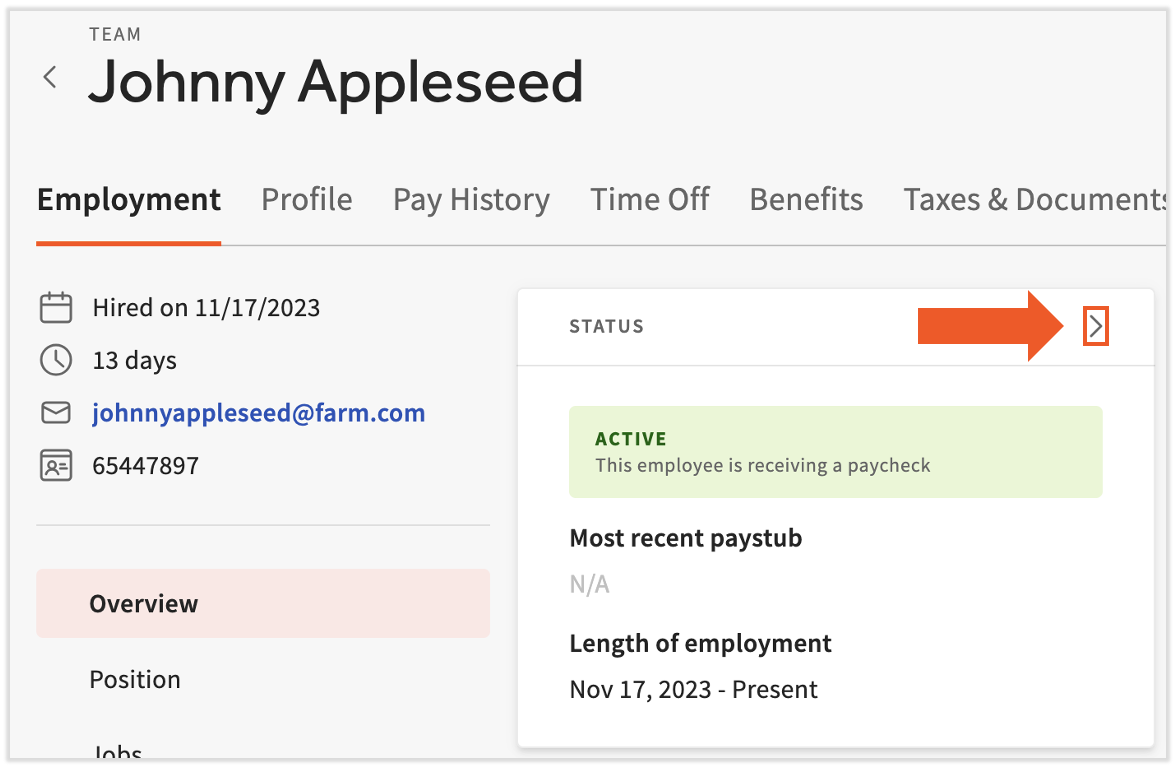
- A manager or HR+ user should log into Toast Payroll and navigate to the employee's profile using either the Team page or the Search employees search bar.
- Select the > caret icon in the corner of the Status tile.
- On the pop-up, choose Termination and then select Next.
- Choose a termination template and then select Next. Different termination templates include different steps, so this guide will follow the Standard Template available to all customers. The templates you see may be different than the example below.
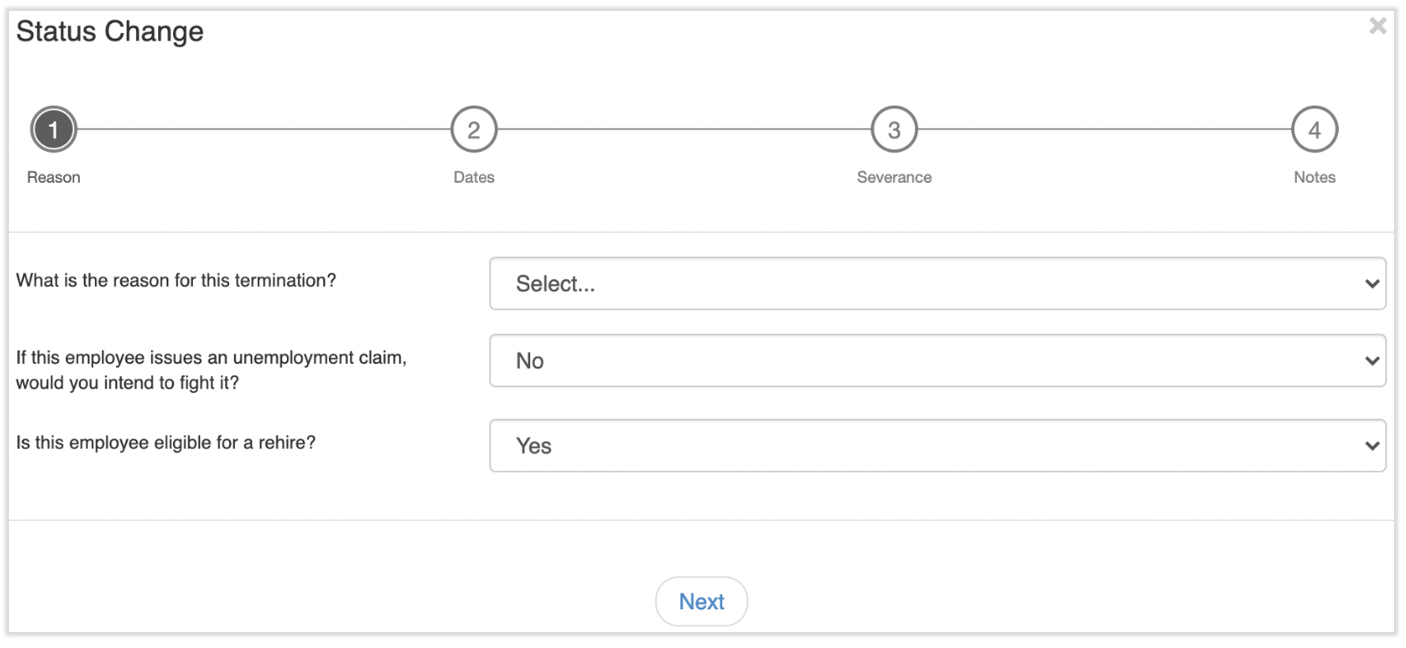
- Add a reason for this termination and answer the follow-up questions. Choosing No for Is this employee eligible for rehire? will not prevent them from being rehired. Additionally, your answers to these questions are not reported to any agencies. Select Next to continue.
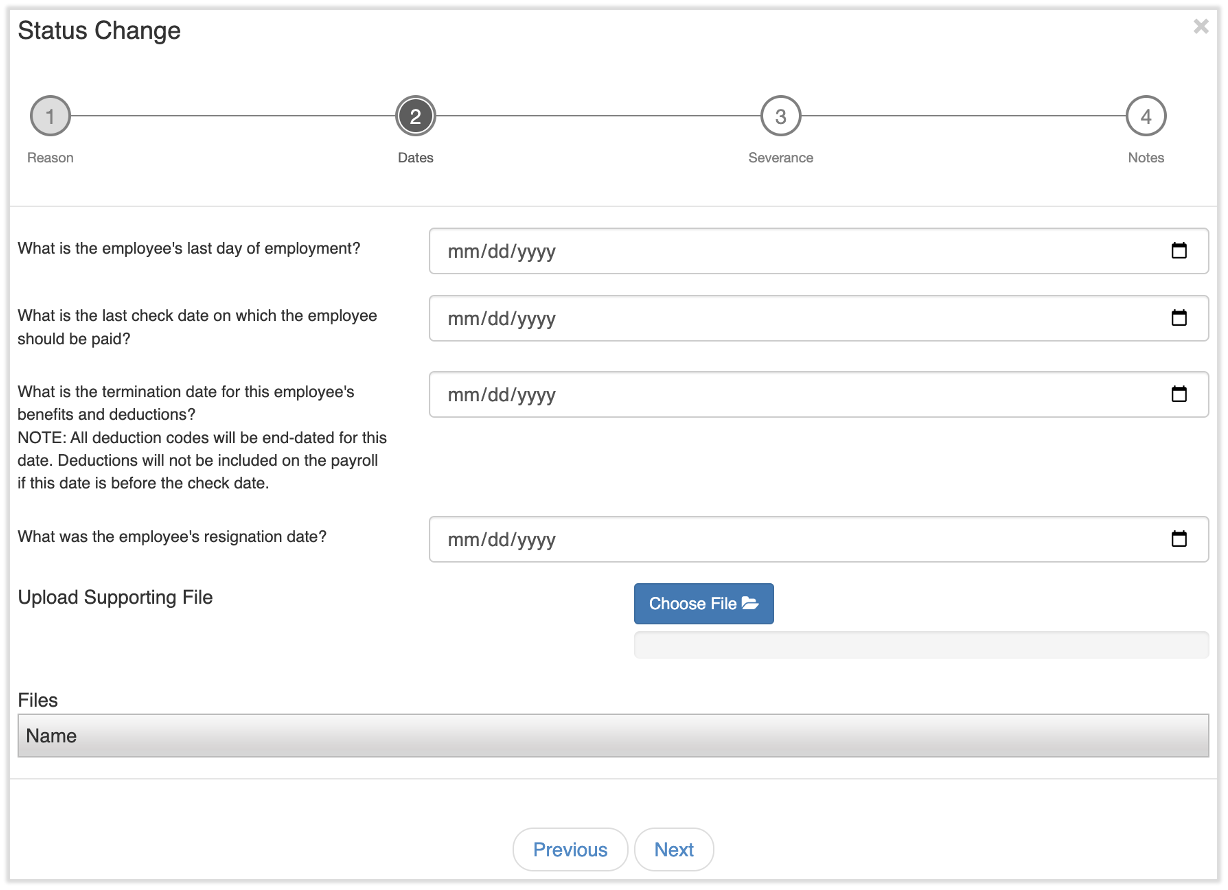
- The next step requires four different dates before selecting Next:
- What is the employee's last day of employment? This is the last day an individual is considered an employee for the company.
- What is the last check date on which the employee should be paid? This is the check date of the last pay period the employee is eligible for. This is neither the last day the employee earned wages nor the day of termination. In many cases, this is the top-most date in the drop-down menu. You may also select Employee has already been paid if this is the case.
- What is the termination date for this employee's benefits and deductions? This is typically the last day of the month, but you should contact your company's HR department to verify or ask questions about this.
- What was the employee's resignation date? This is the day the employee chose to end employment with the company. If the termination was involuntary by the employee, this date might match the first one.
- Upload supporting file is optional, but select Choose file and upload a document to utilize this feature.
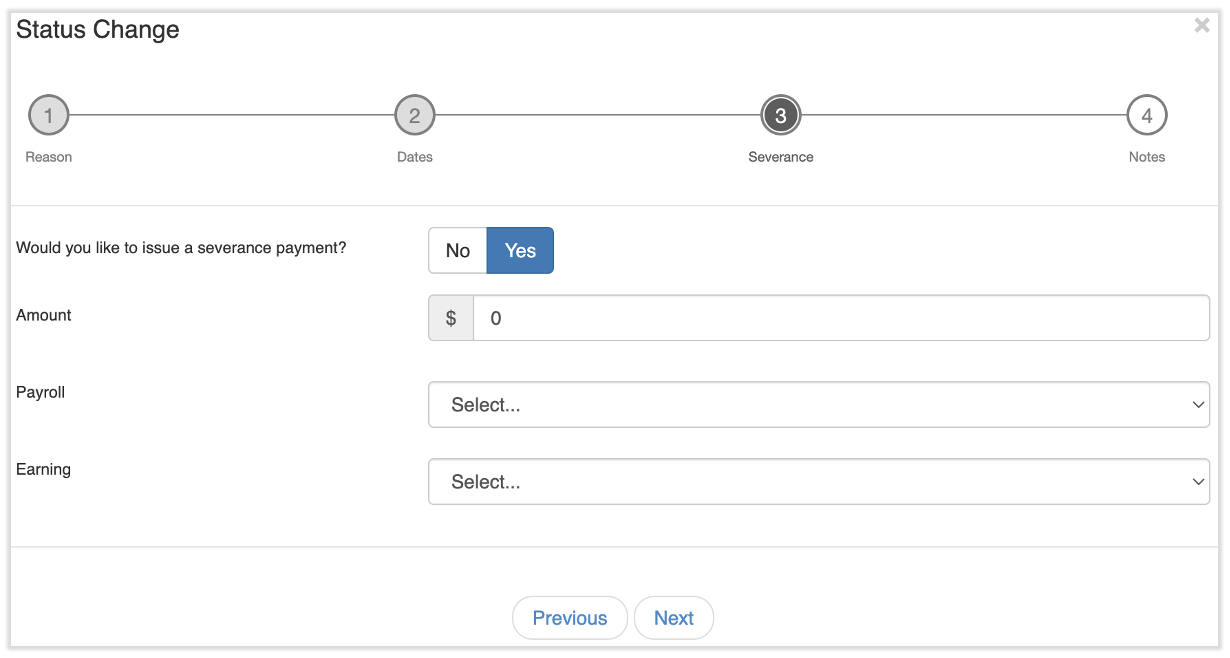
- On this step, if Would you like to issue a severance payment? is set to Yes, then additional options will appear. Enter the amount, payroll, and earning code the severance should apply to and select Next. If this is set to No, simply select Next to continue.
- If you do not issue a severance payment here, you can still add this former employee to a payroll as long as their termination date lands within the payroll's start and end dates. Add them on the Employee Earnings step of payroll. Once the pay period that includes their termination date has passed, the employee will not automatically appear on future payroll runs.
- If you do not issue a severance payment here, you can still add this former employee to a payroll as long as their termination date lands within the payroll's start and end dates. Add them on the Employee Earnings step of payroll. Once the pay period that includes their termination date has passed, the employee will not automatically appear on future payroll runs.
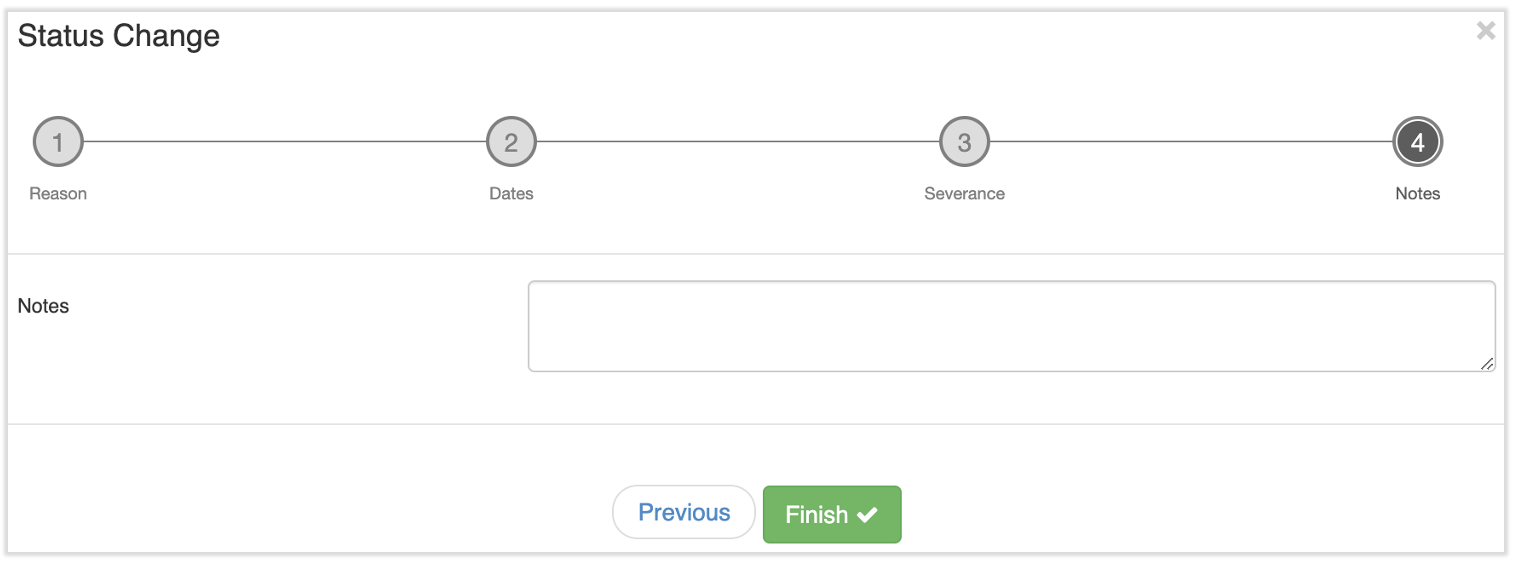
- The last step allows for any related notes that may be necessary. This step is also optional. Select Finish to complete the termination process. Once these steps are complete, the employee's Toast Web profile will be archived as well.
- Former employees maintain limited access to the Toast Payroll system, mostly for paystub and year-end document access. If Toast Payroll files taxes on your company's behalf at the end of the year, this individual can retrieve their Form W-2 or other year-end documents by using these instructions.
- Former employees maintain limited access to the Toast Payroll system, mostly for paystub and year-end document access. If Toast Payroll files taxes on your company's behalf at the end of the year, this individual can retrieve their Form W-2 or other year-end documents by using these instructions.
- There may be state and/or local laws or regulations concerning the compliance of an employee's final check or direct deposit. Toast Payroll cannot advise on these matters, but you might check with a lawyer or use the free HR toolkit from Mineral to investigate your jurisdiction's regulations.
- Terminated employees will not have any access to a Toast POS since their POS access code becomes disabled. They will also lose all access to Toast Web, but if you use Toast Payroll, the employee can still log in there to grab any paystubs or year-end tax documents such as a Form W-2.
- On the Archived Employees page of Toast Web (Employees > Employee management > Employees > Archived), a name will not appear in the Archived By tab when an employee is terminated in Toast Payroll (and thus archived in Toast Web). A name only appears when a profile in Toast Web is archived directly (the process in step 1 above).
- To review the individual who terminated an employee in Toast Payroll (which archives a profile in Toast Web), open Toast Payroll and navigate to the employee's profile. Select the > caret icon at the top of the Status tile. Close the pop-up and you'll see the status change audit. Review the User column for the Terminated entry.
This content is for informational purposes and is not intended as legal, tax, HR, or any other professional advice. Please contact an attorney or other professional for advice.