Time Entry Management Overview
Last updated: May 29, 2026, 10:42 AM
Review, edit, and manage employee clock-in and clock-out times, breaks, and declared tips from the Time entry management page in Toast Web.
- About Time entry management
- How time entries are created
- Time entry management report
- Shift Details
- Permissions
- Known limitations
- Related articles
About Time entry management
Time entry management in Toast Web is your central labor report for reviewing, editing, and managing employee clock-in and clock-out times, breaks, and declared tips. Whether you call it a timesheet, time card, or punch report, the Time entry management page is where you go to see and manage your team's shift data.
To access the report, go to Reports > Labor > Time entry management in Toast Web, or select Time entry management from the Quick actions menu on the homepage.
You need the following permissions:
- 4.3 Labor Reporting to view time entries
- 3.14 Edit Time Entries to edit time entries
To edit or add time entries, see Edit employee time clock entries.
How time entries are created
A time entry is created in Toast Web when an employee clocks in or out on a Toast POS device. If your restaurant uses a bi-directional time clock through Sling by Toast, entries from the scheduling integration also appear here.
Before an employee can clock out on a POS terminal, all checks under that employee's name must be closed. If an employee clocks out of a shift without first clocking out of a break, the system does not capture a break clock-out time.
An employee's open shift can also be closed from the Time entry management page if the employee completed shift review or if the shift was closed by the nightly auto-clock out. Employees clocked out by the system are "auto-clock outs," which typically occur at 4:00 a.m. See Locate Auto Clock Out Time Entries for details.
Keep the following in mind:
- If a time entry is edited for an employee who completed shift review, the shift reopens and shift review must be completed again.
- If you delete an employee's time entry, the deletion reopens the shift review and removes the employee's tip out and cash collected entries from the Drawer history report.
- If you use Toast Payroll, familiarize yourself with how Toast Web and Toast Payroll handle time entries. See Toast Payroll: Manage Timesheets for more information.
Time entry management report
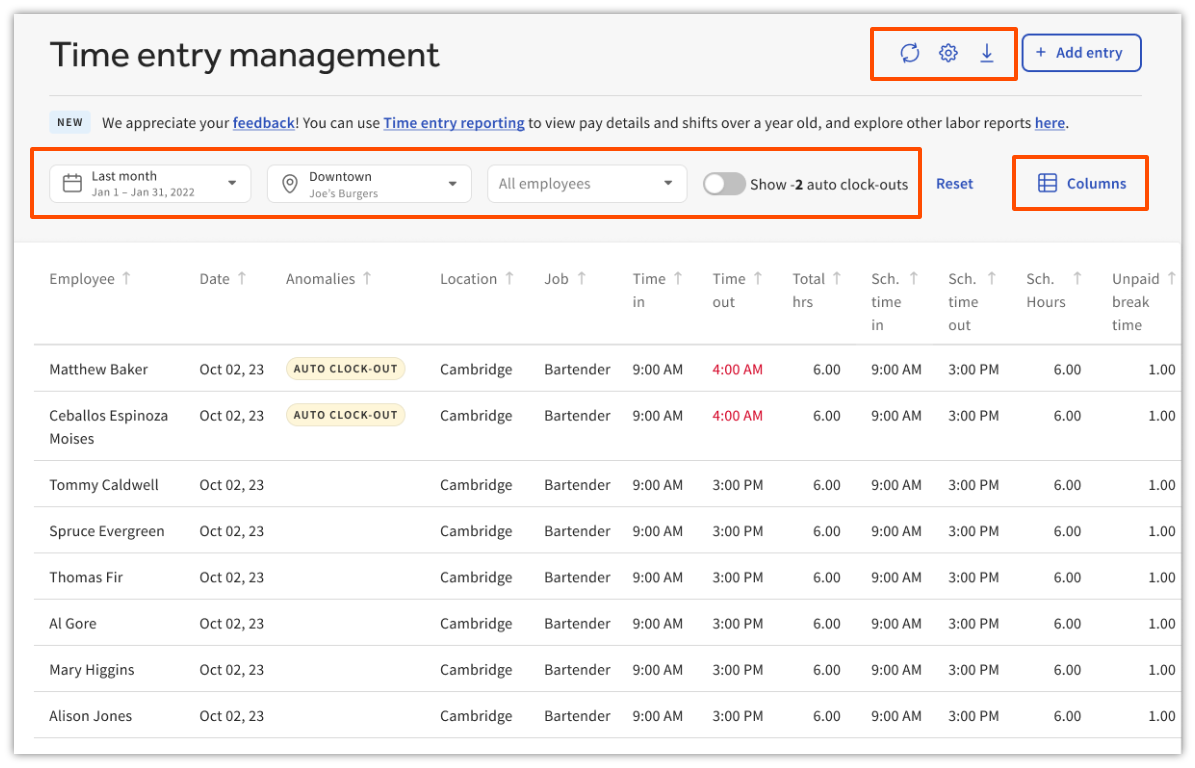
The Time entry management report displays shift data for your employees. Use the filters and toolbar to locate the entries you need.
Date range and data availability
Select the Date range dropdown to view shifts within the past 12 months. Preset options include Last two weeks, three months, six months, and more.
- For data older than one year, use the Time entry reporting page. Select the link at the top of the page to navigate there.
- If you cannot retrieve the data you're looking for, please contact Customer Care via the Toast Now app.
Location filter
Select the Location dropdown to filter time entries by restaurant group or individual location. You may select multiple locations. This filter is separate from the system-wide location dropdown.
Employee filter
Select the Select employee dropdown to locate a specific employee. Archived employees appear in gray if they have shifts within the selected date range.
Columns
Select the Columns button to add or remove information displayed in the report. The Anomalies column shows irregularities detected in shift data.
Note: The Regular Pay, Overtime Pay, Total Pay, and Wage columns are only available on the Time entry reporting page (Reports > Labor > Time entry reporting).
Toolbar
The toolbar in the top right includes:
- Refresh (circle arrow icon) — reloads the report data
- Report settings (gear icon) — adjusts spacing and font size
- Download (download icon) — exports the report with your current filters applied
Shift Details
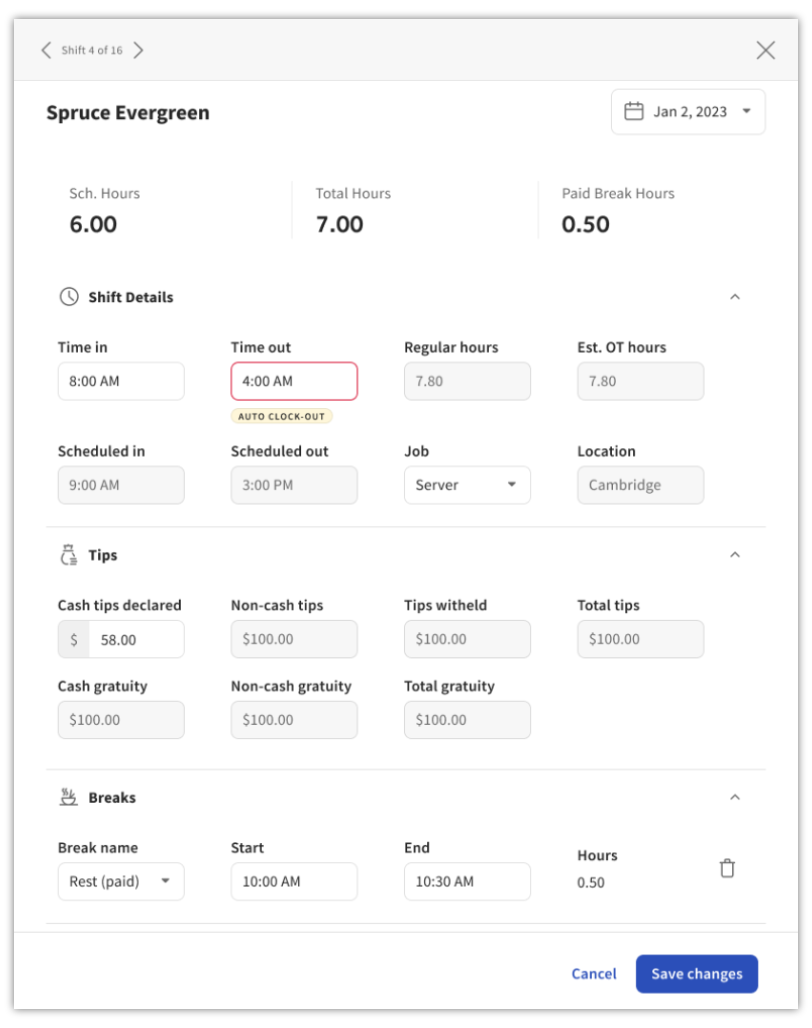
Select an employee's shift row on the report to open the Shift Details panel.
Schedule information
Sch. hours, Sch. Time in, and Sch. Time out display the employee's scheduled hours if a scheduling integration (like Sling by Toast) is connected. If these values are missing or incorrect, the issue is in the scheduling integration, not Toast.
Hours and overtime
- Regular hours shows hours worked excluding daily overtime.
- Est. overtime is calculated by Toast Web based on your work week start date and overtime rule settings in Toast Web. This estimate does not reflect calculations from Toast Payroll or other payroll integrations. If estimated overtime does not match your expectations, see Manage Overtime Rules and Hours Counted as Overtime Instead of Regular Hours.
Tips
The Tips section displays pre-pooled tip amounts from the employee's sales. The Toast Tips Manager report reflects post-pool values. Tips may not be final if the shift is still open. The tips section only displays if the shift's job is a tipped job.
Breaks
The Breaks section requires break tracking to be set up and configured. See Build Employee Breaks in Toast for setup instructions.
- If Track missed breaks is enabled, Shift Details also shows breaks the employee was eligible for but did not take.
- If Employee break acknowledgement is enabled, the page shows the break acknowledgement response.
Permissions
To access the Time entry management report, a user needs an account and profile in Toast Web plus the appropriate permissions.
- 4.3 Labor Reporting — required to view time entries
- 3.14 Edit Time Entries — required to edit time entries
If the Time Entries report appears blank and you have the correct permissions, try clearing the cache on your browser.
For more information about permissions, see Assign User Access Permissions.
Known limitations
- The estimated overtime on the Time entry management report is calculated by Toast Web based on your work week start date and overtime rules. The estimate may differ from Toast Payroll's overtime calculation. For overtime discrepancies, see Manage Overtime Rules and Hours Counted as Overtime Instead of Regular Hours.
- The Regular Pay, Overtime Pay, Total Pay, and Wage columns are only available on the legacy Time entry reporting page.
- Shifts created in Toast Web do not appear in the Review Employee Shifts function on the POS.
Related articles
- Edit employee time clock entries
- Adjust Time Entries of Shifts When They Run Over
- Build Employee Breaks in Toast
- Locate Auto Clock Out Time Entries
- Toast Payroll: Manage Timesheets
- Manage Overtime Rules
- Hours Counted as Overtime Instead of Regular Hours
- Close an Open Shift From Yesterday
- Assign User Access Permissions
- Access Time Entry Reporting After 12 Months