Toast Retail: Create Item Bundles & Alternate Packages
Last updated: Sep 28, 2026, 2:34 PM
Learn how to link your items into bundles and alternate packages using Toast Retail.
- Inventory Linking Overview
- Inventory Depletion Modes for Bundles & Alternate Packages
- Create an Item Bundle
- Set Up Alternate Packages
- Retail Reporting for Bundles & Alternate Packages
- Additional Resources
| The inventory linking features described in this article are in limited release with select customers. Check back soon for updates! |
Retail Inventory Linking Overview
At Toast, we know that there are many ways you can sell an item to satisfy your guests and sometimes that can make tracking inventory counts or calculating costs difficult. Looking to bundle existing items together into a gift basket? Group cheese and meat items into a charcuterie board? Or sell the same beer by the case, 4-pack, or single bottle? We’ve got you covered with inventory linking.
Inventory linking in Toast Retail lets you unify inventory accounts across multiple items by using two new item types: bundles and alternate packages. Bundles are groups of items that are sold together at a specific price point, often in a shared container with special preparation instructions (e.g. gift baskets, charcuterie boards, beer flights). Alternate packages can be used when you receive a base item that you want to sell in different quantities. This could include a case of beer that is also sold as a 4-back or a single beer, or a bottle of wine that is sold as a full wine bottle and also by-the-glass (BTG).
With bundles and alternate packages, you’ll be able to indicate how your items are related to each other and how inventory counts should be updated when one of the linked items is sold. Inventory linking can help with:
- Count accuracy: Prevent overselling or underselling of your items with real-time stock adjustments.
- Ordering efficiency: Know exactly how much new product to order using consolidated inventory counts.
- Reducing shrinkage: Gain visibility into inventory movement and prevent shrinkage due to miscounts, theft, or untracked usage.
To create bundles or alternate packages in Toast Retail, you’ll need the 4.5 Full Edit Menu permission.
See the video overview for an introduction to inventory linking:
How to create item bundles and alternate packages in Toast Retail.
Inventory Depletion Strategies for Bundles & Alternate Packages
When you create bundles or alternate packages, you’ll have to decide how you want your inventory to be depleted when the item is sold. There are two options: manual mode (the default) or automatic mode. Let’s look at how each strategy works for these linked item types:
Bundles:
- In manual mode, you will have to indicate when you’ve created more bundles that are available to sell. You should use this strategy if you’re making bundles in advance that you might break back down later.
- In automatic mode, Toast will calculate the total number of bundles available to sell based on the amount of inventory you already have. You should use this strategy for bundles made to order.
Alternate packages:
- In manual mode, you’ll need to indicate how many packages you want to offer, also known as “case breaking.” For example, if you receive cases of beer, you’ll need to manually track how many boxes you’ve opened to create 4-pack items, or how many individual beers you’ve pulled from those cases to place in the fridge. This strategy is suggested if you want to control sales by only offering what you’ve prepped ahead of time.
- In automatic mode, Toast does the math for you – letting you sell 4-packs or individual beers as long as you’ve got enough inventory. This gives you freedom to sell your items in whatever size/quantity suits your guests. When you open your last case to sell a 4-pack to your guest, Toast will automatically mark the case item out of stock to prevent selling less than one whole case by mistake.
Note: If you use automatic inventory tracking, it’s important to remember that with online ordering, guests will only be able to see inventory status as In stock or Out of stock. That means that your guests could potentially place an online order for more bundles or alternate packages than you physically have available. If that happens and the order can’t be fulfilled entirely, Toast recommends reaching out to the guest using their contact information on the order.
Create an Item Bundle for Retail Items
Use item bundles when you want to assemble multiple items together, such as a Valentine’s Day gift basket with wine, chocolate, and cookies. Follow these steps to create a bundle:
Note: If you’ve already created these items as standard items in your item catalog, navigate to the item details page and start at step 4.
- In Toast Web, navigate to Retail > Item management > Item catalog.
- Select + Add item.
- Complete the required fields (Item name, Primary category, and price) and then select Save.
- At the top of the page, select Link item.
- Select Bundle, and then select Next.
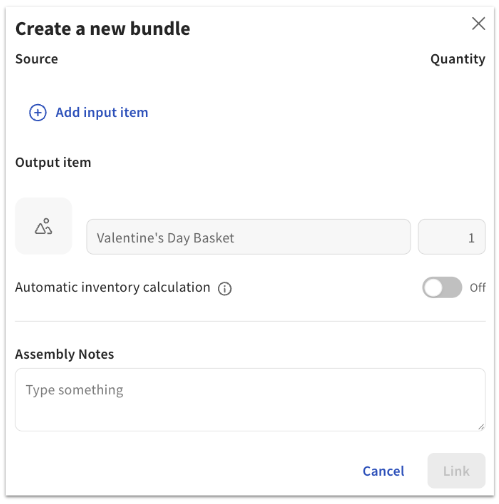
- The bundle creation window will appear. Select + Add input item and search your existing item catalog for the retail items you’d like to include in the bundle. Enter a Quantity for each item you add.
- If desired, toggle Automatic inventory calculation to the On position. Otherwise, inventory will be calculated manually (you can review the difference between manual and automatic here).
- Optional: Add Assembly Notes that will be visible to anyone who creates this bundle from the Productions page (e.g. "Cellophane wrap with silver bow and tag").
- Select Link.
- When you’re finished filling in your item details, save and publish your changes.
On the item details page, the total Bundle cost will be calculated by the cost of each component multiplied by the quantity used. If you need to add cost for packaging such as wrapping paper, you can do so in the Pricing and cost section by selecting + Additional costs and fees.
Note: Bundles cannot be ordered or received from suppliers, but they can be received via a cross-location transfer. Learn more about cross-location transfers in this Support Center article, Toast Retail: Utilize Cross-Location Transfers.
If you’ve chosen to use manual inventory calculation, the next step is to create bundles to offer your guests using the Productions page.
Produce Bundles for Sale (Manual Mode)
If you use manual mode to track inventory for your bundles, you’ll need to indicate when you’ve created bundles that are available for sale so that your inventory is adjusted.
To produce bundles for sale, follow these steps in Toast Retail:
- Navigate to Item management > Productions.
- Your bundles will appear on the page, along with information such as PAR min, Producible (the number of bundles you can produce based on your current inventory), Qty (the quantity of bundles you’ve already produced), Last produced date & time, and more.
- Select Produce to the right of any bundle row to create more of the bundle to sell to your guests.
- Enter the Quantity you’re producing.
- Select Produce.
As soon as you select Produce, your inventory counts for the bundle component items will be deducted to reflect the number of bundles you’ve produced, along with the remaining inventory of individual items that can still be sold to guests.
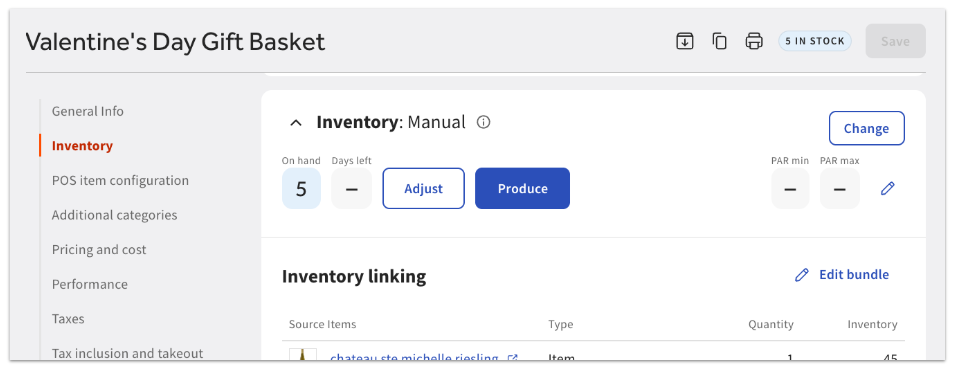
Alternatively, you can produce bundles or break bundles back down to individual items from the item details page. In the Inventory section of the bundle’s item details page, select Produce to bring up the produce item window, or select Adjust to use the Breakdown action to change the quantity of bundles you have on hand and update your inventory accordingly.
Bundles can also be scanned or produced by logging in to Toast Web on the web browser of your mobile device and navigating to Toast Retail on a mobile device.
Note: Any bundles you’ve created with automatic inventory tracking will also appear on the Productions page. The Producible number will show you how many bundles you could sell based on your current inventory, but the Qty value will be blank because you’ve elected not to create these items ahead of time.
Set Up Alternate Packages for Retail Items
Use alternate packages when you have items that you might sell in different quantities (e.g. a 4-pack or a single beer from the 4-pack).
When setting up alternate packages, you have to determine what you’ll use as your source item. Toast recommends choosing the item you use for ordering inventory. In this example, let’s say we order Upper Crust beer by the case, and each case has six 4-packs in it.
Note: You will only be able to purchase or receive source items. You will not be able to purchase or receive the alternate package item type.
Upper Crust Case would be the item in our item catalog that we would use as the source item, and then we can create alternate packages to sell Upper Crust by the 4-pack or single beer to our guests.
Follow these steps to configure alternate packaging sizes for the 4-pack and single bottle.
Note: If you’ve already created these items as standard items in your item catalog, navigate to the item details page and start at step 4.
- In Toast Web, navigate to Retail > Item management > Item catalog.
- Select + Add item to create an “Upper Crust 4-Pack” item.
- Complete the required fields (Item name, Primary category, and price) and then select Save.
- At the top of the page, select Link item.
- Select Alternate package, and then select Next.
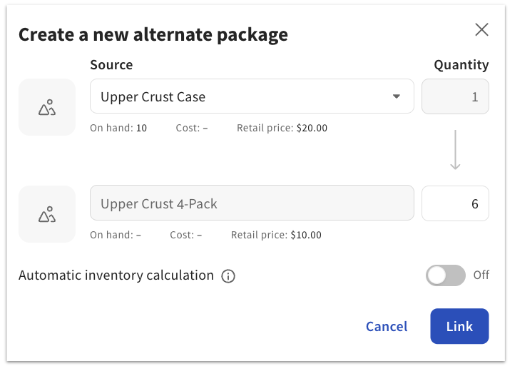
- In the Source field, search for and select your desired source item. In this example, that would be “Upper Crust Case”.
- Enter the Quantity of items that are contained within a single source item. In other words, how many of these 4-packs are there in one case of Upper Crust beer?
- If desired, toggle Automatic inventory calculation to the On position. Otherwise, you will have to manually indicate how many cases you are breaking down into 4-packs to keep your inventory count accurate. You can review the difference between manual and automatic here.
- Select Link.
- When you’re finished filling in your item details, save and publish your changes.
You could then repeat these steps to create an “Upper Crust Single” item that is linked to the Upper Crust 4-pack as the source item.
Transfer Inventory to Alternate Packages (Manual Mode)
If you use manual mode to track inventory for alternate packages, you’ll have to go in and transfer inventory from one size to another in order for your inventory to be accurate. The 5.6 Inventory & Quantity permission is required to initiate transfers.
For example, if you receive a case of Upper Crust beer, you’d have to manually transfer that inventory into 4-pack and individual beer items in order to sell them to your guests.
- Navigate to the item details page in Toast Retail, and then select the Inventory tab.
- Select Transfer.
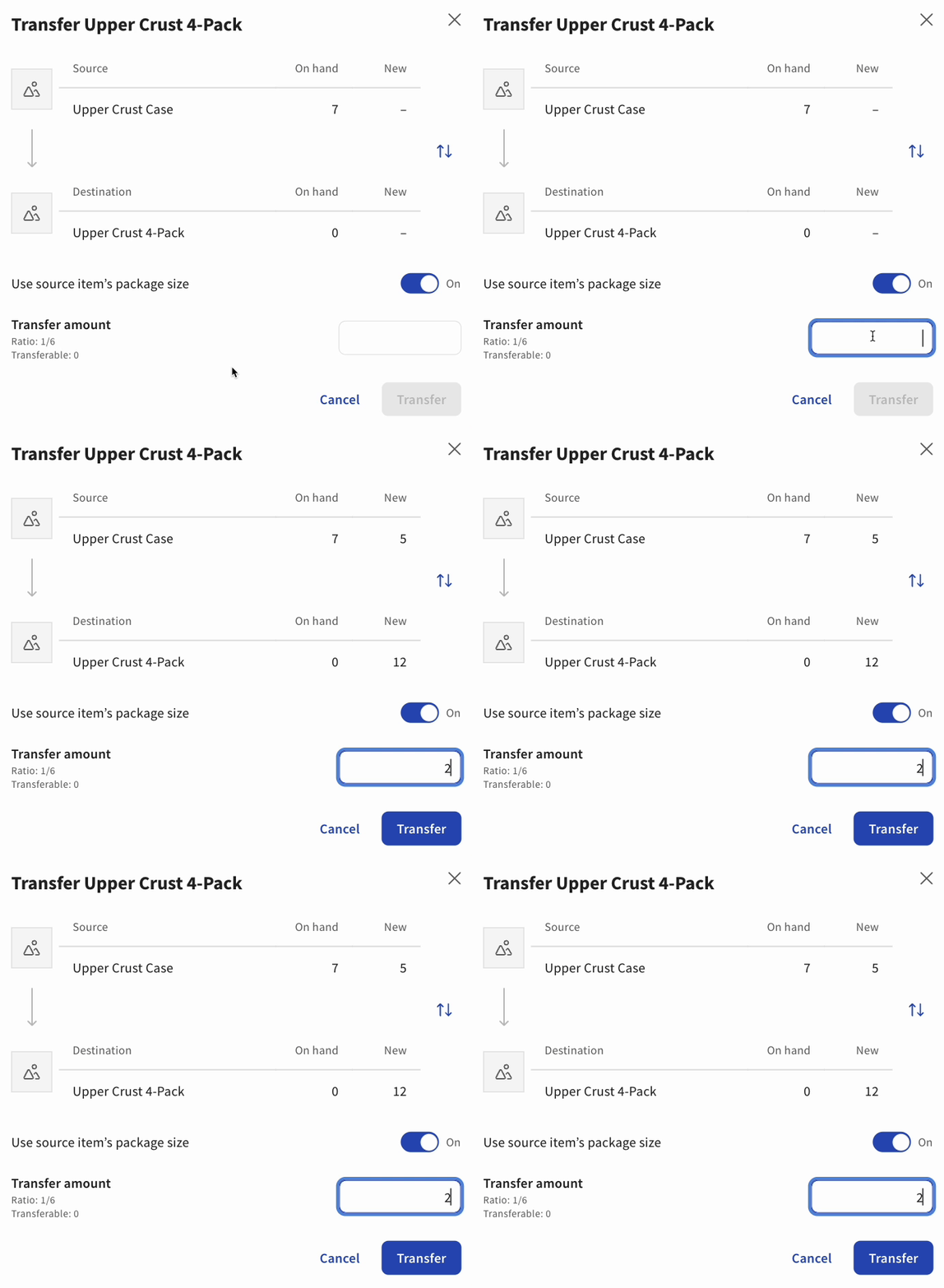
- The Transfer window will show you how many of each item you have on hand. Enter the Transfer amount, which is the number of source items you want to break down into smaller packages.
- Select Transfer. The inventory count of your source item and destination item will be updated.
Here, you can see that we started with 7 cases of Upper Crust Beer, and we had zero 4-packs on hand. When two cases were transferred to 4-packs, our cases on hand reduced from 7 to 5, and our 4-packs on hand increased from zero to 12:
Retail Reporting for Bundles & Alternate Packages
Here’s how bundles and alternate packages will appear on Toast Retail reports:
- Inventory Snapshot report: Only source items with on-hand inventory counts will appear in this report. That means bundles and alternate packages will not be included. This is to prevent double-counting inventory.
- Sales & COGS report: Each item, including bundles and alternate packages, will have its own sales reported and COGS calculated independently.
- Inventory history (on the Inventory section of the item details page):
- For bundles with automatic inventory depletion, you’ll see Transfer In and Transfer Out events that are triggered by the system based on item sales.
- For alternate packages with automatic inventory depletion, you’ll also see Transfer In/Transfer Out to indicate when an alternate package (e.g. a 4-pack of beer) was sold out of the source item (e.g. the case of beer).
- Sales events will be aggregated into a single line on the Inventory history table. A new Transfer In/Transfer Out row is generated if the cost changes, if the quantity/ratio changes, or if the linked item changes.
Additional Resources for Bundles & Alternate Packages
- Toast Retail: Inventory Linking FAQ
- Toast Retail: Manage Your Inventory
- Toast Retail: Adjust Inventory to Optimize COGS Calculations