xtraCHEF: Create Orders
Last updated: Apr 28, 2026, 4:20 PM
Orders Overview
xtraCHEF's Order function creates a streamlined way to compare your vendor's bid sheets, standardize and simplify your order guides, and create and send orders directly to your vendor representatives or respective sales teams.
Creating orders will enable you to shop from previously purchased invoice items or set order guides and share those lists with your vendor(s) directly through xtraCHEF.
To utilize this tool, select Order from your left-hand navigation menu. You'll see any recent orders as well as Ordering by Vendor analytics. To continue and create an order, select the green Order button.
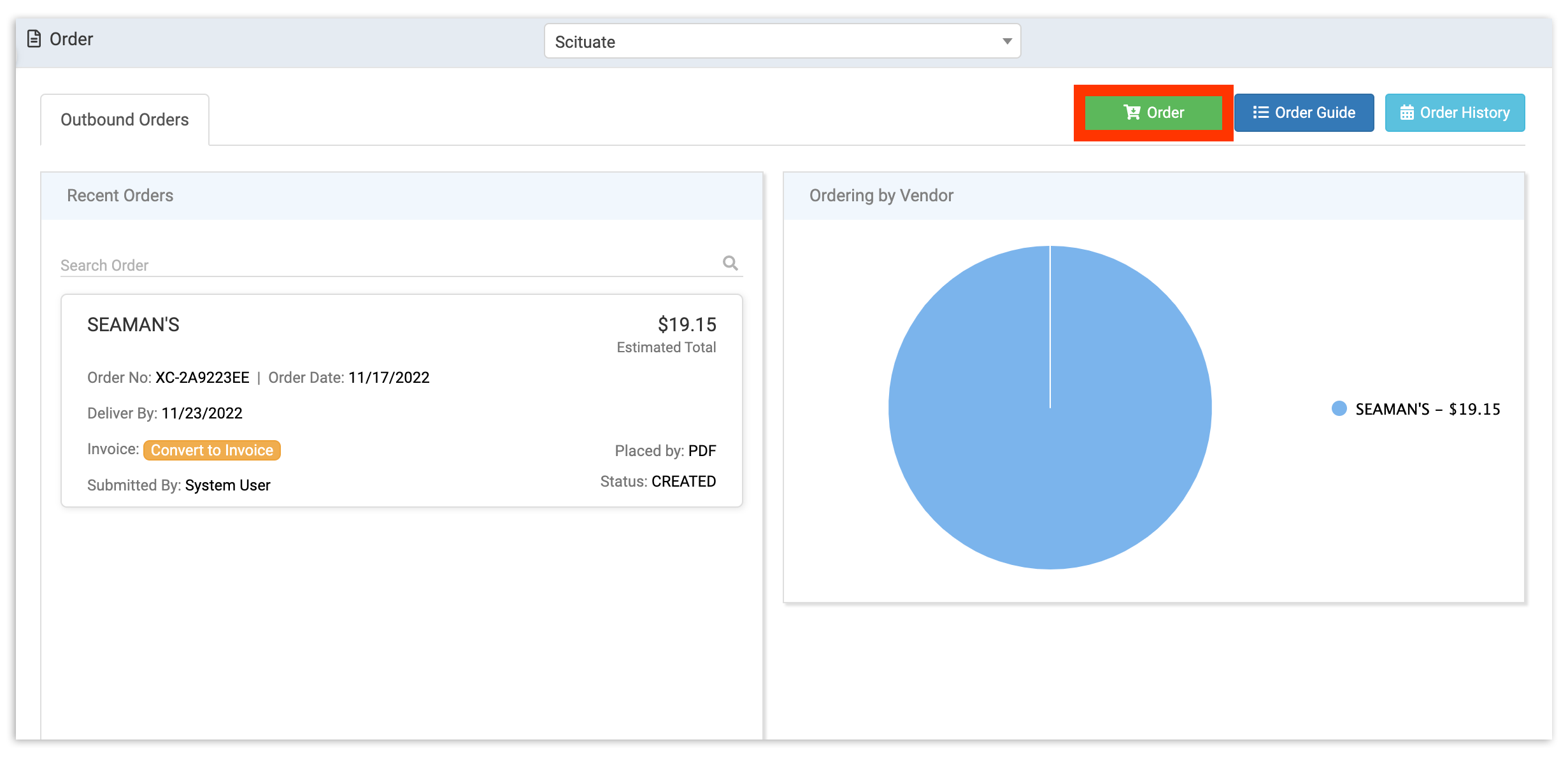
Create Orders
When creating an order, you'll have the option to select invoice items previously purchased from your vendors based on your Catalog or as dictated in an Order Guide.
In either your Catalog or Order Guide view, begin by selecting the vendor you wish to order from.
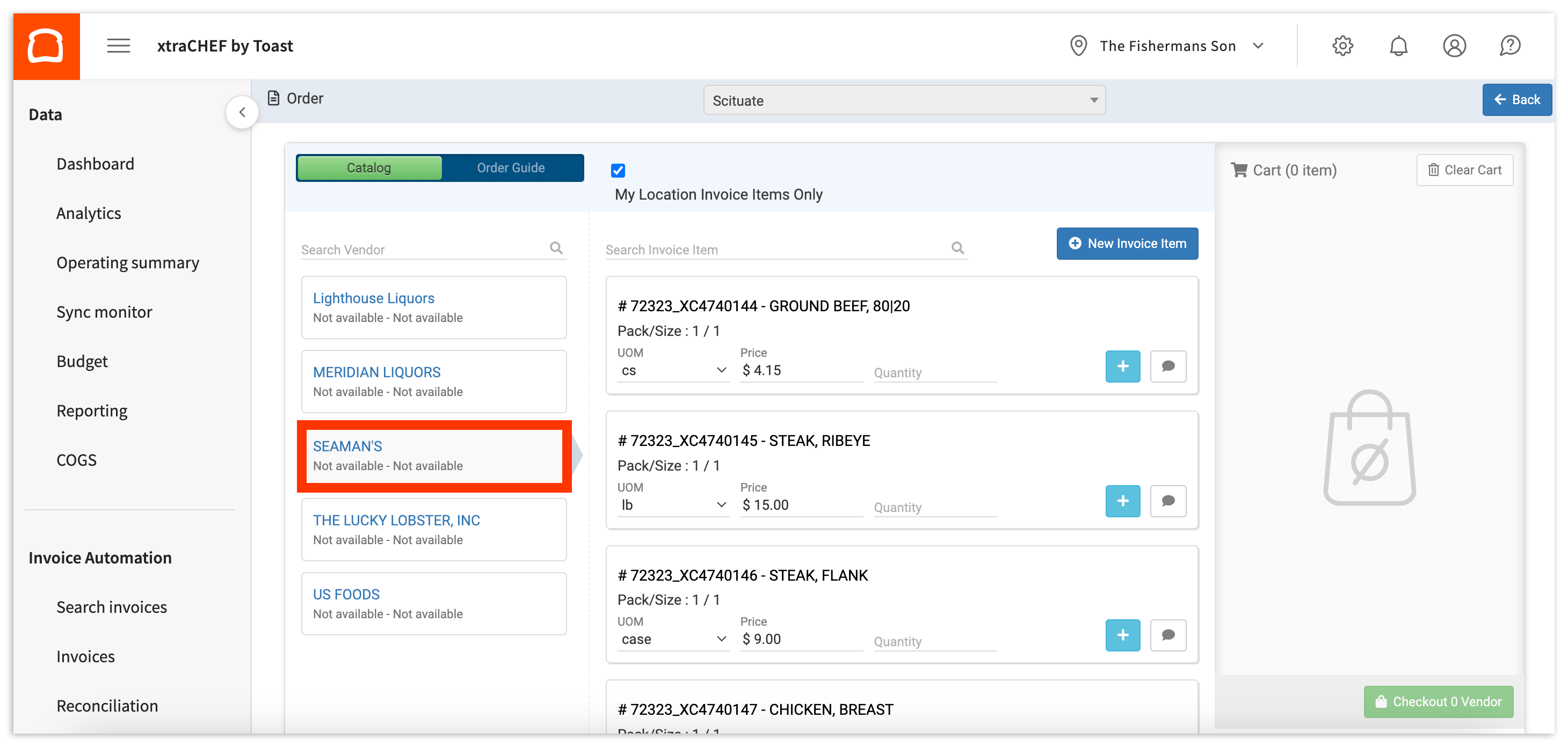
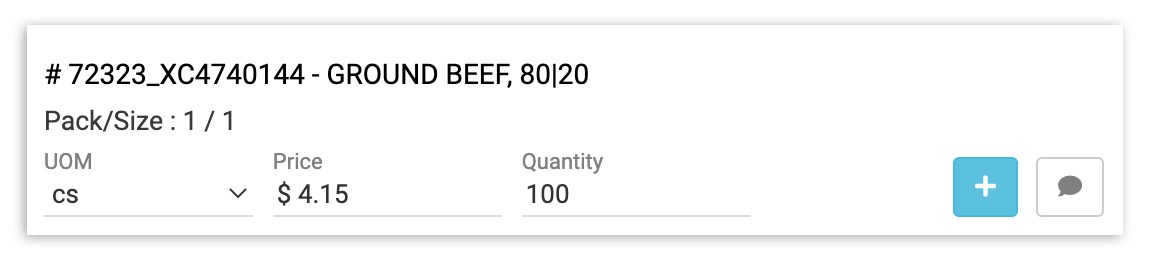
Then select the Invoice Item you need to order and add the Quantity to be shipped. Select the blue + button.
This will add the invoice item and quantity to your shopping cart. Repeat this step as needed until your cart is full of all your required items. When you're satisfied with your order, select Checkout.
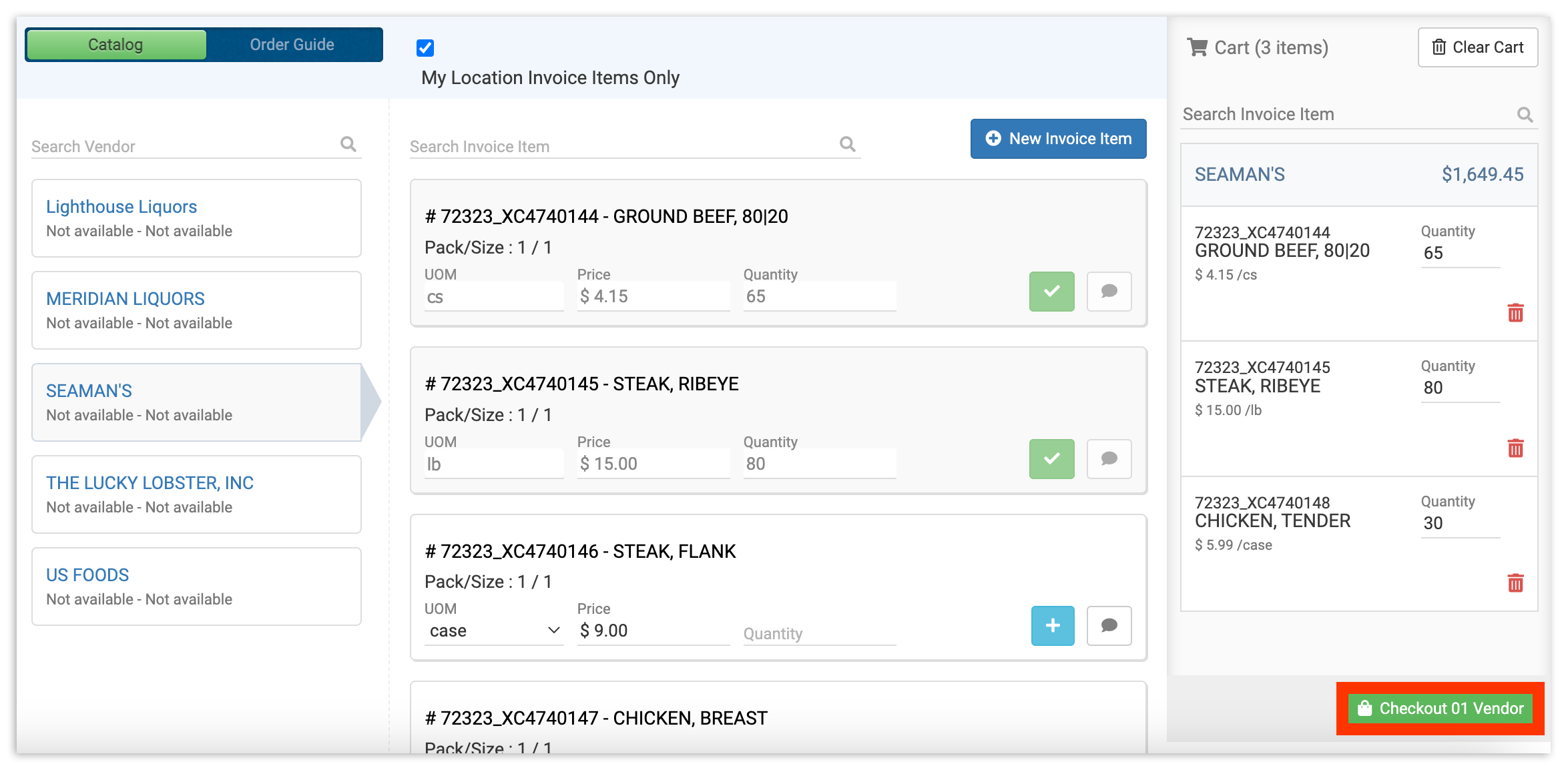
Place Orders
You'll be prompted to fill out the required purchase and delivery details. If you are ordering from multiple vendors, this step will need to be repeated for each vendor in your order.
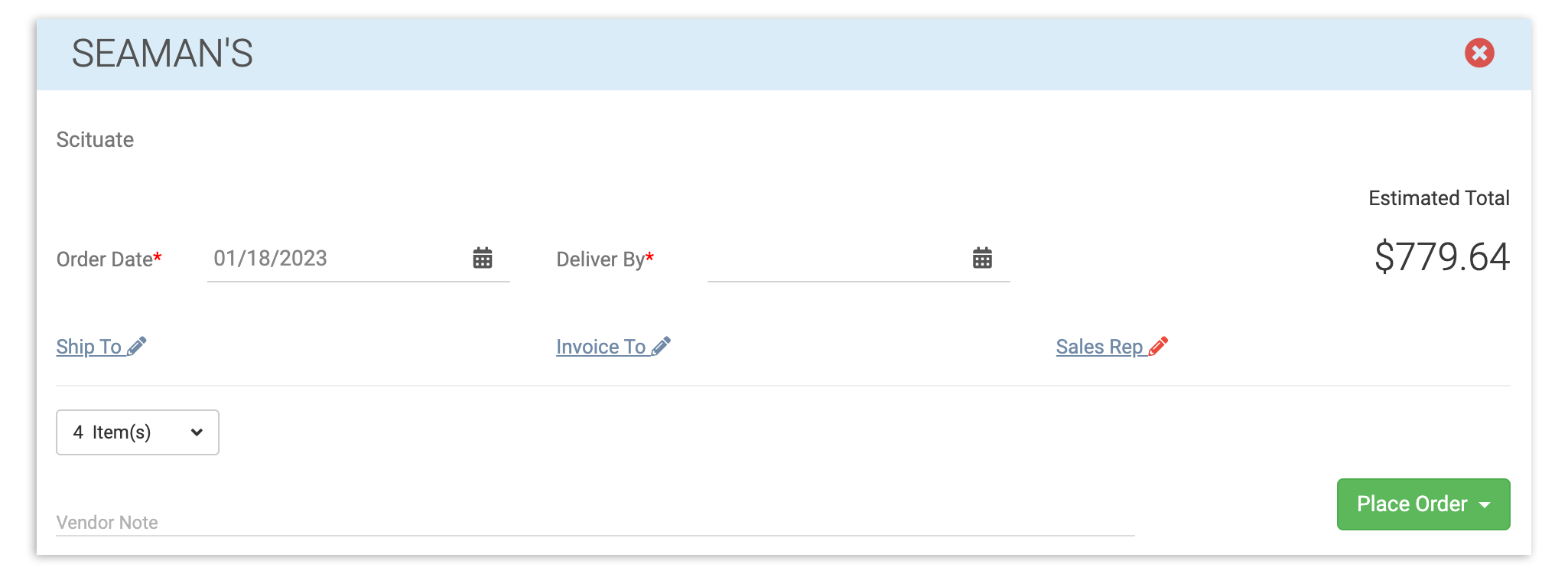
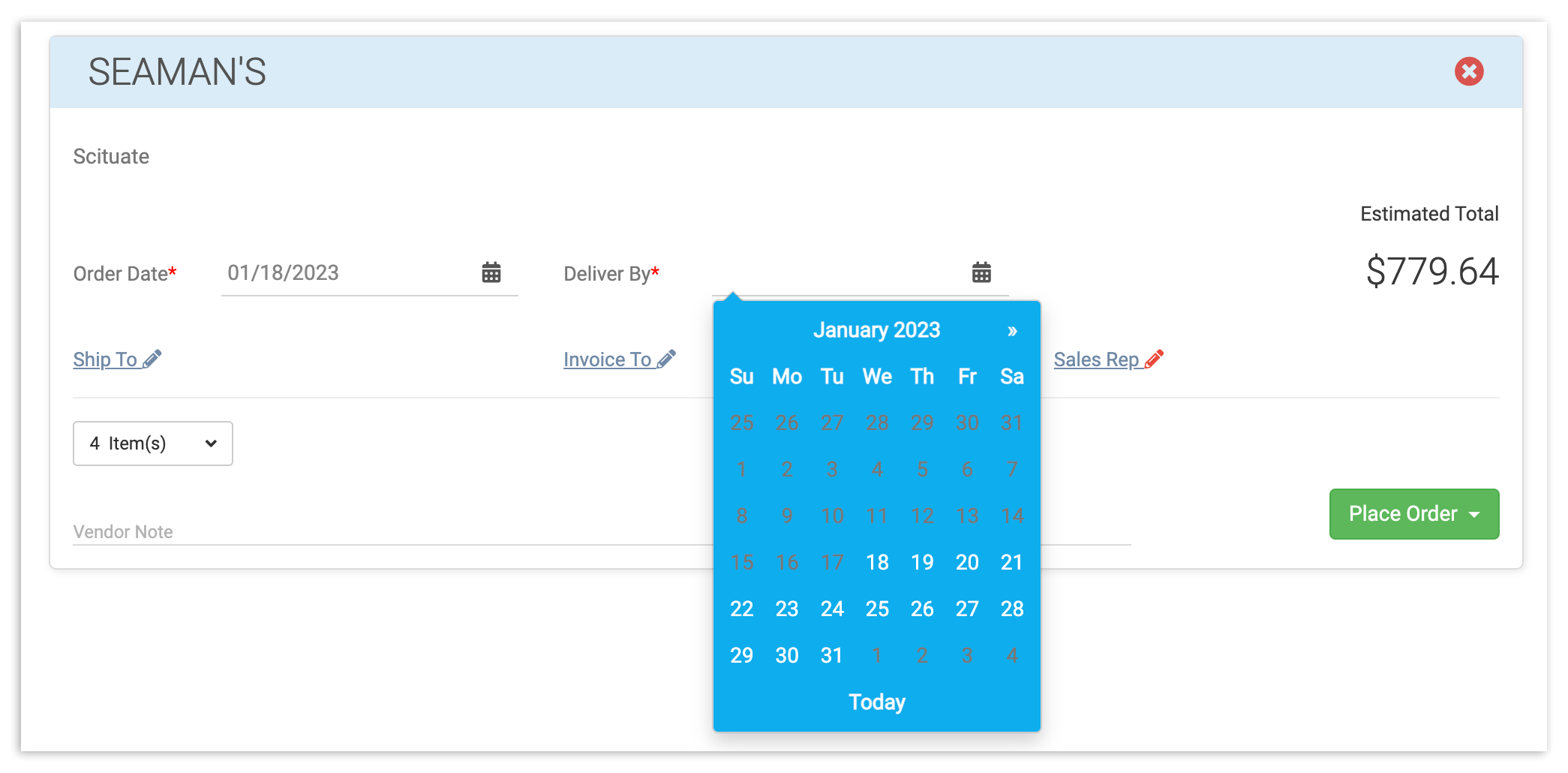
By default, your Order Date will be today's date. This date and your Deliver By date can be changed by selecting the calendar icon and choosing a more suitable time frame.
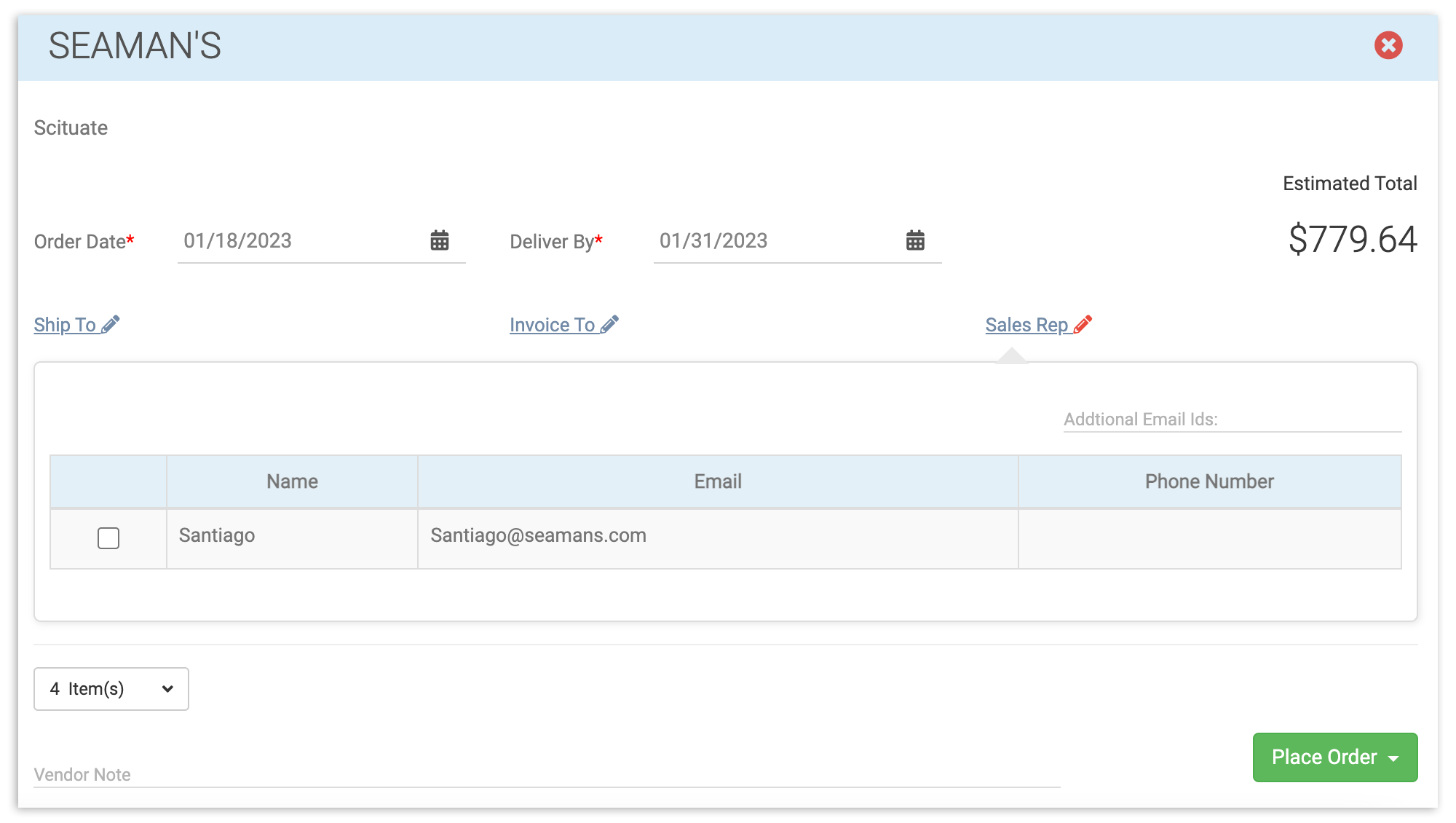
You can also confirm and edit information such as Ship To (address), Invoice To (address), and Sales Rep (name, email, and phone number) by selecting a corresponding pencil icon.
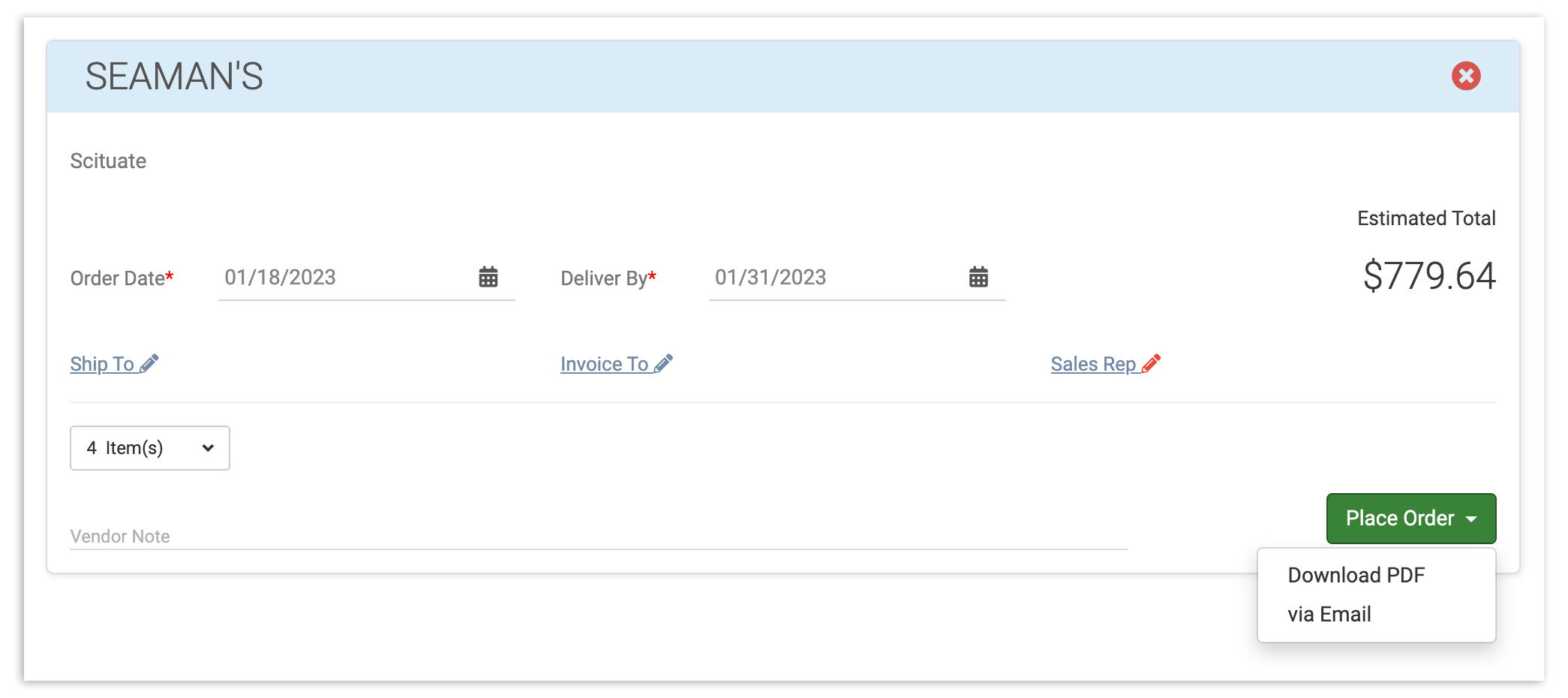
When you're ready to send in your order, select the Place Order button. From here, you can choose to send your order in one of two ways: either by a downloadable PDF you can pass on or send to your vendor, or via email, directly from xtraCHEF account.
Note: Your vendor(s) contact information can be established or edited via your Vendors hub. Learn more in xtraCHEF: Vendors.
Back to top