Configurar menús para comensales
Última actualización: 15 sept 2026, 10:06 a.m.
Los comensales suelen tener un menú grande con muchas maneras diferentes de modificar cada artículo del menú. Los siguientes consejos te ayudarán a organizar el menú y los modificadores de tu restaurante en Toast.
- Funcionalidad de modificadores para menús de comensales
- Organizar los modificadores
- , nombre del POS y nombre de la cocina
Funcionalidad de modificadores para menús de comensales
Premodificadores para menús de comensales
Los premodificadores te permiten agregar texto antes (prefijo) o después (sufijo) de un modificador. Los premodificadores son una característica estándar del sistema de POS de Toast. Cuando creas un grupo de modificadores, puedes crear un conjunto de premodificadores como NO, SUB, ADD, EXTRA o GUARNICIÓN para notificar fácilmente a la cocina las especificaciones de un artículo que tiene muchos ingredientes, como una hamburguesa o una tortilla.
Los premodificadores no son compatibles con informes, Pedidos digitales Toast, Puesto de pedidos, integraciones de terceros, Toast Móvil Pedidos y Pagos® o Toast Local.
Aunque hay limitaciones con los premodificadores, los comensales suelen encontrar que utilizar esta funcionalidad de modificadores permite un flujo de pedidos más conversacional como si el mesero estuviera escribiendo pedidos a mano en el POS para que los vea la cocina. Para lograr el mismo efecto con los pedidos digitales, sugerimos hacer modificadores específicos del artículo (por ejemplo, sin tomate, sin lechuga, etc.) o permitir que los clientes usen el campo de solicitud especial.
Visita este artículo del Centro de asistencia para aprender a configurar premodificadores en el menú de tu restaurante: Crear y asignar premodificadores.
Modificadores anidados para comensales
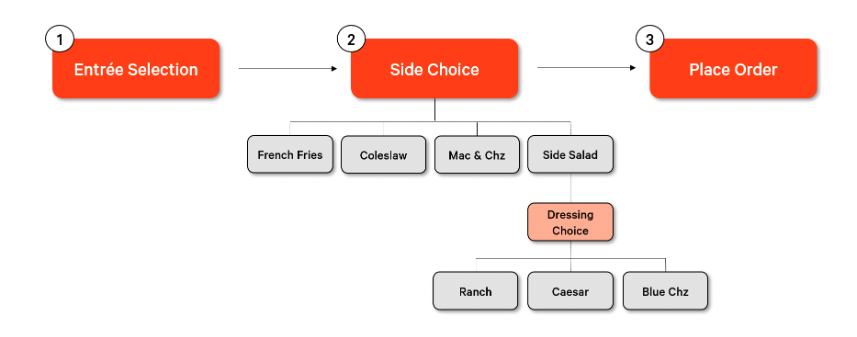
Los modificadores anidados, o agregar un modificador a un modificador, pueden ser útiles si tienes opciones en tu menú que puedan requerir una elección de seguimiento para realizar un pedido. Estas compilaciones de modificadores al estilo “si esto es así” pueden ayudarte a guiar a tus clientes a través del proceso de pedido sin problemas, ya sea que su pedido se realice en persona o en línea.
Los modificadores anidados pueden ser útiles para los comensales, ya que permiten que ciertas opciones trabajen conversacionalmente en ciertos temas. Esto significa que, a medida que un cliente haga una selección, el mesero podrá registrar modificadores adicionales que se aplican al artículo que se seleccionó. En este escenario, si un cliente elige la ensalada como guarnición, también necesitamos saber qué tipo de aderezo le gustaría. Debido a que esta selección de aderezo no es relevante si el cliente elige papas fritas, ensalada de col o macarrones con queso, queremos aplicarla solo a la opción de modificadores de ensalada de guarniciones. Estamos “anidando” la opción de aderezo dentro de la opción de modificadores de “ensalada de guarniciones”.
Organiza tus modificadores para los comensales
Para ayudar a los comensales a organizar su menú y sus modificadores, te sugerimos crear una lista alfabética de los modificadores. Esto debe incluir todos los modificadores que tu equipo podría usar a diario. Si se trata de una lista extensa, puedes separar estos grupos en categorías alfabéticas más pequeñas (A-D, E-I, J-M, etc.) o categorías de contenido (carne, queso, verduras, etc.). En última instancia, deseas organizar los modificadores de manera que tu POS de Toast sea rápido y fácil de usar para tus meseros. Visita este artículo del Centro de asistencia para aprender a configurar grupos de modificadores en tu menú de comensales: Crear y gestionar grupos de modificadores y opciones de modificadores.
Nombre, nombre del POS y nombre de la cocina de los comensales
Dentro de Toast, puedes hacer que un nombre de artículo o modificador aparezca diferente en tus informes, tu POS de Toast y tu cocina. Esto puede ser útil para que los comensales ayuden a mejorar la claridad y la eficiencia del personal y la cocina.
- Nombre: El nombre “oficial” del componente del menú que se utilizará en todos tus informes de backend de Toast.
- Nombre del POS: Un nombre abreviado que aparecerá cuando se use un dispositivo de POS para atención al público y puede servir como ayuda visual para aumentar la velocidad al realizar pedidos.
- Nombre de cocina: El nombre tal como aparecerá para el personal de cocina en los tickets de cocina impresos o las pantallas de visualización de la cocina. Al igual que el nombre del POS, este campo se puede usar para abreviar o cambiar la forma en que el personal de cocina ve el nombre para mejorar la claridad y eficiencia.
Estos nombres se pueden actualizar en bloque en la página de propiedades avanzadas. Visita esta página para aprender a configurar nombres de POS y nombres de cocina utilizando propiedades avanzadas: Aplicar configuración a tu menú en bloque.