Toast Payroll: Reenviar correo electrónico de incorporación de nuevos empleados
Última actualización: 9 oct 2026, 11:05 a.m.
Pregunta
- Para los empleados que no han terminado sus pasos de incorporación y nunca han iniciado sesión antes, ¿cómo pueden acceder al sistema y a sus pasos de incorporación?
- Tengo un par de empleados que no han recibido su correo electrónico de Toast Payroll para configurar su cuenta, ¿cómo les reenvío el correo electrónico de bienvenida?
Respuesta
Cuando crea un nuevo empleado en Toast Payroll y termina los pasos de incorporación del empleador, se envía automáticamente un correo electrónico de \"bienvenida\". Dirige a los nuevos empleados a crear su contraseña y configurar su cuenta de Toast Payroll, y luego los guía a los pasos de incorporación del empleado. Si un empleado pierde o extravía su correo electrónico de \"bienvenida\", se puede enviar otro correo en su lugar. Este correo electrónico se conoce como un correo de \"invitación\". También guía a los empleados a crear su contraseña si aún no se ha establecido una, pero no los dirige automáticamente a iniciar sesión en Toast Payroll y completar sus pasos de incorporación (si aún necesitan hacerlo). Cuando se envía este correo electrónico, los empleadores deben hacer un seguimiento con los nuevos empleados para asegurarse de que estén completando el lado de la incorporación del empleado cuando sea apropiado.
Nota: El correo electrónico de \"bienvenida\" en sí no se puede reenviar; solo se puede enviar el correo de \"invitación\" fuera del flujo de trabajo de incorporación de nuevos empleados.
- Para enviar un correo de invitación, inicie sesión en payroll.toasttab.com y navegue a la página de Equipo.
- Cuando seleccione Equipo en Toast Payroll, debería ver una URL que comienza con payroll.toasttab.com. Visite Navegar por Toast Payroll dentro de Toast Web para aprender cómo funciona la nueva navegación de Toast Payroll.
- Si solo necesita enviar un correo de \"invitación\", localice al empleado y seleccione el icono de sobre.
- Si desea enviar más de un correo electrónico de "invitación", seleccione las casillas de verificación para cada empleado y, a continuación, seleccione Invitar. También puede usar esta función en combinación con filtros. Use Toast Payroll: Página del equipo para obtener más información.
- Si no ve una opción para reenviar el correo electrónico de "invitación", significa que el usuario ya ha iniciado sesión; en este caso, es posible que deba restablecer su contraseña para volver a acceder a su cuenta.
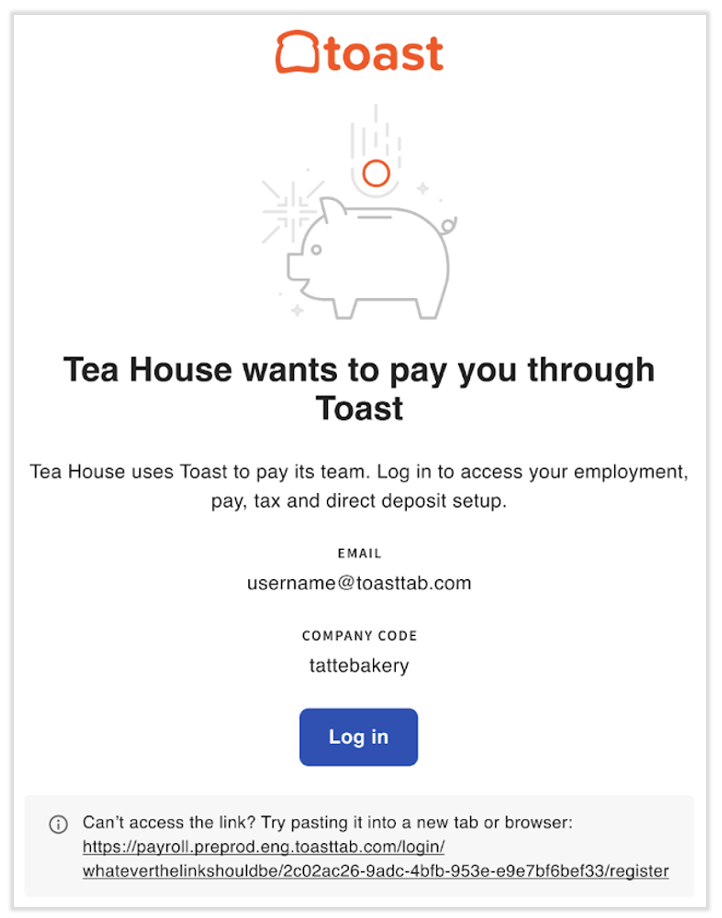
- Esto producirá el siguiente correo electrónico:
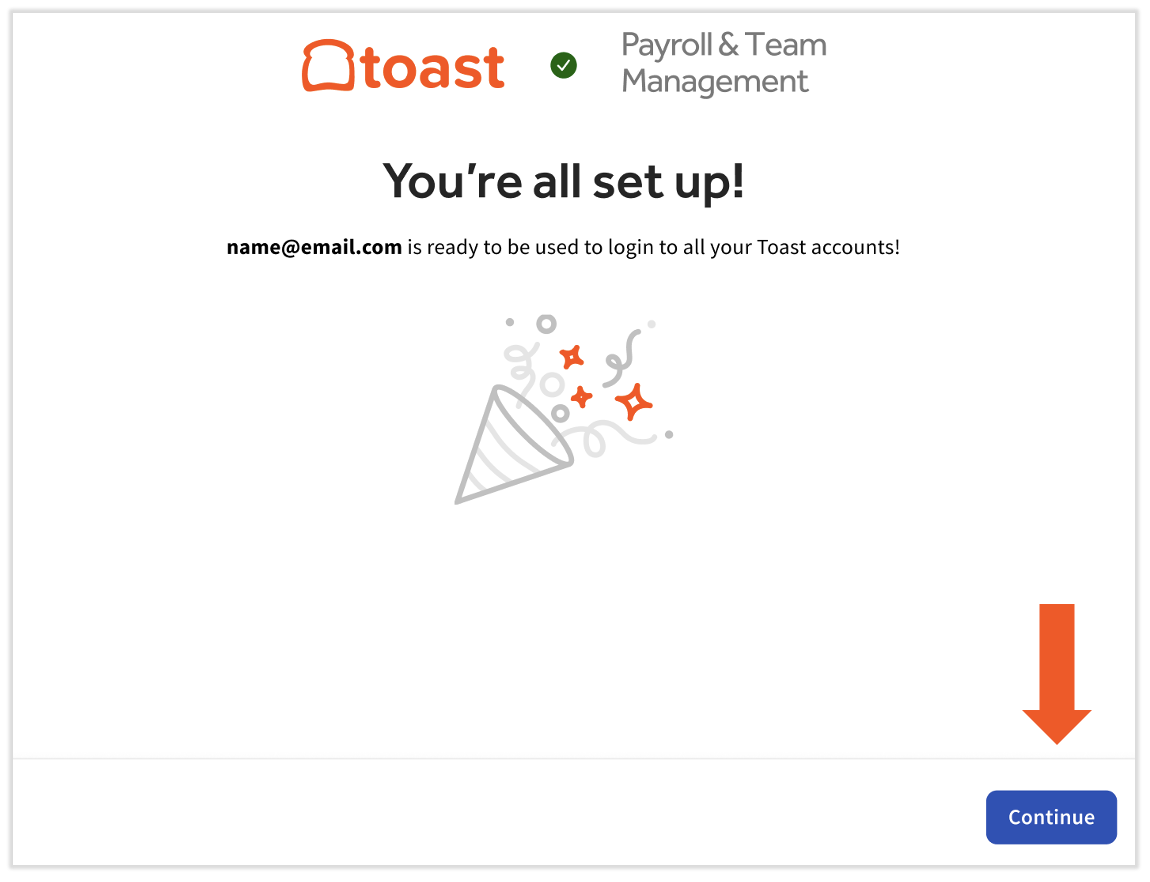
- Una vez que un usuario selecciona Iniciar sesión desde el correo electrónico, verá una de estas dos pantallas:
- Si nunca ha iniciado sesión en Toast Payroll, se le pedirá que cree una contraseña primero. Esta dirección de correo electrónico y contraseña serán sus dos credenciales de inicio de sesión para todos los productos de Toast. Una vez que el nuevo empleado cree una contraseña, verá una pantalla de ¡Ya está todo listo! donde deberá seleccionar Continuar y, a continuación, proceder a iniciar sesión y completar cada paso del empleado en la incorporación de nuevos empleados. Recuerde hacer un seguimiento con los empleados para asegurarse de que estén completando los pasos.
- Si la persona ya ha establecido una contraseña para todos los productos de Toast, será dirigida directamente a la pantalla de ¡Ya está todo listo!, por lo que simplemente debe seleccionar Continuar e iniciar sesión.
- Si el empleado ha olvidado su contraseña, puede seleccionar ¿Olvidó su contraseña? una vez que ingrese su dirección de correo electrónico.
- Si el empleado ha olvidado su contraseña, puede seleccionar ¿Olvidó su contraseña? una vez que ingrese su dirección de correo electrónico.
Este contenido tiene fines informativos y no pretende ser asesoramiento legal, fiscal, de recursos humanos ni ningún otro tipo de asesoramiento profesional. Comuníquese con un abogado u otro profesional para obtener asesoramiento.