xtraCHEF: Inventario móvil
Última actualización: 13 jul 2026, 12:34 p.m.
- Descripción general del inventario móvil
- Inventario móvil
- Agregar artículos de inventario a los conteos en el móvil
- Próximos pasos
Descripción general del inventario móvil
Entonces, ya configuró su inventario en xtraCHEF y está buscando formas de hacer que sus conteos de inventario físico sean muy sencillos. Con la aplicación móvil de xtraCHEF, puede llevar su teléfono de un área de inventario a otra y realizar conteos directamente en su dispositivo móvil.
Nota: Primero debe configurar las áreas de inventario y los conteos de inventario para realizar conteos de inventario en su dispositivo móvil o computadora. Aprenda cómo hacerlo en xtraCHEF: Comience con la configuración del área de inventario y las listas de conteo.
Inventario móvil
Video tutorial
Este video de 1 minuto explica cómo realizar conteos de inventario a través de su aplicación móvil xtraCHEF.
Completar conteos
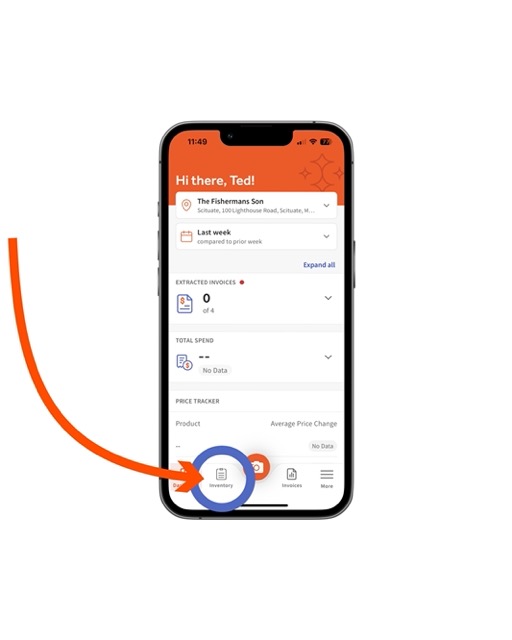
Para comenzar, seleccione Inventario en la barra de navegación inferior.
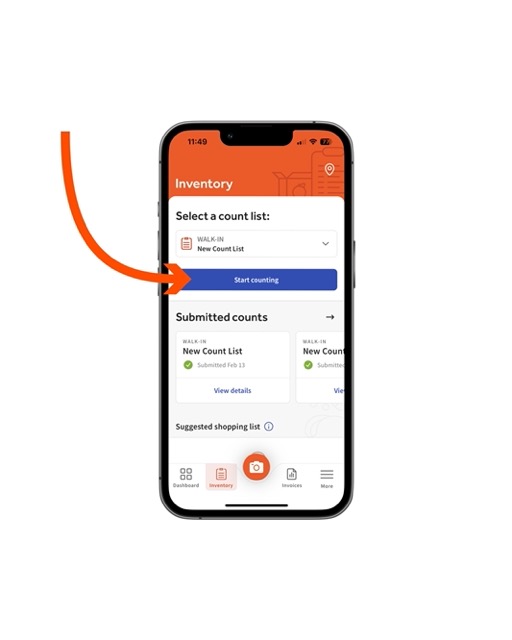
Luego, seleccione Comenzar conteo en una lista de conteo pendiente. Si no ve la lista de conteo, es posible que un administrador del inquilino deba desbloquearla abriendo el navegador web y seleccionando + Agregar inventario en la lista de conteo.
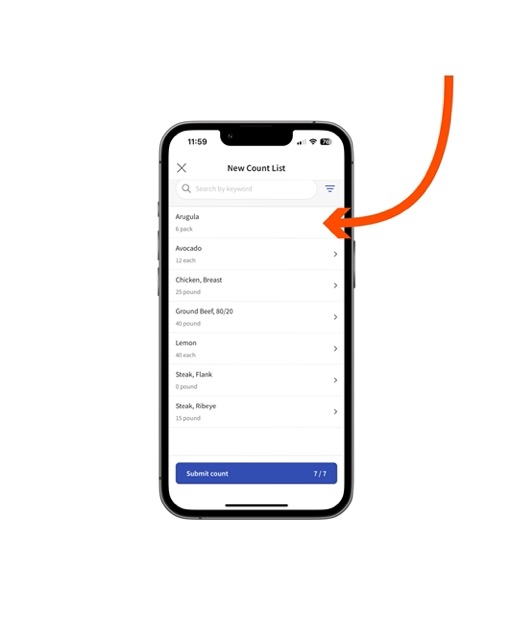
Esto mostrará una lista de productos. Para comenzar a contar, seleccione un Producto.
A continuación, ingrese la cantidaddel producto que tiene a mano. Esto se puede hacer seleccionando el espacio en blanco ubicado debajo de la UOM (Unidad de Medida) de los artículos. Las UOM están determinadas por los artículos de factura individuales agrupados con su producto a través de Revisión de artículos.
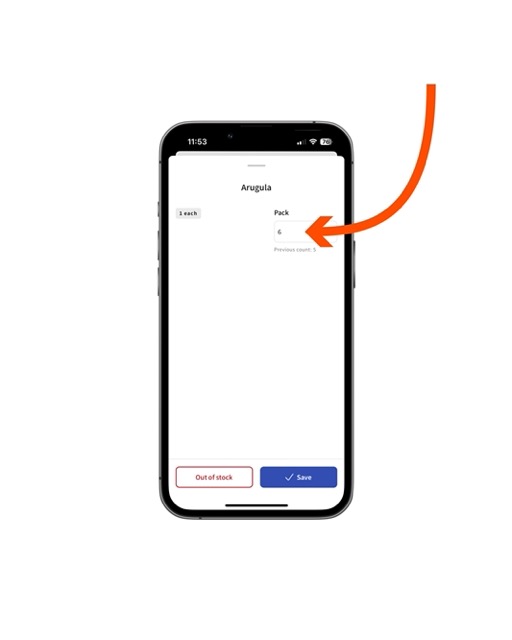
Consejo profesional: ¿No le queda nada de este producto en particular? Seleccione Sin existencias para aplicar automáticamente cero a su nivel de existencias.
Una vez que haya ingresado la cantidad, seleccione Guardar.
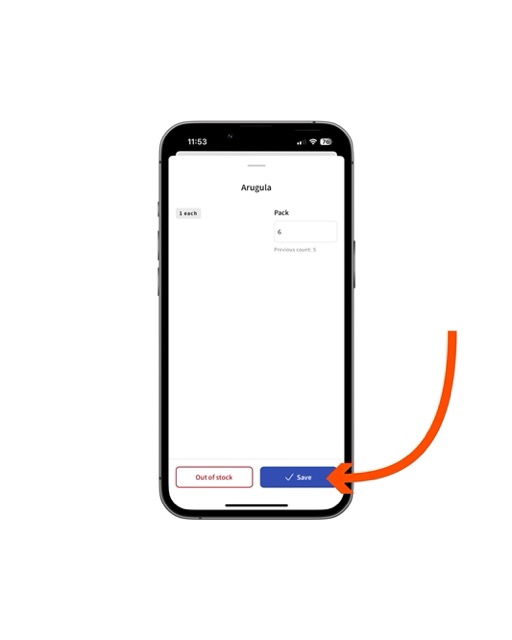
Repita estos pasos según sea necesario hasta que cada artículo de su lista de conteo tenga una cantidad correspondiente. Una vez que haya terminado, seleccione Enviar conteo.
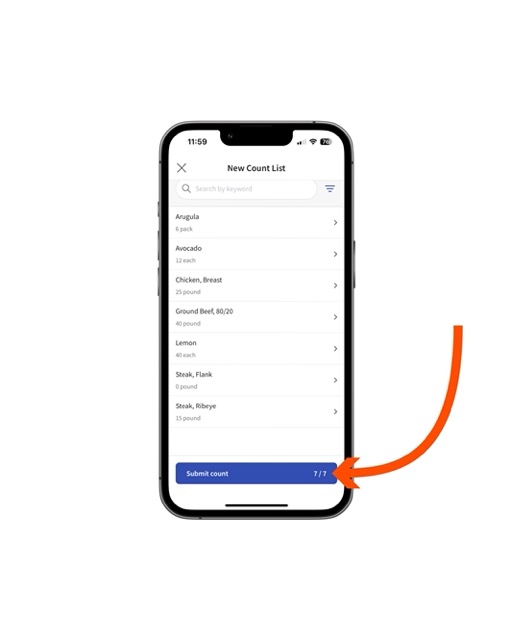
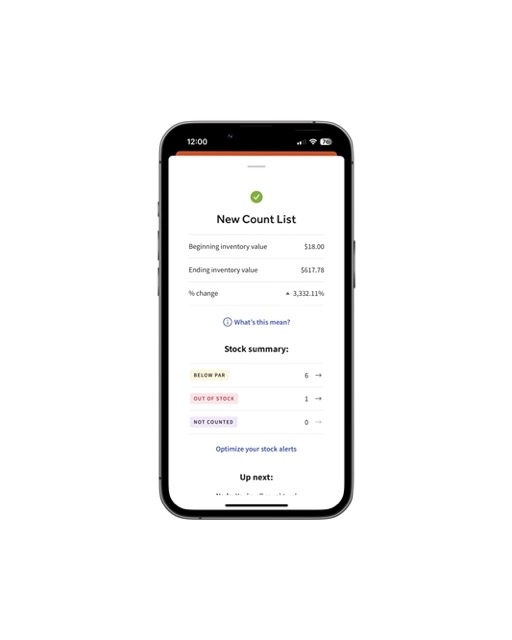
Luego será llevado a la pantalla Resumen, que ofrece un desglose de los datos de inventario que ha ingresado. Estos datos estarán disponibles tanto en la versión de escritorio como en la móvil de xtraCHEF.
Revisar conteos
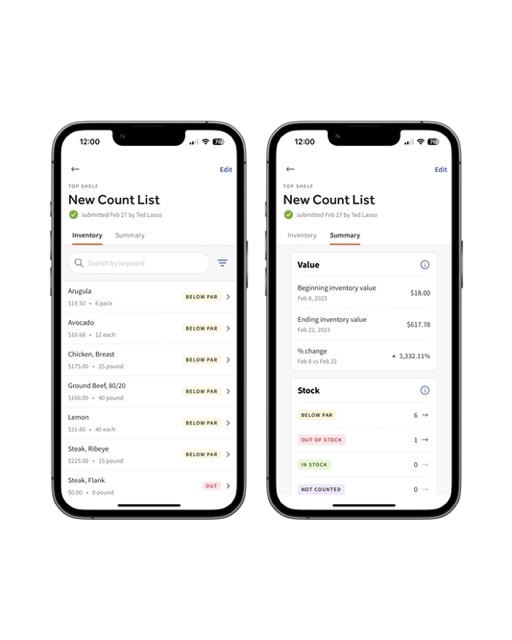
Para revisar la información de los conteos enviados, seleccione Ver detalles desde su página de Inventario.
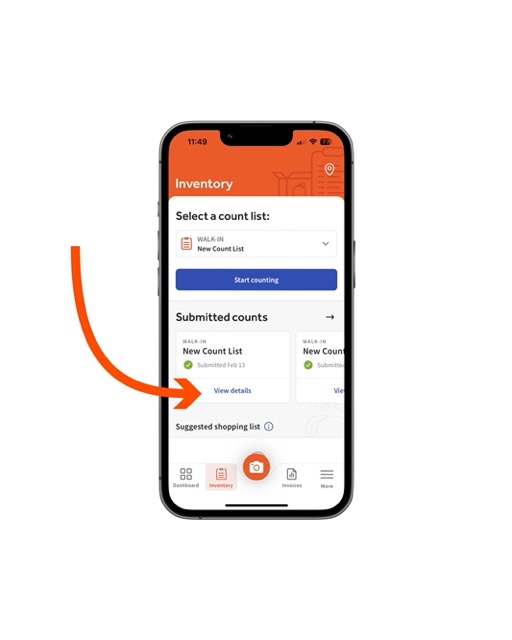
Aquí puede revisar los detalles del inventario de sus conteos enviados o un resumen. El resumen, en particular, destaca Inicio y Valores de inventario final, % de cambio, y clasifica sus niveles de Existencias como Por debajo del nivel mínimo,Sin existencias, En existencias, o No contado, según sus selecciones.
Agregar artículos de inventario a los conteos en el móvil
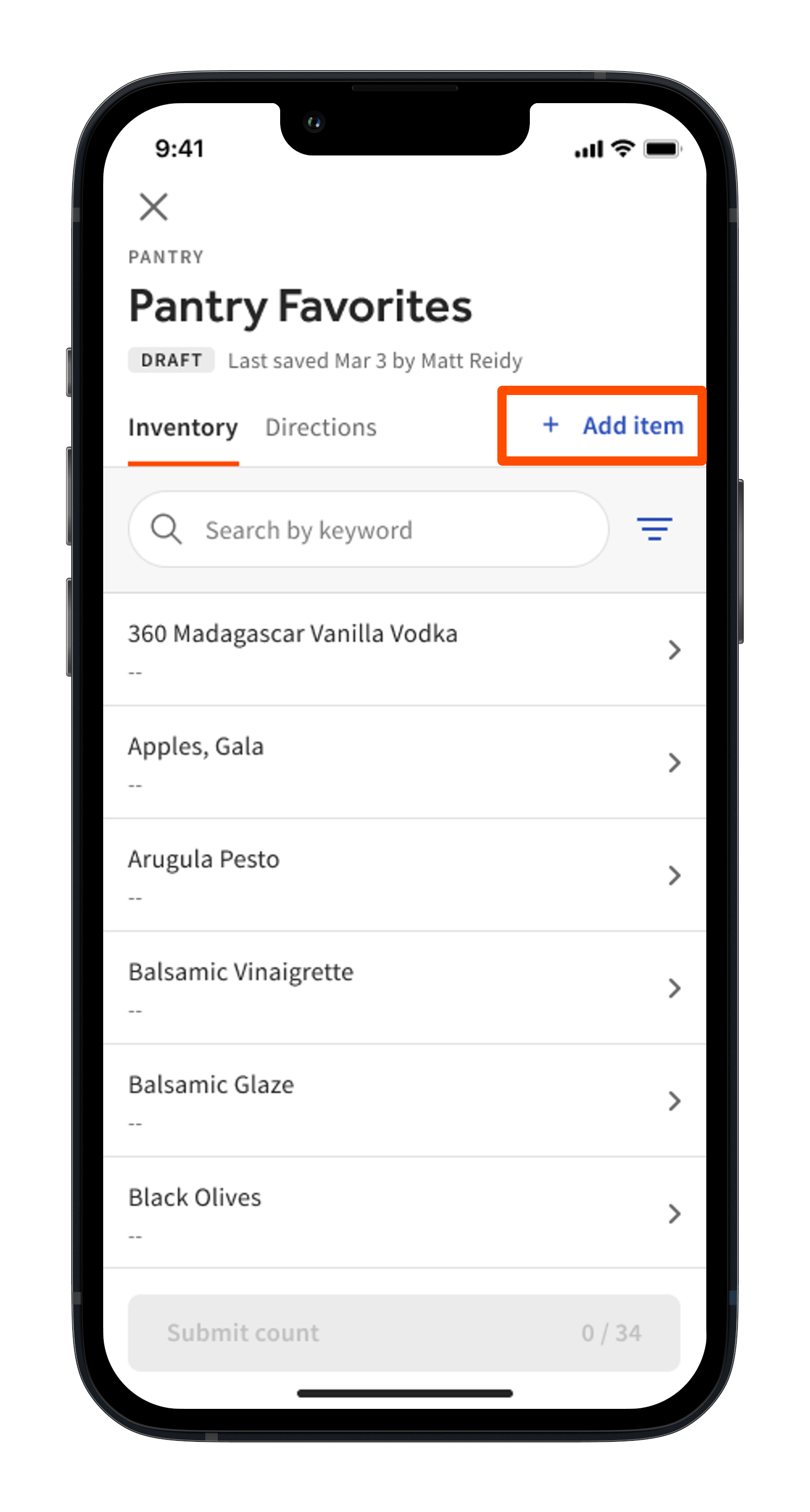
¿Necesita agregar un artículo de inventario a su conteo de inventario sobre la marcha? Puede hacerlo a través de su aplicación móvil xtraCHEF. Para comenzar, seleccione Agregar artículo en su conteo de inventario abierto.
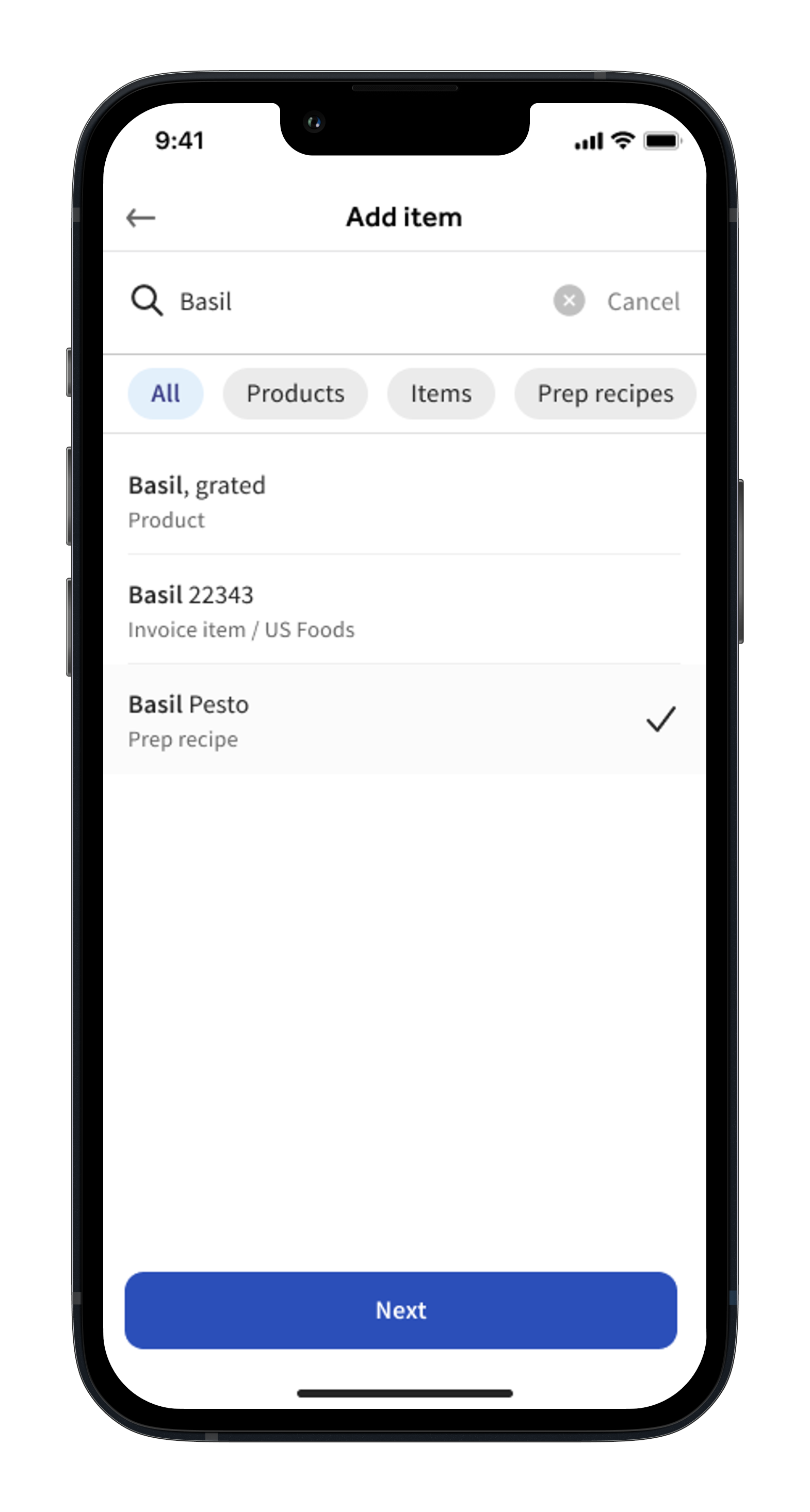
Luego podrá buscar y seleccionar un artículo de inventario. Para continuar, seleccione su artículo. Luego, seleccione Siguiente.
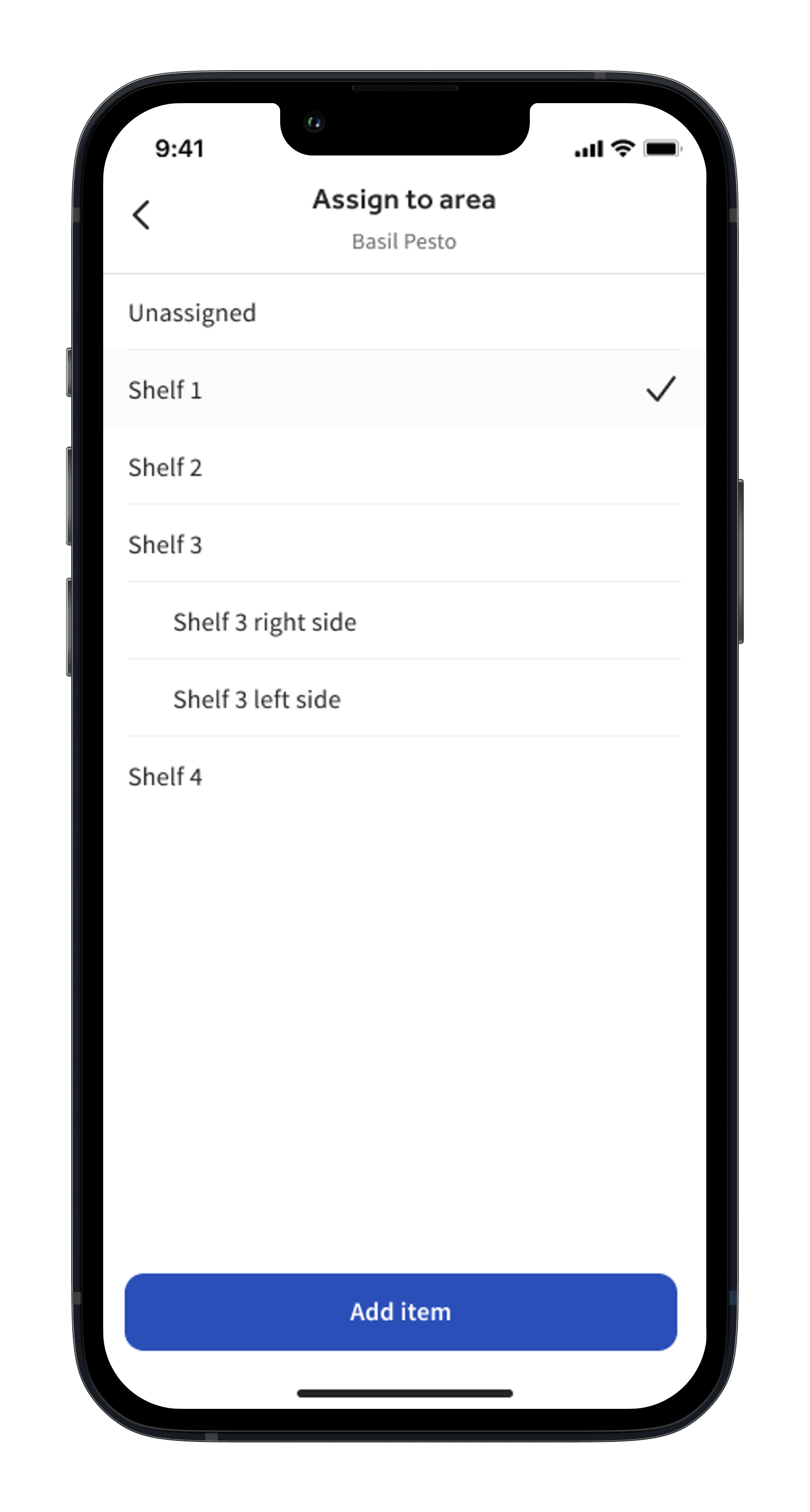
Si creó subáreas para su área de inventario durante la configuración del área, se le pedirá que seleccione la subárea en la que debe incluirse este artículo. Para continuar, seleccione un área (o seleccione Sin asignar). A continuación, seleccione Agregar artículo.
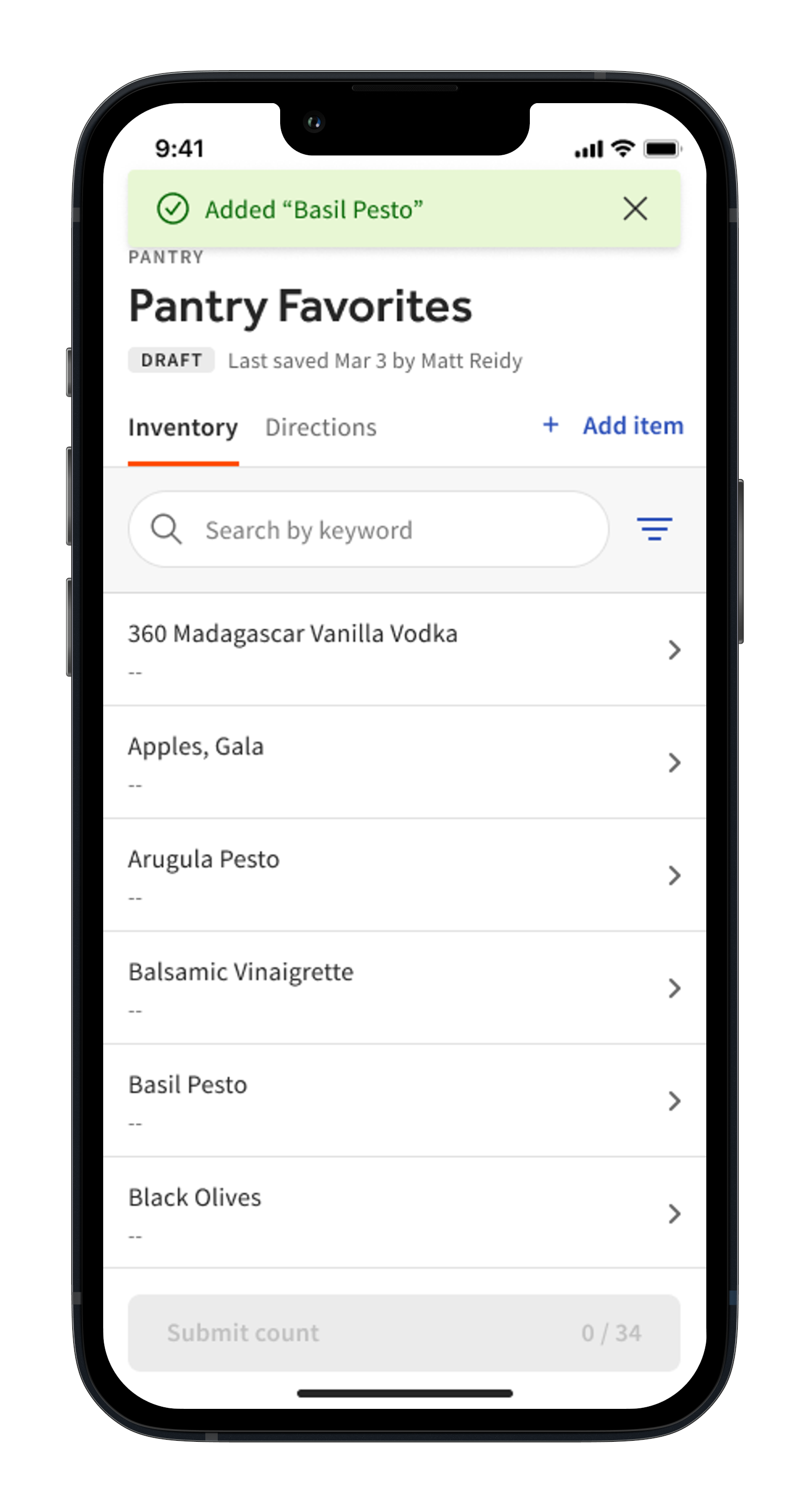
Aparecerá un mensaje de confirmación verde una vez que se complete esta acción.
Revisar conteos
Para revisar la información de los conteos enviados, seleccione Ver detalles desde su página de Inventario.
Aquí puede revisar los detalles del inventario de sus conteos enviados o un resumen. El resumen, en particular, destaca Inicio y Valores de inventario final, % de cambio, y clasifica sus niveles de Existencias como Por debajo del nivel mínimo,Sin existencias, En existencias, o No contado, según sus selecciones.
Actualizando conteos de inventario
Si necesita migrar datos de inventario de un mes anterior después de que se hayan enviado todos los conteos y se haya cerrado el período, primero deberá descargar manualmente el mes anterior y los conteos, y luego volver a ingresarlos en el mes actual.
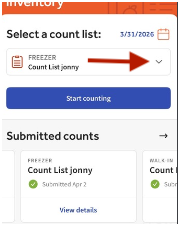
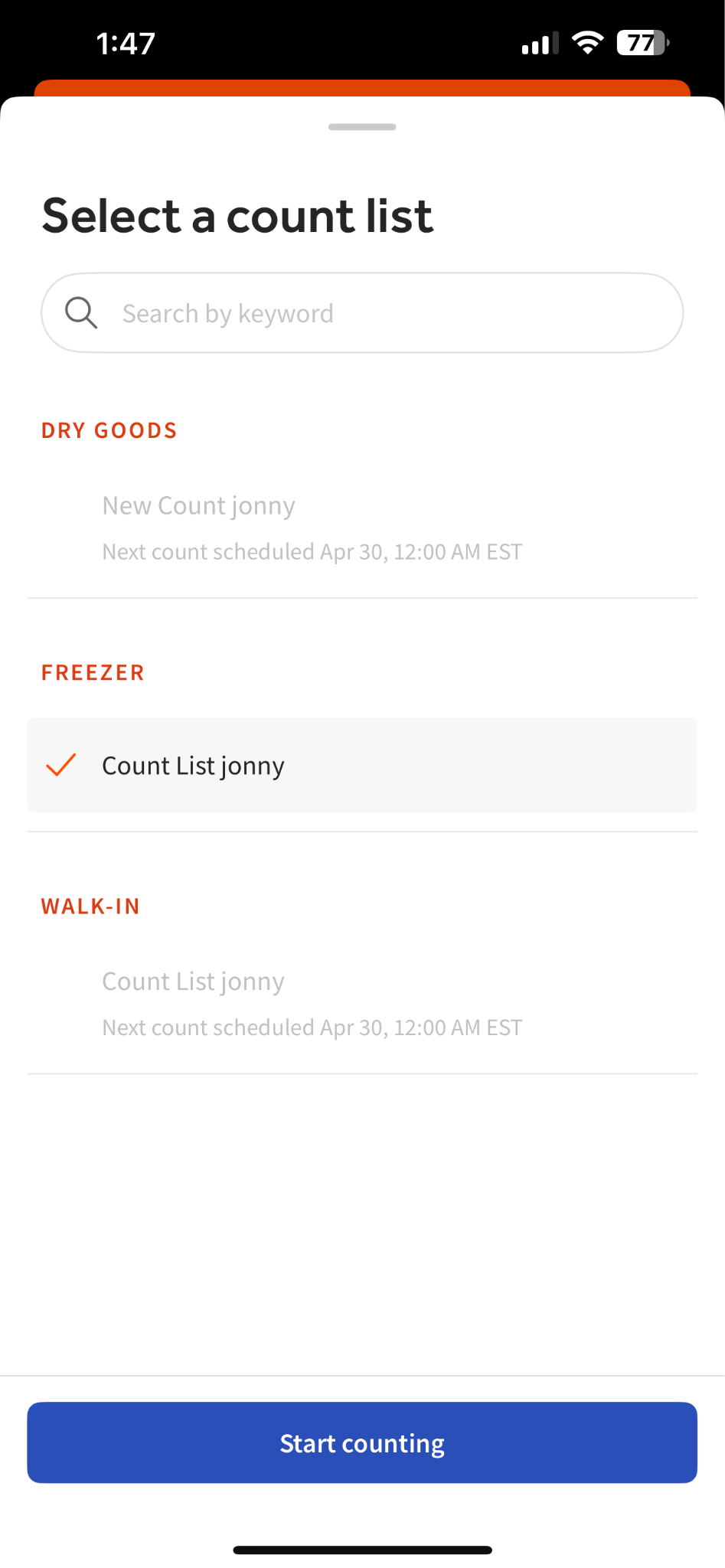
Para agregar o modificar conteos dentro de una lista de conteos omitidos de una línea de tiempo anterior, primero seleccionará manualmente la fecha que desea actualizar. Luego puede seleccionar la lista de conteo relevante que desea actualizar.
Próximos pasos
Al completar los conteos de inventario, usted desbloquea datos valiosos para los informes de COGS, los informes de inventario y el análisis de inventario. Explore estos informes y cómo aprovecharlos leyendo nuestros artículos titulados, xtraCHEF: Análisis de inventario y xtraCHEF: Informe de COGS.