Toast Payroll: Update Elections and Qualifying Life Events

上次更新时间:2026年4月8日 10:14

Take a look at how to update an employee's elections or process a qualifying life event when using the Classic Benefits module in Toast Payroll.

This article only applies to customers who are using Toast Payroll's Classic Benefits module (legacy customers only). This does not apply to SimplyInsured customers through Toast Payroll Pro or customers who use the deductions-only method.


In this Article:


Update Elections in the Classic Benefits Module

If a manager needs to manually update an employee's benefit elections outside of open enrollment in the Classic Benefits module, they may do so by following these steps:


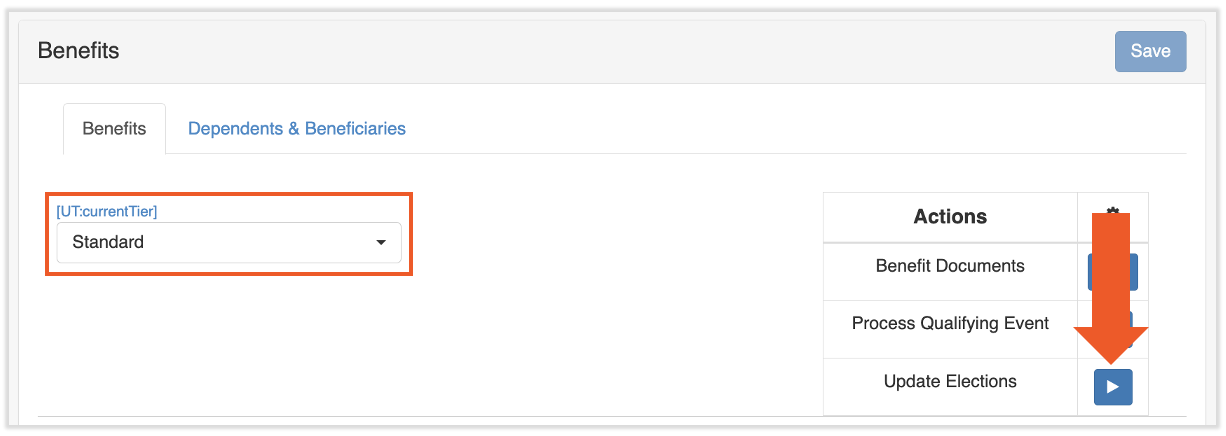
  1. Navigate to an employee's profile and select Benefits from the top. Then choose the appropriate Tier and select Update Elections.

    Benefits page of an employee profile with the Benefits Tier drop-down and the Update Elections button highlighted

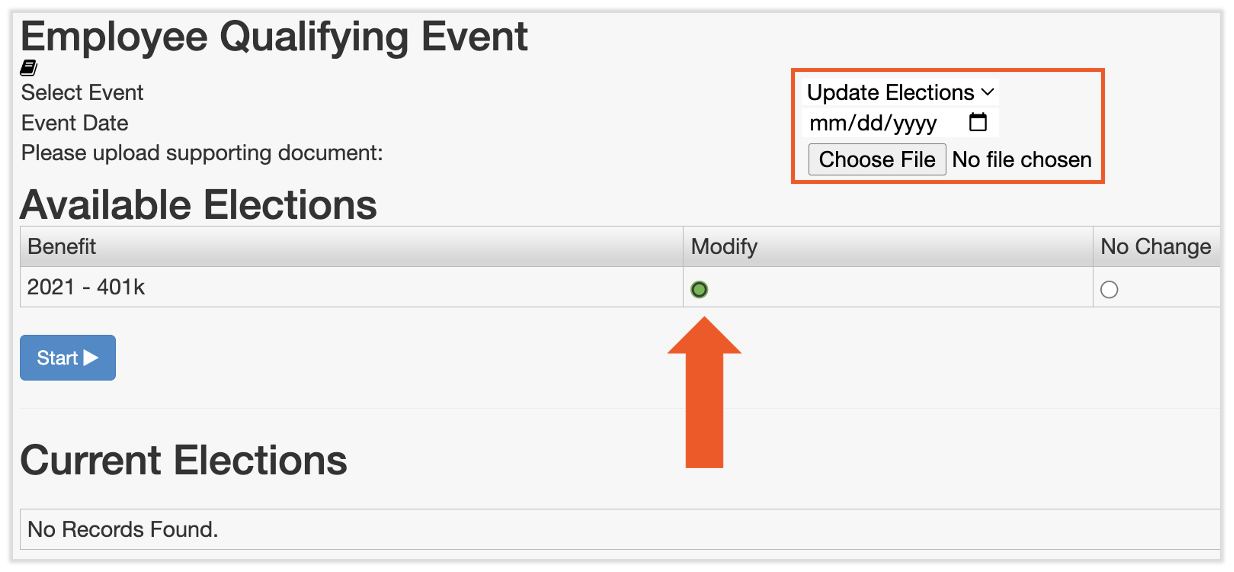
  2. Enter the effective date of the change you are making. If you do not enter one, the system will automatically default to today's date. You may also choose to upload a supporting document if you'd like to keep a record of the reason this manual change was applied.

    Employee Qualifying Event page with the filters and the Modify radio button highlighted

  3. Select Modify for the benefits that need to be updated.
  4. Select Start, and you will be taken to the benefit enrollment wizard to process the update.


Back to top
 

Qualifying Life Events in the Classic Benefits Module

If an employee has a qualifying life event (for example, the birth of a child or becoming married) that permits them to make changes to their benefit elections outside of open enrollment in the Classic Benefits module, they may process a qualifying life event in Toast Payroll.


  1. Navigate to the employee's profile and select the Benefits tab. Then choose the appropriate Tier and select Process Qualifying Event.
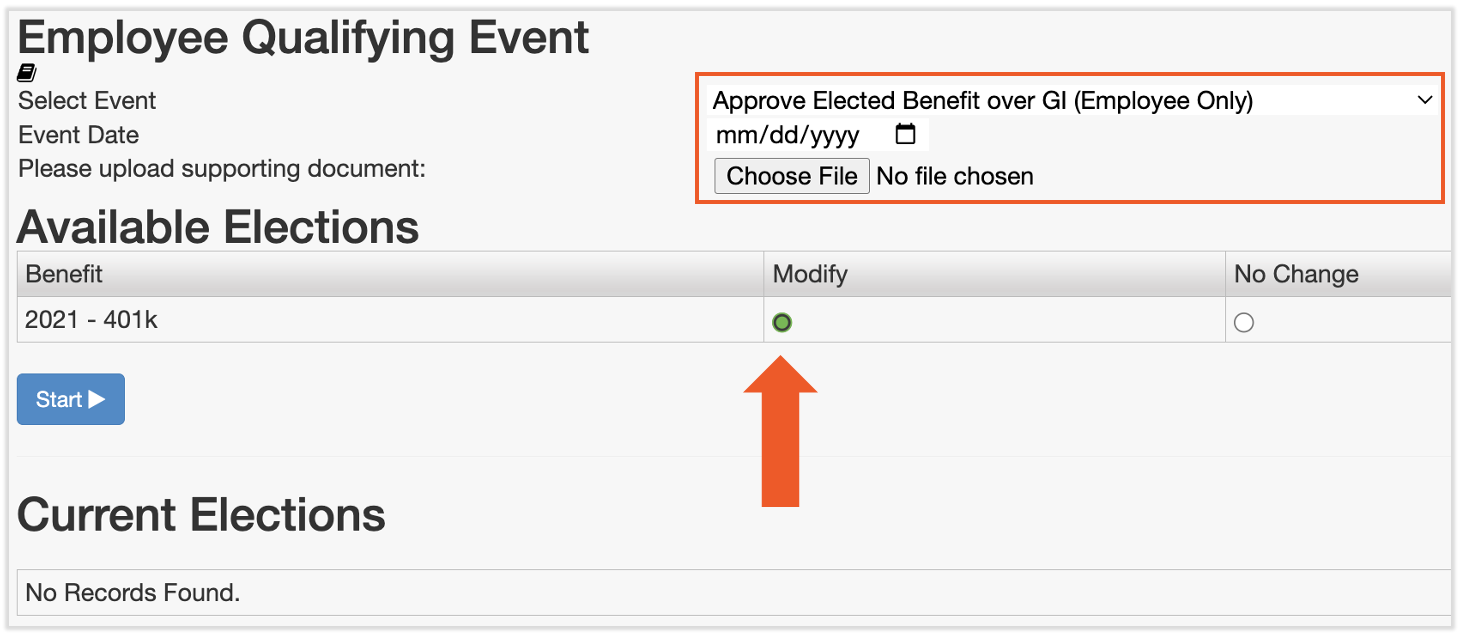
  2. The employee will enter the event (reason for change) and the effective date of the change. They will also be asked to upload a supporting document specific to the situation. Each of these fields are required in order to proceed.

    Employee Qualifying Event page with the filters and the Modify radio button highlighted


  3. The employee will then select Modify for the benefit elections that they intend to change. Pressing Start will begin the benefit enrollment wizard.
  4. HR+ users may also set up a workflow alert in Toast Payroll to notify you whenever an employee processes a qualifying life event so you may communicate the change to your carrier. Navigate to Settings > Workflow and select the Qualifying Event workflow.


Back to top


This content is for informational purposes and is not intended as legal, tax, HR, or any other professional advice. Please contact an attorney or other professional for advice.