使用项目数据库查看和管理菜单
上次更新时间:2026年6月23日 19:14
项目数据库概述
项目数据库允许您查看所有菜单数据,并根据需要归档、恢复或版本菜单。要访问项目数据库,请导航到菜单> 批量管理 > 项目数据库在Toast Web中。在项目数据库中,您可以使用显示/隐藏列按钮从表格中添加或删除某些数据字段。您还可以在页面右上角选择下载图标(向下箭头)将整个数据库导出为电子表格。如果您希望从Toast下载菜单数据以在电子表格中使用,这将非常有帮助。
注意:要使用此工具,您需要在您的Toast帐户上启用4.5 编辑完整菜单权限。要了解更多可用权限,请参阅权限参考指南。
如果您使用Toast零售,本文中的信息也将相关。在此支持中心文章中了解更多:开始使用 Toast 零售。
返回顶部
归档菜单、组、项目和修改器
在项目数据库中归档菜单的部分非常简单!在 Toast Web 中导航到 菜单 > 批量管理 > 项目数据库,并按照以下步骤操作:
- 使用页面顶部的选项卡和搜索栏,找到您希望归档的菜单、组、项目、修改器或修改器选项。
- 选择您希望归档的菜单部分旁边的复选框。
- 然后,选择 归档 一次性归档所有选定的实体。
恢复菜单、组、项目和修改器
通过 Toast Web,可以从之前保存的状态恢复已删除/归档的菜单、组、项目或修改器。
在这个例子中,假设整个 "饮料" 菜单已被删除。
- 在 Toast Web 中,导航到 菜单 > 批量管理 > 项目数据库。
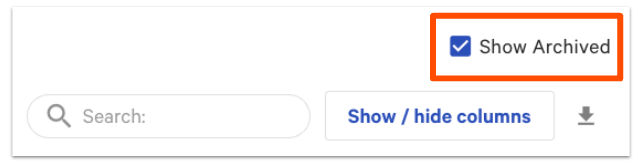
- 在菜单选项卡上,您将看到下面列出的可用菜单。 通过选择页面顶部的显示归档旁边的复选框,将扩展列表以包括归档菜单。归档菜单在菜单名称旁边用红色 "归档" 文本标识。
如果您无法看到如上所示的"显示归档"选项,请尝试清除浏览器的缓存和 cookies。然后,在隐身模式中启动 Toast Web。如果您仍然遇到问题,请联系客户关怀。
- 使用搜索栏快速找到您正在寻找的归档菜单。
- 选择您希望取消归档的菜单旁边的复选框,然后选择恢复。这将取消归档您所选择的菜单。 要一次性恢复多个菜单,请选择所有所需的复选框,然后选择恢复。
- 如果您希望恢复整个菜单组,请按照上述步骤1到4进行操作,然后继续:
- 导航到菜单管理 > 批量管理 > 高级属性 > 选择显示已归档的菜单/组。
- 选择您希望恢复的菜单组,然后选择取消归档。
- 选择发布按钮。
- 如果您希望恢复整个菜单组,请按照上述步骤1到4进行操作,然后继续:
注意:此工作流程对于恢复已归档的菜单组、项目、修改器组和修改器选项是相同的。要再次将这些项目和组添加到您的菜单中,请使用添加现有工具。有关更多信息,请参见添加或复制菜单项和修改器。
同时查看多个位置的菜单数据
如果您的餐厅有多个位置,您可以选择使用编辑按钮同时查看多个位置。
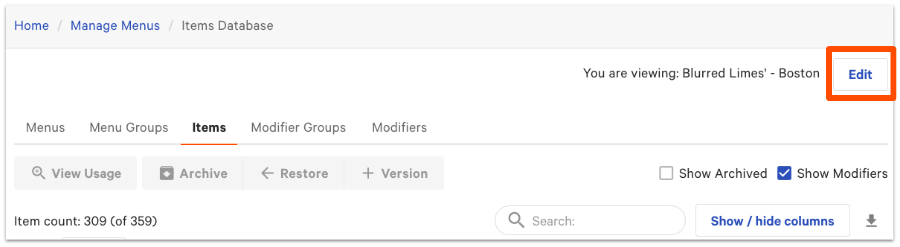
选择编辑后,系统会提示您选择希望查看的餐厅或组。完成后,选择更新。页面将刷新并显示所有所选餐厅的数据。
返回顶部
版本菜单、组、项目和修改器
需要为您的新位置版本化菜单的部分内容吗?使用项目数据库一次选择多个实体进行版本化。
注意:版本化仅对属于多位置管理(MLM)组的餐厅可用。在此支持中心文章中了解有关多地点管理的更多信息,开始使用多地点管理。
- 在 Toast Web 的菜单部分中,从项目数据库中选择您希望版本化的菜单部分的相应选项卡(例如:项目)。
- 使用搜索工具或向下滚动页面找到您希望版本化的菜单部分。
- 一旦找到您希望版本化的实体,请选择其名称旁边的复选框。
- 然后,在页面顶部选择 + 版本。
- 使用下拉菜单为您的项目版本选择一个目标。根据您的选择,Toast 将自动分配相应的 所有者。如果需要,只需选择 所有者 下拉菜单以覆盖此选择。
- 完成后,选择 提交。
注意: 此工作流程对于版本化菜单、菜单组、修改器组和修改器选项是相同的。
查看项目、修改器组和修改器的使用情况
从项目数据库中,您可以看到单个项目或多个项目在您的菜单中使用的位置。这不仅有助于定位项目,还能区分重复的项目。
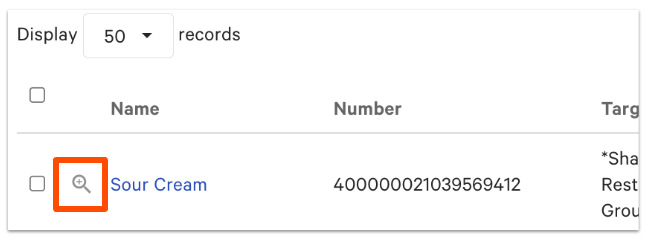
要查看单个项目的使用情况,只需选择项目名称左侧的放大镜图标。
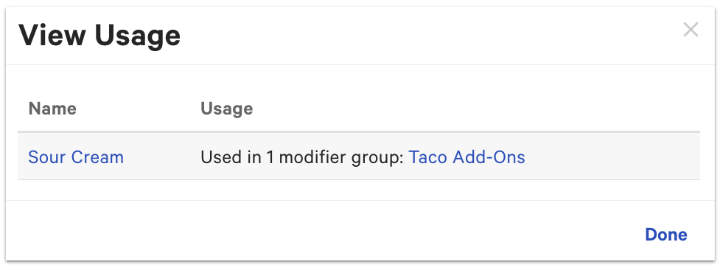
将弹出一个窗口,向您显示所选项目/修改器组/修改器选项应用的菜单部分。
要一次查看菜单多个部分的使用情况,请选择您希望查看的部分旁边的复选框,然后在页面顶部选择 查看使用情况。