上次更新时间:2025年9月22日 11:45
xtraCHEF builds all its cost tracking and prime costing capabilities from your uploaded invoices and receipts. As you begin (or continue) to upload documents, your purchases are read and cataloged in your Item Library.
That said, because an invoice item represents just a single line item, one purchase does not accurately define an Ingredient or inventory item for your business. For that reason, xtraCHEF relies on a classification system of products which groups and defines multiple individual invoice items as ingredients or inventory items.
Why? Let's say you regularly purchase chicken breasts. In the event that you substitute your typical chicken breast purchase for a different brand or even a different size, pack, or container, that change will result in a new, unique invoice number or item on your uploaded document. However, products allow you to group any individual invoice item that represents a chicken breast ingredient together. Doing this enables xtraCHEF to track your costs should your purchasing vary and set you up for more advanced reporting.
Once an uploaded document (invoice or receipt) has been uploaded and your individual Invoice Items parsed out and cataloged, you can begin assigning line items to products. This is done during . To begin, select Item library from your xtraCHEF navigation bar.
Usually, assigning invoice items to products is done during item review. Item review is the process where you may manually verify line items and ensure that any potential discrepancies don't impact or skew recipe and inventory reporting. It is an essential step towards accurate costing for your more advanced xtraCHEF modules.
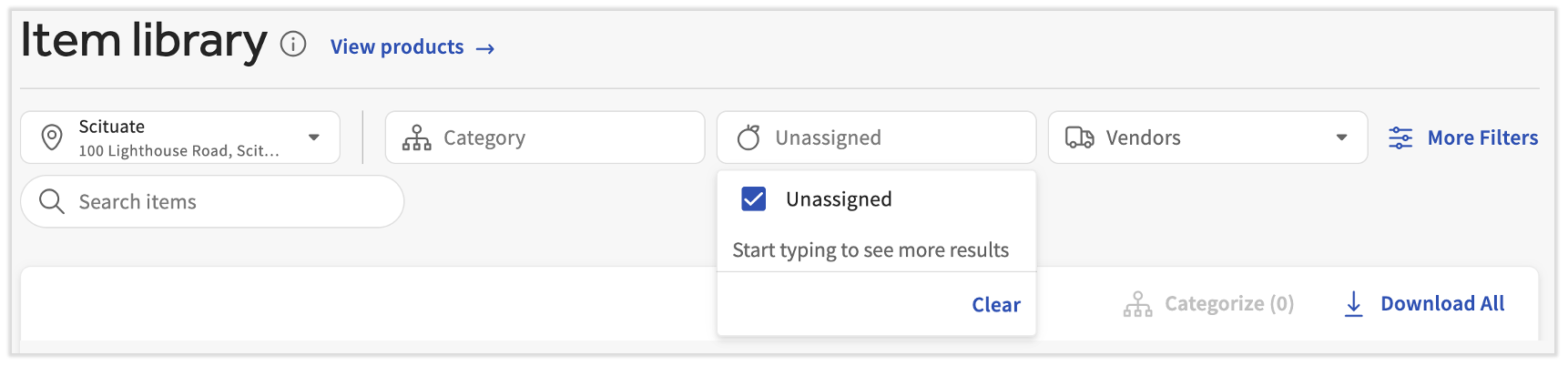
In the event that invoice items are approved in item review and not added to products right away, you can still assign loose purchases to their product on this page. To do this, select the Product filter drop-down and choose Unassigned.
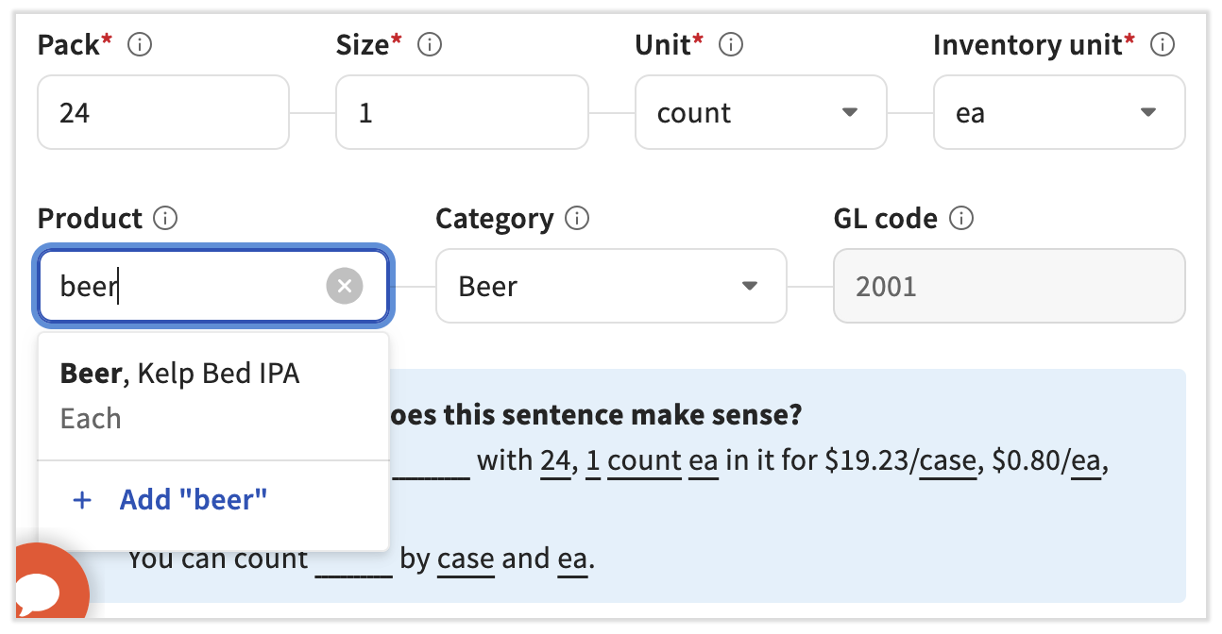
Now select each product and enter a value for the Product field. You can even add a new product directly from this field by typing its new name here and selecting + Add. Select Approve once you're done.
For more on creating products, consider reading .