上次更新时间:2026年3月24日 11:17
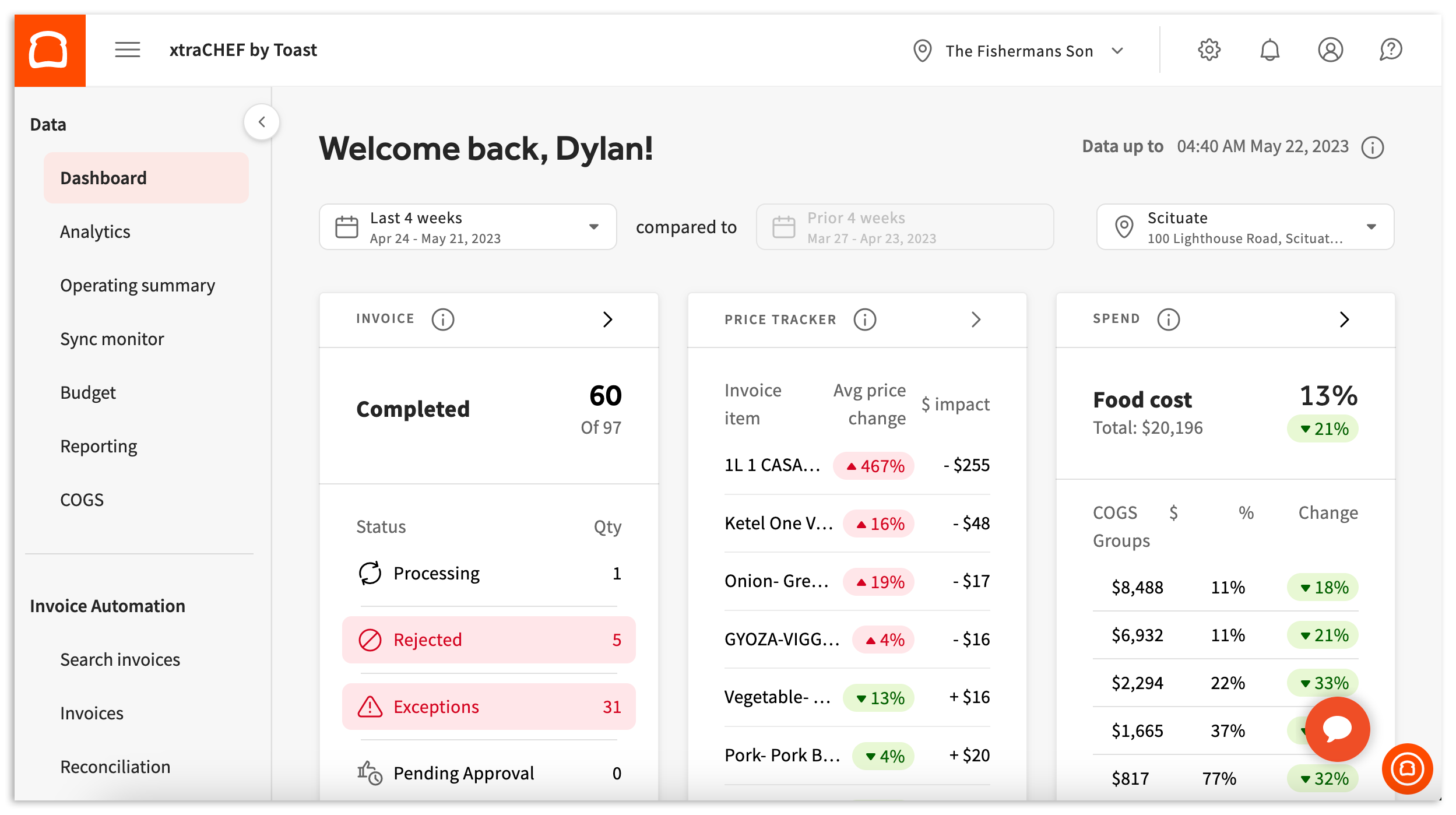
The xtraCHEF dashboard is your default starting page and is the starting point for unlocking data. The dashboard also houses quick-view reports to help ensure you're on top of spending trends and your food costs. This article will dive into these tools as well as how to begin using your dashboard to progress with xtraCHEF.
If you're new to xtraCHEF, you may not have uploaded many (or any!) invoices just yet. We recommend uploading a minimum of 10 invoices to get the most from all the tools xtraCHEF has to offer. To help keep you on track, your dashboard has a handy progress bar at the top of your page that lets you know exactly how close you are to unlocking valuable data insights, including the ability to track price fluctuations and control your budget.
As you begin uploading invoices to xtraCHEF, you'll see this progress bar begin to change. You'll see an initial update when your first invoice has been successfully uploaded. You'll continue to get updates as your invoices upload and await processing by our system. Once they're processed, the data is extracted to use in our tools and features. Once 10 invoices have been processed, and the data has been successfully extracted, you'll be able to begin truly using xtraCHEF, and the top progress bar will disappear. Build a habit of uploading your invoices as often as possible to continue to get key insights from xtraCHEF!
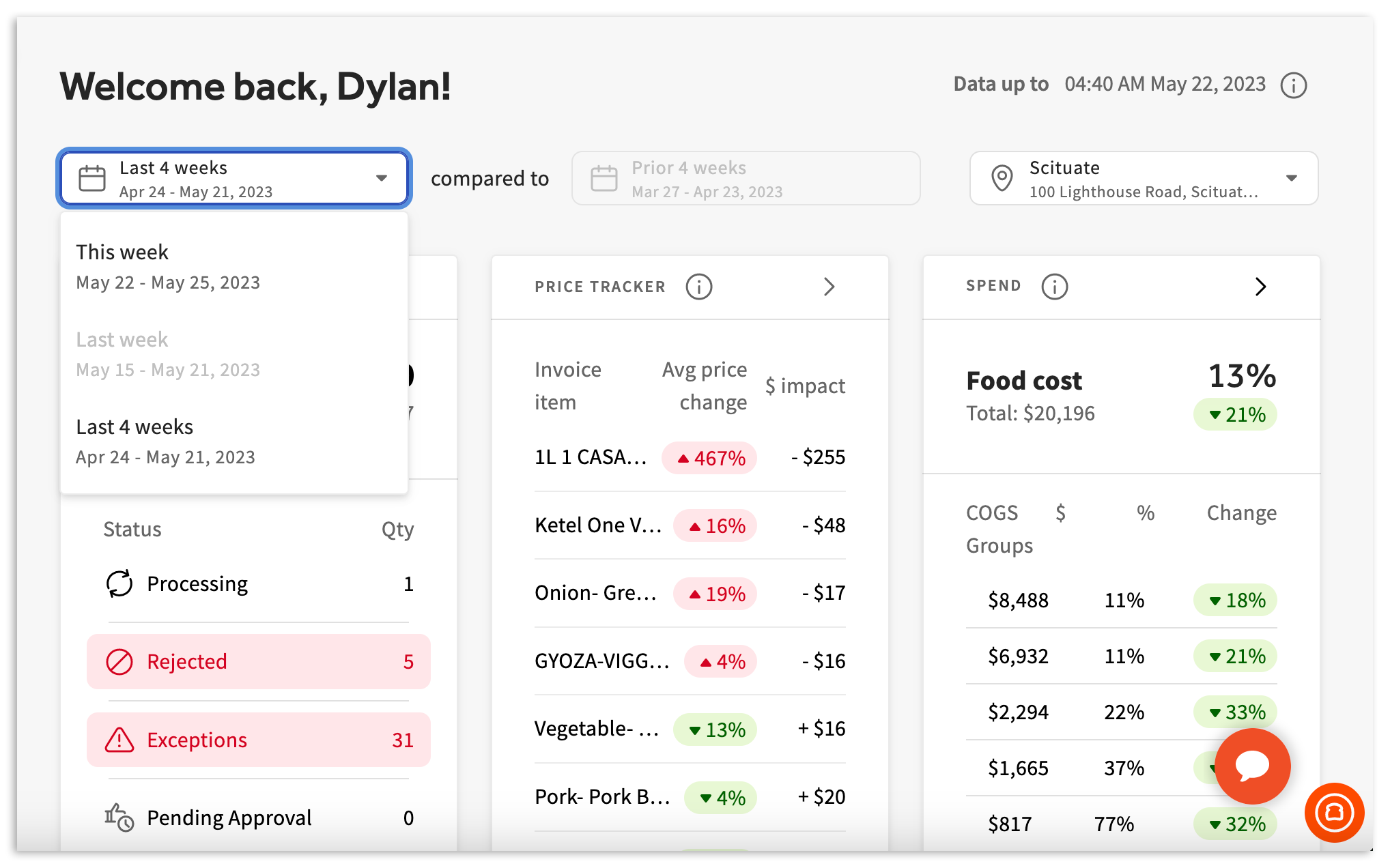
Your dashboard showcases quick glance reports to help you stay on top of your xtraCHEF data and insights. You're able to quickly filter the date range criteria by selecting either This week, Last week, or Last 4 weeks from your calendar dropdown located near the top of your dashboard.
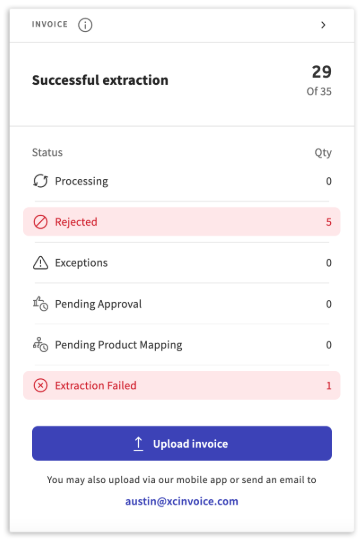
The Invoice section of your dashboard breakdown the status of your current invoices by processing stage. Here, you can see how many invoices have been successfully extracted, how many are still processing, and how many were rejected or need additional action on your end.
This is also one of the tools you can use to begin uploading invoices. Read up on our and options for uploading invoices.
For more information on a particular status or to approve an invoice, select the caret icon (>) in the top right corner of the invoice section. This will redirect you to the Invoices page.
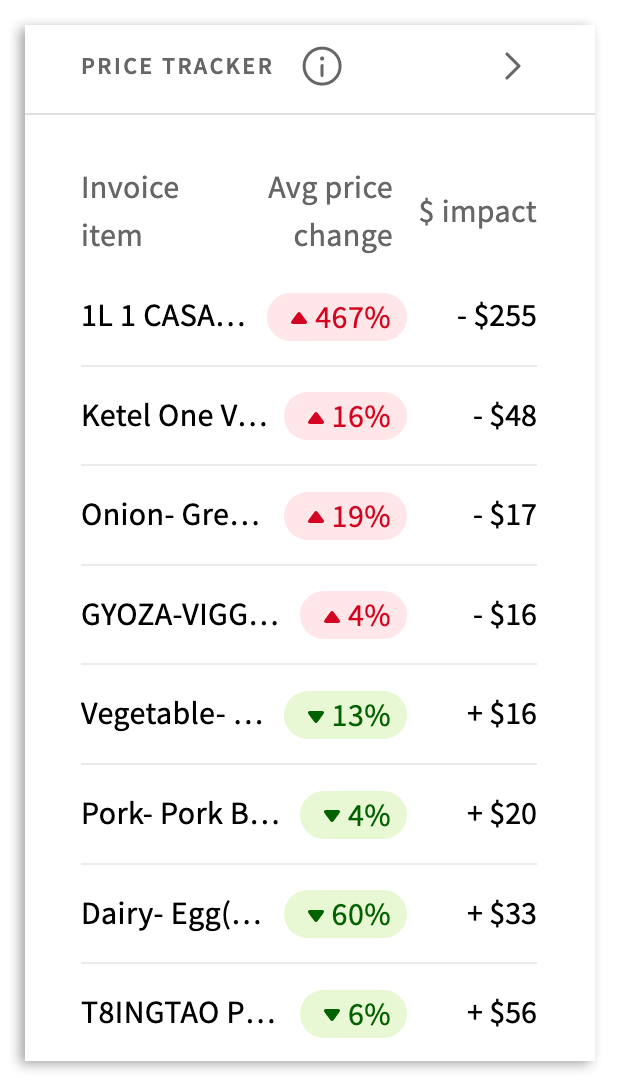
The Price Tracker allows you to stay on top of food costs to maximize your profits. You'll be able to see how much your top items fluctuate between weeks to help you make informed decisions on menus, pricing, and suppliers. To get even more insights, select the caret icon (>) at the top to be taken to the full Price Tracker dashboard containing data on all your items.
Note: To track your prices, you'll need at least two weeks' worth of data live in xtraCHEF. Use the top navigation bar to select your comparison period.
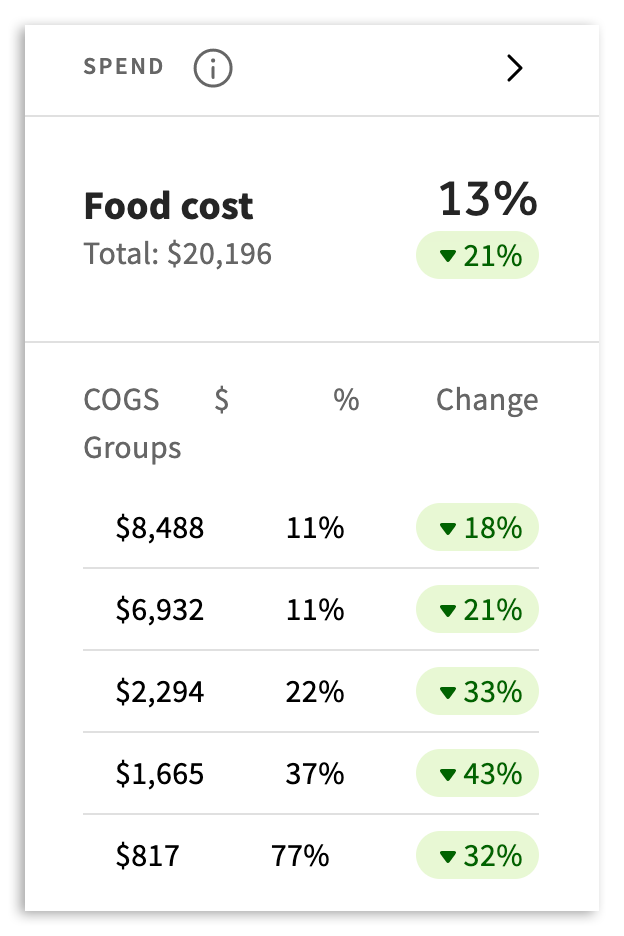
The Spend section of the dashboard gives you an overall look at the total of your invoices over a given period. Restaurants in expansion mode may want to see their invoice totals increase week over week. An organization trying to cut costs, on the other hand, will want to see less spend - especially if it's accompanied by consistent sales.
To maximize this report, be sure to map your to both sales and purchase categories. Once you've completed this step, you'll see a price and percentage breakdown of all your spending categories to make sure you're prioritizing your budget in the way that makes the most sense for your business.
If you need more data beyond the snapshot provided on the dashboard, select the caret icon (>) to be taken to your full Food Cost Ratio page.