上次更新时间:2025年9月22日 11:18
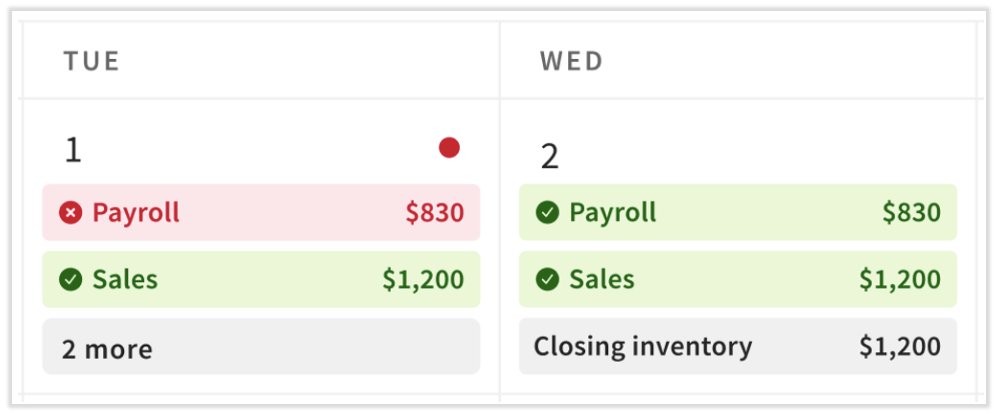
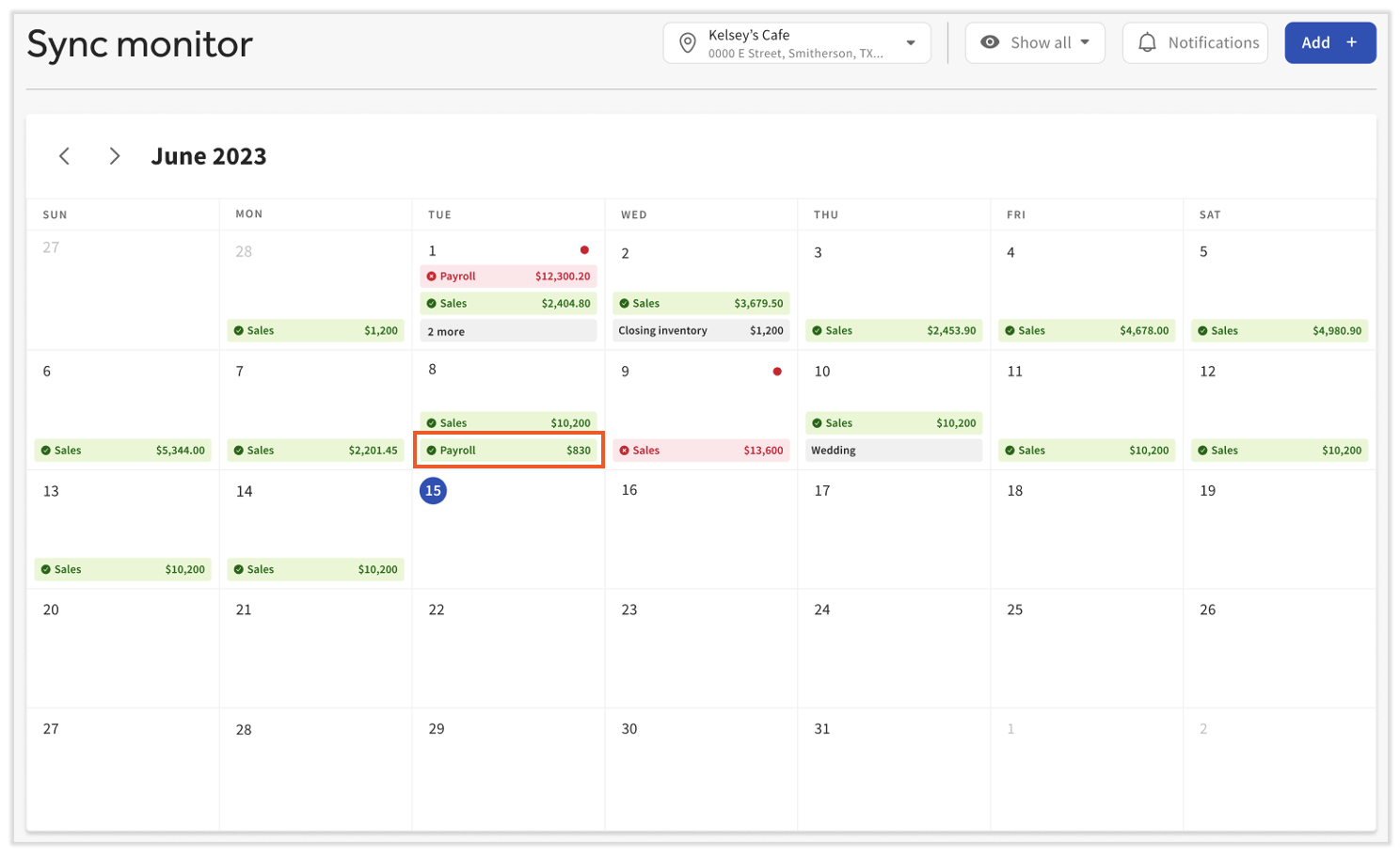
In xtraCHEF, the Sync Monitor allows you to view data synced from Toast and record relevant events. It is also where xtraCHEF records your sales and payroll syncs to QuickBooks. To access this product, navigate to Sync Monitor on the left navigation menu. For your convenience, data entries in your Sync Monitor will be color coded:
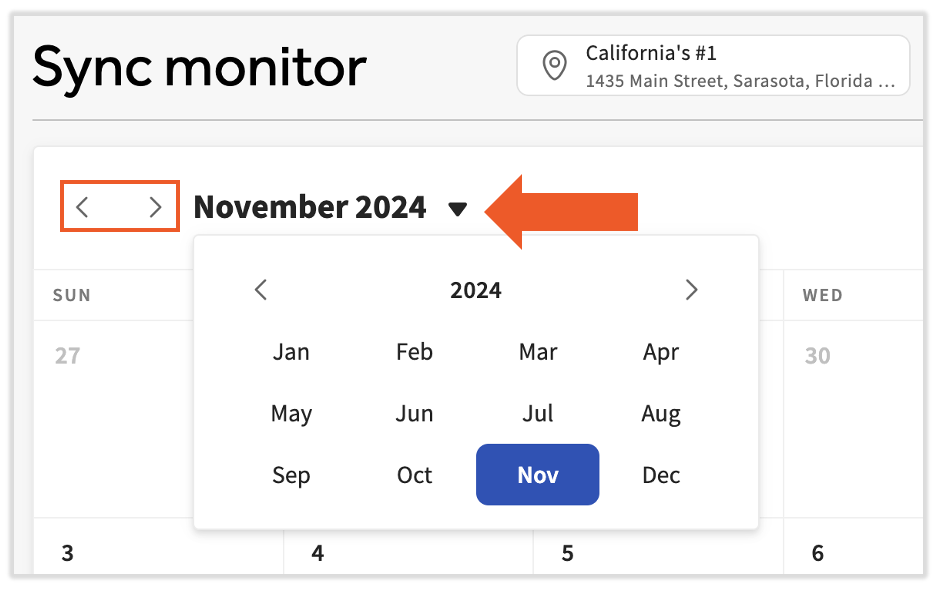
By default, you'll see the current month and all data for your first listed location. To update the location, select the Location drop-down menu. You can only view one location at a time.
To change the date, select the forward or back arrows to switch between months. Otherwise, you can select the month drop-down menu to select a more distant month.
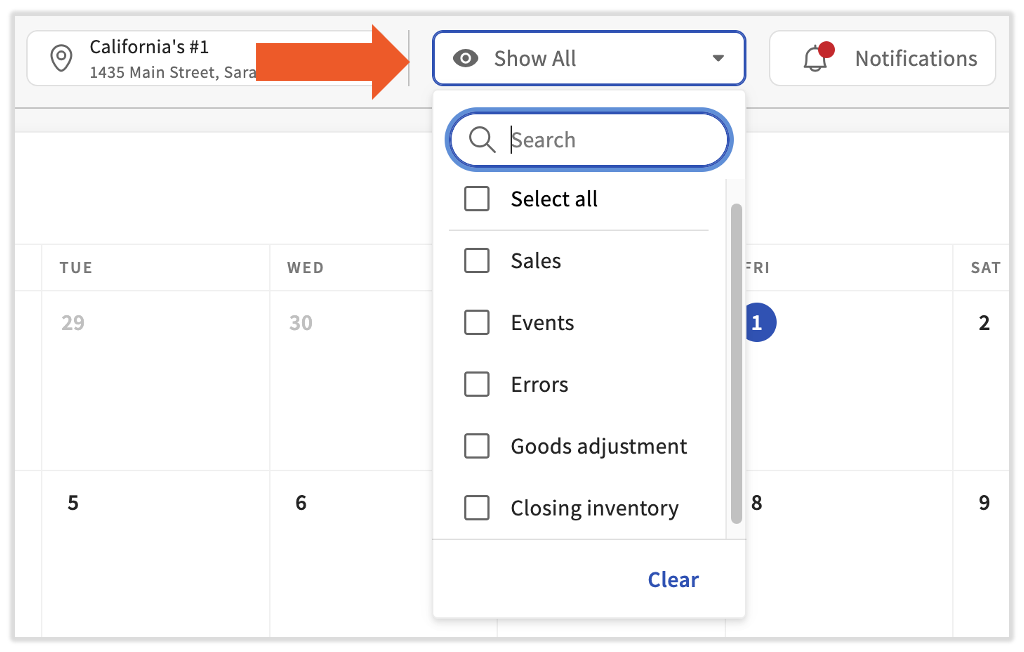
Additionally, you can filter your results to only show specific categories by selecting the Show All drop-down menu. Filter options include Sales, Payroll, Events, Errors, Goods adjustments, and Closing inventory.
Let's say your restaurant had over $1000 more in sales last Saturday than your highest previous record. Simply looking at the data from that day doesn't give you any context on why the sales were so high, which can leave you in the dark about how to replicate that success.
Use the Events feature to mark important days at your location - fundraisers, buyouts, 2 for 1 promotions - to help you understand why some days may have unusual volume. You can even use events to track things like blizzards or broken pipes on days when your sales are lower than anticipated.
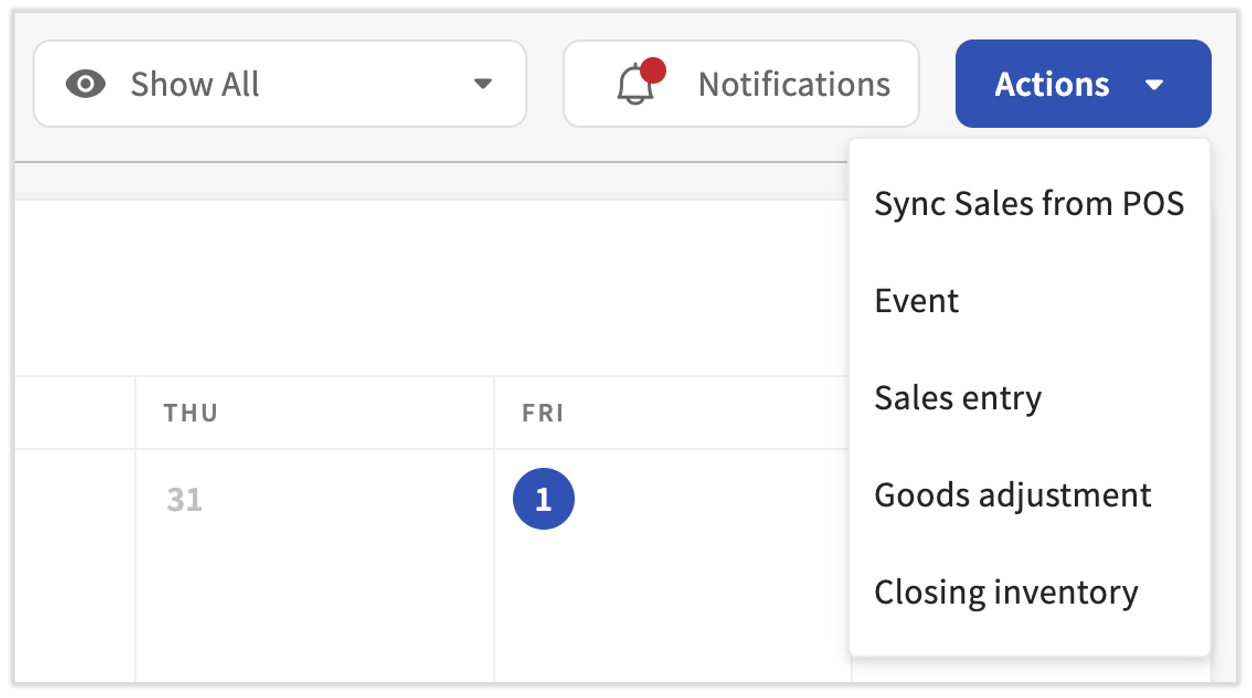
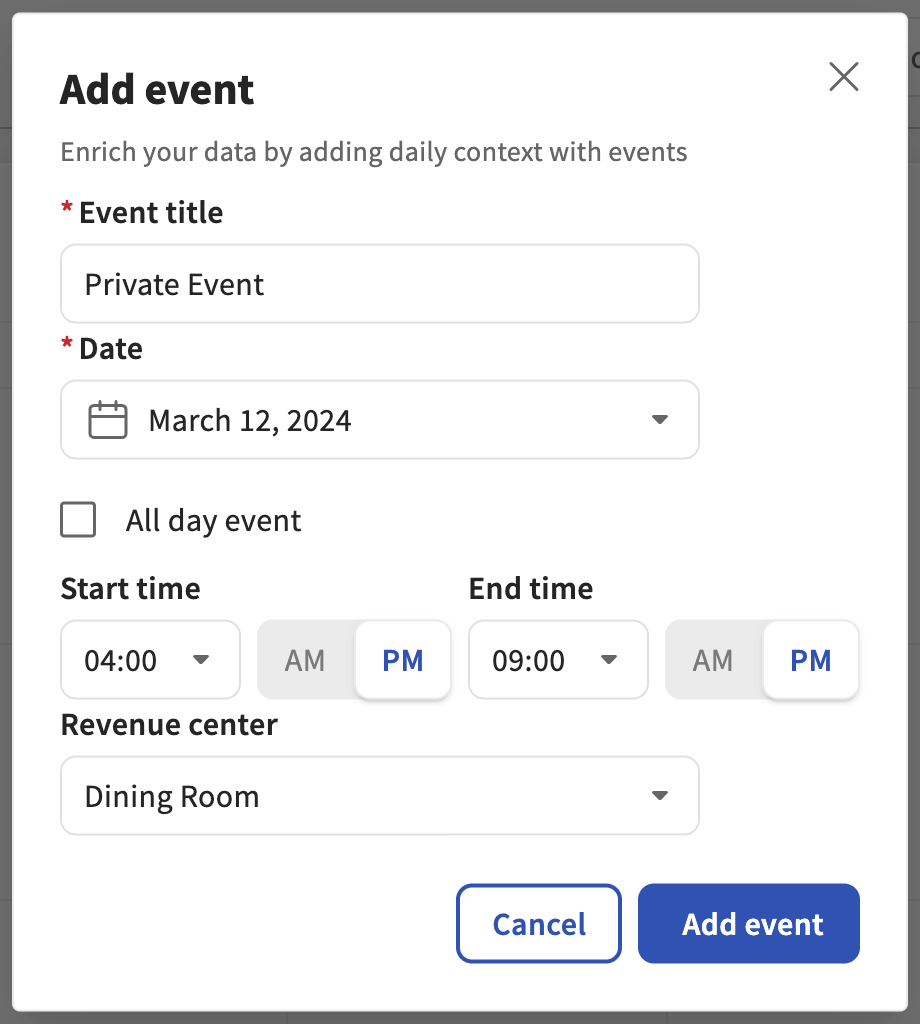
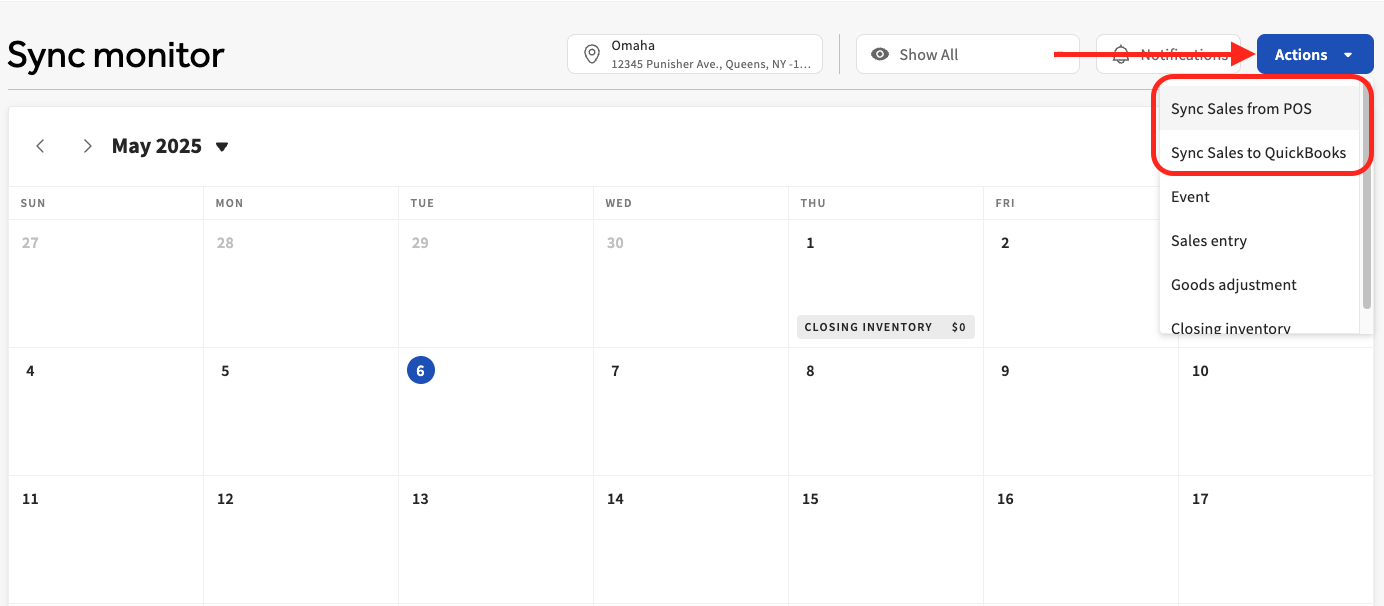
To get started, select Actions > Event from the Sync Monitor. All events must have a title. Next, choose your date and time before selecting Add event. You'll immediately see it reflected on your Sync Monitor calendar. Select the event to edit or delete it.
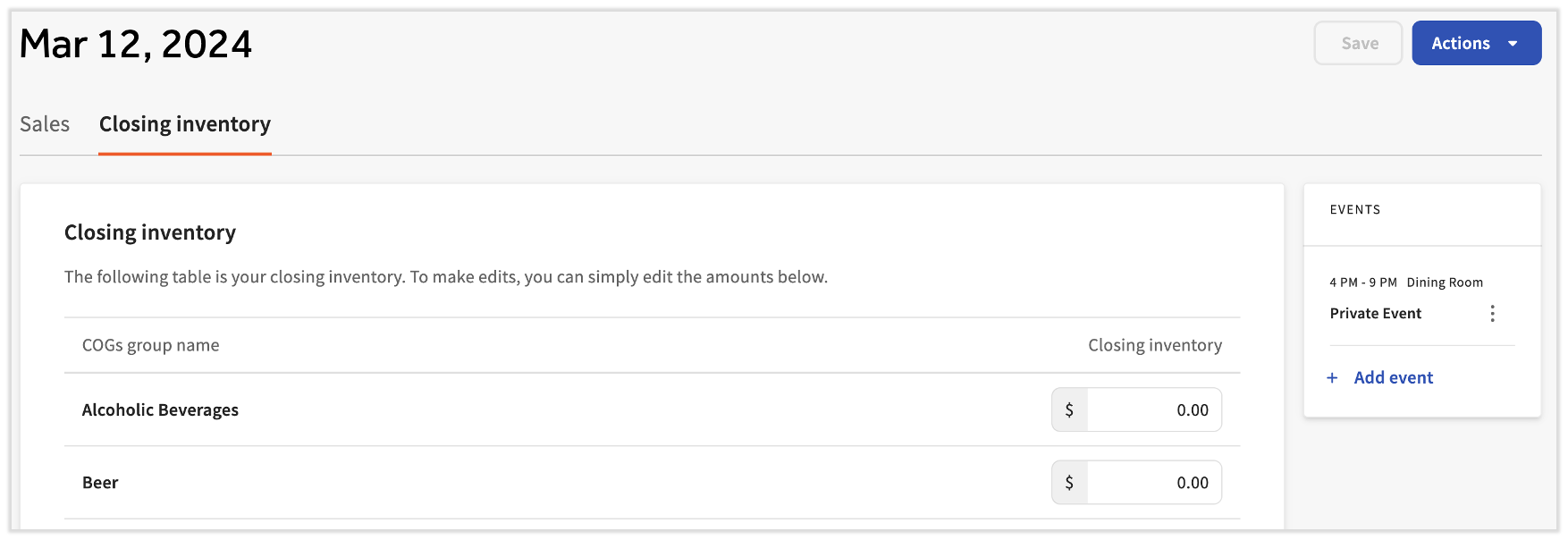
Adding closing inventory values will provide even more insight into your restaurant's profit margins. From your Sync Monitor, select Actions > Closing inventory and pick a date. You'll now be able to type in your closing inventory by COGS group and select Save. On the right, you'll even be able to see and add any events that took place that day.
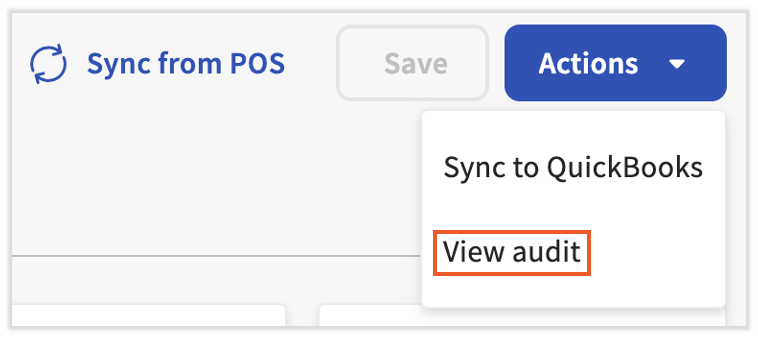
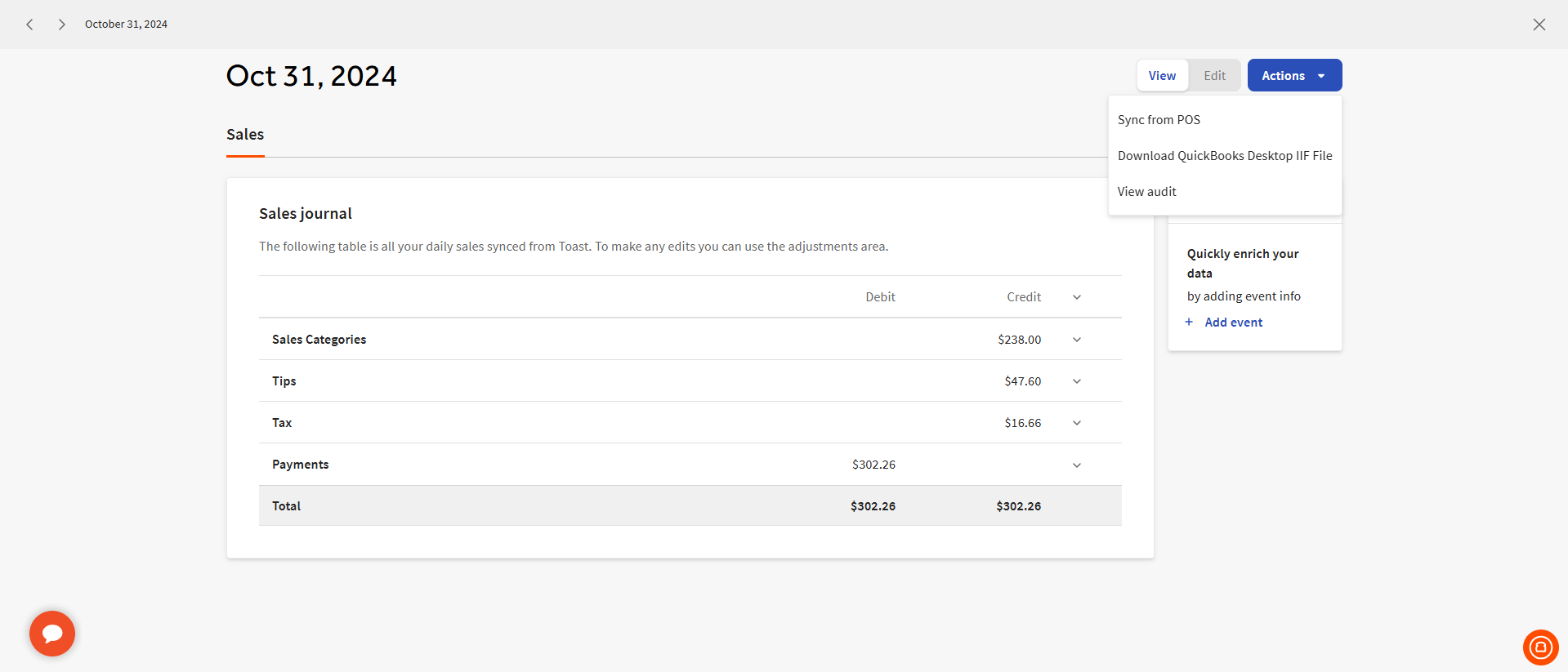
Select Actions > View audit to review your sales journal audit. Select the Sales tab to view the sales journal for this date.
Note: In order to correctly record your closing inventory values for COGS reporting, ensure you're adding them to the last day of your . Inventory entries recorded outside of your existing accounting period will not be factored in for your COGS report. Closing inventory is automatically used as the beginning inventory for the next accounting period cycle.
If you utilize xtraCHEF Pro, these inventory amounts can be synced over from your upon completing inventory counts. On the report, select the Post to Sync Monitor button to do this. Once saved, your data will be available on the Sync Monitor calendar (first, you'll need to filter by Closing inventory). You can use this option to compare your sales against your stock.
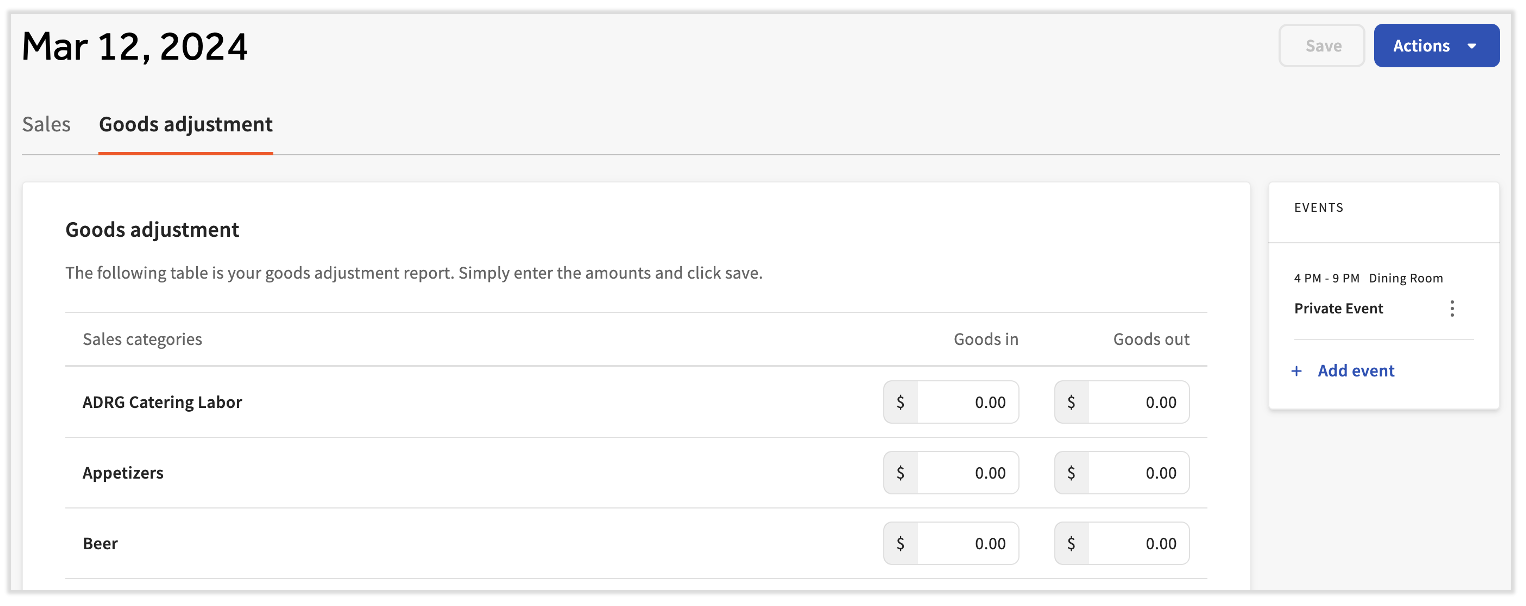
If you want to account for additional purchases or transferred inventory, you have the option to add a goods adjustment in your Sync Monitor. To do this, select Actions > Goods adjustment. Select the date you'd like to apply the adjustment to.
For any goods that were received (from another location or a supplier), add that in the Goods in section. For any inventory transferred out (or to account for waste), you would record that as Goods out. Note: Good adjustments are only used in the reporting in xtraCHEF (e.g. ); this data is not synced to accounting systems.
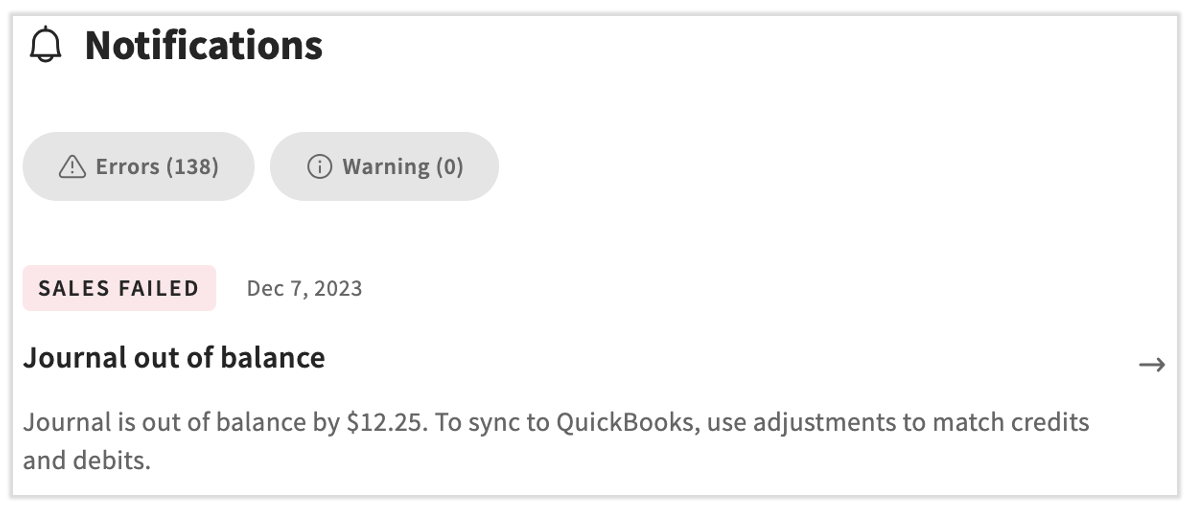
To get a view of all your outstanding action items, select the Notifications button on your Sync Monitor. Here you'll find a pop-up with a chronological listing of all the items flagged by the xtraCHEF system. Select a notification to open its details and make the recommended changes.
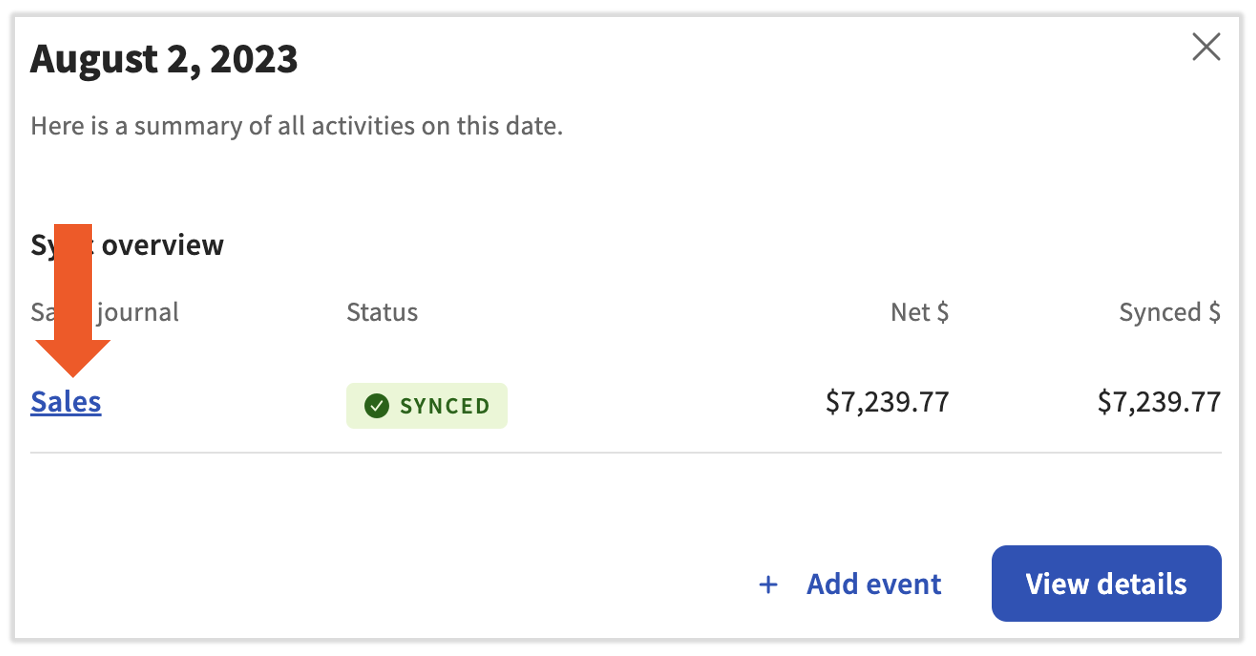
In addition to recording Toast sales, events, inventory, and more, your Sync Monitor is your QuickBooks Online account's hub for sales syncs. Successful sales syncs are highlighted in green and unsuccessful sales syncs are highlighted in red. To view the details of the data that was synced to QuickBooks Online, select a date in your Sync Monitor.
Select a date in your Sync Monitor for a journal entry-specific view. Then select the Sales link to view the sales journal entry that was posed to your QuickBooks Online account. Note: For sales to sync to your QuickBooks account, you will need to have integrated with QuickBooks and completed .
In either your Sales or Sales Sync view, select Actions and then View Audit. Doing so will allow you to see a record of when changes were made manually and who made them.
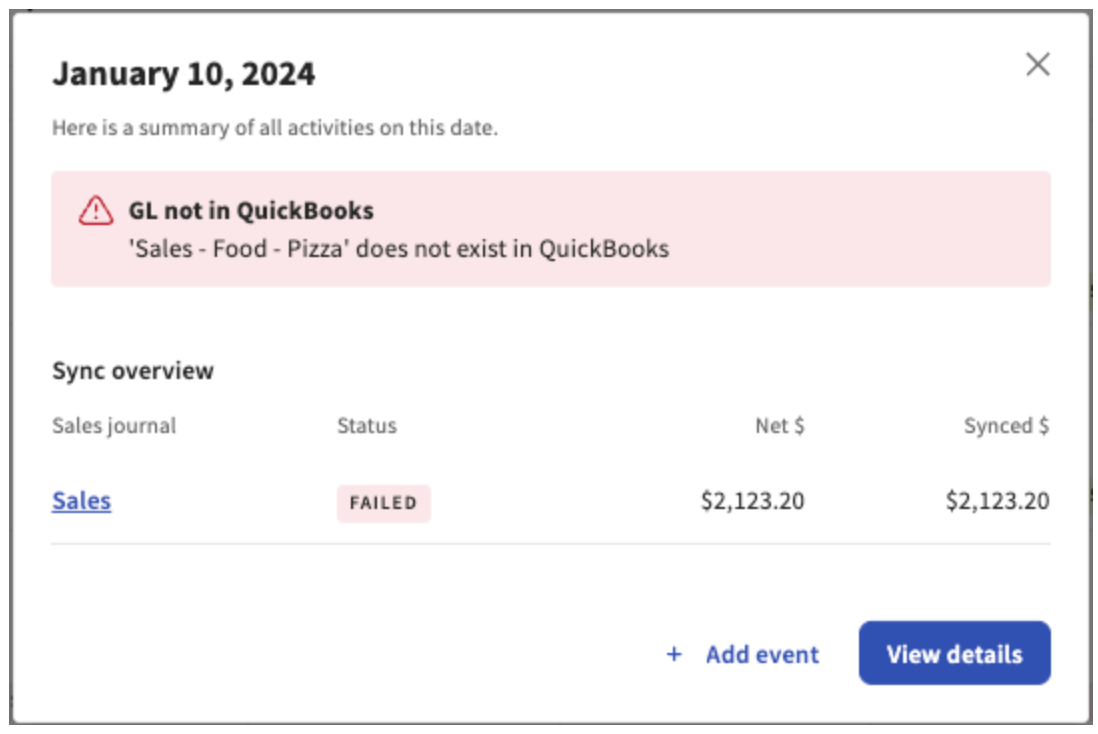
If a sync failed, selecting the date in the Sync Monitor will highlight the reason the sync failed. In the screenshot below, the journal was unable to post because the matching GL code was not found in the QuickBooks Online account.
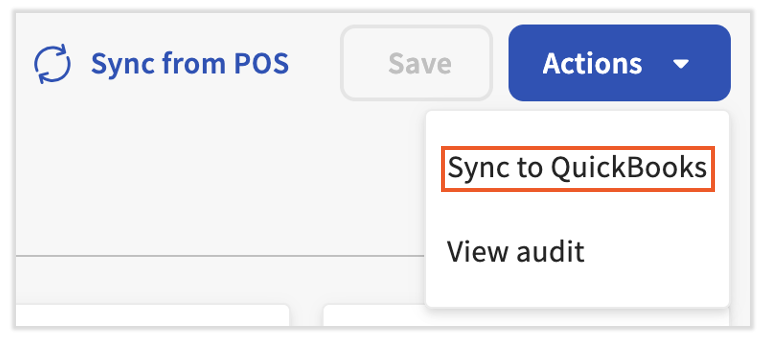
To resync, you would need to fix the issues (either by updating the GL code name in xtraCHEF or adding a matching GL code in QuickBooks), then select Actions > Sync to QuickBooks.
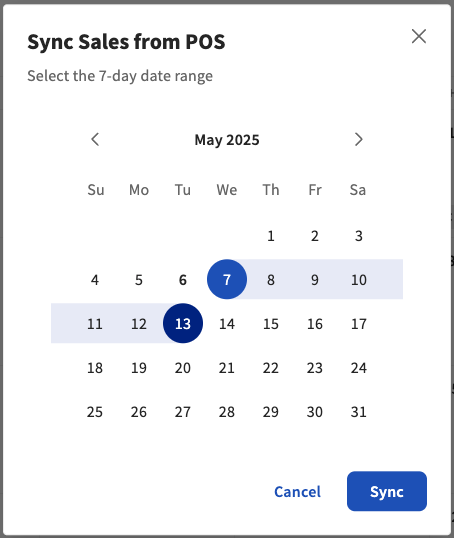
You are now able to sync up to 7 days at once either from Toast POS or to your QuickBooks account via the Actions button.
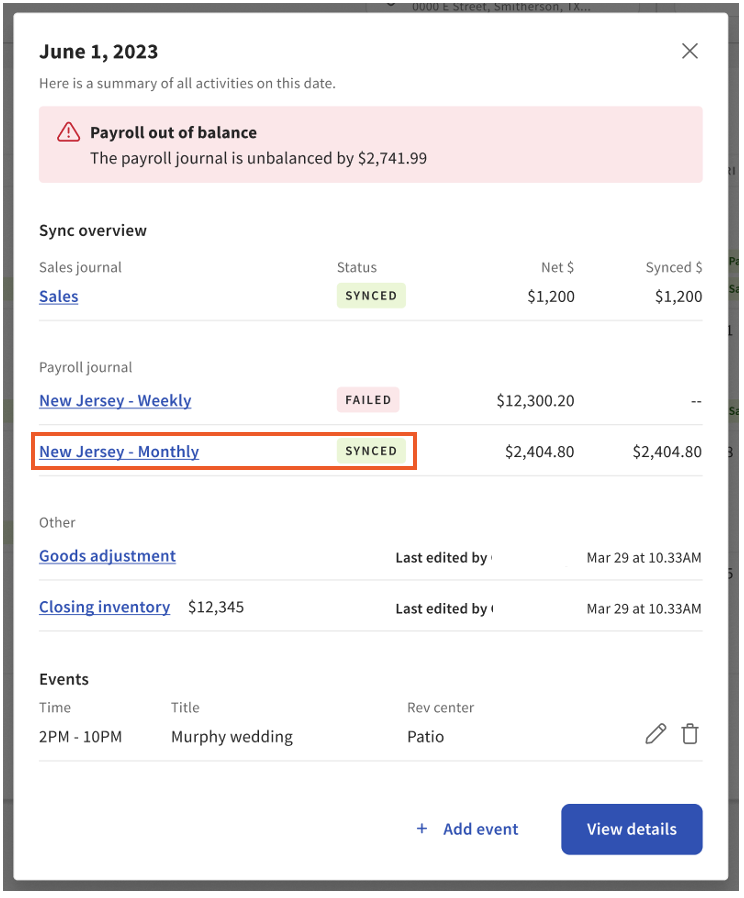
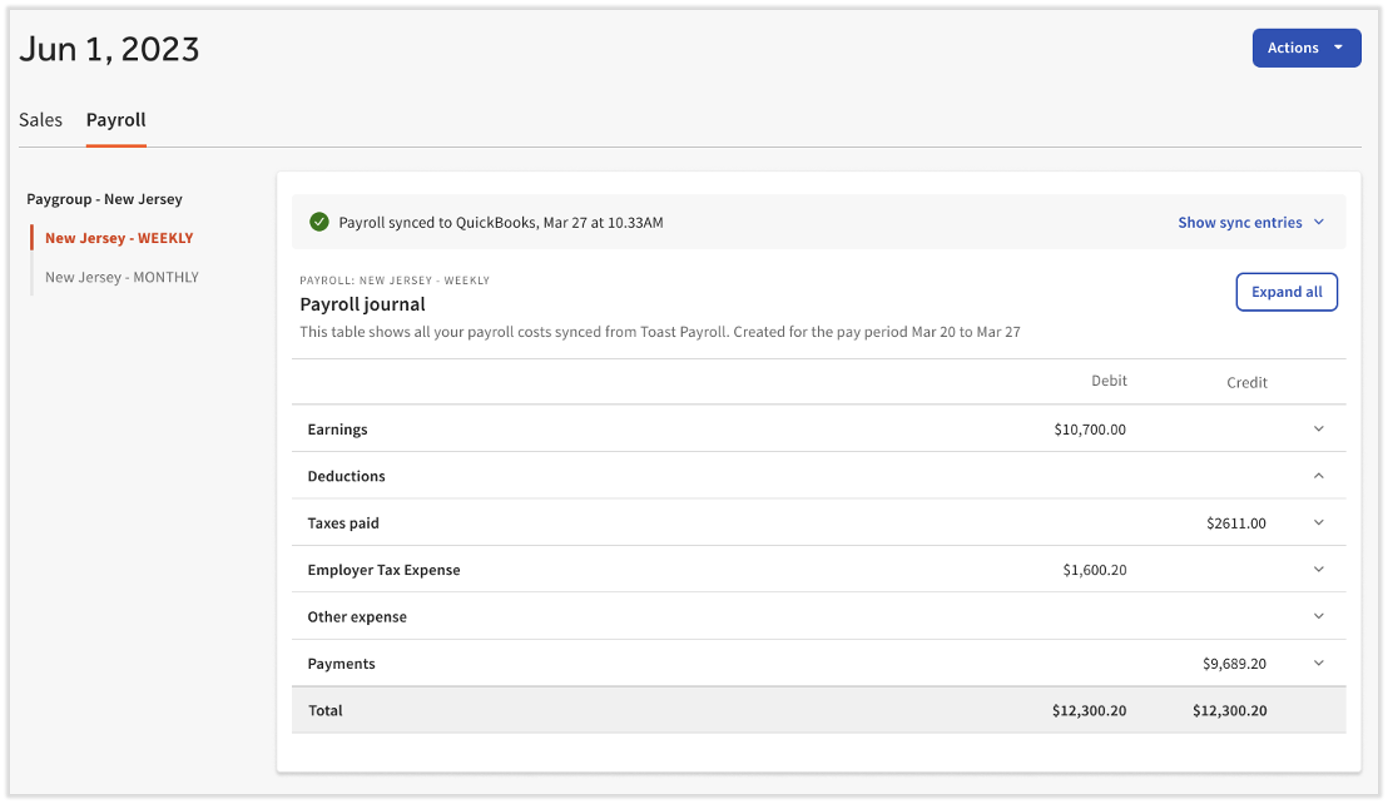
If you've integrated your xtraCHEF account with Toast Payroll, Payroll syncs will also populate in your Sync Monitor. You can view more detailed information by selecting the Payroll Sync date.
Then, select the appropriate payroll hyperlink (in this example, select the synced payroll).
From here, your Payroll Journal Entry will populate. Then, similar to Sales Syncs, you can select Action to View Audit or Export To CSV. Depending on your QuickBooks version (Online or Desktop), you will also see an accounting-specific option.
Note: For Payroll Syncs to extract for your QuickBooks account, you will need to have integrated with QuickBooks and Toast Payroll and have completed Payroll Setup. To learn more about this step, consider reading .
Once configured, your Payroll Syncs with QuickBooks Online will happen automatically. If a Payroll Sync fails to extract, you're able to manually re-initiate a Sync to QuickBooks. Doing so will prompt xtraCHEF to attempt another sync. You can do this by selecting Action from your Payroll Journal Entry view. Then, select Sync to QuickBooks.
Once configured, your Payroll Syncs with QuickBooks Desktop will happen via a downloadable IIF file, which can be uploaded to your accounting software. You can do this by selecting Action > Download QuickBooks Desktop IIF File.