Toast Payroll: Get Help With Employee Mapping
Last updated: Apr 10, 2026, 10:37 AM
- Map Employees
- FAQ
- What is employee mapping?
- How does employee mapping work?
- When should I use employee mapping?
- What are the most important steps to prevent time entry syncing errors?
- How do I know which POS profile to select?
- What causes an employee to be active in Toast Web but not in Toast Payroll?
- When my employee is clocking in on the POS, why does it say "Invalid passcode"?
- If my employees have been entered incorrectly, how can I fix this so that hours can sync from Toast Web to Payroll?
- I'm running payroll and when I send tips, it's telling me an employee isn't mapped. What next?
Map Employees
To access the mapping module, you must be an HR+ user. Log into Toast Payroll and navigate to Settings > Toast > Employees. Use Toast Payroll: Manage Employee Mapping for instructions and a video walkthrough on how to use this module.
Employee mapping can be viewed at an individual level in two ways:
- By navigating to Team, you'll immediately see any Toast Web employee profiles who remain unmapped since they'll be marked with a Unpaid employee tag.
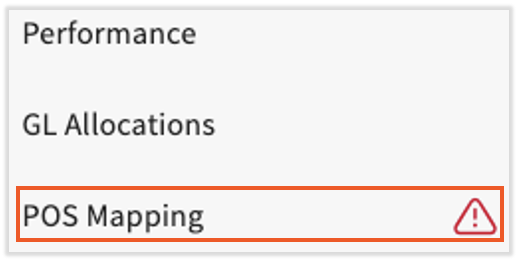
- On an employee's Toast Payroll profile page, there's a tab labeled POS Mapping. If the tab has a red alert icon beside it, the employee's profile and/or job is unmapped. Read more about using Individual Employee Mapping via Toast Payroll: Manage Employee Mapping.
FAQ
What is employee mapping?
How does employee mapping work?
When should I use employee mapping?
-
- When you find there is an employee in Toast Payroll who is unable to clock in on a POS device.
- When an employee is clocking in on a POS device but no hours are showing up in the employee's timesheet in Payroll (employee job codes and timesheets are not syncing with Toast Payroll).
What are the most important steps to prevent time entry syncing errors?
-
- All employees must be added to Toast Payroll instead of Toast Web. Once they are added in Toast Payroll, a Toast Web profile will automatically and immediately be created.
- Only employee time and tip information are adjusted in Toast Web.
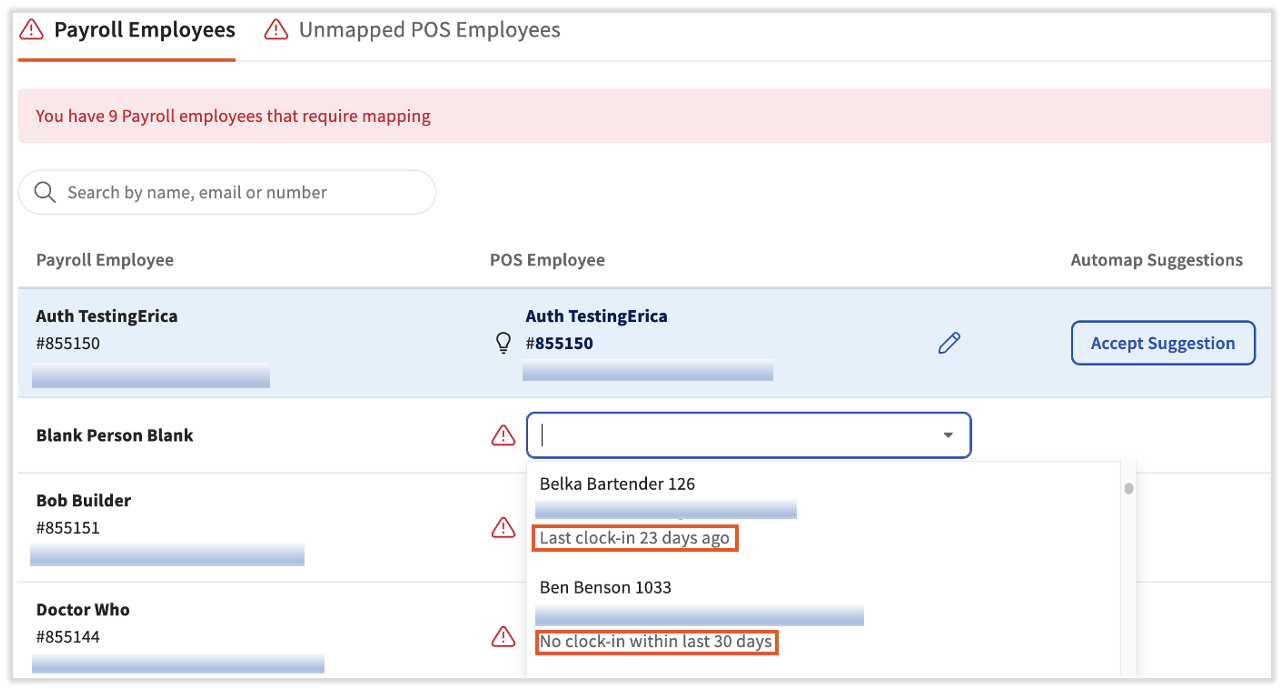
How do I know which POS profile to select?
What causes an employee to be active in Toast Web but not in Toast Payroll?
The most common cause of this is when an employee is added to Toast Web but is never new hired in Toast Payroll. Remember, all employees should be new hired in Toast Payroll to automatically create their matching record in Toast Web.
This includes adding an employee to a second location. Adding an already-hired employee to a second location has to be done in Toast Payroll in order for an employee record to be created in Toast Web under the secondary location. Do this by going to the employee's Jobs page. Learn more by reading Toast Payroll: Assign Employees to Multiple Jobs or Locations.
When my employee is clocking in on the POS, why does it say "Invalid passcode"?
Keep in mind that an employee number and a POS access code are two different numbers. Employee numbers are assigned to employee profiles for tracking and record-keeping purposes. They can help identify which Toast Web profile a Toast Payroll profile should be mapped to.
On the other hand, POS access codes are strictly used to clock into or log into the POS. They are only visible in Toast Web (not Toast Payroll) and they do not always match the employee number. If an employee is seeing an "Invalid passcode" error, this could indicate their Toast Web and Toast Payroll profiles are not mapped, among other things. Learn more about these two numbers in Toast Payroll: Employee Number and POS Access Code FAQ.
If my employees have been entered incorrectly, how can I fix this so that hours can sync from Toast Web to Payroll?
Use the employee mapping module in Toast Payroll to match up employee profiles from Toast Web to Payroll. See the How to Map Employees section in this article.
I'm running payroll and when I send tips, it's telling me an employee isn't mapped. What next?
You may get one or more error codes in this scenario. These might say:
-
-
- Sorry! We couldn't approve 2 days.
- 1 employee is unmapped. Map this employee.
- The following days failed to send:
-
If you're unable to send tips to Toast Payroll, navigate to Settings > Toast > Employees. Look for unmapped employees on this list and map their Toast Payroll profiles to their Toast Web profiles. Now return to the Tips Management report and attempt to send your tips once again.
If this has not fixed your issue, search for any active, tip-receiving employees who are marked as Ignored in Payroll. They will be found at the bottom of the Unmapped POS Employees tab under Settings > Toast > Employees. If this employee is on your Tips Management report, select the edit pencil to choose the Toast Payroll profile this information should sync over to. Return to the Tips Management report and attempt to send your tips once again.
Afterwards, look for duplicate employee profiles in both Toast Web and Toast Payroll (an employee with two profiles in one of the two systems). If you find any, contact Customer Care to combine employee data. It is vital to ensure employees do not have separated time and tips data or two payroll profiles which could cause duplicate tax documents. Remember to hire employees in Toast Payroll and let Toast create a Toast Web profile automatically to ensure mapping is automatically completed.
This content is for informational purposes and is not intended as legal, tax, HR, or any other professional advice. Please contact an attorney or other professional for advice.