Get Help: My Printer Isn't Working
Last updated: Mar 25, 2026, 1:47 PM
Printer Troubleshooting
Printing issues can disrupt operations, but common problems can often be resolved through simple troubleshooting. This guide provides comprehensive solutions for printer problems in Toast POS, organized by issue type for easy navigation. Unfortunately, printers can run into issues. If you're having trouble printing, or if you are stuck on a "Please reboot printer" error message, here are three troubleshooting steps that solve most printer issues and can be done on the floor.
Always try these three steps FIRST to troubleshoot your printer:
 |
|
If the problem is not resolved, try these quick troubleshooting steps next:
- Are you printing from a terminal? If so, make sure Wi-Fi is turned off.
- Are you printing from a handheld device? If so, make sure you're on the correct Wi-Fi network.
- Is your receipt printer printing blank slips? If so, make sure you're using the correct paper (see Printer Paper Rolls and Ink Ribbons) and it is installed properly. The printer paper may have been loaded backwards, so try making an adjustment.
Common printer issues:
| What's Happening With the Printer | Causes | How to Fix |
| Tickets aren't printing, or are printing to the wrong station | Power outage or disruption of power | Unplug both cables from the printer for 30 seconds and plug them back in. |
| Blank tickets | Improper installation of paper | Reinstall your paper (see Printer Paper Rolls and Ink Ribbons) |
| Recurring issues with a specific printer | Configuration issue in Toast Web | Confirm configuration (see Verify Your Internet Connection) |
Print a Test Slip
If your printer is still not printing, it is time to do some more investigating! Let's try printing a test slip.
Printing a test slip provides us with lots of information about your printer! Not only does it confirm your printer is on, your paper has been loaded correctly, and your printer is able to print physically, but it also gives us networking information about how your printer is connected to the internet.
- Access the printer setup within Toast POS.
- Confirm the connectivity status and attempt a test print.
- If issues persist, provide the serial number for further support.
Follow the directions in this Support Center article, Print a Test Slip, and further diagnose why your printer is not printing.
More Help With Printer Troubleshooting
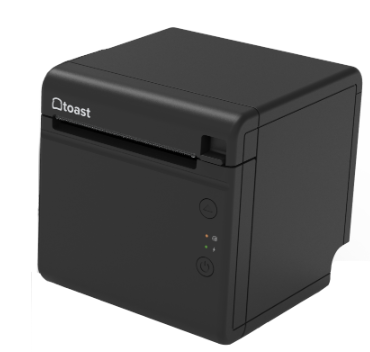
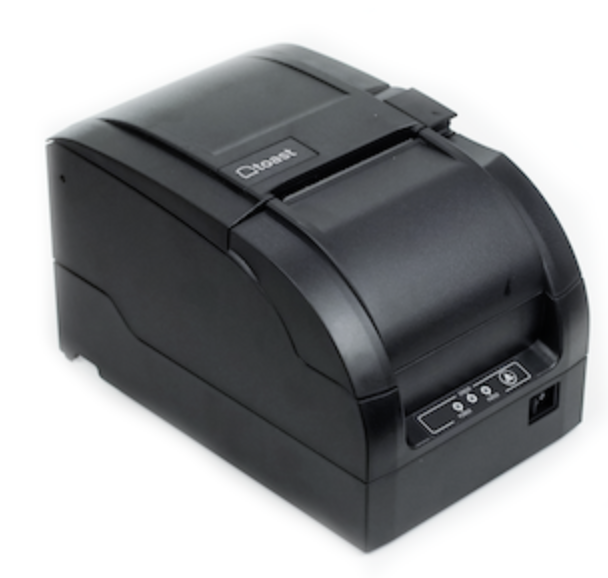
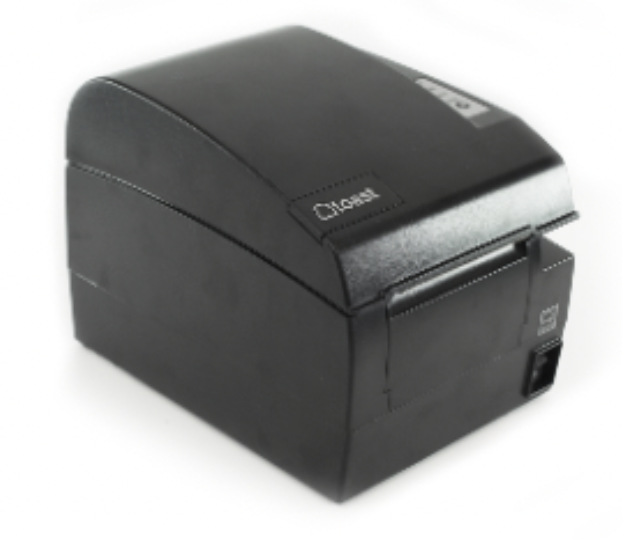
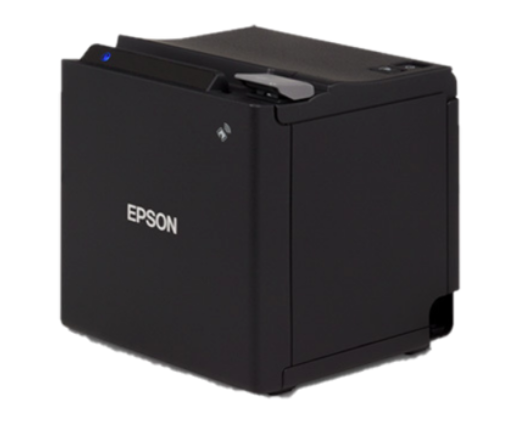
See an error code on your POS terminal regarding your printer or need more assistance with printer troubleshooting? Click on the printer below to get help.
| |
Toast Kitchen Printer | |
|
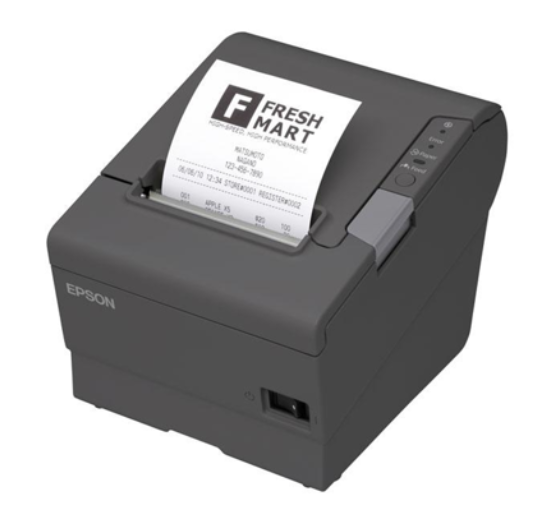
Epson Receipt Printer | |
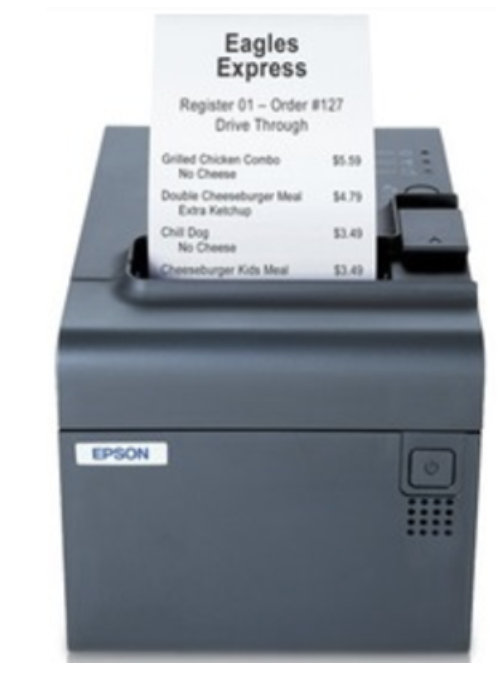
Epson Label Printer |
Check out Toast Education's quick printer troubleshooting video:
Need more help? Start a live chat here with our Customer Support team. Chat is available in Toast Web and Payroll Web (blue support button in bottom right of every page) and the Support tab in the Toast Now app.
For more information on how to contact support view "How to Contact Customer Support" or go to support.toasttab.com.
Back to top