Locations and Brands for Toast Websites and Online Ordering Pro
Last updated: Mar 12, 2026, 7:02 AM
This feature is specifically helpful to multi-unit restaurant groups, where you may have two or more different concepts. For example, a parent group has 20 locations, 10 of which are quick-service pizza concepts, and 10 are fine-dining Italian wine bars. You may decide to separate the two concepts into two different brands, which allows your guests the ability to see all locations within the brand they’re interested in, and allows you to customize the site for each brand.
It's recommended that all locations within one restaurant concept (e.g. quick-service pizza concept) are grouped together. Organizing locations within the same brand will allow you to apply consistent design elements to all of those locations, including colors, fonts, images, and more. All locations within the same brand will be featured on the location picker together.
In this Article:
Note: Locations within a brand will share ALL customized settings, including domain and advanced settings. Any changes you make to one brand will not reflect at the locations in other brands (e.g. changes to Brand A will not impact any locations in Brand B).
Create a Brand
To create a new brand, follow the steps below:
- Navigate to the settings section:
For Toast Websites: For Toast Online Ordering Pro: Using the left-hand navigation in Toast’s back-end, select Websites.
On your Website Dashboard, scroll down to the Manage Your Locations section.
Using the left-hand navigation in Toast’s back-end, select Takeout & delivery > Branding & customization > Branding & customization configuration.
Select Settings on the Branding & Customization Configuration left-hand menu.
- Select + Create new brand.
- Enter a Name for your new brand.
- Select Create.
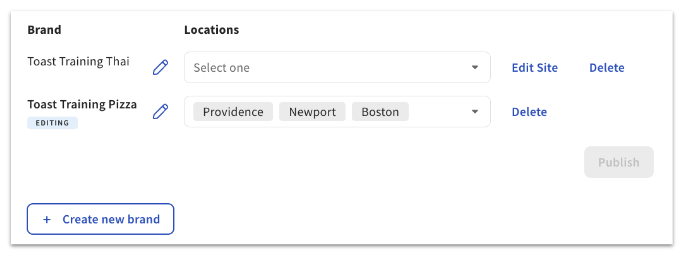
- You’ll now see that the new brand has been added to your list of brands and locations. Select the locations you wish to associate with this brand.
Note: Locations can only be added to a single brand. In the example below, since all 3 locations are part of the Toast Training Pizza brand, there are no locations available for the Toast Training Thai brand to select.
Unassigned Locations
If any locations are not assigned to any brand, a warning will be displayed:

Edit or Delete Brands
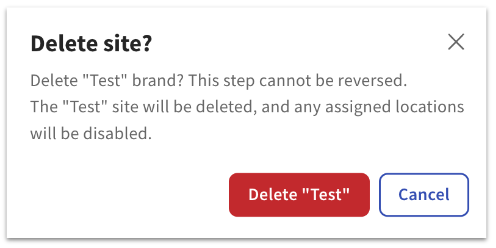
You can select Edit Site or Delete at any time, to the right of the Location drop-down for a specific brand. There will be a pop-up warning message before a brand is deleted:
Additional Resources
Toast Websites
Toast Online Ordering Pro
- Getting Started with Toast Online Ordering Pro
- Toast Online Ordering Pro: Menu Page Configuration
- Toast Online Ordering Pro: Marketing & Analytics
- Toast Online Ordering Pro: Menu Customization
- Toast Online Ordering Features
- Getting Started with Online Ordering
- Online Ordering FAQ