Toast Payroll: Preview Payroll Step
Last updated: Apr 9, 2026, 11:01 AM
Preview Payroll Step Basics
The Pay Cycle Dashboard is accessible by selecting Payroll or View payroll from the home page. Selecting Preview for a payroll on the Pay Cycle Dashboard opens the Preview Payroll step, giving users the ability to view important callouts before actually beginning a payroll.
- You can view quick stats about your employees, their timesheets, and tips for that payroll. Easily navigate to unapproved timesheets or unreceived tips, if necessary.
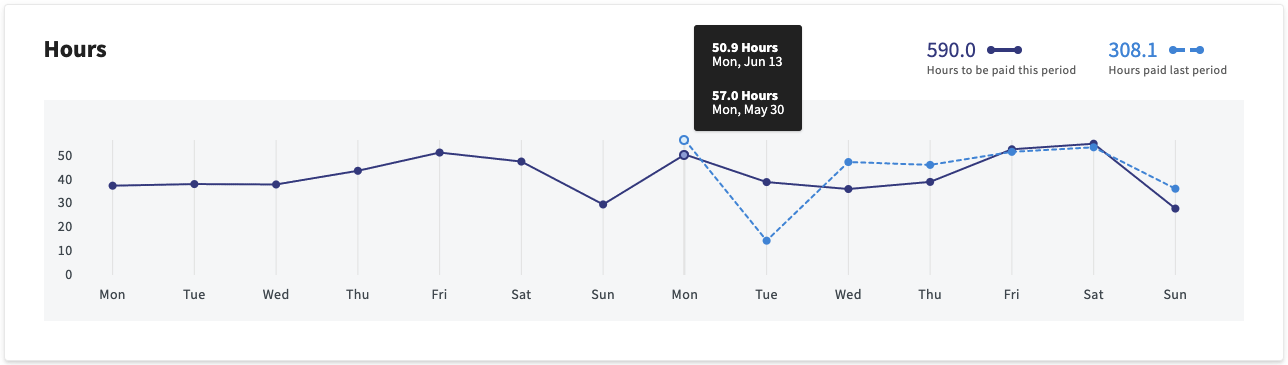
- This step also displays an hours worked chart comparing the daily hours worked during the current pay period with the daily hours worked during the previous pay period.
- Users can navigate away from the Preview Payroll screen without needing to reset their payroll.
When the Preview Payroll step doesn't display any information, try these troubleshooting options:
- Begin by refreshing the page.
- Next, log out and log back in to Toast Payroll.
- As a last step, try opening Toast Payroll in an Google Chrome Incognito window.
- If this works and the Preview Payroll step appears as normal, clearing your cache and cookies should resolve the issue in a regular Google Chrome window.
On the Preview Payroll step, you'll see a two lists, Action Items and Insights, you should complete before processing payroll. If all action items have been addressed, these cards will dynamically disappear. When you are ready to advance to the Employee Earnings step and begin payroll, select the Next button at the top. Toast Payroll will then gather all timesheet data and current information to populate your payroll run on the Employee Earnings step.
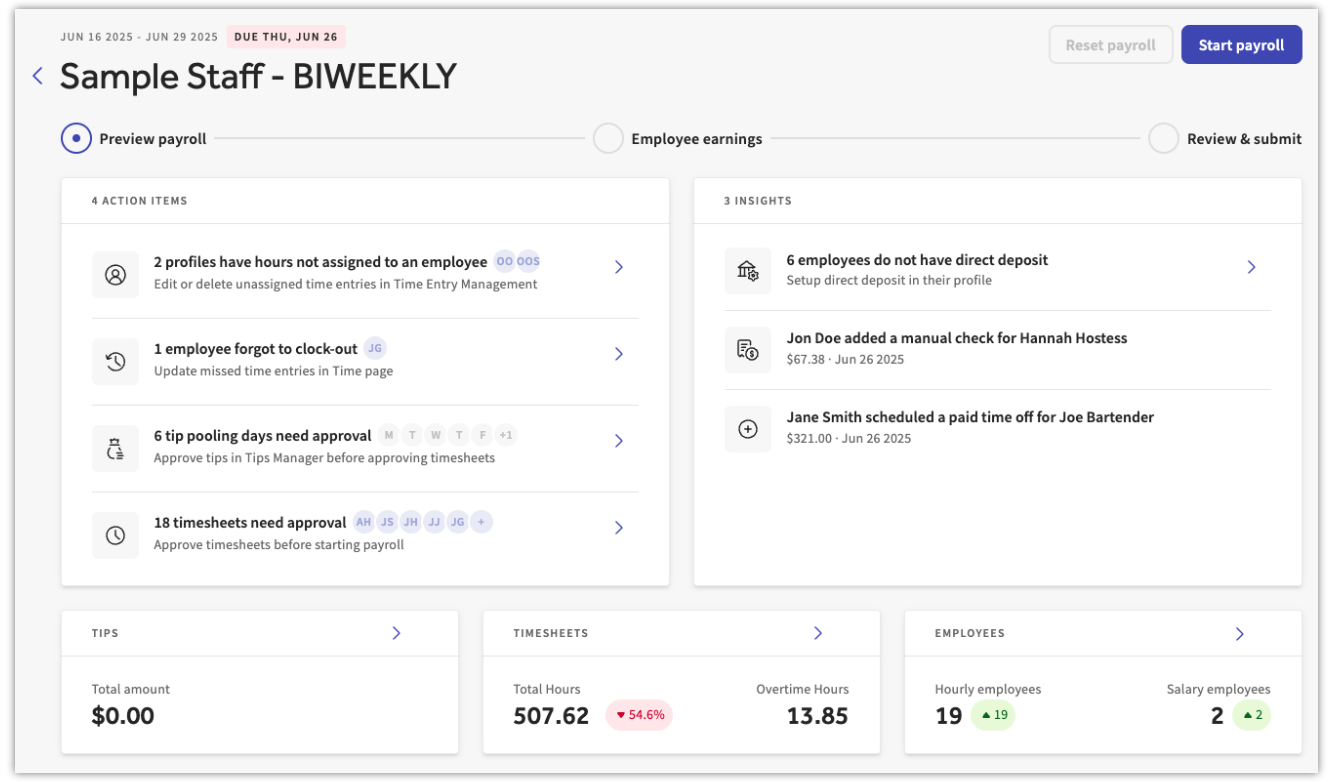
Action Items Card
Customers will see different types of action items, depending on their settings. Select the > caret icon to address each of these items before continuing with payroll. You are allowed to ignore these action items and proceed to the Employee Earnings step, but this is not recommended. Correct each item here for a more successful payroll run.
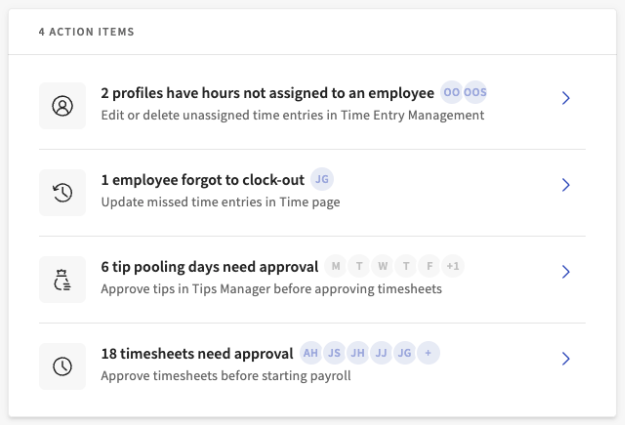
Read about different action items that can appear in this card:
- Employees have not provided their Social Security number: This notification is vital for tax filing purposes. If Toast Payroll does not have a complete and accurate Social Security number on file for each W-2 employee we file taxes for, this can result in penalties and/or fees for which the customer is responsible. Select this item to see all missing Social Security numbers on one page.
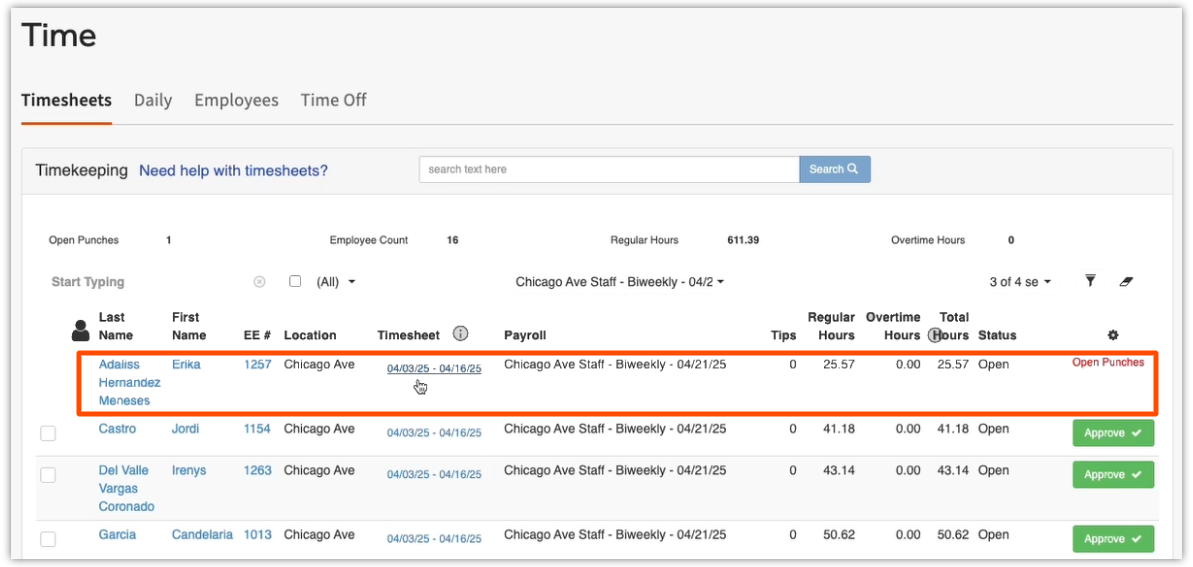
- Employees forgot to clock out: This identifies any missed punches or missing clock-out entries. By selecting this item, users are directed to the Time page to quickly locate and resolve the open punch.
- Employees that are “placeholder” employees that may be paid in payroll: These alerts flag employees that are likely placeholders, not actual individuals. These "employees" often have generic names like Online Ordering or Takeout, lack a Social Security number, and have timesheets that are set to import into payroll. The best way to resolve this is to update the employee's position by changing the Is Timesheet Tied to Payroll setting to No. This prevents placeholder timesheets from affecting payroll. Alternatively, this can also be resolved by manually deleting the entries in the employee's timesheets.
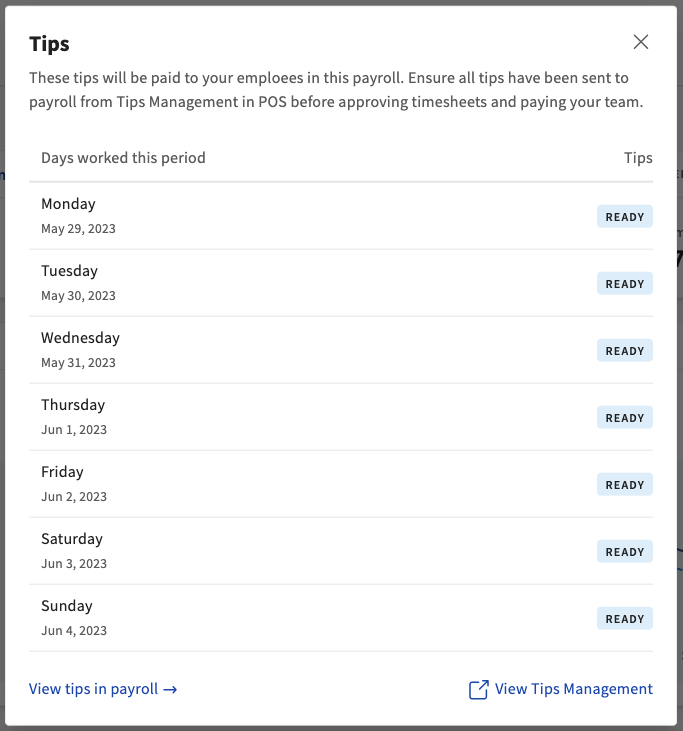
- Tip pooling days need approval: For customers utilizing the Tips Manager feature, this action item appears if the system detects time entries for a day where tips haven't been sent to payroll. Select this item to open Toast Web, where you can review and send your tip pools.
- A Ready status indicates that tips are ready to be sent to payroll, whereas a numerical amount indicates tips have already been sent
- Select View tips in payroll to be taken to the Time page in Toast Payroll.
- Select View Tips Management to open Toast Tips Manager in Toast Web. You may need to log in to toasttab.com to view this page.
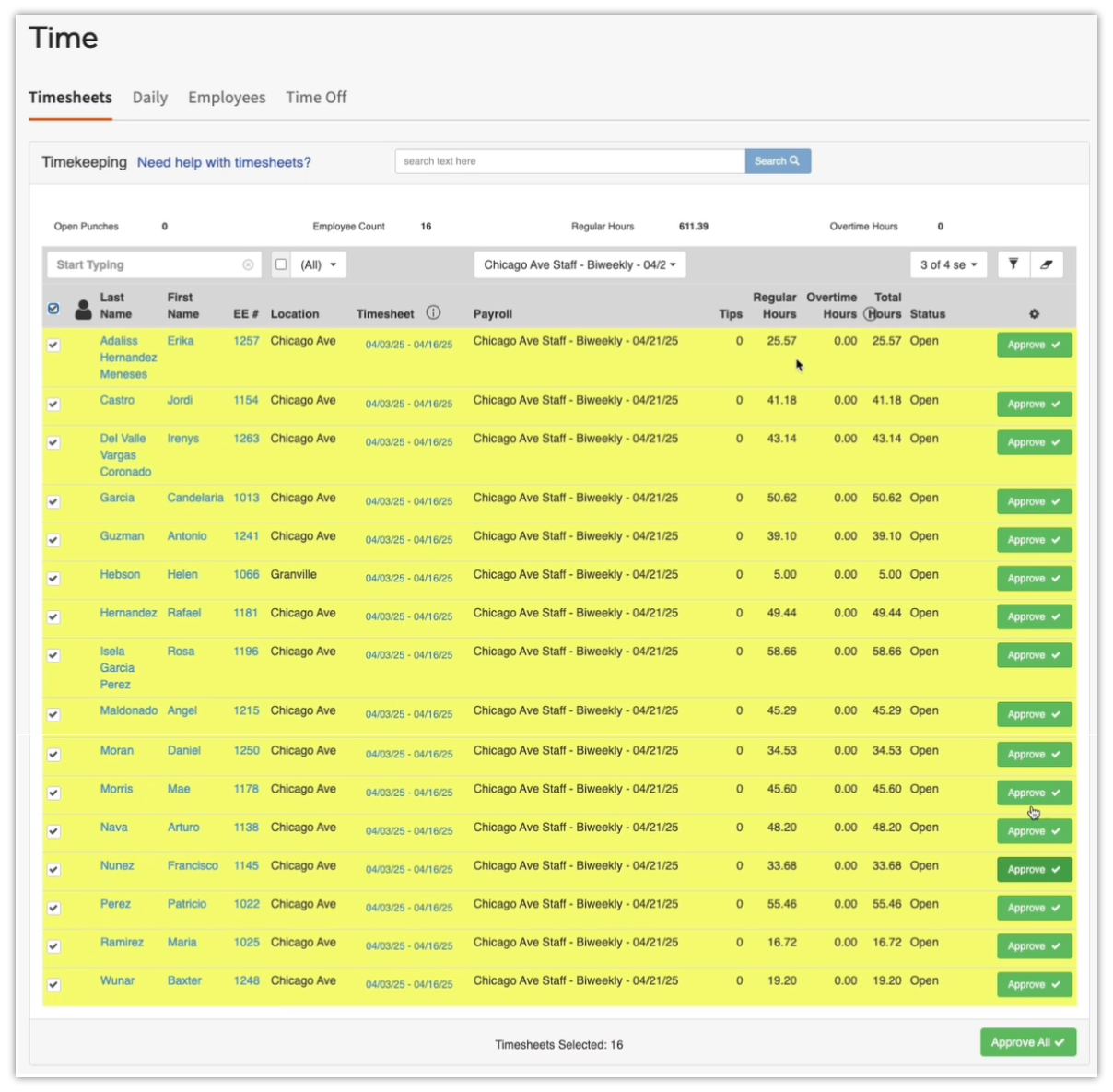
- Timesheets need approval: The process for approving timesheets has been integrated into this new action item card. When timesheet approval is needed, this item will appear, and selecting it will open the Time page in a new tab. Here, users can either approve all timesheets or conduct a manual review. Upon completion, this action item will be removed.
- Note: The timesheet approval step can now be skipped by enabling automatically approved timesheets. However, users should always verify time entries on the Labor Summary in Toast Web. Visit Toast Payroll: Manage Timesheets to discover this feature.
Insights Card
The Insights card will only be visible if there are manual checks or bonuses associated with the pay cycle.
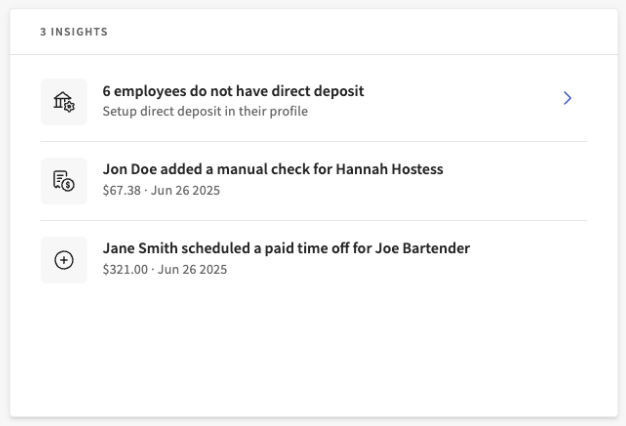
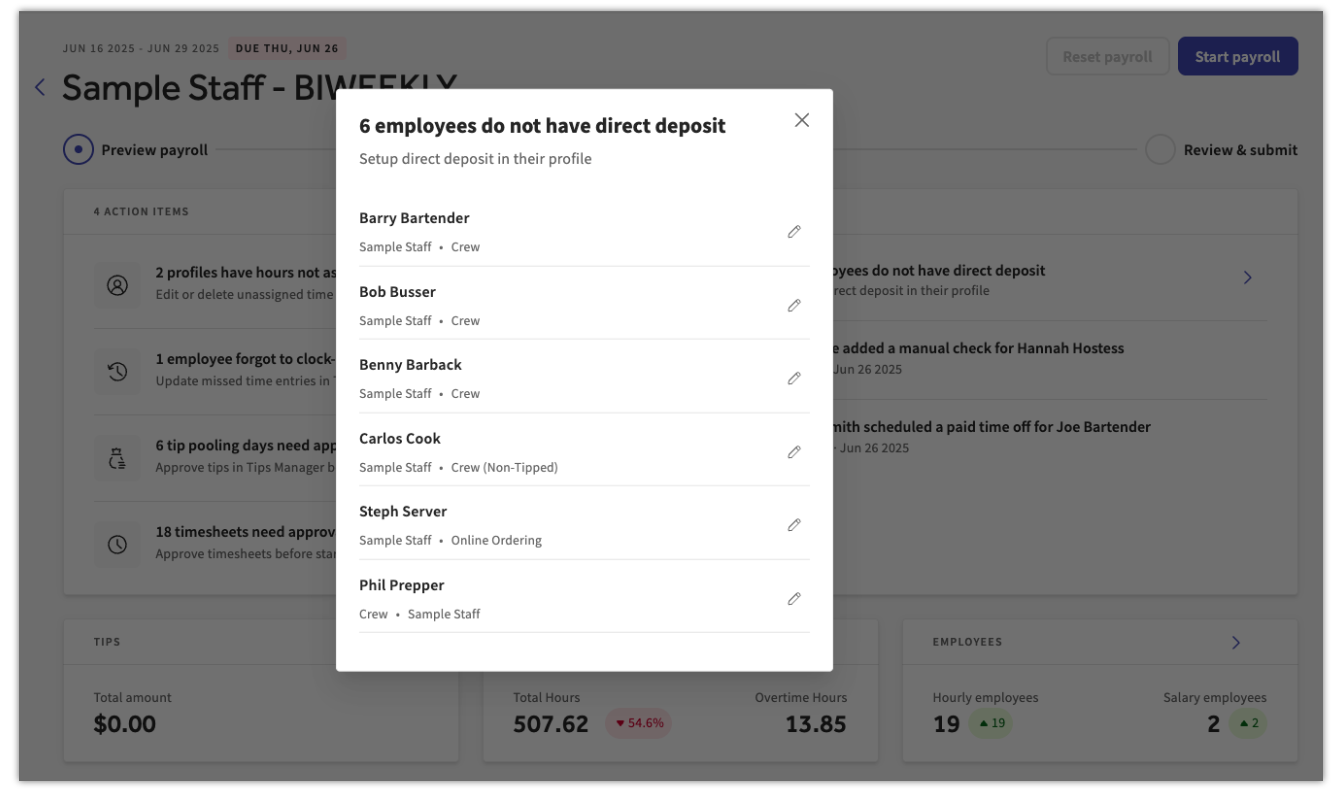
Employees not on direct deposit: This insight indicates employees who may be receiving a paper check. Toast identifies this because some employers want to avoid the paper paycheck delivery option. Select this item to view the employees who may be affected, and select the edit pencil to add a direct deposit account. An HR+ user can follow the steps in the Add a Direct Deposit Account Manually (Without Plaid) section of Toast Payroll: Get Help With Direct Deposit Accounts to manually add a direct deposit account on an employee's behalf.
Hours Worked Chart
This chart helps inform payroll processors how the current payroll's hours are trending compared to the previous payroll's hours. Use it to help locate missing time entries, determine labor trends, and generally measure hours from the current and previous periods. You can hover over a data point to display the specific amount of daily hours from both pay periods. Timesheets do not need to be approved (if necessary) to view those hours on this chart.
Additional Resources
- Toast Payroll: Prepare to Run Payroll
- Toast Payroll: Employee Earnings Step
- Toast Payroll: Review and Submit Step
- Toast Payroll: How to Run Payroll