xtraCHEF: Order Guides
Last updated: Apr 8, 2026, 10:05 AM
Order Guides Overview
xtraCHEF's Order function creates a streamlined way to upload vendor's bid sheets, standardize and simplify your order guides, and create and send orders directly to your vendor representatives or respective sales teams.
Order Guides will enable you to curate a list of approved Invoice Items for vendors. Order Guides can be used to simplify the ordering process for team members or reduce the risk of variations in brand, size, etc., occurring for specific ingredients without your knowledge.
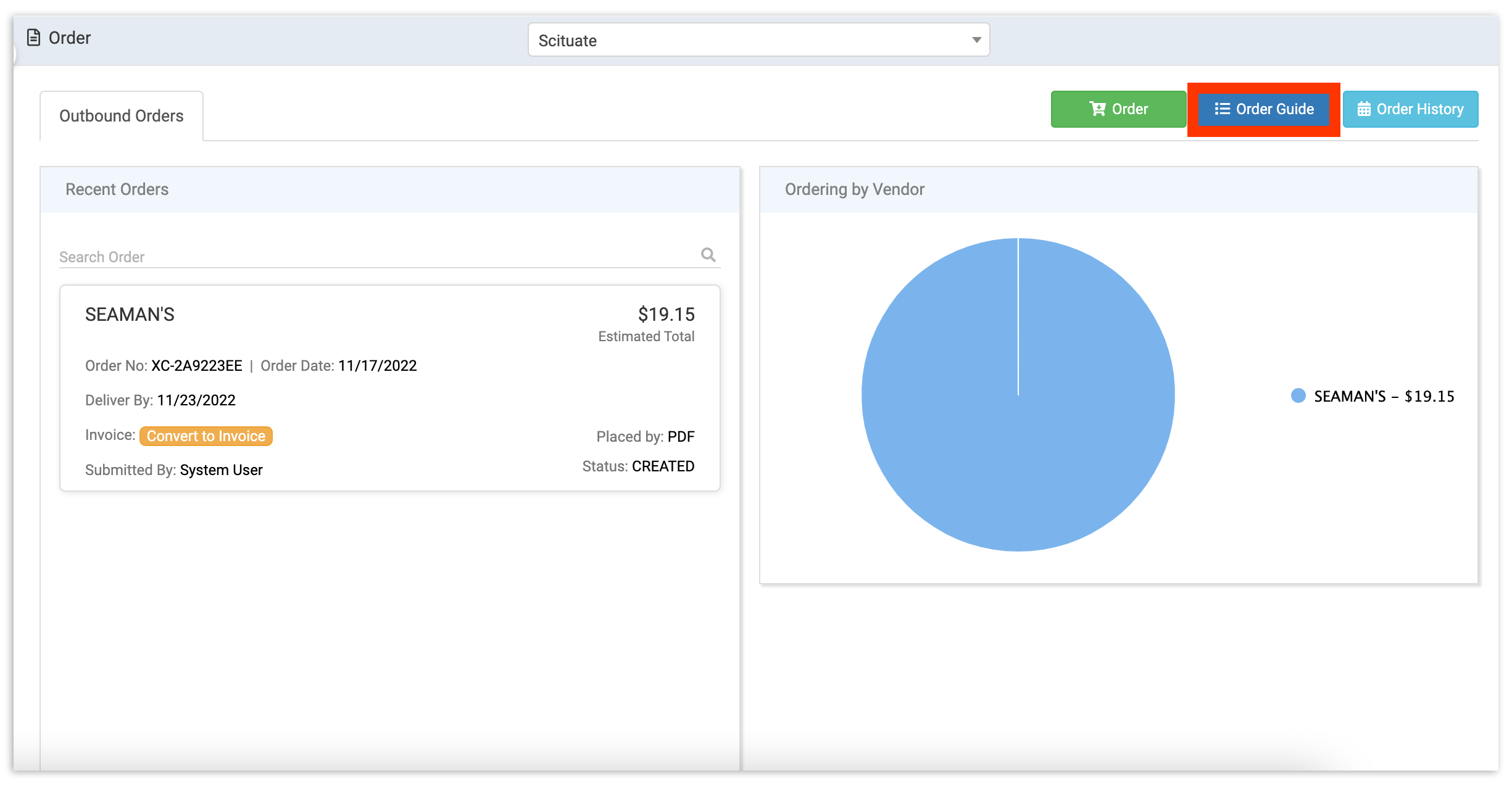
To utilize this tool, select Order from your navigation menu. Then select Order Guides.
Build Order Guides
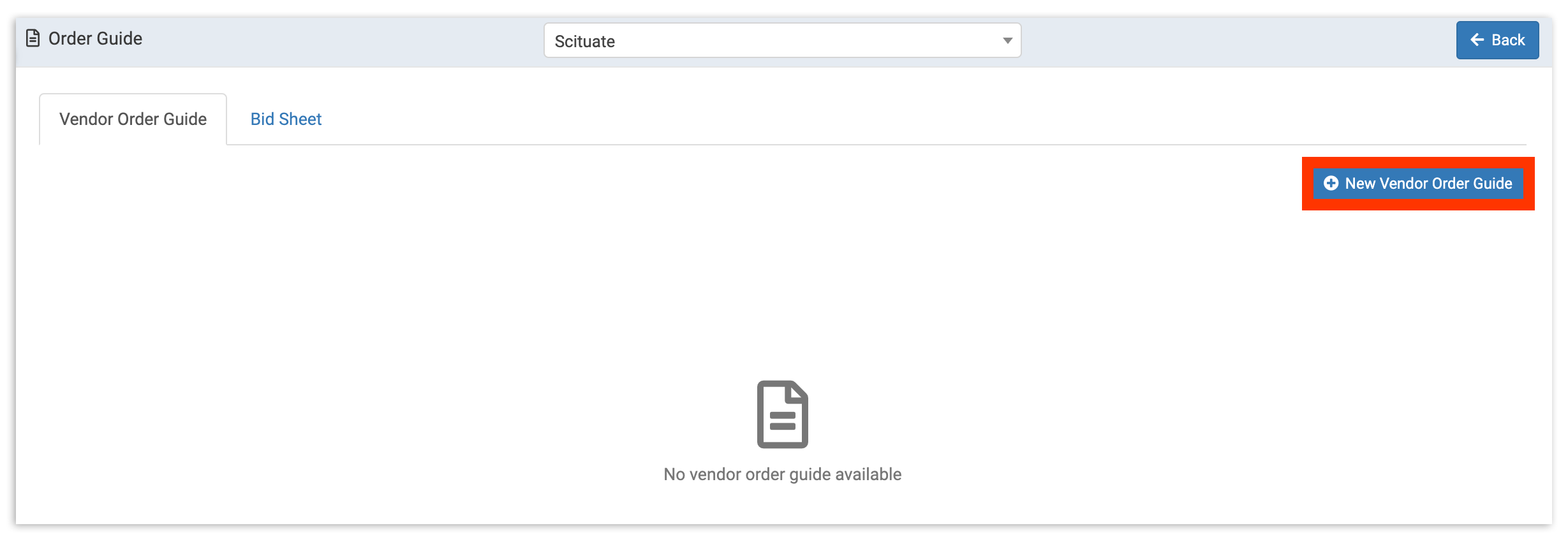
Here, any existing order guides will appear. If no order guides have been created yet, you will see a No vendor order guide available message.
New Order Guides
To create a new order guide from scratch, select + New Vendor Order Guide.
This will create a new order guide draft. By default, your new guide will be named "New Order Guide". You can change your guide name by selecting the space underneath Order Guide Name and typing in a custom name.
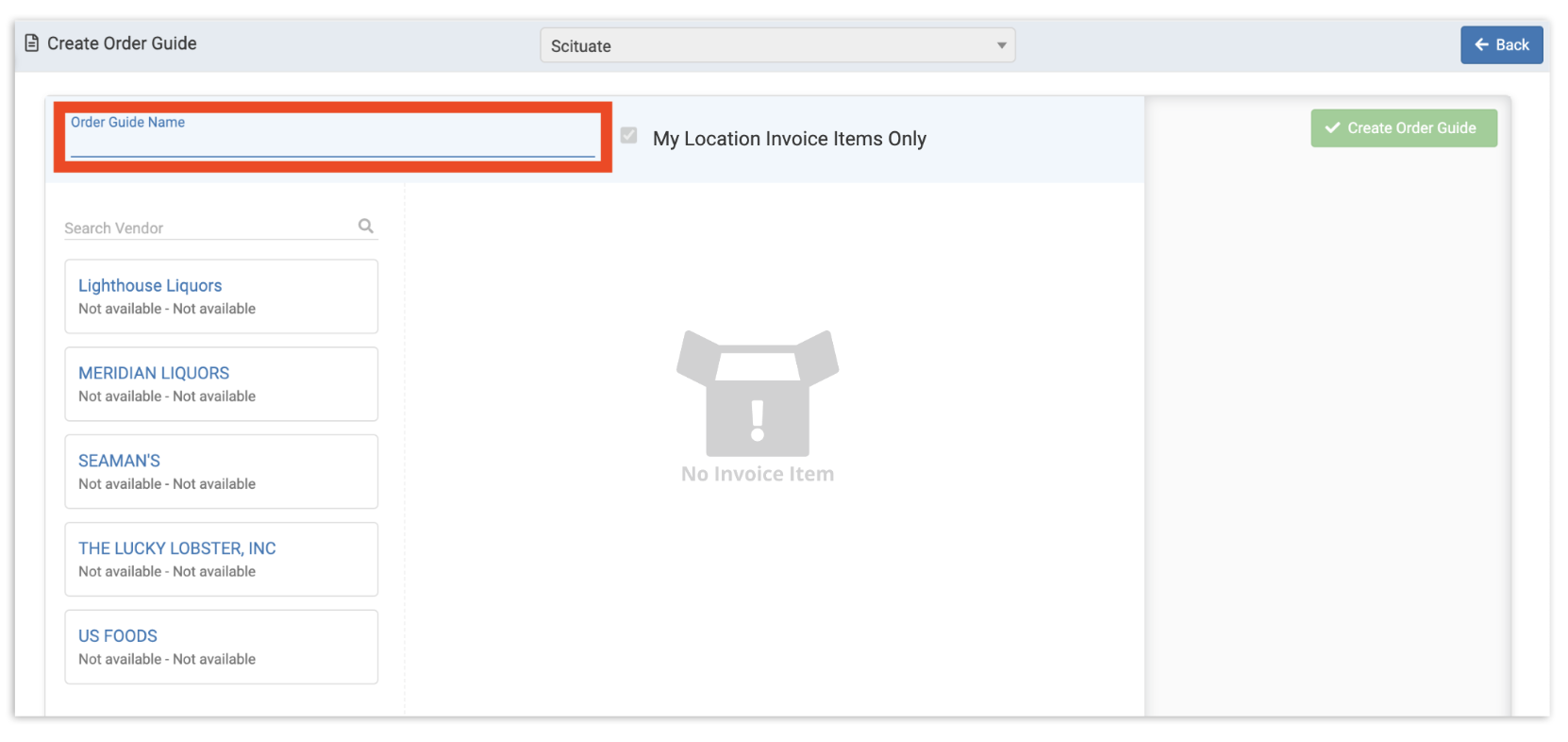
To add to your draft, select your vendor from the left side of the page. This will pull up any invoice items associated with that vendor.
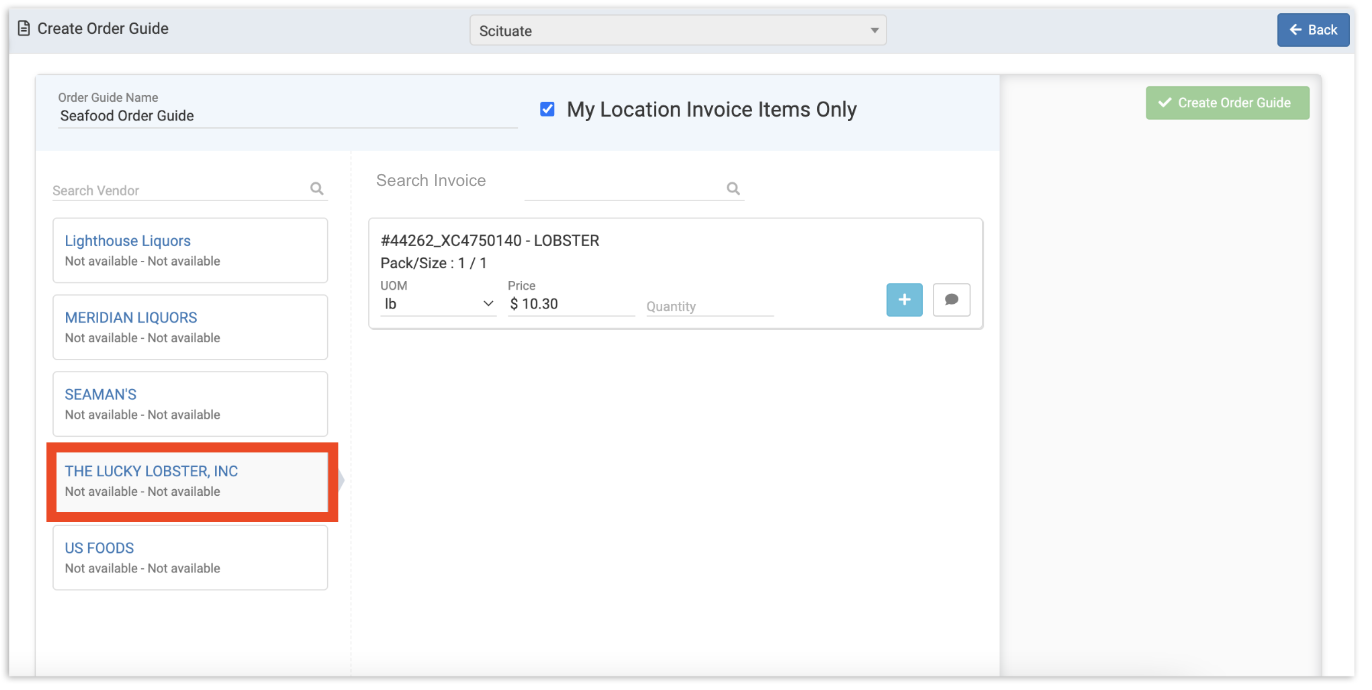
Next, select the Invoice Item(s) you wish to include in the guide. Then, enter the Quantity you will typically order. Be sure to select the + icon to add the item to your guide.
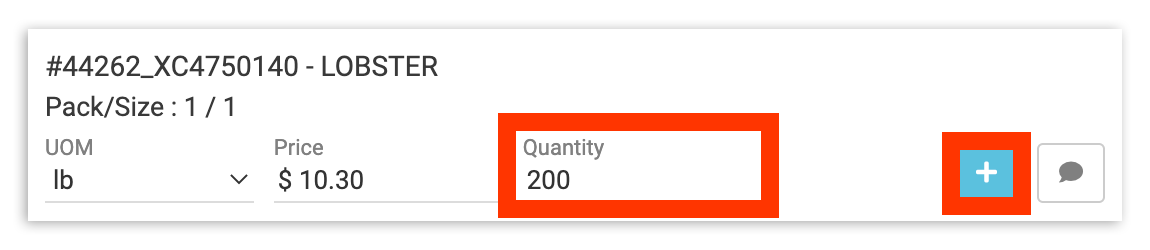
Note: Invoice Items that have not been reviewed through Item Review will not appear.
Once added, your items will show in the far right corner of the page. You can repeat this step to add additional invoice items from the same or different vendors. When you've added all the invoice items you need, select Create Order Guide to finalize your work.
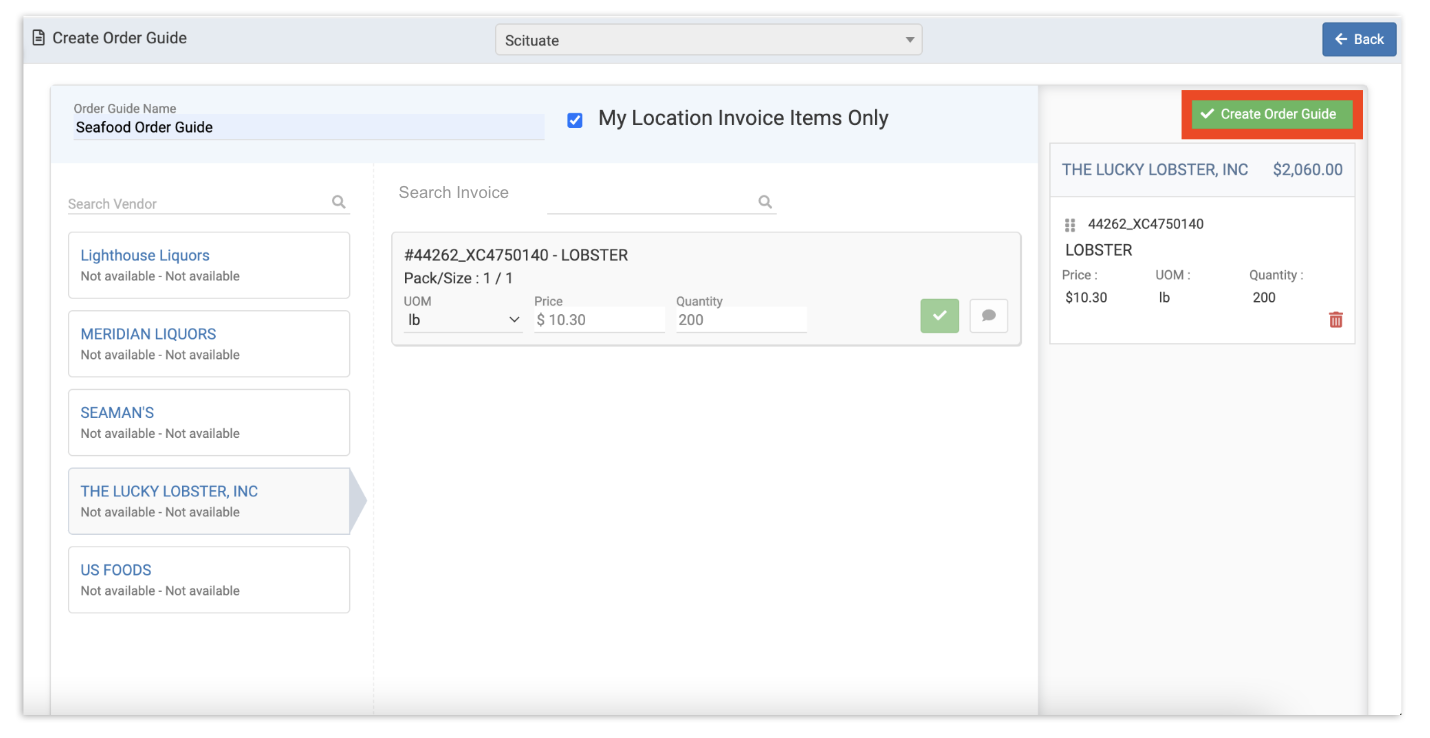
Congratulations! Your new order guide is now available for use in future orders.
Back to top
Edit Order Guides
Need to edit an existing guide? On your Order Guides page, select the Edit button next to an existing guide.
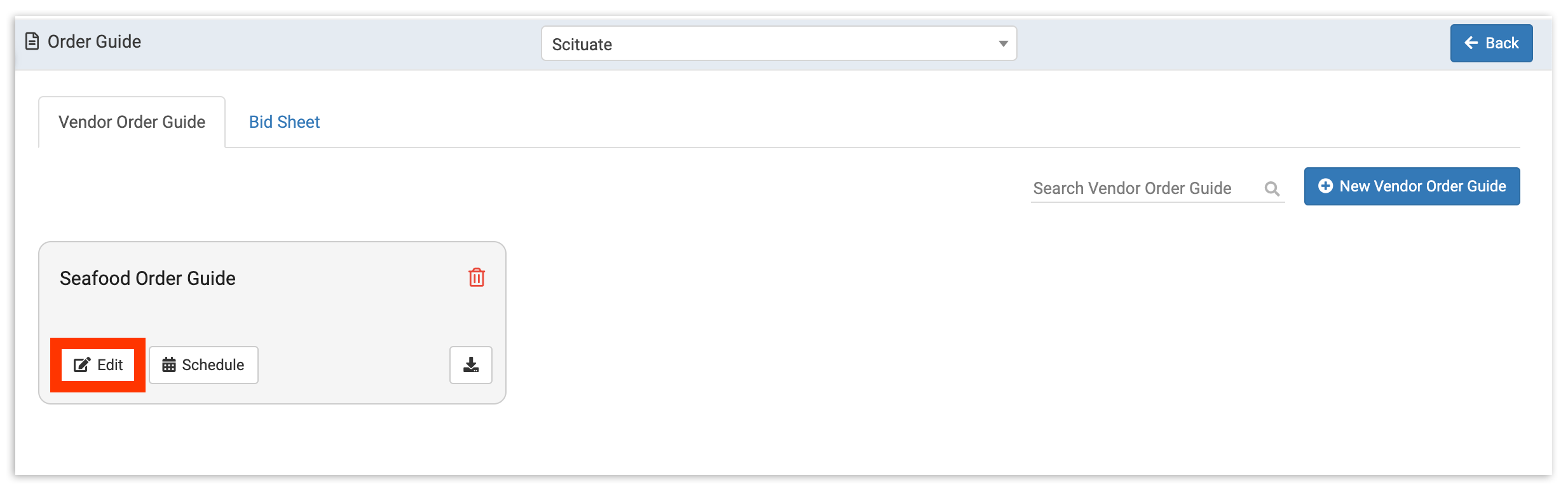
This will bring you to your Edit Order Guide page. Here you can similarly select vendors and add new invoice items or you can remove items by selecting the trash can icon.
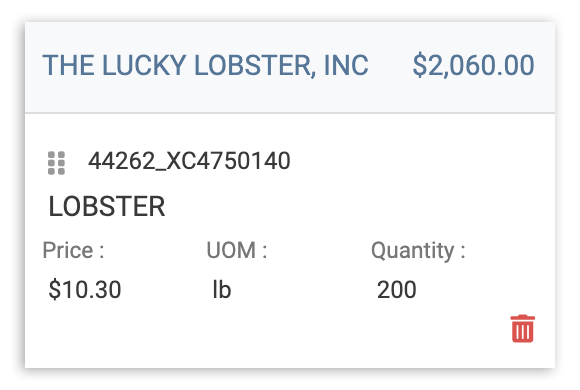
When you are finished with your edits. Select Update Order Guide.
Back to top
Schedule Order Guides
Do you have a standardized order that recurs on a weekly basis without variation? If so, you can streamline your order process by creating a corresponding guide. Once created, select Schedule from your Order Guides page.
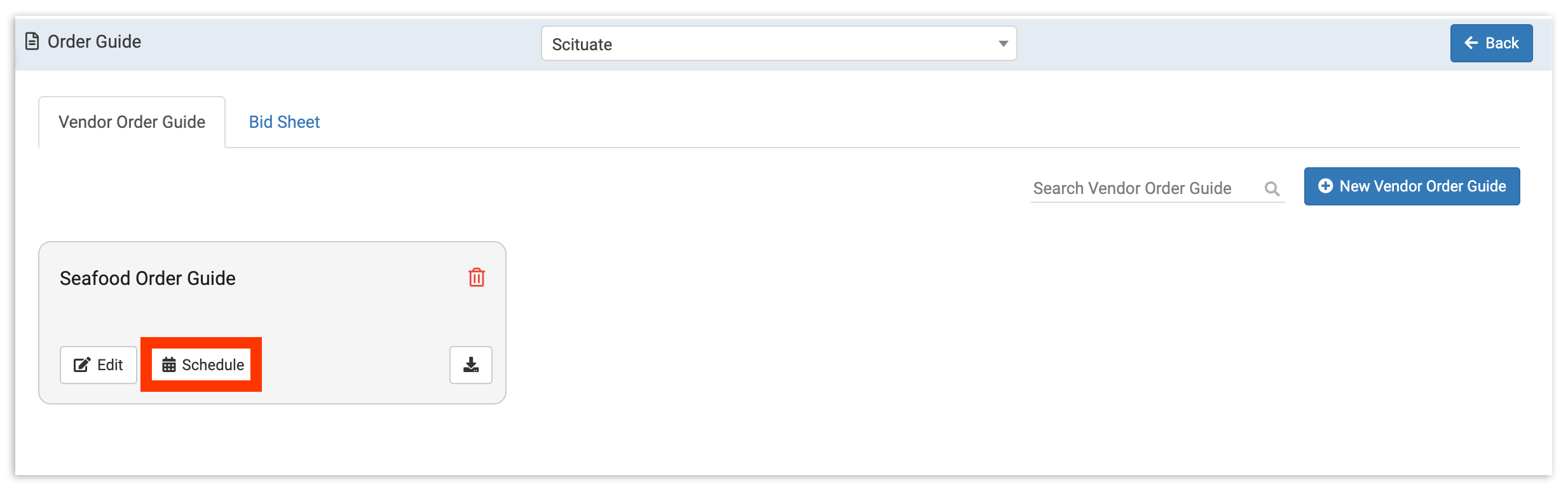
xtraCHEF will then prompt you to share a few required schedule details.
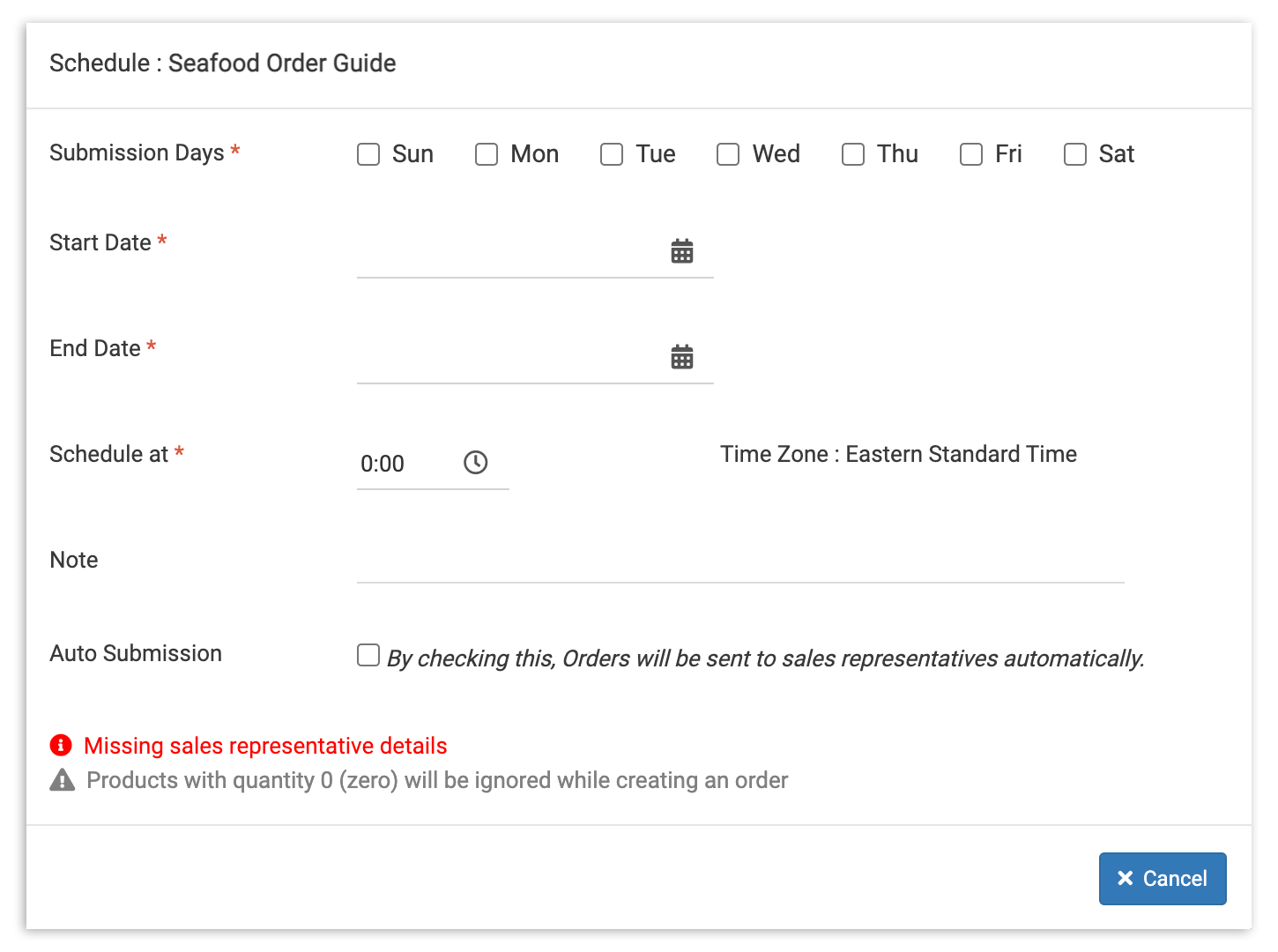
- Submission Days indicate the day of the week this Order should be scheduled.
- Start and End Date create parameters for your Order Automation.
- Schedule at indicates the time your Order should be scheduled for.
- Note allows you to attach any additional context or details.
- Auto Submission allows you to automatically send this order guide to your vendor's Sales Representatives based on the details created here.
Note: The Missing sales representative details error will populate if you haven't attributed sales representative details to your vendor(s). This information can be added via your Vendors hub.
Upload Bid Sheets
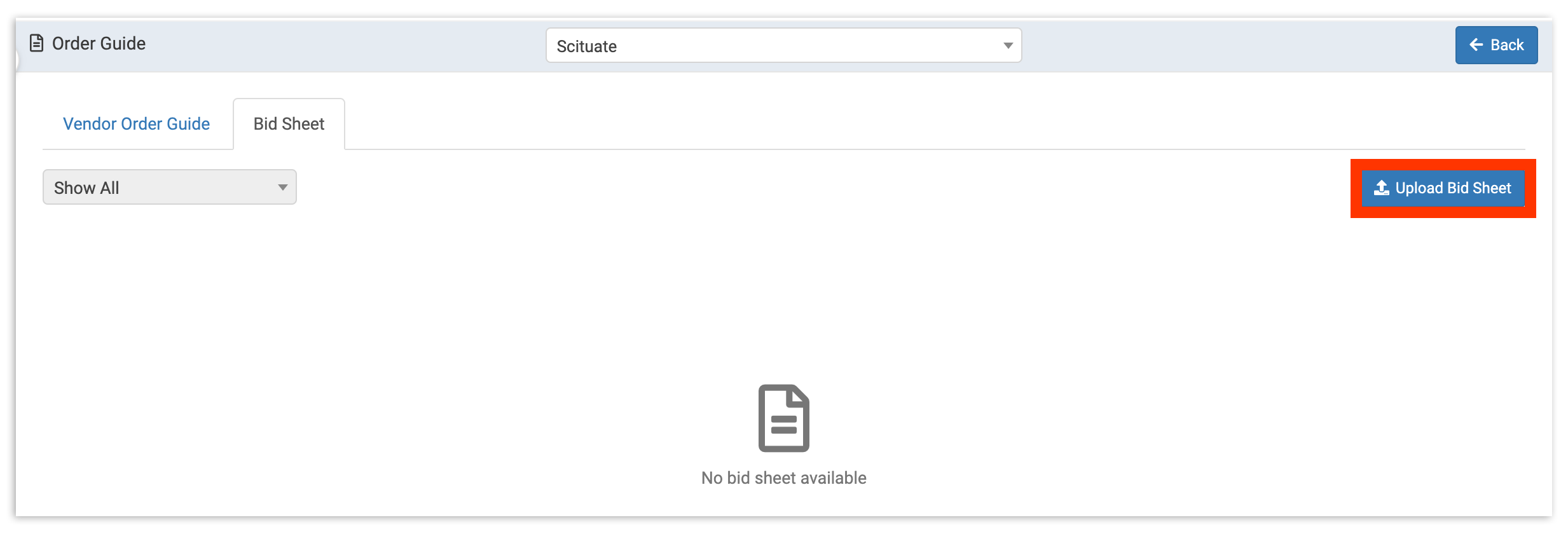
As an alternative to manually creating order guides, you can upload Bid Sheets. Once uploaded, your bid sheet will essentially serve as an order guide and can streamline creating orders for you and your team. To upload a bid sheet, select Bid Sheets from your Order Guide page.
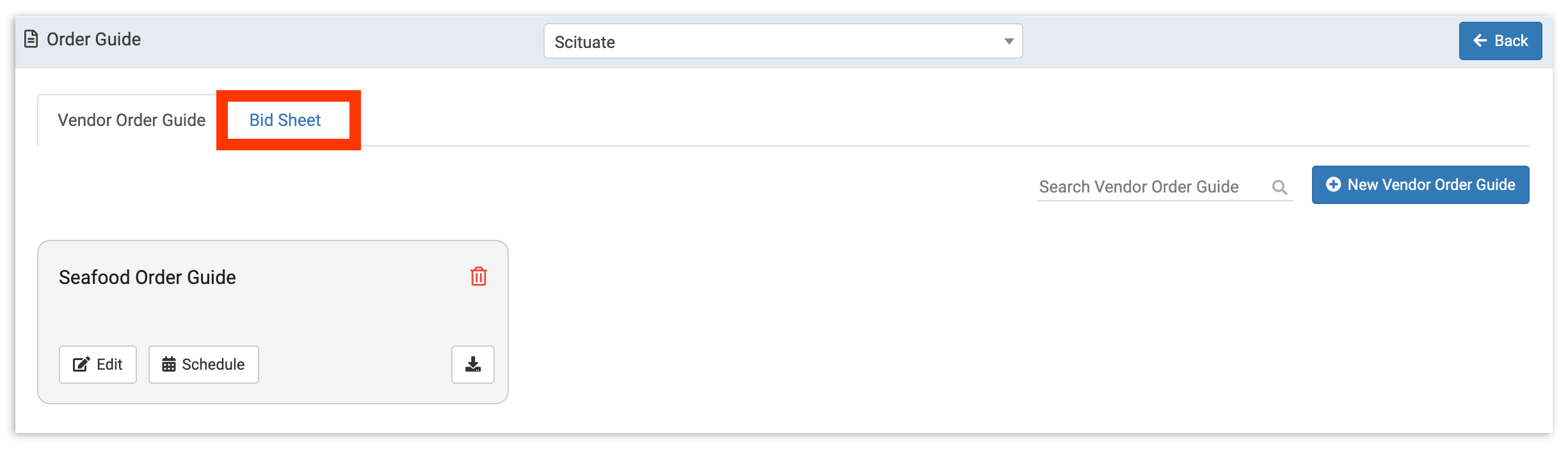
This will take you to your Bid Sheet page. Here, any existing bid sheets will populate for editing or scheduling. To upload a new bid sheet, select Upload Bid Sheet.
xtraCHEF will then ask you the vendor this bid sheet is from. To attribute this information to your bid sheet, search for and select your vendor. Select Next to proceed.
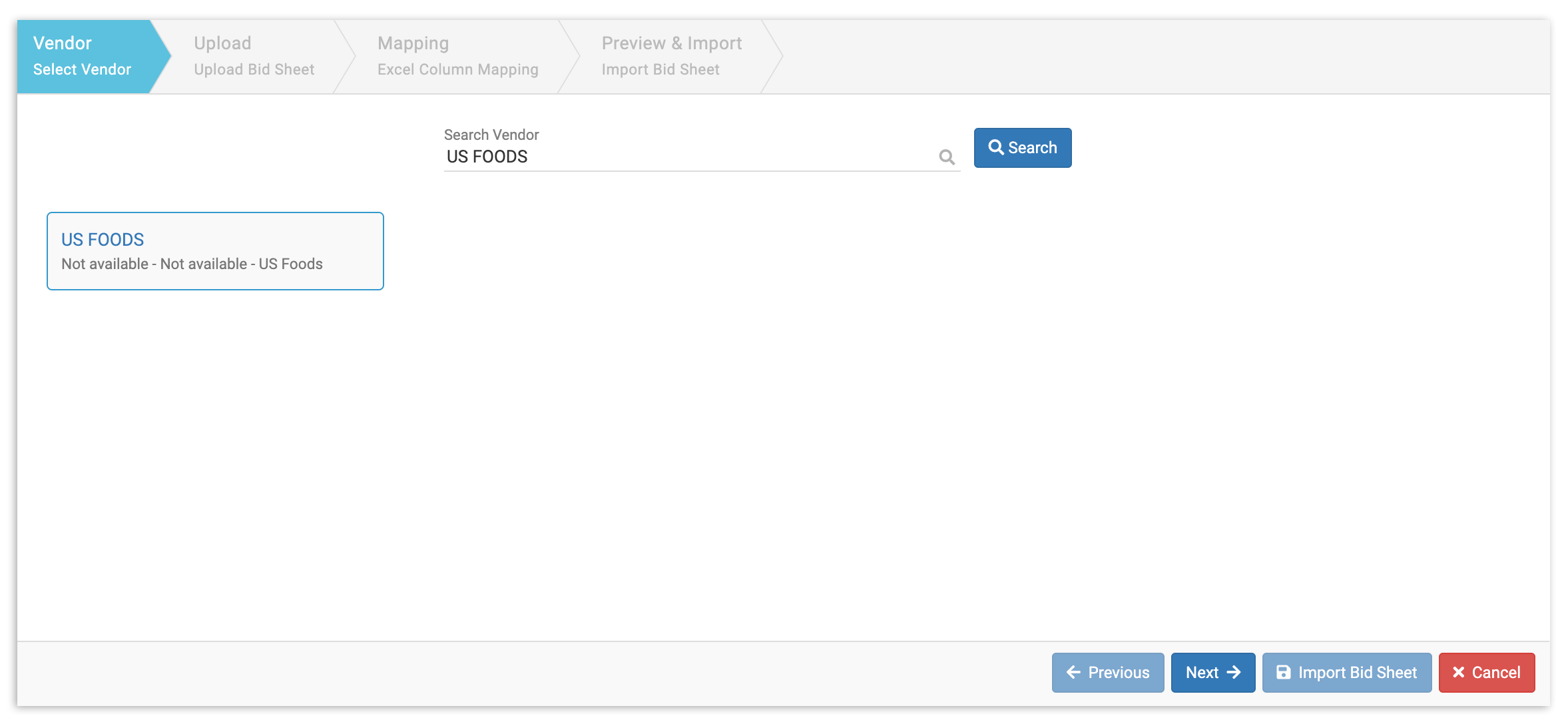
Note: If you have not yet created a record of your vendor in xtraCHEF, it will not populate. To proceed with your bid sheet upload, you will first need to create a record in your Vendors hub.
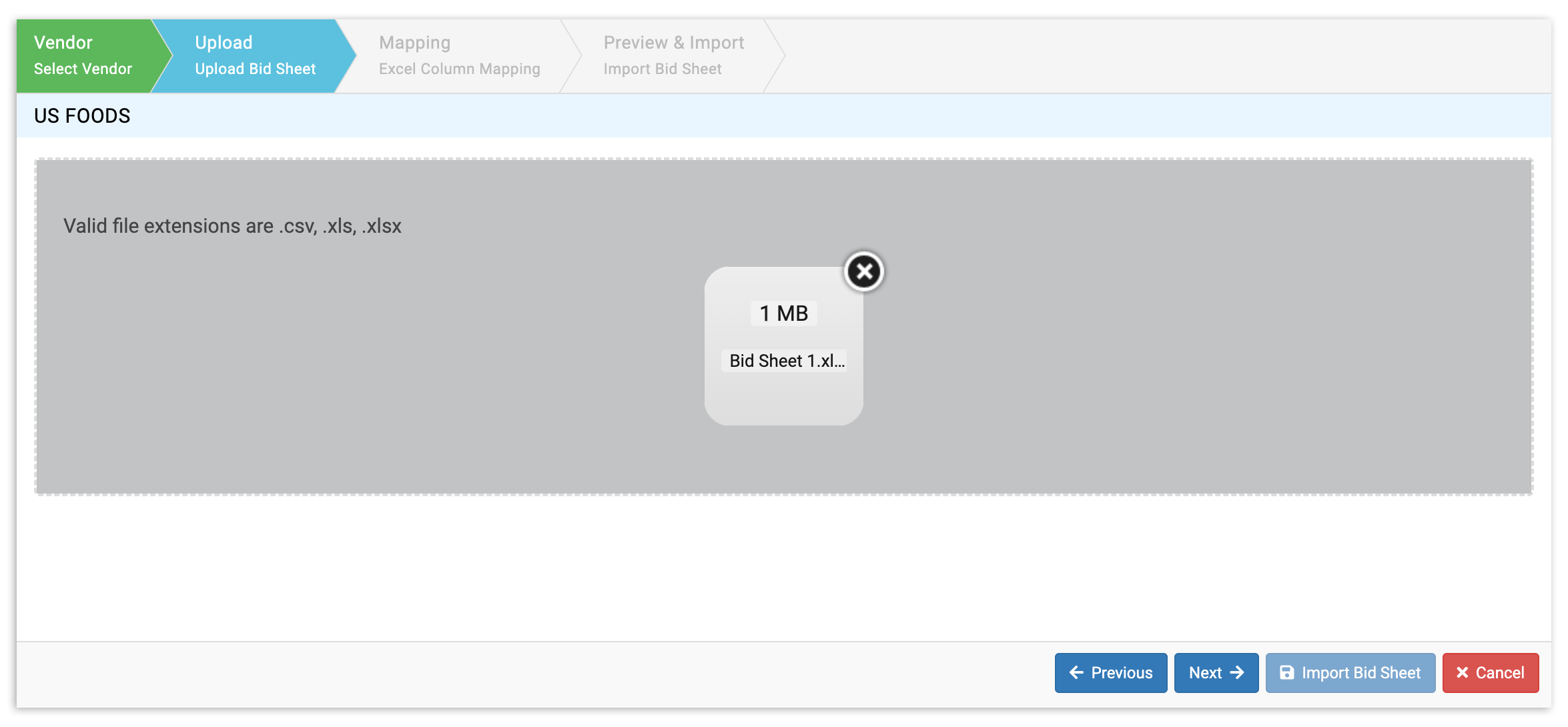
You will then be prompted to upload the bid sheet. To do this, select the file or drag and drop the file from your computer into the submission space. Once uploaded, select Next.
xtraCHEF will then read your .csv, .xls, or .xlsx file and ask you to indicate which rows correspond with which essential invoice item information. This mapping can be done by following the prompts and selecting:
- Applicable details such as Has Headers, Ignore Row without Unit Price, Ignore row without Invoice Item Code, and Ignore Row without UOM.
- Drop downs for Invoice Item Code, Invoice Item Description, UOM, Pack/Size, and Unit Price. Then, select the corresponding column that encompasses that information on your spreadsheet.
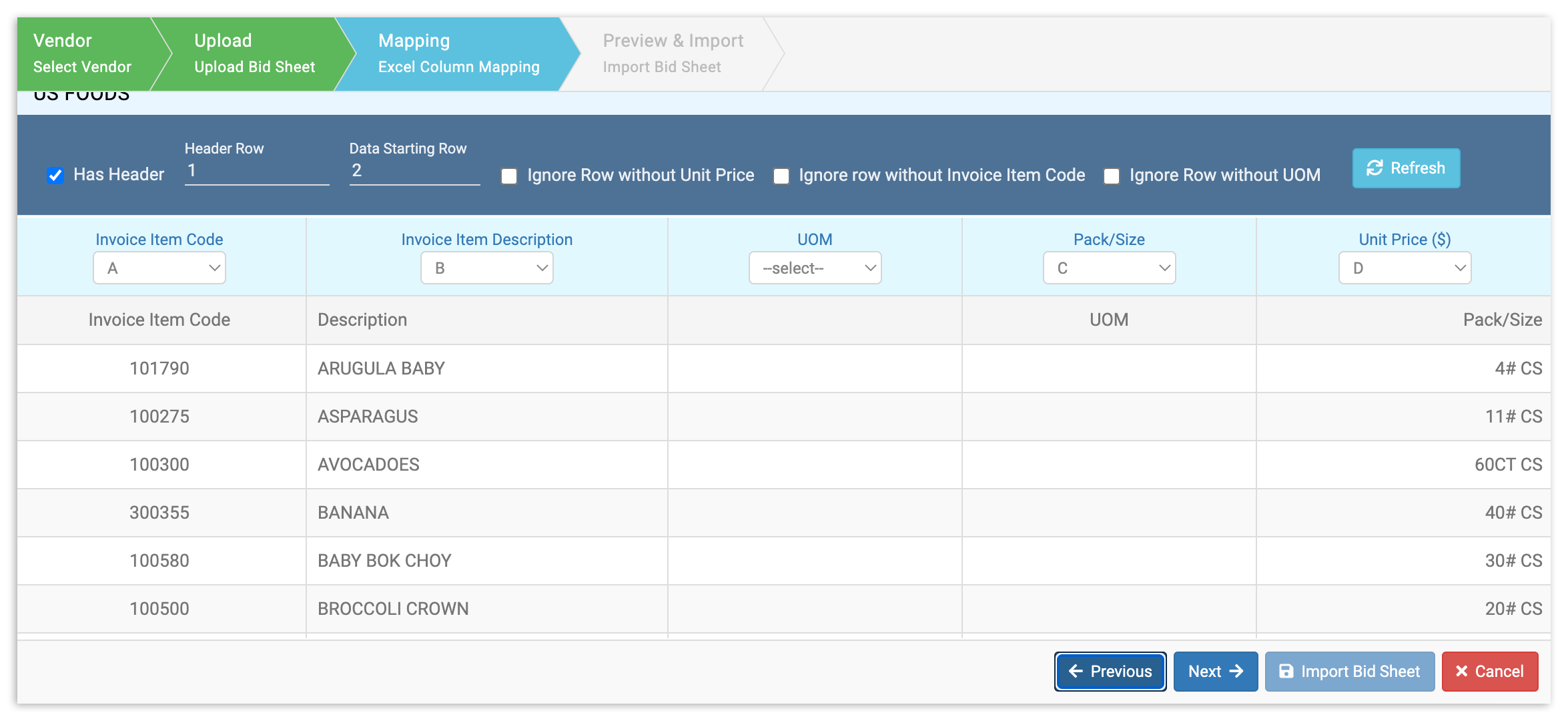
Once mapped, select Next to proceed and preview your bid sheet information.
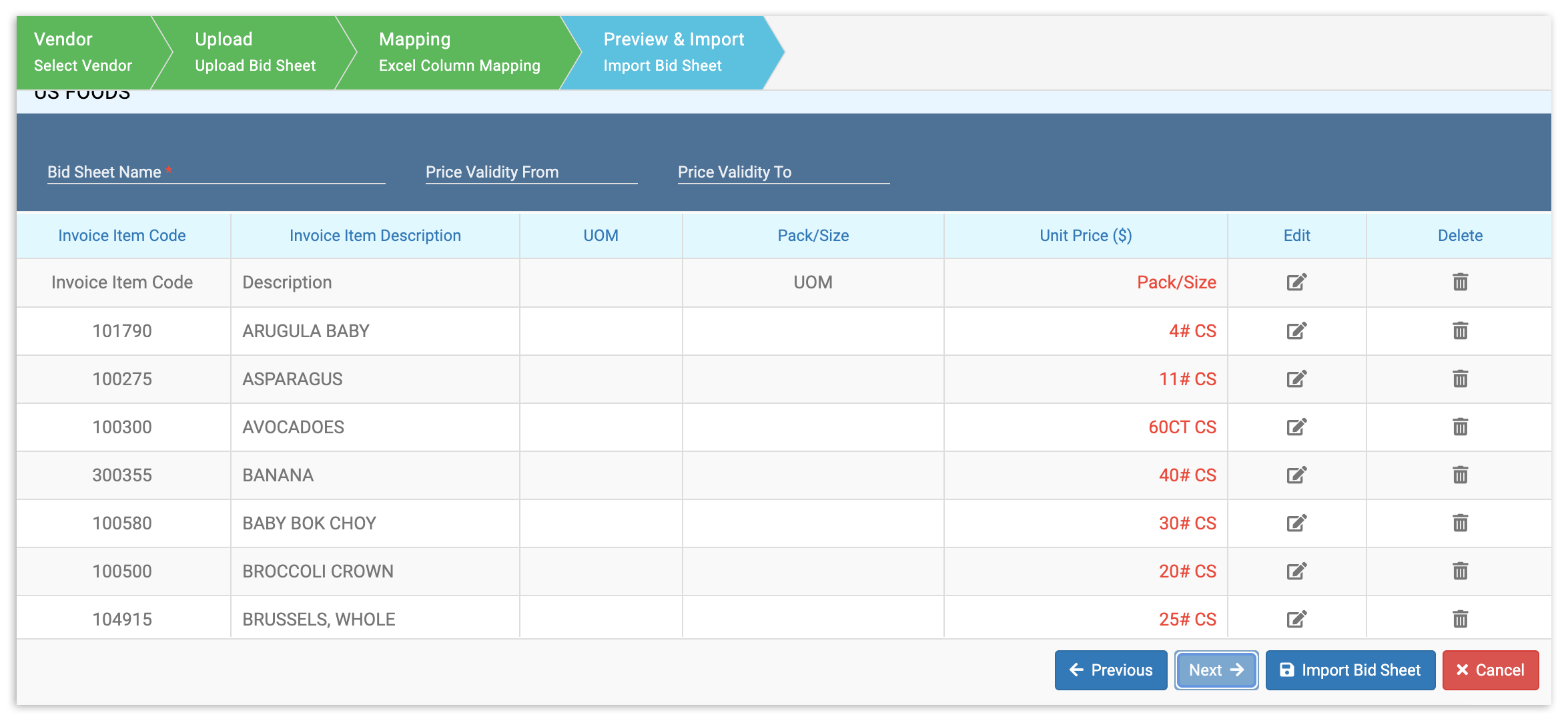
Finally, select Import Bid Sheet to create and use your bid sheet as an order guide.
Edit Bid Sheets
If you need to make changes to a bid sheet after it has been uploaded, revisit your bid sheets page and select Edit.
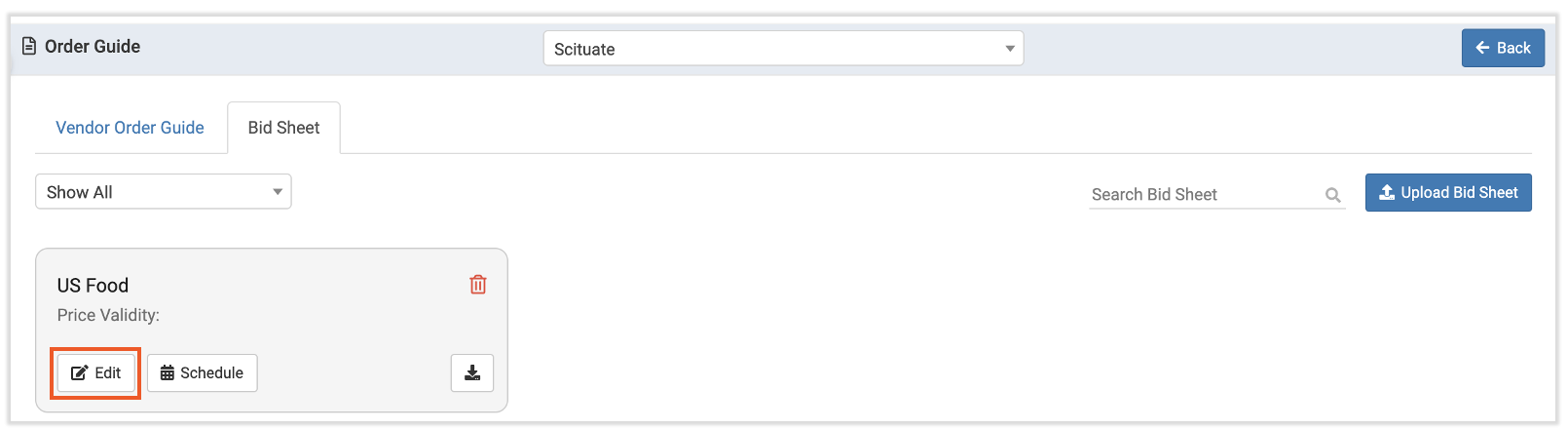
This will allow you to edit your bid sheet as if it were an order guide. Here you can make changes to invoice item quantity as needed, or remove them together. Once finished, select Update Order Guide to lock in your work.
Use Order Guides
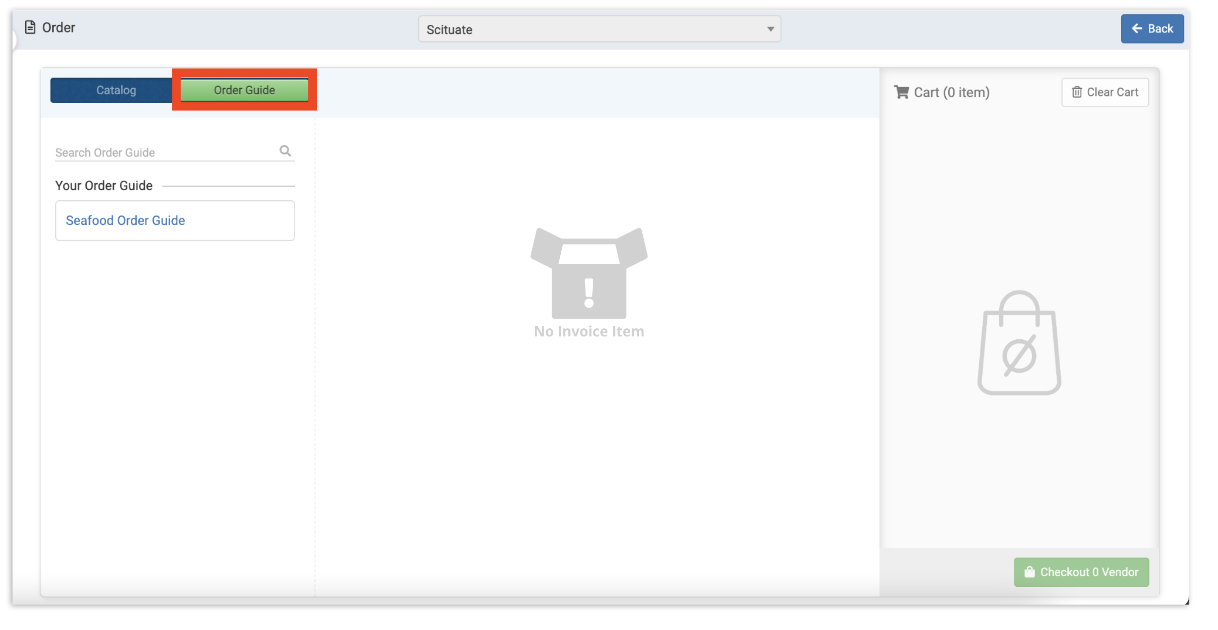
With an order guide built out, you're able to use them when creating outbound orders. After selecting Order from your Order page, you will have the option to select invoice items directly from your Catalog or your new Order Guide. To do this, select Order Guide.