Get Started With the AppFront Integration
Last updated: Oct 5, 2026, 4:45 PM
Learn how to set up the Appfront integration with Toast.
| This integration requires access to Toast Partner Integrations. To learn more, see Set Up Toast Partner Integrations. |
- AppFront Integration Overview
- Enable AppFront Integration With Toast
- Set Up Gift Cards and Loyalty
- Sign Up for a Loyalty Program on the Guest-Facing Display
- Toast Web Configuration
- AppFront Scan-to-Pay
- AppFront Integration: Troubleshooting and Support
AppFront Integration Overview
AppFront is an all-in-one digital ordering and restaurant marketing platform designed for brands seeking a fully customizable, white-label solution. It gives you complete creative control over your design, loyalty programs, and ordering channels, allowing you to deliver a unique and seamlessly branded experience for your guests.
By unifying online ordering, custom mobile apps, loyalty, and a smart CRM, AppFront turns everyday transaction data into automated, real-time marketing. The platform securely analyzes your guests' order histories and habits, making it easy to send tailored promotions, personalized rewards, and targeted updates that drive repeat visits. Because it integrates directly with your Toast POS, you get powerful guest engagement features without disrupting your staff's existing workflow.
Enable AppFront Integration With Toast
To enable the AppFront integration with Toast, follow these steps:
- To enable AppFront with Toast, log into Toast Web and navigate to Integrations > Integrations management > Browse & purchase integrations.
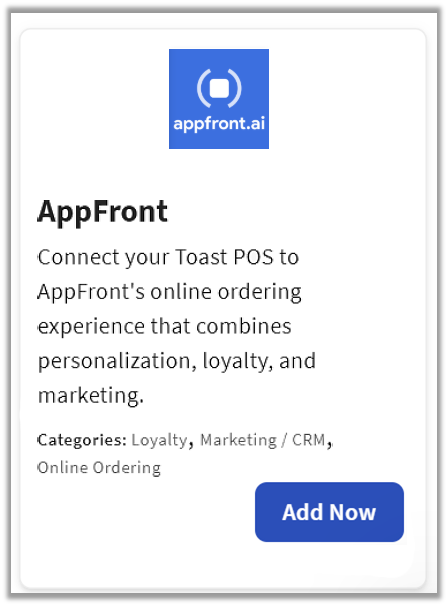
- Enter AppFront in the search field and select Add Now.
- If you have multiple locations, please select the restaurants you would like to connect to AppFront. Finally, select Apply.
- Note: Your restaurant must have access to Toast Partner Integrations to add this integration. To learn more, see Set Up Toast Partner Integrations.
- Review the data scope visibility terms and conditions, and select Confirm to accept. See the Data Scope Visibility article for more information.
- Once you select Add Now on the AppFront tile in Toast Web, you will select which restaurant(s) you would like to connect to your AppFront account, and select Apply
- After you select Apply, you will be forwarded to a confirmation screen.
- After adding the integration in Toast Web, the AppFront team will reach out to you directly to start your account setup and onboarding if you have yet to create your AppFront account.
Set Up Gift Cards and Loyalty
If you plan to use Appfront for your gift cards or loyalty programs, the onboarding process follows a standard activation workflow:
- Reach Out to Appfront: Contact the Appfront team directly at contact@appfront.ai to sign up and initiate your account creation.
- Toast Web Setup: The Appfront team will coordinate directly with Toast Integration Support to provision and enable the necessary Gift Card and Loyalty modules in your Toast Web.
- Final Activation: Once Toast and Appfront complete the Toast Web setup, you will receive a notification to officially toggle the features on. You can complete this final step by following the guide here: Get Started with Gift Card and Loyalty Partner Integrations.
Sign Up for a Loyalty Program on the Guest-Facing Display
If your loyalty partner supports guest sign-up, a guest who is not already enrolled can join the program without leaving the guest-facing display.
- When prompted to check in, the guest selects the sign-up option on the guest-facing display.
- The guest enters the requested contact information - typically a phone number and/or email address.
- Note: Accepted sign-up methods vary by loyalty partner. Some partners accept only a phone number for sign-up, even if they accept both a phone number and an email address for sign-in. If the guest is prompted only for a phone number, that is expected behavior from your loyalty provider.
- The guest confirms any consent or terms prompt presented by your loyalty provider.
- Once enrollment completes, the guest is signed in for the current order and can begin earning on that check.
Toast Web Configuration
To ensure your customer menus and settings work perfectly within AppFront, you will need to set up specific Dining Options and an Other Payment Option within Toast Web. The AppFront team will partner directly with you during onboarding to help configure these settings to spec.
- Set Up Dining Options
- You will need to create two specific dining options in Toast Web to route your digital orders correctly:
- AppFront Delivery – The behavior for this option must be set to Delivery.
- AppFront Takeout – The behavior for this option must be set to Takeout.
- The AppFront team can guide you on any specific naming conventions or additional settings required for your launch. To learn how to build these in your system, see Set Up Custom Dining Options.
- You will need to create two specific dining options in Toast Web to route your digital orders correctly:
- Configure Other Payment Options
- A dedicated payment type is required to process and track AppFront transactions on your POS. Please work directly with your AppFront onboarding specialist to set this up according to their required technical specifications.
- For general instructions on creating payment types, see Set Up Other Payment Options.
Toast highly recommends setting up an AppFront-specific revenue center. This allows you to easily isolate your AppFront sales data for clean, discrete financial reporting. If you would like to set this up, follow the steps outlined in Create and Assign Revenue Centers.
AppFront Scan-to-Pay
AppFront features an integration with Toast's standard Tender Scan-to-Pay API. This feature allows the Toast platform to automatically recognize a guest's account at checkout without requiring a manual guest lookup on the POS.
Note: AppFront’s scan-to-pay integration follows a standard workflow. Item-level discounts are not supported within the scan-to-pay workflow. Item-level discounts are only available to guests through AppFront's loyalty integration.
You can use the scan-to-pay feature at your registers in the following ways:
Use a Scan-To-Pay QR Code
- On the Toast POS app payment terminal screen, select Other payments from the payment types on the right side of the screen. You may need to scroll down to locate the button.
- Select Scan QR code and select Done.
- Note: The exact button name may vary depending on your restaurant's custom payment setup.
- Your device’s camera or connected QR/barcode scanner will activate. Position the guest’s digital or printed QR code in the scanning area.
- Once scanned, the guest account is automatically identified, and the checkout workflow will continue normally.
Use a Unique Guest Identifier
- On the Toast POS app payment terminal screen, select Other payments from the payment types on the right side of the screen.
- Select your unique identifier payment type and select Done.
- Enter the guest’s unique identifier code (provided via their app) and select Use Code.
- Note: You may select Scan With Camera at any time to switch back to scanning the guest's QR code if available.
- After the identifier is entered, the guest's account is linked, and the payment workflow will proceed normally.
Note: AppFront will partner directly with your team during onboarding to demonstrate how to support and use this workflow on your Toast POS.
AppFront Integration: Troubleshooting and Support
For any questions or support issues relating to the AppFront integration, you can contact AppFront at:
- General Support
- Email: support@AppFront.ai
- Phone Number: (507) 320-3643