Create an Open Item or Open Priced Menu Item
Last updated: Sep 17, 2026, 1:12 PM
- Configure an open item in Toast Web
- Use an open item on your device
- Make a menu item open-priced
- Use an open-priced menu item on your device
- Frequently asked questions
- Related articles
An open item lets you ring up items or services that aren't on your menu, with the price entered at the time it's added to a check. You can also make any existing menu item open-priced, so the server is prompted to enter the price when they select it on the POS. This article explains how to configure open items in Toast Web, how to make a menu item open-priced, and how to use both on your device.
Open items are commonly used for corkage fees, room rentals, birthday parties, one-off events, catering, and tax-exempt sales such as pre-loaded gift cards. Open-priced menu items are common for daily specials, where staff enter the current price at the time of sale.
Video overview of adding an open item.
Configure an open item in Toast Web
To configure an open item in Toast Web:
- In Toast Web, navigate to Menus > Settings > Open items.
- Select +Add to create a new open item, or select an existing open item to edit it.
- Enter a Name and, if desired, a shortened POS Name.
- Choose whether the open item is taxed, and whether it should use a dining option-specific tax setting (for example, no tax on takeout or delivery orders). For detailed tax configuration, see Configure an Open Item's Tax Settings.
- If you use courses, choose whether the open item should be a specific course and whether it should print at a specific prep station. If you don't make a selection, the open item prints at all prep stations.
- Choose the Sales Category for the open item. Select Yes for Defer Revenue if this open item should not contribute to net sales in reporting.
- Choose whether the item can be discounted and whether it should be included in your rewards program.
- Select Save, then Publish your changes.
By default, employees need manager approval to add an open item to a check. To remove that requirement for an employee, grant them permission 3.25 Open Items. For more on permissions, see Assign User Access Permissions.
Note: If you want your open item to show a specific name on the ticket or KDS, see Get Started With Kitchen Configuration to learn about Kitchen Names. To view sales of open items, use the Product Mix (PMIX) report at Reports > Menus > Product mix.
Use an open item on your device
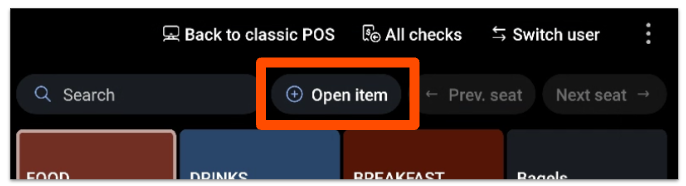
Once an open item is configured, select it on the POS using the +Open item button above your menus.
Choose the open item you created, enter a name and the price, and the item appears on the check as you entered it.
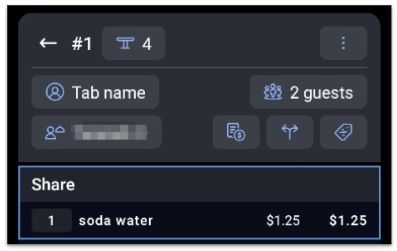
Note: The maximum price of an open item is $10,000. Employees who don't have the 3.25 Open Items permission need a manager passcode to enter $0.00 open items.
Make a menu item open-priced
To make an existing menu item open-priced, so staff are prompted for the price when they select it on the POS:
- In Toast Web, open the item you want to edit.
- Set the Pricing Provider setting on the item to Specify pricing on this item.
- For the Pricing Strategy, choose Open Price.
- Select Save, then Publish your changes.
An open price on a menu item is common for daily specials, so staff can enter the current price when they select the item on the POS. To compare open pricing with other pricing options, see Set Your Menu Pricing Strategy.
Use an open-priced menu item on your device
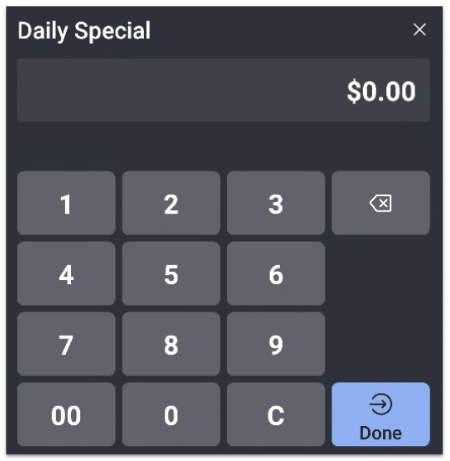
Once an open-priced menu item is configured in Toast Web, it appears on the POS like a regular item but prompts you for a price when selected. Enter the price, and the item is added to the check.
Frequently asked questions
Why is my open item charging less than the amount I entered?
If your open item charges less than the amount you entered, the item is likely set to tax-included pricing, which back-calculates the tax out of the total you typed. For example, entering $120 on a tax-included open item can show as $110.47 once tax is removed. To charge the full amount, change the item's tax setting, then re-save the item and publish the menu. The change does not take effect until you publish, so confirm the setting is saved before testing again. For tax configuration steps, see Configure an Open Item's Tax Settings.
Can I use an open item to close a check that has a balance but no items?
Yes, you can use an open item to close a check that shows a balance but has no line items. Add an open item to the check for the amount needed to bring the balance to $0.00, then close the check normally. If the check shows a negative balance, add a positive open item of the same amount to offset it.
What is the maximum price for an open item?
The maximum price for an open item is $10,000.
Do employees need a permission to add an open item?
Employees need manager approval to add an open item to a check unless they have permission 3.25 Open Items. Granting that permission removes the manager approval requirement. Employees without it also need a manager passcode to enter $0.00 open items.
What is the difference between an open item and an open-priced menu item?
An open item is a standalone entry you ring up with the +Open item button for something not on your menu, while an open-priced menu item is an existing menu item configured to prompt the server for a price at the time of sale. Use an open item for one-off charges like corkage or room rentals, and an open-priced menu item for recurring items whose price changes, like daily specials.
Related articles
- Configure an Open Item's Tax Settings.
- Set Your Menu Pricing Strategy
- Create and Manage Menu Items
- Configure Modifier Pricing Strategy
- Assign User Access Permissions