Toast Mobile Order & Pay® FAQ
Last updated: Aug 20, 2026, 8:44 AM
- Getting started and training
- QR codes, tables, and floor plan
- How do I print QR codes with table numbers for guests to order from?
- What if I change my table numbers?
- How do I arrange my table diagram or floor plan?
- What if I'm going to have more tables later?
- Can I have menus from different Toast restaurants on the same portal?
- How can I change the logo used on the Toast Mobile Order & Pay® sign?
- How do I disable Toast Mobile Order & Pay® at the end of the day?
- Tabs and pre-authorization
- Can guests start a tab on Toast Mobile Order & Pay®?
- Will tabs allow guests to pre-authorize their credit card at the start of their meal?
- How can I ensure that guests pay their tab before leaving?
- What can I do if a guest's preauthorized card declines after they receive their order?
- When should I enable tabs for Toast Mobile Order & Pay®?
- What happens if I disable tabs during service?
- Can a server start a tab from the POS or Toast Go® and then have a guest add to it on their own?
- Can I pre-authorize a credit card manually on the POS or a Toast Go® when using tabs?
- Can I close a Toast Mobile Order & Pay® tab on the POS or Toast Go®?
- Can I assign a Toast Mobile Order & Pay® tab to a server?
- Payments and checkout
- Why does the guest show a pending charge but their check is marked unpaid?
- Can my guests use a gift card to pay for their meal through Toast Mobile Order & Pay®?
- Can my guests pay with Apple Pay when checking out with Toast Mobile Order & Pay®?
- What is the "Click to Pay" option when my guests check out with Toast Mobile Order and Pay®?
- Can guests save their credit card information for faster checkout?
- Do payments through Toast Mobile Order & Pay® still get captured during an internet outage?
- Menu, discounts, and service charges
- Reordering and splitting checks
- Kitchen routing and order fulfillment
- How do I get Toast Mobile Order & Pay® orders to fire directly to the kitchen?
- Can guests edit a Toast Mobile Order & Pay® order after they submit it?
- How do I have the dining option print on the kitchen ticket or show on the KDS?
- Why aren't my Toast Mobile Order & Pay® orders routing to my main kitchen printer or KDS?
- Reporting and tracking
- Menu features: Popular Items, Featured Items, and spotlight messaging
- Will guests see recommended upsells when adding items to their cart?
- Are Popular Items visible on my digital menu?
- How are Featured Items displayed on my digital menu?
- How do I display an FAQ or an important message to my guests on Toast Mobile Order & Pay®?
- Can I show my guests an estimated wait time with Toast Mobile Order & Pay®?
- Related articles
Frequently asked questions
There's a new service model shaking up restaurants across the country. Read The New Steps of Service by On the Line to learn how to use it in your restaurant. Toast Mobile Order & Pay® gives your guests a contactless ordering and payment experience in your restaurant. Guests simply scan a QR code at their table to identify where they're sitting, browse your menu, place their order, and pay for their meal, all from their own device.
By putting guests in control of their dine-in experience, Toast Mobile Order & Pay® can help you reduce labor costs, improve table turn times, and increase sales — while offering guests a safer and more efficient way to dine in.
Getting started and training
How do I train my staff to use Toast Mobile Order & Pay®?
To train your staff to use Toast Mobile Order & Pay®, position it as the preferred way to order so that guests don't feel they're receiving conflicting messages about the dining experience. If it's positioned as optional, guests can be unsure how to start. The role of your staff is to focus on higher-value tasks like talking to guests, giving recommendations, and running food. By automating the cashier aspects of the job, staff can focus on the tasks that really provide hospitality and cover more tables, so they receive greater tips. If you enable tables in your restaurant, servers can still put in an order for the guest on a handheld or other POS device.
Here are tips to adapt your operations to Toast Mobile Order & Pay®:
- Designate a floor manager or "captain" for each section using Toast Mobile Order & Pay®. The floor manager focuses on higher-value hospitality tasks like answering questions, giving recommendations, and running food to tables, rather than taking orders and closing out checks.
- Greet guests and explain how to order by phone as they're seated. The start of the dining experience is one of the most important parts. Explain ordering by phone and help them load the menu. Tell the guest that most phone cameras can scan QR codes. At most restaurants, either a floor manager or a host is responsible for doing this. Check in often to answer questions, provide recommendations, and drop off food rather than taking orders.
- If you have tabs or preauthorized tabs enabled, show guests how to start a tab by entering their name or entering their payment information. Remind them that it is fast and easy to close out their tab when they're finished with their meal.
- If group ordering is also enabled in your restaurant, walk your guests through joining an existing tab. Let them know they can contribute their own selections to the order and then send it to the kitchen as a group, so it comes to the table all at once.
- Bring water and condiments while guests are dining. Since this is a modified role combining server and runner, it's easy to forget to make this part of the training.
- Remind guests to close out any open tabs at the end of their meal. This gives guests the freedom to leave once they have finished, so they don't have to wait for staff to run their payment for them.
For more tips, tricks, and talk tracks your staff can use to introduce the Toast Mobile Order & Pay® experience, see Staff Training Guide: Toast Mobile Order & Pay®.
Can guests order alcohol with Toast Mobile Order & Pay®?
Yes, guests can order alcohol using Toast Mobile Order & Pay®. Important: Your floor manager or runner must ID the guest before the alcohol is served.
What if someone has questions about the menu?
If guests have questions about the menu, have floor managers check in with tables regularly so guests have a smooth and delightful experience. See Staff Training Guide: Toast Mobile Order & Pay® for talk tracks and tips.
QR codes, tables, and floor plan
How do I print QR codes with table numbers for guests to order from?
To print QR codes with table numbers, visit the Toast Mobile Order & Pay® page in Toast Web and use the sign generation tool to create signs for your service areas and tables. See Get Started With Toast Mobile Order & Pay® for the steps to set up your service areas, tables, and printable signs.
What if I change my table numbers?
If you delete a table and create a new one with the same number, your sign will still work. However, if you create a new table with a new number, you will need to create a new sign. See Create Service Areas and Table Setup for more information about editing your floor layout.
How do I arrange my table diagram or floor plan?
To arrange your table diagram or floor plan, navigate to Toast Web > Kitchen / Dining > Tables. The table numbers on the signs correspond to tables you have in this section. See Create Service Areas and Table Setup to learn more about altering your table layout.
Important: If you change a table number after you have printed a QR code for that table, you will need to create a new QR code for the new table number.
What if I'm going to have more tables later?
If you want signs for table numbers that don't exist in Toast yet, create a new service area where you can create the table numbers. Then request signs for that service area and move the tables to other service areas as you need them. See Create Service Areas and Table Setup to learn more about creating service areas and tables.
Can I have menus from different Toast restaurants on the same portal?
Menus from different Toast restaurants cannot be accessed on the same portal. Different codes will have to be used for each restaurant.
How can I change the logo used on the Toast Mobile Order & Pay® sign?
To change the logo used on your table signs, navigate to Toast Web > Takeout & delivery > Restaurant info. Scroll down to Restaurant Logo and select Choose Image to upload a new logo image from your computer. When finished, save and publish your changes.
Note: Publishing a menu update is required to get the logo to flow through properly. To do this, save and publish from the Advanced Properties page by going to Menus > Bulk Management > Advanced Properties.
How do I disable Toast Mobile Order & Pay® at the end of the day?
To disable Toast Mobile Order & Pay® while the restaurant is closed, duplicate your existing menu or create a new menu specifically tailored to Toast Mobile Order & Pay®. Then use the Availability settings under the Properties section of the menu detail page to set a time range for the menu to be available. For more information, see Get Started With Toast Mobile Order & Pay®.
Tabs and pre-authorization
Note: Toast Mobile Order & Pay® Pre-Authorization is not currently available in Canada, Ireland, and the U.K. Pre-authorized tabs are available to customers located in the U.S. only.
Can guests start a tab on Toast Mobile Order & Pay®?
Yes, guests can start a tab on Toast Mobile Order & Pay®. Using the standard tabs feature, you can enable guests to start a tab with their name and order continually until they want to close out. Using preauthorized tabs, you can require guests to enter a preauthorized credit card to start a tab.
If you choose to enable standard tabs, guests will be presented with the option to open a tab or close out immediately after adding items to their cart. If the guest chooses to open a tab, servers will also be able to add or modify items on the order on behalf of the guest. Have your staff check in with guests regularly and offer to help close out their checks if they do not wish to order more. Servers should also avoid using the Hold button on a guest check for Toast Mobile Order & Pay®, as it will prevent the guest from being able to update their order on their own.
See Get Started With Toast Mobile Order & Pay® for more information on enabling standard and preauthorized tabs.
Will tabs allow guests to pre-authorize their credit cards at the start of their meal?
Yes. Using preauthorized tabs, you can require guests to enter credit card information before starting a tab for Toast Mobile Order & Pay®. For more information on enabling this feature in your restaurant, see Get Started With Toast Mobile Order & Pay®.
How can I ensure that guests pay their tab before leaving?
To ensure guests pay their tab before leaving, some restaurants using standard Toast Mobile Order & Pay® tabs use these tips to remind guests to close out their check:
- Set guest expectations upfront. When seating guests and promoting Toast Mobile Order & Pay® as the preferred way to order, remind them that after their meal, they will need to close out their tab on Toast Mobile Order & Pay® before they leave.
- Remind guests throughout service. Servers regularly interacting with guests can remind them to pay before they leave throughout their meal. For example, saying something like: "How is everything with your meal? If you'd like to order more, you can easily add things to your tab, and when you're ready to leave, just go back in and close out your check using your phone."
If you wish to require payment information before a tab is started, enable preauthorized tabs for Toast Mobile Order & Pay®. This will require guests to enter credit card information before starting a tab at their table. Remind guests to close out on their phones whenever they are ready to leave. If they forget, the server can close out the check from the POS to a "saved" (pre-authorized) card.
Alternatively, if you would like to ensure you collect payment before the order is even submitted, the "pay-as-you-go" setting is recommended, as this configuration requires guests to pay for each order they submit. For more information, see Get Started With Toast Mobile Order & Pay®.
What can I do if a guest's preauthorized card declines after they receive their order?
If a guest's preauthorized card declines after they receive their order, the server should ask the guest to re-enter payment information at the POS to close out the check. A pre-authorization confirms that a card is valid and has funds available at the time of authorization — it does not guarantee that the final charge will settle later, because the guest's bank may release the hold or block the final capture.
To reduce the rate of post-order declines, consider these adjustments:
- Use the "pay-as-you-go" setting so guests pay for each order at submission rather than at the end of the meal.
- Train staff to check the POS regularly during service to confirm open tabs still show authorized payments.
- For guests with locked or declined cards, take an alternate payment at the POS before they leave.
If card payments are declining for all of your guests, please contact Customer Care.
When should I enable tabs for Toast Mobile Order & Pay®?
Enable tabs for Toast Mobile Order & Pay® before you begin service for the day so that you can run a few test transactions to understand the workflow. If you decide it's not for you, you can switch the Tabs and Preauthorization toggle to the Off position.
What happens if I disable tabs during service?
It's not recommended to disable tabs during service because it will prevent guests who have open Toast Mobile Order & Pay® tabs from checking out. However, the checks will still be available on the POS for reference.
Note: If preauthorized tabs are disabled during service, guests will still have access to their tab, but their stored payment information will be lost. If this occurs, guests with pre-authorized payments will have to re-enter payment information to close their check.
Can a server start a tab from the POS or Toast Go® and then have a guest add to it on their own?
Yes, a server can start a tab from the POS or Toast Go®, and a guest can add to it. Servers and guests can start orders for tables. For a server to start an order, navigate to the Table Service screen on the POS and select the appropriate table. Enter the guest count, and add items to the check. Guests will still be able to scan the QR code at the table and add items to the check. They will also see the items added by the server.
Can I pre-authorize a credit card manually on the POS or a Toast Go® when using tabs?
No, you cannot pre-authorize a credit card manually on the POS or a Toast Go® when using tabs. When using this feature, the guest must start the preauthorized tab from Toast Mobile Order & Pay®. There is no way to preauthorize a tab from the POS and allow the guest to add items to it.
Can I close a Toast Mobile Order & Pay® tab on the POS or Toast Go®?
Yes, you can close a tab created through Toast Mobile Order & Pay® manually on the POS, Toast Go®, or S1 Handheld (outside of the US) with the guest's credit card. The tab will then show as closed for the guest.
Can I assign a Toast Mobile Order & Pay® tab to a server?
Yes, you can assign servers to tables, allowing them to receive tips earned on their assigned tables. This is an alternative to tip pooling if you use Toast Mobile Order & Pay®. To change the suggested tip options for Toast Mobile Order & Pay®, or for more information about tip configuration, see Set Up Tip Options. To assign servers to tables, see Server Assignments.
Payments and checkout
Why does the guest show a pending charge, but their check is marked unpaid?
When a guest shows a pending charge but their check is marked unpaid, it means the guest's bank attempted to authorize the payment, but the payment did not complete. A pending charge does not guarantee the guest's payment is successful — it indicates instead that the guest's bank tried to authorize the payment and failed. When using Toast Mobile Order & Pay®, your staff should make a regular habit of checking the POS to ensure orders have been paid for. If a check is not marked as paid, the payment has not been processed, regardless of pending charges on a guest's bank account.
Attempted payment authorizations will still sometimes display a pending charge depending on the bank. This happens when a guest inputs the incorrect CVC or zip code information. The pending charge should drop off in 1-3 days. Guests should contact their bank if they are still seeing a charge after a few days. Guests should double-check and re-add their payment information to close their check following a failed payment.
If payment has failed, a server will be able to see that payment failure on the POS. If you have the guest's payment ID and need to verify the payment status, you can use the Find checks & issue refund feature on the Payments page in Toast Web.
Can my guests use a gift card to pay for their meal through Toast Mobile Order & Pay®?
Yes, guests can use a Toast Gift Card to pay for their Toast Mobile Order & Pay® meal. During checkout, they will be prompted to enter their 16-digit gift card number on the back of their physical gift card or listed on their virtual eGift card. Gift card and credit card payments can be combined on a check; the entire balance of the gift card will be utilized first, and then the remaining balance can be paid with a credit/debit card (or an alternative payment method).
Note:
- Gift cards can be used for both the check balance and tips. Learn more in Set up Tipping for Gift Cards, and make sure to allow gift cards for tipping.
- Guests cannot pay with third-party gift cards at this time.
- Guests in Canada, Ireland, and the U.K. cannot pay for their order using any gift cards at this time.
Can my guests pay with Apple Pay when checking out with Toast Mobile Order & Pay®?
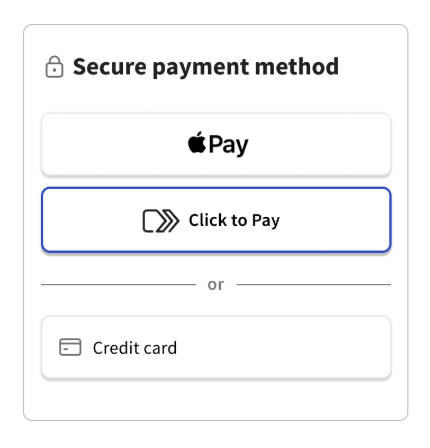
Yes, your guests can pay with Apple Pay when checking out with Toast Mobile Order & Pay®. Apple Pay will show up as an option under Payment method in the checkout screen. However, if your restaurant is currently using tabs with Toast Mobile Order & Pay®, Apple Pay is not currently an option when tabs are enabled.
What is the "Click to Pay" option when my guests check out with Toast Mobile Order and Pay®?
Click to Pay is an express payment option similar to Apple Pay. Guests with Mastercard, Visa, American Express, or Discover payment cards can create a Click to Pay account and save their card information for express checkout in the future. To learn more, see Use Click to Pay With Toast Mobile Order and Pay®.
Note: The "Click to Pay" feature is not currently available in Canada, Ireland, or the U.K.
Can guests save their credit card information for faster checkout?
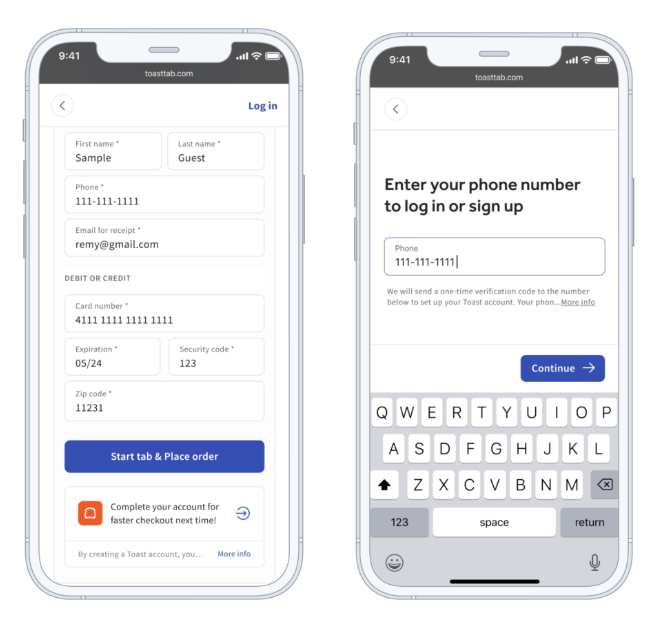
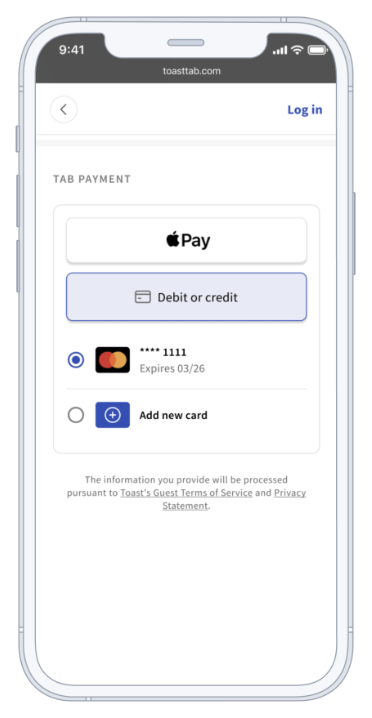
Yes, guests can save their credit card information for faster checkout. Guests can create Toast accounts with just a phone number, save their payment information, and use saved payment information for faster preauthorization and checkout in the future.
To save credit card information for faster checkout:
- Create an account by selecting Complete your account for faster checkout next time! on the Start a tab (Pre-Authorization) or the Checkout pages.
- Provide a phone number to create an account or log into an existing one, and select Continue.
- Enter the one-time passcode sent to the provided phone number. The Toast account will be created, and payment information will be saved for faster payment next time.
- Returning guests can select Log in to access their saved payment information, which can be used to pre-authorize and check out without manually entering a credit card.
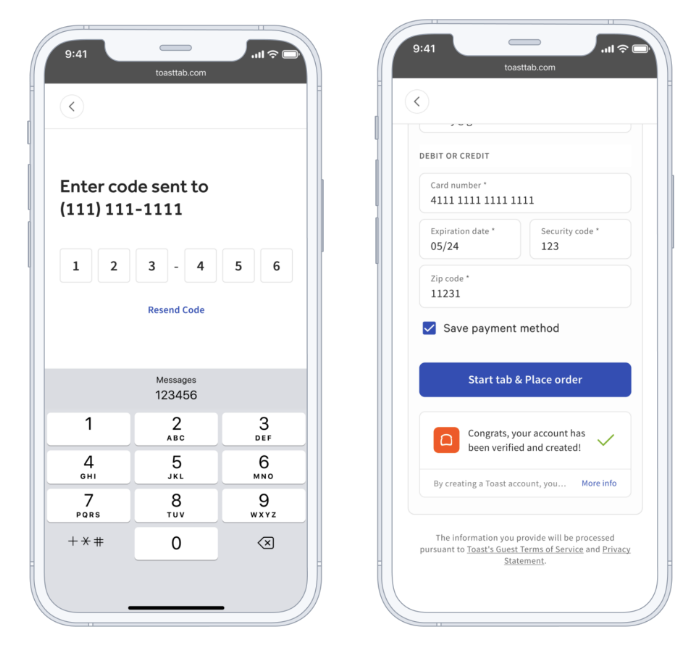
Expected outcome: The Toast account is created, and payment information is saved for faster checkout on future Toast Mobile Order & Pay® orders.
Note: Toast Mobile Order & Pay® Pre-Authorization is not currently available in Canada, Ireland, or the U.K.
Do payments through Toast Mobile Order & Pay® still get captured during an internet outage?
No, in the event of an internet outage, order and payment processing through Toast Mobile Order & Pay® is not supported. Servers should advise guests that they should not use the QR codes on the table and order directly from the server instead.
Menu, discounts, and service charges
Can I use a takeout or delivery dining option for Toast Mobile Order & Pay®?
No, you cannot use a takeout or delivery dining option for Toast Mobile Order & Pay®. To use Toast Mobile Order & Pay® in your restaurant, you will need to have at least one dining option with the Dine In behavior set. This means if you've created a dining option called "Dine In" but it is set to Takeout or Delivery behavior, it will not work for Toast Mobile Order & Pay® orders.
Can I set up a service charge to be applied to Toast Mobile Order & Pay® checks?
Yes, you can set up a service charge to be applied to Toast Mobile Order & Pay® checks. Follow the steps in the Service Charge for Toast Mobile Order & Pay® section of Customize Service Charges and Mandatory Gratuity to set up a service charge and a service area that can be applied to Toast Mobile Order & Pay® checks.
Can my guests enter a discount code using Toast Mobile Order & Pay®?
Yes, your guests can enter a promo code during checkout for their meal. This will activate the discount on eligible items or the check total. For a refresher on adding a promo code to your discount, see Basic Discount Configuration.
Reordering and splitting checks
How can my guests reorder items from an open tab?
If your guests would like to reorder an item from an open tab, like a cocktail or a second round of chips, there are three ways for them to do so:
- From the View Open Checks page, each item has an Order Again button that directs guests to a page where they can add the item to their cart when selected.
- Once your guests have placed an order, a new menu group appears at the top of the menu page with items from the guest's tab. When a guest selects an item from this menu group, they are directed to a page where they can add the item to their cart.
- On each item in the reorder menu group, there is also a Quick Reorder button on the right that adds the item to the guest's cart without first directing them to another page.
Note: At this time, only items from the current tab can be reordered, not items from previous orders.
Can guests split checks evenly with Toast Mobile Order & Pay®?
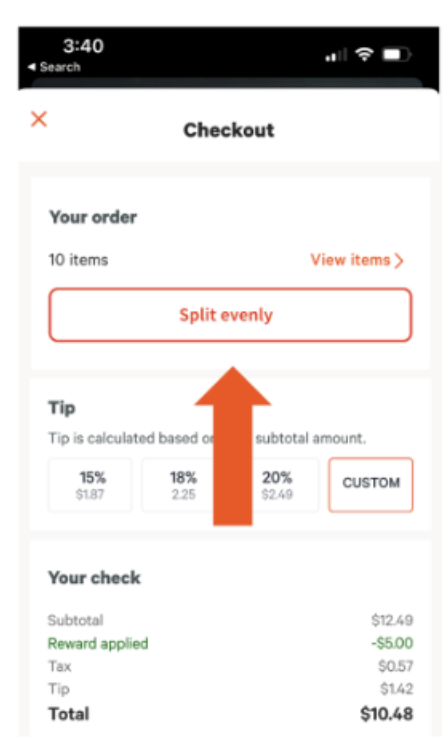
Yes, guests can evenly split a check across other guests within mobile payments and digital menus. The check can also be split on the POS device, and each guest should receive their own itemized check. Each check will have a unique QR code, allowing them to view and pay for their items. For a refresher on how to split a check on the POS, see Split Checks on the POS.
Kitchen routing and order fulfillment
How do I get Toast Mobile Order & Pay® orders to fire directly to the kitchen?
To get Toast Mobile Order & Pay® orders to go directly to the kitchen, designate an auto-firing device in the restaurant. See Set Up an Auto-Firing Device for the steps.
Can guests edit a Toast Mobile Order & Pay® order after they submit it?
No, guests cannot edit a Toast Mobile Order & Pay® order after they submit it. If significant changes are needed, the order may need to be voided by a manager and a new order generated with the correct items.
How do I have the dining option print on the kitchen ticket or show on the KDS?
To have the dining option print on the kitchen ticket or show on the KDS, navigate to Toast Web > Kitchen setup > Kitchen setup. At the top of the page, select Yes for Always Print and Show Dining Option to the appropriate dining option. Save and publish your changes.
Why aren't my Toast Mobile Order & Pay® orders routing to my main kitchen printer or KDS?
Toast Mobile Order & Pay® items are routed according to the print routing associated with each item. If you elect to show your online ordering menu to guests using Toast Mobile Order & Pay®, Toast Mobile Order & Pay® orders will route to the same printers or Kitchen Display Screens your online orders go to. For more troubleshooting on print routing and auto-firing, see Toast Mobile Order & Pay® Troubleshooting Guide.
Reporting and tracking
How can I identify Toast Mobile Order & Pay® orders in reporting?
To see how many orders were placed using Toast Mobile Order & Pay®, follow these steps:
- In Toast Web, navigate to Reports > Sales > Sales summary.
- Enter a date and time range for your report.
- Select the More Filters dropdown in the top row.
- Select Source.
- Filter by source Pay at Table.
- Select Update.
Expected outcome: All orders shown will be Toast Mobile Order & Pay® orders. Additional data can be viewed by navigating through the other tabs at the top of the report.
Menu features: Popular Items, Featured Items, and spotlight messaging
Will guests see recommended upsells when adding items to their cart?
Yes, guests will see recommended "upsells" with images and pricing when placing their order, such as a basket of sweet potato fries. No restaurant setup is required for this feature.
Are Popular Items visible on my digital menu?
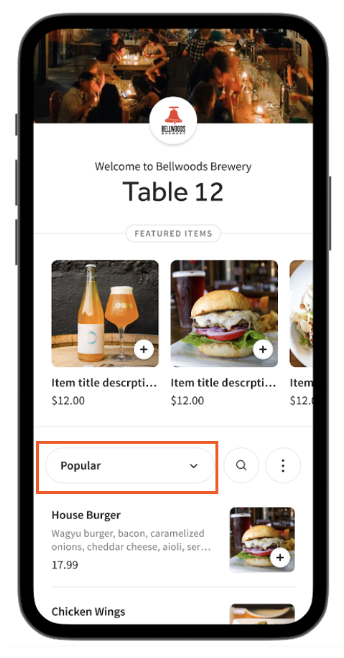
Yes, Popular Items are visible on your digital menu. With the Popular Items feature, your guests see a curated list of the most-ordered dishes over the past 30 days. To disable Popular Items, contact orderandpay-support@toasttab.com.
How are Featured Items displayed on my digital menu?
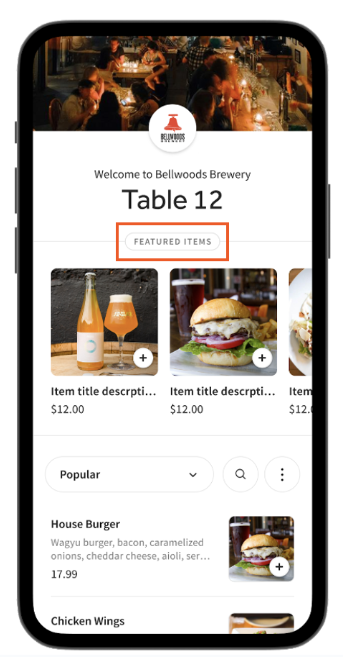
Featured Items is a special menu with enlarged images designed to drive more orders. Featured Items are customizable.
- To feature items, add "Featured" as an item tag to up to five items with images in Toast Web. For more information on how to add an item tag, see Use Menu Item Tags to Maximize Reporting.
- Featured Items require images.
- If no items are manually featured, Toast's algorithm will automatically feature the most profitable items with images based on price and popularity.
To disable Featured Items, contact orderandpay-support@toasttab.com.
How do I display an FAQ or an important message to my guests on Toast Mobile Order & Pay®?
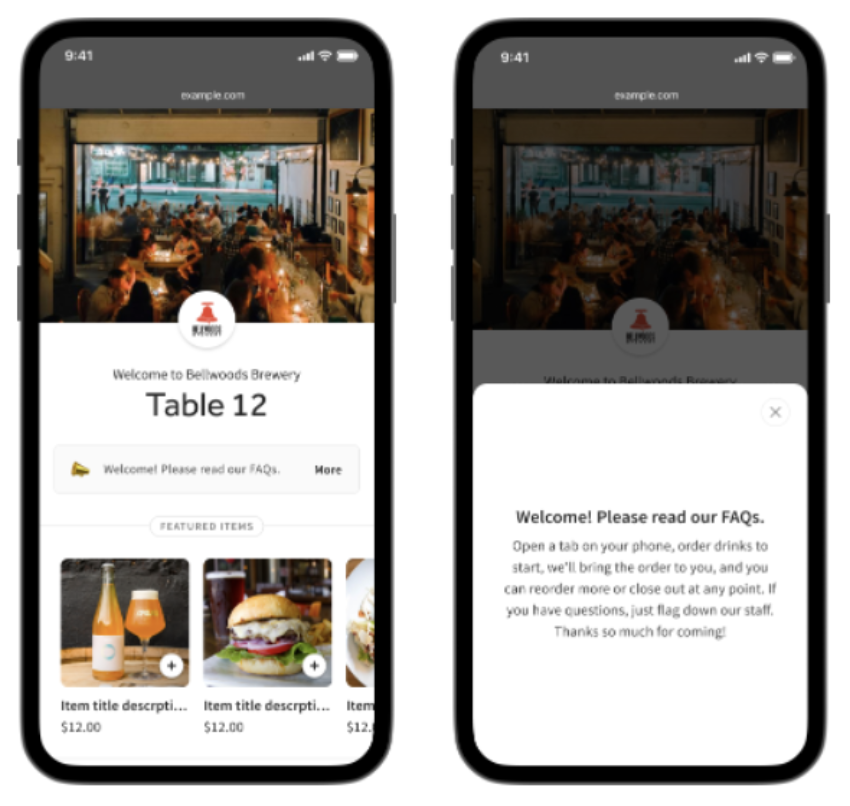
To display an FAQ or important message to your guests on Toast Mobile Order & Pay®, configure Spotlight Messaging:
- Log in to Toast Web and navigate to Front of house > Mobile dining solutions > Toast Mobile Order & Pay® > Messaging > Spotlight Messaging.
- Enter the Message title and Message subtext you would like displayed.
- Save and publish your changes.
Expected outcome: Your guests will see the spotlight message on Toast Mobile Order & Pay®.
Can I show my guests an estimated wait time with Toast Mobile Order & Pay®?
No, at this time it's not possible to show an estimated wait time within the Toast Mobile Order & Pay® workflow. However, if you're using a KDS, you can set up text messages to send the guests when their order is fulfilled. To learn more, see Toast Mobile Order & Pay® Text Fulfillment.
Note: For restaurants located in Canada, Ireland, and the U.K., SMS for order fulfillment is available for POS orders only, for +1, +353, and +44 phone numbers.
Related articles
- Toast Mobile Order & Pay® Overview
- Get Started With Toast Mobile Order & Pay®
- Toast Mobile Order & Pay® Troubleshooting Guide
- Toast Mobile Payments & Digital Menus FAQ
- Staff Training Guide: Toast Mobile Order & Pay®