Toast Payroll: Create an Additional Paycheck
Last updated: Jul 23, 2026, 4:03 PM
Adding an additional check allows users to assign a second, independent check to the same employee on the same payroll.
| For payrolls that use a weekly check frequency, additional checks are not available. This feature is also unavailable for customers who have only one check frequency. If you find that you cannot use the Create Additional Paycheck feature because nothing happens when you select it, contact us via the blue chat dot in the lower-right corner of any Toast Payroll page to add an additional check frequency. Learn more: Toast Payroll: Review Check Frequencies. |
Create An Additional Paycheck
There are scenarios where an employee might receive two paychecks during the same payroll run. A common example is an employee receiving salaried wages and a commission check. If this feature does not load after selecting Create Additional Paycheck, try refreshing the page.
- To assign a second check to an employee, you'll need to be on the Employee step of payroll (Toast Payroll: Employee Earnings Step). All timesheets and tips (if applicable) should be approved at this point (see Toast Payroll: Manage Timesheets and Toast Payroll: Manage and Integrate Tips).
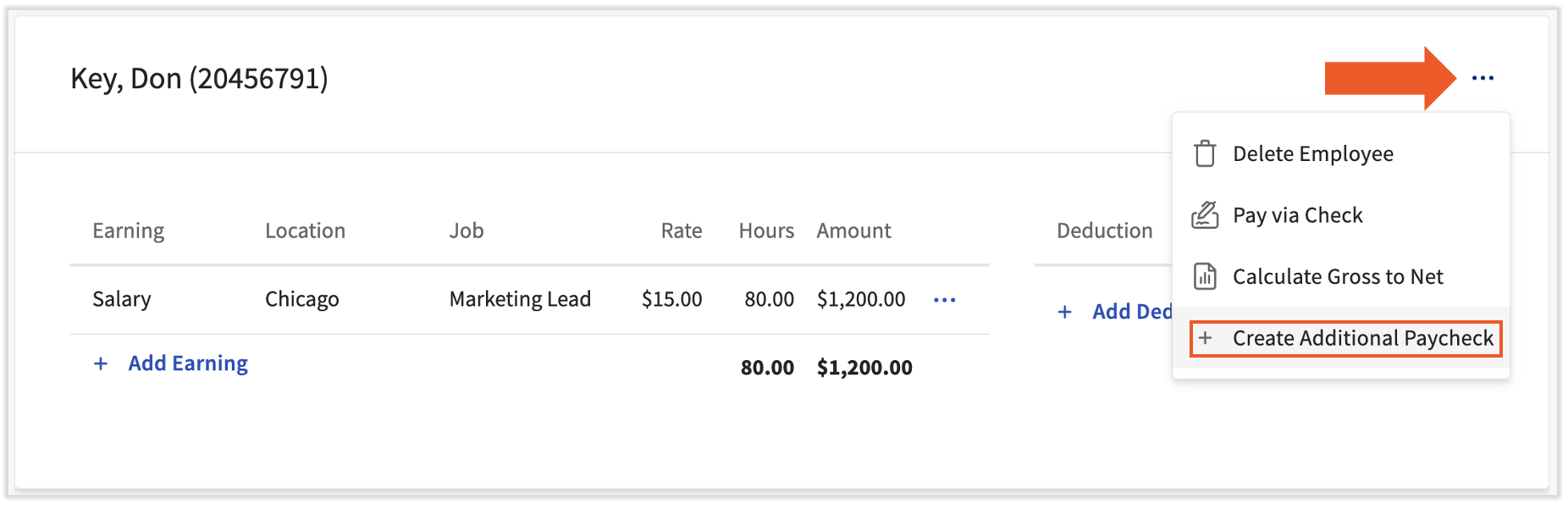
- Select the three dots (overflow menu) next to an employee's name and select Create Additional Paycheck.
- Assign an earning frequency to this additional check, then select Add paycheck. The earning frequency will typically match the earning frequency of the payroll run. Note: If the frequency drop-down is empty, please contact Toast via chat support to set up a new frequency.
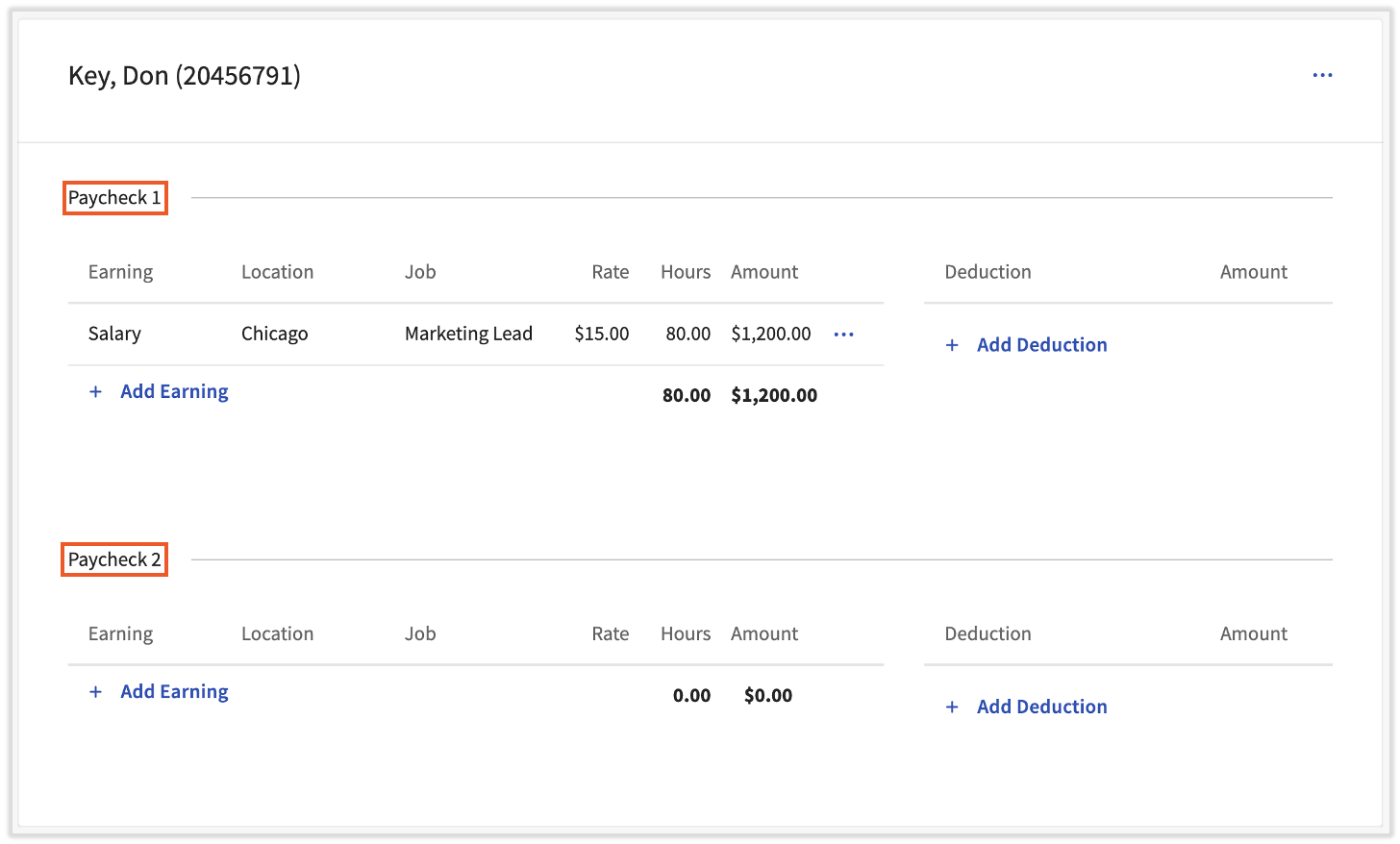
- You will now see something similar to this. Paycheck 2 has been created and wages and deductions between paycheck 1 and 2 are shown separately.
- Add data to the second paycheck as needed using the +Add Earning/Deduction buttons. Learn more about adding one-time earnings and deductions in this article: Toast Payroll: Add or Edit Earnings & Deducations.
- If you'd like, you may select the overflow menu ... once more and choose Pay via Check. You have the option to override the employee's default payment method and make either of these paychecks into a paper (live) check.

Additional Resources
- Toast Payroll: Add or Edit Earnings & Deductions
- Toast Payroll: Set Up and Configure Off-Cycle Payrolls
- Toast Payroll: Set a Payment Method
This content is for informational purposes and is not intended as legal, tax, HR, or any other professional advice. Please contact an attorney or other professional for advice.