Integrate Toast Payroll and xtraCHEF
Last updated: Mar 2, 2026, 4:27 PM
- Toast Payroll + xtraCHEF Integration Summary
- Payroll Setup Step-by-Step Guide
- Payroll Sync for QuickBooks
- xtraCHEF & Toast Payroll Integration FAQ
Toast Payroll + xtraCHEF Integration Summary
Note: We're in the beta stage of a new integration between Toast Payroll and QuickBooks Online. If you're looking for how to integrate these two systems without xtraCHEF, select the link to discover the feature and check if you're eligible to join the beta. Keep in mind that this integration only includes payroll data syncing.
Once configured, your Toast Payroll data can automatically import into xtraCHEF for advanced reporting and extract to your accounting software (currently, payroll extracts are available only for QuickBooks Online and QuickBooks Desktop). This eliminates the need for manual data entry or third-party integration tools while decreasing room for human error.
Syncing to both xtraCHEF and your accounting software will save you (and/or your accountant or bookkeeper) time by posting your payroll journal entry to your accounting software the day after your payroll is processed. This integration also adds greater value to your Operating Summary in xtraCHEF.
Let's explore how to add and configure this new integration.
Payroll Setup Step-by-Step Guide:
This video covers how to integrate xtraCHEF and Toast Payroll by mapping GL codes and labor groups to Toast Payroll line item.
- In the upper-right corner of xtraCHEF, navigate to the gear icon > Payroll setup.
- Note: This integration will be initiated automatically If you utilize both Toast Payroll and xtraCHEF. If you do not see the Payroll Setup option in this menu, please contact to get connected.
- If you have already connected your xtraCHEF and Toast Payroll accounts, then you will see the following Payroll setup screen:
- From here, you can begin General setup, configuring your Sync to accounting system, and mapping GL codes and pay groups to corresponding payroll categories. Completing these actions will finalize the setup in your account. Continue with each section below.
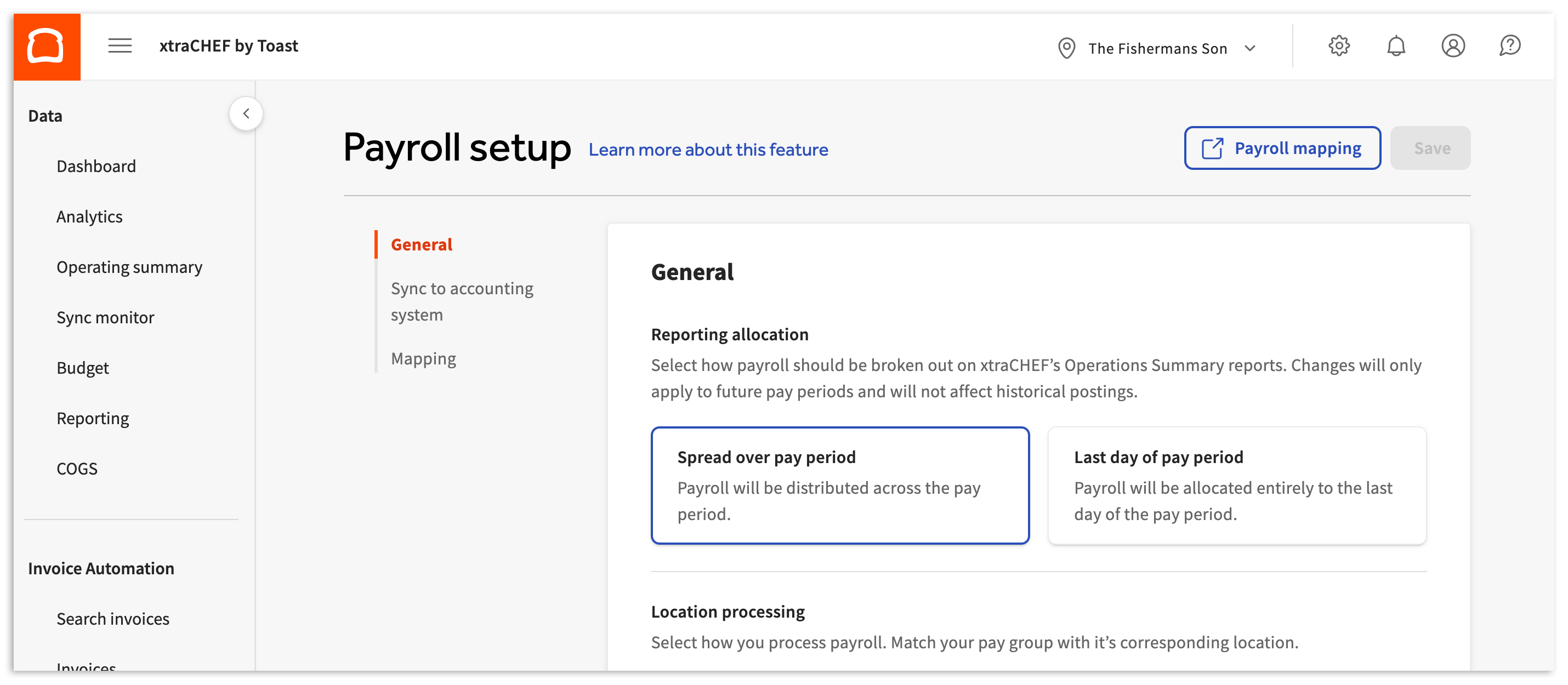
General
The selections made in the General configuration section of Payroll setup dictate how payroll should be broken out on your Operations Summary reports.
Step #1: Reporting Allocation
To complete this step, verify your Reporting allocation.
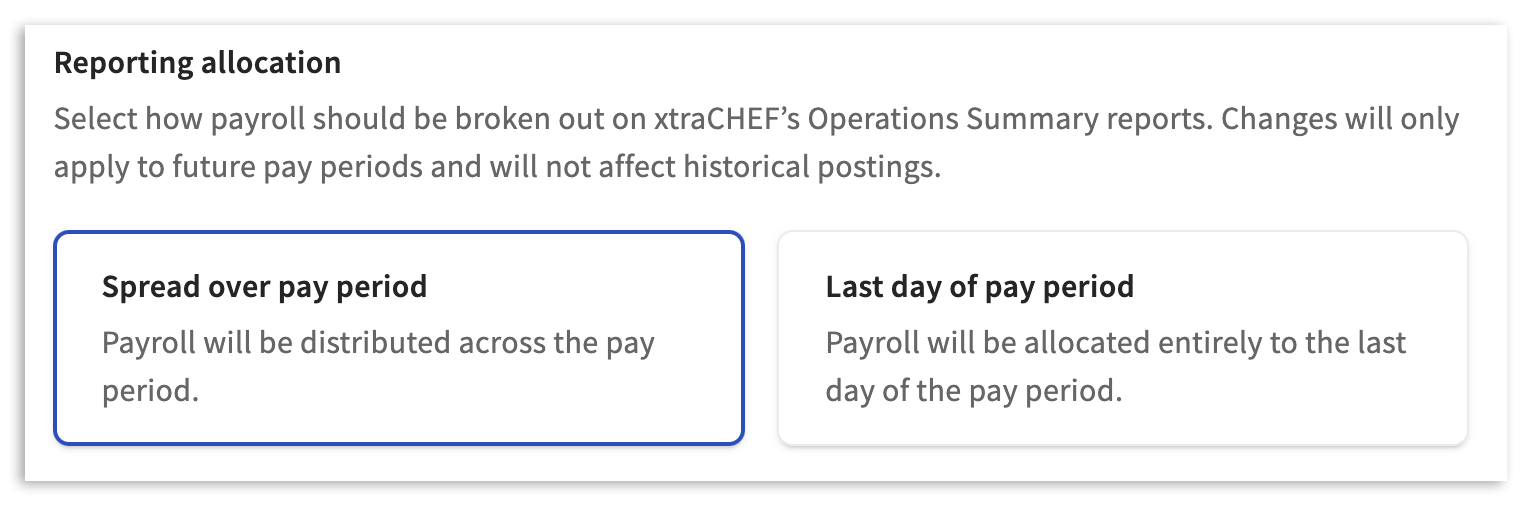
If you process your payroll every two weeks or every month, choose Spread over pay period. This will distribute the expenses over a period of time to better gauge your business health. The amount distributed will be an average per week for the duration of the pay period.
If you would rather have your payroll expenses appear on your Operating Summary on the week they were paid, choose the Last day of pay period instead.
Note: If your check frequency is biweekly, and you select Last day of pay period, one week will look "heavier" than the other on account of the payroll total being allocated entirely to the last day of your period.
Step #2: Location Processing
Next, complete Location processing by matching your with its corresponding location. Toast Payroll uses pay groups to group and sort employees to be paid at different pay frequencies and out of different company accounts.
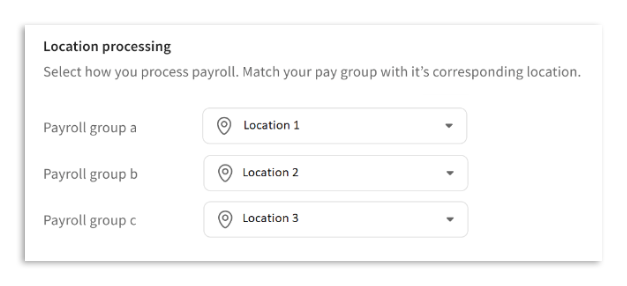
Location processing refers to how you process your payroll within the Toast Payroll system, regardless of how many locations you have. Pay groups from Toast Payroll should be assigned to their corresponding Locations in xtraCHEF. More than one pay group may be assigned the same xtraCHEF location, if applicable. However, a single pay group cannot be split into more than one xtraCHEF location. Journal entries will be created for each pay group.
Sync To Accounting System
Once your general configuration is completed, proceed to the next section. There, you will see the following steps and fields.
Step #3 Payroll Sync

If you use QuickBooks, enabling the Payroll sync toggle allows us to post payroll journal entries to it. If you want to pull your payroll data into xtraCHEF strictly for reporting purposes (i.e. calculations) and you do not want or need us to post that data into your accounting software, you may leave this setting disabled. By default, the following options appear when you turn on Payroll sync:
Step #4: Start Date
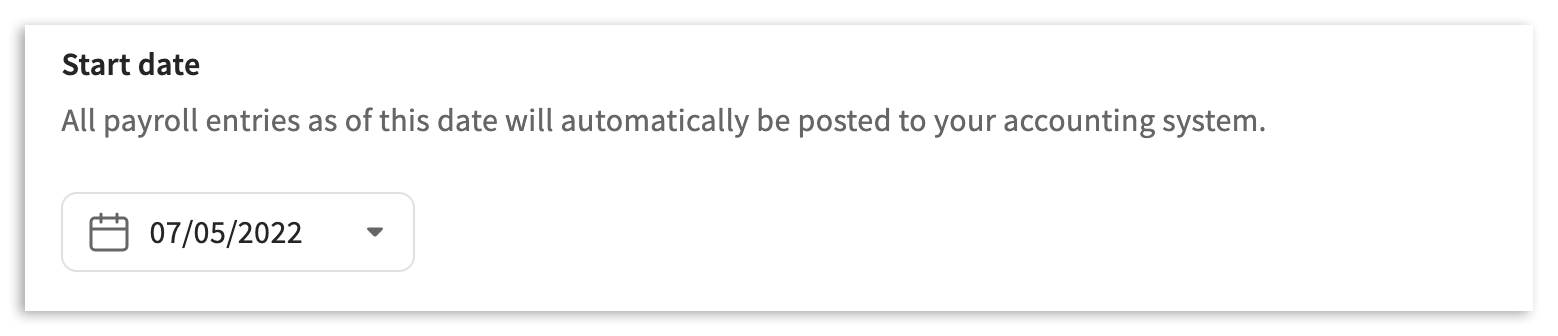
Upon connecting your Toast Payroll account to xtraCHEF, we will automatically pull in all payroll data from the current year. In many cases, you've already posted previous cycles to your accounting system and only need us to begin posting journal entries to your accounting system on a specific date. Select that date here.
Step #5: Post by Class

If you have class tracking enabled in your accounting software and would like us to assign a class to your payroll journal entries, turn on this feature.
Class is a dimension that can be defined by the company and set on transactions to expand report functionality and insight. Learn more from QuickBooks and how it works with xtraCHEF .
Step #6: Journal entry posting date
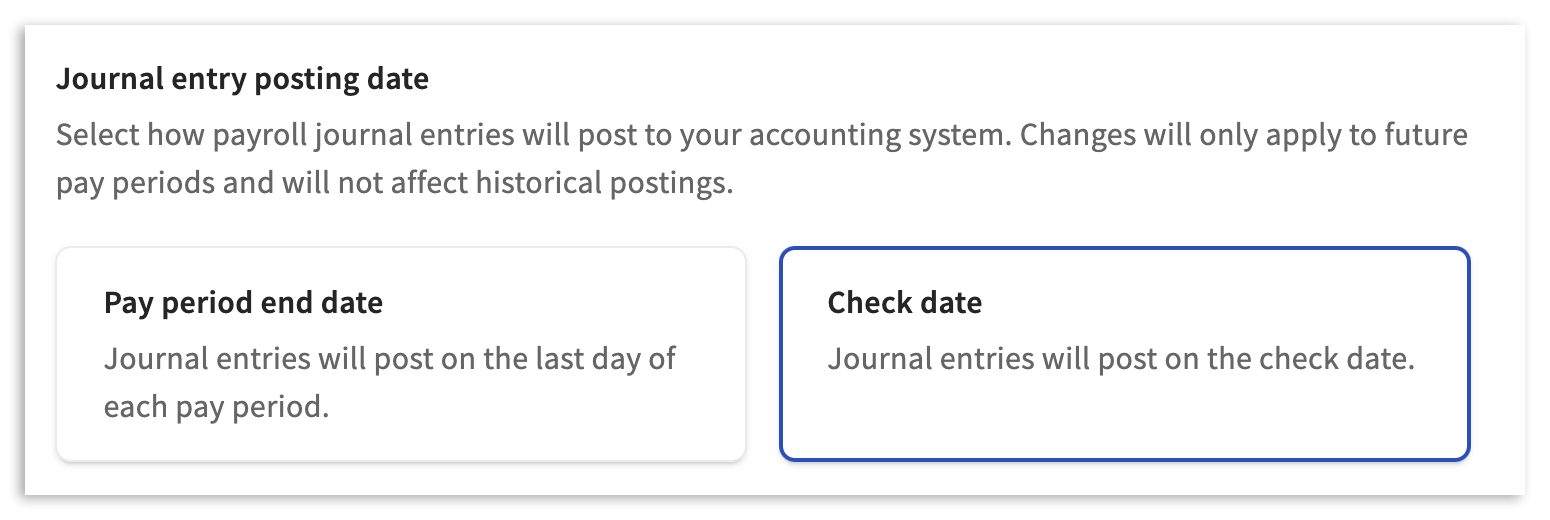
Many customers prefer to date their Payroll Journal Entry to match the last date of the pay period it represents to keep in line with their fiscal calendar. If you'd rather match the check date, choose that option.
Step #7: Summaries
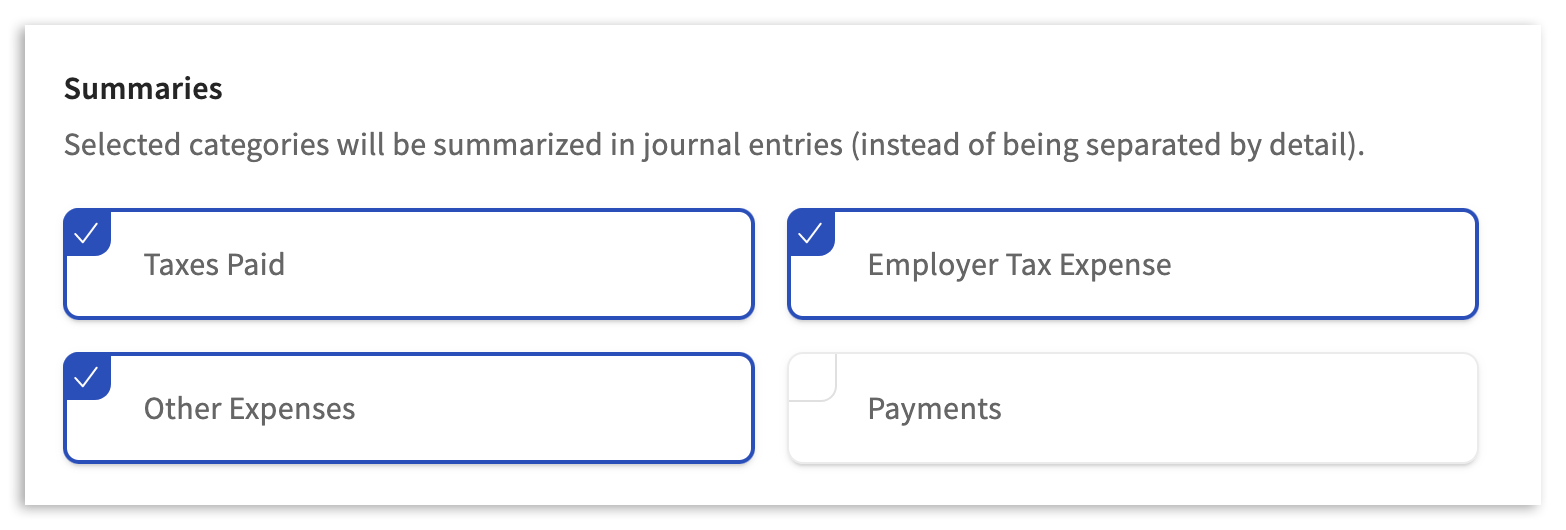
To make the bank reconciliation process easier, xtraCHEF defaults to summarizing your Taxes Paid, Employer Tax Expenses, and Other Expenses. Before you opt to summarize Payments, too, it’s important to consider how your Toast Payroll is funded and reconciled.
- If you fund your own checks, your account will be drawn on for each check separately, per posting. In this case, only having a summary of your payments could complicate payroll reconciliation.
- On the other hand, If Toast funds your checks, your account will only be drawn on once per period. Here, a summary would simplify payroll reconciliation.
Don't forget to select the Save button at the top of the page to finalize your choices here.
Payroll Mapping
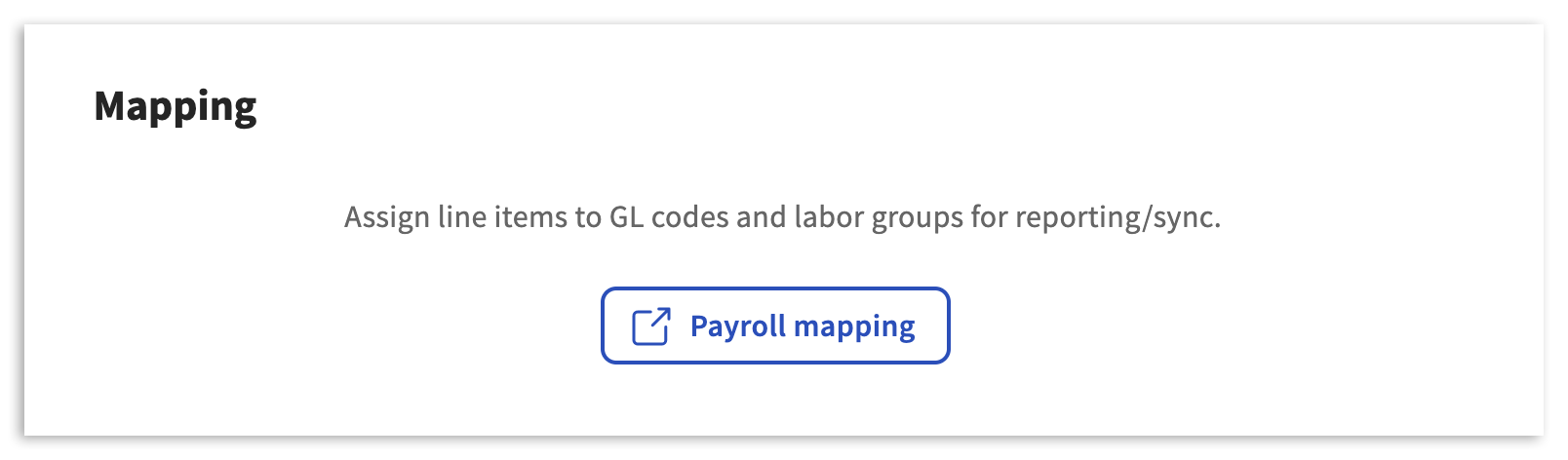
Payroll mapping is where you'll go next to assign GL codes, and Labor Groups to all the line items xtraCHEF has pulled from your Toast Payroll account. To begin, select Payroll mapping.
There are multiple sections on this page and you can quickly navigate to each of them by using the tabs on the far left. Each of these sections, and every line item, requires a GL Description, Class (if enabled), and Labor Group (if applicable). You will only see the Class column if the Post by class toggle was enabled on the previous page. These items will be used to compile the payroll journal entry posted to your accounting software and will also appear on your Operating Summary within xtraCHEF.
Note on GL Descriptions
comprise your and are used to easily track where your money is going to and coming from. Typically, GL codes are also broken out by account types such as assets, liabilities, revenue, equity, cost of goods sold (COGS), and expenses. For Payroll Setup will typically be working with your liability accounts, expense accounts, banking accounts, and other withholding accounts.
Note on Labor Groups
These are a way to categorize different jobs or expense types within your payroll. For example, all your front of house hourly jobs (i.e. server, cashier, bartender) might fall into the FOH Hourly labor group. Whereas your back of house hourly jobs (line cook, prep cook, dishwasher) might be assigned to the BOH Hourly labor group.
Employer taxes and any benefits that are an expense to your business as part of your labor would also be assigned to a labor group within xtraCHEF. For your convenience, we've provided a default set of labor groups for this purpose.
Step #8 Mapping
In this section, considering which GL descriptions and Labor groups to match with your line items is vital. The line item's amount will post to the GL Description you assign when Journal Entries are pushed to QuickBooks. When selecting a GL Description, you'll notice that many lines have suggestions. xtraCHEF takes into account what section you're in and what line item you're looking at and tries to offer the best match available. Select the GL you think is accurate, or if you're positive your GL, select View all GL descriptions to see your full chart of accounts.
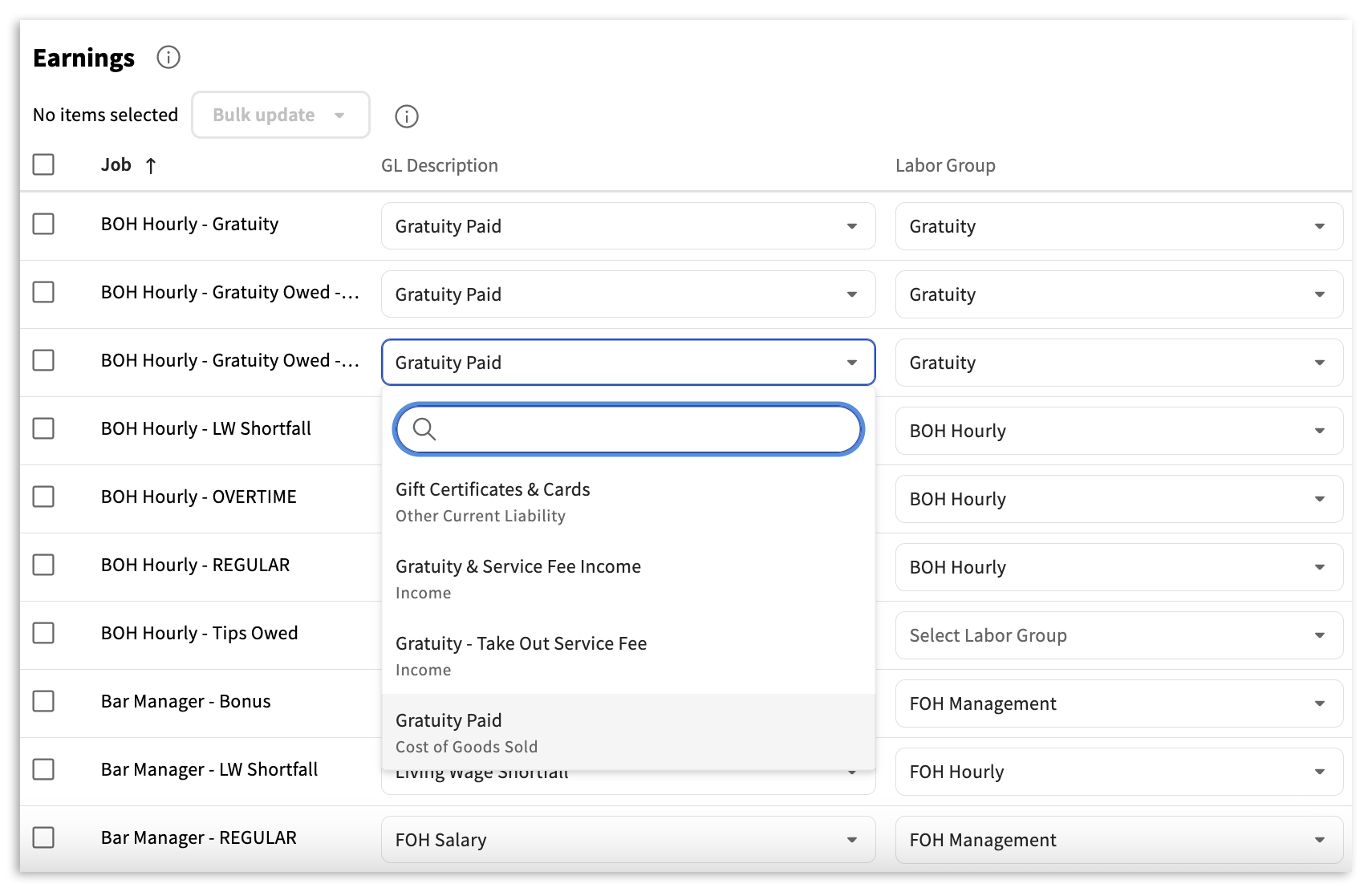
After selecting the GL Code, assign a Labor Group. Similarly, select the drop down. Then, select the corresponding Labor Group. You only need to assign labor groups to line items that are an expense to your business.
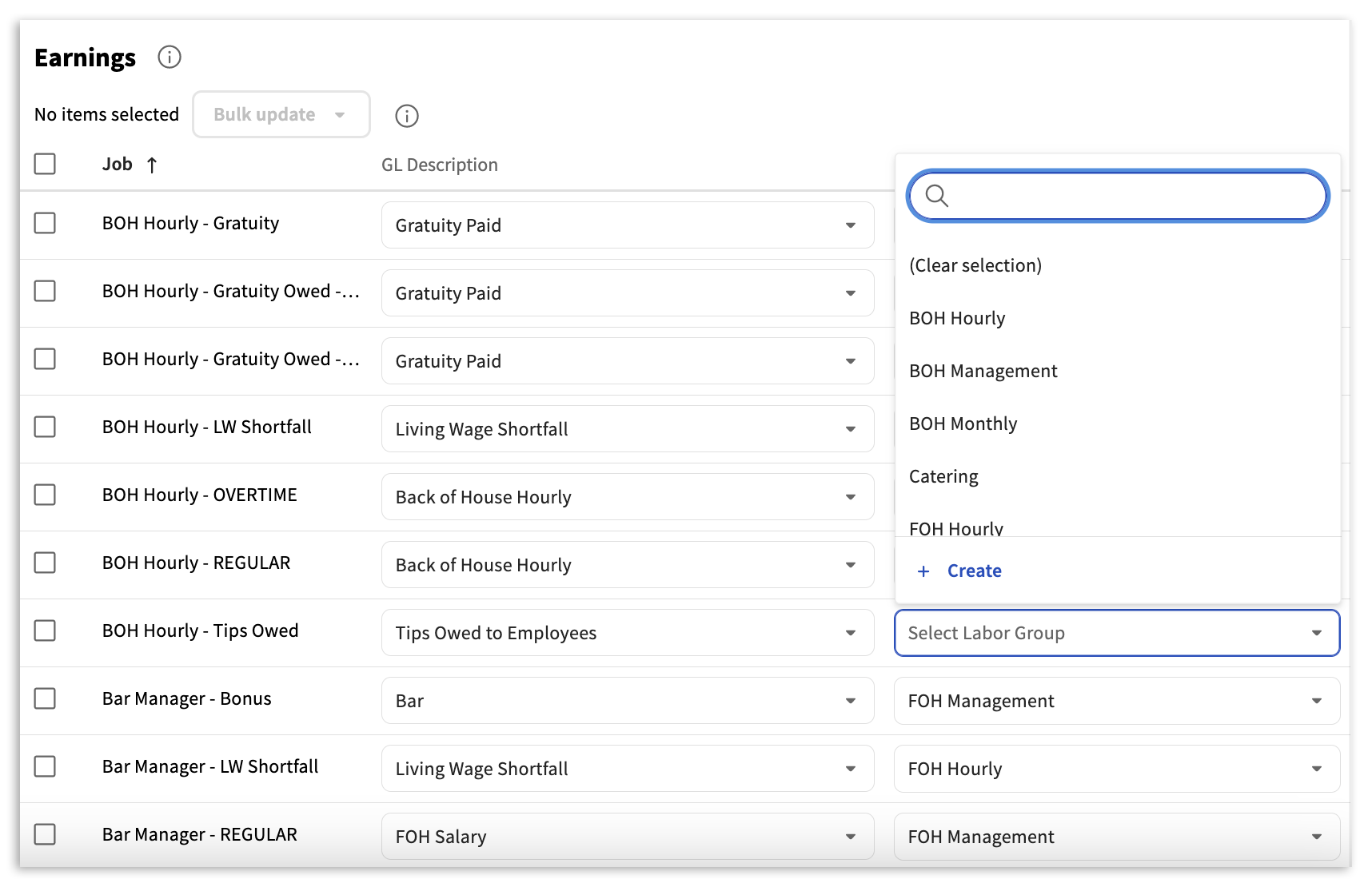
The only way for labor to appear on the Operating Summary within xtraCHEF and to be considered in your Prime Costs calculations is to assign it to a labor group.
Note: You will only see the Class column if the Post by class toggle was enabled on the previous page. If enabled, follow the same steps for your classes.
Configuration Best Practices
- Familiarize yourself with your GL codes: Consider reading and to brush up on GL codes and their purpose. Additionally, reviewing your GL codes and considering which of those options your payroll should post too will help streamline your payroll sync experience.
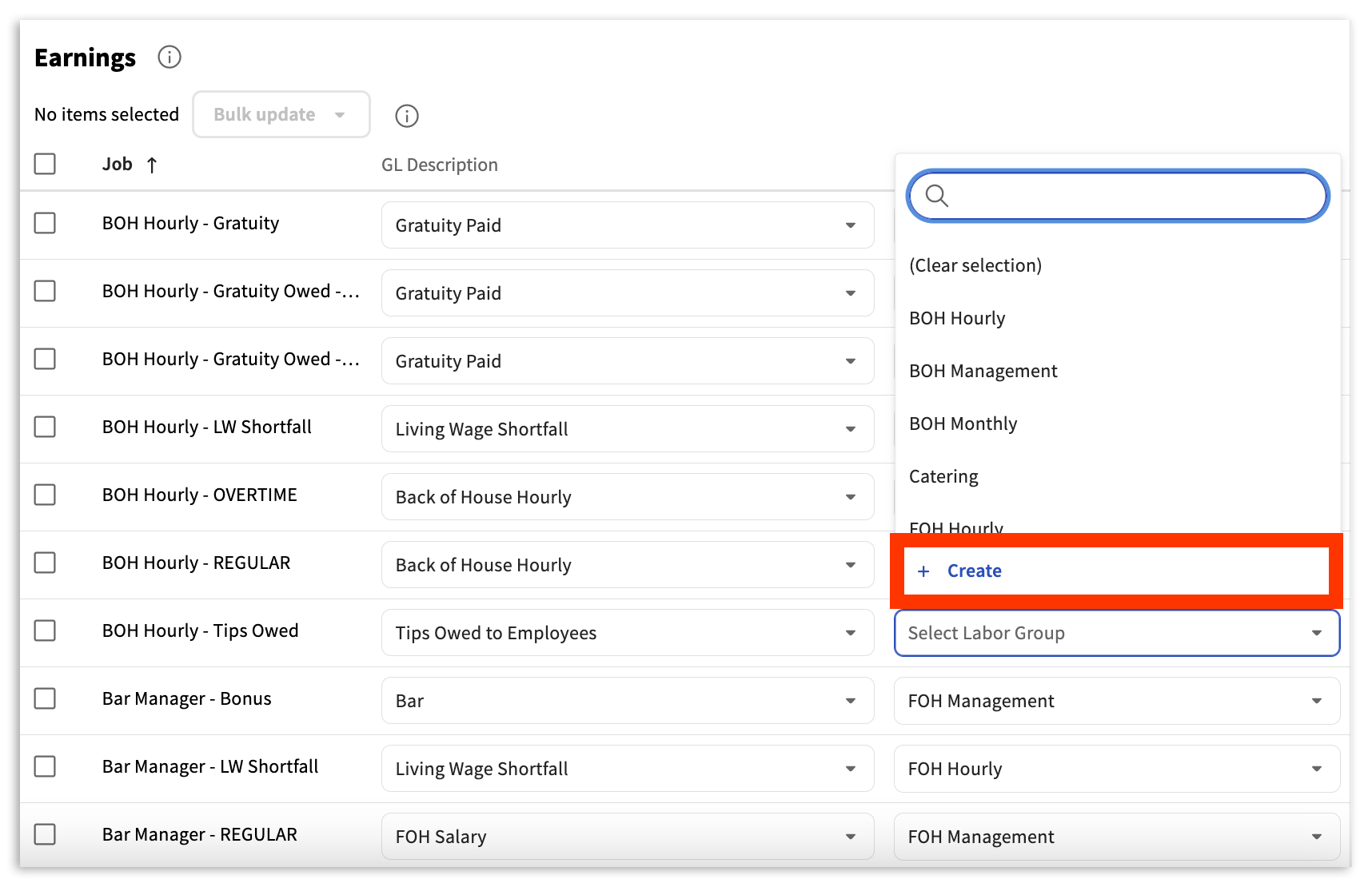
- Select +Create to add labor groups: By default, xtraCHEF creates Labor Groups for you to utilize during Payroll Mapping. If needed, you can create additional labor groups from your labor group drop-down menu by selecting +Create.
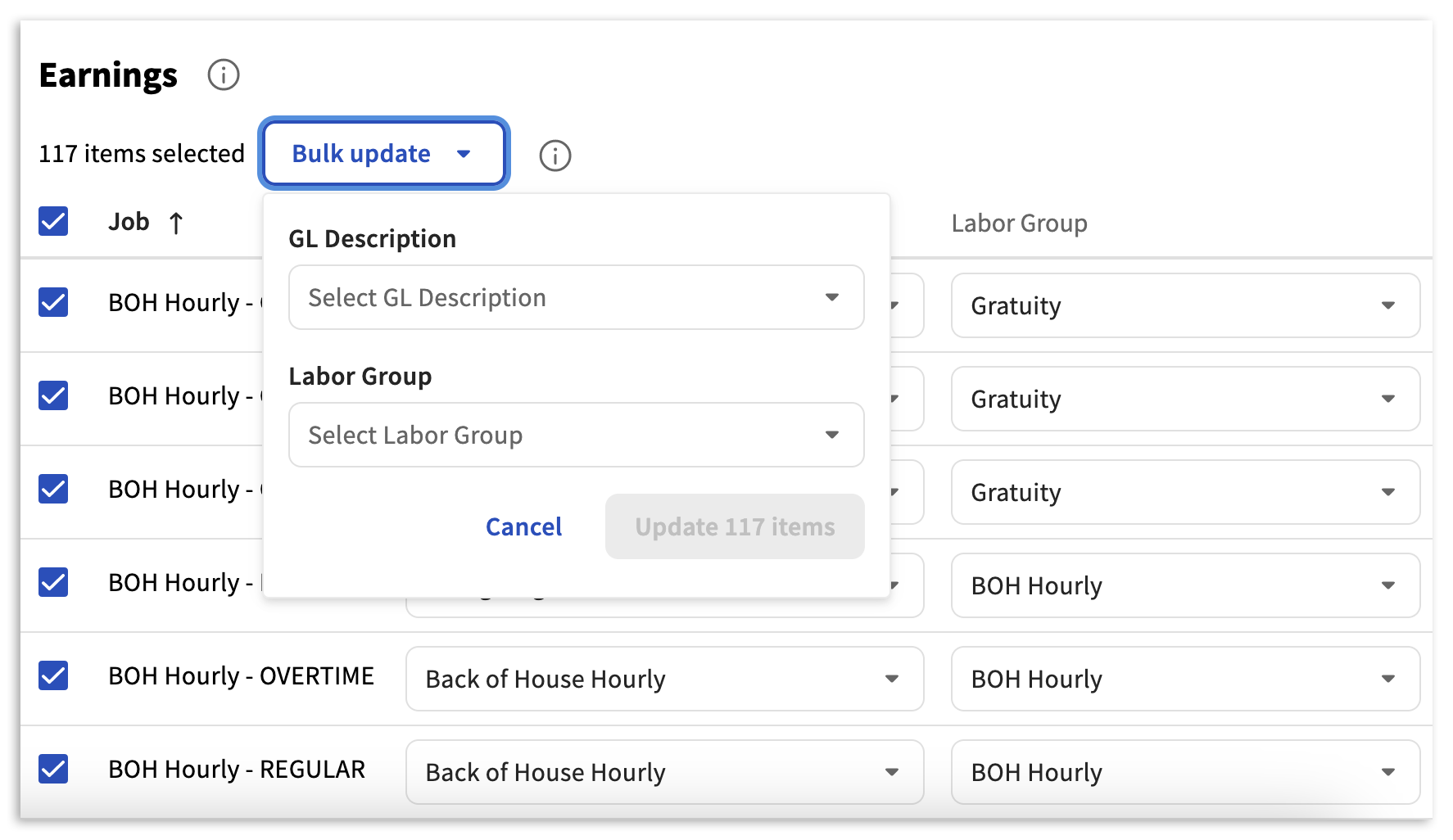
- Use bulk update: By selecting the top-most checkbox in a category (next to either Job or Description) will automatically select all items in this category. You may now use the Bulk update drop-down menu to assign GL Descriptions, Classes, and/or Labor Groups to each of the selected line items.
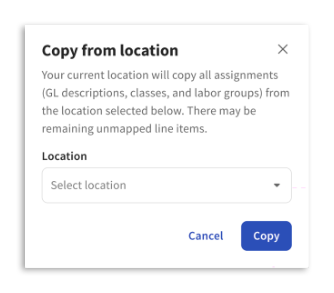
- Copy to other locations: If you have multiple locations under one tenant (account) and you have finished and saved Payroll setup for one location, you can copy your work to another location. To do this, revisit Payroll setup from your unfinished location and select Copy from. This allows you to import all your mapping from a selected location into the current location.
Payroll Sync for QuickBooks
Once and are complete, xtraCHEF will have the ability to automatically create payroll journal entries according to the framework you established.
QuickBooks Online
If you utilize the Online version of QuickBooks, your payroll syncs will extract on an automatic basis. You can monitor these journal entries and their syncs with your QuickBooks Online account via the .
QuickBooks Desktop
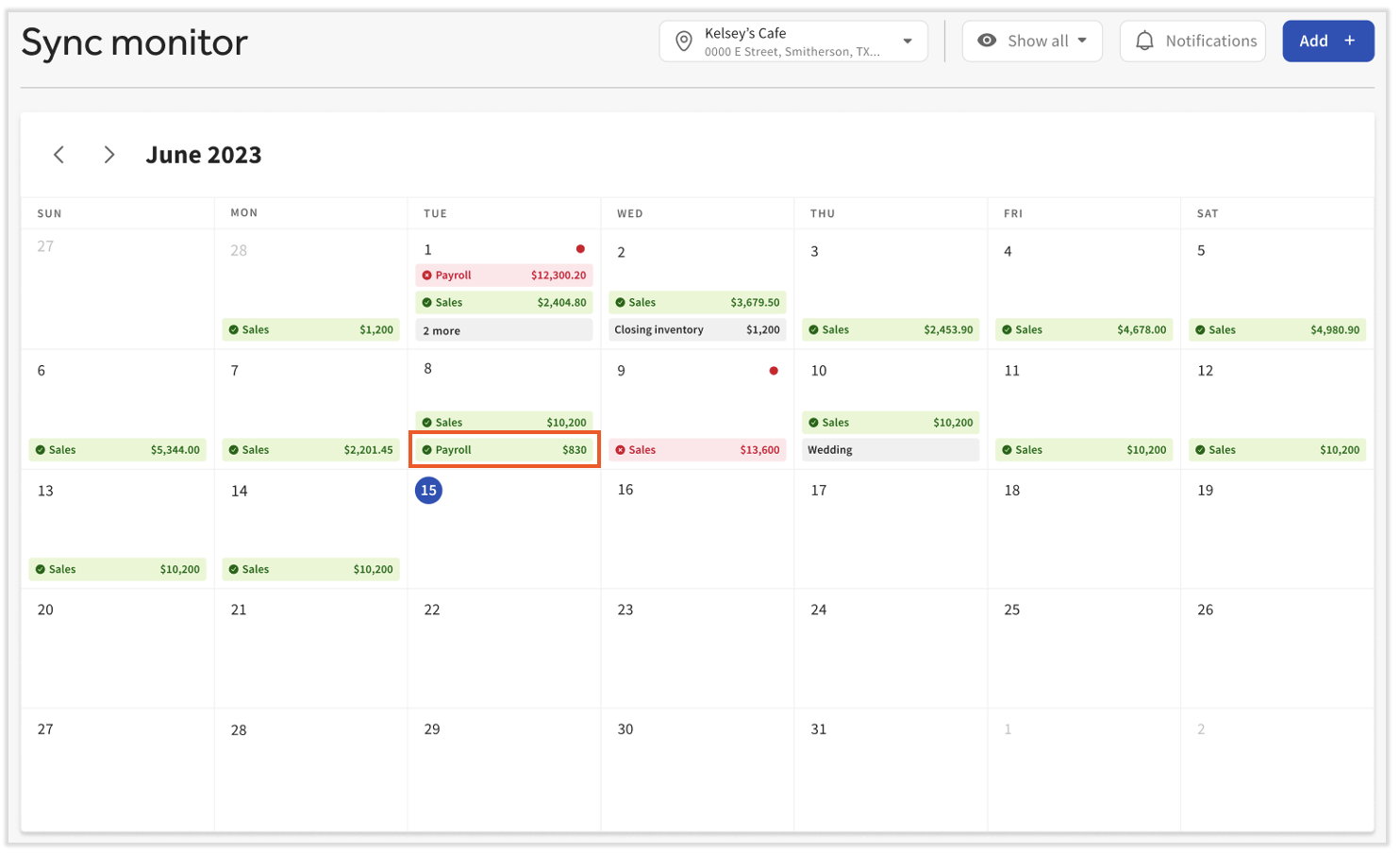
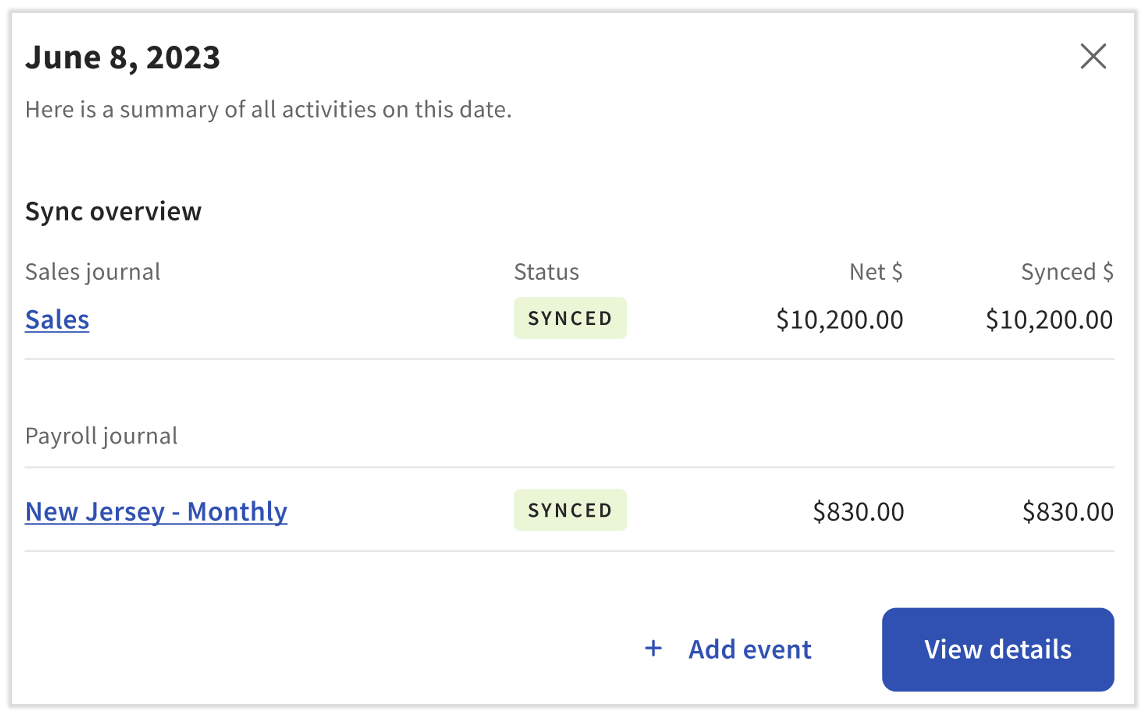
- If you utilize the Desktop version of QuickBooks, your payroll syncs will be available to download via the . To download these files, navigate to Sync Monitor and select a date with a green Payroll tag.
- Next, select the Payroll amount to view your Payroll Journal Entry in xtraCHEF.
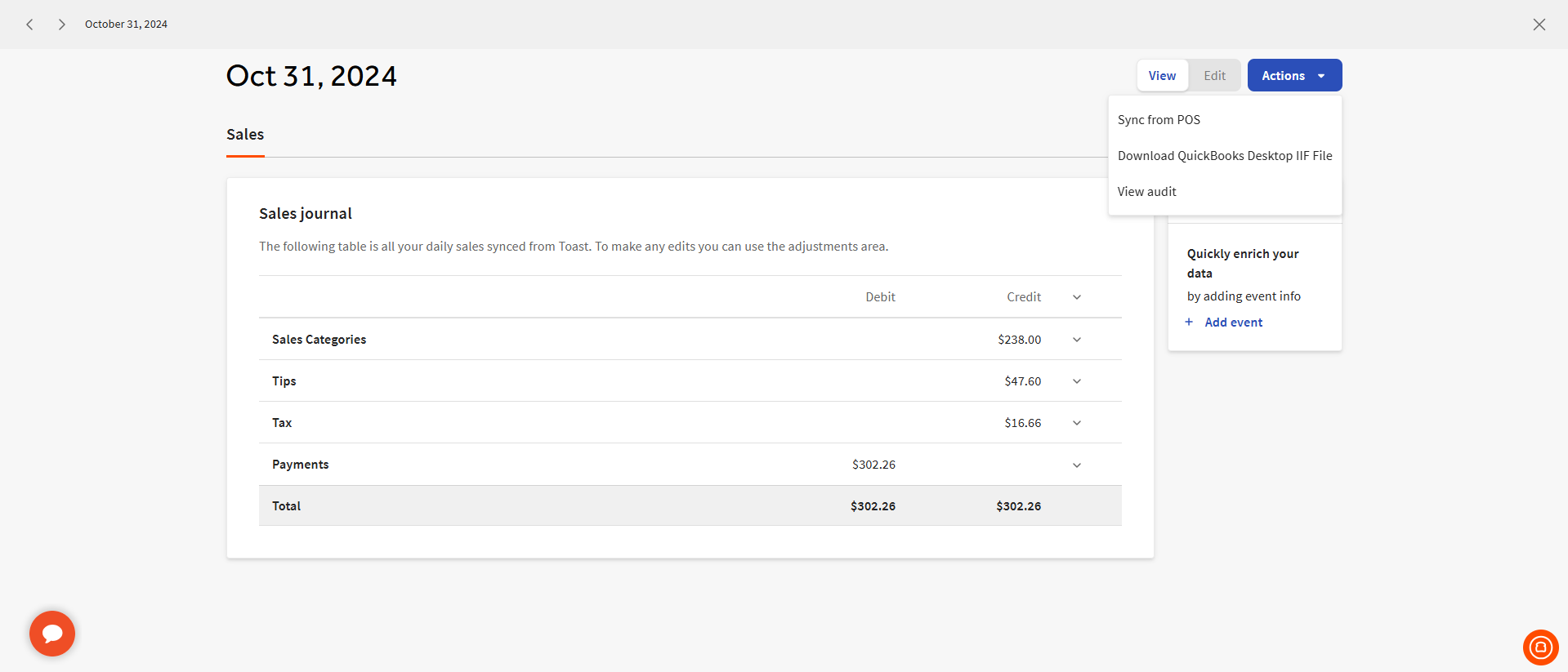
- Finally, select Action. There you will find your Download QuickBooks Desktop IIF File button.
- If you do not see the Download QuickBooks Desktop IIF File button, IIF downloads for payroll journal entries may not be enabled. To update this, please connect with the Customer Care team.
- If you do not see the Download QuickBooks Desktop IIF File button, IIF downloads for payroll journal entries may not be enabled. To update this, please connect with the Customer Care team.
- Once downloaded, you will be able to upload the QuickBooks Desktop IIF File directly into your QuickBooks Desktop account and sync payroll data with your accounting.
xtraCHEF & Toast Payroll Integration FAQ
Why am I not seeing Payroll in the settings menu?
You must be a Toast Payroll customer for this to appear. If you still do not see the Payroll setting, contact the Customer Care team and ask us to make the connection between Toast Payroll and xtraCHEF.
Why is the Operating Summary not displaying Prime Cost?
Labor will only appear in the Operating Summary when labor groups have been assigned.
Why do I need to choose a Vendor or Customer after assigning a GL?
Generally, when integrating Toast Payroll with your accounting system, you'll link your payroll data to either an Expense or Liability GL code. If you prefer to map to an Accounts Payable or Accounts Receivable GL code, you'll also need to select a corresponding Vendor or Customer within QuickBooks.
Do I have to sync my payroll data to my accounting platform?
Nope! You can choose to have payroll only come into xtraCHEF. You would simply toggle off the Payroll Sync option under setup.
This content is for informational purposes and is not intended as legal, tax, HR, or any other professional advice. Please contact an attorney or other professional for advice.