Toast Tables: Set Special Dates and Block Reservations
Last updated: Jun 23, 2026, 11:42 AM
Set Up Special Dates
With Toast Tables™, you have the ability to set up special dates or schedules for your restaurant. Examples include:
- Closed or special hours for holidays or renovations
- A private event in which you want to block reservations from being created in only a certain part of the restaurant
- A special event where you want to change reservation availability or turn times and set up a guest/host facing description (ex: We are hosting a Valentine’s Day dinner).
To set up special dates or schedules, see Toast Tables™: Schedules. For more information on setting up special experiences on specific dates alongside your regular reservations, see Toast Tables™: Experiences
Note: Google does not automatically update Toast Tables™ to recognize Special Dates. You need to manually update the hours in your Google Profile to ensure that the changes reflect accurately on Google. It’s important to keep your business hours, including any special hours, up to date in Google My Business to avoid any scheduling conflicts or customer dissatisfaction.
To update special dates in Google:
- Log into your Google My Business account. This is where you can manage your business information as it appears on Google Maps and Search.
- Navigate to Special Hours.
- In your dashboard, navigate to Info > Special hours. This section allows you to specify dates and times that deviate from your regular schedule, including holidays or special events.
- Select Add new date to specify your special operating hours for each date that deviates from your normal operating schedule. You can add multiple dates at once. Make sure these hours are accurate as they will inform the booking options available to customers through Google.
- Select Save. It may take some time for these updates to reflect across all Google services.
- Once your changes are live, check the "Reserve with Google" interface to ensure that the date picker and time picker allow bookings outside of normal business hours as per your new settings.
Block or Stop Reservations
You can easily pause in-house reservations, online reservations, and the online waitlist by blocking or stopping reservations in Toast Web. Table blocks are set by time slots, and you can block single tables or group multiple tables into a single block. This can include a name and description alongside a set time range. Examples of when you might need to block or stop reservations include:
- Your restaurant is getting overbooked for Saturday, and you want to stop all future reservations, both in-house and online.
- Your restaurant wants to turn off online reservations and online waitlist for the rest of a given day so no more bookings can be made.
Are you interested in blocking, pausing, or stopping reservations for your restaurant for a given period of time? Here's now:
- In Toast Web, navigate to Waitlist & Reservations to take you to Toast Tables™ settings.
- In the Overview tab across the top, you'll see the Booking access for the day. Select Manage booking access.
- Select your desired date range, and then choose whether you would like to block in-house reservations, online reservations, or online waitlist (or a combination of the three) for that date by checking the box next to each. Then, add an explanation as to why you aren't taking the selected booking types for the date in the dialogue box. This is to inform your hosts and guests.
- Select Save and Done to confirm your changes.
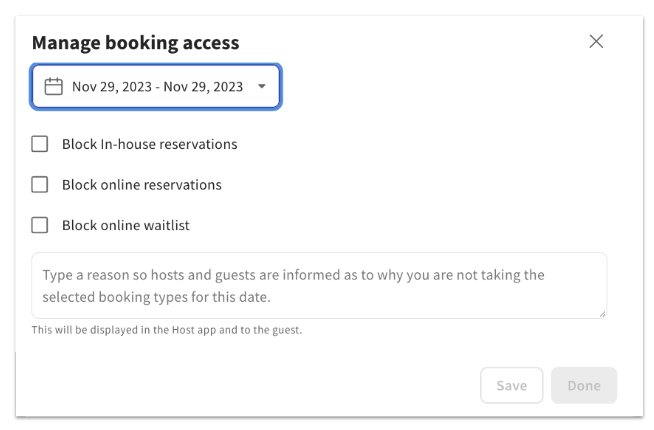
Once complete, you can see the current state of your blocked settings in the Overview tab. In the example below, online reservations are listed as Blocked, but the in-house reservations and online waitlist are Normal.

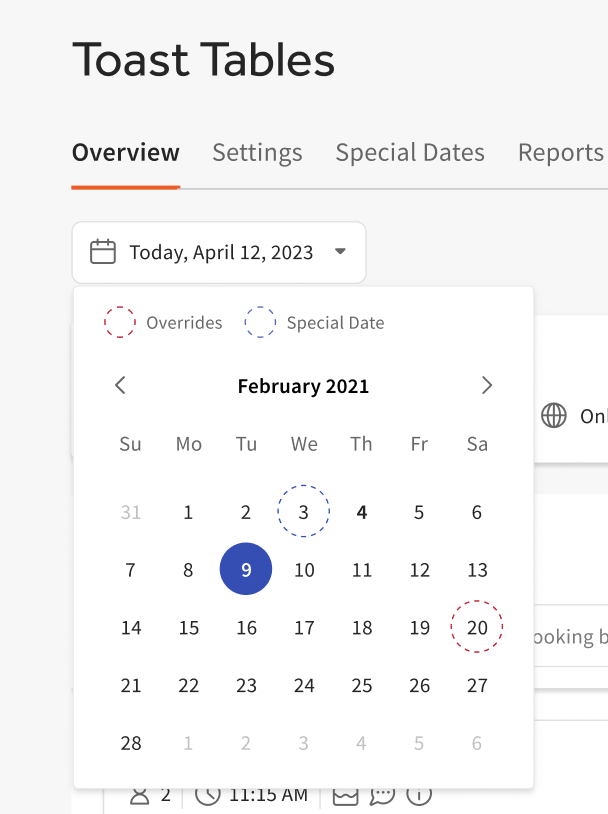
Note: You can also see whether a date has a block or a special date in the calendar view under the Overview tab.
- Red = Special Date
- Blue = One or more booking type is blocked
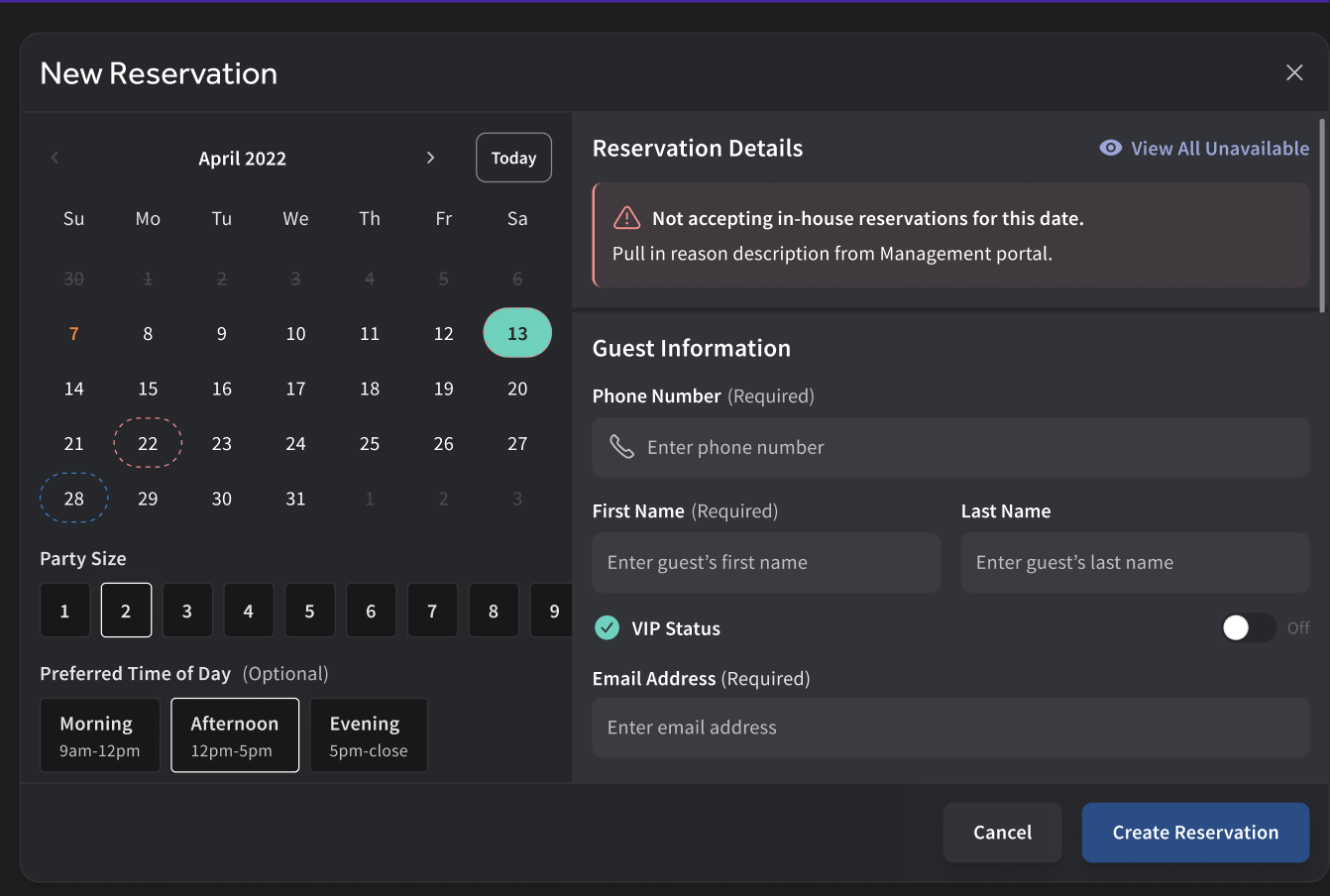
The blocked date will also be shown in the Toast Tables™ app to let hosts know your restaurant is not taking in-house reservations for that given date, as shown in the example below.
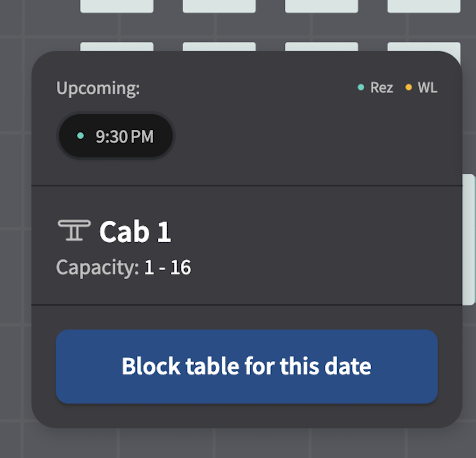
If you want to block tables for future dates within the Toast Tables™ app, you can do so by navigating to a future date, tapping either the individual table to block it or selecting multiple tables by tapping the bottom right Select tables option, then selecting the tables you want to block and selecting Block tables for this date. This will block them for that entire date. You can also block tables during the shift within app, and this can be managed under the More tab by selecting Blocks.
Additional Resources
- Get Started with Toast Tables™
- Use Toast Tables™
- Troubleshoot Toast Tables™
- Toast Tables™ : The Guest Experience