Toast Tables: The Guest Experience
Last updated: Aug 7, 2026, 11:51 AM
- SMS Messaging for Toast Tables
- Guest Emails
- Online Waitlist: Guest Experience
- Online Reservations: Guest Experience
- Reservations With Toast Local: Guest Experience
- Additional Resources
SMS Messaging for Toast Tables
Under Waitlist & Reservations > Guest Communication > SMS in Toast Web, you can configure the SMS messaging that guests will receive for waitlist and reservation communications. For example, you can configure your SMS templates for confirmations, waitlist notifications, and reservation reminders.
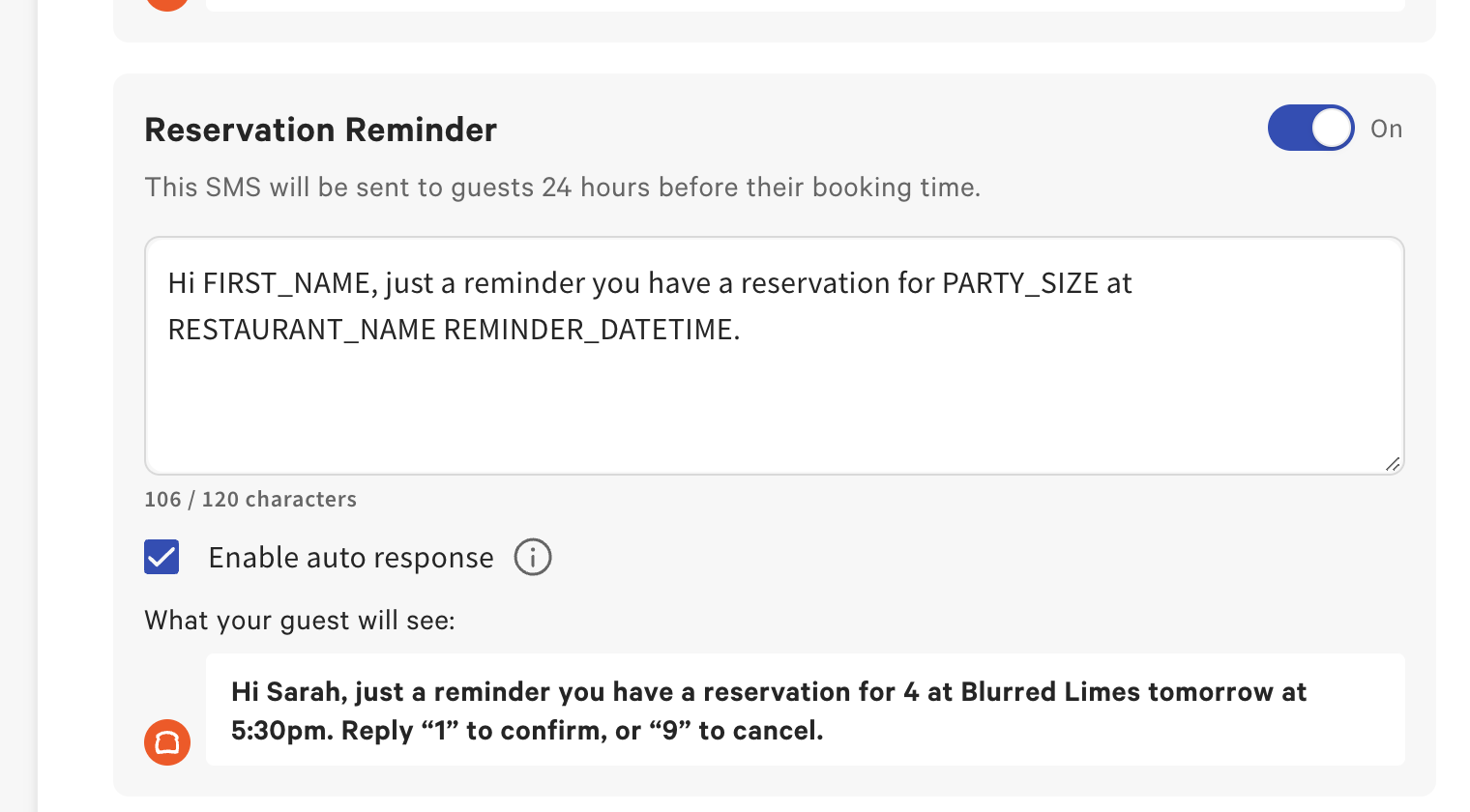
Some templates allow you to enable guests to reply 1 to confirm or 9 to cancel. If you'd like to take advantage of this feature, make sure you check the box that says Enable auto response (as shown above). You can also toggle off certain SMS templates, which can be useful when you are going to bulk add reservations and you don’t want to send an SMS message right away.
 2-Way SMS Messaging for Toast Tables
2-way messaging is available to all Toast Tables users if you want your host to be able to manage all communication right from the app and not be limited to message templates. Guests will also be able to reply to text messages and these messages will show up in the host app. You can configure this setting by using the toggle under Guest Communication, as shown below.
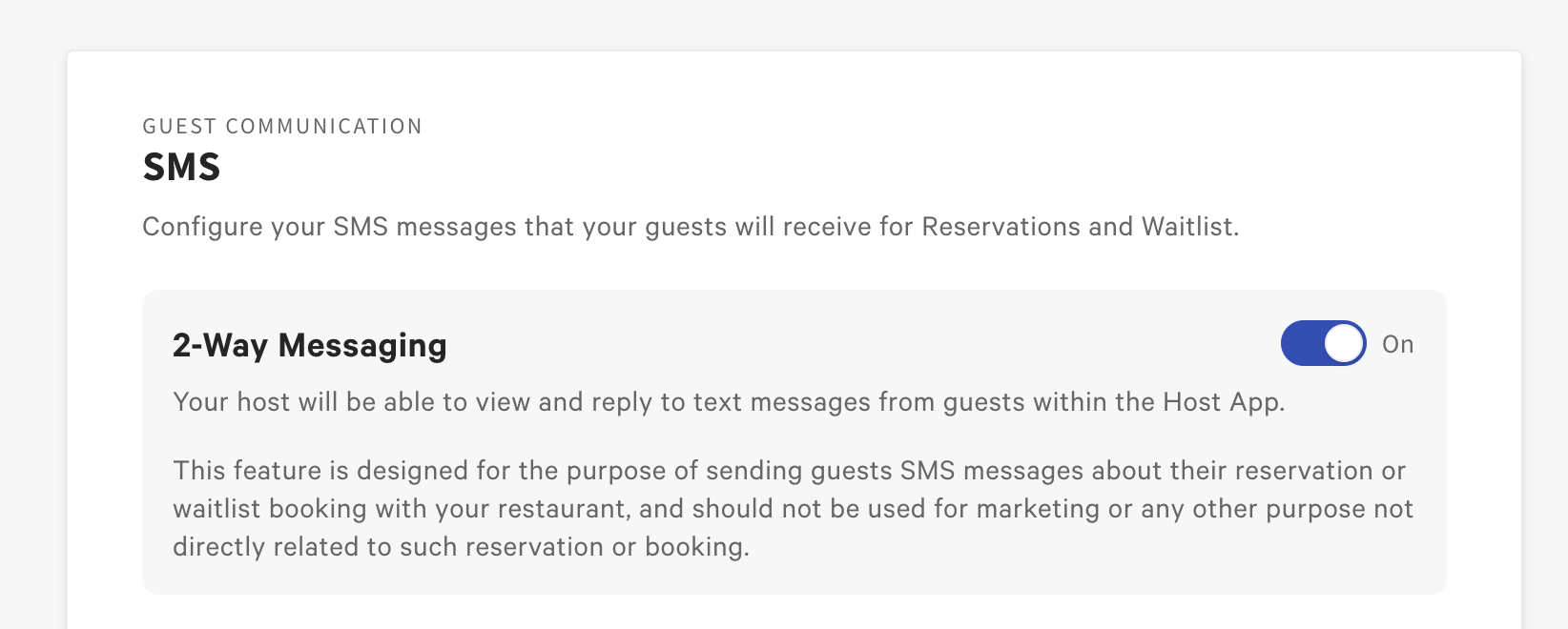
If your restaurant is enrolled in 2-way messaging, this means that in addition to automated SMS text messages, you may receive or reply to messages from guests with custom messages. In order to receive or reply to messages, the guest's phone number must be input into the Toast Tales app.
Note: This feature should only be used to discuss details about bookings. Use of this feature to send marketing or other similar commercial messages is strictly prohibited.
 | 2-way messaging is currently only available in the US and Canada. Check back soon for updates! |
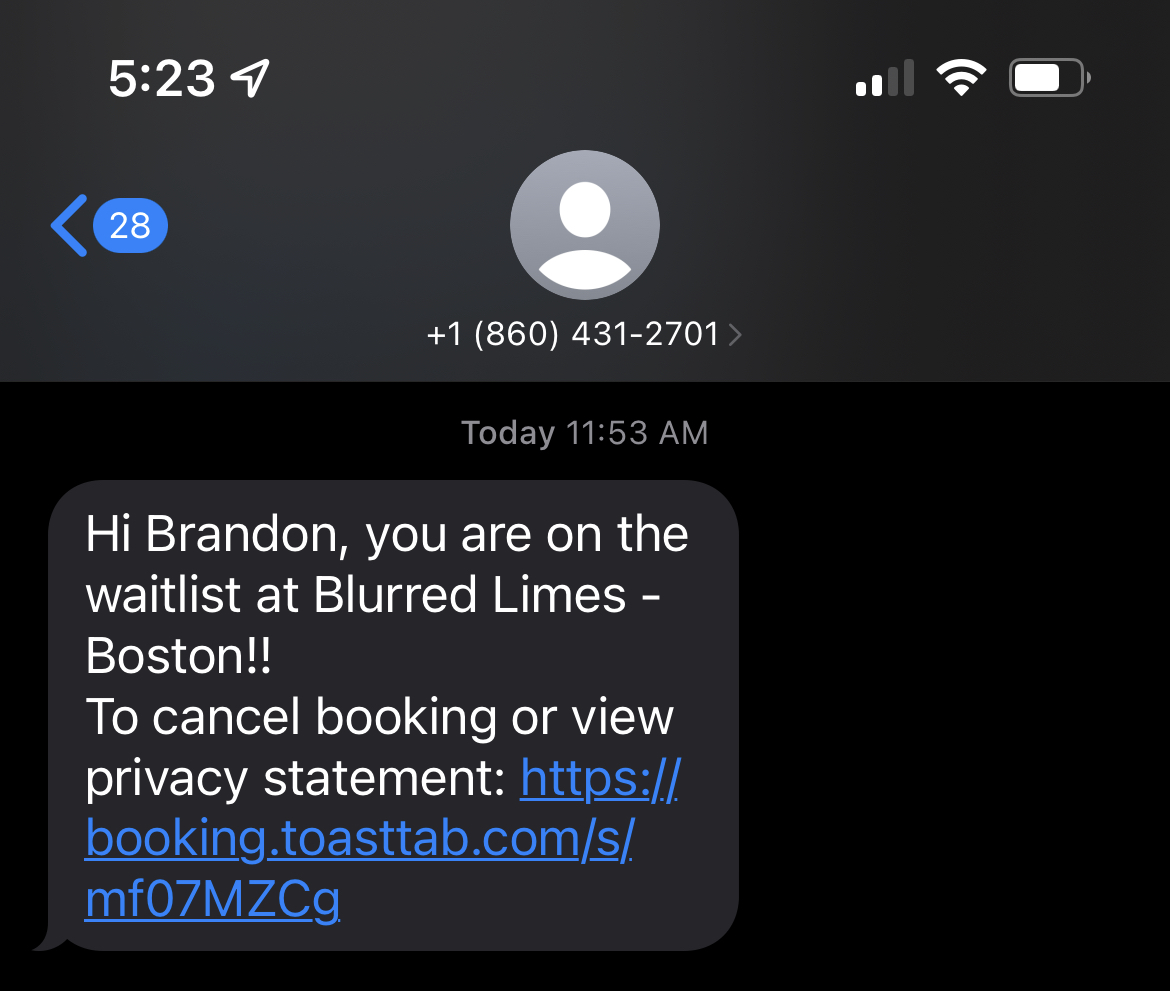
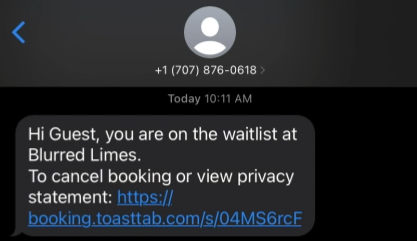
Upon joining the waitlist, guests will receive an SMS confirmation with a link where they can check the ETA for their table as shown below.
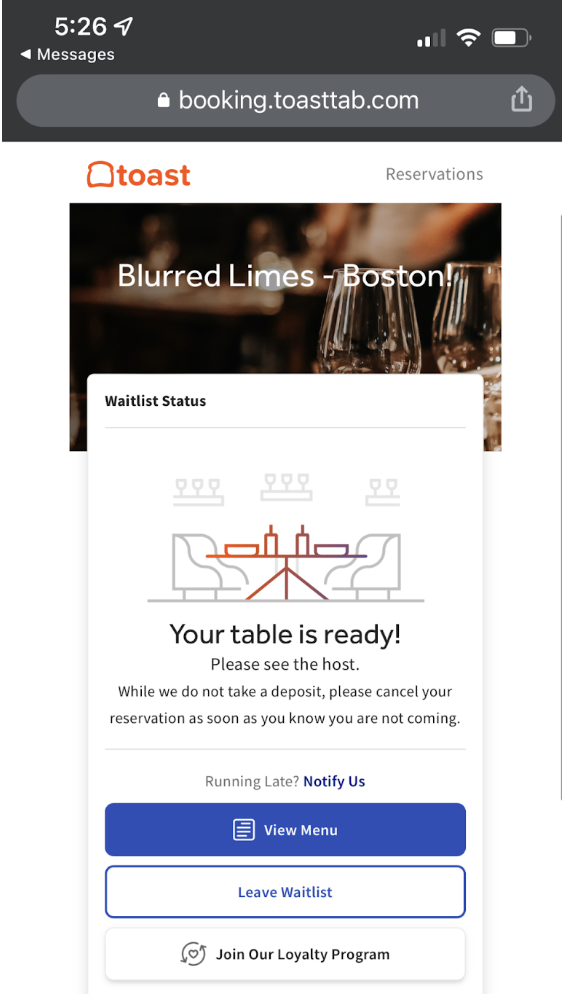
After selecting the link in the SMS, the guest will also be able to view your menu, join your Toast Loyalty program, and cancel, if needed.
Guest Emails for Toast Tables
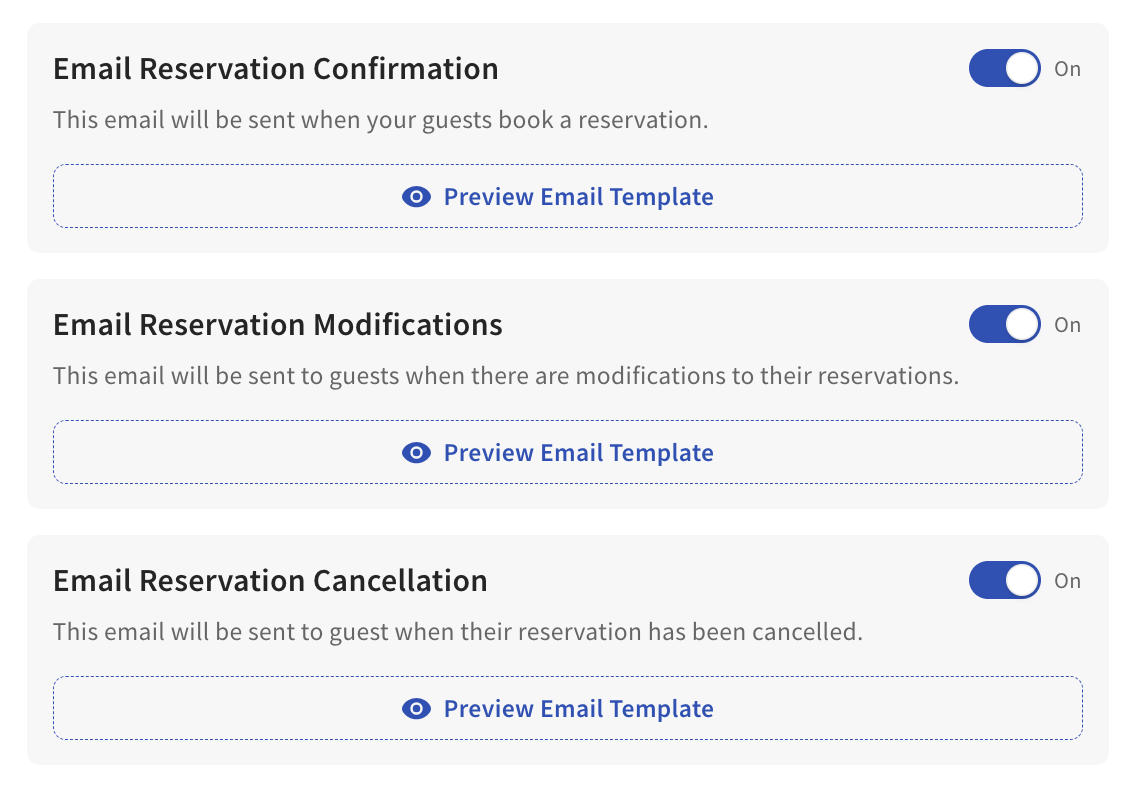
With Toast Tables, your restaurant can send your guests emails for reservation confirmations, modifications, and cancellations when the guest provides an email address upon creating a reservation. These settings can be toggled on and off in Toast Web by navigating to Waitlist & Reservations > Guest Communication > Email Templates or by clicking this link (you must be logged in to Toast Web). You can configure which email notifications are turned on, as well as preview the email templates.
Here is an example of a reservation confirmation email:
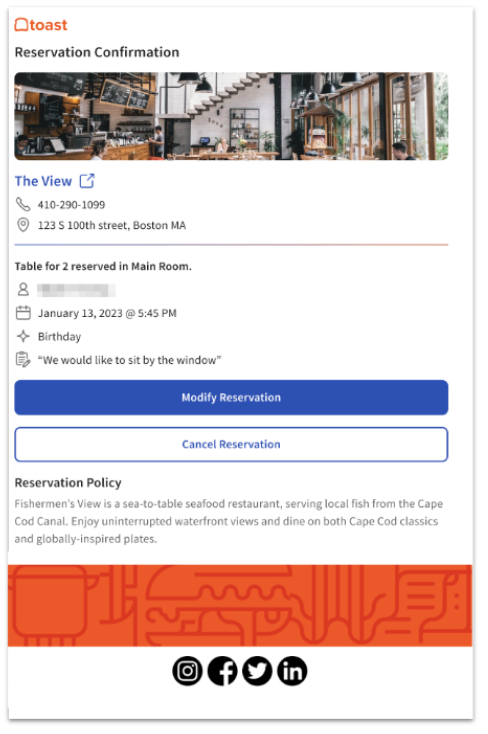
Note: Reservation confirmation emails will not share table number information with your guests.
Online Waitlist: Guest Experience
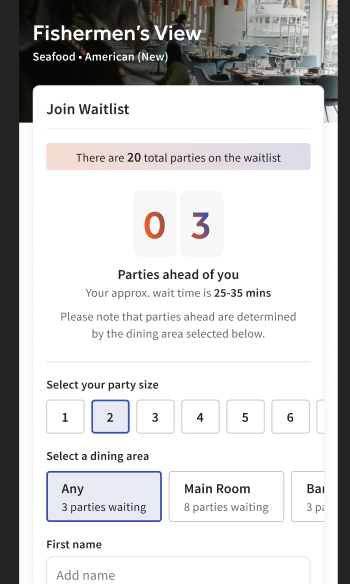
Guests can always add themselves to your waitlist online through your restaurant's Online Waitlist link. After opening the link, guests can see how many parties are waiting in each dining area and where their place is in line vs. the total parties on the waitlist, as shown in the example below.
After entering their party's information, they'll be sent a text letting them know they've been added to the waitlist.
If your restaurant uses both online waitlist and online reservations, when the waitlist is not available, your guests will be prompted to make a reservation from the Online Waitlist page.
Reservations With Toast Local: Guest Experience
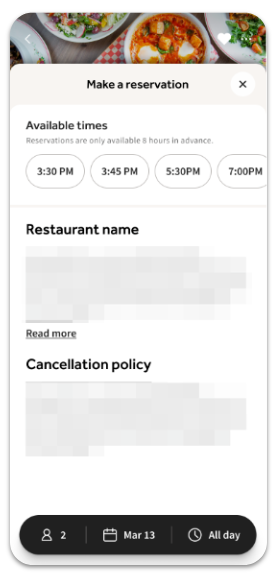
For restaurants that use Toast Tables and have enabled ordering on the Toast Local app (learn more: Get Started With Toast Local), guests will be able to discover restaurants and place a reservation directly in the app. Guests can also discover restaurants and place reservations through the Toast Local website as a browser-based alternative.
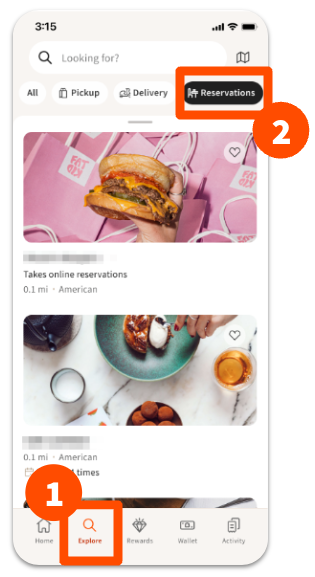
To make a reservation, guests first select Going Out in the Toast Local app, then they'll see the option to Reserve or join the Waitlist. From there, they can search for availability based on date/time and party size. This will reflect a list of restaurants that have Toast Tables online reservations turned on.
Back to top
Online Reservations: Guest Experience
Curious to know what the guest experience looks like when making an online reservation at your restaurant? Check out the video below:
Upon making an online reservation, if a guest wants to make any changes, they can tap the Modify Reservation button in their confirmation email and on their confirmation page. On the confirmation page, they can also search for a new reservation size, date, and time slows, as well as edit their current reservation with special requests.
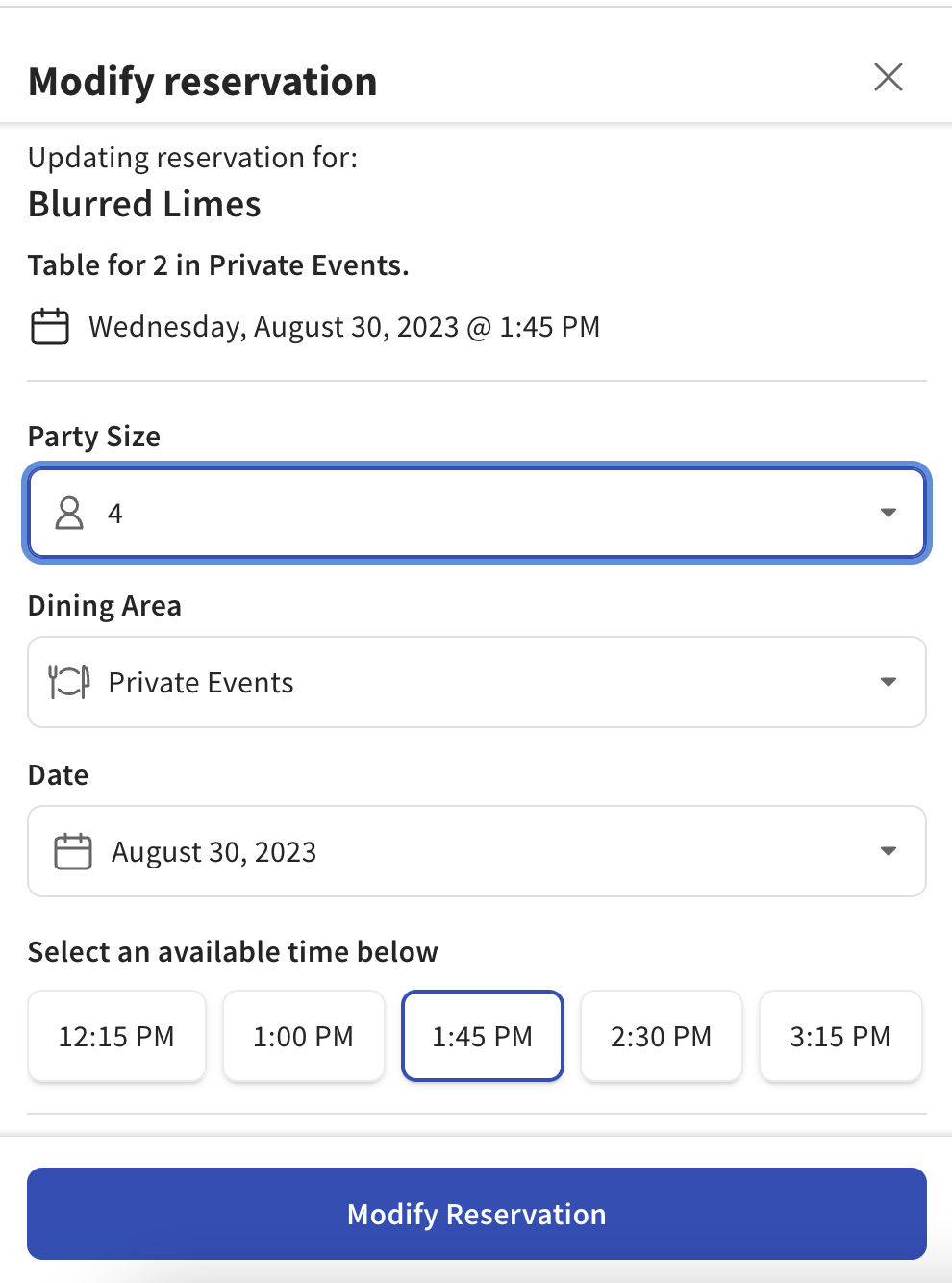
Guests can modify their reservation based on the configured reservation creation time in Toast Web. For example, if your restaurant has configured that guests can create reservations up to four hours in advance, the guest can modify their details up until four hours. If it’s within four hours, the guest cannot modify their reservation.
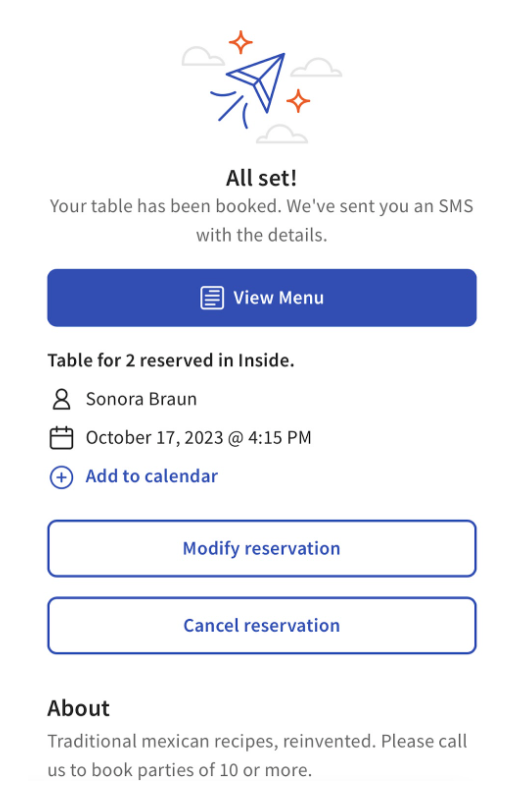
Guests can also add reservations to their calendar from their confirmation email and confirmation pages, as shown in the example below:
Guests making a reservation through Toast Tables can now submit preferences including food allergies and dietary restrictions. Restaurants can configure which preference types to collect. Preference details appear in the reservation record for staff to review before the guest arrives.
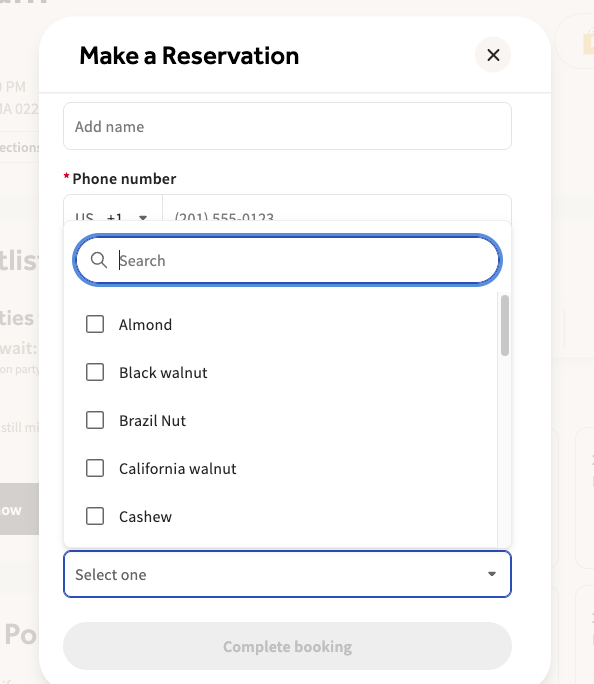
Adjustments to the allergens in this display can be made in Toast Web by going to Toast Tables (Waitlist & Reservations)> Settings > Reservation form.
Express Booking
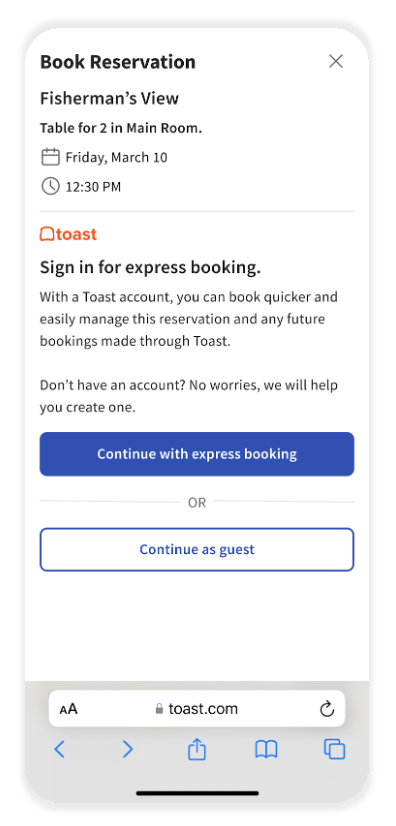
Guests can now create Toast accounts for express booking so that they can manage all of their upcoming reservations in one place and easily make future reservations with all of their pre-filled information. The guest can use these guest accounts across other Toast experiences, such as online ordering, Toast Local, Scan-to-Pay, and Toast Mobile Order and Pay®.
Additional Resources
- Get Started With Toast Tables
- Use Toast Tables
- Troubleshooting FAQ: Toast Tables
- Email Marketing for Toast Tables