Troubleshoot Online Orders Not Firing
Last updated: Sep 17, 2026, 6:54 PM
Fix online orders that did not fire to the kitchen. Locate a missing order, check your approval method, and resolve an offline or paused auto-fire device
- Find and fire a missing online order
- Check your online ordering approval method
- Fix an auto-fire device that is offline or paused
- Why ASAP orders fire with a delay
- Before you contact Toast Customer Care
- Related Articles
If an online order was submitted but did not fire to the kitchen automatically, the cause is almost always a Toast Web approval setting or your auto-firing device. This article walks through how to locate a missing order, check the settings that control firing, and resolve the most common reason orders stall: an auto-fire device that has gone offline or paused.
Find and fire a missing online order
If you know an online order was submitted but did not fire at the expected time, use these steps to locate and fire it.
- Check the Pending Orders screen, since the order may be awaiting approval before it will fire. Select the Toast icon in the top left corner, then choose Pending Orders under Mode.
- If the order is not under Pending Orders, locate your auto-firing device and confirm you do not have any non-printing prep stations set up on that device. De-select any prep stations you want online orders to be able to send to.
- If you use a Kitchen Display System (KDS) to manage kitchen tickets, check the ticket filters on the device to confirm every dining option and course used for your online orders is selected to display.
If the order is still missing after these steps, check your approval method and auto-fire device in the sections below.
Check your online ordering approval method
Your restaurant's approval behavior determines whether online orders fire automatically or wait for approval. Set it in Toast Web.
- Navigate to Takeout & delivery > Availability > Online ordering in Toast Web.
- Scroll down to the Approval section and review the Approval Mode setting.
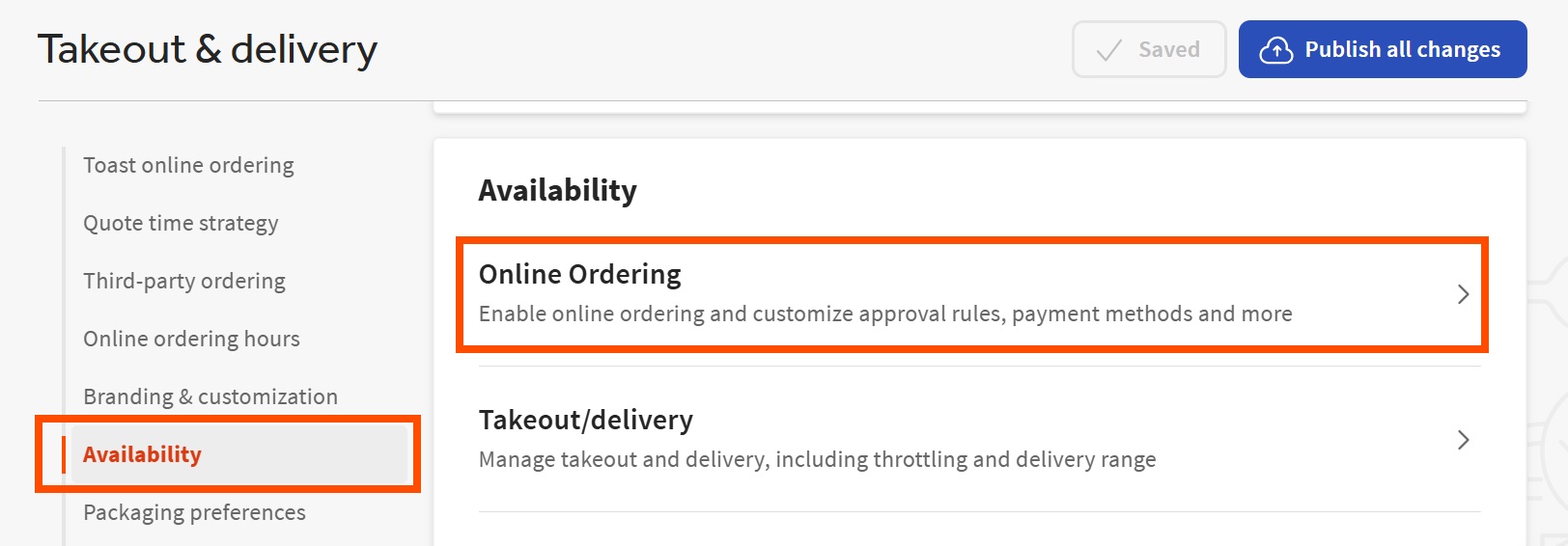
Approval Mode has three options, and each changes how orders fire:
- Approve manually — every order must be approved from the Pending Orders screen before it fires to the kitchen. If orders are sitting in Pending Orders unexpectedly, this setting is the likely cause.
- Send orders directly to kitchen — orders fire automatically. Confirm you have only one auto-firing device set up, since that device is responsible for auto-approving and firing orders at the right time. A problem with the auto-firing device can cause orders to appear under Pending Orders awaiting approval even with this setting on.
- Use rules — only orders that meet your enabled approval rules appear under Pending Orders for approval; the rest fire automatically. The same auto-fire device requirements apply, and a device problem can route orders to Pending Orders that your rules would otherwise fire automatically.
Note: The auto-fire device must be on and logged in at all times to continuously fire orders to the kitchen. For best results, connect it by Ethernet with Wi-Fi disabled, which provides a more stable connection.
Fix an auto-fire device that is offline or paused
The most common reason online orders stop firing is that the auto-fire device has lost its connection, even when Toast Web still shows the device as online. You may see an error such as "Auto-Approval for Toast Online Ordering is Currently Paused" or a message that online ordering was turned off because of an auto-fire device connection error. A telltale sign is that orders can still be fired manually with Fire Now, but nothing fires automatically.
Try these steps in order:
- Reboot the auto-fire device, then check whether orders resume firing after the device reconnects.
- Confirm the device is connected by Ethernet with Wi-Fi disabled. A momentary Wi-Fi signal drop can trigger the pause.
- In Toast Web, go to Takeout & delivery > Availability > Online ordering, set Approval Mode to Approve manually, save, then set it back to Send orders directly to kitchen and save again. Toggling the mode forces the system to resync the auto-fire device.
- Ring in a test order on the auto-fire device, and send it to the kitchen. Confirm the items print correctly and shows on the KDS or other POS devices. This often clears a paused state.
- Refresh the Takeout & delivery page in Toast Web to confirm the error has cleared. This refresh may take a few minutes.
Note: Only one device should be set to auto-fire. Multiple auto-fire devices cause duplicate tickets to print and can produce other firing problems.
If the error persists after these steps, contact Toast Customer Care.
Why ASAP orders fire with a delay
If an ASAP online order arrives in Orders Hub on the Scheduled tab with a timer before it fires, rather than firing immediately, your throttling setting is adding a delay. In Toast Web, go to Takeout & delivery > Availability > Online ordering and review your throttling settings. Enabling the option to immediately fire throttled ASAP orders sends those orders to the kitchen right away, with any delay added to the order's prep time. You can also manage volume from the Needs Approval screen in Pending Orders mode.
Before you contact Toast Customer Care
Most firing problems are resolved by the steps above. Before contacting Toast Customer Care, confirm you have:
- Checked Pending Orders and Future Checks for the missing order.
- Confirmed only one auto-fire device is assigned, and that it is on, logged in, and connected by Ethernet.
- Rebooted the auto-fire device and rung in a test online order.
- Reviewed your Approval Mode in Toast Web.
If online orders still do not fire after completing these steps, contact Toast Customer Care for further assistance.
Related Articles
- Troubleshoot Your Autofire Device
- Set Up Order Auto-Firing
- Get Help With Pending Orders Mode
- Troubleshoot Toast Online Ordering Error Messages
- Get Help With Scheduled Orders