Copiar configuraciones entre ubicaciones
Última actualización: 16 sept 2026, 4:15 p.m.
Aprende cómo puedes copiar configuraciones de Toast Web de una ubicación a una o más ubicaciones.
- Descripción general de la herramienta de copia de configuraciones
- Copiar configuraciones entre ubicaciones
- Copiar menú de una ubicación a otra
- Revisar configuraciones copiadas
Descripción general de la herramienta de copia de configuraciones
La herramienta de copia de configuraciones en Toast Web le permite copiar las configuraciones de backend de su ubicación actual a otras ubicaciones dentro de su grupo de gestión, en lugar de tener que iniciar sesión en cada ubicación individualmente y cambiar las configuraciones manualmente. Esto puede ser especialmente útil si necesita realizar un cambio de configuración y aplicarlo rápidamente a múltiples ubicaciones, o si se han realizado pequeños cambios a lo largo del tiempo y desea asegurarse de que todas las ubicaciones tengan las mismas configuraciones en general.
Esta función solo está disponible para clientes que utilizan el conjunto de herramientas de Gestión de Restaurantes Pro, el conjunto de herramientas de Gestión de Restaurantes Enterprise (aprenda más: Descripción general de las suites de Toast), o la Gestión de Ubicaciones Múltiples de Toast (MLM). Si su restaurante utiliza Gestión de Restaurantes Pro, le recomendamos gestionar las configuraciones de la parte delantera de la casa para múltiples ubicaciones utilizando la página actualizada de opciones de UI en lugar de la herramienta de copia de configuraciones. Aprenda más sobre la gestión de configuraciones para múltiples ubicaciones con el conjunto de herramientas de Gestión de Restaurantes Pro en este artículo del Centro de Soporte: Gestionar opciones de UI para múltiples ubicaciones.
Para acceder a la herramienta de copia de configuraciones, necesitará agregar el permiso de 4.19 Herramienta de copia de configuraciones a su cuenta de usuario de Toast Web, lo cual puede ser realizado por cualquier usuario que tenga acceso a 8.2 Permisos de usuario. Para instrucciones paso a paso, consulte Asignar permisos de acceso de usuario.
Copiar configuraciones entre ubicaciones
Para copiar configuraciones de Toast Web a otra ubicación utilizando la herramienta de copia de configuraciones, siga estos pasos:
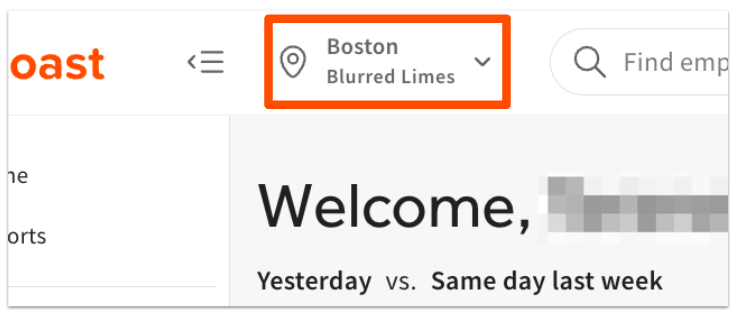
- Antes de comenzar, confirma qué ubicación estás visualizando en Toast Web. La ubicación mostrada en la parte superior de la página siempre será la ubicación de origen (la ubicación de la que estás copiandode), así que cambia de ubicación si es necesario.
- Navega a cuentas de Toast > gestión de negocios y ubicaciones> Herramienta de copia de configuraciones.
- Selecciona Copia de configuraciones.
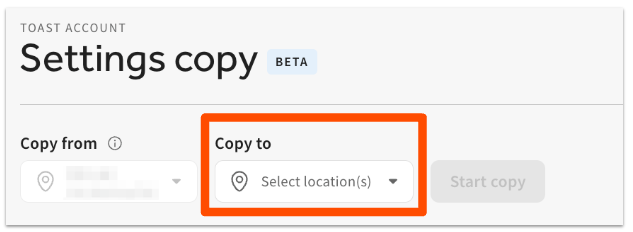
- En la siguiente página, abre el Copia a desplegable y selecciona una o más ubicaciones o grupos de restaurantes a los que te gustaría copiar tus configuraciones.
- Usa las casillas de verificación para seleccionar secciones completas o cualquier configuración individual que te gustaría copiar.
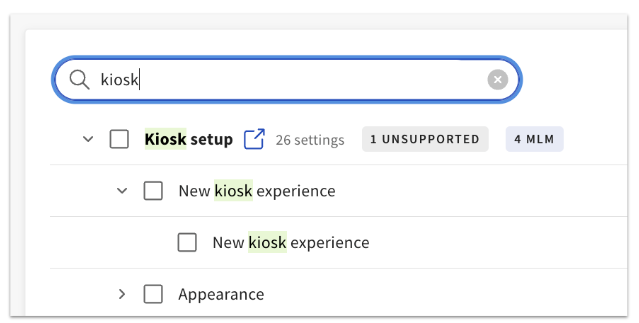
- Puedes usar la barra de búsqueda para encontrar configuraciones o secciones específicas que estás buscando.
- Selecciona los iconos de flecha para expandir una sección y ver todas las configuraciones individuales dentro de ella.
- Si necesitas confirmar el valor actual de alguna configuración, los enlaces azules junto a cada sección te llevarán a la página de configuraciones correspondiente para que puedas ver lo que está seleccionado en la ubicación actual.
- Si alguna configuración no se puede copiar, verás la etiqueta No soportado. No podrás seleccionar la casilla de verificación para estas configuraciones.
- Para configuraciones con una etiqueta MLM, las configuraciones solo se copiarán con éxito si las ubicaciones de "copia a" y "copia de" comparten un objetivo (por ejemplo, puedes copiar Opciones de comedor disponibles en el kiosk si ambas ubicaciones son un objetivo para las opciones de comedor que están seleccionadas para esa configuración). De lo contrario, serán ignoradas.
- Una vez que hayas terminado de elegir configuraciones para copiar, selecciona Iniciar copia.
- Revisa el número de configuraciones y las ubicaciones de destino en la ventana emergente de confirmación y selecciona Guardar configuraciones para continuar.
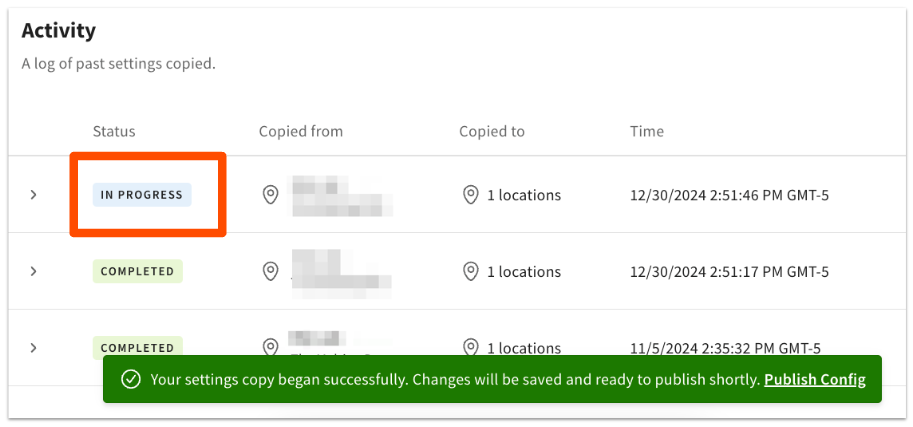
- Serás llevado de regreso a la Página de copia de configuraciones donde tu copia de configuraciones mostrará como En progreso, y luego cambiará automáticamente a Completado cuando los cambios se guarden en la(s) ubicación(es) de destino. Este proceso podría tardar varios minutos si estás copiando múltiples configuraciones a un gran número de ubicaciones.
- En este punto, las configuraciones solo se han guardado en la(s) ubicación(es) de destino. Deberás proceder a la página de Publicar Configuración (selecciona Cambios no publicados en la parte superior de la página o navega a Cuenta de Toast > Publicación > Publicar Configuración) y publicar cambios en la(s) ubicación(es) de destino para que las configuraciones copiadas entren en efecto.
<3>Copia de Menú de Una Ubicación a Otra
Contacta al Soporte al Cliente para solicitar la copia de un menú de una ubicación a otra.
En algunos casos, la ubicación de destino puede estar en un sistema diferente (“shard”). Cuando esto sucede, el menú aún puede ser copiado, pero necesitarás reconfigurar manualmente ciertas configuraciones, como impresoras, estaciones de preparación, enrutamiento, categorías de ventas y empleados. Si el Soporte determina que se requeriría una reconstrucción completa para copiar automáticamente un menú de una ubicación a otra, te recomendamos que recrees manualmente el menú en la ubicación de destino. Herramientas como la vista dividida de Chrome pueden ayudar a acelerar este proceso.
Revisar Configuraciones Copiadas
En la página de Copia de configuraciones, verás un registro de todas las copias de configuraciones guardadas anteriormente, incluyendo el Estado, la Ubicación de origen, la(s) ubicación(es) de Destino, una fecha/hora, el número de Configuraciones copiadas y el Usuario que guardó los cambios.
Para ver qué configuraciones fueron publicadas en una ubicación, puedes usar la página de Centro de Publicación - Historial. Si copiaste 25 configuraciones de la Ubicación A a la Ubicación B, pero solo 10 de las configuraciones eran diferentes entre esas dos ubicaciones, la página de Centro de Publicación - Historial mostrará las 10 configuraciones que fueron actualizadas en el proceso de publicación. Para aprender más sobre cómo ver el historial de publicaciones, consulta este artículo del Centro de Soporte: Publicar Cambios en Toast Web.