xtraCHEF: Active su cuenta de xtraCHEF
Última actualización: 7 jul 2026, 4:02 p.m.
Descripción general de la activación de la cuenta
¡Gracias por elegir xtraCHEF! Para poner su cuenta en funcionamiento, primero complete los pasos descritos en la sección a continuación.
Antes de comenzar, deberá reunir algunos elementos para ayudar a completar el proceso:
- Nombre legal de la empresa, dirección y número de teléfono
- Acceso de administrador al software de contabilidad, si corresponde
- Archivos de facturas (deben estar en formato .PNG, .JPG, .JPEG o .PDF)
Consejo: Le recomendamos encarecidamente completar este paso de configuración antes de la primera reunión con su consultor de incorporación.
Volver al principio
Guía de activación
Paso n.º 1: Comience
Para comenzar, recibirá un correo electrónico de no-reply@toasttab.com. Este contiene un enlace a su experiencia de autoincorporación. Seleccione Comencemos en este correo electrónico para continuar.
Paso n.º 2: Active su cuenta de Toast
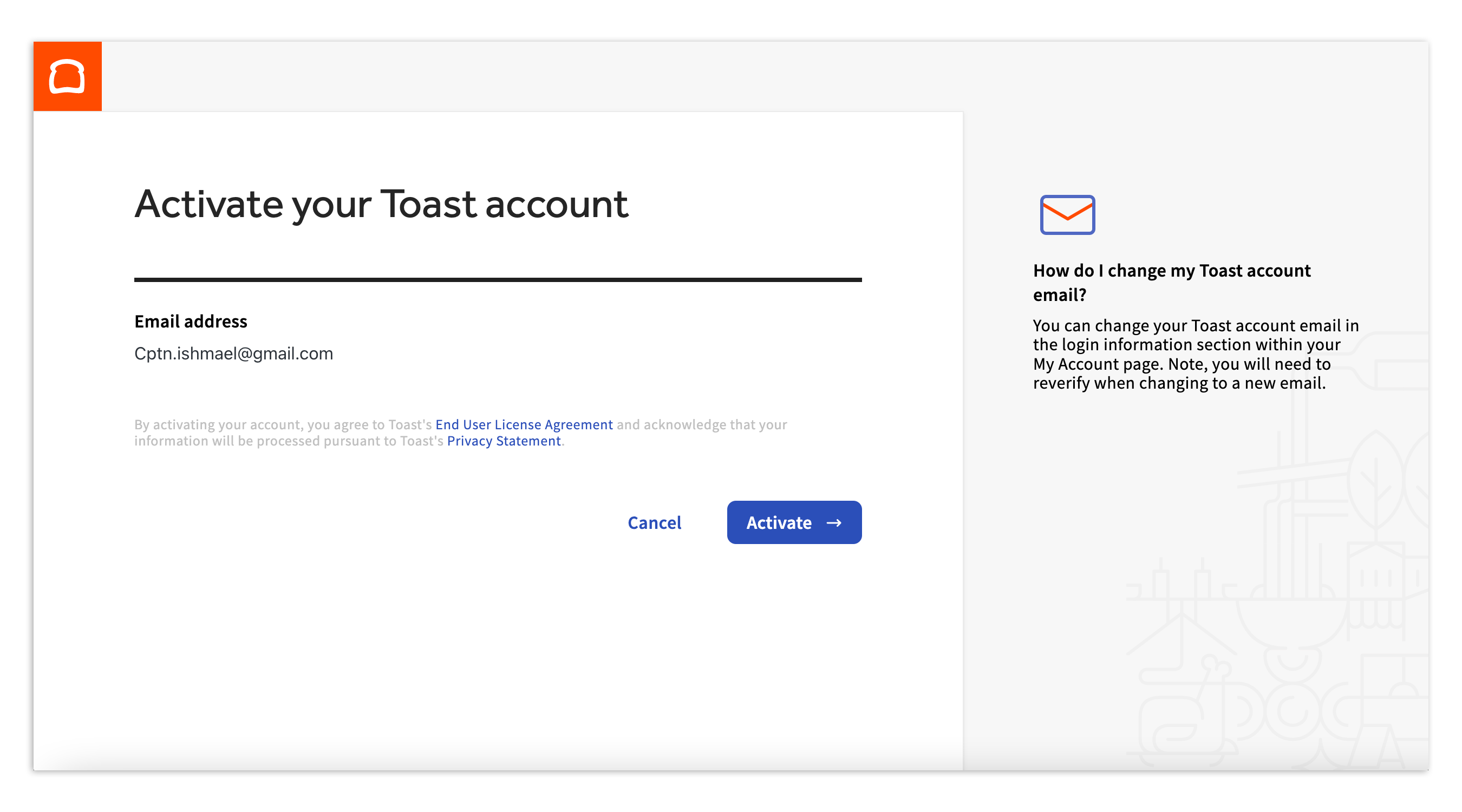
Se le pedirá inmediatamente que cree una contraseña para su cuenta individual. Por favor, incluya al menos 7 caracteres, con al menos un carácter que sea un número y al menos uno que sea una letra. Seleccione Activar para continuar.
Toast cerrará su sesión y le pedirá que inicie sesión con sus nuevas credenciales. Ingrese su dirección de correo electrónico y la nueva contraseña. Luego seleccione Continuar.
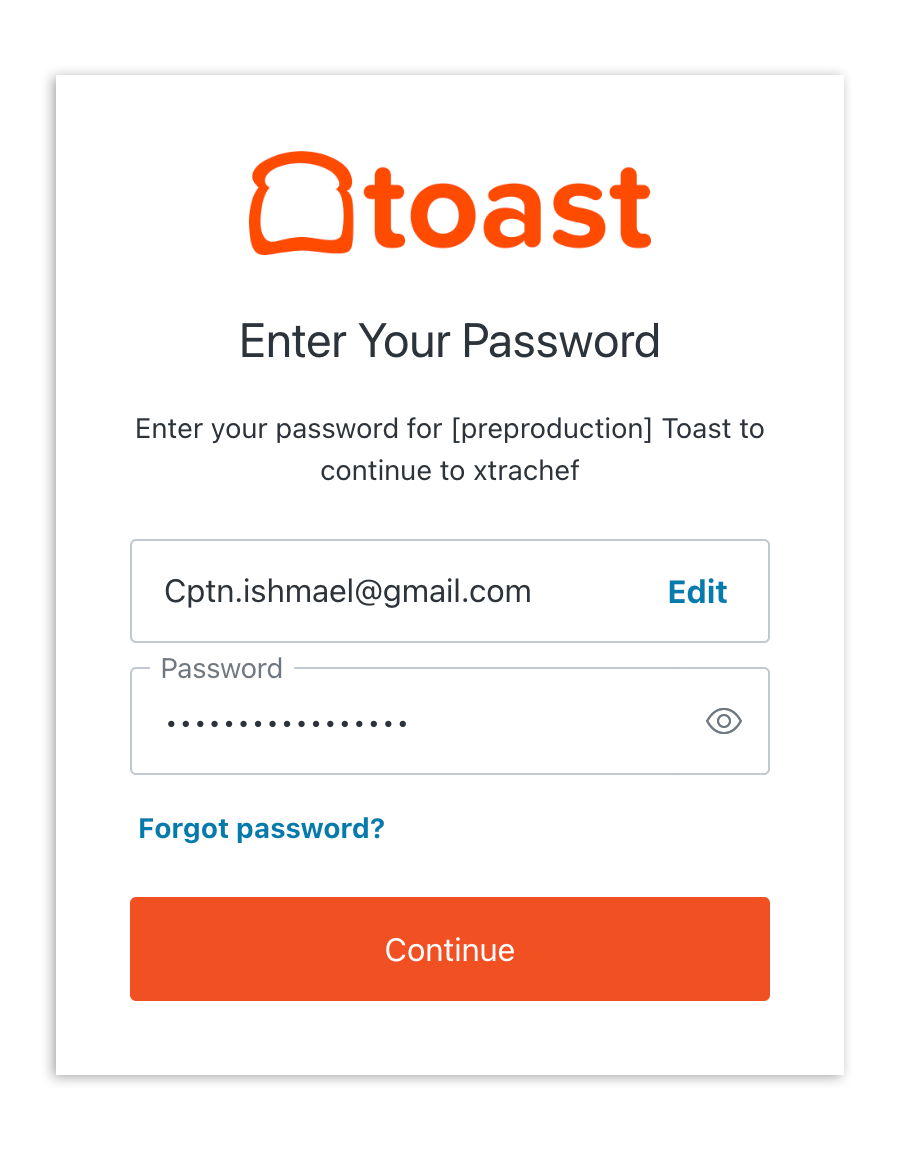
Nota: No podrá iniciar sesión a través de su aplicación móvil xtraCHEF hasta que active su cuenta desde este correo electrónico.
Paso n.º 3: Términos de servicio de xtraCHEF
Deberá leer y aceptar los Términos de servicio de xtraCHEF en su primer inicio de sesión. Después de revisar este documento, seleccione la casilla de verificación en la esquina inferior izquierda y presione Acepto.
Paso n.º 4: Comparta sus objetivos
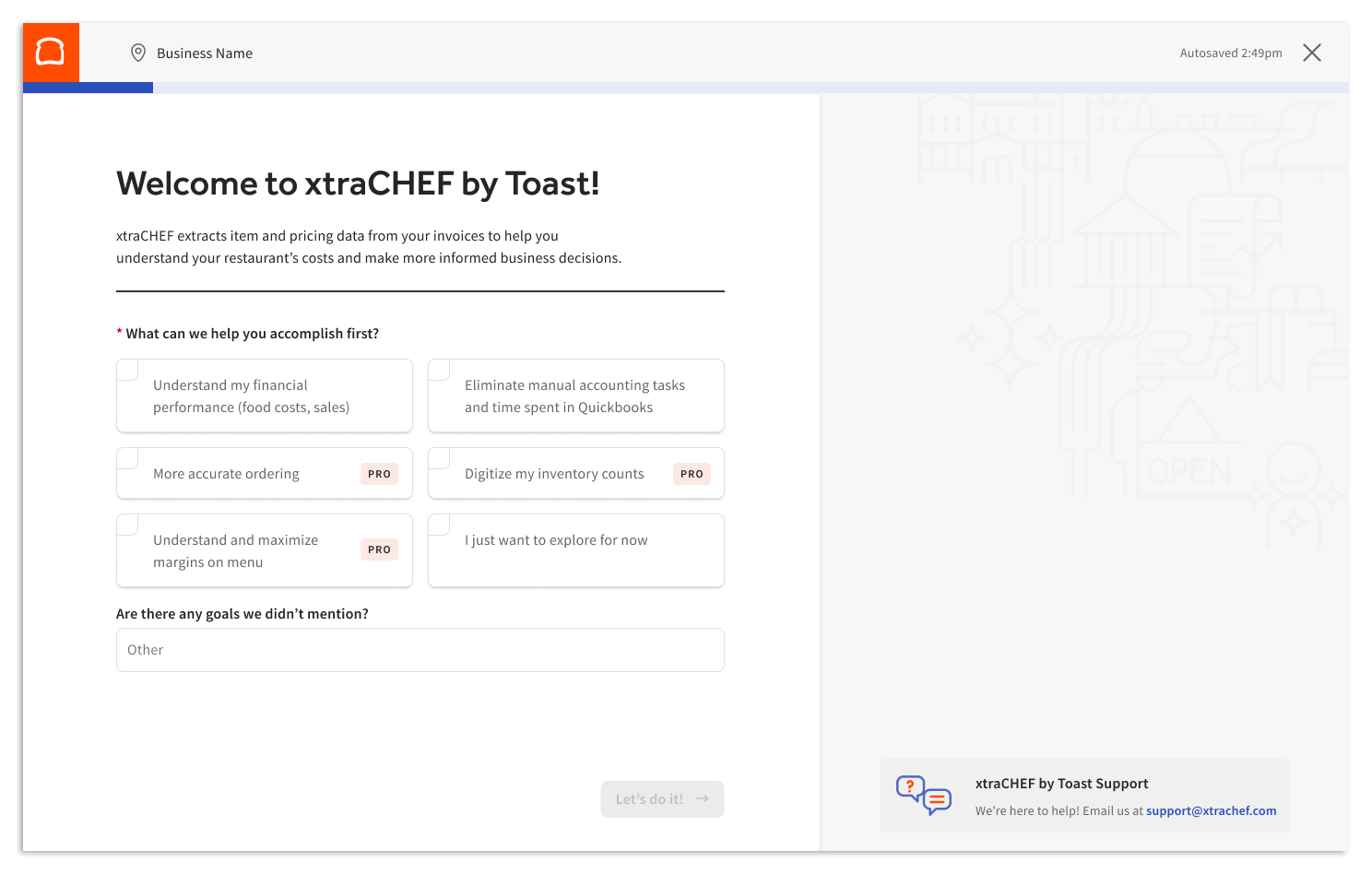
A continuación, verá una pantalla de bienvenida con algunas preguntas. Seleccionar las opciones que sean más aplicables a usted nos ayudará a entender sus objetivos y prioridades durante su proceso de incorporación a xtraCHEF.
Cuando termine, seleccione ¡Hagámoslo! para continuar.
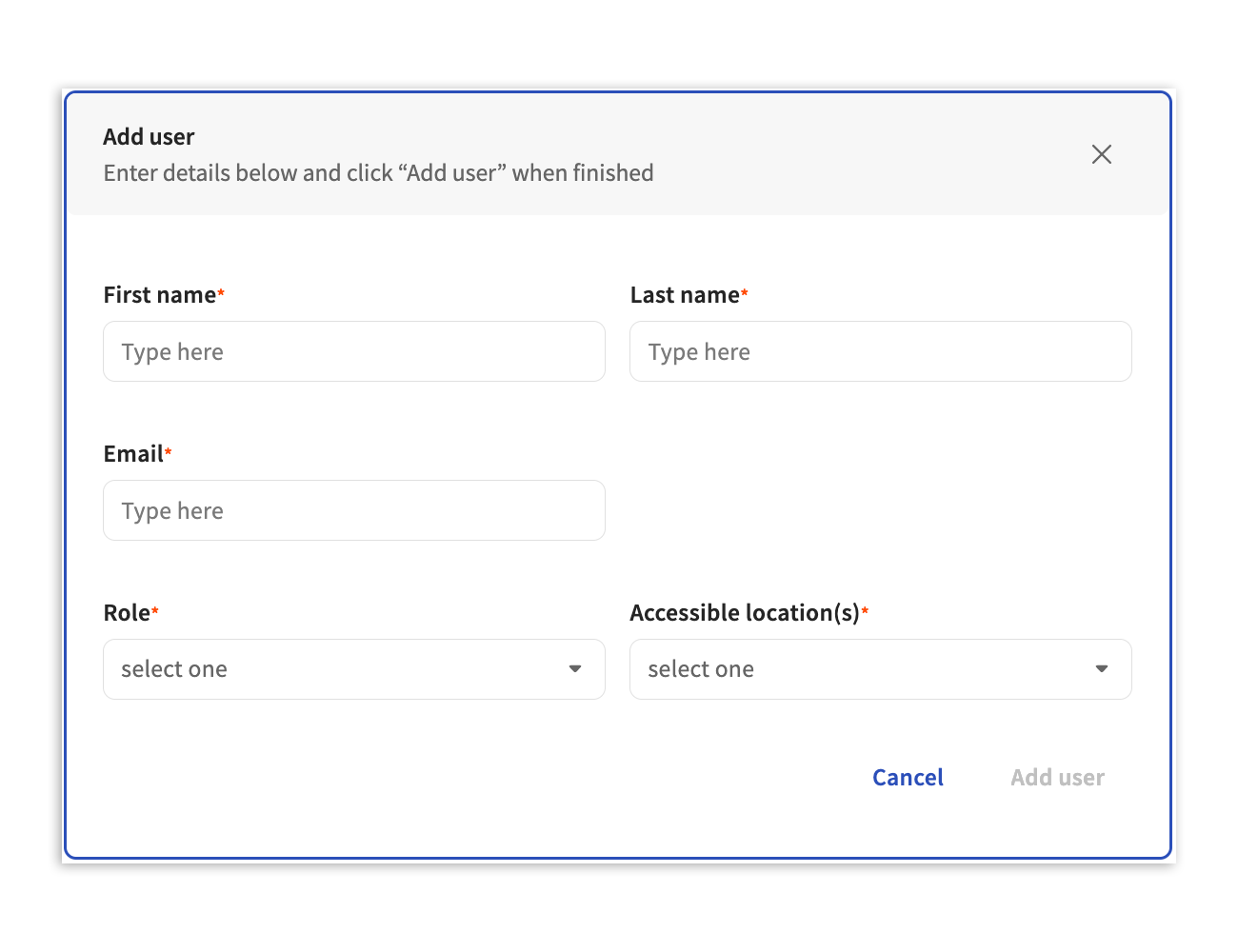
Paso n.º 5: Agregar usuarios
Una vez que esto se haya completado, usted aparecerá como el usuario principal, conocido como el propietario de la cuenta.
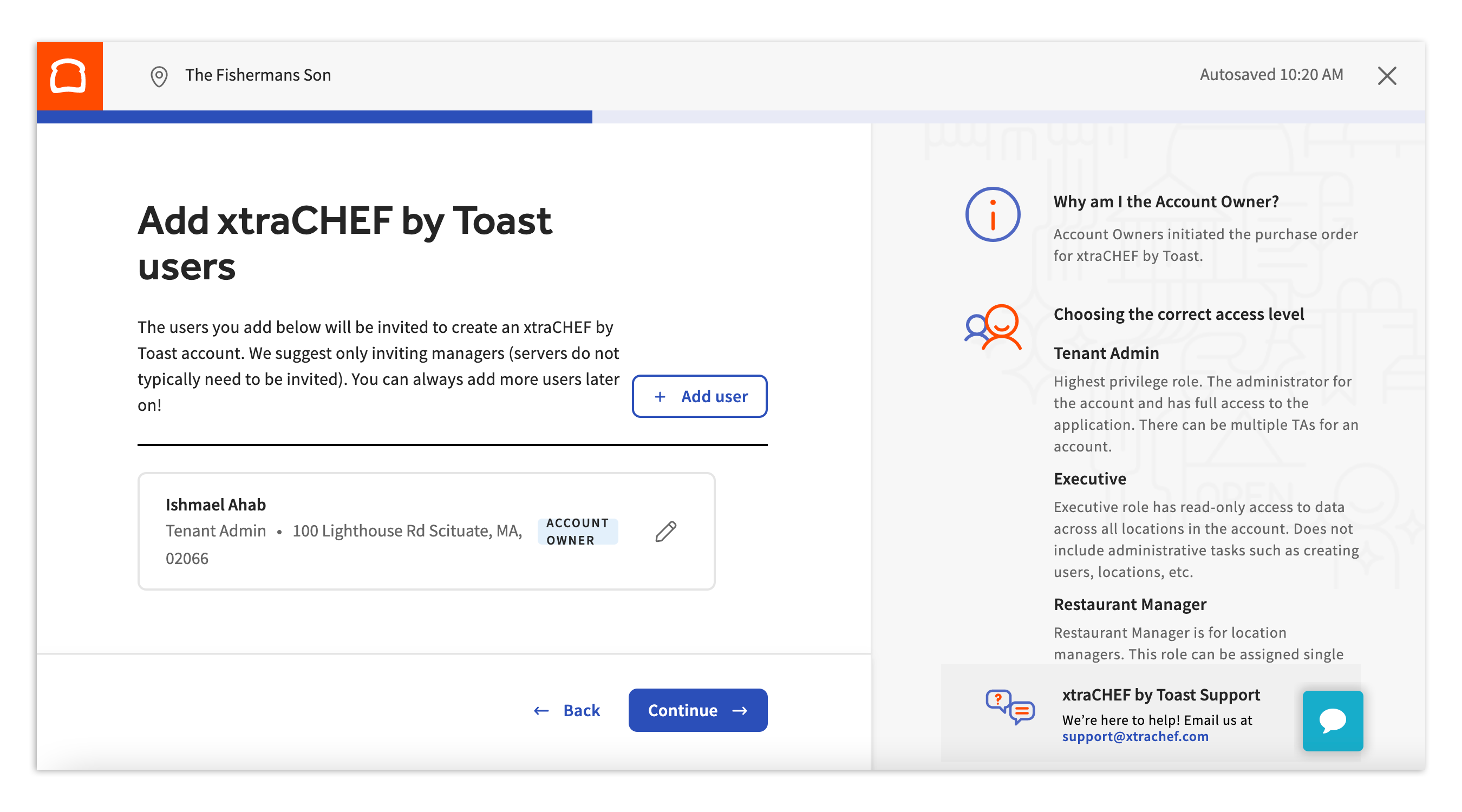
Seleccione +Agregar usuario para añadir cualquier usuario adicional que requiera acceso a este sistema (esto también se puede hacer más tarde). La información requerida se indica con los asteriscos rojos. El rol de usuario le otorga acceso a partes y funciones específicas dentro de xtraCHEF.
Paso n.º 6: Seleccione su software de contabilidad
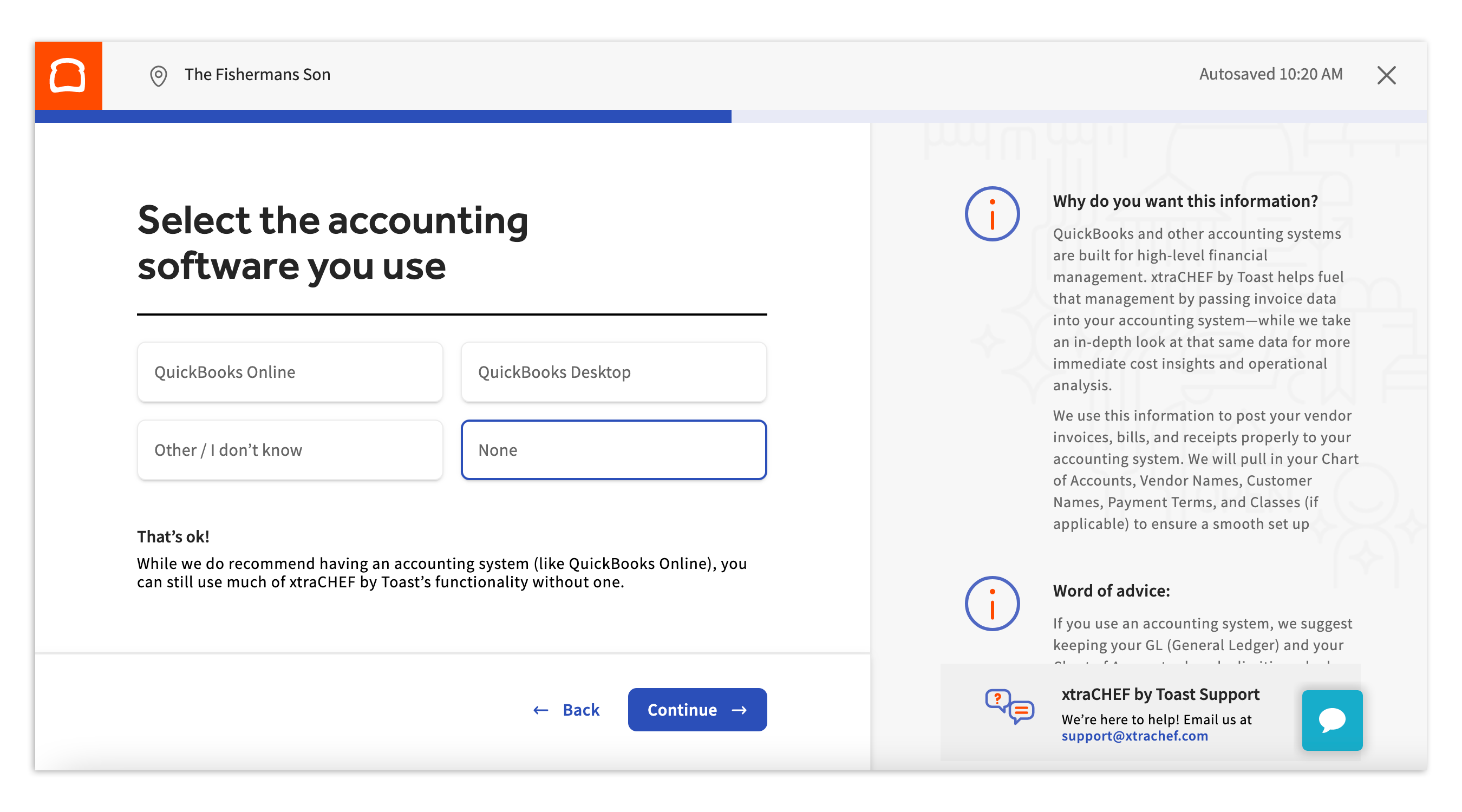
Una vez que se hayan ingresado los usuarios, el módulo de autoincorporación de xtraCHEF le pedirá que se sincronice con su software de contabilidad. Seleccione entre opciones como QuickBooks Online, QuickBooks Desktop, Otro/ No lo sé, y Ninguno.
Paso n.º 7: Empareje las categorías de ventas con los grupos de COGS (costo de los bienes vendidos)
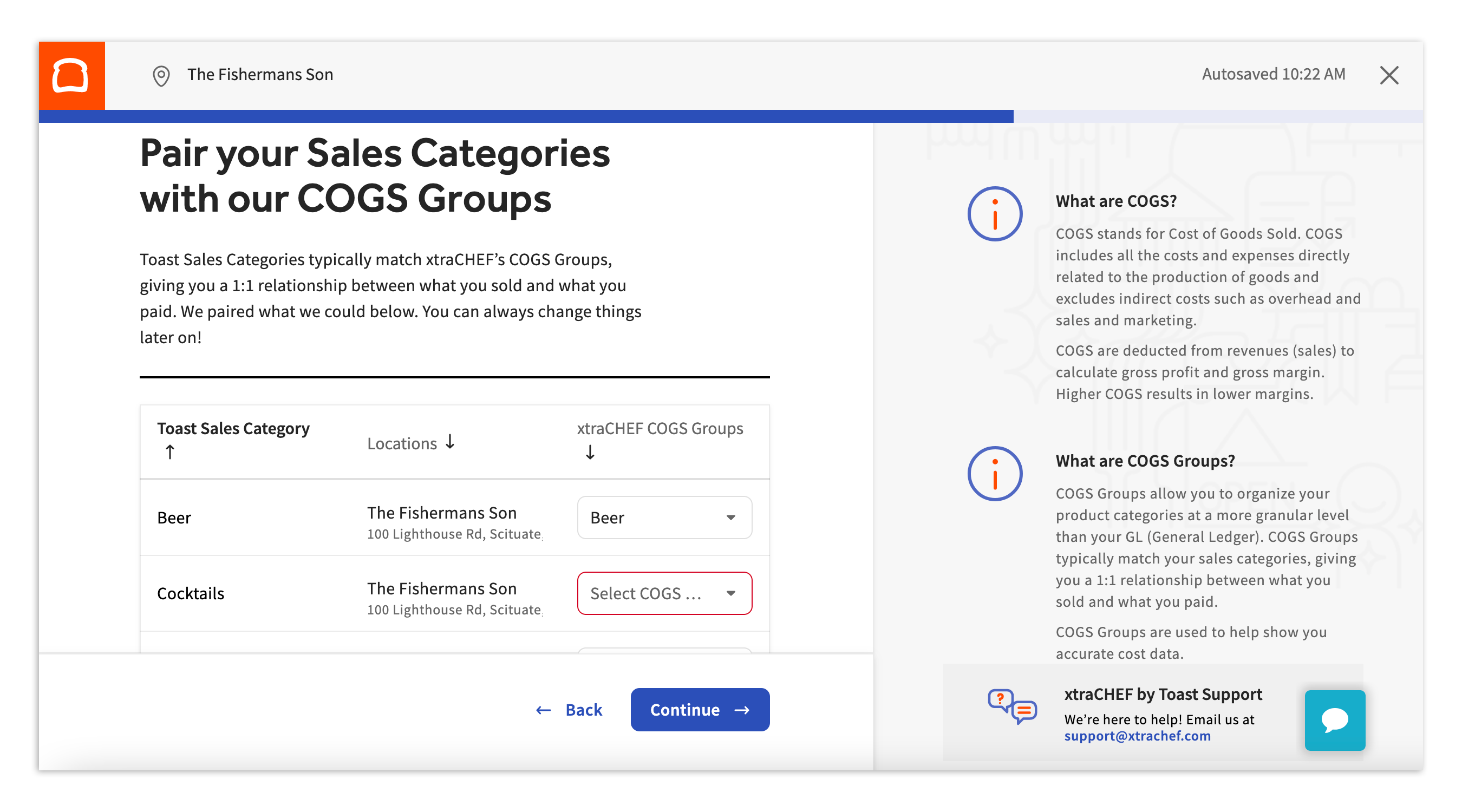
El siguiente paso le pide que haga coincidir sus categorías de ventas de Toast con sus grupos de COGS de xtraCHEF. Varias categorías de ventas pueden incluirse en un mismo grupo de COGS. Tenga en cuenta que puede cambiar esta configuración después de terminar el módulo de autoincorporación.
Paso n.º 8: Cargue sus facturas
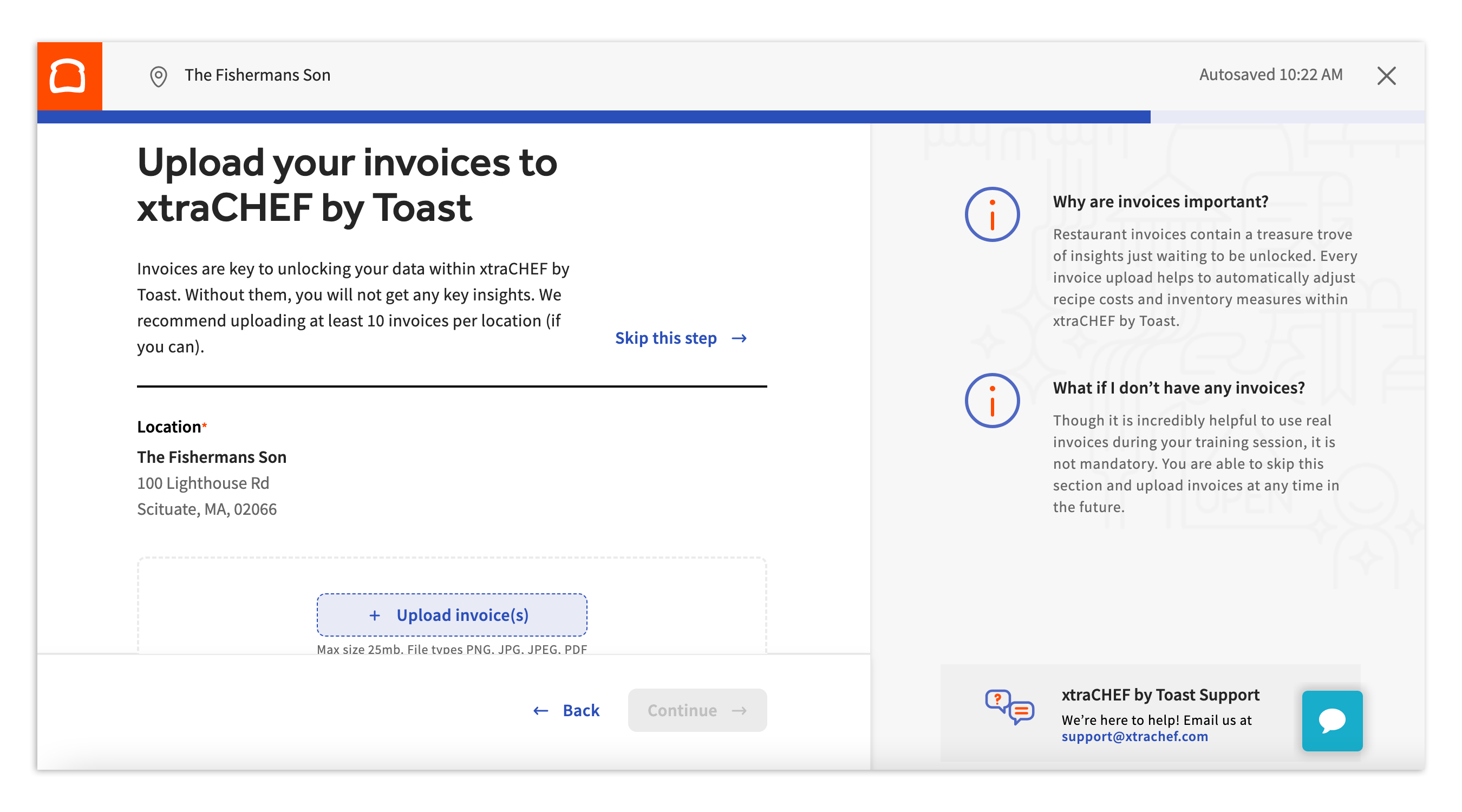
El último paso le pide que cargue facturas recientes al sistema xtraCHEF. Estas facturas proporcionarán datos para que el sistema comience a generar informes y también le darán a nuestra herramienta de IA una idea de cómo leer sus facturas, lo que hará que las cargas sean más rápidas a medida que continúe agregando más. También facilita su capacitación inicial. Puede omitir este paso si es necesario, pero es altamente recomendable.
Nota: Agregar 10 o más facturas por ubicación le permite "desbloquear sus datos" dentro de xtraCHEF.
¡Felicidades! Ha completado el módulo de autoincorporación para xtraCHEF. Ahora debe asistir a la clase de capacitación, agregar usuarios adicionales y continuar con la carga de facturas.