获取 Toast 厨房打印机的帮助
上次更新时间:2026年10月20日 10:51
当您的 Toast 厨房打印机 (TKP300) 无法打印、无法连接或打印不正确时,请对其进行故障排除。涵盖电源、网络、配置和常见的打印质量问题。
- 开始之前
- 概览步骤
- 快速修复
- 首先尝试 30 秒断电重启
- 第 1 步:确认打印机已通电
- 第 2 步:打印测试单并读取网络信息
- 第 3 步:检查 DHCP 是已启用还是已禁用
- 第 4 步:解决网络或配置问题
- 第 5 步:解决打印质量问题
- 第 6 步:检查票据是否发送到了错误的打印机
- Toast厨房打印机按钮和状态指示灯
- 在联系客户服务之前
- 常见问题解答
- 相关文章
开始之前
适用于:Toast厨房打印机 (TKP300) | 所需权限:访问Toast Web以进行打印机配置。经理级POS访问权限,以使用设备设置和打印机设置。
您将完成以下操作:让您的Toast厨房打印机恢复打印票据,或收集客户服务部门为您提供帮助所需的信息。
注意:
- 正在寻找全新打印机的设置指南?请参阅Toast厨房打印机快速入门指南。本文涵盖设置后的故障排除。
- Toast厨房打印机必须连接到Toast的增强安全网络才能打印。如需确认,请参阅验证您的互联网连接。
概览步骤
开始之前:确认您的 Toast POS 设备、Toast 厨房打印机和路由器已通电并处于同一网络中。您需要能够接触到打印机的电源线和以太网线。
最快捷的修复方法可解决大多数厨房打印机问题:
- 从打印机上拔下电源线和以太网线
- 等待 30 秒
- 重新插上两条线缆并开启打印机电源
- 重试打印
如果这无法解决问题,请使用下方的“快速修复”表确定具体症状,然后按照对应的步骤操作。
快速修复
| 症状 | 最常见原因 | 快速修复 | 自助服务? |
|---|---|---|---|
| 打印机无法开机 | 电源线松动、插座损坏或电源适配器故障 | 若要修复无法开机的打印机:重新插好电源线,尝试更换插座,或使用已知正常的电源线进行测试。完整步骤:请参阅 步骤 1:检查电源连接。 | 是 |
| 打印机已开启但无法打印 | 网络连接或配置问题 | 如果打印机已开启但因网络连接或配置问题而无法打印,请打印一张测试票以读取 IP 地址,然后解决网络设置问题。完整步骤:请参阅 第 2 步:验证网络配置如下。 | 是 |
| 票为空白或打印异常 | 纸张错误、卡纸或色带安装不正确 | 要解决因卡纸、纸张错误或色带设置不正确导致的票空白或打印异常问题:请重新装入纸张,检查色带,并确认您使用的是单层或双层纸。完整步骤:请参阅 第 5 步:检查纸张和色带如下。 | 是 |
| 票打印到了错误的打印机或所有打印机上 | 备餐站分配缺失或不正确 | 如果票因为备餐站分配缺失或不正确而打印到了错误的打印机或所有打印机上,请登录您的仪表板以确认并更新您的备餐站分配。完整步骤:请参阅 第 6 步:配置备餐站分配如下。 | 是 |
| 打印机发出爆裂声或研磨声 | 硬件故障 | 如果打印机因内部硬件故障而发出爆裂声或研磨声,请立即关闭打印机电源。联系前的准备步骤:请参阅下方的 联系客户服务前。 | 否 |
| 打印内容褪色、缺失线条或字母断裂 | 打印头磨损或色带问题 | 要修复因打印头磨损或色带问题导致的打印褪色、线条缺失或字母断裂,请重新安装色带并仔细清洁打印头。完整步骤:请参阅 第 5 步:检查纸张和色带如下。 | 有时 |
| 每次安装时色带都会断裂 | 硬件故障 | 如果色带因持续的硬件故障而每次安装时都会断裂,请在联系支持人员之前查看联系要求。准备步骤:请参阅下方的联系客户服务之前。 | 否 |
首先尝试30秒电源循环
大多数厨房打印机问题都可以通过对打印机进行电源循环来解决。
- 从打印机上拔下电源线和以太网线。
- 等待30秒。
- 重新插上两条线缆并开启打印机电源。
- 重试打印。
预期结果:打印机打印出队列中的票据。如果仍然无法打印,请继续执行第1步。

如果您正在从终端进行打印:请确认终端是如何连接到网络的。如果通过以太网连接,请确保已禁用Wi-Fi。如果通过Wi-Fi连接,请确保连接到了正确的Wi-Fi网络。(为了获得最佳稳定性,建议终端通过以太网线连接到网络。)
如果您正在使用手持设备进行打印:请确认手持设备连接的是正确的 Wi-Fi 网络。请参阅 在您的 Toast 设备上忽略网络。
如果打印出的收据为空白:请确认您使用的是正确的纸张,并且纸张安装正确。请参阅 打印机纸卷和色带。
第 1 步:确认打印机已通电
如果按下电源开关时电源指示灯未亮起,请按照以下步骤操作。
- 确认线缆已完全插入插座,并紧密连接到打印机背面。
- 确认电源块线缆已完全插入打印机。请注意,您需要取下盖子才能接触到打印机的这一部分。
- 电源块
- 盖子
- 电源块线缆
- 拨动电源开关以开启打印机。
- 如果打印机仍然无法开启,请尝试将其连接到餐厅内的其他插座。
- 如果仍然无法开启,请尝试更换一根电源线。Toast 厨房打印机使用标准电源线;您可以从办公打印机上拔下一根进行测试。
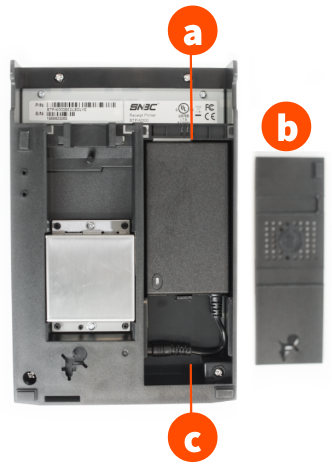
预期结果:电源指示灯亮起。打印机已准备好进行打印。
如果打印机仍然无法开启,请参阅 联系客户服务之前 并参考代码 #519。
第 2 步:打印测试单并读取网络信息
测试单确认打印机已通电、纸张装载正确,并且打印机可以进行物理打印。它还会打印出打印机的网络信息(DHCP 状态和 IP 地址),您在第 3 步和第 4 步中需要用到这些信息。
- 使用电源开关关闭打印机。
- 按住进纸按钮,同时拨动电源开关以重新开启打印机。
- 将打印出一张测试单,显示打印机的 IP 地址和 DHCP 状态。
注意:如果 IP 地址为 0.0.0.0,则说明打印机未连接到您的网络。请在此处停止并跳至 第 4 步(网络问题),在进行任何软件更改之前解决硬件和布线连接问题。
预期结果:打印出一张测试单,显示 IP 地址和 DHCP 状态。
如果无法打印,请参阅 联系客户服务之前 并参考代码 #521。
如果打印出测试单,请继续执行 第 3 步。
第 3 步:检查 DHCP 是启用还是禁用
仅当您的打印机具有有效的 IP 地址(例如 192.168.x.x)时,才可在此处继续。请从您在 第 2 步 中打印的测试单中读取 DHCP 状态。
如果启用了 DHCP
(打印机已设置为动态 IP 地址 — 这是自 2021 年 6 月起从 Toast 发出的所有打印机的默认设置):
- 在 Toast Web 中,导航至 Toast Web > 财务 > 相关 > 设置 > 打印机和钱箱。
- 点击名称,打开 Toast 厨房打印机的配置。
- 确认“序列号”字段已填入打印机的序列号。
- 确认“IP 地址”字段为空。
- 如果两个字段都已填入,请删除 IP 地址。保存并发布您的更改。
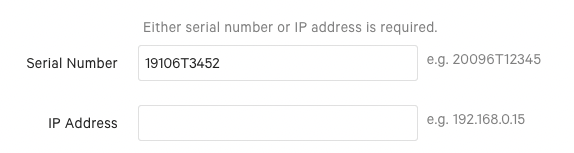
如果 DHCP 已禁用
(打印机已设置为静态 IP 地址):
- 在 Toast Web 中,导航至 Toast Web > 财务 > 相关 > 设置 > 打印机和钱箱。
- 点击打印机名称,打开 Toast 厨房打印机的配置。
- 确认“序列号”字段为空。
- 确认“IP 地址”字段已填入测试单上的 IP 地址。
- 如果两个字段都已填入,请删除序列号。保存并发布您的更改。
- 要更改打印机的静态 IP 地址,请参阅“更改 Toast 打印机的静态 IP 地址”。
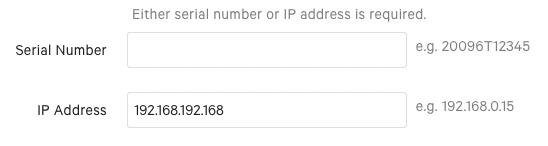
预期结果:Toast Web 打印机配置与测试单上的 DHCP 状态一致。
第 4 步:解决网络或配置问题
读取您在 第 2 步 中打印的测试单上的 IP 地址。
如果 IP 地址是一串零(网络问题)
IP 地址为“0.0.0.0”表示打印机未连接到网络。在恢复物理连接之前,请勿尝试进行终端测试打印。
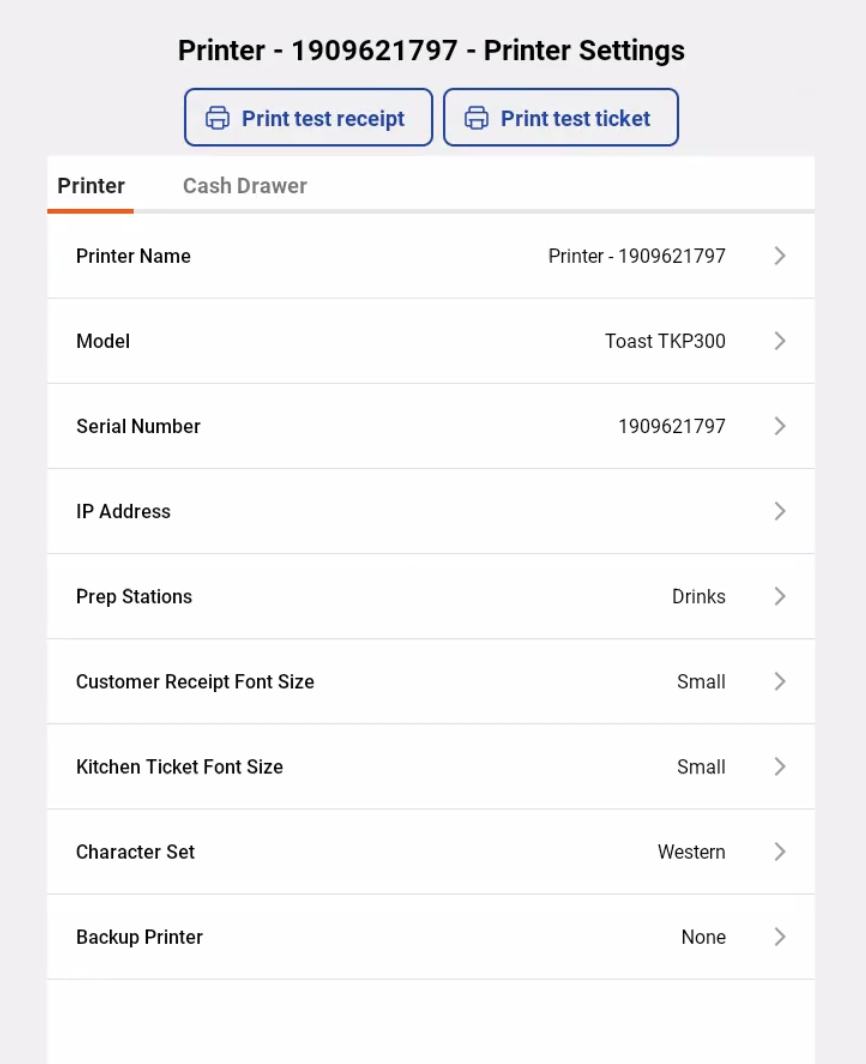
- 在您的终端上,导航至 设备设置 > 打印机设置。
- 确认 Toast 厨房打印机显示在“我的打印机”列表中。它很可能会显示为“离线”。
- 选择该打印机并选择 打印测试收据。如果您在厨房使用此打印机,请改为选择 打印测试票。
- 如果打印出了收据或票,请按照下一节中的配置步骤进行操作。
- 如果无法打印,请确认打印机、终端和手持设备是否在同一网络上。请参阅“在 Toast 设备上忘记网络”。
- 如果您正在使用 Toast Go® 手持设备进行打印,请将该设备连接到 Toast 安全 Wi-Fi 网络。如果您正在使用终端进行打印,请确认已启用 WLAN,并通过“设备设置”选择了正确的打印机。
- 再次尝试测试打印。
- 如果仍无法打印,请重置打印机上的以太网交换机。打开打印机门,按五次进纸按钮。打印机指示灯闪烁,表示重置完成。拔下并重新插入以太网电缆的两端,然后将打印机关机两分钟,再重新开机。
- 检查打印机以太网端口上的绿灯。如果绿灯未闪烁,请重置路由器以刷新网络连接。
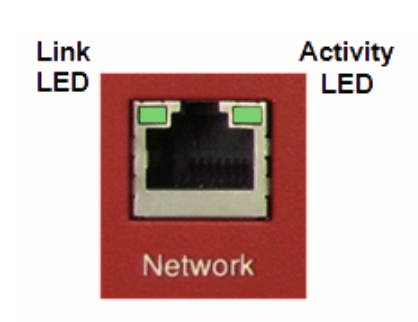
预期结果:打印机的以太网端口绿灯闪烁,终端会打印出一张测试票。
如果您仍然无法进行测试打印,请参阅在联系客户服务之前并参考代码 #514。
如果IP地址有实际数字(配置问题)
如果测试单上的IP地址有一系列数字(如 192.168.1.X),则说明打印机已连接到网络,但在 Toast 中未正确配置。
- 在您的终端上,进入设备设置,确认 Toast 厨房打印机已设置为该终端或设备的收据打印机。
- 如果打印机用于备餐站,请确认该打印机已分配给备餐站。请参阅配置和分配备餐站。
- 如果您的餐厅使用非打印备餐站(例如用于吧台终端),则票据将不会打印。导航至终端上的设备设置并进行确认。如果您希望此备餐站打印票,请在非打印备餐站下方选择无。
- 确认您的餐厅没有超过一台自动开始烹饪设备。要进行检查,请导航至每台设备上的设备设置,并确认仅有一台设备启用了订单自动开始烹饪。请参阅设置订单自动开始烹饪。
- 从您的打印机打印一张测试收据或票以确认修复情况。
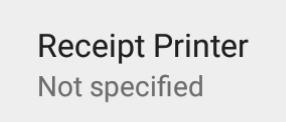
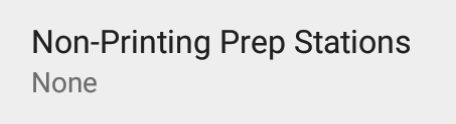
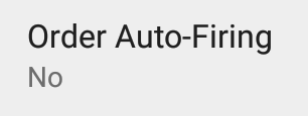
预期结果:测试票从正确的打印机打印出来。
第5步:解决打印质量问题
如果您的打印机打印出空白票、褪色票,或者票据出现漏行或字母断裂的情况,请使用本节。
- 确认您使用的是 1 层胶版纸或 2 层无碳 3 英寸宽收据打印机纸。请勿使用热敏纸。请勿使用 3 层纸——这可能会导致保修失效。请参阅 打印机纸卷和色带。
- 打开打印机盖并检查是否有卡纸。
- 确认色带(ERC-38 墨盒)已完全安装。在两侧均匀向下按压,直到听到咔哒声。
- 顺时针转动墨盒上的旋钮一到两整圈,将新色带卷入机器。
- 确认色带与 Toast 厨房打印机兼容。请参阅打印机纸卷和色带。
- 如果色带已用尽,请更换色带。
预期结果:打印出的票据清晰,菜单项为黑色,修改项为红色。
如果更换色带并确认纸张后,票据仍然打印空白、褪色或出现漏行,则打印头可能已磨损。请参阅 联系客户服务之前。
第 6 步:检查票据是否发送到了错误的打印机
如果打印机已通电、有纸且能打印测试单,但厨房票据未在预期的打印机上显示,则问题很可能是票据路由设置,而非打印机硬件故障。
路由问题的常见迹象:
- 厨房票据打印在了前台打印机上
- 一个菜单项在厨房打印,而另一个没有打印
- 票据会在餐厅的每台打印机上打印
- 饮料即使不应该在厨房打印机上打印,却依然打印了出来
要解决路由问题,请参阅:
- 为什么我的厨房票据没有打印?
- 票据打印到每台打印机
- 配置并分配准备工作站
预期结果:票据会路由到每个项目对应的正确打印机。
Toast 厨房打印机按钮和状态指示灯
使用此参考指南来识别 Toast 厨房打印机上的按钮和指示灯。
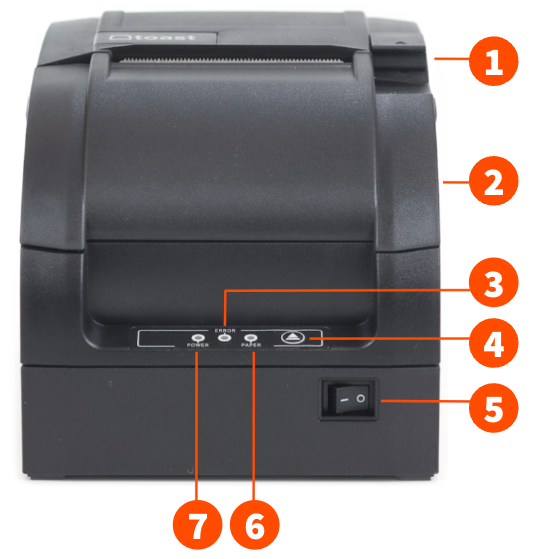
Toast 厨房打印机组件:
- 打开锁扣(用于添加纸张和更换色带)
- 前盖
- 错误指示灯
- 进纸按钮
- 电源开关
- 缺纸错误指示灯
- 电源指示灯
Toast 厨房打印机使用指示灯和蜂鸣器来提醒您出现错误。
| 指示灯 | 功能 |
| 错误 | 在错误状态下,错误指示灯闪烁 |
| 纸张 | 在纸张将尽状态下,纸张指示灯常亮 |
| 电源 | 当打印机开启时,LED指示灯常亮 |
| 错误 | 蜂鸣器 | 指示灯 |
| HP错误 | 间隔蜂鸣 | 错误指示灯间隔闪烁——若要清除,请按住进纸按钮60秒 |
| 打印头过热 | 蜂鸣六声 | 错误指示灯闪烁六次 |
| 切纸刀错误 | 蜂鸣四声 | 错误指示灯闪烁四次 |
| 纸张将尽 | 蜂鸣两声 | 纸张LED灯亮起,且错误LED灯闪烁一次 |
在联系客户服务部之前
某些Toast厨房打印机问题需要客户服务部核实设备或安排更换。如果您在完成第1至5步后出现以下任何情况,请联系客户服务部:
- 在重新插拔线缆并测试了不同的插座和线缆后,打印机仍无法开机(参考代码 #519)
- 打印机已开机但无法打印测试单(参考代码 #521)
- 在重置以太网交换机和路由器后,您仍无法进行测试打印(参考代码 #514)
- 打印机发出爆裂声、磨损声或其他异常噪音,且无法打印
- 色带每次安装时都会断裂
- 即使更换了新色带并清洁了打印头,打印内容依然模糊或出现跳行
- 您遇到了关于修饰符颜色、预修饰符行为或Toast Web设置的问题,且本文未提供解答
在联系客户服务部之前,请准备好:
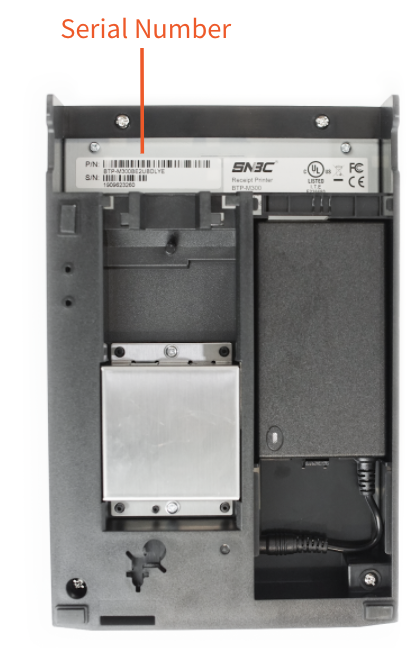
- 打印机的序列号(位于打印机底部)
- 上述步骤中提到的参考代码(如有)
- 确切的故障现象(您看到、听到或未看到的情况)
- 您正在从哪台Toast设备进行打印(终端、Toast Go®手持设备或KDS)
- 餐厅内的其他打印机是否正常工作
如需联系客户服务部,请参阅“如何联系客户支持”。
常见问题解答
Toast厨房打印机使用什么类型的纸张?
Toast 厨房打印机使用 1 层胶版纸或 2 层无碳 3 英寸宽收据打印机纸。它不使用热敏纸。
注意:请勿在 Toast 厨房打印机中使用 3 层纸。3 层纸可能会导致保修失效。
有关购买详情,请参阅 打印机纸卷和色带。
Toast 厨房打印机使用哪种类型的色带?
Toast 厨房打印机使用标准的 ERC-38 墨盒(也称为色带)。它可以从各种在线渠道购买。
有关购买详情,请参阅 打印机纸卷和色带。
Toast 厨房打印机可以以不同颜色打印修饰符吗?
Toast 厨房打印机默认以黑色打印菜单项,以红色打印修饰符。这由色带控制,色带同时包含黑色和红色墨水。
如果票打印出的颜色混合,则可能是色带安装不正确。打开打印机并重新安装色带——均匀按下两侧,直到听到咔哒声。有关色带安装的详细信息,请参阅 Toast 厨房打印机快速入门指南。
注意:预修饰符行为(预修饰符如“On-Side”或“No”是否以红色打印)由 Toast Web 设置控制,而非由打印机控制。导航至 Toast Web > 厨房 > 打印机、票和 KDS 设备 > 厨房和票设置 > 向下滚动至 打印的票 > 默认修饰符以黑色打印。目前没有设置可以强制预修饰符以红色打印——这是产品行为,而非打印机问题。
我在哪里可以找到 Toast 厨房打印机的序列号?
序列号位于打印机底部,靠近顶部边缘。
为什么我的 Toast 厨房打印机打印空白或打印异常?
打印空白或异常是由以下三种原因之一引起的:纸张类型错误、纸张或色带安装问题,或色带磨损。请参阅 第 5 步:解决打印质量问题以获取完整的故障排除流程。
我的小票显示的货币不正确。我该如何修复?
要更改小票上的货币,请在打印机设置中配置语言包设置。请参阅 配置您的打印机以显示欧元。
为什么我的厨房打印机在已接通电源的情况下显示为未连接?
如果打印机显示为未连接,但线缆看起来连接稳固,则可能是线缆未完全插入。重新插拔电源线的两端——打印机侧和插座侧。确认电源适配器上的绿灯亮起。如果打印机仍然显示为未连接,请按照 第 1 步:确认打印机已通电进行操作。
为什么我的小票打印在黄色纸张上,而不是白色纸张上?
这是一个双层纸问题。使用双层无碳复写纸时,顶层纸张为白色,下方的复写副本为黄色。如果您只看到黄色纸张上有打印内容,可能是纸卷装反了,或者色带没有与白色纸张接触。重新安装纸卷并重新安装色带。请参阅 第 5 步:解决打印质量问题。
相关文章
- Toast 厨房打印机快速入门指南
- 获取帮助:我的打印机无法工作
- 获取帮助:排查打印机错误消息
- 打印机纸卷和色带
- 获取有关 Epson 厨房打印机 TM-U220B 的帮助
- BTP-M300 用户手册