上次更新时间:2025年12月17日 11:15
Which employees are included in my Toast Payroll invoice? Where can I see the list of active employees?
If you are billed on a per employee per month basis, you will be charged based on the number of active employees at the time of your first check date of each month, regardless of whether each active employee is paid or not.
During Payroll
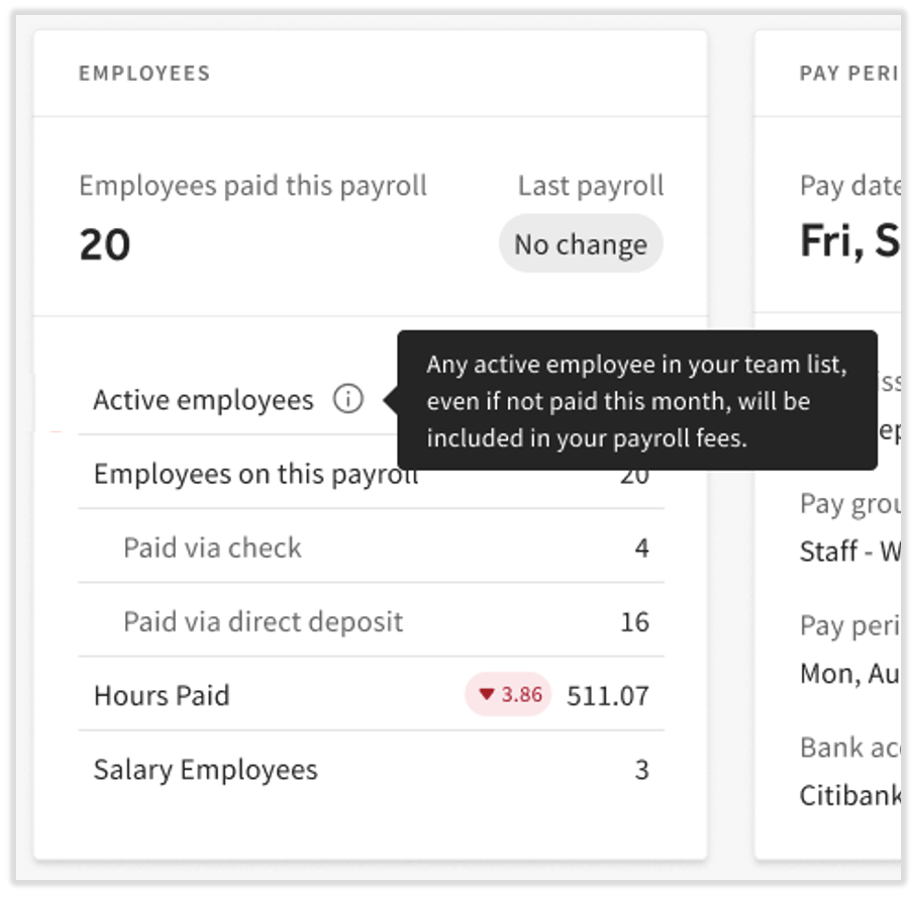
NEW! For every payroll run that includes the first check date of the month, Toast Payroll has added the number of active employees to each payroll run and out of those, the number of employees who are not being paid on each payroll run. We will also display your monthly SaaS fees (based on the number of active employees in your database) and the associated sales tax.
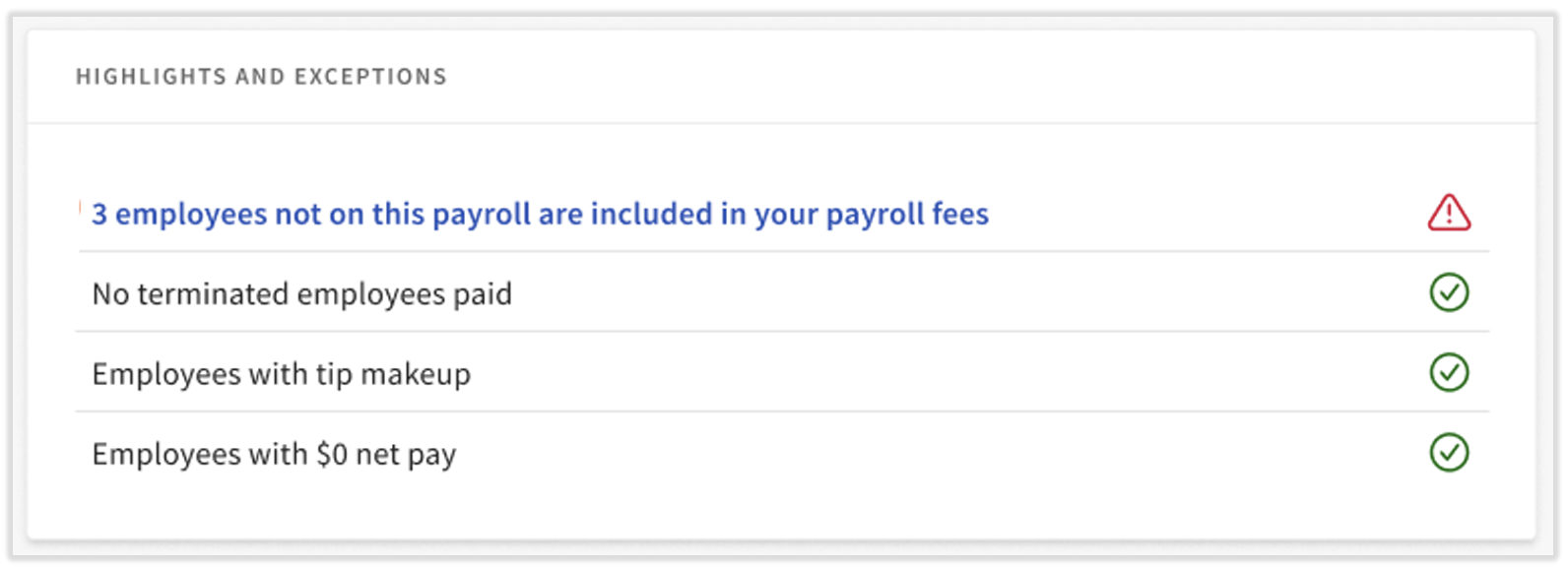
This guide begins on the , the third step of payroll. The number of active employees will be in the Employees tile and, if applicable, a notification about the number of employees who aren't being paid will appear in the Highlights and Exceptions tile (select the link to see the employees). Use these numbers to manage your invoicing and the number of active employees in your database; make a when necessary. An example of each tile appears below.
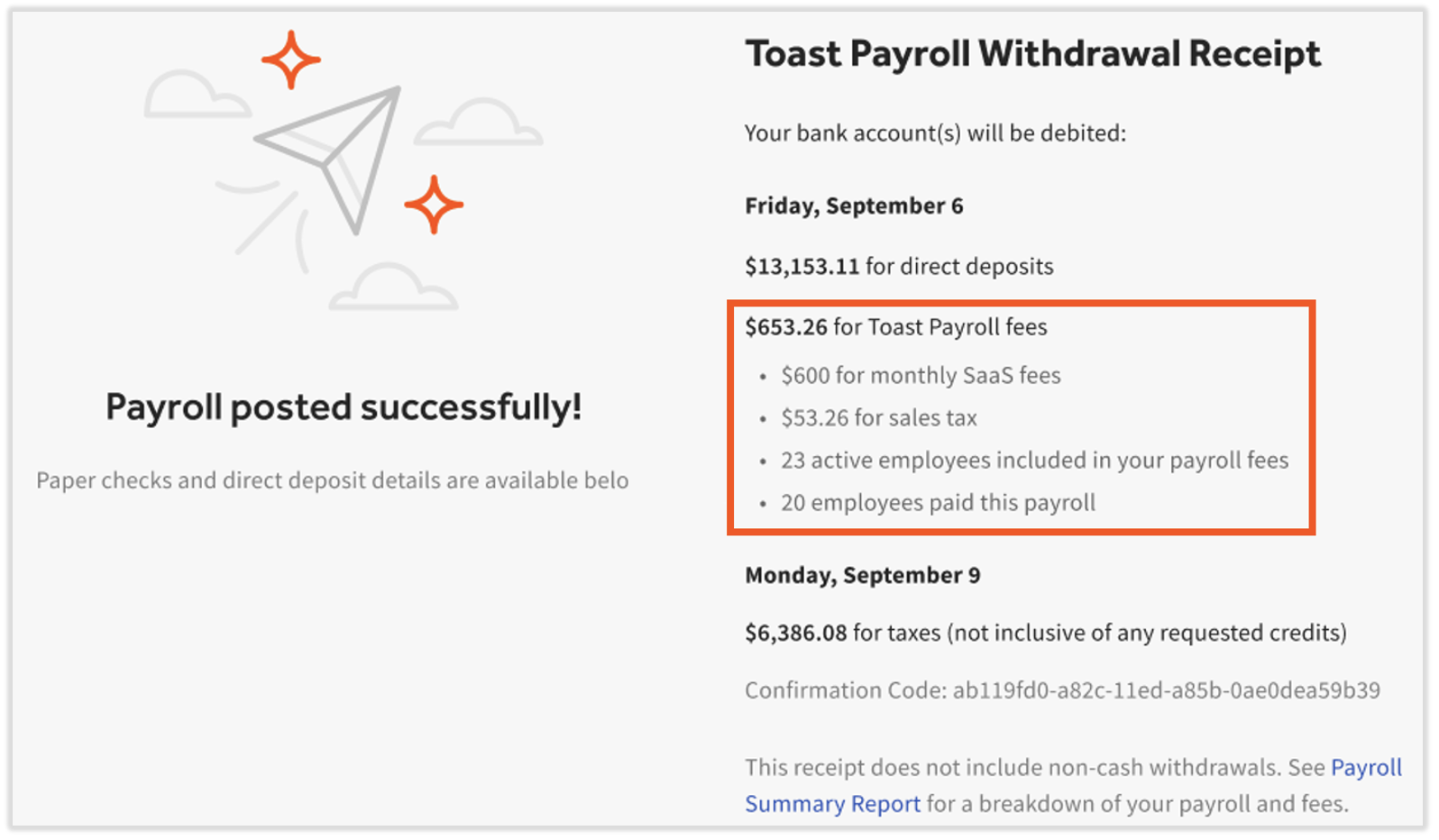
NEW! After you've selected the Submit Payroll button, you'll land on the Confirmation page. Within your Withdrawal Receipt, Toast Payroll added the amount of total fees. This includes a breakdown of your monthly SaaS fees (based on the number of active employees in your database) and the included sales tax. For reference, we include the same number of active employees and number of active employees who weren't paid on this payroll run here too. As a reminder, this data will only appear on the payroll runs which include the first check date of each month.
Outside of Payroll
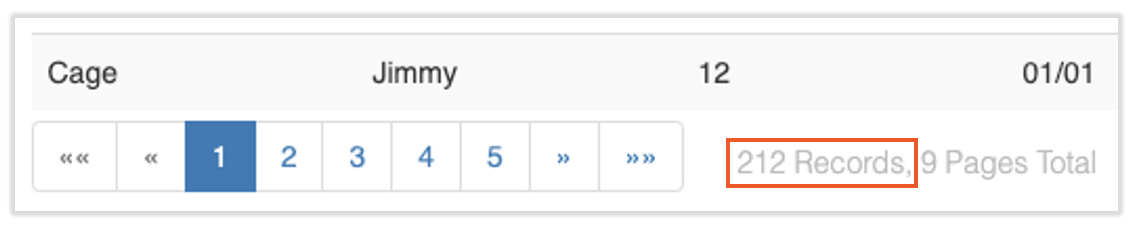
If you'd like to view the number of active employees at a given time, navigate to Reports > Standard and search for the Active Employee List (doing this on the same day as your first check date provides the most accurate results). Select the eyeball icon, select Queue, and then select the Submit button on the left. Scroll down to the bottom of the report and view the number of records next to the page selector. Any of the employees that were active on your first check date of the month will contribute to the per employee per month charge. This does not include employees with a status of leave of absence (LOA).