Toast Payroll:日期词汇表
上次更新时间:2026年10月13日 17:22
每个 Toast Payroll 日期的含义以及它如何控制员工、收入或扣除额是否计入工资单。
适用范围
本词汇表适用于在 Toast Payroll 中工作的经理和 HR+ 用户。此处描述的日期可在员工的 Toast Payroll 个人资料中找到——位于“职位详情”(Position Detail) 页面和“周期性”(Recurring) 页面上。如需更改这些日期,请参阅各章节中的链接文章;本词汇表仅解释每个日期的含义,不提供编辑该日期的导航路径。
快速日期检查
使用此表将您看到的内容与控制它的日期进行匹配。
| 症状 | 最常见原因 | 修复位置 |
| 新员工未出现在薪资单上,且无法添加至其中 | 职位开始日期或原始聘用日期在薪资周期的第一天之后 | 更新“职位详情”页面上的日期 — 请参阅 Toast Payroll:更新职位 |
| 受薪员工的薪资在当期看起来有所减少 | 职位开始日期在薪资周期中间,因此薪资按比例计算 | 确认“职位详情”页面上的职位开始日期正确无误 |
| 重新聘用的员工未被计入薪资单 | 调整后的聘用日期(由重新聘用设置)在薪资周期之后 | 确认重新聘用日期 — 请参阅 Toast Payroll:重新聘用指南 |
| 已离职员工的最终工时或薪资未被计入 | 薪资离职日期在薪资周期的支票日期之前 | 在员工离职日期仍在薪资周期内时,在“员工收入”步骤中添加该员工 |
| 新的周期性收入或扣款未应用于本次工资单 | 收入开始日期或扣款开始日期在下一次支票日期之后 | 更新员工“周期性”页面上的开始日期 — 请参阅 Toast Payroll:添加或编辑收入与扣款 |
| 周期性收入或扣款意外停止应用 | 收入结束日期或扣款结束日期在下一次支票日期之前 | 更新员工“周期性”页面上的结束日期 — 请参阅 Toast Payroll:添加或编辑收入与扣款 |
| 薪资变更未在预期的工资单中生效 | 薪资生效日期在工资单已打开/开始后才达到 | 在当前工资单中应用更改,或等待下一次工资单处理 |
哪个入职日期是哪个
客户通常将这些日期中的任何一个称为“入职日期”,但 Toast Payroll 会跟踪三个不同的日期,它们的作用各不相同。
- 职位开始日期 是员工 开始工作 担任特定职位的时间。拥有多个职位的员工可以为每个职位设置不同的职位开始日期。
- 原始入职日期 是员工 首次受雇 并开始整体就业的时间。
- 调整后的入职日期 通常为空。当被终止合同或休假的员工被重新聘用时,该日期会自动填充,并反映 重新聘用日期。
工资单终止日期也与一般终止日期(员工状态记录中其就业的最后一天)分开。工资单终止日期控制员工可以获得工资的最后一次工资单;一般终止日期记录其就业结束的时间。
员工开始日期
员工个人资料中最多有三个与入职相关的日期:职位开始日期、原始入职日期和调整后的入职日期。要查看这些日期,请导航至员工的 Toast Payroll 个人资料,选择主要职位右侧的 插入符号图标,然后在下一页选择 编辑。(通过访问 在 Toast Web 中导航 Toast Payroll 了解新的 Toast Payroll 导航的工作原理。)要更改这些日期中的任何一个,请选择更改原因(“行政更新”是一个常见的选择)。有关“职位详情”页面的完整演练,请参阅 Toast Payroll:更新职位。
未出现在工资单运行中的员工通常是因为这三个日期中的一个超出了相关的工资发放期。阅读下方的每个部分,确定要更新哪个日期,以便员工可以出现在工资单上或被添加到工资单中。
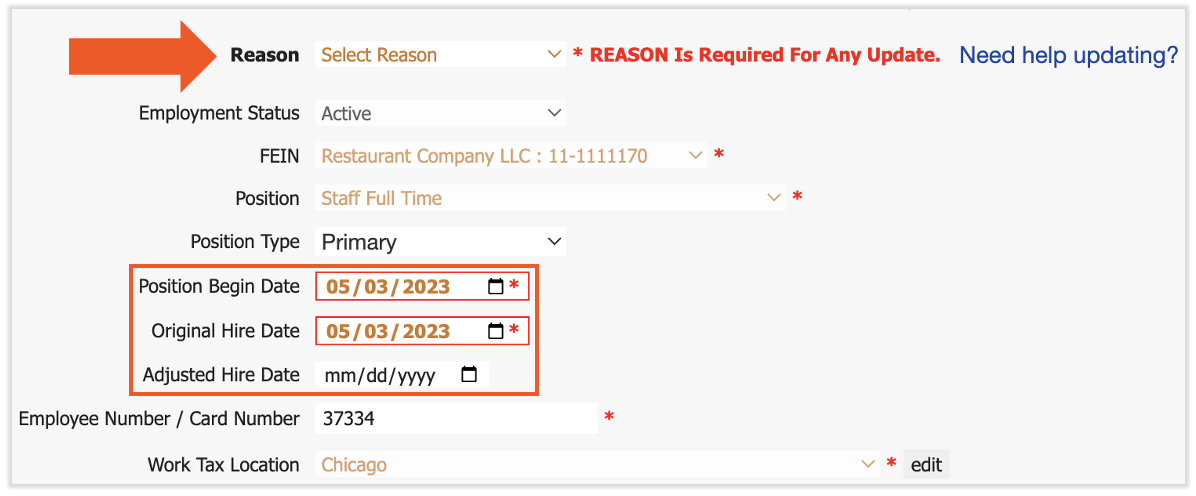
职位开始日期
职位开始日期是员工开始在该职位下工作的时间。如果员工被分配了多个职位,则每个职位的职位开始日期可能不同。更改此日期仅影响内部报告。
如果员工拥有一个新的或次要职位,且职位开始日期在工资发放期第一天或之前,他们就会出现在该工资单上。如果职位开始日期在工资发放期开始后的第二天或更晚,他们将不会出现在工资单上,也无法添加到该工资组中。将职位开始日期更新为工资发放期的第一天或更早,然后将员工添加到工资单中。
例如,如果员工于 5 月 14 日入职,而您的工资发放期于 5 月 12 日结束,则除非将其职位开始日期和原始入职日期调整为 5 月 12 日或更早,否则该员工无法出现在该工资单上。
注意:对于受薪员工,如果职位开始日期在工资发放期中间,则薪水会根据他们未参与工资发放期的天数按比例减少。例如,如果受薪员工的职位开始日期是5月2日,而每周工资周期是从5月1日到5月7日,那么他们会出现在工资单上,工资周期工时为32小时(40减去8),工资为全额工资的七分之六。这反映了他们在工资周期内的可用性,而不是工作时长。
原始入职日期
原始入职日期是员工首次被聘用并开始工作的时间。如果此日期在工资周期之后,则员工无法出现在该工资周期的工资单上。例如,如果员工的原始入职日期是2021年2月1日,而他们应该在2021年1月15日至1月31日的工资单上获得工资,除非日期更改为2021年1月31日或更早,否则系统不允许这样做。
调整原始入职日期也会影响休假(TAFW)和福利。员工在获得休假(TAFW)或福利资格之前通常有等待期,Toast Payroll使用此日期来确定资格。
调整后入职日期
调整后入职日期与原始入职日期的作用非常相似。在大多数情况下,该日期为空,但当被终止劳动合同或休假的员工重返工作岗位时,该日期会自动填充。当员工被重新聘用时,此日期反映的是重新聘用日期——请参阅 Toast Payroll:重新聘用指南。调整后入职日期对员工出现在特定工资单上的能力,以及休假(TAFW)和福利资格的影响,与原始入职日期相同。
工资终止日期
工资终止日期是被终止劳动合同的员工有资格获得工资的最后一次工资单的支票日期。在终止流程中,它是标记为“员工应获得工资的最后支票日期是什么?”的字段。它与员工的最后工作日是分开的。
如果终止流程在工资单开启前完成,请将工资终止日期至少设置为员工应获得工资的最后一次工资单的支票日期,否则员工将无法出现在工资单上。如果最终支票已经发放,请选择 员工已获得工资;该个人随后会显示在“员工收入”步骤中,收入为零。如果员工在工资单开启后完成离职,且无需支付工资,您可以手动将其移除——将其保留在工资单中不会造成任何问题。
只要前员工的离职日期在工资单的开始和结束日期范围内,仍可将其添加到工资单中。在“员工收入”步骤中添加他们。一旦包含离职日期的工资周期结束,该员工将不再自动出现在未来的工资单中。有关完整的离职流程,请参阅 在 Toast Web 或 Toast Payroll 中终止或归档员工。
收入开始日期
收入开始日期位于员工个人资料的“经常性”页面下。如果新的经常性收入的开始日期在下一次支薪日期当天或之前,则该收入将在该工资单中生效。如果开始日期在下一次支薪日期之后,则该收入不会出现在该工资单上,必须手动添加。要添加或更改经常性收入,请参阅 Toast Payroll:添加或编辑收入与扣款。
收入结束日期
收入结束日期位于员工个人资料的“经常性”页面下。如果经常性收入的结束日期在下一次支薪日期之前,则该收入将不再出现在工资单上。如果结束日期在下一次支薪日期当天或之后,则该收入将保留在工资单上。要恢复已停止的收入,请将结束日期更改为下一次支薪日期当天或之后。
扣款开始日期
扣款开始日期位于员工 Toast Payroll 个人资料的 经常性 > 扣款 下。(通过访问 在 Toast Web 中导航 Toast Payroll 了解新的 Toast Payroll 导航功能的工作原理。)如果新的经常性扣款的开始日期在下一次支薪日期当天或之前,则该扣款将在该工资单中生效。如果开始日期在下一次支票日期之后,则该扣款不会出现在该工资单上,必须手动添加。
要停止循环扣款,使其不会在即将到来的工资单中扣除,请将其结束日期设置为在该工资单的支票日期之前。要添加、更改或结束循环扣款,请参阅 Toast Payroll:添加或编辑收入与扣款。
注意:扣款是根据其扣除的支票日期记录的,而不是根据工资周期日期。这决定了扣款在税务申报中属于哪个季度。有关季度时间安排的更多信息,请参阅 Toast Payroll:收入和扣款时间安排。
薪资生效日期
薪资生效日期控制薪资变更的适用时间。该变更适用于在薪资生效日期之后开启的第一个工资单。如果薪资生效日期在工资单开启之前,则该变更在当期工资单上生效。如果它在工资单已经开启之后生效,则该变更在下一个工资单上生效,并且可能需要在当前工资单中手动添加。
福利开放注册日期
如果您使用经典福利模块,系统在自动创建工资扣款时会查看新员工资格日期和计划开始日期。扣款根据计划开始日期和福利等级规则开始。由此产生的扣款遵循与其他任何扣款相同的时间安排——请参阅上方的 扣款开始日期 部分。
常见问题解答
为什么新员工没有出现在工资单上?
当新员工的职位开始日期或原始入职日期在工资周期第一天之后时,该员工不会出现在工资单上。系统不会将他们识别为在入职类型日期之前开始的周期内的员工。将职位开始日期和原始入职日期更新为薪资周期的第一天或更早日期,然后将该员工添加到工资单中。请参阅 Toast Payroll:更新职位。
其他常见问题:
-
- 为什么该员工没有出现在工资单上?
- 我该如何将新员工加入工资单?
- 我员工的工时没有提取到工资单中,这是为什么?
为什么循环扣款或收入未应用于此工资单?
当循环扣款或收入的开始日期在该工资单的下一个支票日期之后,或者其结束日期在下一个支票日期之前时,它将不会应用于工资单。若要将其应用于当前工资单,请将开始日期设置为薪资周期的开始日期或更早日期。若要阻止其自动提取,请将结束日期设置为支票日期之前。请参阅 Toast Payroll:添加或编辑收入与扣款。
其他常见问题:
-
- 为什么没有扣除该项扣款?
- 我该如何停止循环扣款?
- 为什么收入停止自动提取了?
我还能在工资单上向已离职员工支付薪资吗?
只要已离职员工的工资单离职日期处于该工资单的开始和结束日期之内,您仍然可以在工资单上向其支付薪资。在“员工收入”步骤中添加他们。一旦包含离职日期的薪资周期过去,他们将不再自动显示。请参阅 在 Toast Web 或 Toast Payroll 中离职或归档员工。
其他常见问题:
-
- 我该如何向已离职员工支付最终薪资支票?
- 为什么已离职员工的工时没有自动提取?
- 我可以将前员工重新添加到工资单中吗?
相关文章
- Toast Payroll:更新职位
- 在 Toast Web 或 Toast Payroll 中终止或归档员工
- Toast Payroll:添加或编辑收入与扣款
- Toast Payroll:收入和扣除时间
- Toast Payroll:重新聘用指南
此内容仅供参考,不作为法律、税务、人力资源或其他专业建议。请咨询律师或其他专业人士以获取建议。