上次更新时间:2025年9月22日 11:22
Your account, or tenant, is customizable on a variety of different levels. If you are new to xtraCHEF, your basic account settings may be a great starting point. Account settings can be found by selecting the gear icon in the upper-right corner of xtraCHEF and then selecting Account Setup.
Back to top
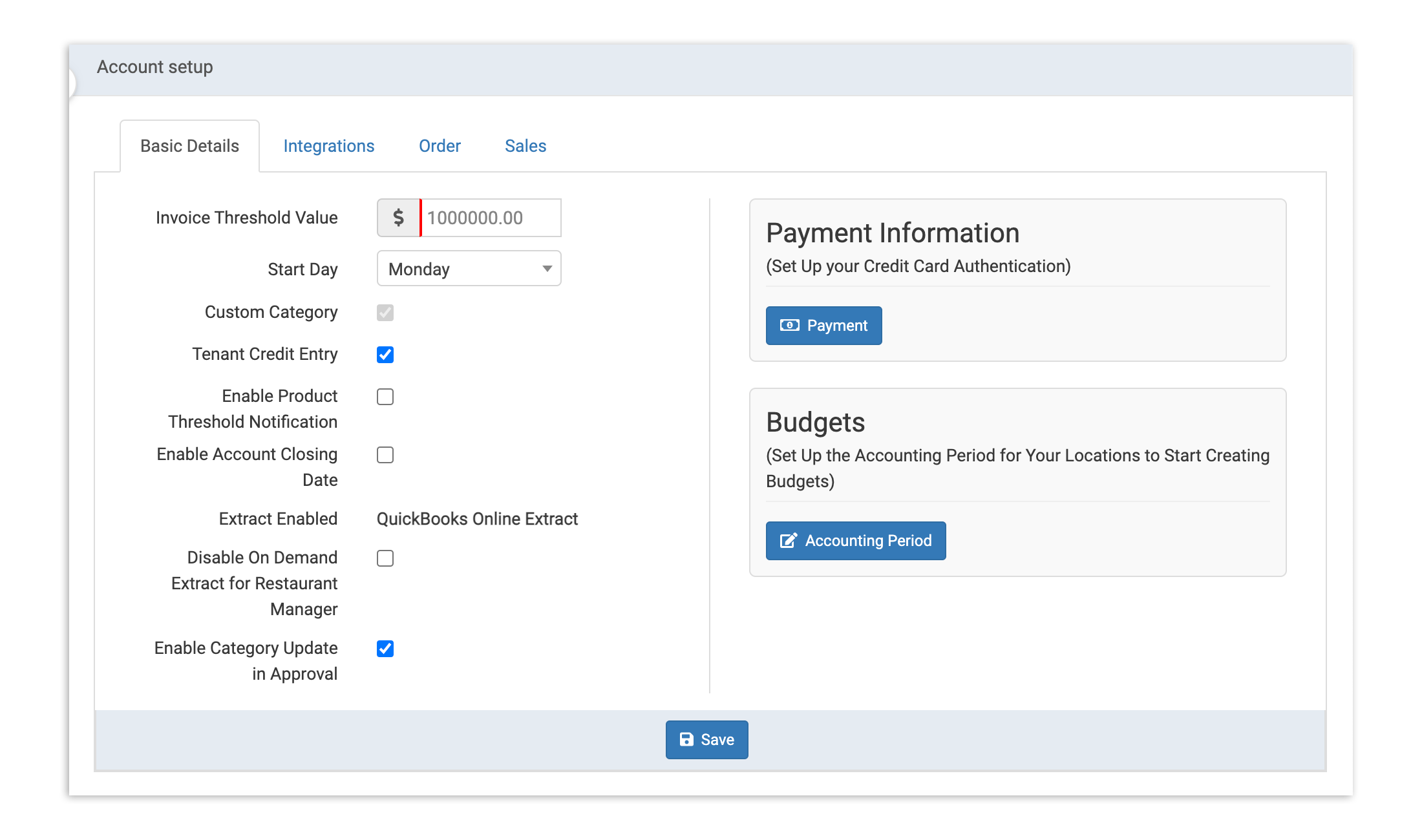
The Account setup page will automatically open on the Basic Details tab.
Below, we'll cover what each of the options on the Basic Details tab means and how you can use them to customize your xtraCHEF experience.
| Basic Detail | Definition |
| Invoice Threshold Value | If users upload an invoice over the value you enter, the invoice will need to be manually reviewed before it can be approved. |
| Start Day | Do your organization's weeks run Sunday-Sunday, Monday-Monday, or something else entirely? Select your week start day here, and it will be applied across xtraCHEF. |
| Custom Category | Custom categories are enabled by default. If you do not want Tenant Admins to be able to create custom categories, please reach out to . |
| Tenant Credit Entry | Check this box to allow users to enter credits when uploading an invoice. |
| Enable Product Threshold Notification | Check this box to be notified any time someone uploads an invoice exceeding your threshold value. |
| Enable Account Closing Date | If enabled, any invoices uploaded after this date will need to be manually reviewed before they can be approved. |
| Extract Enabled | Any third party integrations you have will be listed here. To add new integrations, email . |
| Disable On Demand Extract for Restaurant Manager | Check this box to only allow extracts at approved intervals (weekly, monthly, daily, etc) unless initiated by a Tenant Admin. |
| Enable Category Update on Approval | Check this box to allow Tenant Admins to edit line item categories on the Approvals page. |
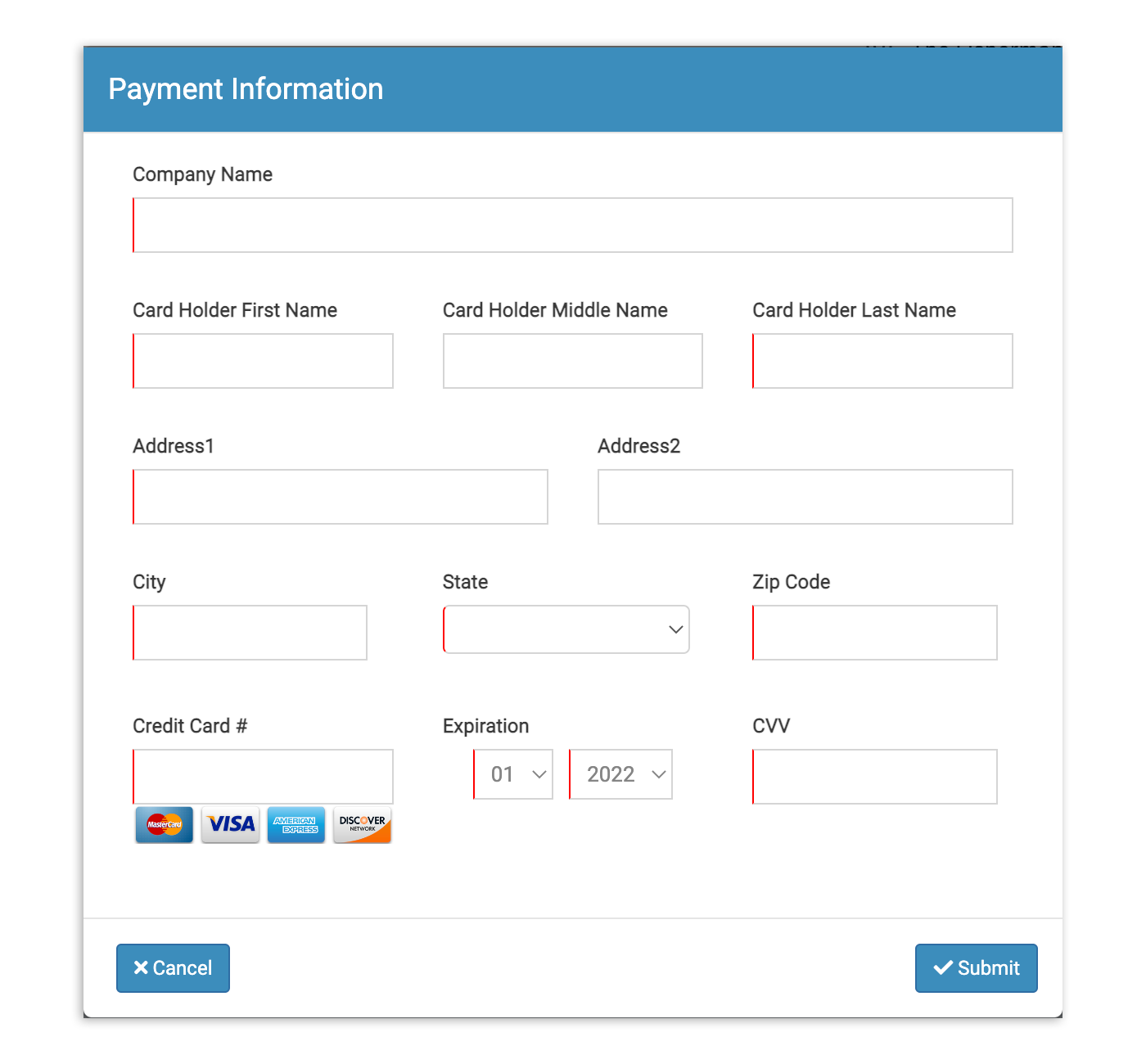
The Basic Details tab also includes options to customize your payment information. Select the Payment button to enter the company (or personal) credit card information. This can be used to update the payment information tied to your xtraCHEF subscription. Select Submit to save your work.
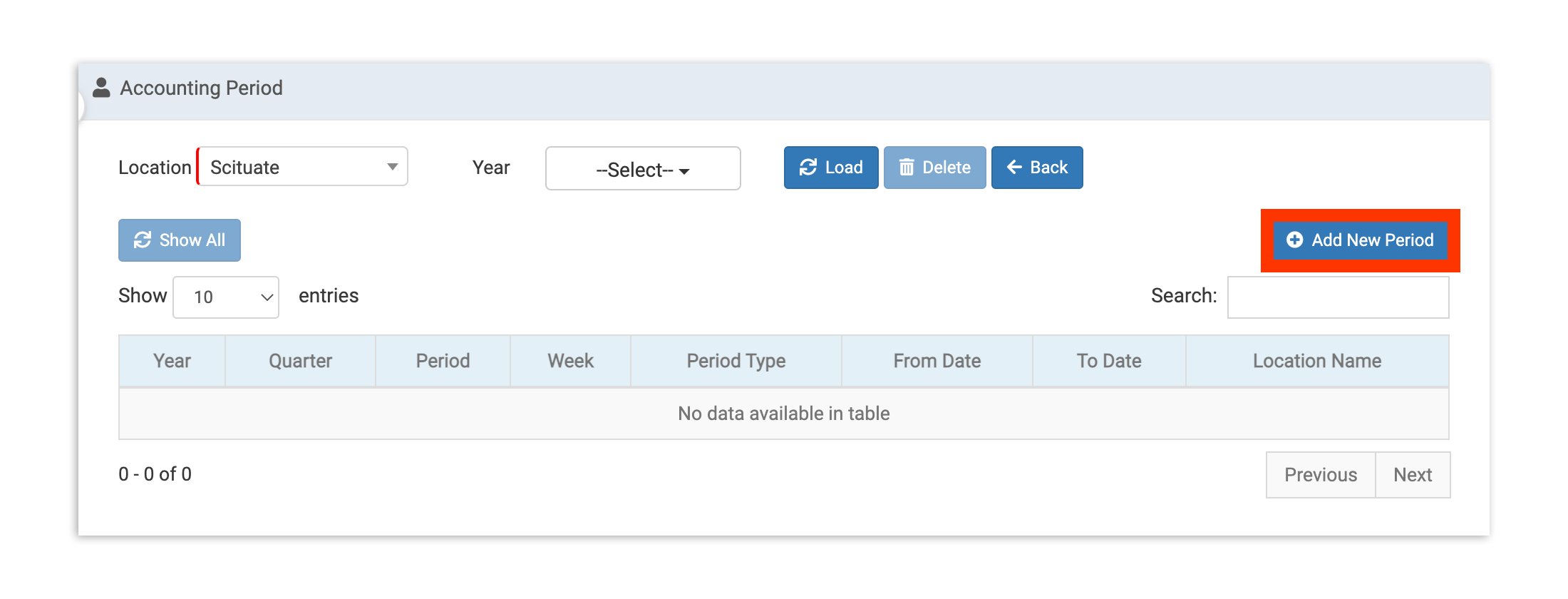
Select the Accounting Period button to redirect to the Accounting Period page. If you have an existing Account Period already set up, you'll see your periods listed here. If you do not yet have Accounting periods set up, select + Add New Period.
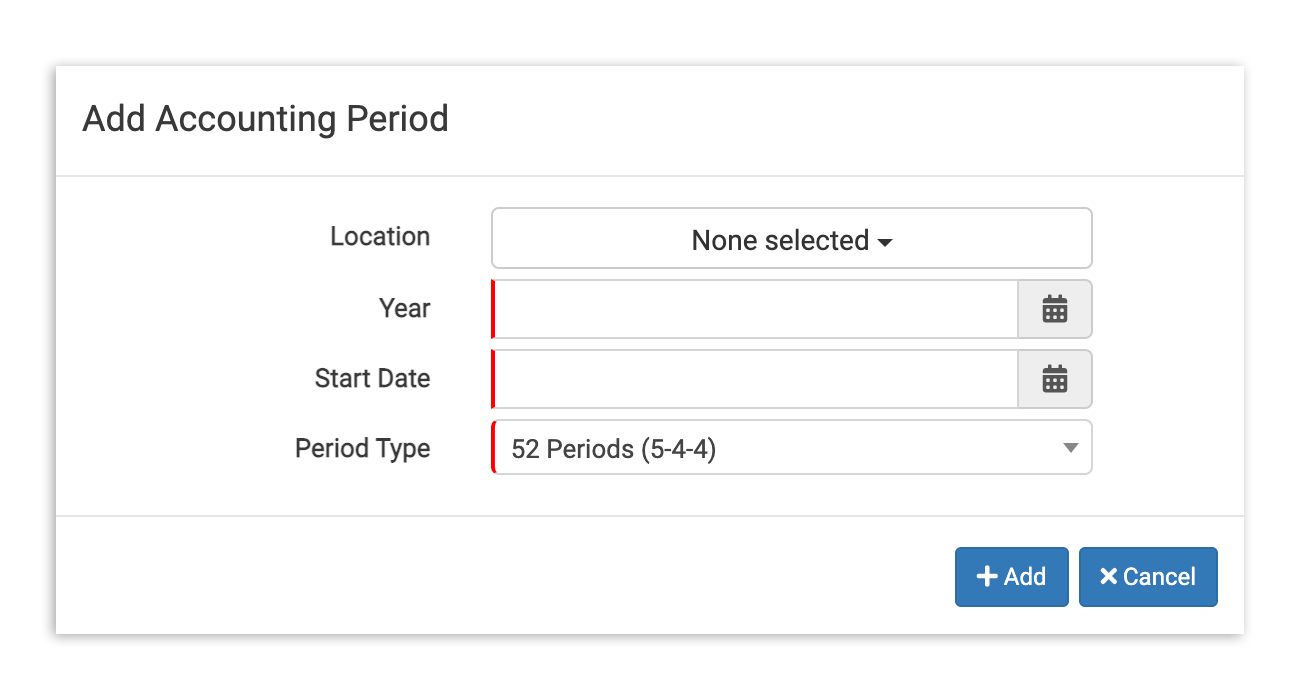
This will launch a pop-up where you can enter all relevant details for your new accounting period. Select + Add when you're finished.
Note: You'll only see the Integrations tab if you've integrated your xtraCHEF account with at least one third party inventory or accounting system. To add a new integration, email .
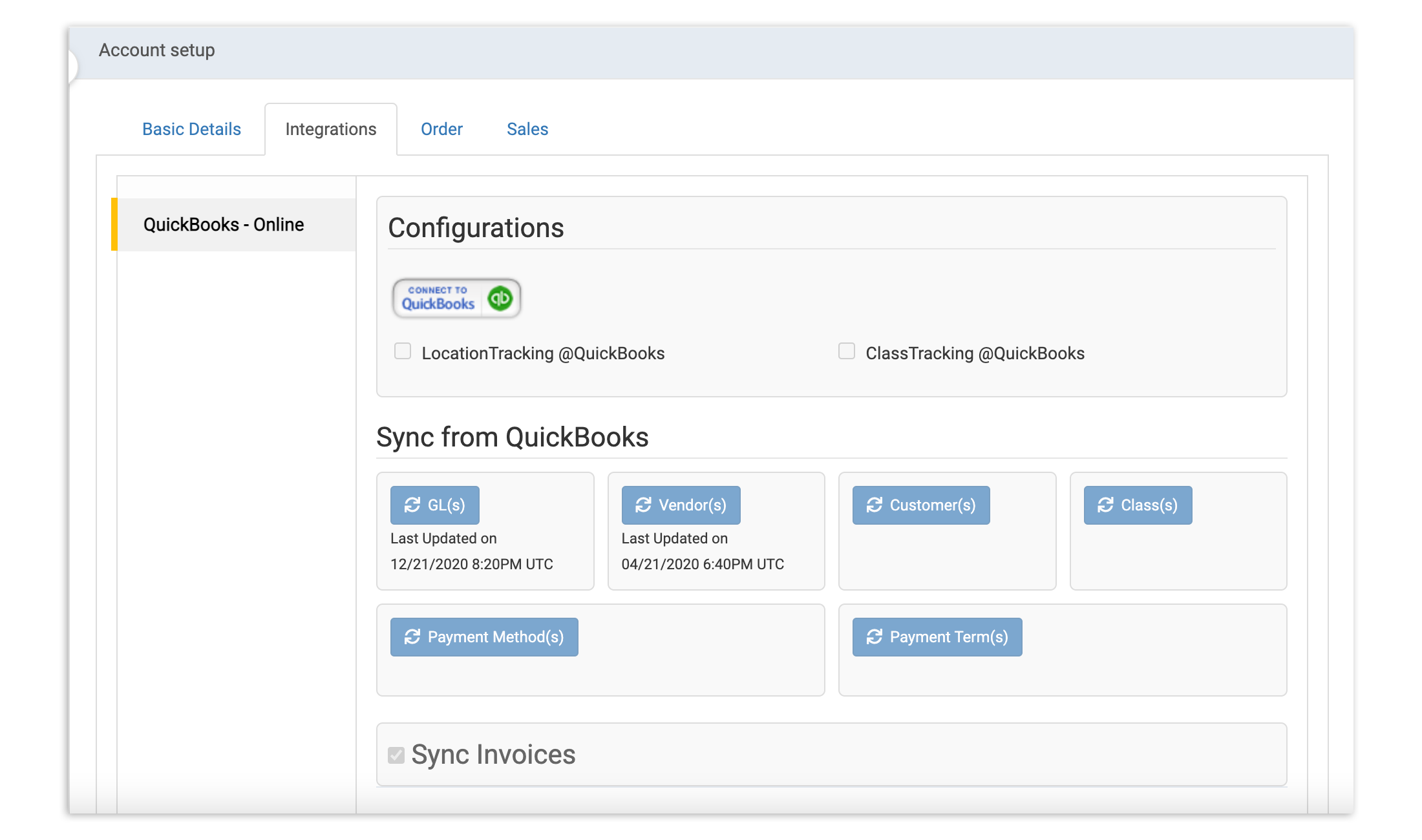
Select the Integrations tab to configure and enable compatible integrations.
This page will populate with options depending on the integration your account is configured to accept. For Integration related resources relevant to your accounting setup, consider reading our articles on , , , and more here on Toast Central.
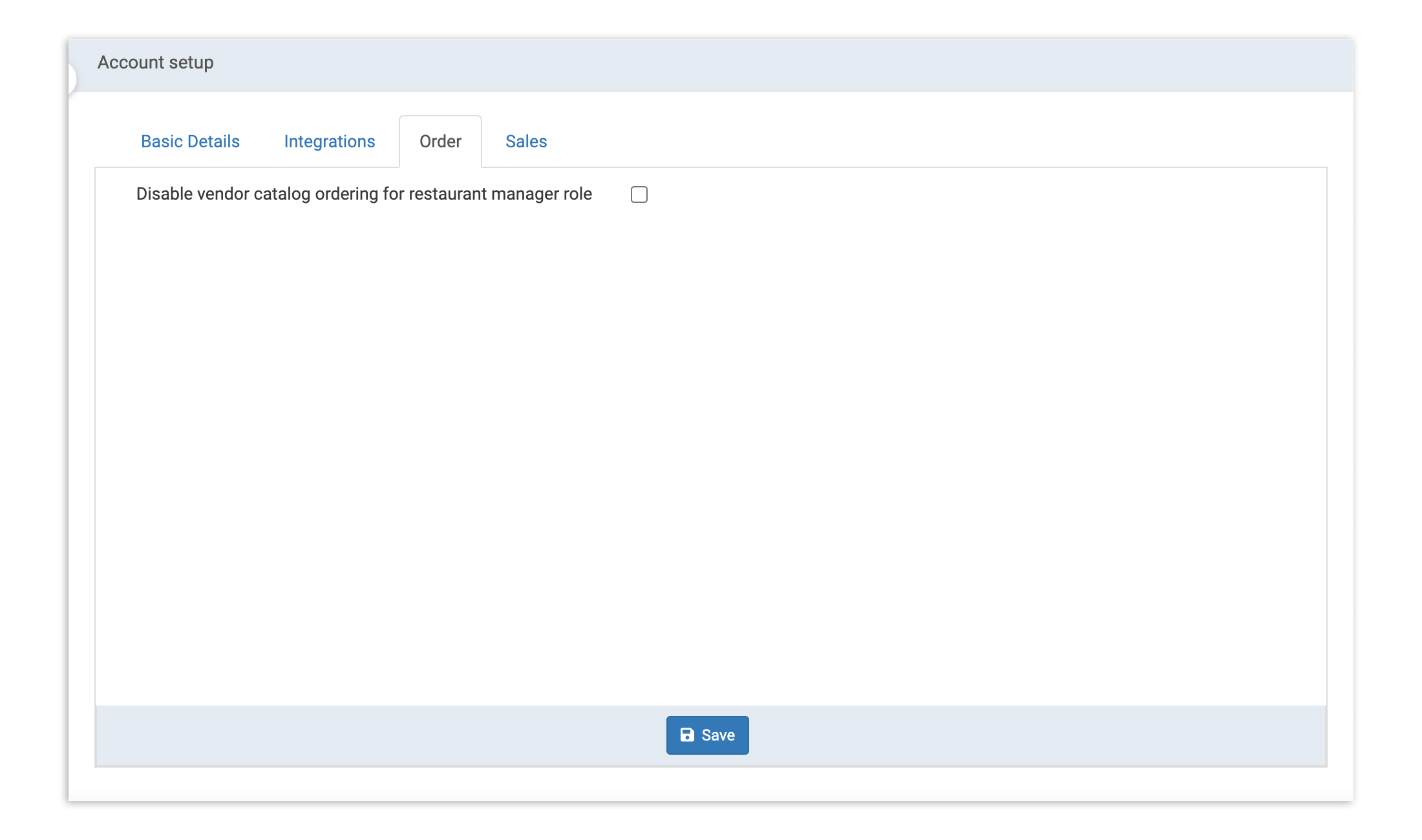
The Order tab can be used to enable or prevent users with level access from placing orders with vendors in xtraCHEF. To do this, select Disable vendor catalog ordering for restaurant manager role. Then select Save.
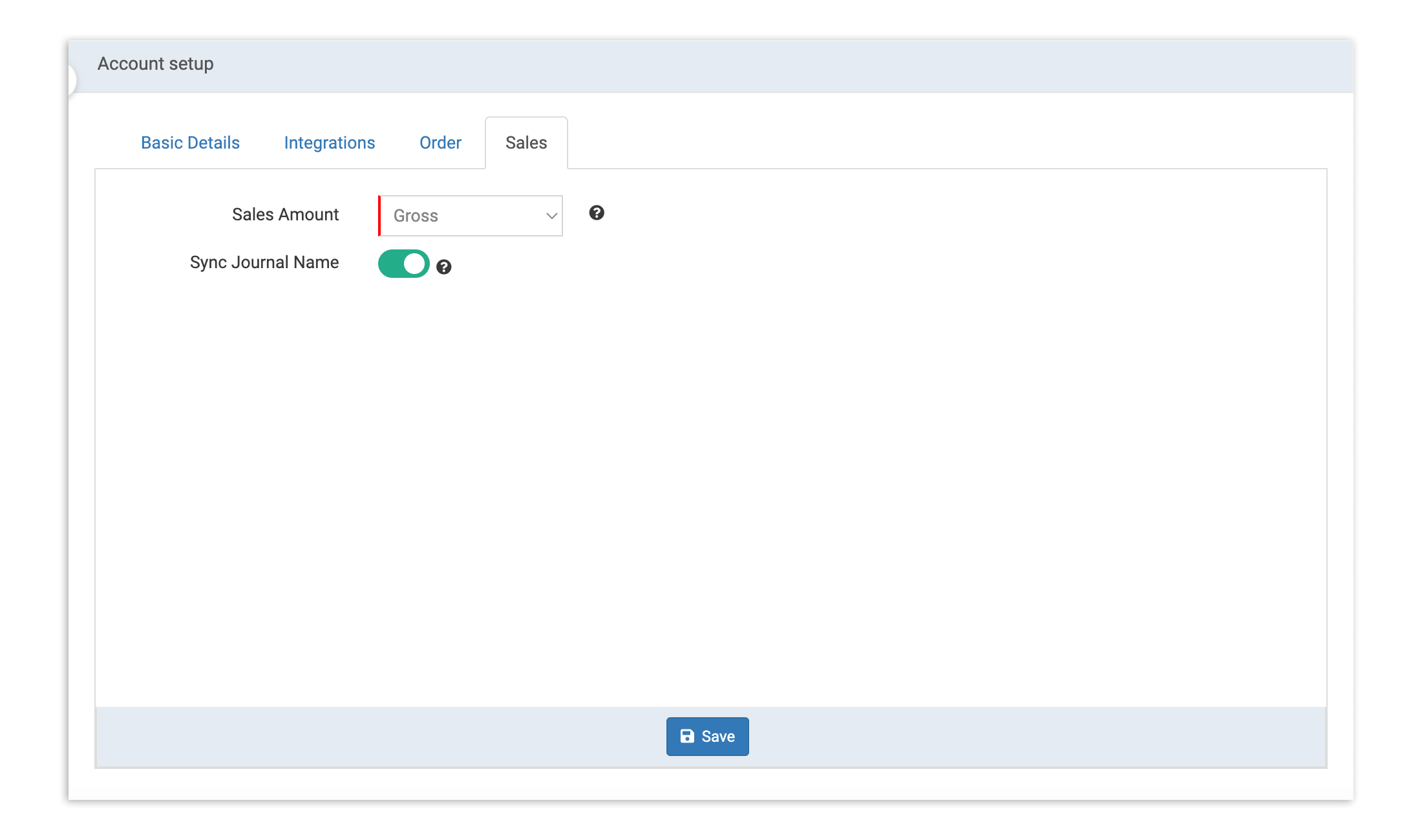
Note: Information in the Sales tab will only display if your xtraCHEF account is synced to your Toast POS. To connect your Toast POS with xtraCHEF, email .
Use the Sales tab to customize how you'd like to display your sales, and if you'd like to sync your accounting system journal entries to match the names and dates that appear in Toast.