Manage Your Quote Time Strategy
Last updated: May 4, 2026, 4:20 PM
- Manage Quote Time Strategy
- SmartQuote Quote Times
- Manual Quote Times
- Kitchen Capacity Quote Times
- Order Price Quote Times
- Order Ready Quote Time
- Interval Based Quote Time
- Managing Quote Times During Offline Mode
- Frequently Asked Questions
Manage Quote Time Strategy
Toast has simplified the process of managing the prep times or quote times for your restaurant and guests. Quote times can now be configured in the Delivery & Takeout page in Toast Web. Quote times are used to tell a guest how long their online order will take and to control order firing to the kitchen. Delivery quote times are now the total delivery time.
To learn how to set up and manage each quote time strategy, watch the following video or read the article below.
Choose between SmartQuote, Manual quote times, Kitchen capacity (order caps) throttling, or Order price (price-based prep times):
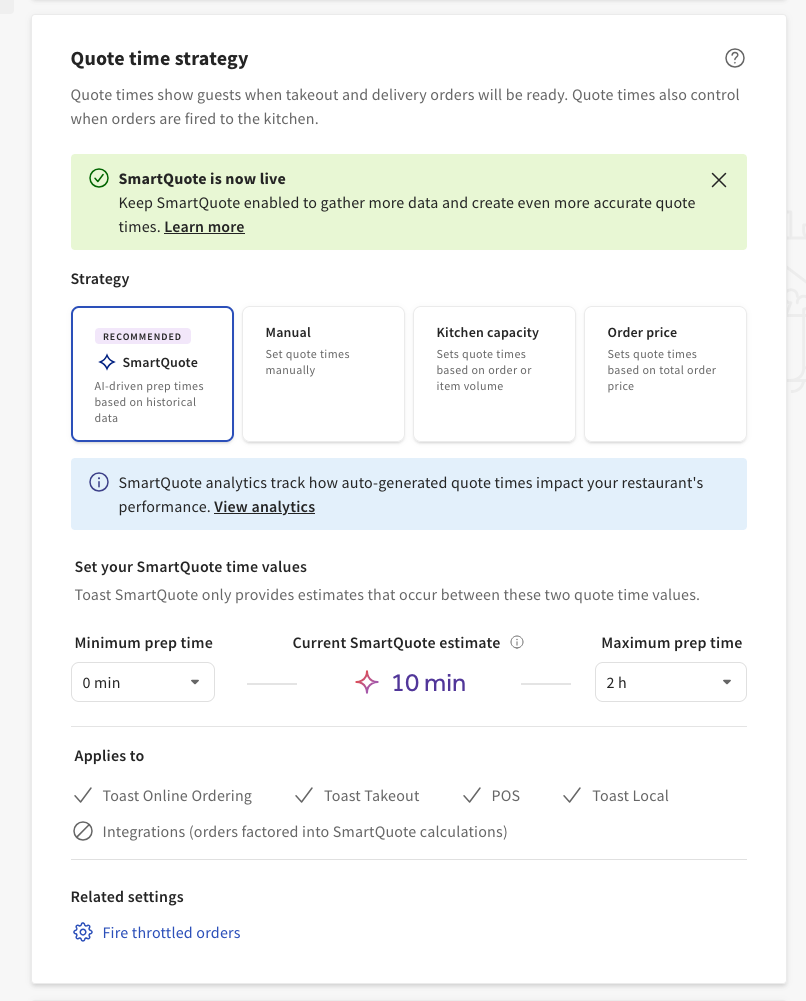
SmartQuote Quote Times
| SmartQuote is in limited release with select customers. Check back soon for updates! |
Toast’s SmartQuote leverages an AI-driven model to provide you with suggested quote times based on a variety of data inputs. SmartQuote considers all order sources, including in-store, kiosks, Toast Online Ordering, Toast Local app, and Order with Google, but does not provide SmartQuote prep times for in-store orders, orders placed via kiosks, and via third-party online ordering channels (for example, DoorDash, GrubHub, or Uber Eats). The accuracy of SmartQuote predictions relies heavily on the quality and quantity of the data used for training the AI model. Insufficient or biased data could lead to inaccurate predictions. Please consider these limitations when interpreting results.
To configure this option, follow the steps in this Support Center article: Get Started with SmartQuote.
Manual Quote Times
Manual quote times are fixed quote times for both takeout and delivery. If selected, you'll be able to determine the time it takes for a takeout order to be ready for pick up and a delivery order to be delivered. Note that the delivery quote time is for self-managed deliveries, not Toast Delivery Services.
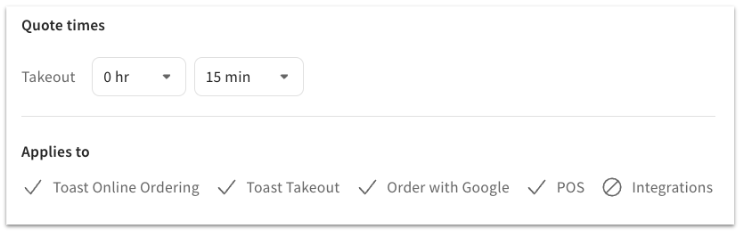
The quote times set on this page affect all orders, regardless of whether the order was placed through a POS (Point of Sale) (via the phone) or your Online Ordering page.
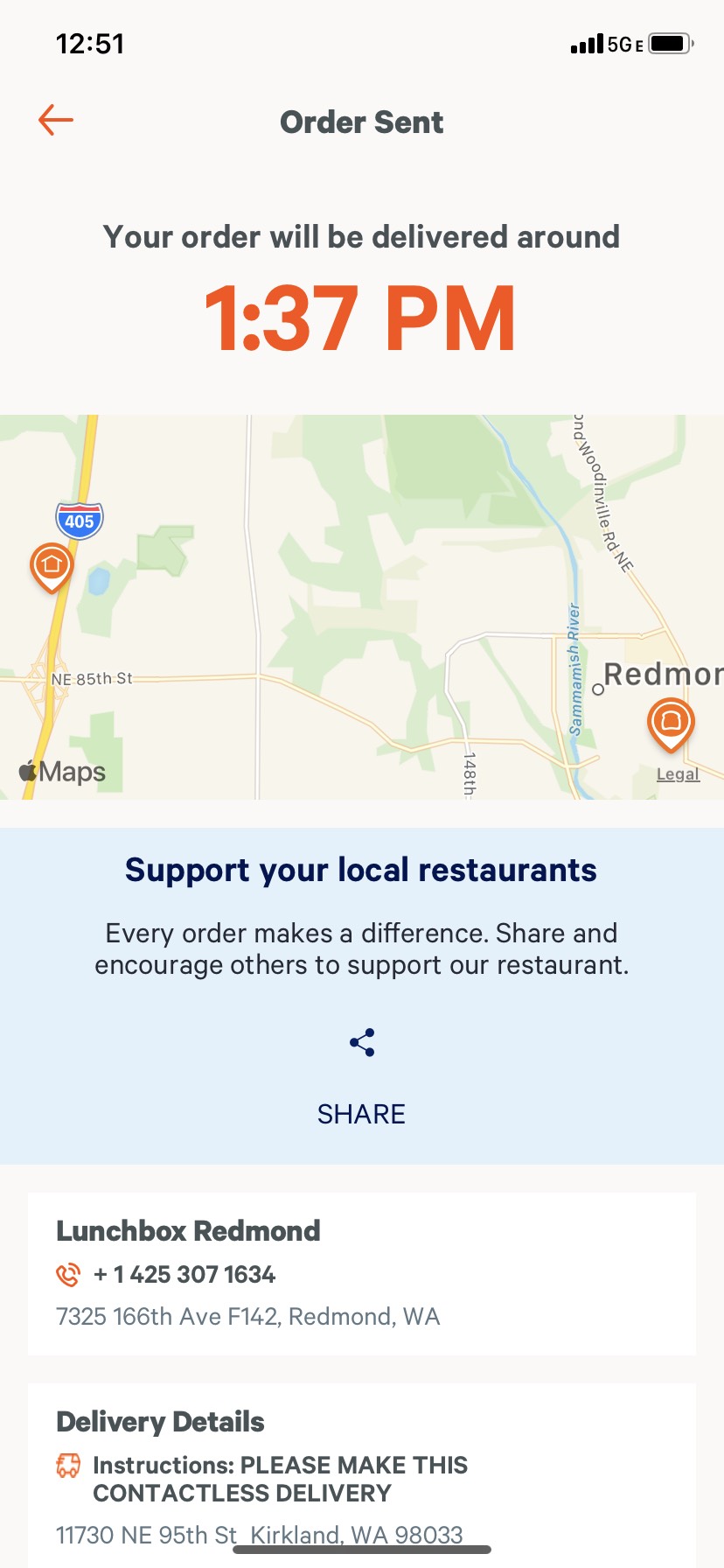
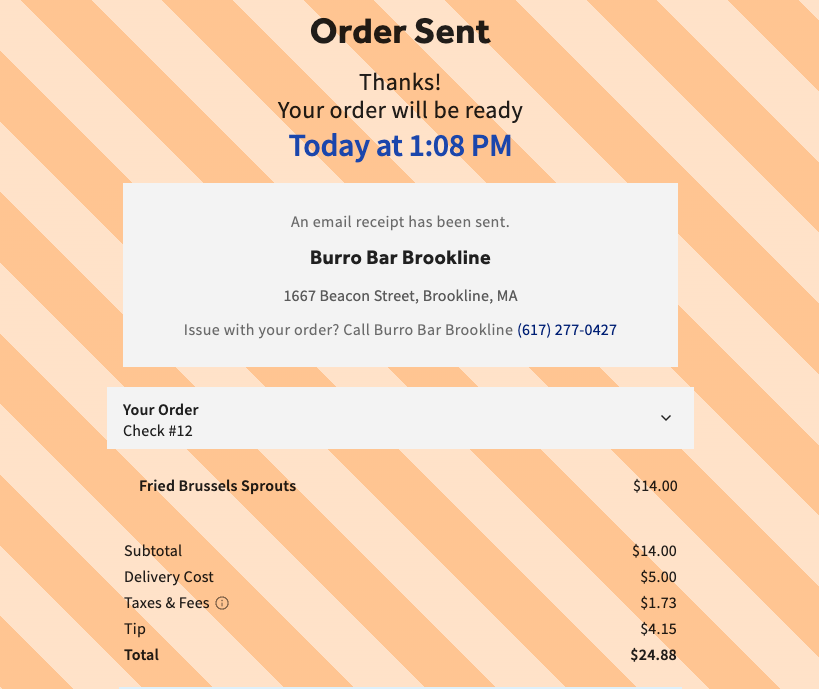
Once the order is placed, guests will see an order confirmation page with the expected delivery or pick-up time.
Kitchen Capacity Quote Times
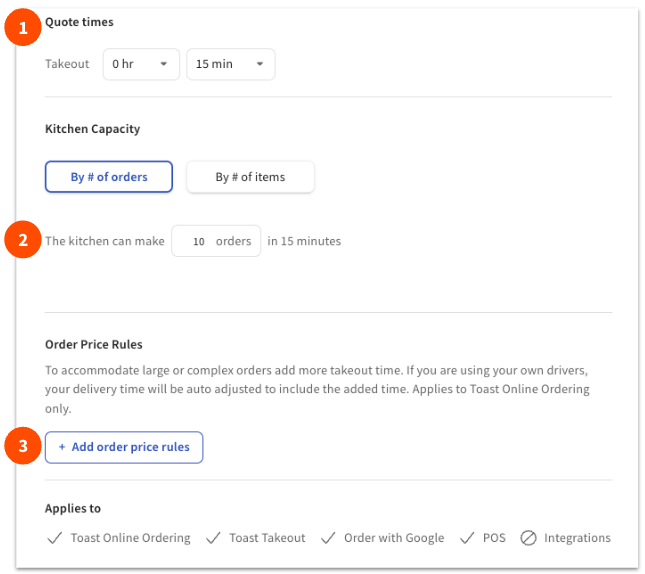
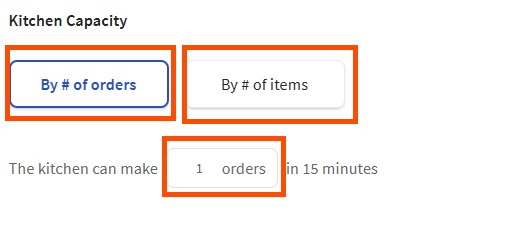
Kitchen capacity quote times are based on the total number of orders or items the kitchen can prepare in a 15-minute interval. If a quote time is set, this serves as the base time for kitchen capacity. All orders are subject to this kitchen capacity calculation - Dine In, Kiosk, Online Ordering, Takeout.
To configure this option:
|  |
Your Online Ordering guests will see an order confirmation page with the expected delivery or pick-up time.
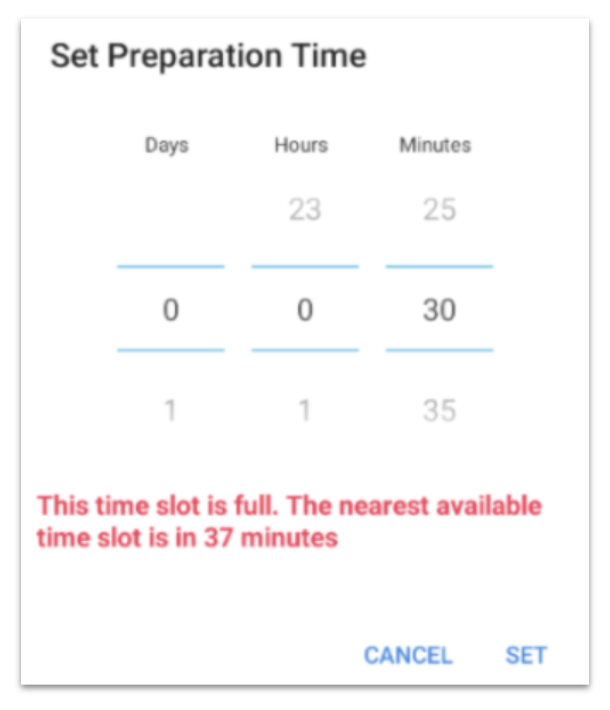
If you're scheduling an order for the future on the POS, you'll get alerted once you select the date and time if you select a time slot that is full. It will then show you the nearest time slot available.
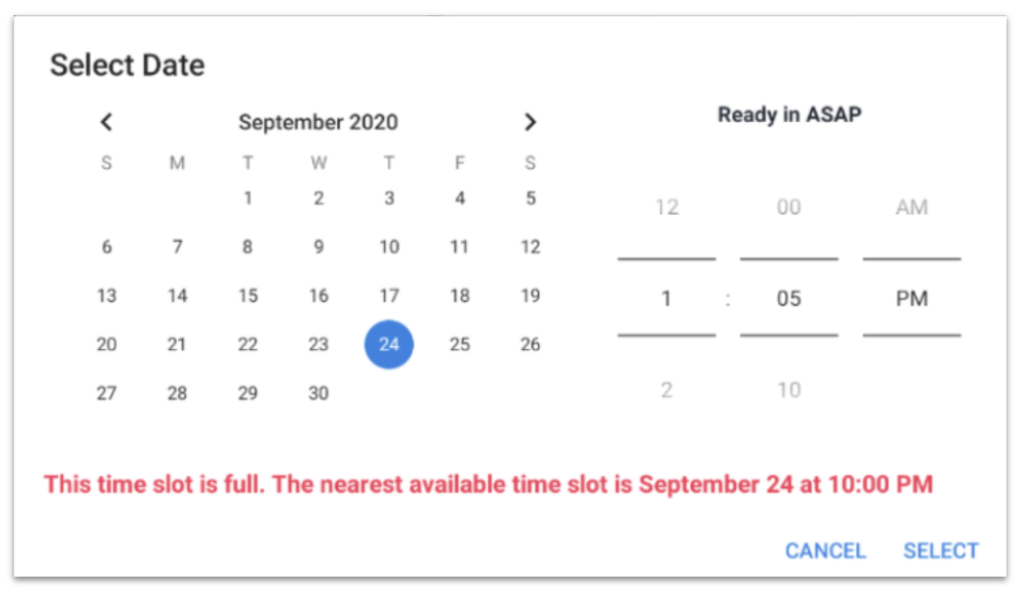
If you're placing an order that should be ready as soon as possible, the next available time slot will show up when selecting the preparation time.
Order Price Quote Times
Order price quote times allow restaurants to set quote times based on the total price of orders.
To configure order price quote times:
| 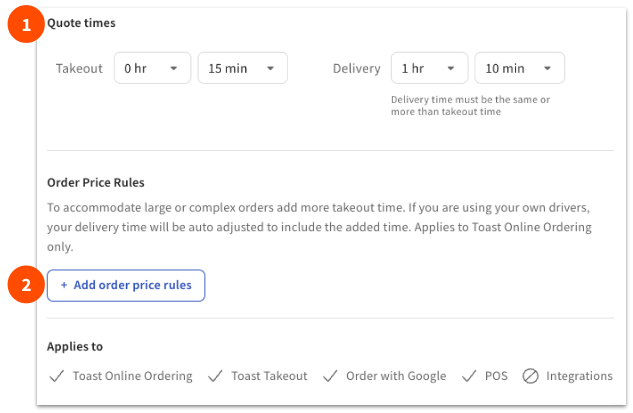 |
Your Online Ordering guests will see an order confirmation page with the expected delivery or pick-up time. If you require more than an hour to prepare orders, you may want to consider adjusting the minimum lead time for future orders. To learn more, check out the Minimum Lead Time section in this Support Center article, Managing Your Takeout and Delivery Schedule.
Note: Restaurants not using Toast Online Ordering will not see the Order price or Kitchen capacity options.
Order Ready Quote Time
The expected ready time changes when the kitchen is busy and additional minutes are added to the prep time while the guest checks out. Prep time can be increased via a manual step or an automated workflow such as Toast Delivery Services® updating based on driver availability.
Guests will be updated on the following with changes in their quote times:
| Expected time change | Guest communication |
| Less than 3 minutes | Orders will go through as normal |
| 3-10 minutes (ASAP orders) | The order will go through, and the guest will receive an updated quote time on the order confirmation page |
| More than or equal to 10-minutes | The order will not be processed and guests will receive a message stating that the order is delayed and if they would like to proceed with the order with the new time. |
Interval-Based Quote Times
Interval-based quote time strategy uses flexible order intervals and time ranges. You can choose how frequently pickup or delivery times are offered to your guests (Example: Every five, ten, thirty, or sixty minutes), and decide whether guests select an exact time for pickup or delivery (Example: 12:30 p.m.), or a time range (Example: 12:00 p.m.- 1 p.m.). This gives you greater control over order pacing and improves the guest experience—especially in scenarios like holiday pre-orders or city-deliveries where exact timing isn’t always practical. This is available for takeout, delivery, and independent special menus for Toast Catering & Delivery customers.
Manage Quote Times During Offline Mode
If you’re using SmartQuote as your quote strategy, Toast will default to the last enabled quote time strategy. Learn more here: Use SmartQuote Offline.
You cannot change or modify your quote time strategy if your device is offline due to a Toast service disruption. For example, if you enabled the kitchen capacity strategy, the last quote times you set for takeout and delivery and any previously set order price rules apply until your device is online again. Once your device is online, you can change or modify your quote time strategy.
Note: There will be no setting changes for customers that do not use Kitchen Capacity.
Frequently Asked Questions
Quote Time FAQ
What quote time(s) are used on the POS?
Why do I not see an option to input delivery time?
Why do I not see the kitchen capacity and order price strategies?
How can I set a quote time for Toast Mobile Order & Pay™ so on-site guests know when their order will be ready?
Kitchen Capacity FAQ
Can I set different limits for different times of the day? Or for different dining options?
Can I set different time increments other than 15 minutes?
Can I set limits based on the number of menu items or the size of the order?
Yes, you can configure kitchen capacity and order price rules to accommodate large or complex orders that take more time. However, these settings are currently only available for Toast Online Ordering products.
In order to set your preferred limits based on the number of menu items, navigate to Takeout & delivery > Quote time strategy > Kitchen Capacity. Next, enter the number of menu items that your kitchen can complete in 15 minutes. Then, save and publish your changes. Learn more here.
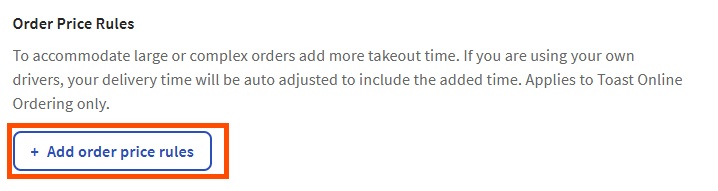
In order to set your preferred limits based on an order's total amount, navigate to Takeout & delivery > Quote time strategy > Order Price Rules. You can select the + Add order price rules button to set up a new rule. Then, save and publish your changes. Learn more here.
Do all items entered at a register count toward kitchen capacity?
No, only items that are sent to the kitchen are counted toward the kitchen capacity maximum.
When does an order count toward a specific time slot's capacity?
All orders count towards the slot's capacity as soon as they are placed, regardless of approval settings or order type.
Is kitchen capacity throttling available to integration partners through APIs?
No, kitchen capacity throttling is only currently available through Toast Online Ordering and the Toast Local app.
What does this look like for guests placing orders through Online Ordering, Phone, and Toast Now?
- Toast Online Ordering - On your restaurant's online ordering page, future order time slots will disappear from the dropdown menu as they become full. For ASAP orders, the prep time will adjust according to the existing Prep Time settings and the availability of upcoming slots.
- Toast POS Orders - For orders taken on a POS device (e.g., over the phone), the POS will alert the employee placing a future order if a slot is at capacity but will not block them from placing an order. The message will also show the nearest available time slot (date and time). This is the case when scheduling an order and placing an ASAP order.
Have any feedback after using kitchen capacity throttling in your restaurant? Let us know how we can improve here.