Optimize Toast Delivery Services® POS Order Tracking Workflow
Dernière mise à jour : 8 avr. 2026, 10 h 12
Track your Toast Delivery Services® order using the Orders Hub on the Toast POS.
- Track Toast Delivery Services® Orders on the Toast POS
- Track the Status of a Toast Delivery Services® Order
- FAQ
Track Toast Delivery Services® Orders on the Toast POS
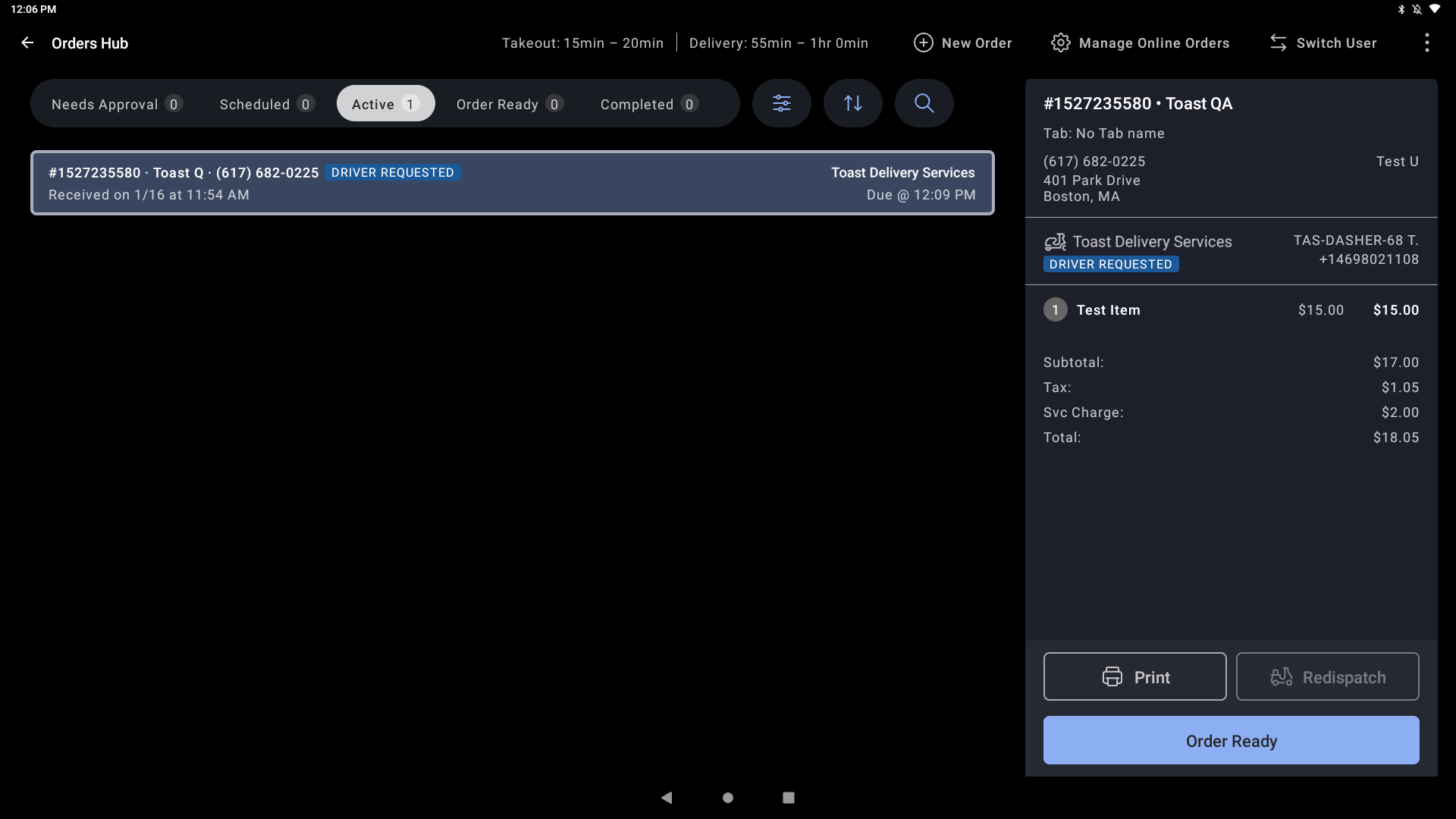
The Orders Hub mode in your Toast POS displays all Toast Delivery Services® orders. Each order will display customer information and order details, a delivery status, and driver name and phone number once a delivery driver has been assigned to pick up and delivery the order.
Access the Orders Hub
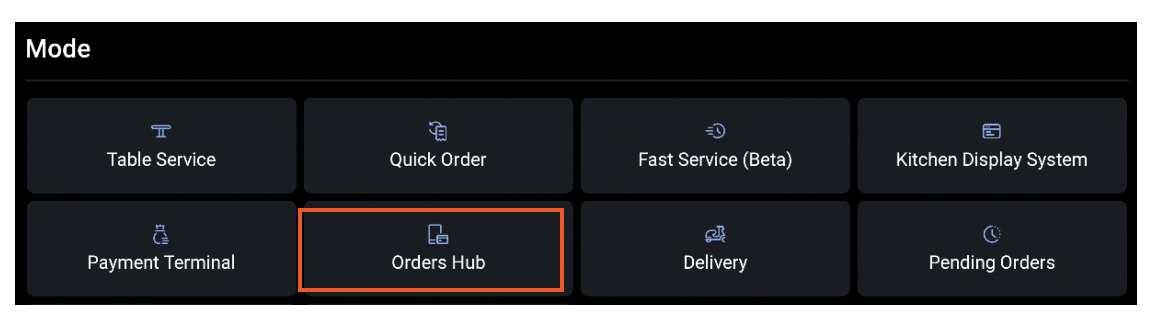
The Orders Hub lives as a mode on your device:
- To access it, start by selecting the Toast logo on the top left of your screen.
- Under the Mode section at the top of your screen, select Orders Hub. You must have the 1.5 Pending Orders/Orders Hub Mode permission in order to access the Orders Hub.

View Orders and Statuses
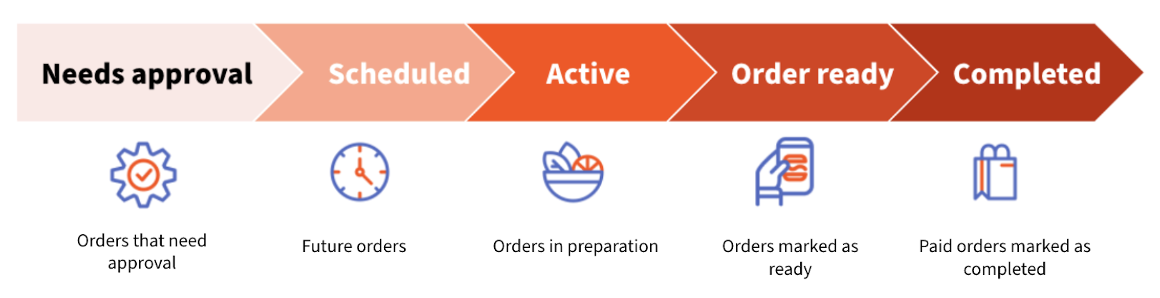
Orders move among statuses and screens based on the status of the order:
- Needs Approval
- Scheduled
- Active
- Order Ready
- Completed
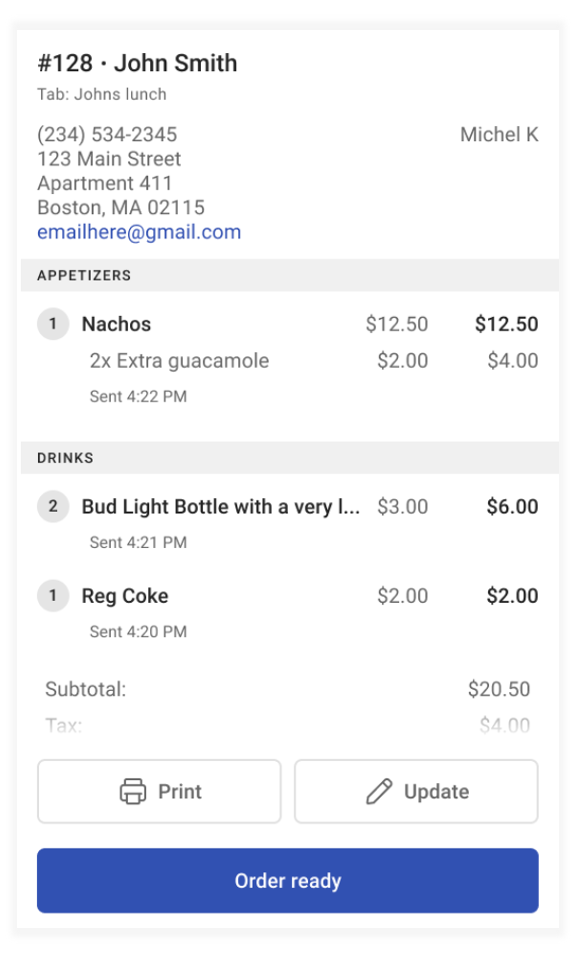
By selecting the order, the following information can be seen:
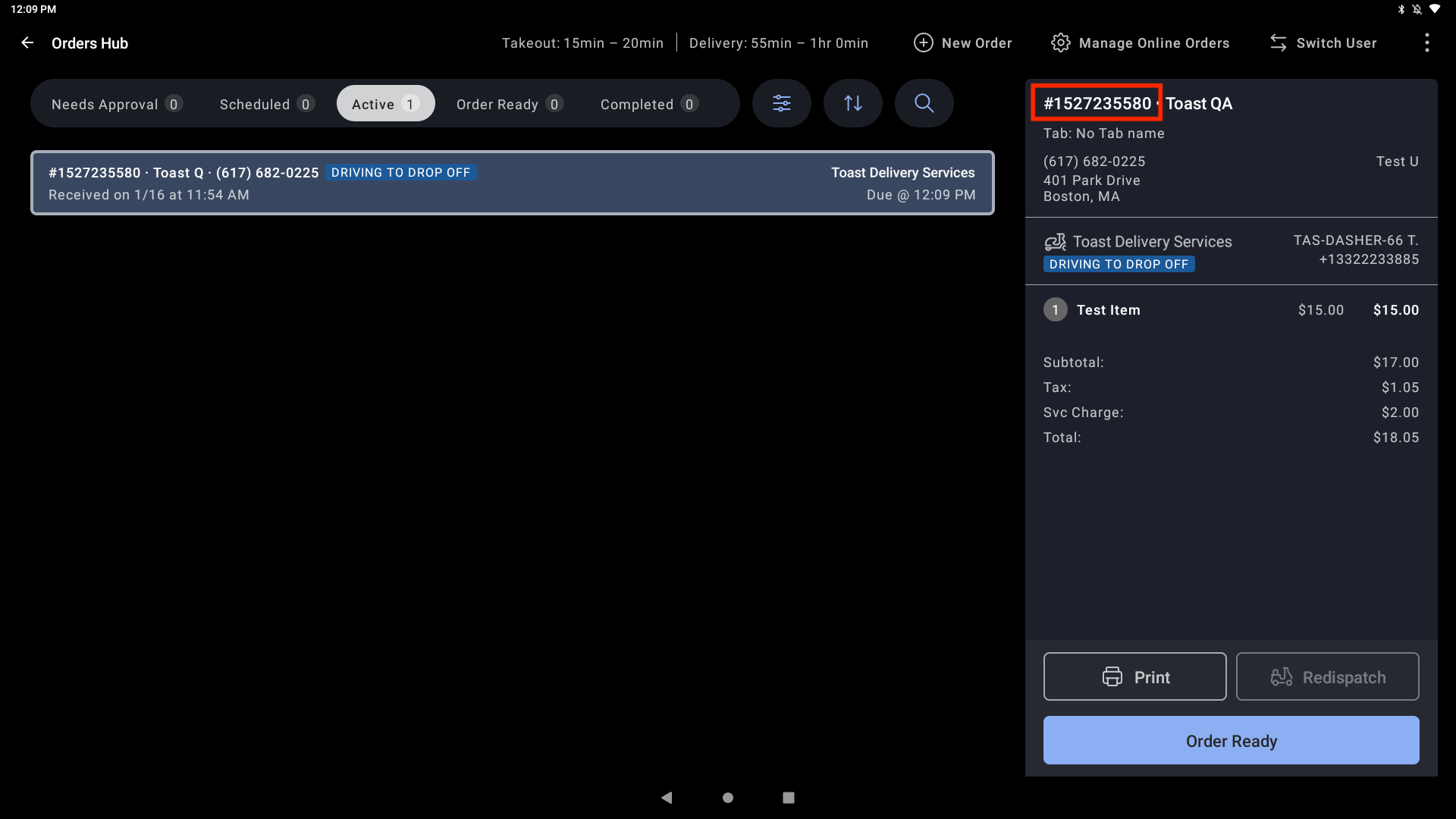
- Uber Direct or DoorDash Drive Order # (reference this number when you contact Uber Direct or DoorDash Drive Support on a Toast Delivery Services® order)
- Guest name
- Guest phone number
- Date and time when the guest placed the order
- Delivery status or payment status
- Dining option (ex: Toast Delivery Services)
- Dining behavior (ex: Delivery)
- Tab Name (if available)
- Order due time (The time when the order should be ready for pickup or delivery. If the order is scheduled for a future date, the date will appear next to the due time)
- Firing time and date: The firing time is the same as the local device time. The scheduled firing time displayed will change as the order gets closer to firing. Learn more from the table below
- Details based on the dining option selected (The image below, for example, shows a delivery order with an address)
Track the Status of a Toast Delivery Services® Order
The Orders Hub will display different colored indicators on the order to show the delivery status of each order
| Status | Color | Description |
| Driver Requested | Blue | A new driver has been requested and dispatched to pick up the order. |
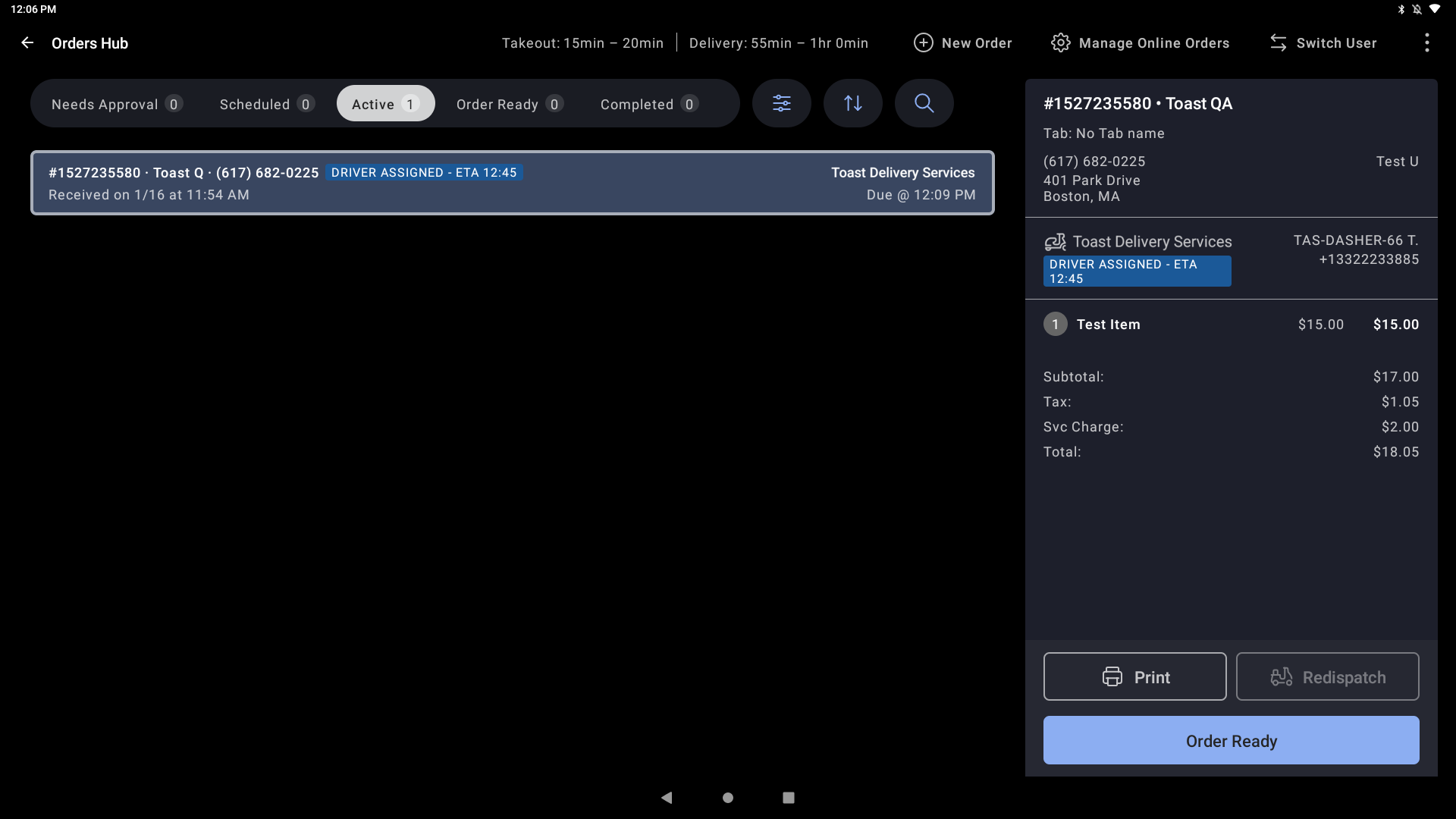
| En Route to Restaurant - ETA HH:MM | Blue | The driver has been assigned to the order and is on their way to pick it up. |
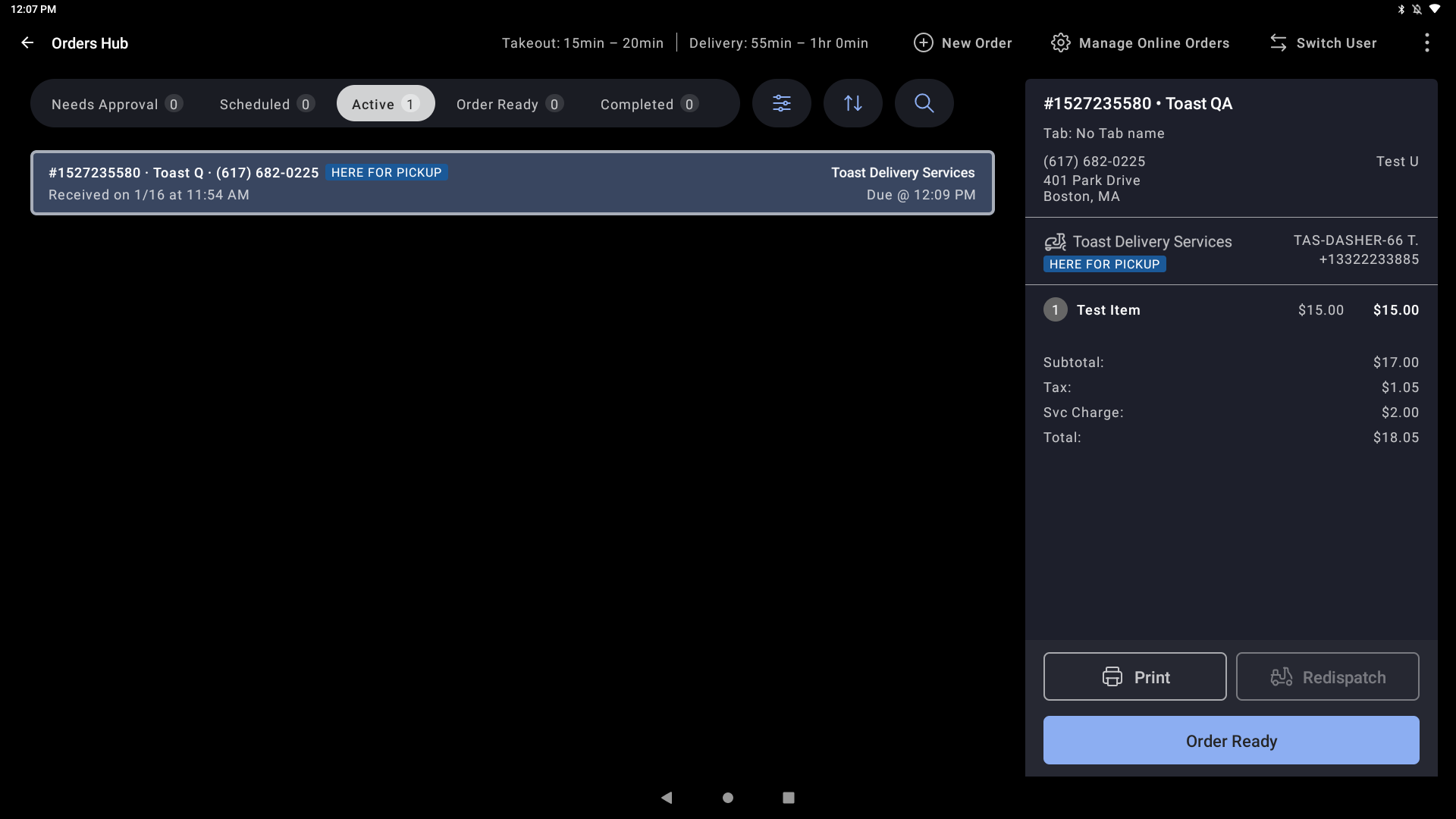
| Here for Pickup | Blue | The driver has arrived at the restaurant and is ready to pick up the order. |
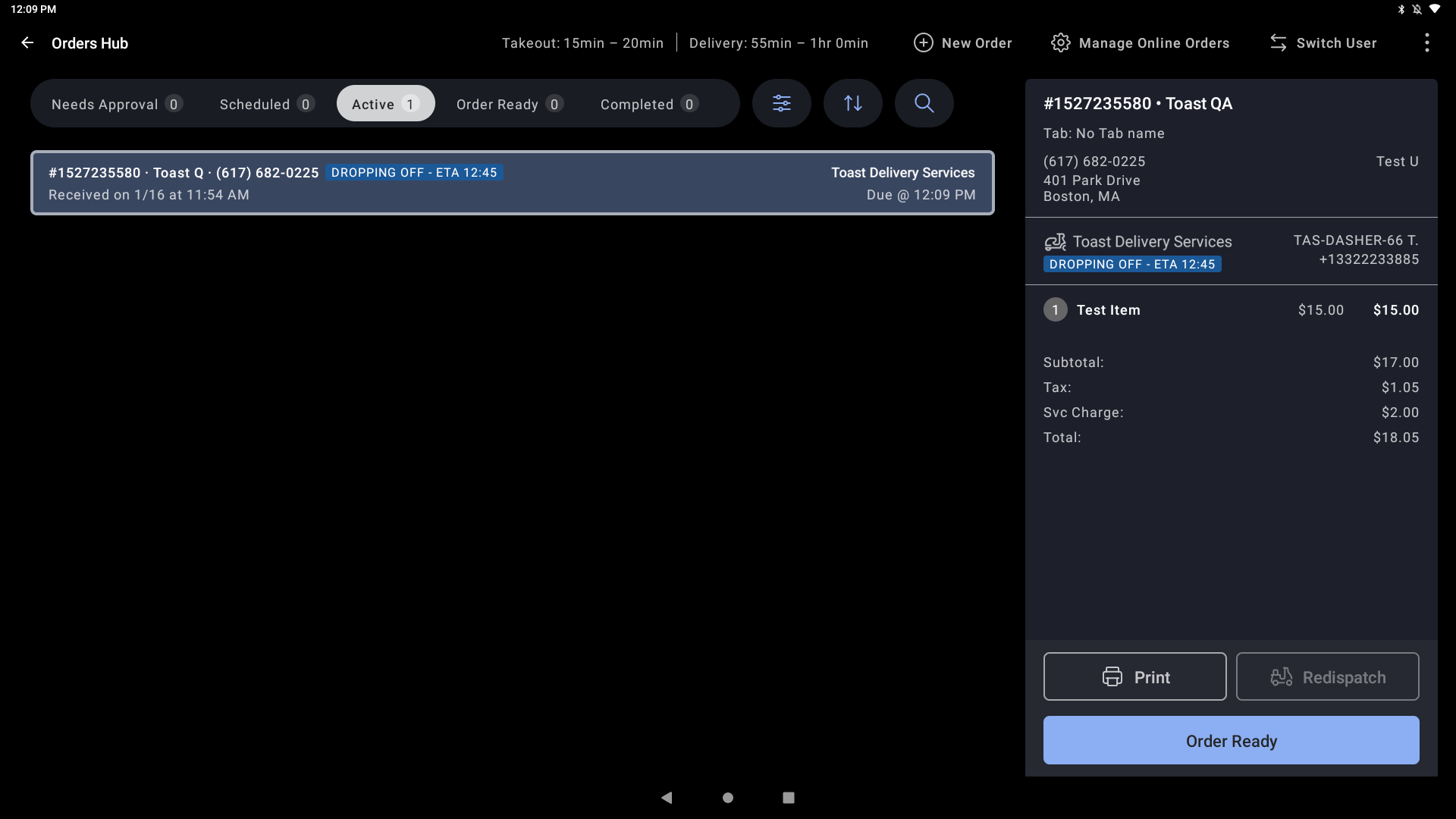
| Dropping off - ETA HH: MM | Blue | The driver is en route to the delivery address and will drop off the order by an estimated time. |
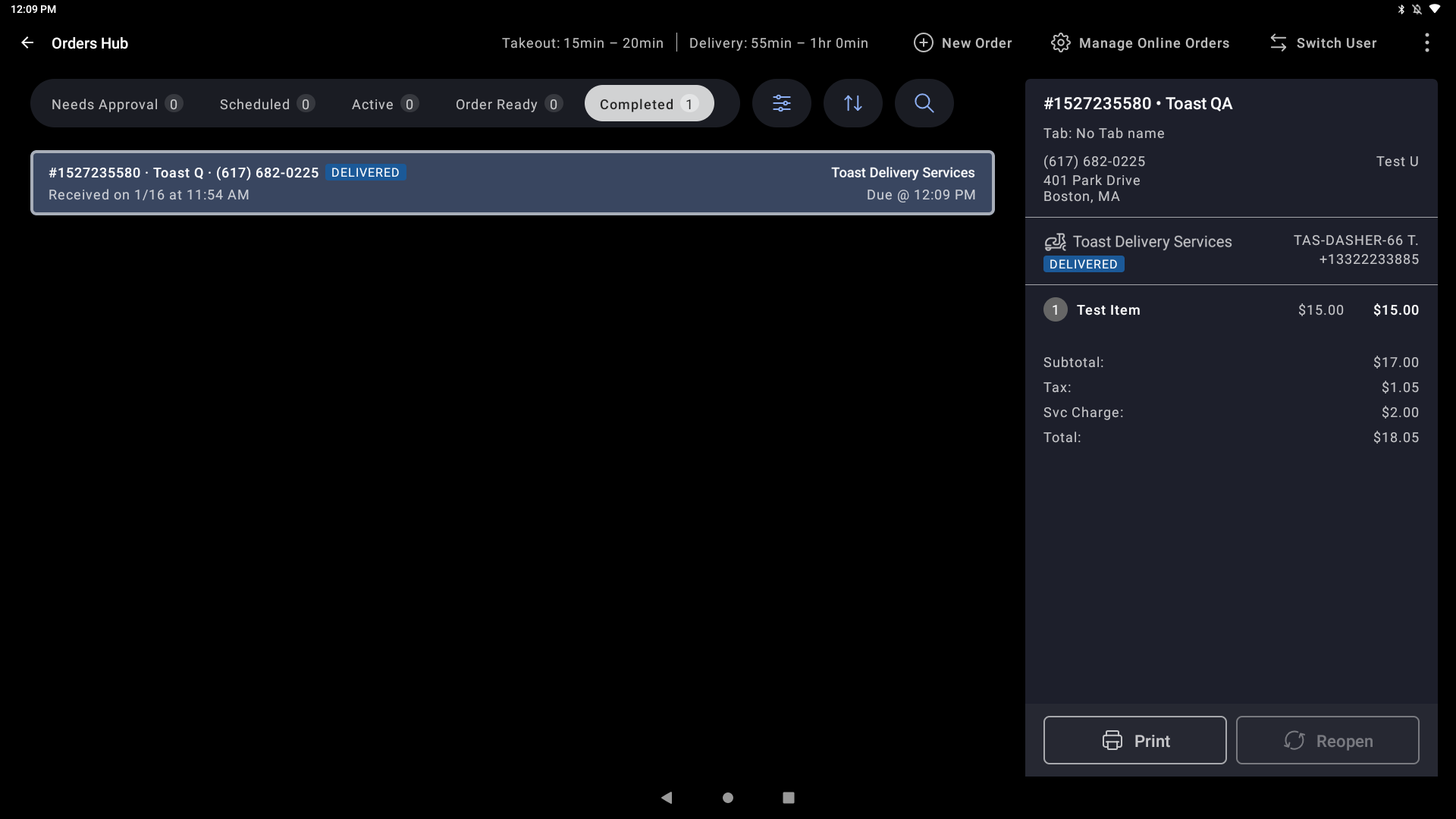
| Delivered | Blue | The driver delivered the guest's order. Once this occurs, the order gets automatically completed. |
| Delivered Cancelled | Red | The driver previously assigned to pick up this order has canceled the pickup. |
Status: Driver Requested
Color: Blue
Status: En Route to Restaurant - ETA HH:MM
Color: Blue
Status: Here for Pickup
Color: Blue
Status: Dropping off - ETA HH: MM
Color: Blue
Status: Delivered
Color: Blue
Status: Delivery Canceled
Color: Red
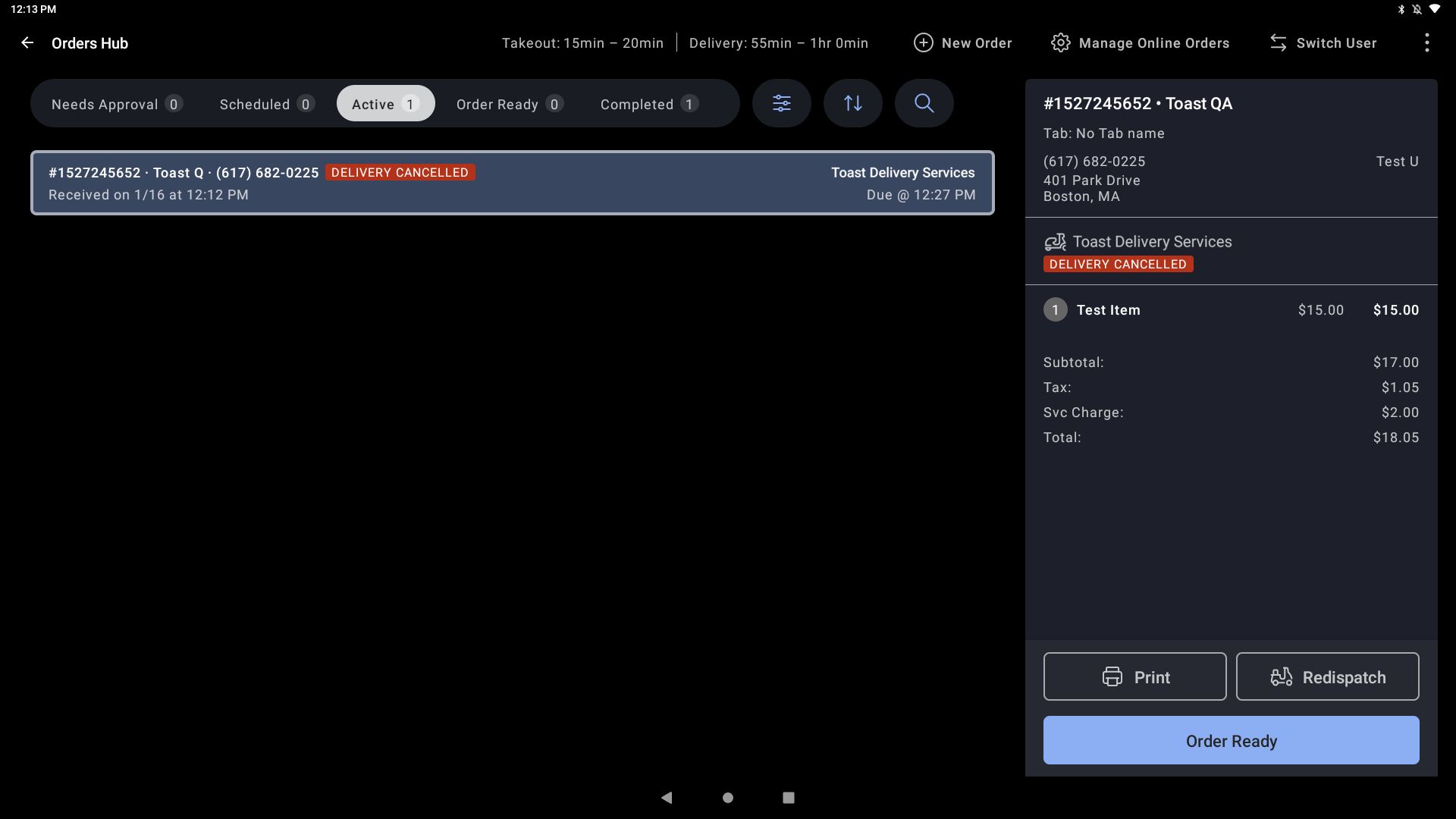
For more information on how to manage your orders through Orders Hub, see Managing Off-Premise Orders With Orders Hub in Support Center.
Frequently Asked Questions About Toast Delivery Services® Order
How can I redispatch a driver on a Toast Delivery Services® order?
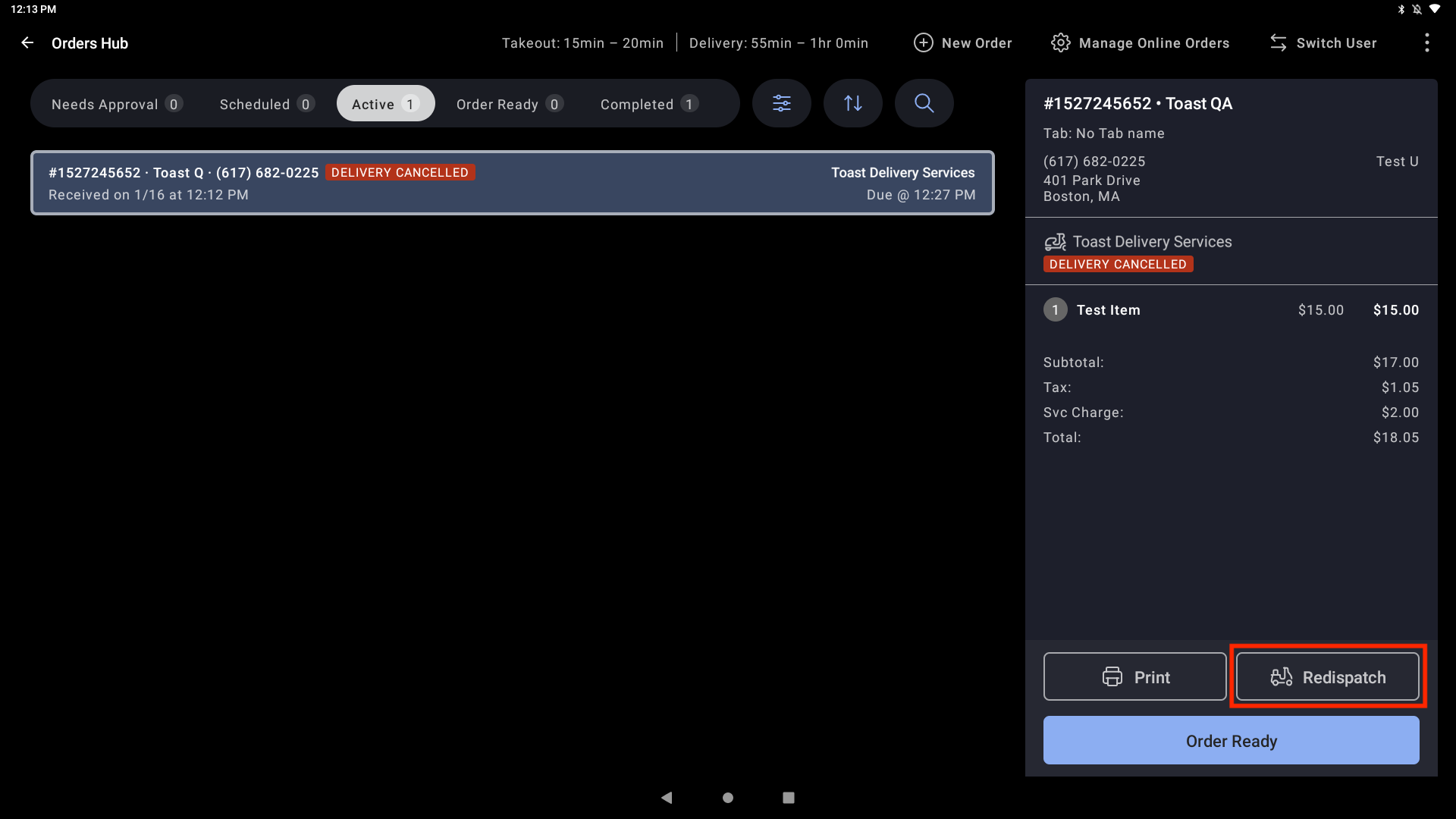
In the event something goes wrong with the delivery of an order (ex: driver takes wrong food to guest, driver doesn't take all the food to guest, restaurant needs to correct an order or a driver didn't show up for pick up), you have the ability to Redispatch a driver one time from the POS.
To redispatch a driver, go to the Orders Hub in the POS, select the TDS order, and select Redispatch.
How can I contact the delivery driver on a Toast Delivery Services® order?
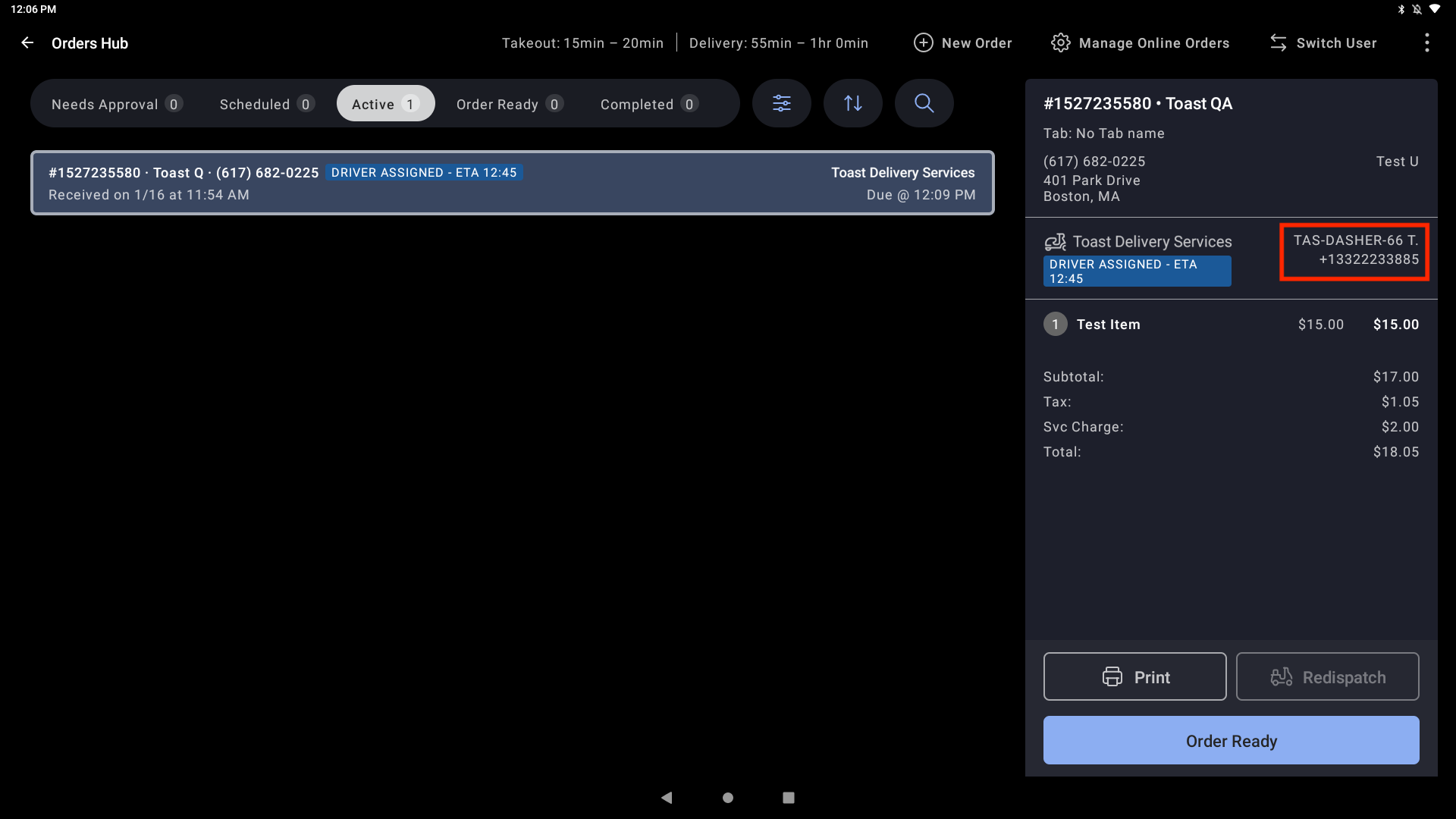
Call the driver using the driver's phone number listed on the order in POS. If you can't contact the driver, reach out to your delivery provider for support. You must call from the phone number that you have listed in Toast to reach the driver.
How do I find the Uber Direct or DoorDash Drive order number, driver name, and driver phone # for a specific order in POS?
The Uber Direct or DoorDash Drive Order ID is located on the order screen, as indicated below. This ID should be referenced when you contact the delivery driver, Uber Direct Support, or DoorDash Drive support.
Where can I find information on the driver who is delivering a TDS order? How can I contact them?
Once a delivery driver is assigned to a TDS order, the driver’s name and contact phone number will be displayed on the Orders Hub. Note: you can only reach the driver phone number by calling through the restaurant phone number you have configured in Restaurant Information in Toast Web.
Where can I find information on the Guest, including address, phone number, and special instructions?
Guest information, including name, drop-off address, and phone number will be displayed on each TDS order on the Orders Hub. Please contact the Guest using this phone number if you need to reach them.
How can I cancel a delivery on a Toast Delivery Services® order?
If you need to cancel the order (ex. your guest placed a delivery order but intended to place a pickup order), you can call your delivery provider for immediate help. You will not be charged for the cancelation if you cancel the delivery before a delivery driver arrives at your restaurant to pick up the order.
How can I contact my delivery provider?
Oftentimes, you might need to contact Uber Direct or DoorDash Drive regarding Toast Delivery Services®.
-
- Examples of reasons to contact your delivery provide include:
- Inquiring about the status of an order
- Inquiring about why a driver hasn’t been assigned to an order
- Requesting to cancel a delivery
- Requesting a refund for a delivery
- Examples of reasons to contact your delivery provide include:
Make sure that when you are contacting Uber Direct or DoorDash Drive directly, that you state that it's in regards to an Uber Direct or DoorDash Drive order, respectively. Make sure to have your delivery ID ready as well. See Toast Delivery Services - Who to Contact for more information on how to contact your delivery provider.
Do customers receive notifications related to their orders?
Yes! Check out Toast Delivery Services® Order Status Tracking to learn more.