Set Up Multi-Factor Authentication
Last updated: Jan 29, 2026, 3:03 PM
- Multi-Factor Authentication (MFA) Overview
- Set Up MFA
- Update or Disable MFA
- Frequently Asked Questions
- Can I skip setting up MFA? Why do I need MFA?
- How will MFA affect the MyToast app?
- What if I lose my phone and/or I can’t access my MFA code for some reason?
- I chose the SMS method for MFA. Why haven't I received the text message with my six-digit code?
- Why shouldn't my business use a shared login with MFA?
- Why am I getting a text with an MFA code when another user is logging in? How does MFA work on a shared device?
- Additional Resources
| Check out our other login-related content for more information:
|
Multi-Factor Authentication (MFA) Overview
Multi-factor authentication (MFA) is one of the simplest and most effective ways for you to protect your account and access to proprietary business information and operations. MFA adds an extra layer of security by requiring additional verification beyond your email/password, which is critical given how easily passwords can be stolen or guessed. Similar to your bank, Toast is doing this to ensure the financial safety of all our customers from bad actors.
This security process is associated with your login. You choose to get a six-digit passcode sent via SMS, or you can use an authenticator app to get the code.
This additional layer stops cybercriminals from accessing sensitive data even if they manage to obtain your password, protecting against phishing attacks and identity theft. By using MFA, you can not only keep your account safe, but also gain peace of mind knowing your information is significantly better protected from unauthorized access.
Toast offers two main types of multi-factor authentication for your Toast Web login.
- A one-time password produced by an authentication app
- A one-time password is sent by SMS to your personal phone
- Note: You should not use a business phone number for MFA.
MFA will be required for users with 8.1 Financial Accounts and 8.7 Instant Deposits permissions, as well as some Toast Payroll users. For this reason, it's strongly recommended that each user has their own Toast Web account/login, rather than sharing one login for multiple users at your business. See Separate Your Shared Toast Web Accounts to learn more.
Shared Accounts and MFA
Toast understands that some users share an account to log in to a Toast platform. However, with the implementation of MFA, users should look to create their own individual accounts so they will have access without relying on another person's MFA code or without acting under another person's identity.
Another way around this is to create a shared manager account that does not allow changes to sensitive information. Permission 4.1 Sales Reports is an example of a view-only permission that doesn't allow user to change any information. Or maybe you allow all FOH managers the 5. Quick Edit Access permission group so they can change the menu, but don't give them the 8. Account Admin permission group. Check out Separate Your Shared Toast Web Accounts to learn more.
Set Up MFA
To set up multi-factor authentication for your account, follow these steps.
Note: You may encounter MFA while logging in. If so, skip down to step 5.
- In Toast Web or Toast Payroll, select the avatar icon in the top right-hand corner and choose My account.
- Scroll down to the Login and security section and toggle on Multi-factor authentication (MFA).
- Select Enable on the pop-up window to confirm your choice.
- You'll now be logged out. Log back in as normal by providing your email address and password.
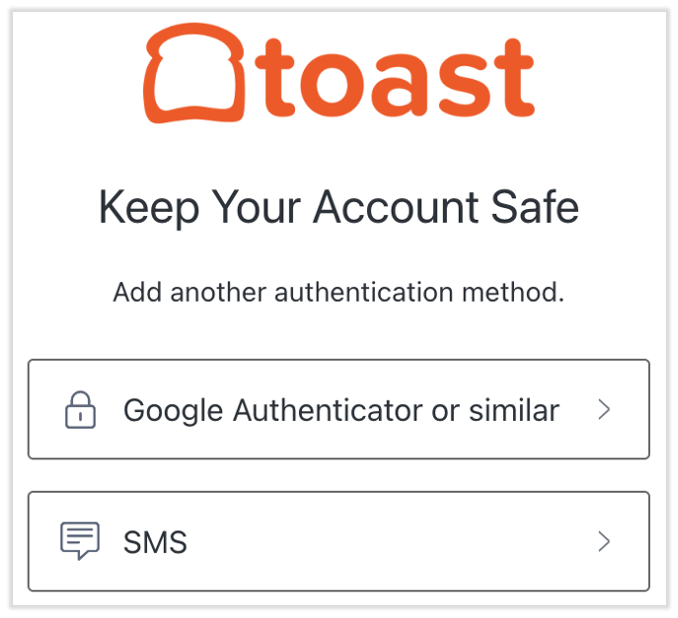
- You'll be asked to select your multi-factor authentication method.
- Authenticator app
- SMS code
- Select the authentication method you wish to use.
- Google Authenticator or similar: Selecting this option means you'll need to use an app such as Google Authenticator. Authenticator apps automatically generate codes that you can use for MFA. Data rates may apply.
- If necessary, download an authentication app such as Google Authenticator from the Google Play Store or the App Store.
- Open your authenticator app on your mobile device.
- On the next screen after selecting Google Authenticator or similar, you'll see a QR code. Use your authenticator app to scan this QR code and add Toast.
- To do this in Google Authenticator, you'll select the + button in the lower-right corner and choose Scan a QR code.
- After accepting Toast in the authenticator app, you'll see a six-digit code that refreshes every 30 seconds.
- Enter the current code into the login portal and select Continue.
- SMS text: Selecting this option will send you an MFA code via SMS text. Message and data rates may apply.
- On the next screen, you will be asked to enter your phone number. Select Continue.
- Note: Do not use your restaurant's landline as the phone number for MFA. You should use your personal phone number to receive text messages.
- Toast will immediately text you a six-digit code. Enter it into the login portal and select Continue once more.
- On the next screen, you will be asked to enter your phone number. Select Continue.
- When you log in to Toast in the future, if you're asked to authenticate your login you'll need to enter a six-digit code (either from the authenticator app or SMS message) to verify your login.
- Google Authenticator or similar: Selecting this option means you'll need to use an app such as Google Authenticator. Authenticator apps automatically generate codes that you can use for MFA. Data rates may apply.
- You might see a screen asking if you want to set up biometrics (Log In Faster on This Device). That process is optional and not part of MFA. Learn more by visiting Log in to Toast Web With Biometrics.
You're all set! In general, you can expect an MFA challenge about every 30 days per device (e.g. computer, laptop, mobile phone).
MFA does not apply when logging in on your POS device.
Update or Disable MFA Method
You must have access to your device in order to disable or reset MFA. If you lose your mobile device and you need to update your MFA, your authentication code is being sent to the wrong number, or if you're unable to log in to Toast Web to update MFA, contact Customer Care for assistance.
If you'd like to switch between the two authentication methods (SMS text and authenticator app), you can reset MFA on your own. If your account doesn't have any sensitive permissions (8.1 Financial Accounts or 8.7 Instant Deposits), you can also choose to disable MFA.
- Navigate to toasttab.com/login and log in to Toast.
- In the upper-right corner, select the avatar icon and choose My account.
- Scroll down to the Login and security section.
- You can select Reset multi-factor authentication. You'll be logged out of Toast Web and prompted to set up MFA again the next time you log in with your email and password.
- If you don't have sensitive permissions, you can toggle the Multi-factor authentication setting to the Off position.
Frequently Asked Questions About MFA
Can I skip setting up MFA? Why do I need MFA?
MFA setup will be required for some Toast Payroll users, and any users with access to sensitive permissions (8.1 Financial Accounts or 8.7 Instant Deposits). Other users can skip setting up MFA.
How will MFA affect the MyToast app?
The MyToast app will also use the same MFA protocols.
What if I lose my phone and/or I can’t access my MFA code for some reason? Can I change my MFA setup?
If you’ve already set up MFA but you cannot access your MFA code, you will not be able to log into Toast. Contact Customer Care for assistance.
I chose the SMS method for MFA. Why haven't I received the text message with my six-digit code?
If you're not receiving the text message with your authentication code, double-check the phone number you have entered in. You can also try clearing your cache and cookies and attempting to send the MFA code again. If you try to resend the code and you still do not receive it, contact Customer Care.
If you're regularly having trouble receiving the SMS message with your authentication code, consider resetting MFA and using an authenticator app instead.
Why shouldn't my business use a shared login with MFA?
We recommend that every employee who needs Toast Web access should have their own profile so they can log in independently. This way, only users with sensitive financial permissions will be required to enable MFA. To learn more about the login and security benefits of individual accounts, see Separate Your Shared Toast Web Accounts
Why am I getting a text with an MFA code when another user is logging in? How does MFA work on a shared device?
If multiple people are trying to use the same device (computer, laptop, tablet, etc.) to log in to Toast Web, you may run into the scenario where the last person's email is saved on the login screen and the wrong person is getting a text with a 6-digit MFA code. A workaround in this case would be to either clear the cache & cookies on your browser, or open a private/icognito tab so that the second user can enter their own email and password.