xtraCHEF: Upload Invoices and Receipts on Mobile
Última actualización: 8 abr 2026, 10:14 a.m.
Upload Documents via Your Mobile App
xtraCHEF's mobile app makes it easier than ever to upload invoices and receipts by pairing automation with your smartphone's camera. Ready to have insight into your restaurant's financials, inventory, and more literally at your fingertips? Start by downloading the xtraCHEF app. This app can be downloaded through either the Apple App Store or through Google Play Store.
Step-by-Step Guide
To begin, sign in to your account. Once logged in, select the Camera Icon located at the bottom of your Mobile Dashboard.
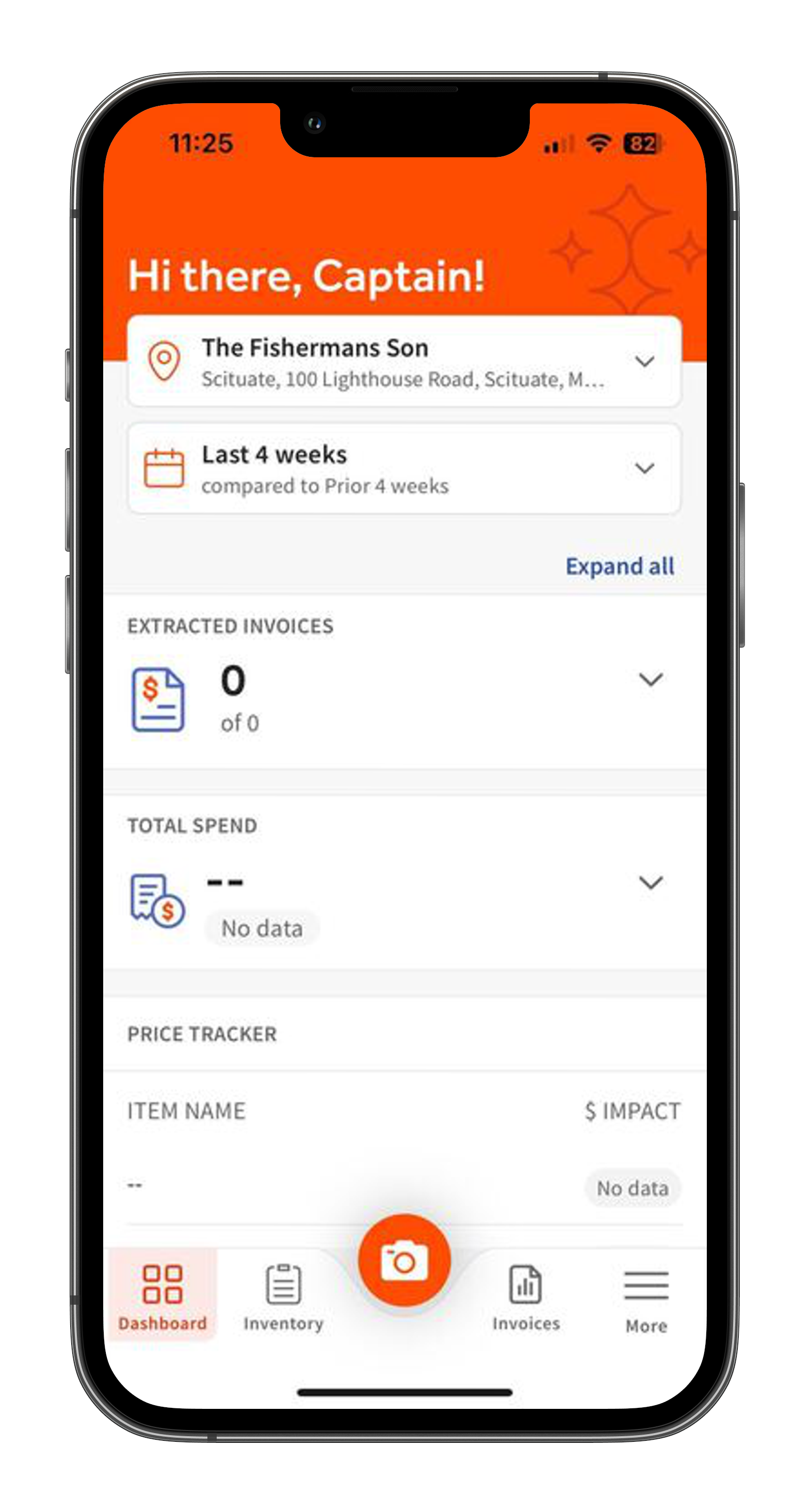
This will bring you to your Invoice Capture page. To capture your invoice, tilt or move your camera until it is parallel with the document.
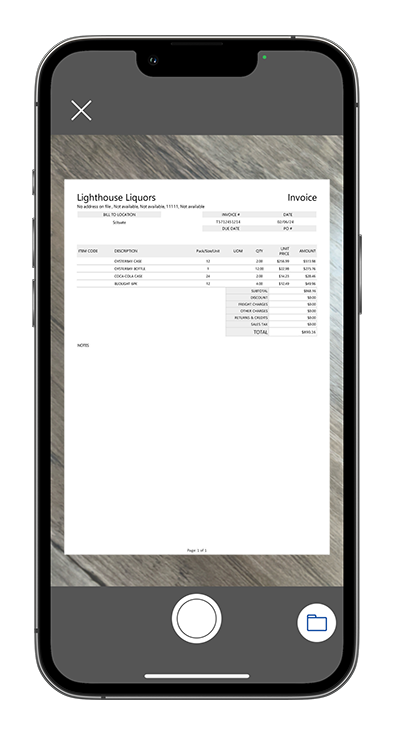
Note: We also recommend capturing your invoices in a well-lit area and on a flat background. This will maximize your scan quality and ensure invoices are not rejected due to poor image quality.
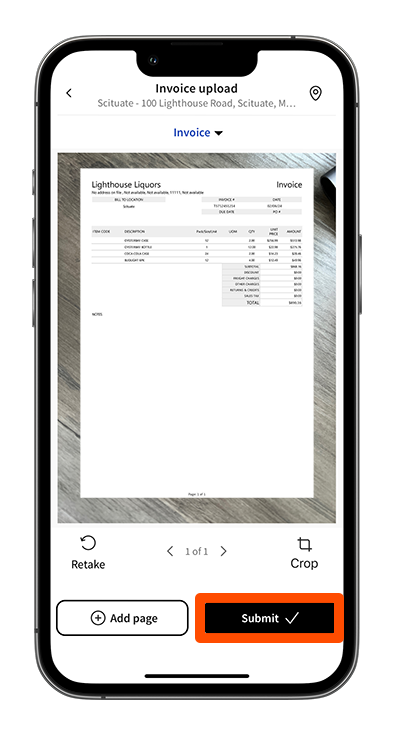
Once captured, you will be prompted to review the image of the document. On this page, you can opt to Add Page, select the document type (i.e., Invoice or Receipt), make a Credit note, or finish your Upload. When ready, select Submit to upload your document.
Add Pages
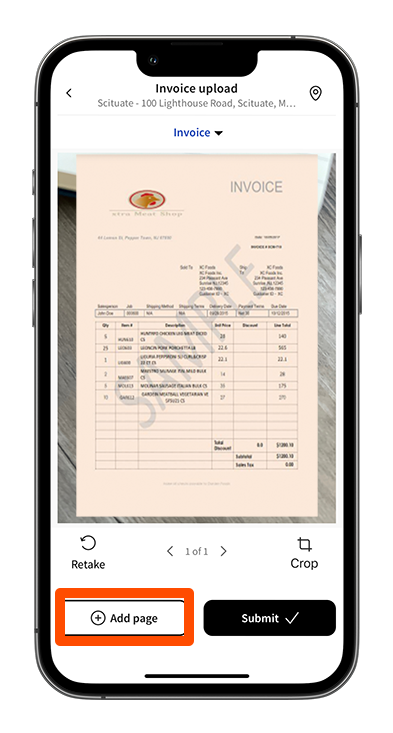
If the document you're capturing contains multiple pages, it is vital they are all added to your mobile upload. To do this, select Add Page located in the bottom left corner of your Scan page. This will prompt you to capture the second page. Repeat this step as needed until all pages are captured.
Select a Document Type
On your Scan page, select the arrow drop-down located at the top next to your default document type.
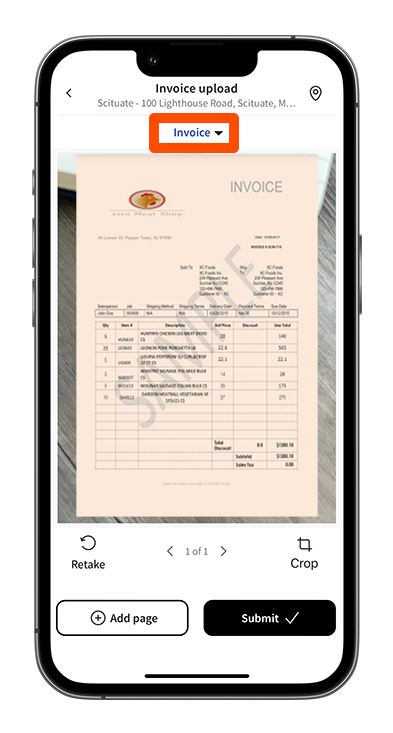
This will allow you to select either Invoice or Receipt as the document type.
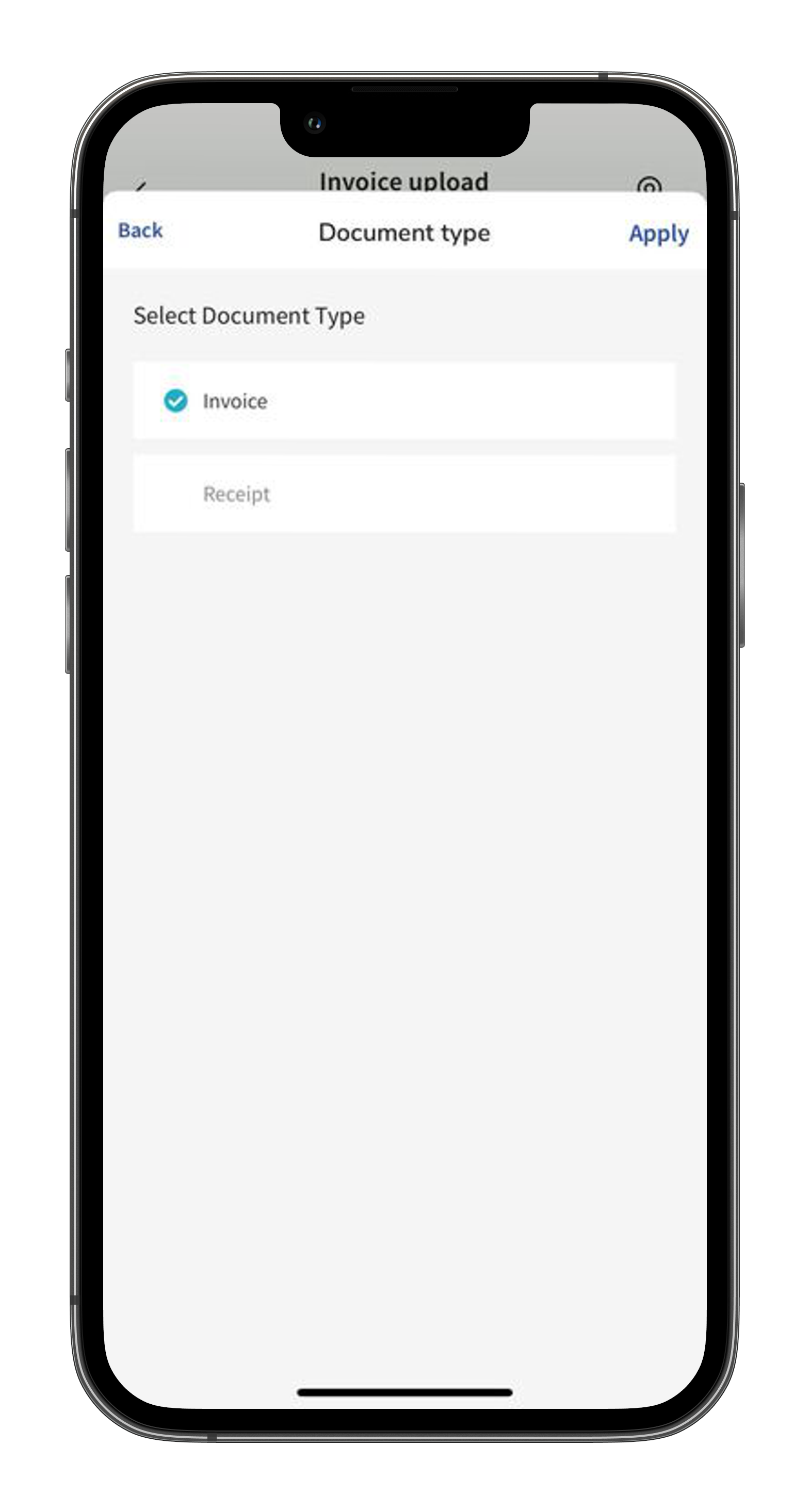
Once the new Document Type is chosen, select Apply. This will lock in your selection.
Back to top
Next Steps
Once invoices are uploaded, they begin the reconciliation process. At first, this process will require action on your behalf to review and handle the following:
- Rejections: Invoices can be rejected if an uploaded photo or scan is missing too much data (due to cropping or missing pages) or if image quality is illegible. For more on rejections, visit xtraCHEF: Invoice Rejections.
- Action Needed: Invoices missing partial information such as vendor codes, invoice numbers, dates, and more will be stopped. These invoices can always be pushed forward by supplying the missing and required information. For more on exceptions, visit our article xtraCHEF: Action Needed Invoices.
- Mapping invoice items: Over time, xtraCHEF learns to code your individual invoice line items to general ledger (GL) codes and categories for accounting and reporting purposes. It does this through machine learning. However, when you’re just getting started, your accounts AI is a clean slate.
As you manually ‘code’ your invoice line items to a corresponding GL code or category, xtraCHEF will remember your designations and repeat them on your behalf moving forward. For more on mapping invoice items, check out xtraCHEF: Map Invoice Items.
Continuing to usher your invoices through that reconciliation process, xtraCHEF will begin to unlock insight in the form of analytics, reporting, budgets, operating summaries, and so much more.
Uploading FAQ
My Invoices are being rejected due to poor image quality. How do I prevent this?
Images can be rejected due to poor image quality for a number of reasons. Typically, this occurs when an image was too dark, too blurry, or the text was illegible. Capturing your invoices against a well-lit surface will help prevent invoice rejections.
Learn more about Invoice Rejections by reading xtraCHEF: Invoice Rejections
When I add credits upon upload, my invoices are flagged in the Action Needed tab as Invoice or line totals don’t match. How do I prevent this?
The reason provided indicates that the payable total amount on the invoice does not match the total of all your line items. This can happen when you both adjust the payable total amount on an invoice before uploading and add a credit upon upload. Doing so may duplicate the credit and thus unbalance your invoice.
To avoid this, either adjust the total on the invoice before uploading your document or Add Credit upon uploading your document.
Learn more here: xtraCHEF: Action Needed Invoices.
I'm unable to upload multiple invoice pages. How can I attach all these to one upload?
When reviewing your initial Invoice scan on the Scan page, you have the option to select Add Page. This will allow you to attach additional images of your document. Do not upload multiple photographs separately, as these could be read as separate invoices by the system.