Redeem Points on Toast Loyalty
Last updated: Oct 1, 2026, 11:55 AM
Redeem Toast Loyalty points for rewards in store, on a kiosk, online, and on mobile, and fix common problems like a greyed-out Redeem button or a reward that won't apply.
- Before You Begin
- Quick Fix
- If the Redeem Button Is Greyed Out or the Reward Won't Apply
- If a Guest's Points Are Missing or Not Recognized
- If a Birthday or Item Reward Won't Unlock
- Redeem Points in Store on the POS or Toast Go®
- Redeem Points on a Kiosk
- Redeem Points on Toast Online Ordering and Local by Toast
- Redeem Points on Toast Mobile Order & Pay®
- Redeem Points With a QR Code or Mobile Payment
- Add a Loyalty Account to a Check on the POS
- Adjust a Loyalty Account's Balance
- Frequently Asked Questions
- Related Articles
Before You Begin
Applies to: Toast POS, Toast Go®, Toast Kiosk, Toast Online Ordering, Local by Toast, Toast Mobile Order & Pay®
Permissions needed:
- Restaurant staff redeeming on behalf of a guest need access to the payment screen on the POS.
- Adjusting a rewards account balance is done in Toast Web under Reports > Marketing > Rewards accounts.
What you'll accomplish: Apply a guest's available loyalty reward as a cash discount on their order, or resolve a redemption that isn't working.
Note: How points are redeemed depends on your reward type. With fixed cash rewards and free item rewards, the guest picks a specific reward, and only that reward's points are deducted — the full points cost is always deducted, regardless of the check total. If your program still uses an older progressive (cashback) reward, the guest instead redeems all reward points up to the balance due on the check and cannot choose how many points to use.
Quick Fix
Use this table to match the symptom a guest or staff member describes to the most likely cause and the first thing to try.
| Symptom | Most Common Cause | Quick Fix |
| Redeem button is greyed out | Guest is below the redemption threshold, or no reward is available yet | Confirm the guest's balance has reached the reward threshold; have the guest check their balance |
| Reward shows $0 off or won't apply | Threshold not met, or the reward was removed earlier in the check | Re-add the loyalty account on the payment screen and select the reward again |
| POS doesn't prompt redemption with a linked card | Not enough points, or the card isn't linked to the loyalty account | Confirm the guest has enough points and that the card is linked to their loyalty account |
| Points are missing or not recognized | Points were not added to the account | Guest contacts the restaurant to request a balance adjustment |
| Birthday reward won't unlock | Birthday reward not configured or guest not eligible | See Manage Birthday Rewards for Toast Loyalty |
| Can't redeem online | Guest is not signed in to an account | Guest signs in with the email or phone number on their loyalty account |
If the Redeem Button Is Greyed Out or the Reward Won't Apply
With fixed cash or free item rewards, the guest selects a specific reward to redeem, and the full points cost is deducted regardless of the check total. With an older progressive (cashback) reward, the guest instead redeems all reward points up to the total balance due on the check. Either way, the reward applies as a cash discount. If the Redeem option is greyed out or the reward shows $0 off, work through these causes in order.
The guest may not have reached the redemption threshold yet. Once the threshold is reached and redeemed once, the points balance must reach the threshold again before redemption is available. For example, if the threshold is 100 points and a redeem transaction uses only 50 of those points, the balance must reach 100 again before the next redemption.
The reward may have been removed earlier in the check. After redeeming, a reward can only be removed by the guest in the "Pay as you Go" flow, or by a server through the POS with the "Tabs" configuration disabled. If the reward was removed, re-add the loyalty account on the payment screen and select the reward again.
If the guest has enough points and the reward still will not apply, contact Toast Customer Care.
If a Guest's Points Are Missing or Not Recognized
If a guest has rewards points that were not added to their loyalty account, they must contact the restaurant they have a loyalty account with to request that points be added. The restaurant decides whether to approve or reject the balance adjustment request. To adjust a guest's rewards account balance, navigate to Reports > Marketing > Rewards accounts in Toast Web. For the full process, see Manually Add and Adjust Rewards Balances.
If a guest cannot find their balance at all, they can look it up themselves. See Look Up a Toast Loyalty Rewards Balance.
If a Birthday or Item Reward Won't Unlock
Birthday rewards and item-based rewards are configured separately from standard point rewards, so they redeem only when they have been set up and the guest is eligible. In store, guests can only redeem birthday rewards. To set up or troubleshoot birthday rewards, see Manage Birthday Rewards for Toast Loyalty. For free-item and tiered rewards, see Optimize Toast Loyalty With Item-Based Rewards and Configure and Redeem Tiered Rewards in Toast Loyalty.
Redeem Points in Store on the POS or Toast Go®
There are two ways a guest can redeem in-store: through a linked credit card or by having staff add the loyalty account to the check.
When a guest pays in-store with a credit card linked to their loyalty account, they are automatically prompted to redeem their reward if they have enough points. To learn how a card gets linked, see Link a Credit Card or Debit Card To a Loyalty Account.
Note: Redeem with cash: The redemption methods above, based on a linked credit card, don't apply if a guest is paying with cash. Instead, have staff add the guest's loyalty account to the check using the Rewards button on the payment screen (see Add a Loyalty Account to a Check on the POS below) — the reward applies as a cash discount before the payment method is selected, so it works the same for cash and card payments.
Note: If a reward is used to pay a check entirely, the guest cannot tip with a credit card.
Redeem Points on a Kiosk
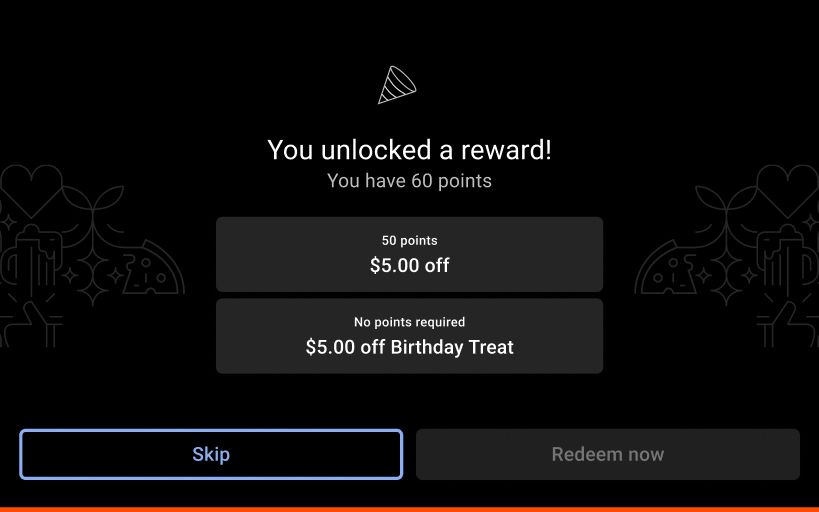
When placing a new order on a kiosk, the guest enters their information to connect to their loyalty account, and a pop-up appears with available rewards. To redeem on a kiosk:
- Enter your information at the start of the order to connect to your loyalty account.
- Select a reward from the pop-up to apply it to the order, or select You have rewards! at the bottom of the order screen later in the order process to view and apply a reward.
For more detail, see Kiosk: Place Orders and Make Payments.
Redeem Points on Toast Online Ordering and Local by Toast
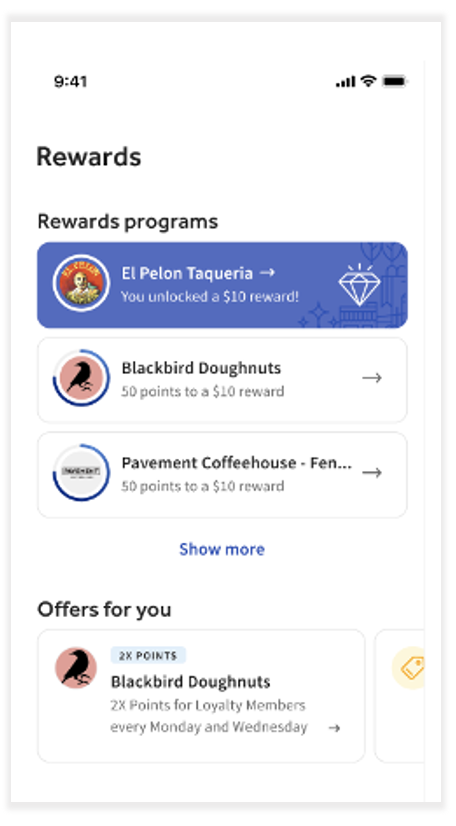
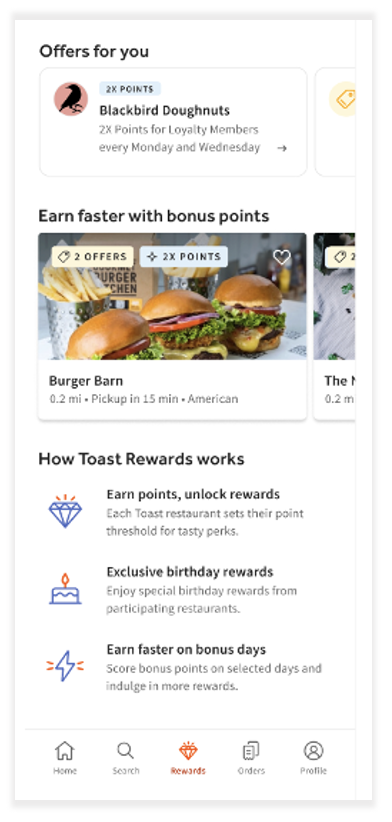
A guest can redeem online only when they are signed in to an account — points earned through guest checkout cannot be redeemed unless the guest signs in. To redeem on Toast Online Ordering:
- Sign in to your Toast Online Ordering account using the email or phone number on your loyalty account.
- Under the Rewards header, select Redeem Now to apply the reward to your cart before submitting the order.
Local by Toast works the same way. A guest signed in to their Local by Toast account can redeem before submitting the order:
- Sign in to your Local by Toast account.
- Select Redeem next to the reward to subtract the discount amount from your order total.
Redeem Points on Toast Mobile Order & Pay®
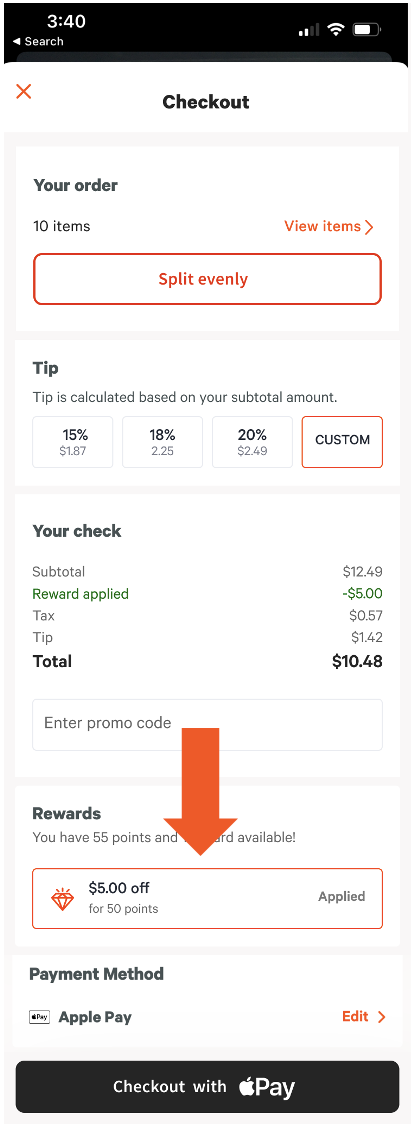
To redeem rewards on Toast Mobile Order & Pay®, a guest must be logged in to their Toast account and use the same email or phone number attached to their loyalty account. At checkout, available rewards appear under the Rewards section, and the guest proceeds to pay the check.
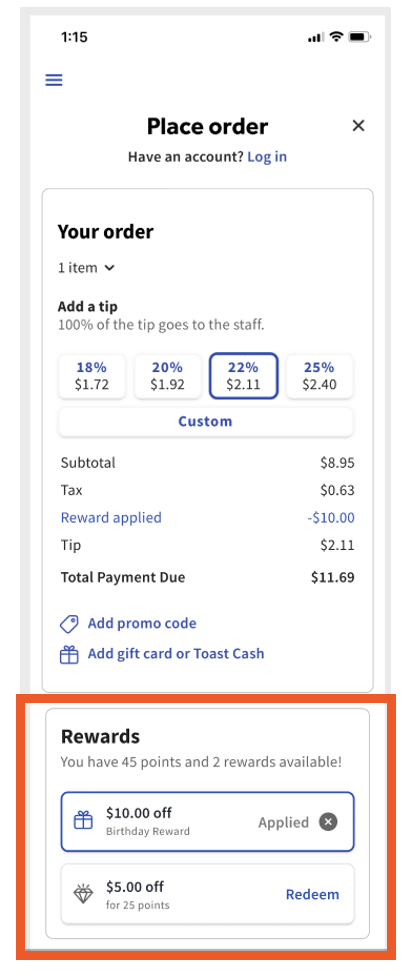
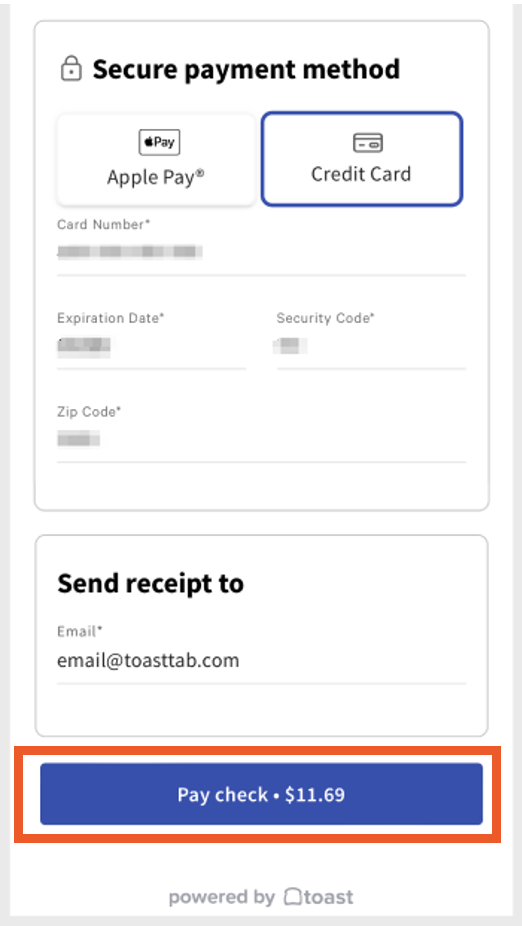
Note: Guests cannot redeem in the split-evenly or group-order flows. After redeeming, a guest can remove the reward themselves only in the "Pay as you Go" flow; otherwise, a server must remove it through the POS with the "Tabs" configuration disabled. For more on tabs, see Configure and Use Card Pre-Authorization.
Redeem Points With a QR Code or Mobile Payment
When a guest pays from a mobile device by scanning the QR code on their receipt, any rewards they are eligible for appear at the bottom of the screen before they add a payment method, and they can choose to redeem there.
Add a Loyalty Account to a Check on the POS
Staff can add a guest's loyalty account to a check from the payment screen so the guest can redeem. To add a loyalty account on the POS:
- On the payment screen, select the Rewards button.
- In the pop-up window, look up the guest's rewards account using one of the following:
- Key In: manually enter the guest's 16-digit number, which the guest can find on their E-Rewards Card. See Enroll Guests in Toast Loyalty.
- Scan: use the tablet's camera or your scanner to scan the guest's QR code.
- Swipe: if the loyalty account is linked to a physical gift card, swipe it to look up the account.
- Lookup: search by the guest's name, phone number, or email.
- Once the account is located and the guest has enough points, select Redeem to apply the listed reward.
You should now see the reward applied to the check as a cash discount.
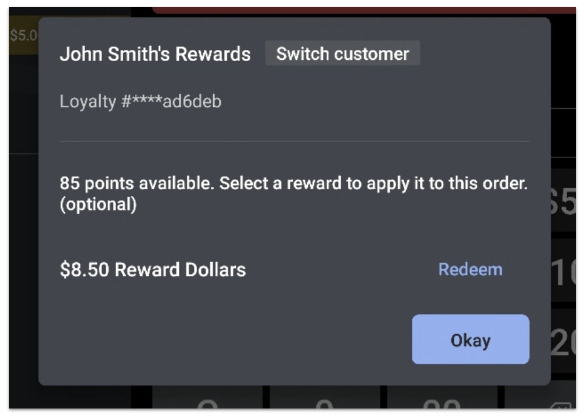
Note: With fixed cash or free item rewards, the guest redeems one specific reward at its full points cost. With an older progressive (cashback) reward, the guest redeems all reward points up to the balance due on the check and cannot choose how many points to use. Either way, once redeemed, the balance must reach the next threshold again before the guest can redeem again.
Adjust a Loyalty Account's Balance
If a guest's points were not added to their loyalty account, they must contact the restaurant to request the points. The restaurant can approve or reject the request. To adjust a guest's rewards account balance, navigate to Reports > Marketing > Rewards accounts in Toast Web. For more information, see Manually Add and Adjust Rewards Balances.
Frequently Asked Questions
Why is the redeem option greyed out for my guest?
The redeem option is greyed out most often because the guest has not reached the redemption threshold or no reward is available yet. Confirm the guest's balance has reached the reward threshold and that they have enough points. If the guest has enough points and redemption is still greyed out, contact Toast Customer Care.
Also asked as:
- Why can't a loyalty customer redeem points?
- The redeem button is grayed out, how do I fix it?
How does a guest redeem points in store?
A guest redeems points in store either by paying with a credit card linked to their loyalty account, which automatically prompts redemption when they have enough points, or by having staff add the loyalty account to the check from the payment screen and select Redeem.
Also asked as:
- How do customers redeem points in the restaurant?
- How can guests redeem points in store?
Can a guest choose how many points to redeem?
With fixed cash or free item rewards, the guest can choose which reward tier to redeem if they qualify for more than one, but not how many points within a reward — the full points cost is always deducted. With an older progressive (cashback) reward, the guest cannot choose at all: they redeem all reward points up to the total balance due on the check, applied as a cash discount.
What happens if a guest's reward is worth more than the check total?
With a fixed cash or free item reward, the full points cost is deducted even if the reward is worth more than the check total — there is no partial credit or leftover balance. With an older progressive (cashback) reward, Toast instead redeems only enough points to cover the balance due, so a progressive reward is never worth more than the check it's applied to. Either way, once a reward is redeemed, the points balance must reach the next threshold again before the guest can redeem again.
Can a guest tip with a credit card after using a reward?
A guest cannot tip with a credit card if a reward is used to pay the check entirely.
Why isn't my guest's reward (cash reward) showing at checkout?
A reward, sometimes called a cash reward or cash back, may not show at checkout because the guest is below the redemption threshold or is not signed in to an account online. Confirm the guest has enough points, and for online orders make sure the guest is signed in with the email or phone number on their loyalty account.
Also asked as:
- Why isn't the cash reward popping up?
- The reward won't apply at checkout.
If the guest qualifies for more than one reward tier, make sure you're checking for the correct one — each tier unlocks independently once its points threshold is reached.
Can a guest redeem a reward online as a guest checkout?
A guest cannot redeem a reward through guest checkout online. Although points can be earned through guest checkout, they can only be redeemed when the guest is signed in to their account.
How do I add more reward points to a guest's account?
To add reward points to a guest's account, navigate to Reports > Marketing > Rewards accounts in Toast Web and approve the guest's balance adjustment request. See Manually Add and Adjust Rewards Balances for the full process.
Also asked as:
- A customer's points are missing, how do I add them?
- How do I adjust a rewards balance?
Related Articles
- Get Started With Toast Loyalty
- Look Up a Toast Loyalty Rewards Balance
- Manage Birthday Rewards for Toast Loyalty
- Optimize Toast Loyalty With Item-Based Rewards
- Configure and Redeem Tiered Rewards in Toast Loyalty