Toast Payroll: Use Self-Printed Paycheck Delivery
Last updated: Oct 9, 2026, 11:44 AM
| These methods only apply to employees who do not receive direct deposit or use Toast Pay Cards and would instead receive a paper check. If an employee signs up for direct deposit, they will receive their funds electronically regardless of which method is chosen. |
- Paycheck Delivery Option Comparison
- Sign Up for Self-Printed Paycheck Delivery
- Steps to Self-Print Checks
- Order Envelopes and Check Stock
Payroll Delivery Option Comparison
Toast offers three different options to pay employees who choose to receive a paper check. You may choose self-printed, self-written, or Toast-printed. If an employee is signed up for direct deposit, they will receive their funds electronically regardless of which method is chosen.
Note: Making a selection here does not affect Form W-2 or other document printing options.
Sign Up for Self-Printed Paycheck Delivery
To sign up for self-printed paycheck delivery, open Toast Payroll and navigate to Settings > Payroll > Paycheck Delivery to select your preference. (If you do not see Settings on the left side of the screen, select Payroll from the Toast Web navigation rail on the left to make the Toast Payroll navigation rail appear.) This is a company-wide setting that is typically set once and left alone. See Toast Payroll: Review Paycheck Delivery Options for more details.
Steps to Self-Printed Paycheck Delivery
Want to print a sample check to test out your printer settings? Use this file for practice.
- Post payroll as normal.
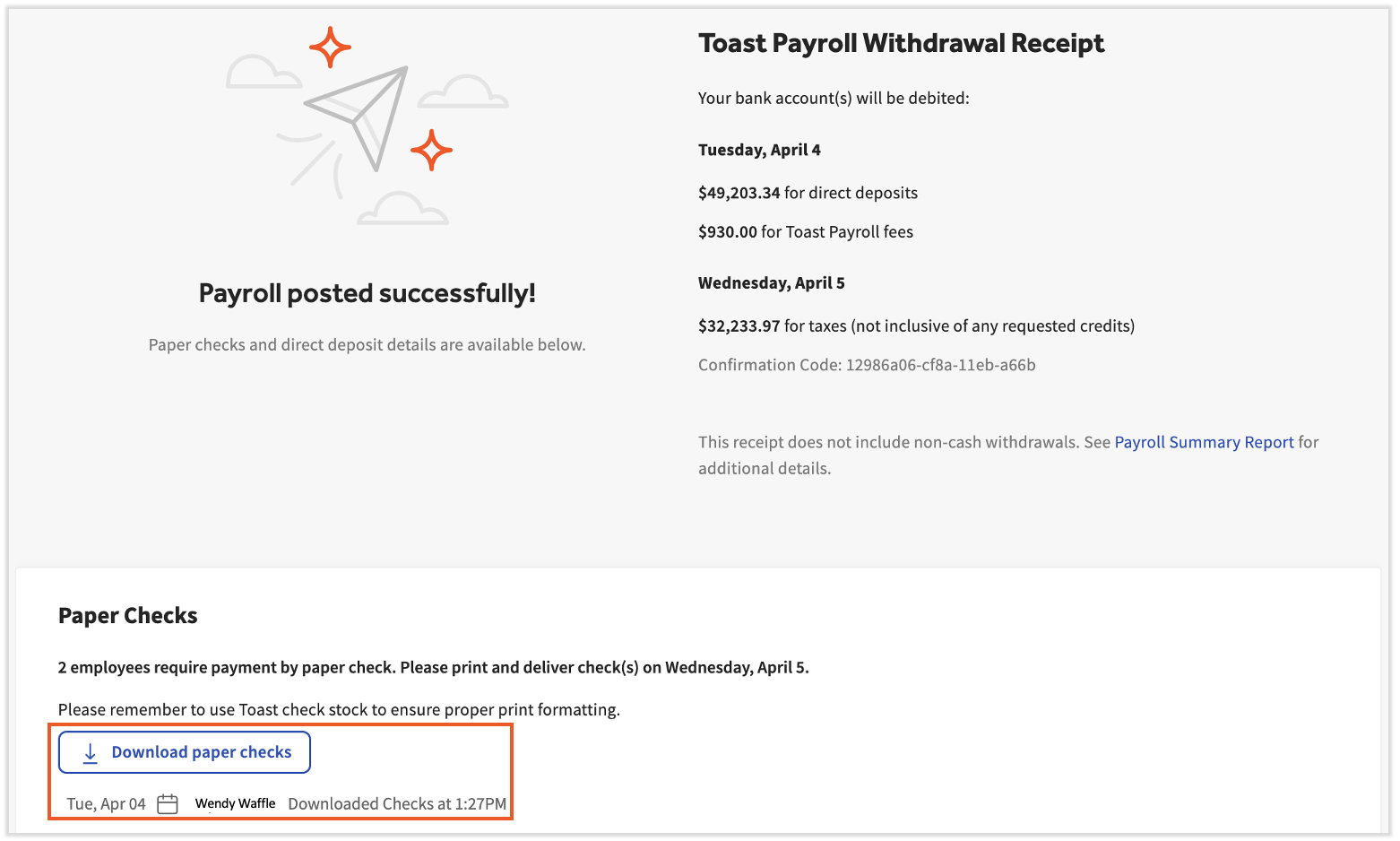
- Within a few minutes of posting payroll, the paper check file(s) containing all the checks to print will be available on the confirmation page.
- Select Download paper checks to access the file. Use the audit trail below the button to check if the check file has already been downloaded.
- Make sure check stock is loaded into your printer.
- Open your paper check file in a PDF viewer. If you need PDF viewer software, Toast Payroll recommends Adobe Acrobat Reader. Download it for free here.
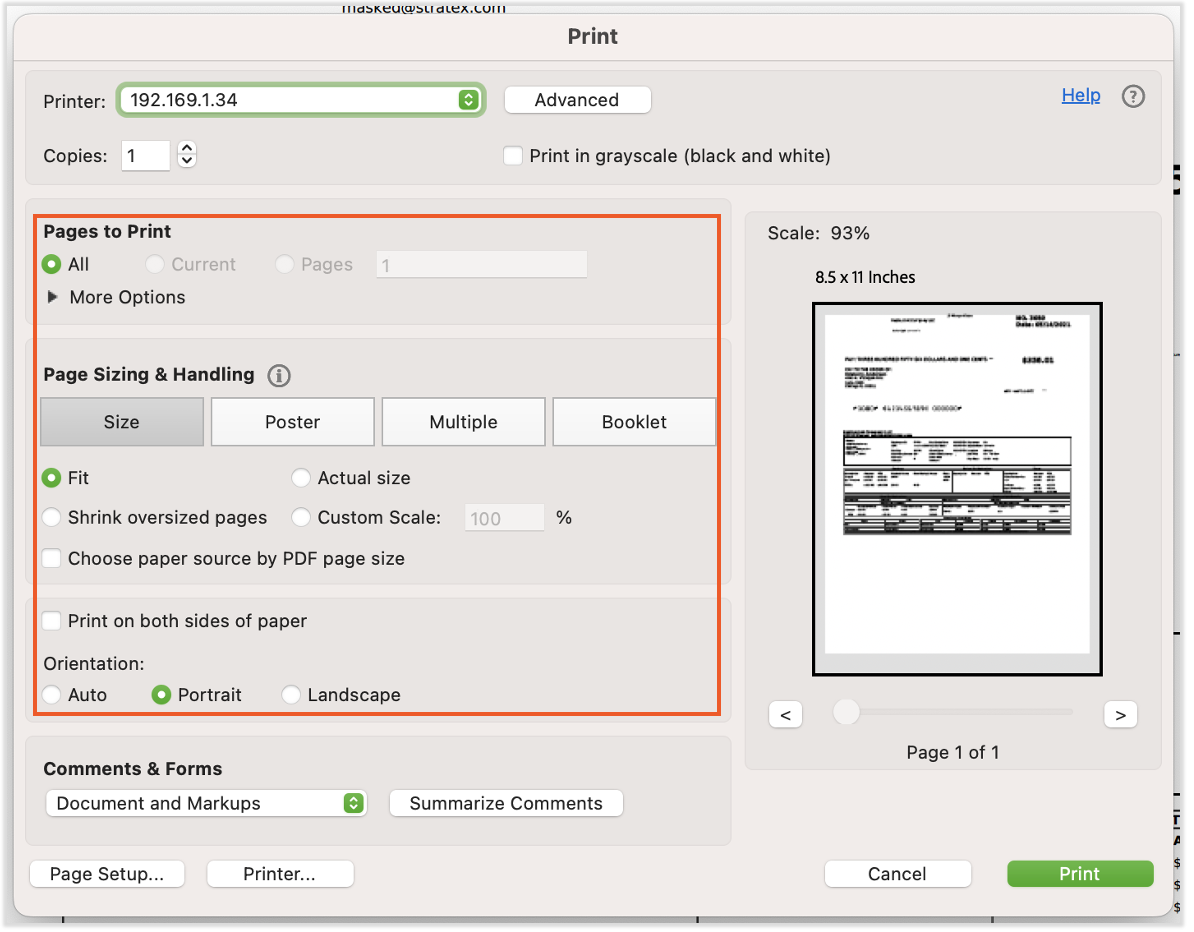
- Using Adobe Acrobat Reader, select File > Print.
- In the Print Settings window, ensure that your Page Sizing is set to Fit or Fit to Printable Area (language may differ in your print settings). Checks should be printed in a Portrait orientation and "Print on both sides" should be disabled.
- Select Print.
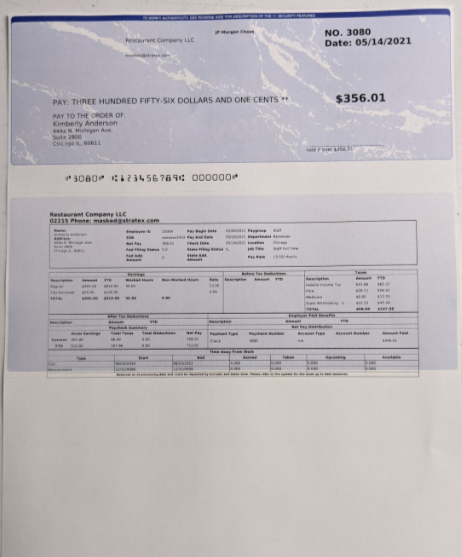
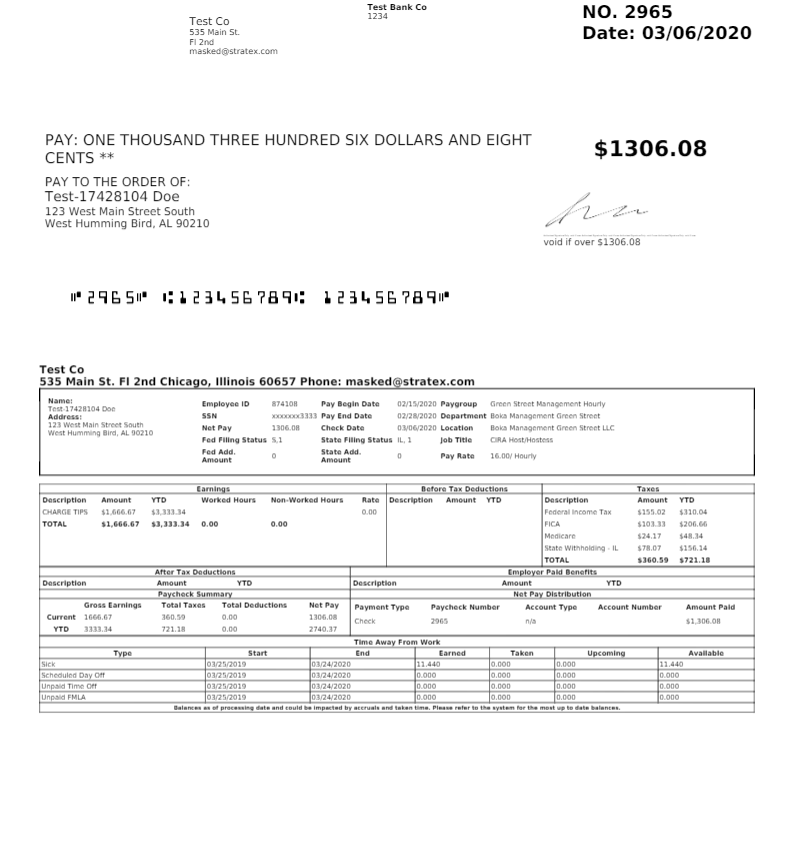
- Here are two examples of what the finished product may look like (check color may vary).
- If you do not see pay stubs attached to your paychecks, you can request this by selecting the blue chat dot in the lower-right corner of any Toast Payroll page. In cases where a paystub is not present, but one is needed, electronic copies can be found and printed from an employee's profile. Learn more by viewing Toast Payroll: View Your Paystub or Timesheet.
- If you do not see pay stubs attached to your paychecks, you can request this by selecting the blue chat dot in the lower-right corner of any Toast Payroll page. In cases where a paystub is not present, but one is needed, electronic copies can be found and printed from an employee's profile. Learn more by viewing Toast Payroll: View Your Paystub or Timesheet.
- Review checks to ensure they are properly formatted and the bank information is above the perforation. The bank information should appear in MICR font as seen below.
- If a paycheck is rejected by an employee's bank, it may be due to several factors, including the business account and/or routing number possibly being incorrect. If that's the case, fill out a New Bank Account Form and submit via the blue dot in the lower-right corner of any Toast Payroll page. Note: Toast Payroll is currently unavailable in Quebec. A French version of this form will be made available when the product launches in your region.
- If a paycheck is rejected by an employee's bank, it may be due to several factors, including the business account and/or routing number possibly being incorrect. If that's the case, fill out a New Bank Account Form and submit via the blue dot in the lower-right corner of any Toast Payroll page. Note: Toast Payroll is currently unavailable in Quebec. A French version of this form will be made available when the product launches in your region.
- Ensure that only one copy of each check is available for employees. Checks are popularly distributed by physically handing checks out at your location or by mailing them to the employee's address in the Toast Payroll system as needed.

Ordering Check Stock
If you plan to mail any paychecks, you can use this recommended envelope from Staples. If your paychecks don't line up with this envelope's windows, double-check your print settings and compare them to the settings laid out in step 7 above. With correct print settings, Toast Payroll paychecks will fit these envelopes.
Toast Payroll recommends a few different types and amounts of check stock packages. Check out the following links:
- Purchase 500 checks from Staples
- Purchase 500 checks from S & S Business Forms
- Purchase 1000 checks from S & S Business Forms
- Purchase 2000 checks from S & S Business Forms
This content is for informational purposes and is not intended as legal, tax, HR, or any other professional advice. Please contact an attorney or other professional for advice.