Toast Tables FAQ™
Last updated: Oct 20, 2026, 11:13 AM
This article will cover FAQ for Toast Tables™. If you don't find what you're looking for here, search Support Center by keywords or phrases. This is a constantly-evolving document as customer questions arise, so check back frequently!
- The Toast Tables™ app: Wi-Fi, devices, and login
- Toast Tables™ modules and integrations
- Waitlist and reservations
- Frequently Asked Questions
- Related Articles
The Toast Tables™ App: Wi-Fi, Devices, and Login
What Wi-Fi networks can the Toast Tables™ app run on?
The Toast Tables™ app can run on any network that third-party personal devices can connect to, such as an iPad or a personal cell phone. Toast Tables™ is not a payment processing application within PCI scope (external link), so it should not be run on Toast hardware or connected to a Toast-managed network.
Most restaurants connect the device running Toast Tables™ to their non-PCI network. This network name typically ends in “_Secure.”
Toast Tables™ cannot run on a PCI in-scope network, which typically has a name ending in “_Toast.” That network only supports PCI in-scope software and hardware.
Why can't I use Toast hardware to run the Toast Tables™ host app?
You cannot use Toast hardware to run the Toast Tables™ host app because the app is not currently a payment processing application and has not gone through the required Payment Card Industry (PCI) audit. The Payment Card Industry Data Security Standard (external link) is a set of security standards that secure credit and debit card transactions against data theft and fraud. Any software running on Toast hardware must pass a significant audit because of these standards.
Toast Tables™ was also designed to be portable for your host and to give restaurants the flexibility to use their own portable devices.
Why am I having trouble logging in to the Toast Tables™ app?
If you are having trouble logging in to the Toast Tables™ app, work through these steps in order:
- Confirm your restaurant has the proper permissions. See the Employee Permissions section of Get Started With Toast Tables™.
- Confirm you are using a supported Apple or Android tablet. See Toast Tables™: Device Compatibility. Compatible tablets must run iOS 12 or Android 11 or later. Toast recommends a tablet, but Toast Tables™ can also run on a mobile phone running iOS 17 or Android 14 or higher.
- Uninstall and reinstall the Toast Tables™ app.
- Confirm your device has its time and date set automatically. For Apple devices, see this Apple guide (external link). For Android devices, see this Google guide (external link).
Expected outcome: You can log in to the Toast Tables™ app with your Toast username and password.
Note: Your Toast Tables™ login is the same username and password you use to log in to Toast Web. Any employee who can log in to Toast Web can log in to the Toast Tables™ app.
Toast Tables™ Modules and Integrations
Why am I seeing a "Limited functionality" message in my Toast Tables™ app?
You are seeing a "Limited functionality" message because you have passed the monthly reservation limit included with the base Toast Tables™ product. For most restaurants, this limit is 25 reservations per month. The message prompts you to upgrade to Toast Tables™ Plus, the unlimited reservations product.
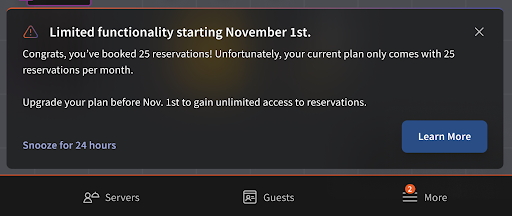
If you do not want to upgrade because you do not expect to reach the limit again, no action is needed. Your reservation limit resets at the start of the next month. As long as you do not pass your included limit again, you can keep using the base Toast Tables™ product.
To upgrade, see the next question.
How do I upgrade from Toast Tables™to Toast Tables™Plus?
To upgrade from Toast Tables™ to Toast Tables™ Plus, the steps depend on your location.
If you are located in the U.S., head to Toast Shop and search Toast Tables™ for more information and product availability, then select Get a Demo. An upsell representative will contact you to complete the upgrade. You will not lose access to make reservations in the meantime.
If you are located outside the U.S., contact your Customer Success Manager or Toast Customer Care to complete the upgrade.
What Toast integrations are compatible with Toast Tables™?
Toast Tables™ is compatible with the following Toast integrations:
- Start Order on POS: Starts an order on the POS at the table once a party is seated. Your restaurant assigns a server to each table at the time of seating in the host app. This ties order and guest data together so you can see Toast Tables™ guests in the Guestbook report.
- Loyalty Program: Lets guests join your loyalty program through their confirmation link. Your restaurant must use Toast Loyalty. See Get Started With Toast Loyalty. This feature is available only to U.S. customers at this time.
- Toast Mobile Order & Pay: Lets guests pay at their table. Your restaurant must use Toast Mobile Order & Pay. See Get Started With Toast Mobile Order & Pay.
Why isn't my Reserve with Google integration working with Toast Tables™?
Your Reserve with Google integration may not be working for one of several common reasons. Review the cause that matches what you are seeing.
If the buttons are not appearing: It takes 24 to 48 hours after you enable the Reserve a Table or Join Waitlist action for the matching button to appear. If it has been more than 48 hours, check with your previous reservation or waitlist provider to confirm whether they are still sending availability to Google.
If updates to a configuration are not appearing: It takes 24 to 48 hours after your last configuration change for Google to pick up new configurations or major changes, such as an increase in availability.
If other providers are showing instead of Toast Tables™: If it has been more than 48 hours since you enabled the Google integration, check with your previous reservation or waitlist provider to confirm whether they are still sending availability to Google.
If special date availability is not showing: Confirm you are marked as Open in your Google Business Profile for the dates in question. If you are marked as Closed in Google, no availability will show.
Note: Google limits a restaurant to two action buttons on the Google Business Profile. If you have activated both Order with Google and Reserve with Google, you will see only two buttons: Order Online and Reserve a Table. The Order Online button then includes delivery and takeout options, and the Reserve a Table button includes the option to join the waitlist as well as make a reservation, if you have an online waitlist.
Note: Each Google button depends on the matching Toast feature. The Join Waitlist button comes from Online Waitlist, which is included with both Toast Tables™ and Toast Tables™ Plus. The Reserve a Table button comes from Online Reservations. If one button is missing, confirm that feature is enabled. See Get Started With Toast Tables™.
If you sign in to Toast successfully but are returned to the login page and the connection never finishes, contact Toast Customer Care.
Waitlist and Reservations
Why don't I see any times available for reservations in the Toast Tables™ host app?
You may not see available reservation times in the host app for one of two common reasons.
If your service periods are not set up: You must set up service periods, such as Dinner, with hours and specific settings in your Toast Tables™ settings before available times appear in the host app. See Get Started With Toast Tables™.
If no tables exist to hold the selected party size: Create tables, and a combo tables setup, that can hold the party sizes you want to reserve. See Get Started With Toast Tables™.
Note: To make a reservation for a very large party without setting up a combo table, select View all unavailable in the Create Reservation flow to choose a time, then select Advanced table selection to select multiple tables and create a one-time combo table.
If your guests are having trouble booking reservations online, see Get Help with Toast Tables™: Online Waitlist and Reservations.
How do I stop overbooking or taking too many reservations?
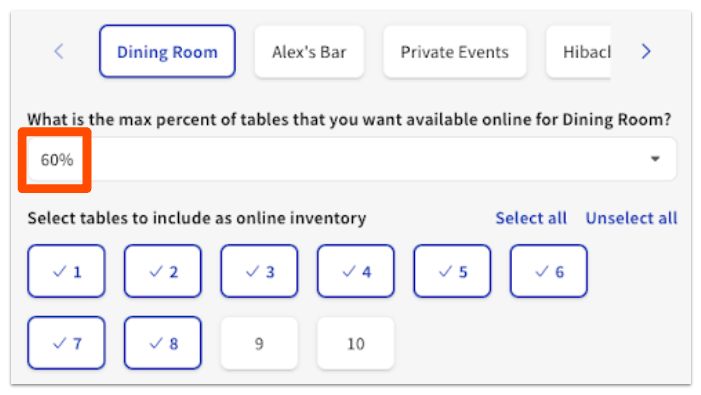
To stop overbooking, you can limit how many reservations Toast Tables™ accepts. Toast Tables™ will never overbook you beyond your settings, but you can reduce a fully booked dining room in two ways.
To limit how much of a dining area is bookable online, in Toast Web navigate to Reservations > Online Access in the Waitlist & Reservations module and reduce the percentage below 100% per service period.
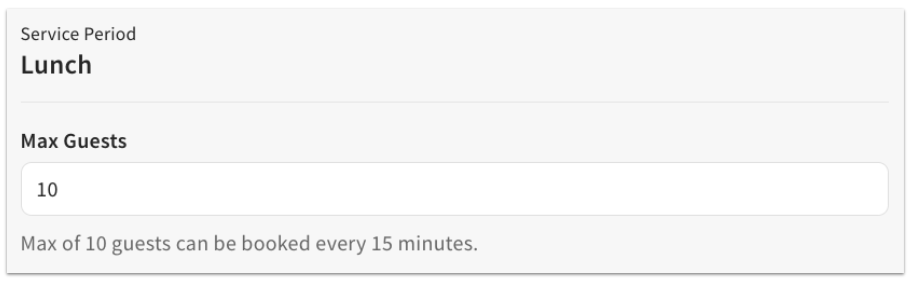
To limit how many guests can arrive in a given time slot, use Flow control to cap the number of guests booked every 15 minutes per service period. This throttles reservations at peak times.
How do I set special dates or block reservations on Toast Tables™?
To set special dates or block reservations on Toast Tables™, see Toast Tables™: Set Special Dates and Block Reservations.
Why are my online waitlist estimated wait times inaccurate, too long, or too short?
Your estimated wait times are inaccurate, too long, or too short because of your wait time settings in Toast Web. You can review each guest's estimated wait in the Wait Time Estimator, where the Manual Multiplier and Smart Algorithm settings control the estimate. See the Wait Time Estimator section of Get Started With Toast Tables™.
If you are underquoting, try increasing your buffer time or your average turn time.
If you are overquoting, try reducing your buffer time or your average turn time.
If your online waitlist shows a quote time of zero minutes when there is a wait, confirm your turn times and buffer times are configured for the active schedule. If the quote time still shows zero after confirming these settings, contact Toast Customer Care.
Why does my online waitlist show "No wait, come on by" but won't let people join?
Your online waitlist shows "No wait, come on by" but won't let people join because the setting that allows guests to join an empty waitlist is turned off. To allow guests to join your waitlist even when it is empty, in Toast Web navigate to Waitlist & Reservations > Settings > Waitlist > Online Access and enable the setting.

Why aren't my guests receiving Toast Tables™ text message updates?
Your guests may not be receiving text message updates because of an incorrect phone number or a carrier issue. First, select the waitlist entry and confirm the guest's phone number is entered correctly.
If the number is correct but the message did not go through after you select Notify in the host app, check the External Connectivity section of the Twilio status website (external link) to see whether any cell phone carriers are having SMS issues. If a carrier is having issues, your guest may receive the message with a delay once the carrier resolves them.
Note: Toast Tables™ supports sending messages to phone numbers from the U.S., Canada, Puerto Rico, the U.S. Virgin Islands, American Samoa, and Guam.
What if a server doesn't use a held table to begin an order for a table with a deposit?
If a server does not use a held table to begin an order for a table with a deposit, remove the alternate payment from the held (red) table and add it to the new table to proceed.
How do I set reservations to allow only four tables to be booked every 15 minutes?
To set reservations to allow only a specific number of bookings per time slot, configure Flow control for your schedule:
- In Toast Web, navigate to Waitlist & Reservations.
- Select the Schedules tab.
- Under Your schedules, select a schedule, then select the pencil icon next to Flow control.
- Select your reservation settings:
- For Reservation increments, select your desired setting from the drop-down list.
- For Max covers of, enter your reservation maximum.
- Select Save, then Done.
For example, if you select 15 minutes for Reservation increments and enter 4 for Max covers of, a maximum of four guests can be booked every 15 minutes.
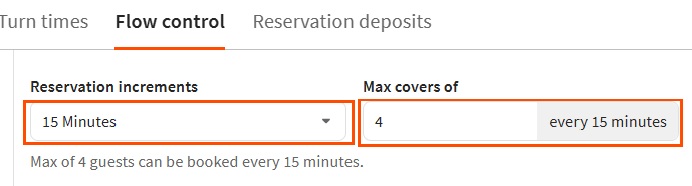
Expected outcome: Your schedule limits bookings to the number of covers and time increment you set.
Frequently Asked Questions
Does my account include the waitlist or reservations feature?
Whether your account includes the waitlist or reservations feature depends on your Toast Tables™ product. The base Toast Tables™ product includes an unlimited waitlist and 25 reservations per month. Toast Tables™ Plus includes unlimited reservations and unlimited Experiences. To confirm what your account includes or to check your entitlement, contact Toast Customer Care. For a full comparison, see Difference Between Toast Tables™™ and Toast Tables™™ Plus.
Also asked as:
- Does my account have waitlist?
- Does my current Toast package include reservations?
- Is the reservations feature part of my plan?
Can I subscribe to Toast Tables™ Plus for just one month?
Whether you can subscribe to Toast Tables™ Plus for one month depends on the terms offered for your account. To confirm available subscription terms and pricing, head to Toast Shop and search Toast Tables™ for more information and product availability, then select Get a Demo so an upsell representative can assist you, or contact Toast Customer Care.
Also asked as:
- Is Toast Tables™ Plus monthly or yearly?
- Do I have to subscribe to Toast Tables™ Plus for a year?
Can I show only the waitlist and disable reservations?
Yes, you can show only the waitlist and disable reservations. To disable all reservations for your restaurant, enable the Waitlist-Only Mode setting in Toast Web. Your host app will then show only the waitlist.
Also asked as:
- My restaurant doesn't accept reservations, can I show only the waitlist?
- How do I disable reservations and keep the waitlist?
Why is my waitlist or reservations book not working right now?
If your waitlist or reservations book is not working right now, first confirm your online waitlist and service period settings are enabled and your hours are set up for the active schedule. If guests still cannot join the waitlist or book a table, or you see an error message when opening the Waitlist & Reservations tab, contact Toast Customer Care.
Also asked as:
- Why can't anyone join my waitlist online?
- Why does my waitlist say it is closed when it is turned on?
- Why is the Waitlist & Reservations tab showing an error?
Is there a separate app for Toast Tables™ Ticketed Events? How do I check in guests?
No. You don't need a separate app. Check in ticketed guests in the Toast Tables™ host app. Ticketed bookings currently appear in the host app on iPad only (not iPhone), so make sure your host app is updated to the latest version from the App Store. You can also review check-ins for an event on the event's Guests tab in Toast Web, which shows the checked-in count for each ticket type. Ticketed events can't be checked in on the POS or Toast Go® today.
For setup and management details, see Toast Tables™: Ticketed Events Overview.
Related Articles
- Get Started With Toast Tables™
- Use Toast Tables™
- Difference Between Toast Tables™ and Toast Tables™ Plus
- Toast Tables™: Device Compatibility
- Get Help with Toast Tables™: Online Waitlist and Reservations