Use Toast Tables Deposits and Prepayments
Last updated: Oct 20, 2026, 5:27 PM
- Toast Tables Deposits and Prepayments Workflow
- Deposits and Prepayments for Managers in Toast Web
- Deposits and Prepayments for Hosts in the Toast Tables App
- Deposits for Servers on the POS
- Deposits and Prepayments for Guests Online Experience
- Reporting and Revenue Recognition for Toast Tables Deposits and Prepayments
- Additional Resources
Toast Tables Deposits and Prepayments Workflow
All guests who make a reservation requiring a deposit or prepayment will be prompted to pay your configured deposit or prepayment amount. If guests book online, they'll need to pay the deposit or prepayment online to confirm their reservation. If they book via the host or manager, they'll be sent an invoice to pay their deposit or prepayment. Deposits and prepayments are charged immediately at booking, and are not the same as cancellation fees where a credit card is kept on file, and your guest is only charged if they no-show. To learn more about these fee types and how to set them up in Toast Web, see Get Started with Toast Tables Deposits, Prepayments and Cancellation Fees.
Upon the party being seated in the Toast Tables app, an order will automatically be started on the POS. For deposits, the deposit is applied as a negative balance on the guest's order. Prepayments are not applied to this order (see Reporting and Revenue Recognition for Toast Tables Deposits and Prepayments). The system will always require a ticket to be created in the Toast Tables deposits workflow, even for walk-in.
Note: As of January 2025, bookings with deposit or prepayment rules applied are now fully supported in Reserve with Google. Toast Tables customers who formerly would have either not listed booking slots on Reserve With Google when deposits were applied, or would have waived the deposit in favor of listing on Reserve With Google, no longer have to choose between the two and can list their full bookings availability and collect their full intended amount of deposits or prepayments.
Back to top
Deposits and Prepayments for Managers in Toast Web
Create a Toast Tables Reservation with Deposits or Prepayments
| Only those with manager permissions can create reservations with deposits in Toast Web. |
Here's how to create a reservation with deposits or prepayments required as a manager:
- In Toast Web, navigate to Waitlist & Reservations > Overview (Note: You must be logged in to Toast Web to access this page).
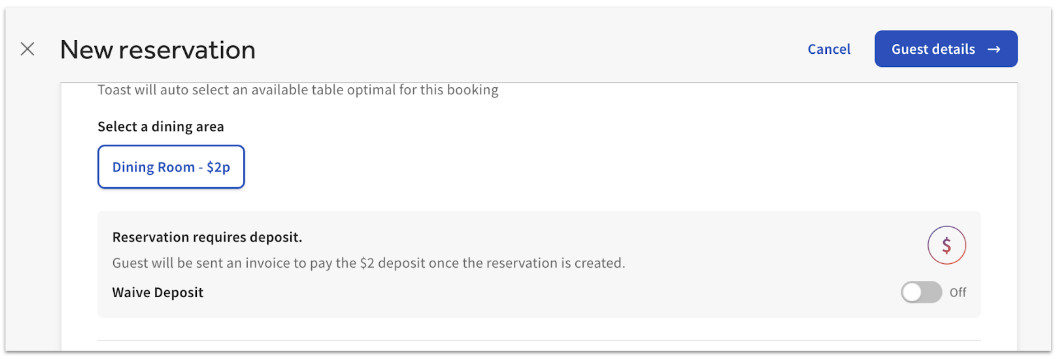
- Select Create a reservation and enter the reservation details. If a deposit or prepayment rule applies to the given party size, date, time, or dining area, a new field will appear that tells you that the reservation requires a deposit or prepayment (see below).
You can choose to waive the deposit if you wish by toggling Waive to On (Note: Hosts do not have this ability in the Toast Tables app). If you choose to keep the deposit, the guest will receive an SMS and email to pay their deposit within your configured timeframe. Toast suggests letting the customer know this is required if you are speaking with them directly. See the Guests Experience section of this article for more information. - Select Guest details at the top of the page once you've added in all of the reservation details.
- Enter the required guest details, and then select Create.
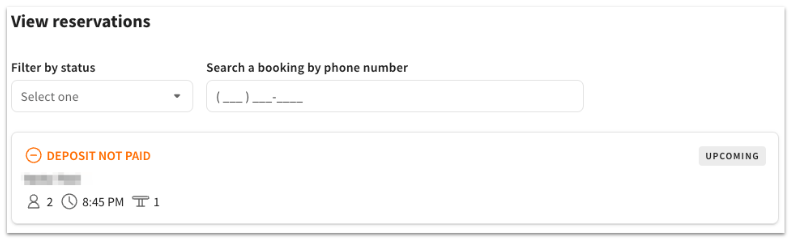
Guests will appear in Toast Web as Deposit not paid until they pay their deposit, as shown below.
Edit a Toast Tables Reservation with Deposits or Prepayments
| Only those with manager permissions can edit reservation details with deposits in Toast Web. At this time, managers can NOT edit deposit amounts, but this feature is coming soon! |
Once a reservation with a deposit or prepayment has been made, managers can view them on the Overview tab of the Toast Tables settings in Toast Web. The status of the deposit (Paid, Waived, Not Paid, Refunded) will show for each reservation, and you can select an individual reservation to take action such as:
- Edit reservation details
- View booking history
- Edit guest details
- Change guest
- Send deposit reminder
- Waive deposit
- Cancel reservation
Note: At this time, editing a party size/date/time in Toast Web will not trigger partial refunds or partial invoices. Managers can either fully refund and fully rebook a party, or edit the reservation and leave the deposit unchanged.
Back to top
Refund the Toast Tables Deposit or Prepayment for a Reservation
Deposits and Prepayments will automatically be refunded back to the guest if they cancel themselves or if a manager or host cancels the reservation within the configured auto-refund period. Outside of the auto-refund period, refunds can only be initiated by a manager in the Waitlist & Reservations section of Toast Web.
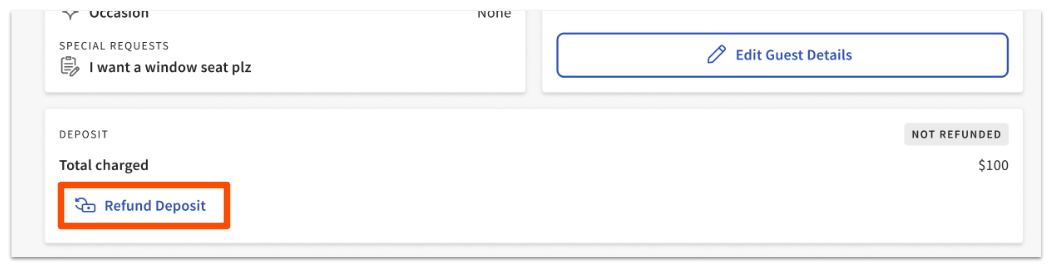
To manually refund a guest's deposit before seating, navigate to the Overview tab of the Waitlist & Reservations page, and select the booking from the View reservations table. Select Refund Deposit.
If a reservation with a deposit is already seated and the party decides they want to split the check, the alternate payment method (deposit) cannot be split. In this case, the alternate payment method can be refunded by a manager after the reservation has been seated. To do so, select the booking from the View reservations table in Toast Web and select Refund Deposit. A warning message will appear that says "This reservation is currently in progress at the table. To complete the refund, you must also remove the deposit alternate payment time from the order in the POS for this party." Next, you'll need to locate the order on the POS, select Pay, and remove the alternate payment type from the applicable order. Guests and hosts/managers will always be warned when a deposit is not refundable. Reservations with refunded deposits will have a "Refunded" tag on the reservations list in Toast Web.
Hosts who cancel a reservation on the Toast Tables app outside of the refund window will receive a notification that the reservation won't be able to be refunded if canceled. The manager can always go back and refund it manually in Toast Web by selecting Refund within the reservation. For more information on refunds within Toast Web, see Issue a Refund.
Note: It is recommended to follow the steps to manually refund in Toast Web as linked above for prepayments if guests are outside of the automatic refund window.
Back to top
Deposits and Prepayments for Hosts in the Toast Tables App
Create a Toast Tables Reservation with Deposits or Prepayments
Once a Deposit Rule or Prepayment Rule has been set up, hosts will be able to trigger the creation of deposit or prepayment reservations/bookings in the Toast Tables app.
Hosts will see which dining areas require a deposit (if any) for the given search parameters (party size/date/time). If all dining areas require a deposit or prepayment, the host will be required to select one to create the reservation. If they don't select a dining area, Toast Tables will always default to dining areas without deposits.
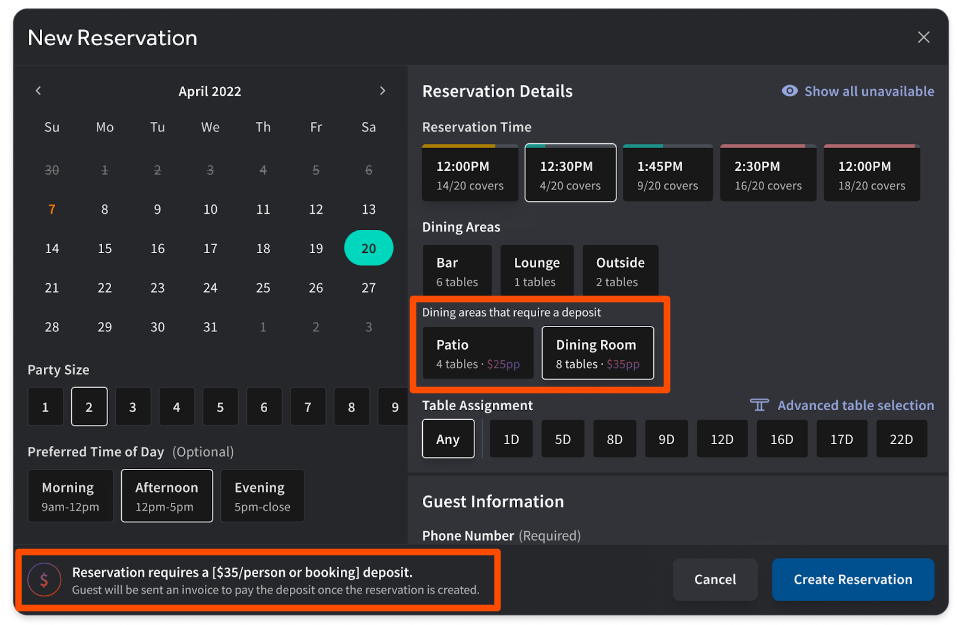
Once a reservation with a deposit or prepayment has been created in the Toast Tables app, the guest will receive an SMS and email to pay their deposit within your configured timeframe. Toast suggests training hosts to let the customer know a deposit is required if you're speaking with them directly. See the Guest Experience section of this article for more information.
Hosts cannot waive a deposit or prepayment from the Toast Tables app. The status of the deposit or prepayment (Not Paid/Paid/Waived/Refunded/Not Refunded) will be visible on the top-right corner of the booking card on the Toast Tables app.
Back to top
Edit a Toast Tables Reservation with Deposits or Prepayments
Hosts can edit the table for a reservation by selecting Change table. They can also edit basic information about deposit or prepayment reservations, but the deposit or prepayment amount will always remain unchanged.
When modifying a reservation with a deposit or prepayment, the following warning message will appear: "Editing this reservation will not change the deposit or prepayment amount charged to the guest. Guests will not receive a refund or new invoice for any difference based on the changes made."
Back to top
Toast Tables Deposits for Servers on the POS
When a party is seated at a table in the Toast Tables app, an order is started on the POS for the selected server at that table. The guest’s deposit amount is applied to the order as a negative balance using the alternate payment type you configured for the deposit.
The server should then add items to the order and proceed with collecting payment to cover the remaining balance at the end of the meal.
Notes:
- Tax and suggested gratuity are calculated on the entire amount of the order if you have Treat as discount set to Yes within your alternate payment type settings. For more information, see Step 1: Set Up Toast Tables Deposits as an Alternate Payment Option in this Support Center article, Get Started with Toast Tables Deposits.
- Gratuity can only be added to the order created when the guest dines in — not the order used to collect the deposit. Because that day-of-service order is assigned to whichever server is seating the table, gratuity from a redeemed deposit is paid out to the server working on the day of redemption, not the server (if any) working when the deposit was originally paid.
Toast Tables Deposits or Prepayments for Guests Online Experience
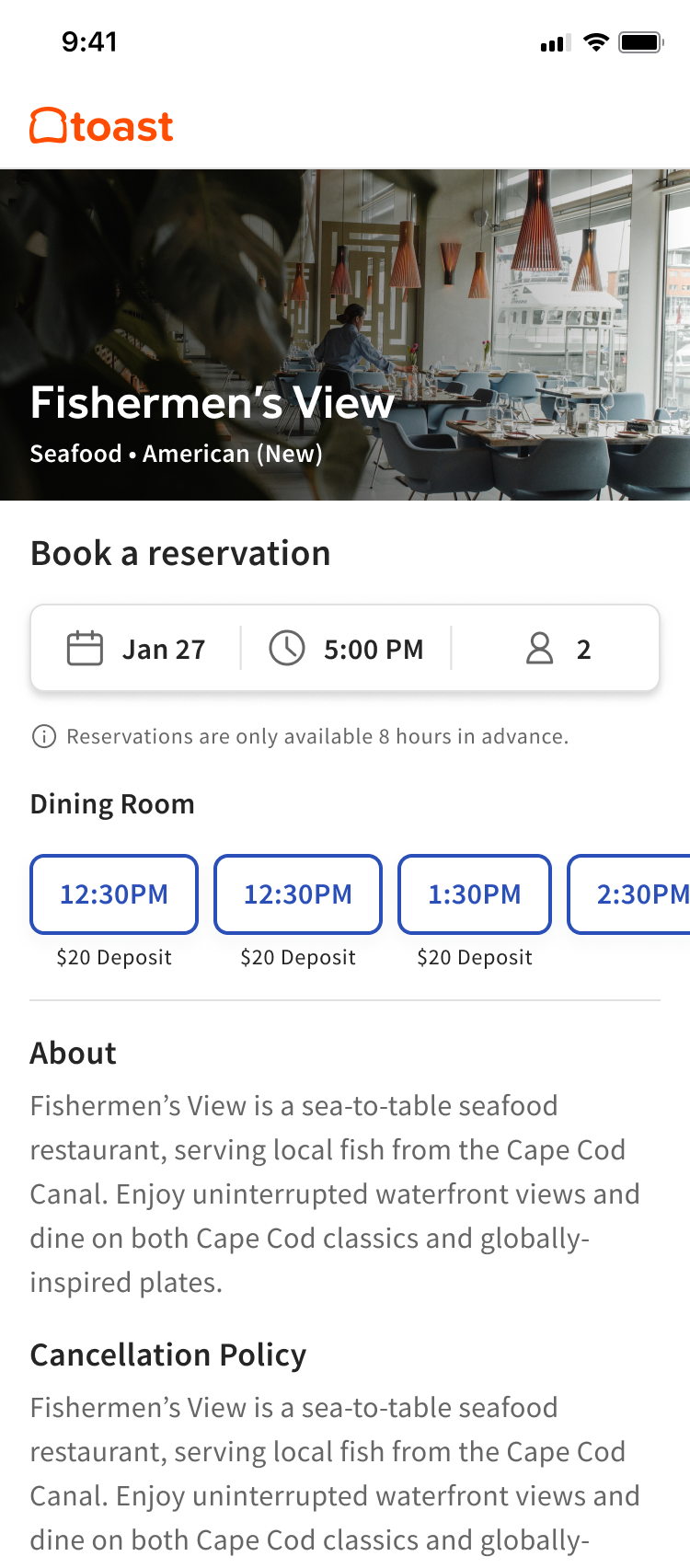
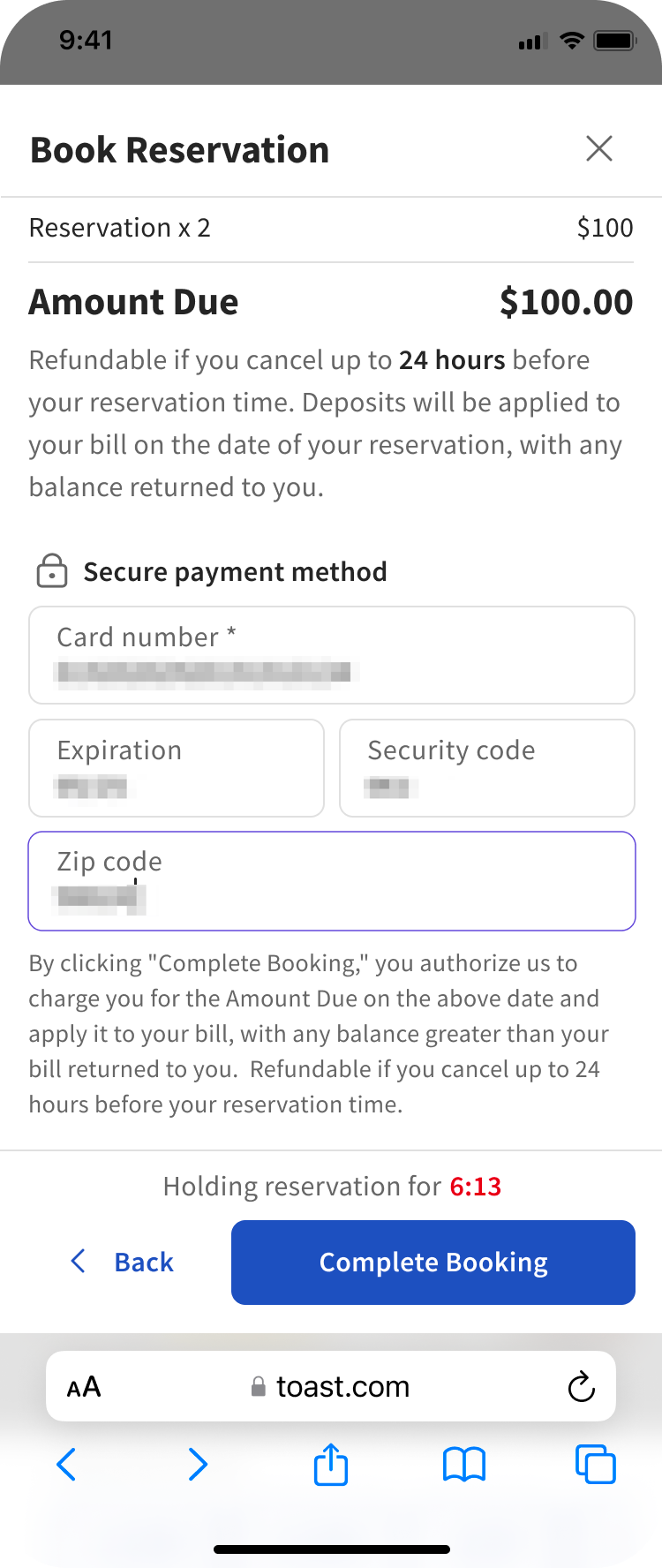
When guests are searching for an online reservation and they encounter a time slot that requires a deposit or prepayment, they'll be prompted to pay the deposit or prepayment before they can receive a reservation confirmation. Toast Tables will hold their time slot for 10 minutes as they complete their deposit or prepayment payment details. Guests will see your automated policy as well as any additional policy you've created.
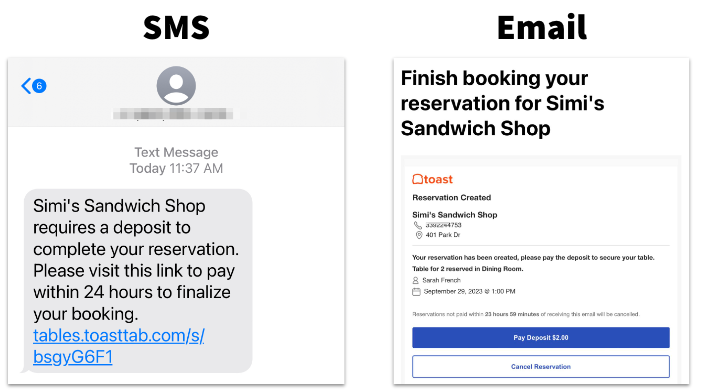
If a guest books a reservation in the restaurant through the host or manager, the guest will receive an SMS/email asking them to pay their deposit or prepayment in order to confirm their reservation within your configured time frame. If you've set up auto-cancellation rules, Toast Tables will also automatically cancel the booking if the guest doesn't pay within this time frame. Once the guest successfully pays their deposit, they'll receive a confirmation SMS/email that links to a page confirming that they paid their deposit or prepayment.
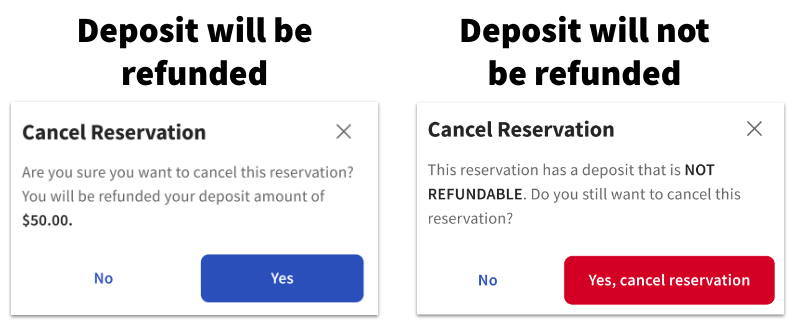
If a guest chooses to cancel a reservation that required a deposit or prepayment, they'll see one of the following warnings messages below, informing them whether their refund will be deposited before they confirm their cancellation:
Note: Toast highly suggests training your hosts/managers before using this feature to ensure they are aware of this flow and to remind guests if they are speaking with them about a reservation that they will receive this link to pay.
Back to top
Reporting and Revenue Recognition for Toast Tables Deposits and Prepayments
| If a reservation with an attached deposit is not properly assigned to a table, or if a server starts another order on the table rather than selecting the red table to begin the order, the order containing the deposit will be auto-voided. This voided order will appear in your Voided Orders report, but will not impact the payment status of the captured deposit. |
In order for the deposits and prepayments feature to work, Toast Tables first takes payment on an order that has a menu item called Toast Tables Deposit, or if using Prepayments, this order will include the required item attached with your Prepayment Rule. This order is marked as deferred revenue for the day of the reservation. It'll appear as deferred revenue in Toast Web reporting on the day the payment is made. You may see these orders as open before guests pay their deposit or prepayment. Feel free to ignore these orders, as Toast Tables will automatically mark them as Done as soon as the deposit or prepayment is paid.
On the day of the reservation, Toast Tables will start a new order when you seat the guest at their table in the Toast Tables app.
- Deposits: The new order will have the deposit attached as the alternate payment type you configured, which appears as a negative balance on the order.
- Prepayments: The prepayment is not added to the new order. The prepayment was collected on its own order at booking, and that order closes as soon as the guest pays. The new order started at seating opens with no prepayment applied, so add any additional items the guest orders and collect payment for them as usual.
For customers in the US, tip suggestions and tax will be calculated on the entire order total and do not take into account the deposit.
Note: For customers in Australia, Canada, Ireland, and the U.K., suggested tips are calculated on the post-discount check total. To modify this calculation to show the pre-discount amount, please reach out to Toast Customer Care.
Based on the instructions for setting up your alternate payment type, Deposits will appear as deferred revenue in Toast Web. To learn more about deferred revenue, check out the article Deferred Amounts and Deferred Sales.
Funds will be made available to your restaurant on the date they are collected/the date the deposit is made. It's important to note, however, that the revenue will not show on your Sales Summary until the date that the reservation takes place.
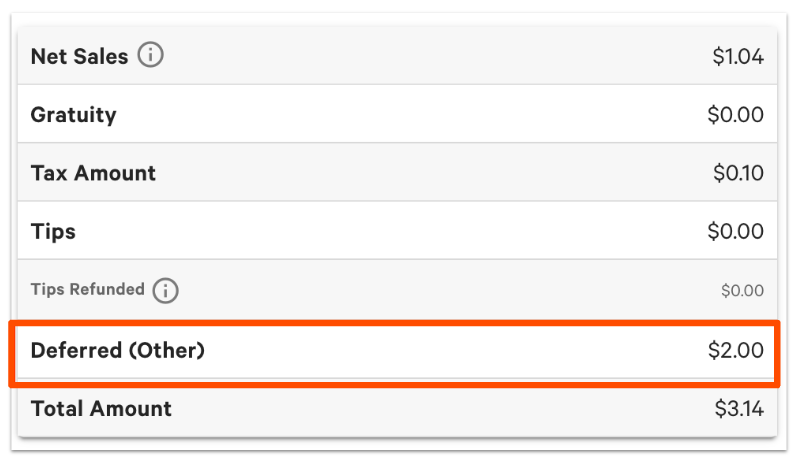
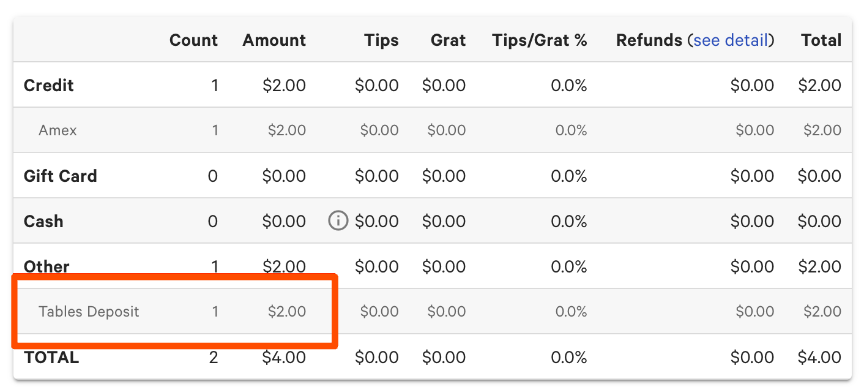
In the Sales Summary report in Toast Web, managers can see how much revenue is coming in through Toast Tables Deposit or Prepayment as the alternate payment type.
For example, let's say a guest paid $/€/£2 for a Toast Tables deposit. This shows as Deferred (Other) Revenue for today in the Sales Summary report in Toast Web. This is because the revenue has not yet been recognized.
The reservation later takes place the next day. This deposit now shows up under Other in your restaurant's net sales once the reservation takes place, listed with the name of your alternate payment type Toast Tables Deposit.
Now, let's say that someone doesn't show up to their reservation, or cancels outside of their refund window -- no problem! If the guest was outside of their auto-refund window, Toast will automatically realize the deposit or prepayment as revenue for the date of their no-show or late cancellation reservation by the end of the day. This is done by creating an order with just the deposit or prepayment amount as an item for the date of the reservation and closing it out. If the guest later calls back and you decide to refund them, you will need to:
- Find the original order on which they paid the deposit or prepayment. Look at the date they made their deposit or prepayment reservation and you'll see an order with their name on that date in the POS. You can refund their payment from here.
- You will also need to void the order that had the deposit or prepayment revenue on it for the date of the reservation on the POS.
Additional Resources
- Get Started With Toast Tables Deposits
- Get Started With Toast Tables
- Use Toast Tables
- Toast Tables: The Guest Experience
- Troubleshooting FAQ for Toast Tables