Primeros pasos con el Reproductor Multimedia Navori STiX 3700 para placas de menú digitales Delphi de interior
Última actualización: 16 sept 2026, 5:23 p.m.
Delphi (by Toast) ofrece diversas soluciones de hardware y software para empresas y pequeñas empresas. Estas soluciones incluyen, entre otras:
- Tableros de menús digitales (interiores y exteriores)
- Productos de comunicación por drive-thru
- Soluciones de pantallas personalizadas y señalización digital
- Servicios creativos profesionales
El reproductor multimedia Navori STiX 3800 es la versión más reciente del reproductor multimedia STiX. La versión anterior es la 3700.
En este artículo, se explica cómo instalar, configurar y montar el reproductor multimedia Navori STiX 3700 en una placa de menú digital Delphi de interior.
| Si tienes una pantalla que quieres usar para mostrar tu menú, puedes comprar el reproductor multimedia y una licencia para la Insight Engage Platform por separado. No necesitas comprar un panel de menú digital Delphi para usar el reproductor multimedia y la plataforma Insight Engage. |
Si tienes más preguntas o necesitas asistencia técnica, ponte en contacto con Delphi directamente de lunes a viernes de 6:00 a. m. a 3:00 p. m. al +1 (800) 456-0060, opción 1.
- Requisitos previos a la instalación
- Paquete de reproductor multimedia Navori STiX 3700
- Configurar y conectar el reproductor multimedia Navori STiX 3700
- Configurar y conectar el reproductor multimedia Navori STiX 3700
- Configurar y conectar el reproductor multimedia Navori STiX 3700
- FAQ
- Mi pantalla está funcionando, pero dejó de mostrar contenido y muestra el mensaje de bienvenida Delphi.
- ¿Instalé mi reproductor multimedia, pero no aparece contenido en mi pantalla?
- Mi reproductor multimedia muestra un estado de conexión rojo en la plataforma Insight Engage. ¿Qué significa esto y cómo lo soluciono?
- Publicé nuevo contenido en la plataforma Insight Engage, pero ¿el nuevo contenido no aparece en mi pantalla?
- ¿Por qué mi pantalla es negra?
- ¿Mi reproductor multimedia Navori STiX no tiene energía o las luces azules del reproductor multimedia están apagadas?
Requisitos previos a la instalación
Antes de instalar y configurar el reproductor multimedia Navori STiX 3700, el cliente Delphi debe pagar por completo el acuerdo de venta.
Paquete de reproductores multimedia Navori STiX 3700
| No es necesario usar un reproductor multimedia Navori STiX 3700 para mostrar el panel de menús digital Delphi. Hay otras opciones disponibles para mostrar tu menú. Para obtener más información, ponte en contacto con tu gerente de cuentas de Toast. |
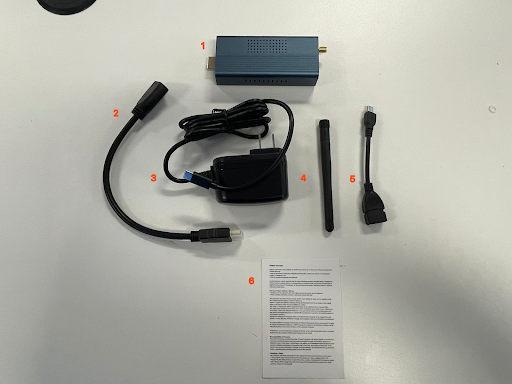
- El paquete del reproductor multimedia Navori STiX 3700 incluye los siguientes componentes:
- Reproductor multimedia Navori STiX 3700
- Cable HDMI. El servicio de asistencia de Delphi recomienda usar el cable HDMI proporcionado y no un cable de terceros
- Cable de alimentación
- Antenna
- Mini adaptador USB a USB-A
- Instrucciones del reproductor multimedia
Configurar y conectar el del reproductor multimedia Navori STiX 3700
| El servicio de asistencia de Delphi recomienda que, una vez que tengas acceso a la plataforma Insight Engage, comiences a agregar, programar y publicar contenido para prepararte para cuando conectes el reproductor multimedia a tu pantalla. |
Una vez que recibas el reproductor multimedia Navori STiX 3700, sigue las instrucciones a continuación para crear e instalar el reproductor multimedia en tu pantalla. Ten en cuenta que hay dos flujos de trabajo separados si usas tu propia pantalla y conectas un reproductor multimedia o si usas una pantalla que tiene un reproductor multimedia incorporado.
Antes de conectar el reproductor multimedia a la pantalla, asegúrate de tener un cable ethernet CAT 5 disponible para conectar el reproductor multimedia a la pantalla.
Crea y conecta el reproductor multimedia Navori STiX 3700 a tu pantalla
Las instrucciones que se enumeran a continuación pueden variar según el diseño y la distribución de la pantalla.
- Abre el paquete del reproductor multimedia Navori STiX 3700. Coloca todos los componentes a un lado. El servicio de asistencia de Delphi recomienda usar una conexión de red por cable (cable ethernet) para el reproductor multimedia. El servicio de asistencia de Delphi no recomienda usar una conexión Wi-Fi. Si usas una conexión por cable, no tienes que conectar la antena al reproductor multimedia.
- Enchufa el cable de alimentación al puerto USB-C del reproductor multimedia. El cable de alimentación debe estar enchufado a una toma de corriente directa.
- Enchufa el cable HDMI en el puerto HDMI del reproductor multimedia.
- Enchufa el cable HDMI del reproductor multimedia a tu pantalla. El servicio de asistencia de Delphi recomienda que solo uses los cables y cuerdas que se proporcionan en el paquete del reproductor multimedia.
- Enchufa el cable ethernet CAT 5 a la pantalla.
- Enchufa el cable de alimentación de la pantalla a una toma de corriente directa.
- Enciende la pantalla. Cambia a la entrada de la fuente HDMI. Ten en cuenta que hay dos flujos de trabajo disponibles según si el contenido se ha cargado y publicado en laPlataforma de interacción con Platform.
- Si el reproductor multimedia se configuró, pero no se publicó contenido en la plataforma Insight Engage, aparecerá el menú de la pantalla.
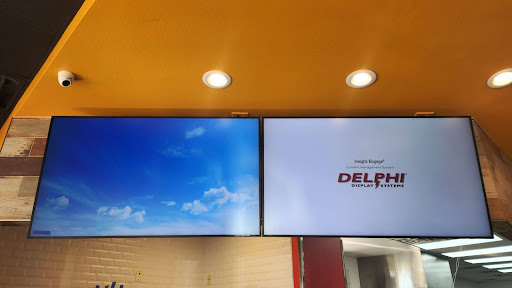
- Si tu reproductor multimedia se configuró y el contenido se publicó en la plataforma Insight Engage, aparecerá un mensaje de bienvenida de Delphi en la pantalla. Después de 5 minutos, el contenido publicado aparecerá en la pantalla.
Conectar un televisor Samsung Tizen (reproductor multimedia incorporado)
Delphi ofertas Smart TV Samsung Tizen OS que tienen reproductores multimedia incorporados. Esto significa que el reproductor multimedia está preconfigurado en el televisor. Para mostrar el contenido publicado en la plataforma Insight Engage, debes conectar el cable ethernet y enchufar el cable de alimentación del televisor a una toma de corriente directa.
Para obtener recursos adicionales sobre cómo agregar, programar y publicar tu contenido en la plataforma Insight Engage, consulta:
- Obtener ayuda para cargar contenido en la plataforma Insight Engage
- Obtener ayuda para crear listas de reproducción en la plataforma Insight Engage
- Obtén ayuda con la programación y publicación en la plataforma Insight Engage
Mi pantalla está funcionando, pero ¿dejó de mostrar contenido y muestra el mensaje de bienvenida Delphi?
Verifica que tengas contenido programado en la cuadrícula de planificación en la plataforma de interacción con estadísticas. Si no hay contenido programado, tu pantalla mostrará de manera predeterminada el mensaje de bienvenida Delphi.
¿Instalé mi reproductor multimedia, pero no aparece contenido en mi pantalla?
Verifica que hayas cargado, programado y publicado contenido en la plataforma Insight Engage.
Mi reproductor multimedia muestra un estado de conexión rojo en la plataforma Insight Engage. ¿Qué significa esto y cómo lo soluciono?
Si tu reproductor multimedia en la plataforma Insight Engage está mostrando un estado rojo, esto indica que el reproductor multimedia está sin conexión o está experimentando un problema de red. Para resolver el problema, intenta lo siguiente:
-
- Rastrea la conexión del cable ethernet para asegurarte de que el reproductor multimedia esté conectado a la pantalla.
- Verifica que el cable ethernet no esté conectado al enrutador Toast. El cable ethernet no debe conectarse al enrutador Toast y debe conectarse al enrutador principal.
- Confirma que tienes una conexión por cable con tu enrutador principal.
- Revisa las luces del enrutador. Confirma que tu enrutador esté listo y funcionando.
- [Si corresponde] Confirma que engagement.delphidisplay.com está en la lista blanca del firewall. Si ninguno de estos pasos resuelve el problema, ponte en contacto con el servicio de asistencia de Delphi.
Publicé nuevo contenido en la plataforma Insight Engage, pero ¿el nuevo contenido no aparece en mi pantalla?
En la plataforma Insight Engage, verifica que tus reproductores multimedia estén seleccionados y que el contenido se haya cargado, programado y publicado.
¿Por qué mi pantalla es negra?
En la plataforma Insight Engage, verifica que tengas contenido programado y publicado.
¿Mi reproductor multimedia Navori STiX no tiene energía o las luces azules del reproductor multimedia están apagadas?
En tu reproductor multimedia, verifica lo siguiente:
-
- Verifica que el reproductor multimedia tenga energía.
- Verifica las conexiones del cable en el reproductor multimedia. Vuelve a colocar los cables según sea necesario.
- Restablece el reproductor multimedia. Para restablecer el reproductor multimedia.
- Retira el cable de alimentación del reproductor multimedia.
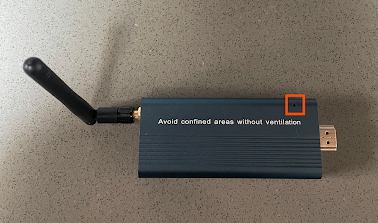
- Usa un clip de papel o una herramienta similar y coloca un extremo del clip de papel en el agujero del lado del reproductor multimedia que tiene el mensaje de advertencia.
- Mantén presionado el clip de papel y Omite el cable de alimentación. Las luces azules del reproductor multimedia deberían encenderse. Si las luces azules no se encienden, ponte en contacto con el servicio de asistencia de Delphi.