Optimizar el flujo de trabajo de seguimiento de pedidos de Toast Delivery Services® POS
Última actualización: 28 abr 2026, 4:21 p.m.
Rastrea tu pedido de Toast Delivery Services® usando el Hub de Pedidos en el Toast POS.
- Rastrear pedidos de Toast Delivery Services® en el POS de Toast
- Rastrear el estado de un pedido de Toast Delivery Services®
- PREGUNTAS FRECUENTES
Rastrear pedidos de Toast Delivery Services® en el POS de Toast
El modo Hub de Pedidos en su POS de Toast muestra todos los pedidos de Toast Delivery Services®. Cada pedido mostrará información del cliente y detalles del pedido, un estado de entrega, y el nombre y número de teléfono del conductor una vez que se haya asignado un conductor para recoger y entregar el pedido.
Acceder al Hub de Pedidos
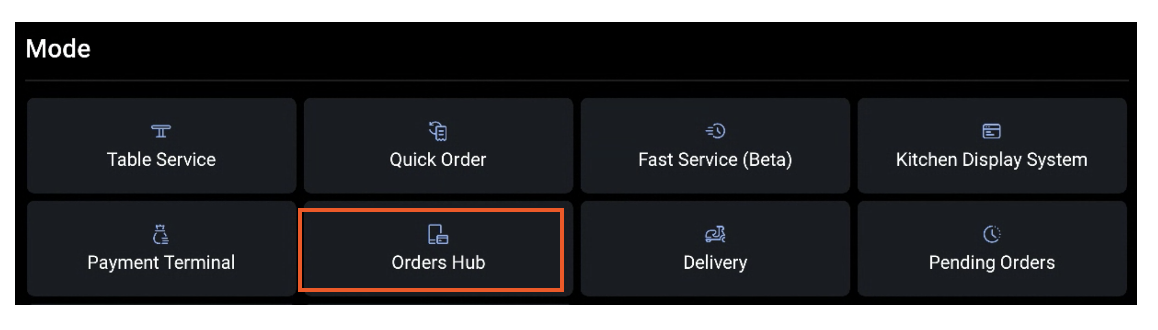
El Hub de Pedidos se encuentra como un modo en su dispositivo:
- Para acceder, comience seleccionando el logo de Toast en la parte superior izquierda de su pantalla.
- En la sección Modo en la parte superior de su pantalla, seleccione Hub de Pedidos. Debe tener el permiso 1.5 Permisos de Pedidos Pendientes/Modo Hub de Pedidos para acceder al Hub de Pedidos.

Ver Pedidos y Estados
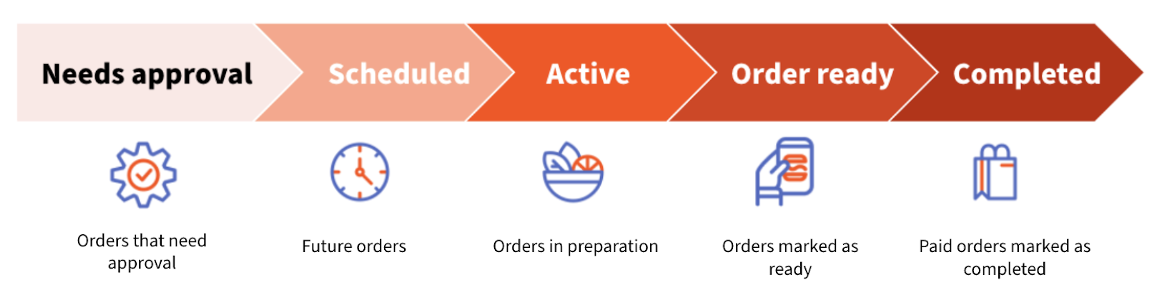
Los pedidos se mueven entre estados y pantallas según el estado del pedido:
- Se requiere aprobación
- Programadas
- Activas
- Pedidos listos
- Completada
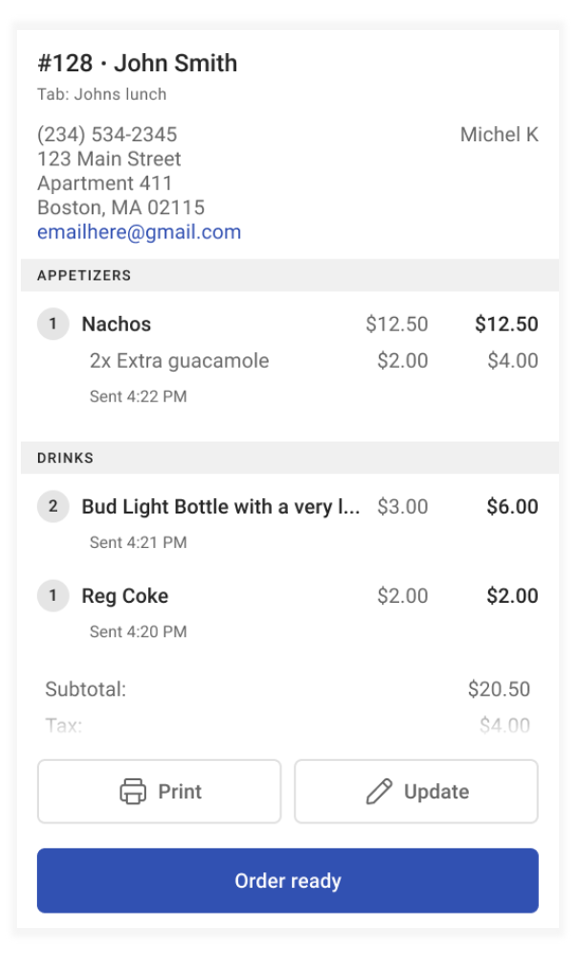
Al seleccionar el pedido, se puede ver la siguiente información:
- Pedido de Uber Direct o DoorDash Drive # (referencie este número cuando se comunique con el soporte de Uber Direct o DoorDash Drive sobre un pedido de Toast Delivery Services®)
- Nombre del cliente
- Número de teléfono del invitado
- Fecha y hora en que el invitado realizó el pedido
- Estado de entrega o estado de pago
- Opción de almuerzo/cena (ej: Servicios de entrega de Toast)
- Comportamiento gastronómico (ej: Envío)
- Nombre de la pestaña (si está disponible)
- Hora de vencimiento del pedido (La hora en que el pedido debe estar listo para recoger o entregar. Si el pedido está programado para una fecha futura, la fecha aparecerá junto a la hora de vencimiento)
- Hora y fecha de cocción: La hora de cocción es la misma que la hora local del dispositivo. La hora de cocción programada mostrada cambiará a medida que el pedido se acerque a la cocción. Aprende más en la tabla a continuación
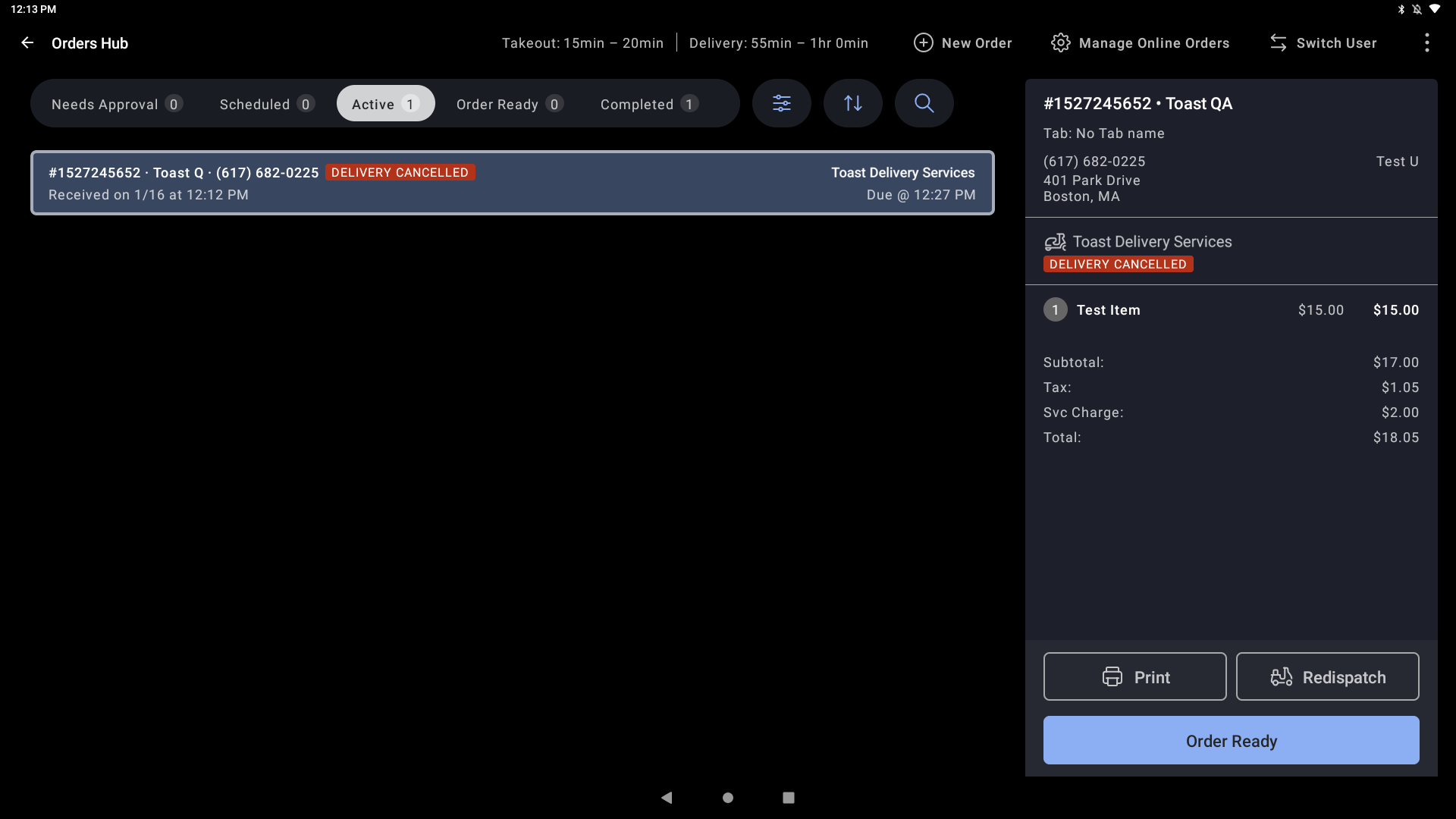
- Detalles basados en la opción de almuerzo/cena seleccionada (La imagen a continuación, por ejemplo, muestra un pedido de entrega con una dirección)
Rastrear el estado de un pedido de Servicios de entrega de Toast®
El Hub de Pedidos mostrará indicadores de diferentes colores en el pedido para mostrar el estado de entrega de cada pedido
| Estado | Color | Descripción |
| Se solicitó un repartidor | Azul | Se ha solicitado y despachado un nuevo conductor para recoger el pedido. |
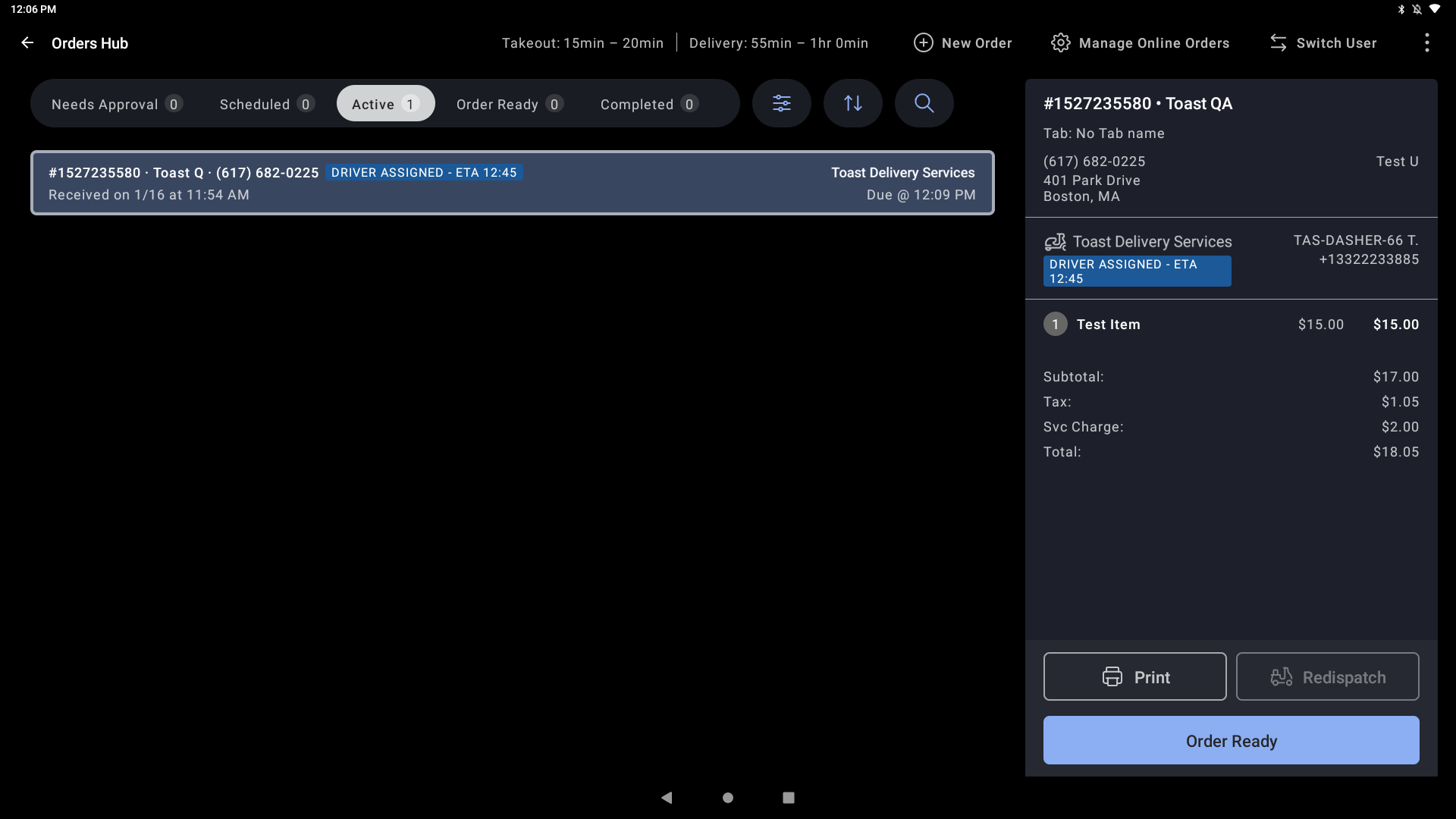
| En camino al restaurante - ETA HH:MM | Azul | El conductor ha sido asignado al pedido y está en camino para recogerlo. |
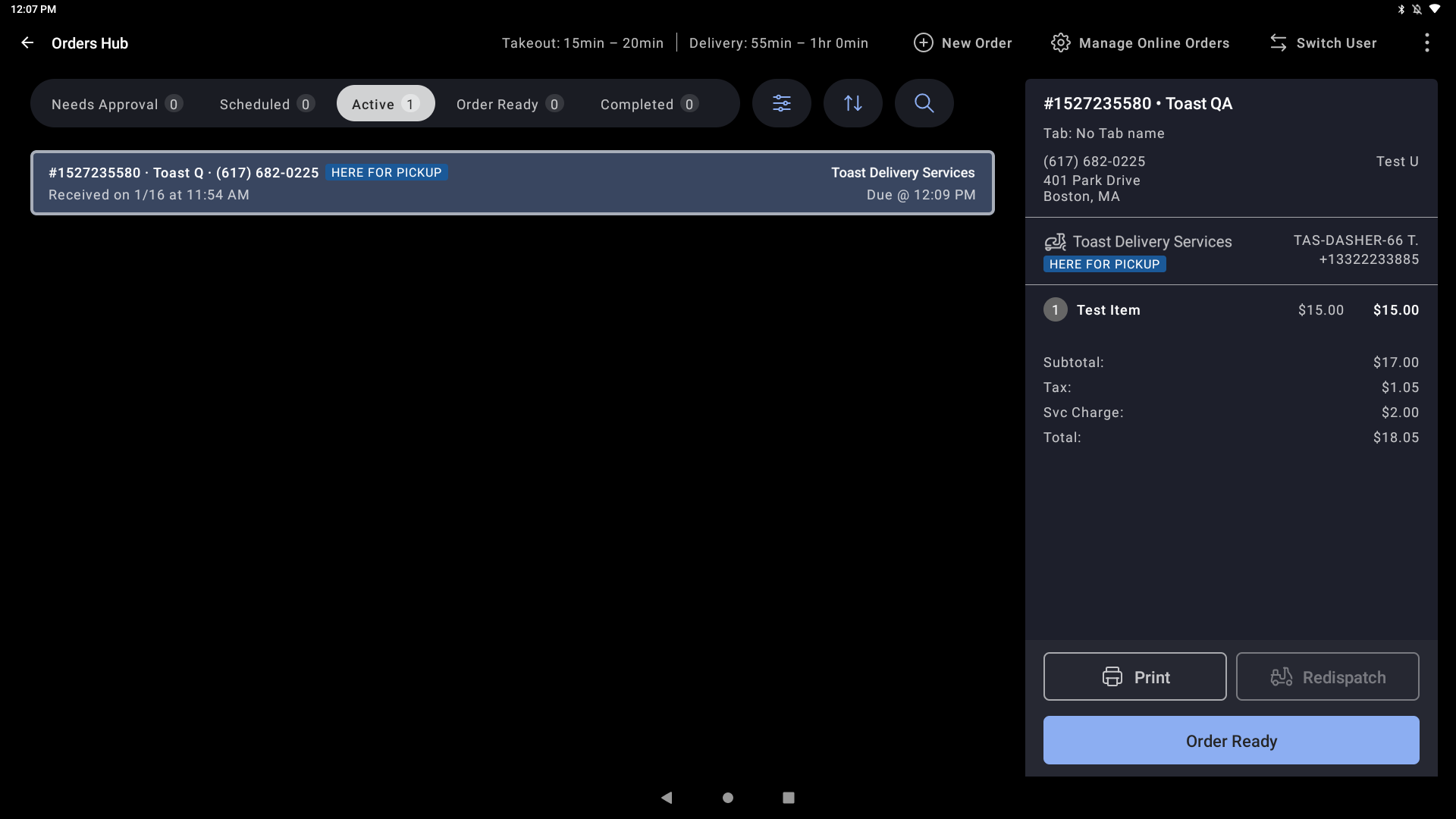
| Esperando para retirar | Azul | El conductor ha llegado al restaurante y está listo para recoger el pedido. |
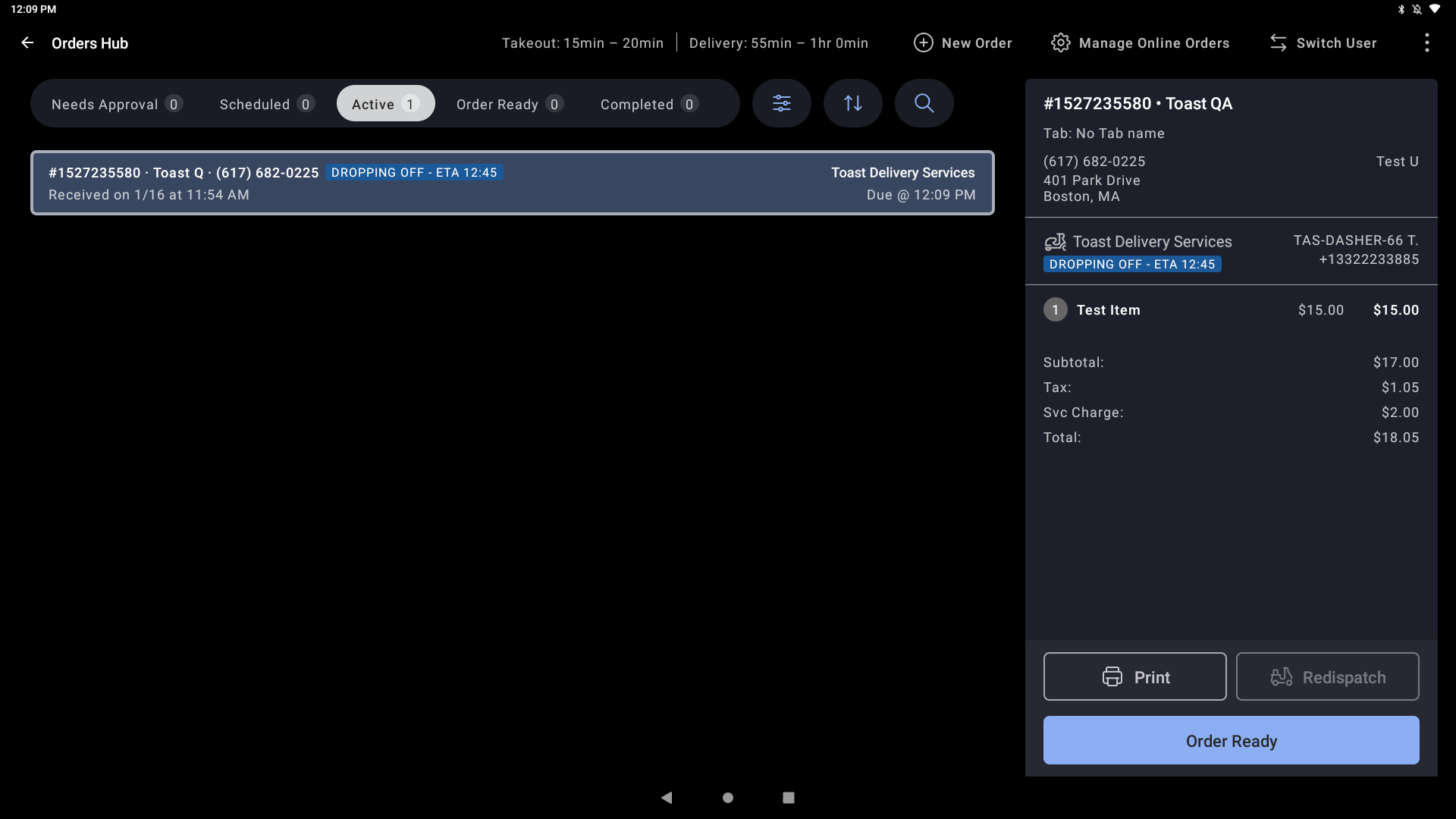
| Entrega en curso - ETA HH: MM | Azul | El conductor está en camino a la dirección de entrega y dejará el pedido a la hora estimada. |
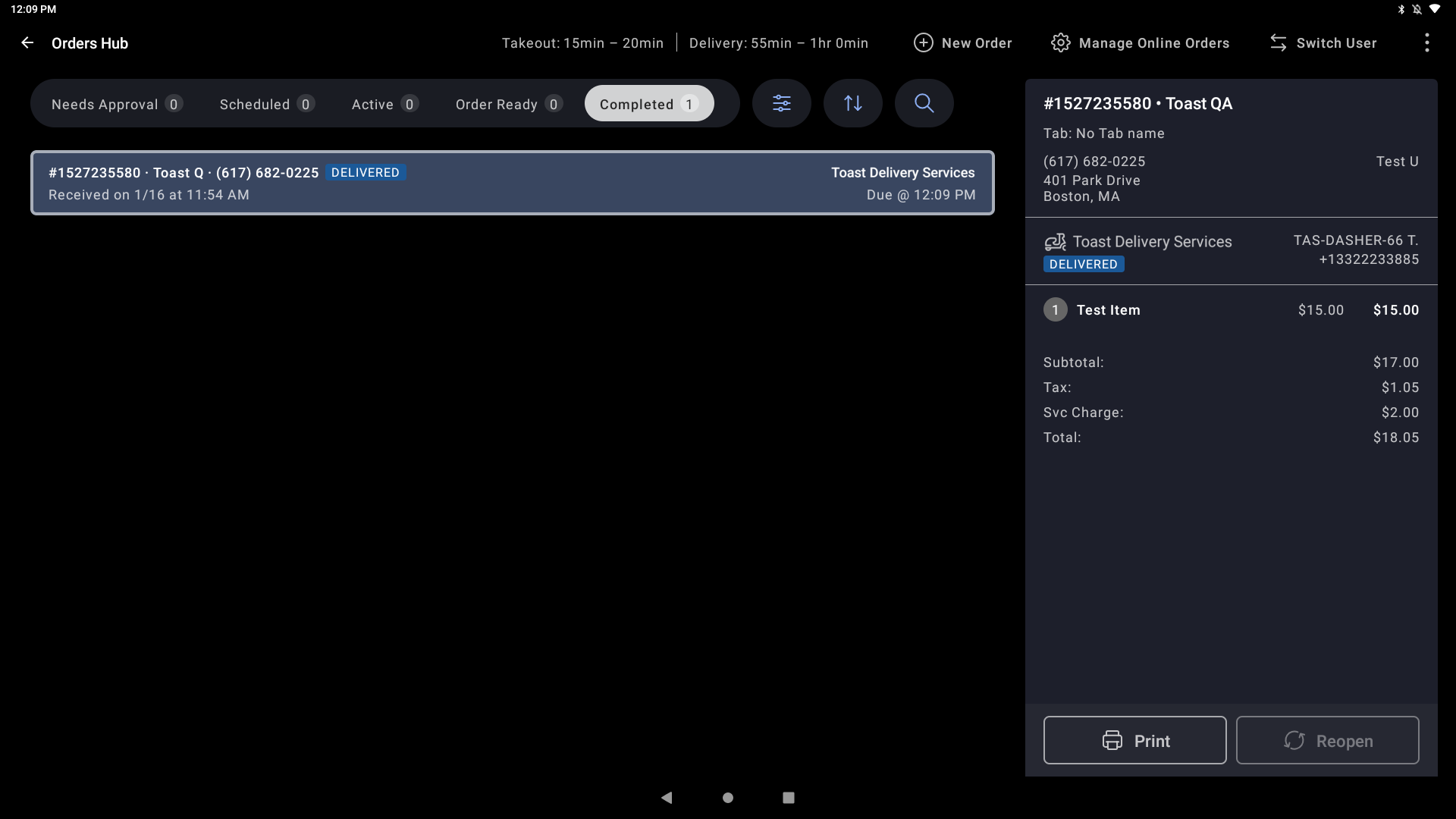
| Entregadas | Azul | El conductor entregó el pedido del huésped. Una vez que esto ocurra, el pedido se completará automáticamente. |
| Entregado Cancelado | Rojo | El conductor previamente asignado para recoger este pedido ha cancelado la recogida. |
Estado: Se solicitó un repartidor
Color: Azul
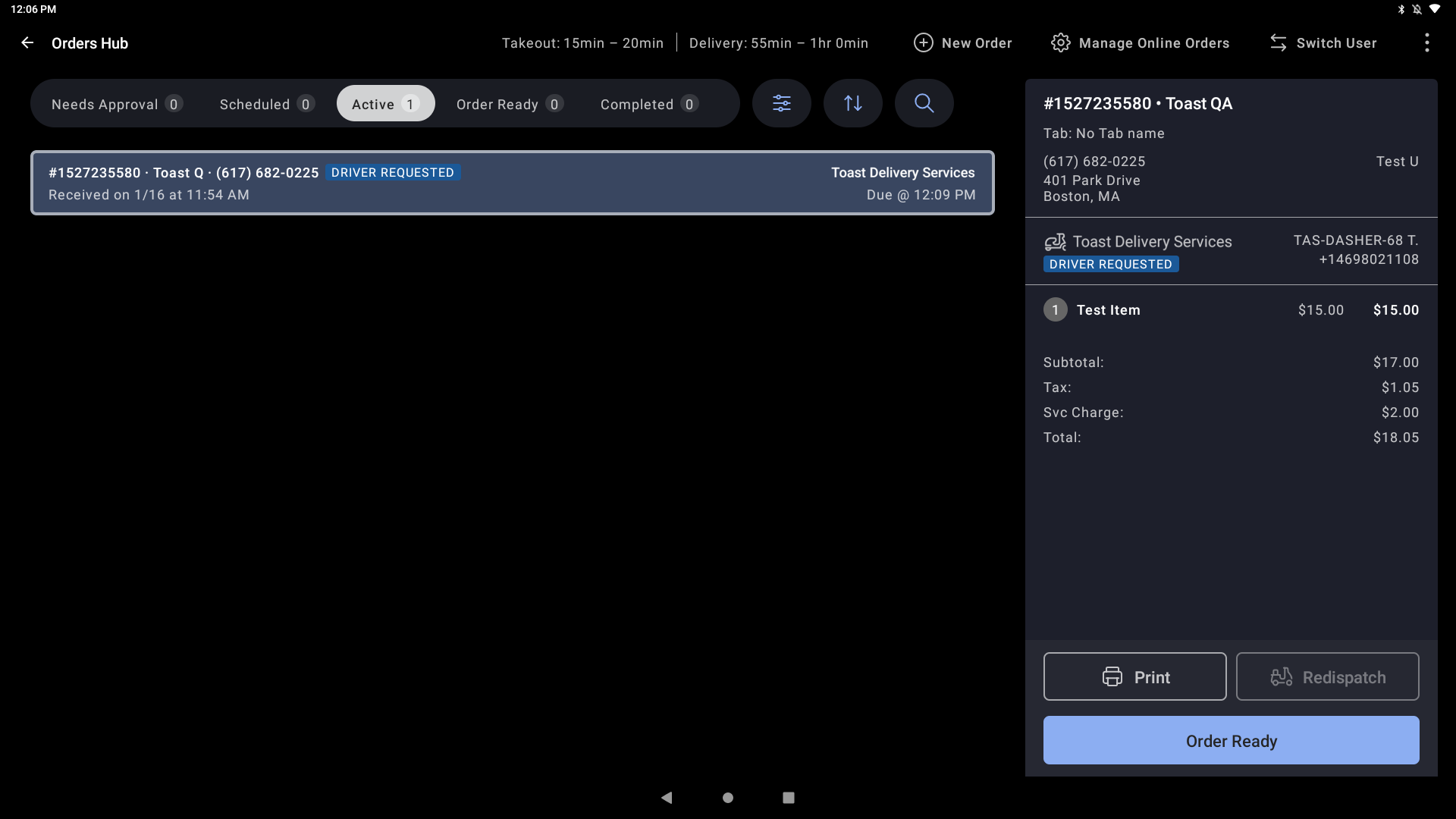
Estado: En camino al restaurante - ETA HH:MM
Color: Blue
Estado: Esperando para retirar
Color: Blue
Estado: Entrega en curso - ETA HH: MM
Color: Blue
Estado: Entregadas
Color: Blue
Estado: Envío cancelado
Color: Tintos
Para más información sobre cómo gestionar sus pedidos a través de Orders Hub, consulte Gestionando Pedidos Fuera de Local con Orders Hub en el Centro de Soporte.
Preguntas Frecuentes Sobre los Servicios de Entrega de Toast® Pedido
¿Cómo puedo redispatchar a un conductor en un pedido de Toast Delivery Services®?
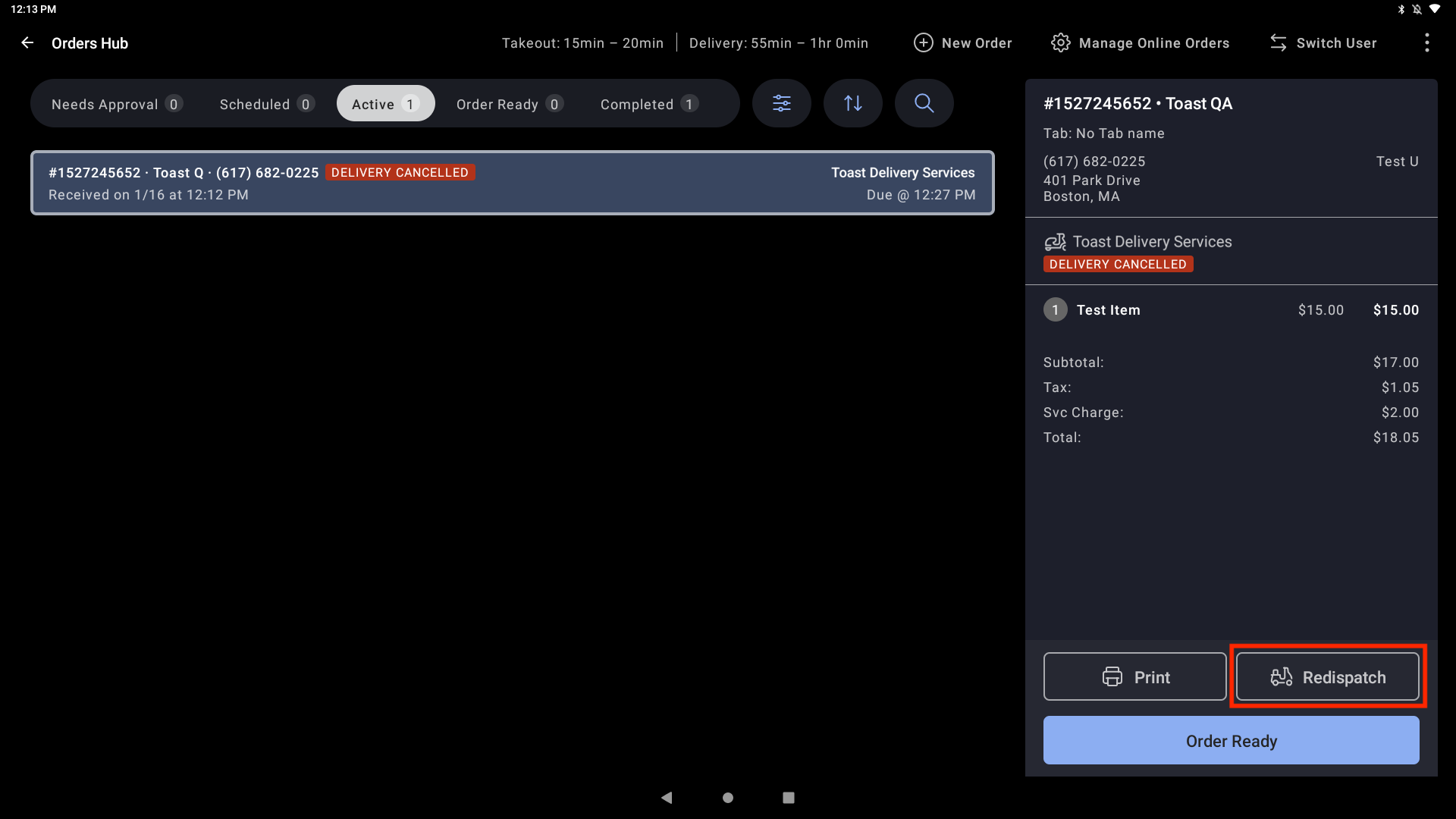
En caso de que algo salga mal con la entrega de un pedido (por ejemplo: el conductor lleva la comida equivocada al cliente, el conductor no lleva toda la comida al cliente, el restaurante necesita corregir un pedido o un conductor no se presentó para la recogida), tiene la capacidad de redispatchar a un conductor una vez desde el POS.
Para redispatchar a un conductor, vaya al Orders Hub en el POS, seleccione el pedido de TDS y seleccione Redispatchar.
¿Cómo puedo contactar al conductor de entrega en un pedido de Toast Delivery Services®?
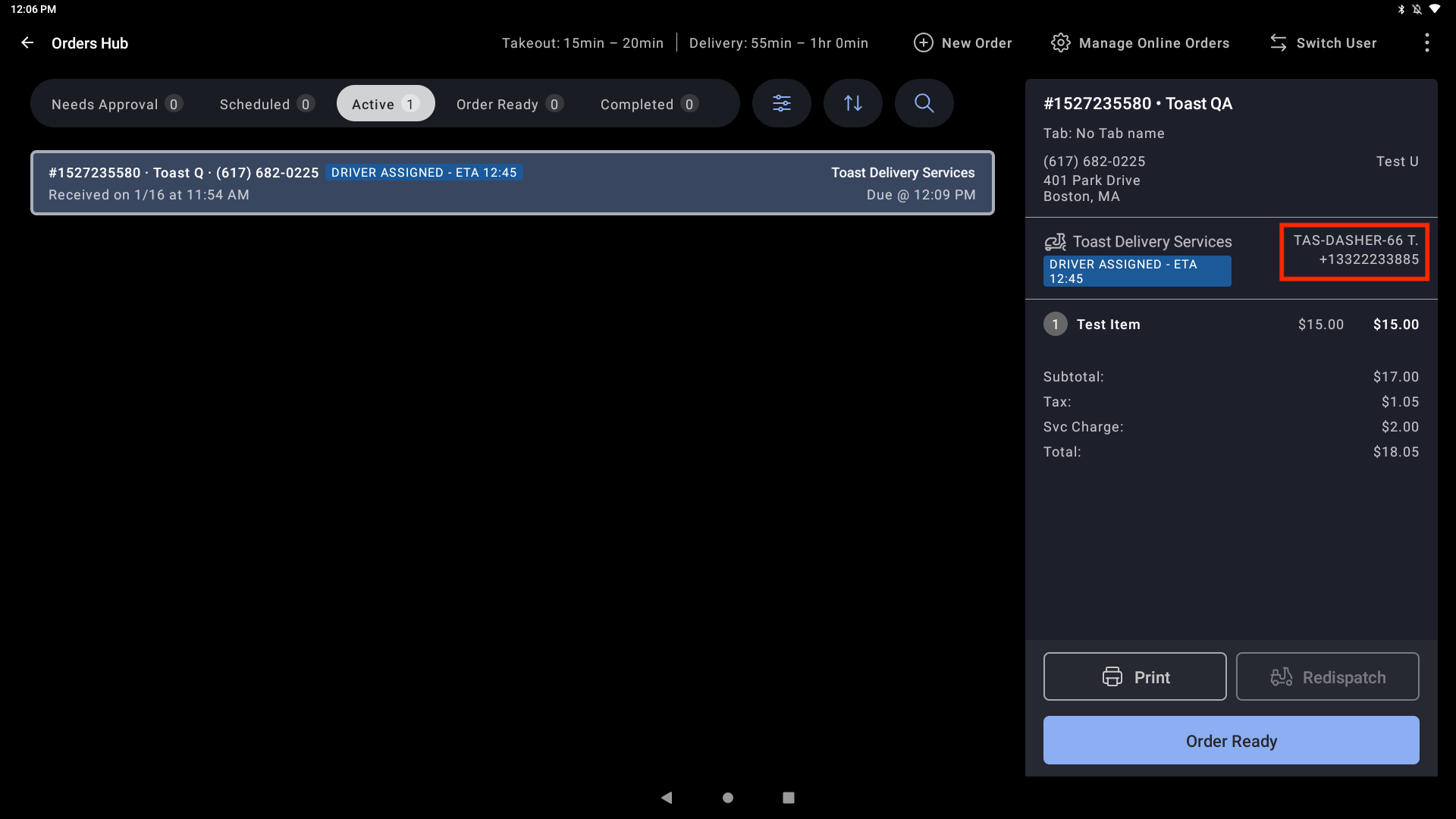
Llame al conductor utilizando el número de teléfono del conductor que aparece en el pedido en el POS. Si no puede contactar al conductor, comuníquese con su proveedor de entrega para obtener soporte. Debe llamar desde el número de teléfono que tiene registrado en Toast para contactar al conductor.
¿Cómo encuentro el número de pedido de Uber Direct o DoorDash Drive, el nombre del conductor y el número de teléfono del conductor para un pedido específico en el POS?
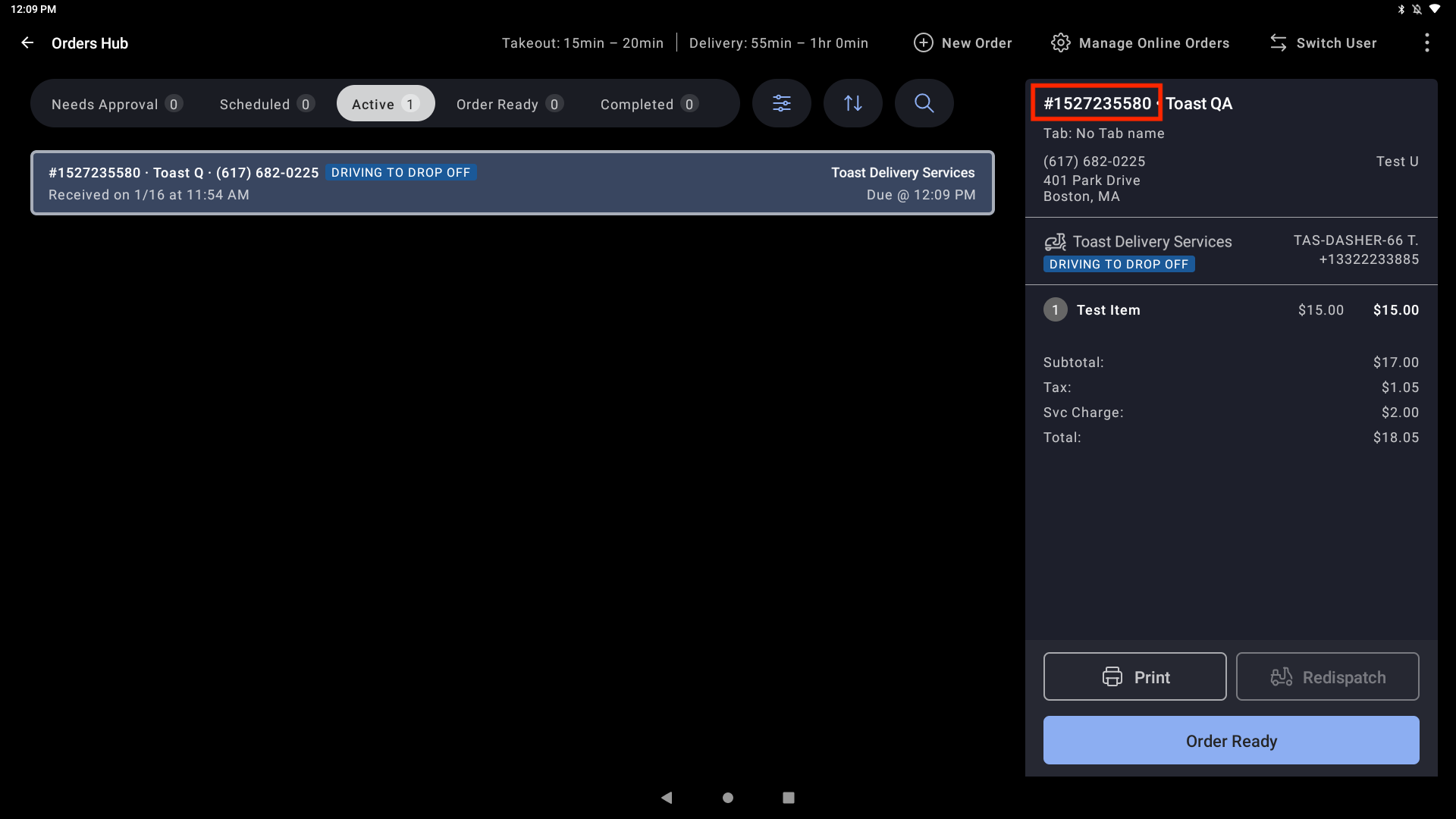
El ID de pedido de Uber Direct o DoorDash Drive se encuentra en la pantalla del pedido, como se indica a continuación. Este ID debe ser mencionado cuando contacte al conductor de entrega, al soporte de Uber Direct o al soporte de DoorDash Drive.
¿Dónde puedo encontrar información sobre el conductor que está entregando un pedido de TDS? ¿Cómo puedo contactarlos?
Una vez que se asigna un conductor de entrega a un pedido de TDS, el nombre del conductor y el número de teléfono de contacto se mostrarán en el Orders Hub. Nota: solo puedes acceder al número de teléfono del conductor llamando al número de teléfono del restaurante que has configurado en la Información del Restaurante en Toast Web.
¿Dónde puedo encontrar información sobre el Cliente, incluyendo dirección, número de teléfono e instrucciones especiales?
La información del Cliente, incluyendo nombre, dirección de entrega y número de teléfono, se mostrará en cada pedido de TDS en el Hub de Pedidos. Por favor, contacta al Cliente usando este número de teléfono si necesitas comunicarte con ellos.
¿Cómo puedo cancelar una entrega en un pedido de Toast Delivery Services®?
Si necesitas cancelar el pedido (por ejemplo, tu cliente realizó un pedido de entrega pero pretendía hacer un pedido para recoger), puedes llamar a tu proveedor de entrega para obtener ayuda inmediata. No se te cobrará por la cancelación si cancelas la entrega antes de que un conductor de entrega llegue a tu restaurante para recoger el pedido.
¿Cómo puedo contactar a mi proveedor de entrega?
A menudo, es posible que necesites contactar a Uber Direct o DoorDash Drive respecto a Toast Delivery Services®.
-
- Ejemplos de razones para contactar a tu proveedor de entrega incluyen:
- Preguntar sobre el estado de un pedido
- Preguntar por qué no se ha asignado un conductor a un pedido
- Solicitar la cancelación de una entrega
- Solicitar un reembolso por una entrega
- Ejemplos de razones para contactar a tu proveedor de entrega incluyen:
Asegúrate de que cuando contactes directamente a Uber Direct o DoorDash Drive, indiques que es en relación a un pedido de Uber Direct o DoorDash Drive, respectivamente. Asegúrate de tener tu ID de entrega listo también. Consulta Toast Delivery Services - A quién contactar para más información sobre cómo contactar a tu proveedor de entrega.
¿Los clientes reciben notificaciones relacionadas con sus pedidos?
¡Sí! Consulta Seguimiento del Estado del Pedido de Toast Delivery Services® para aprender más.