Pedidos digitales Toast Pro: Configuración de la página del menú
Última actualización: 29 sept 2026, 7:24 p.m.
La Configuración de la página de menú de Pedidos digitales Toast Pro te permite personalizar la información del restaurante que muestras a los clientes.
Antes de comenzar, sigue estos pasos para acceder a Pedidos digitales Toast Pro:
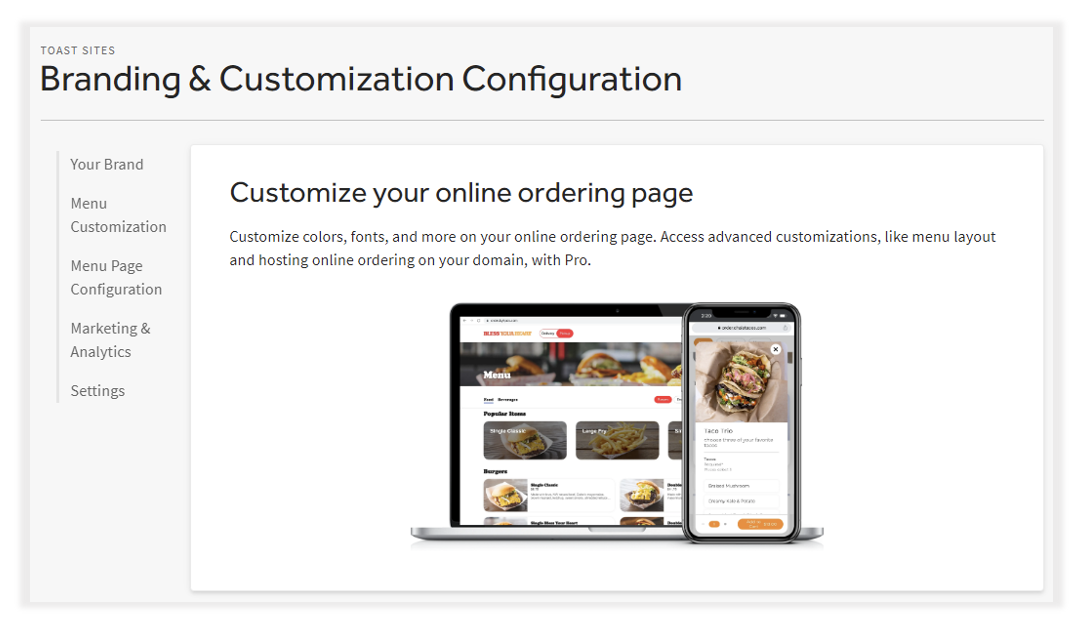
- En Toast Web, ve a Comida para llevar y Envío >Marca y personalización > Configuración de marca.
- Esto te llevará a la página de inicio de Pedidos digitales Toast Pro, donde puedes configurar el sitio de tu marca. La ventana superior proporciona información sobre Pedidos digitales Toast Pro y una vista de cómo podría verse el sitio de tu marca en una computadora y un teléfono celular móvil:
| Si eres usuario de una tienda digital, sigue los pasos del artículo Optimizar Sitios web de Toast para configurar y activar tu página de pedidos digitales. |
- Resumen del video
- Agregar enlaces de navegación personalizados
- Personalizar pie
- Agregar enlaces de redes sociales
- Actualizar actualizaciones de hora y nombre de la ubicación
- Activar mapa de ubicaciones y artículos populares
- Configurar reglas de pedidos basadas en tiempo
- Activar artículos del menú destacados y recomendaciones de ventas complementarias
- Recursos adicionales
Resumen del video
Agregar enlaces de navegación personalizados a tu sitio Pedidos digitales Toast Pro
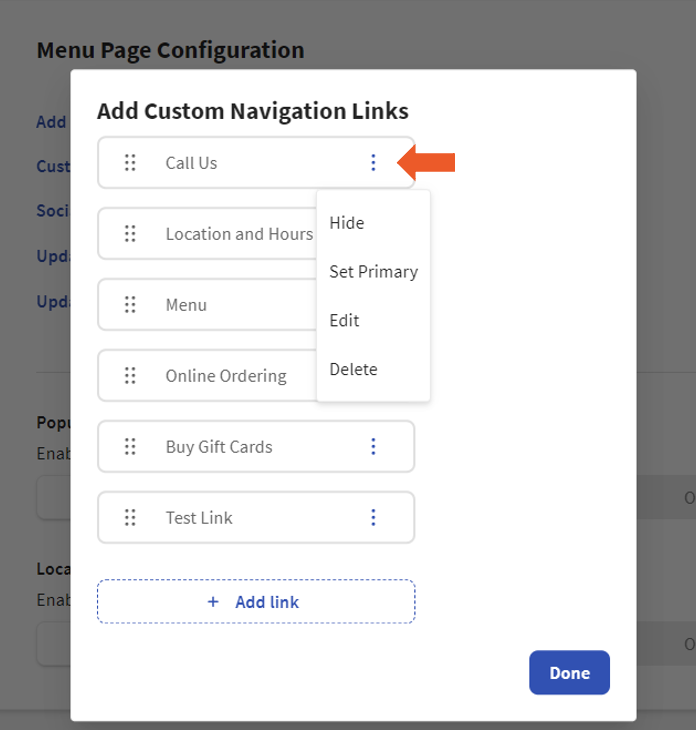
Configura enlaces específicos para facilitar la navegación en tu sitio de Pedidos digitales. En el menú desplegable de 3 puntos, selecciona cómo o si se muestra cada configuración. Asegúrate de publicar todos los cambios después de realizarlos.
- Llámanos: Permite a los clientes llamar al restaurante con un solo clic.
- Ubicación y horarios: Aparece en la parte inferior de la página Pedidos digitales. Incluye todas las ubicaciones del grupo y sus horarios de operación.
- Comprar tarjetas: los clientes pueden navegar rápidamente para comprar tarjetas de regalo en tu restaurante.
- Agregar mi propio enlace: Agrega un enlace personalizado en la parte superior de la página de pedidos digitales de tu ubicación.
Personalizar pie de página para tu sitio Pedidos digitales Toast Pro
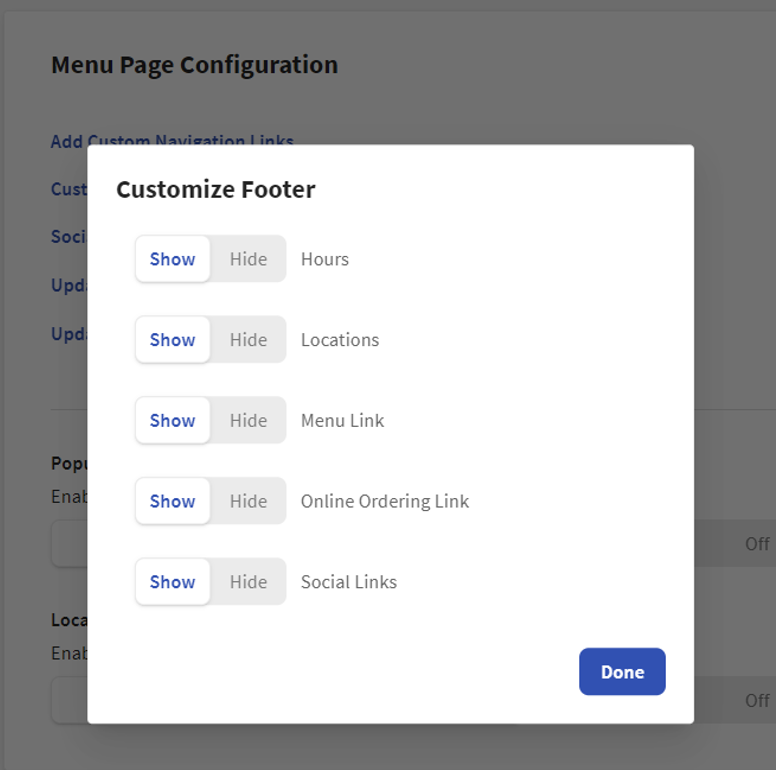
Muestra u oculta qué información del restaurante está disponible para los clientes al pie de la página de Pedidos digitales.
- Horarios: Horarios configurados en la sección Horario de pedidos digitales de configuración de Pedidos digitales, que se muestra al pie de la página Pedidos digitales Pro. Esta es una forma de mostrar el horario de atención del restaurante, si es diferente del horario de pedidos digitales.
- Ubicaciones: otras ubicaciones que son parte de la marca. Para los propietarios de varias unidades, esta es una forma de eliminar cualquier otra ubicación bajo la misma marca de su sección al pie de la página de Pedidos digitales Pro.
- Enlace del menú: Te permite mostrar un enlace al menú al pie de la página de Pedidos digitales Pro para cada ubicación dentro de tu marca.
- Enlace de Pedidos digitales: Te permite mostrar un enlace de pedidos digitales al pie de la página de Pedidos digitales Pro para cada ubicación dentro de tu marca. Si seleccionas esta opción, el cliente se dirigirá a la página de Pedidos digitales de la ubicación específica.
- Enlaces sociales: Te permite mostrar cualquier enlace de redes sociales (agregado en la sección anterior) al pie de la página Pedidos digitales Pro debajo de cada ubicación.
Agrega enlaces de redes sociales a tu Pedidos digitales Toast Pro
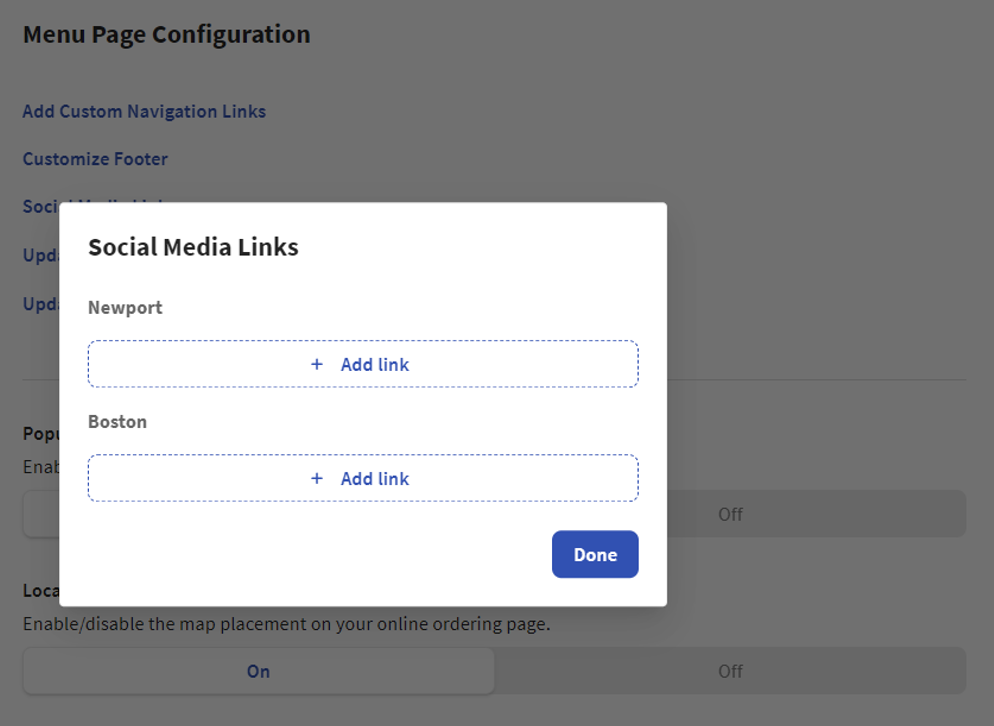
Agrega los enlaces de redes sociales de tu ubicación a tu página Pedidos digitales Toast. Una vez ingresado, selecciona Enviar.
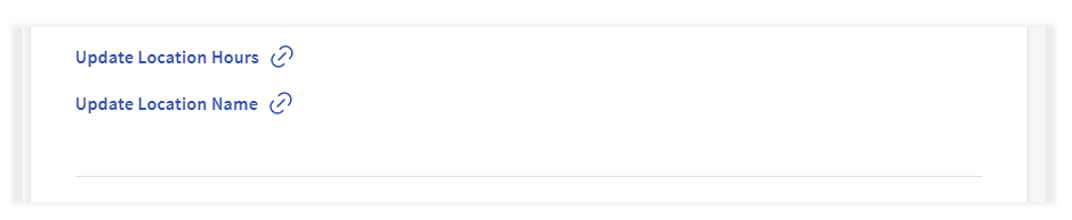
Actualiza los horarios y el nombre de la ubicación de tu sitio Pedidos digitales Toast Pro
- Actualizar horarios de ubicación: Te lleva a la página Horarios de pedidos digitales para actualizar los horarios de la ubicación.
- Actualizar nombre de la ubicación: Te lleva a la página de información del restaurante para actualizar el nombre de la ubicación.
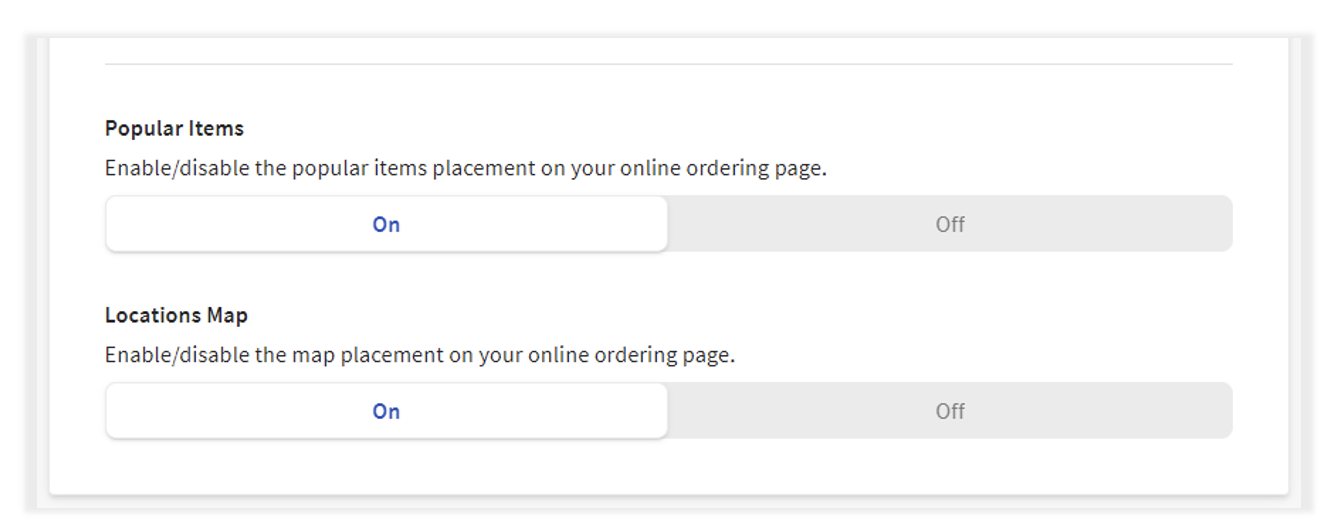
Activar mapa de ubicaciones y artículos populares para tu sitio Pedidos digitales Toast Pro
- Artículos populares: Esto activa y desactiva los artículos populares para tu página de Pedidos digitales.
- Mapa de ubicaciones: Puedes tener un mapa que muestre la ubicación del restaurante, visible o no.
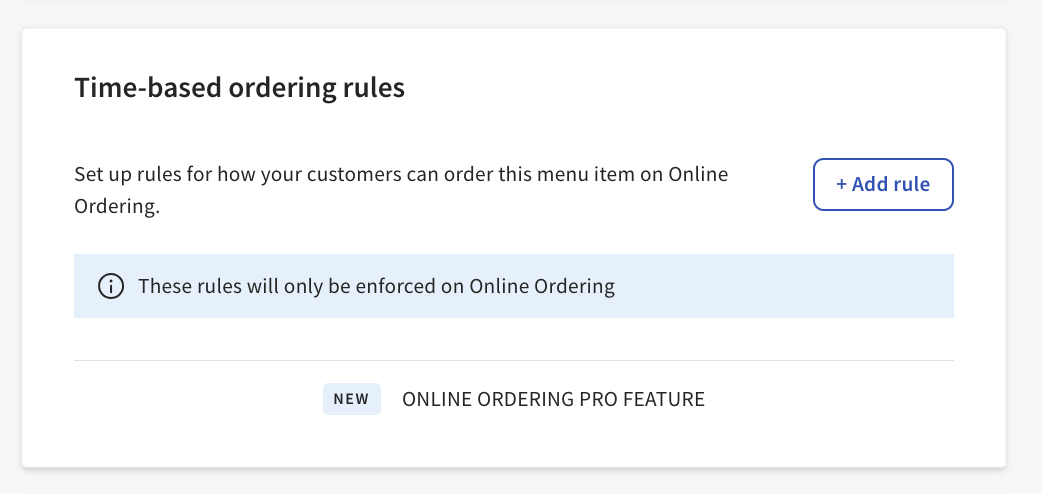
Configurar reglas de pedidos basadas en tiempo para tu sitio Pedidos digitales Toast Pro
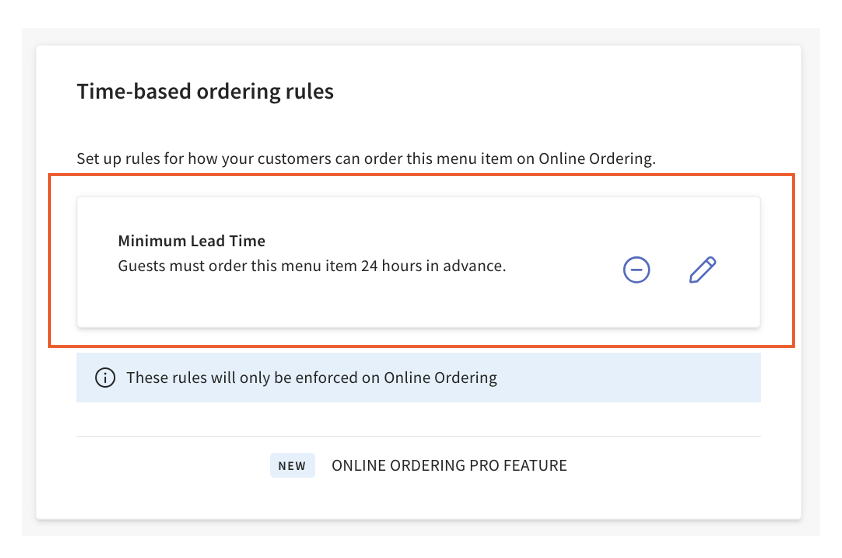
Tiempos de espera mínimos basados en artículos
Vende artículos del menú en pedidos digitales con un tiempo de espera mínimo exigible. Por ejemplo, el Spicy Ramen debe pedirse con 24 horas de anticipación. Se orientará a los clientes de pedidos digitales para que actualicen su hora de retiro o Envío para agregar estos artículos del menú a su carrito.
- En Toast Web, ve a Menús > Gestión de menús > Gestor de menús.
- Expande tus menús para seleccionar el nombre del artículo que quieres editar.
- El panel de configuración de artículos aparecerá en el lado derecho de la pantalla. Selecciona el ícono de expansión en la esquina superior derecha para abrir la página completa de detalles del artículo.
- Desplázate hacia abajo hasta Reglas de pedidos basadas en tiempo.
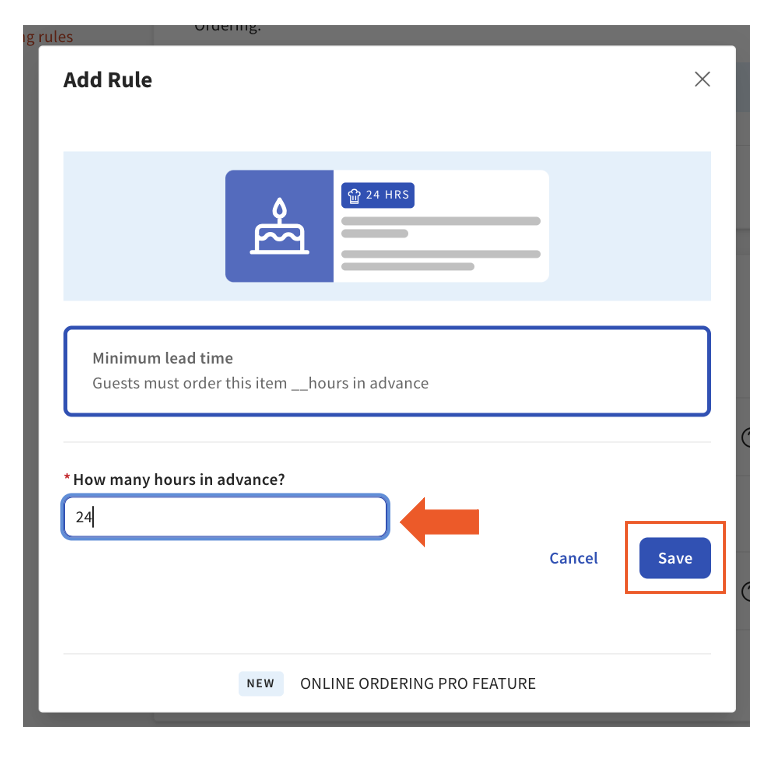
- Selecciona el botón + Agregar regla.
- Agrega tu tiempo, tiempo de espera mínimo, a ¿Cuántas horas de anticipación?
- Selecciona Guardar.
- Guarda y publica cualquier cambio.
- Si quieres hacer cambios en tu tiempo de espera mínimo establecido:
- Para editar la hora, selecciona el ícono del lápiz, agrega la hora actualizada y selecciona Guardar.
- Para eliminarlo, selecciona el ícono de círculo.
- Si quieres hacer cambios en tu tiempo de espera mínimo establecido:
- Asegúrate de Guardar y publicarcualquier cambio.
Una vez publicado, los clientes verán lo siguiente en tu página de pedidos digitales y se les indicará que actualicen su hora de retiro o Envío antes de agregar el artículo a su carrito:
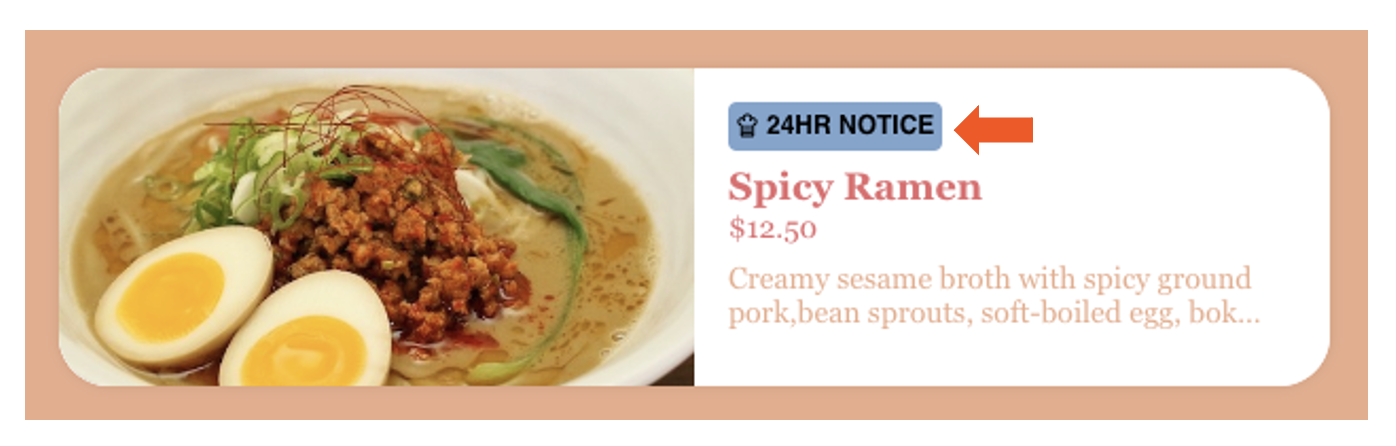
Nota: El estilo reflejará cualquier edición realizada al personalizar tu menú. Para obtener más información sobre la personalización del menú, consulta Pedidos digitales Toast Pro: Personalización del menú en el Centro de asistencia.
Pedidos anticipados de artículos del menú para tu sitio Pedidos digitales Toast Pro
Para configurar pedidos anticipados de artículos del menú, sigue estos pasos:
- En Toast Web, ve a Menús > Gestión de menús > Gestor de menús.
- Expande tus menús para seleccionar el nombre del artículo que quieres editar.
- El panel de configuración de artículos aparecerá en el lado derecho de la pantalla. Selecciona el ícono de expansión en la esquina superior derecha para abrir la página completa de detalles del artículo.
- Desplázate hacia abajo hasta Reglas de pedidos basadas en tiempo.
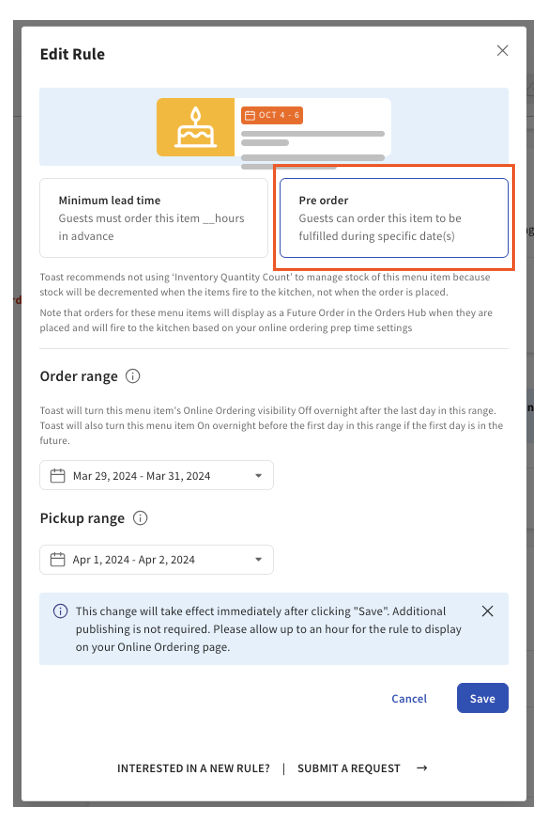
- Selecciona Previar pedido e ingresa:
- Rango de pedidos: cuándo se puede pedir el artículo desde el menú de Pedidos digitales.
- Rango de retiro: cuando un cliente o repartidor puede retirar el artículo.
- Selecciona Guardar. Ten en cuenta que los cambios se aplicarán de inmediato.
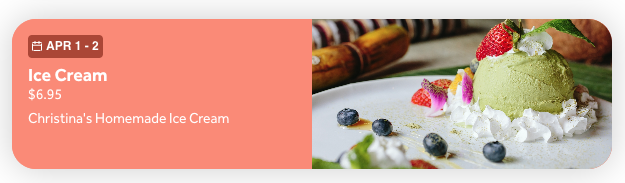
Los clientes verán que este artículo solo se puede retirar o entregar en los días establecidos.
Activar artículos del menú destacados y recomendaciones de ventas complementarias para tu sitio Pedidos digitales Toast Pro
Para activar estas funciones, ve a Comida para llevar y Envío > Marca y personalización > Configuración de marca y personalización en Toast Web.
Nota:
- Si nuestro menú en línea tiene más de 1500 artículos, podrías notar un pequeño cambio en la forma de navegar.
- En lugar de la configuración habitual de navegación del menú, verás un menú desplegable Categoría en la página Pedidos digitales. Desde allí, puedes marcar las casillas junto a los menús y grupos de menús que deseas ver y, luego, aplicar el filtro. Esto te ayuda a garantizar una experiencia fluida con nuestra amplia selección.
Artículos del menú destacados
Nota: Puedes seleccionar hasta tres artículos del menú para destacar (imágenes opcionales).
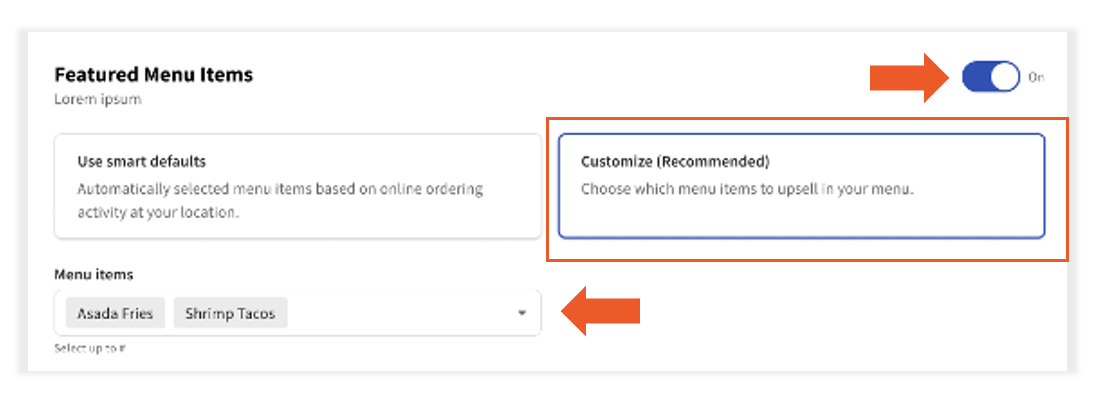
Como suscriptor a Pedidos digitales Pro, puedes utilizar la función Personalizar para seleccionar hasta tres artículos del menú que se destacarán en la parte superior de tu página de pedidos digitales (por ubicación).
- Asegúrate de que la opción Artículos del menú destacados esté activada.
- Selecciona Personalizar (recomendado).
- Selecciona el menú desplegable Artículos del menú para seleccionar hasta tres artículos del menú.
- Publicar cambios.
Recomendaciones de Upsell
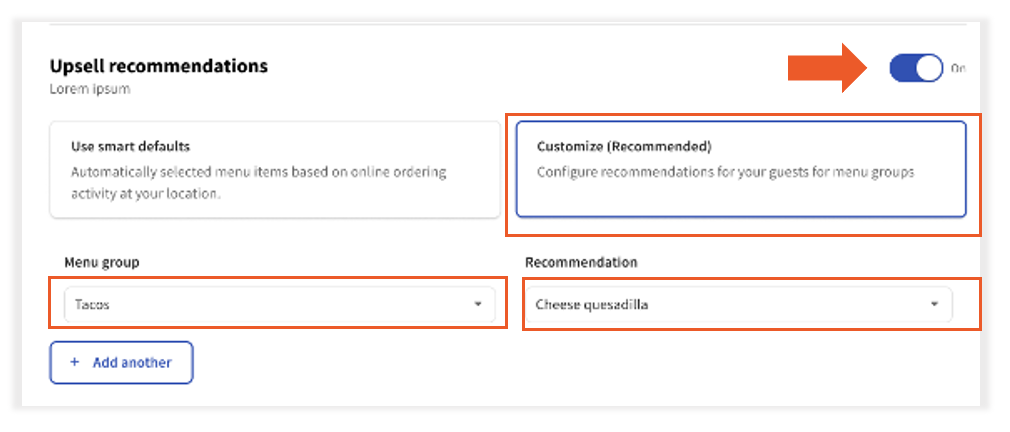
Especifica qué artículos de venta complementaria aparecen cuando los artículos de un grupo de menús dado están en el carrito. Por ejemplo, puedes personalizar por grupo de menús para que se muestre un conjunto de ventas complementarias cuando un sándwich está en el carrito y otro cuando una ensalada está en el carrito.
Las recomendaciones de ventas complementarias aparecerán si no están ya presentes en el carrito. Si un artículo especificado como recomendación de venta complementaria ya está en el carrito, no lo mostraremos y continuaremos con la siguiente recomendación de venta complementaria indicada.
- Asegúrate de que las recomendaciones de ventas complementarias estén activadas.
- Selecciona Personalizar (recomendado).
- Selecciona el grupo de menús y, luego, la recomendación.
- Publicar cambios.
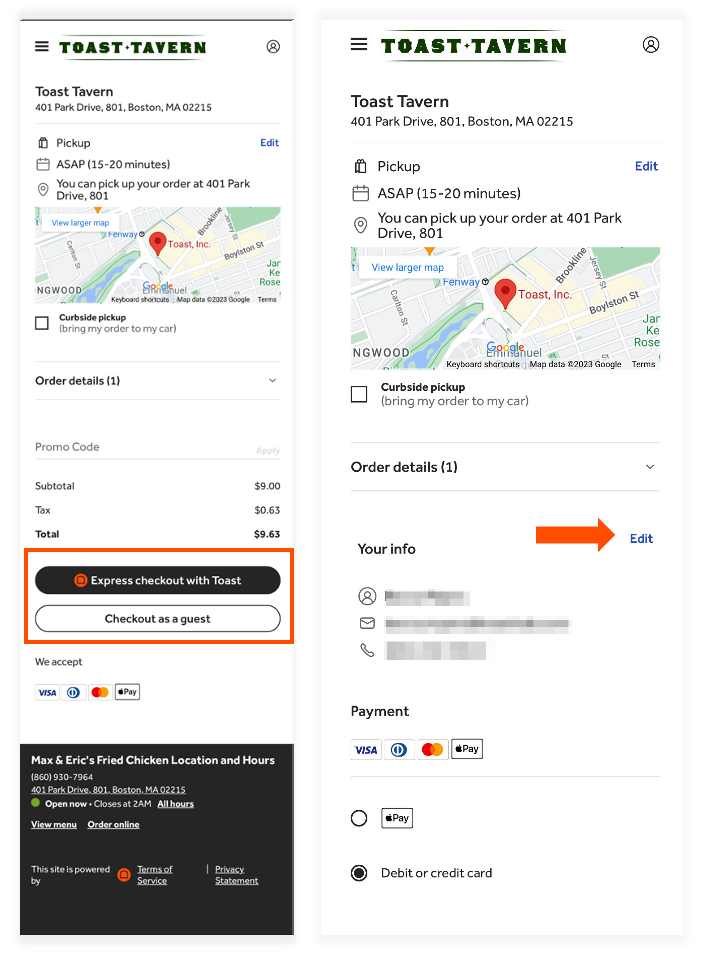
Vista para clientes durante el pago en tu sitio Pedidos digitales Toast Pro.
Al pagar, los clientes seleccionan Pagar exprés con Toast o Pagar como cliente. El cliente deberá ingresar, revisar o editar su información personal y de pago en la siguiente pantalla antes de enviar el pedido.
Recursos adicionales
- Primeros pasos con Pedidos digitales Toast Pro
- Pedidos digitales Toast Pro: Marketing y análisis
- Pedidos digitales Toast Pro: Ubicaciones
- Pedidos digitales Toast Pro: Personalización del menú
- Pedidos digitales Toast Pro: Dominios
- Pedidos digitales Toast Funciones
- Primeros pasos con Pedidos digitales
- Preguntas frecuentes sobre Pedidos digitales