上次更新时间:2026年3月24日 11:26
Looking for a live training experience with a Toast Training Expert? Sign up for a live Toast Classroom session to help you set-up and get started with First Steps with xtraCHEF! Select the button below to sign up.
Toast Classroom - First Steps with xtraCHEF by Toast
| This article is dedicated to xtraCHEF's Invoices page and viewing previously uploaded documents by status. For information on uploading documents (invoices and receipts), visit xtraCHEF: Upload Invoices and Receipts (Desktop) or xtraCHEF: Upload Invoices and Receipts on Mobile. |
Check out a short walkthrough of the updated Invoices page.
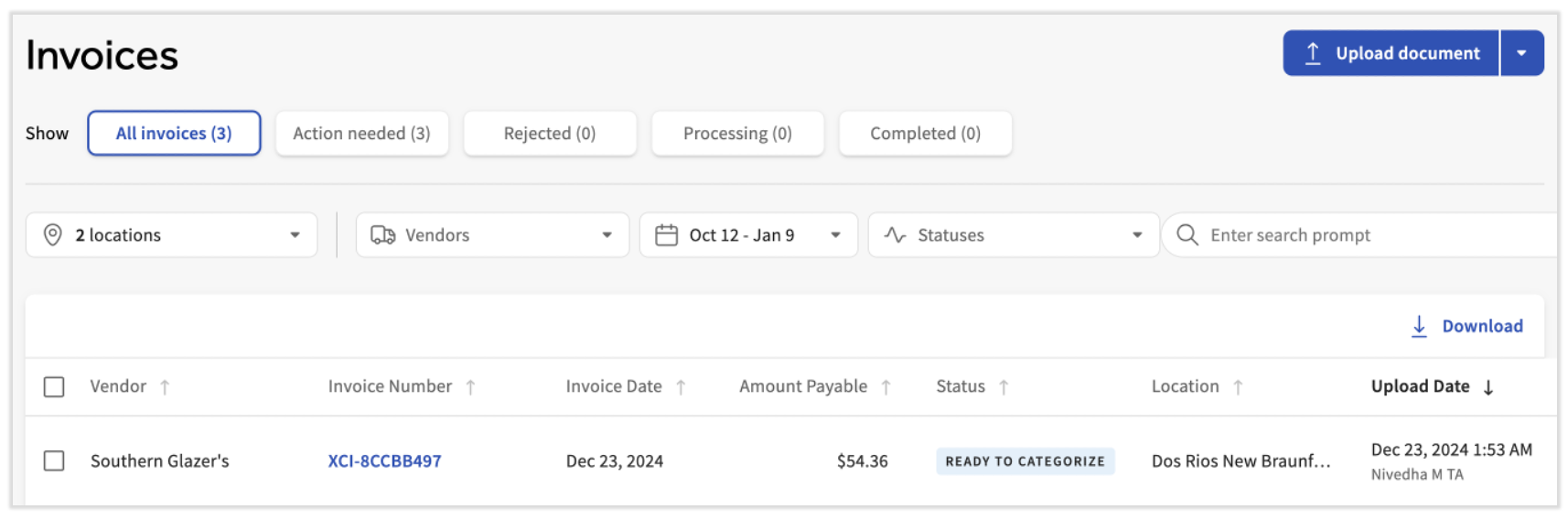
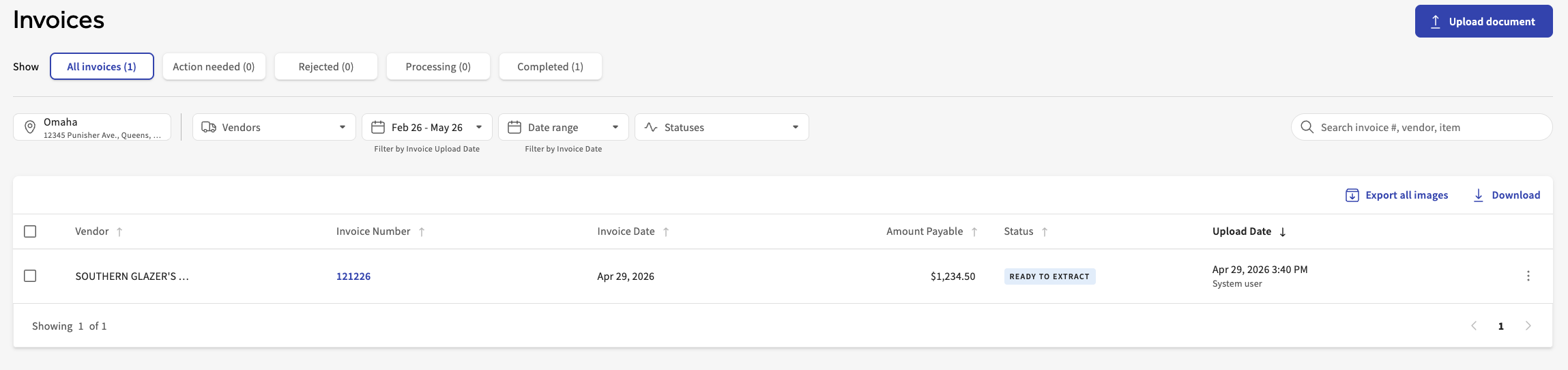
With all the invoices and receipts your business is receiving, it's often easy to lose track of uploads. xtraCHEF's Invoices page enables you to quickly review uploaded invoices and see what their status is. Use this page to identify missed invoice uploads and keep tabs on any potential rejections and documents currently working their way through the xtraCHEF system. You can also upload invoices via this same page. Visit for more details.
NEW! Users can more easily find the invoice or group of invoices they're looking for. The search bar on the Invoices page now uses a large language model capability, so you can use natural language searches to locate invoices. For instance, try typing something like "I want invoices from XYZ vendor for the last 60 days" or "Get all the invoices for the XYZ location that are under $250." Be creative with your search queries and xtraCHEF will take care of the rest without the hassle of searching, filtering, and scrolling until you find what you need.
Review Invoice Statuses
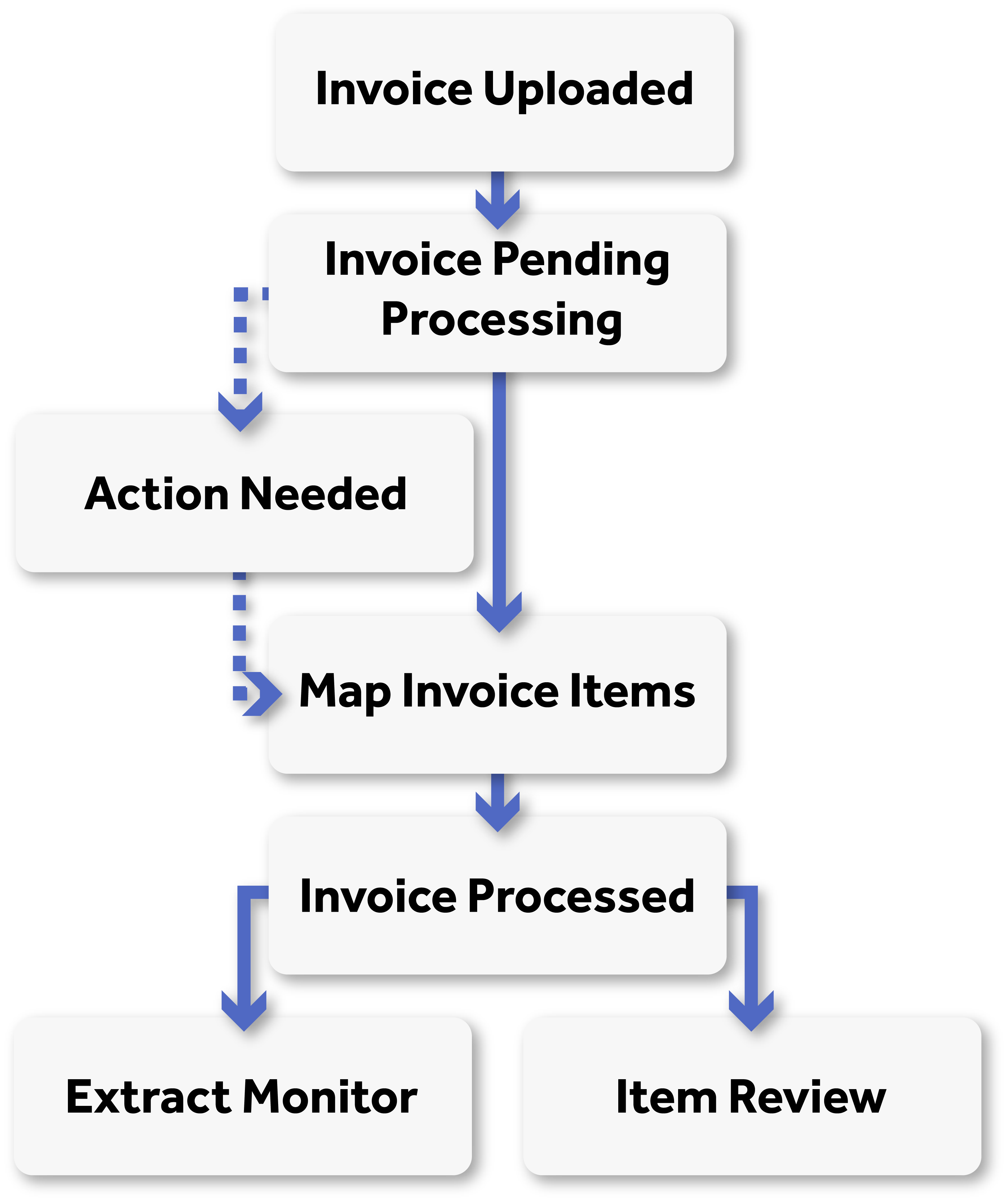
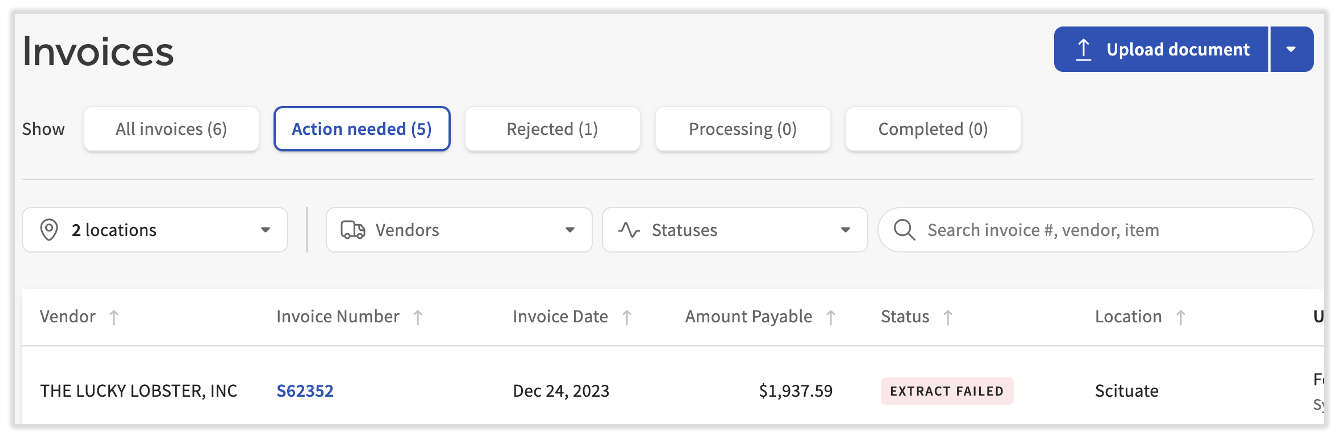
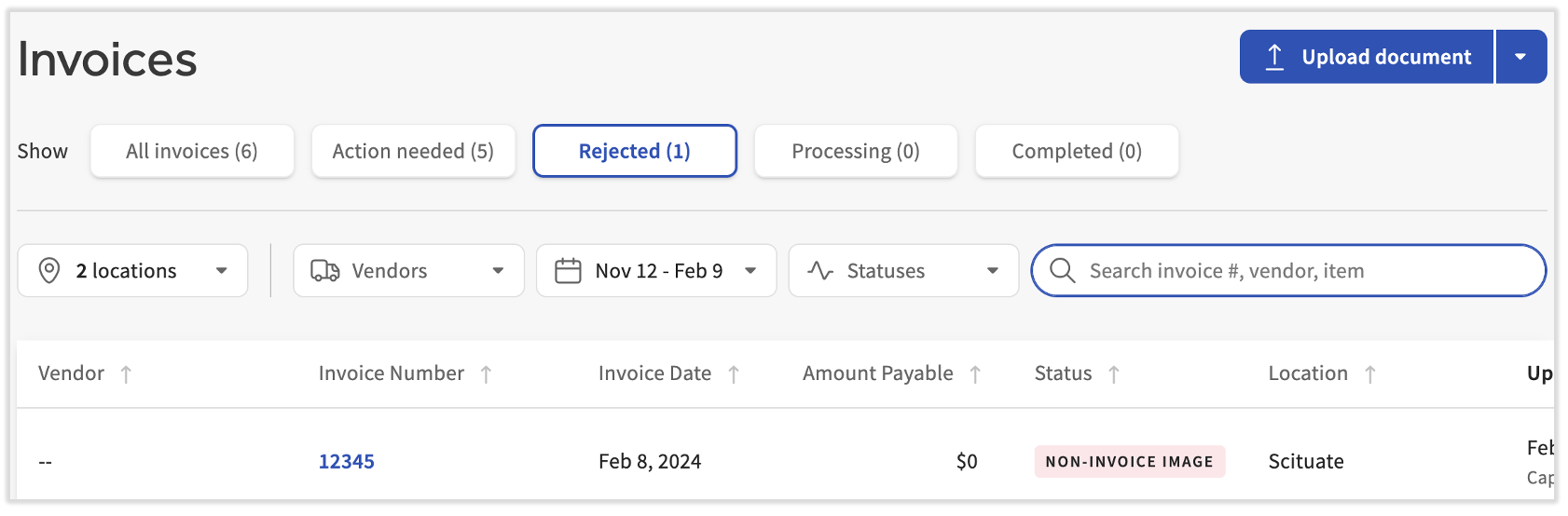
Select Invoices from your xtraCHEF navigation menu. This page is sorted into five different tabs reflecting invoice status. The page defaults to show you All invoices, but you can select from Action needed, Rejected, Processing, or Completed to review the corresponding documents by status.
Action Needed
Any documents with an exception will appear on this page. Exceptions is the former term for invoices requiring further action in order to process them. Learn about the reasons you see here in .
As of July 2024, action needed invoices can also be reprocessed on the xtraCHEF mobile app. See the link above for steps on how to do so.
Rejected
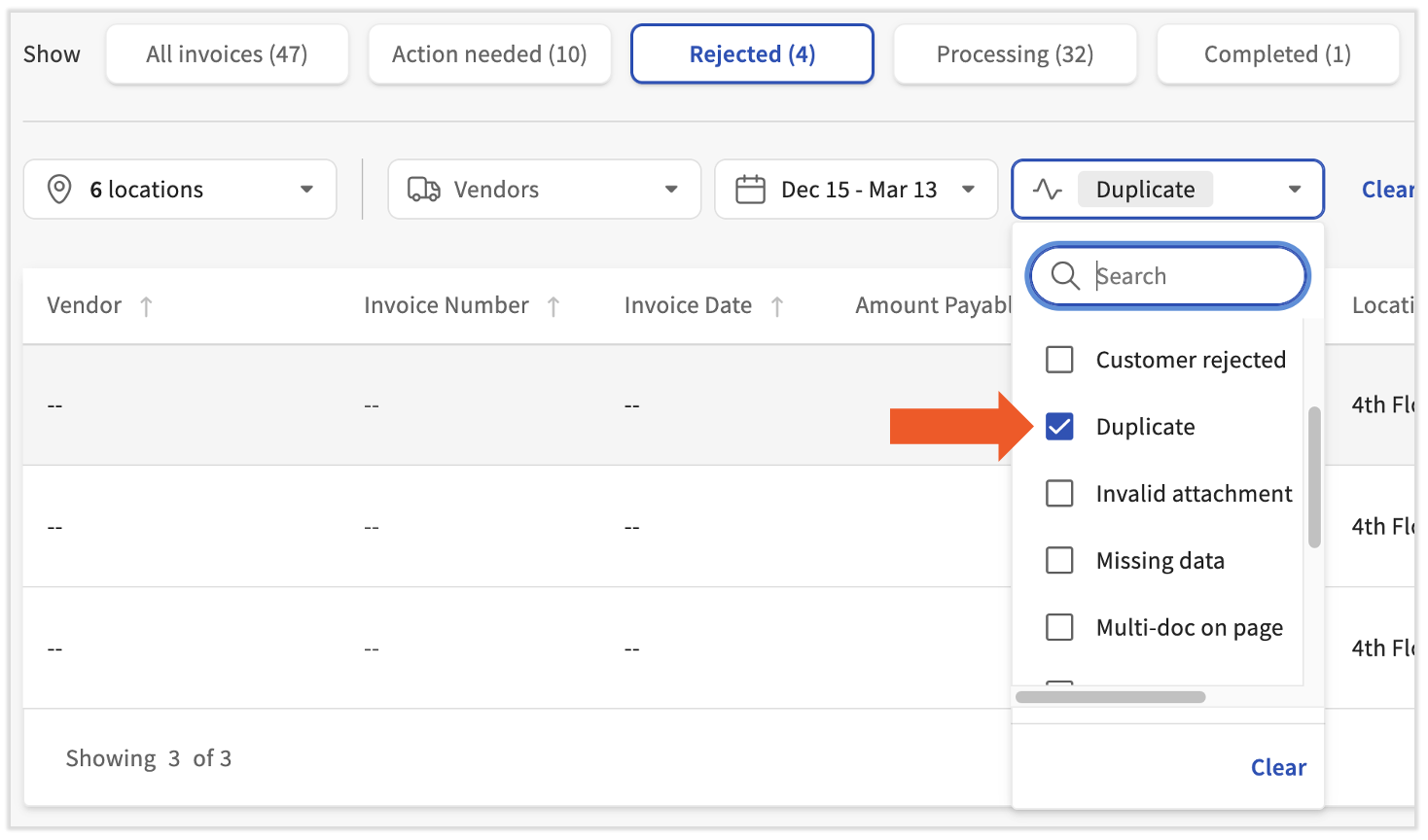
Invoices can be in the Rejected tab for a number of reasons. Common rejections include missing information, irrelevant documents, or illegible uploads. Tenant Admins can configure custom rejection criteria.
Duplicate invoices will be also filed within the Rejected tab. View these alone by selecting the Statuses drop-down menu and checking the box for Duplicate. For a more detailed explanation of rejections and how to avoid them, visit . The article also covers how rejected invoices can be reprocessed on the xtraCHEF mobile app.
Processing
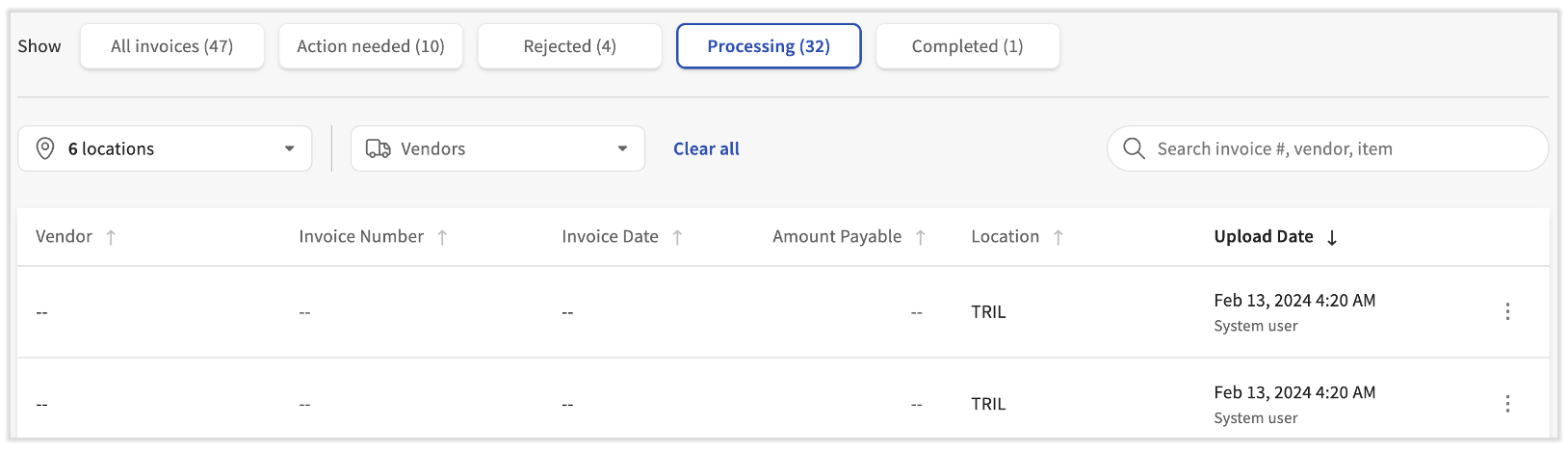
Invoices, receipts, and other documents uploaded to xtraCHEF must first be reviewed to ensure they are usable. While your documents are pending review, you'll find them listed on the Processing tab. Documents can remain in the processing state for up to 24 hours, though they are typically processed in 6 to 8 hours. Use this tab to check in on your document's progress.
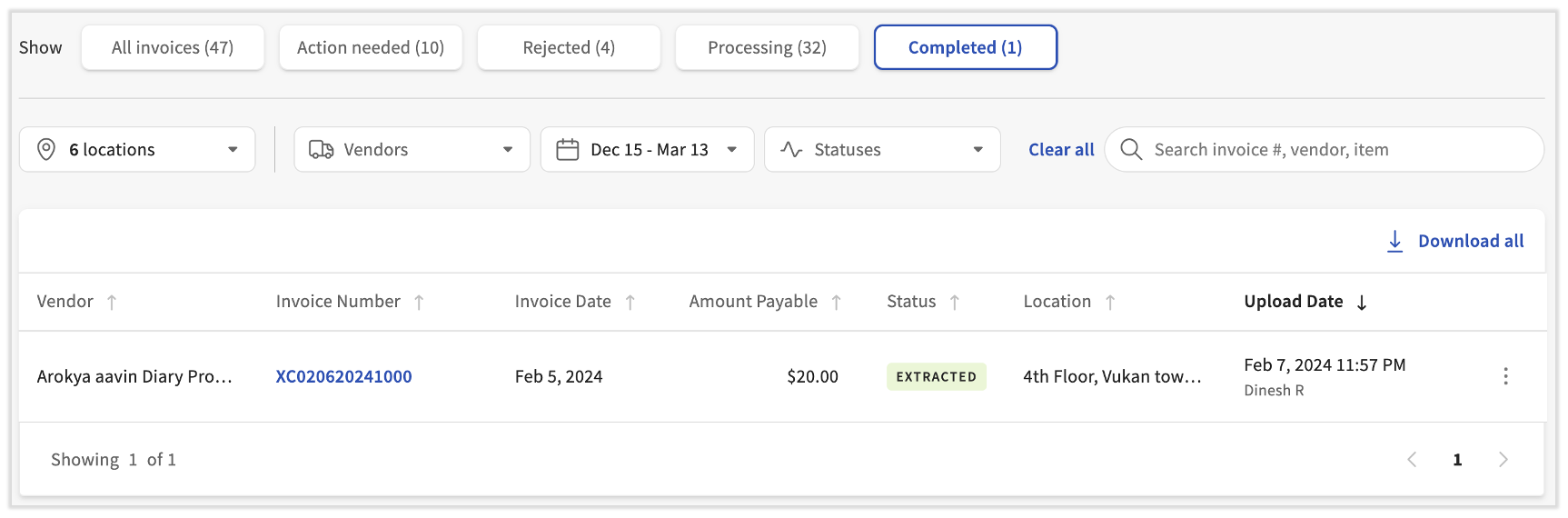
All documents which have been approved by xtraCHEF and are ready for use will be listed under the Completed tab. Processed items will be listed in chronological order, though you can search for a specific invoice number or type if needed. You can also sort your processed documents by vendor, invoice date, amount payable, and more; just select the column's name.
Invoice Actions
Two common use cases of your Invoices page are manually rejecting an uploaded document or changing its upload location (i.e., an invoice was uploaded to the wrong location within your xtraCHEF tenant/account).
Change an Invoice's Location
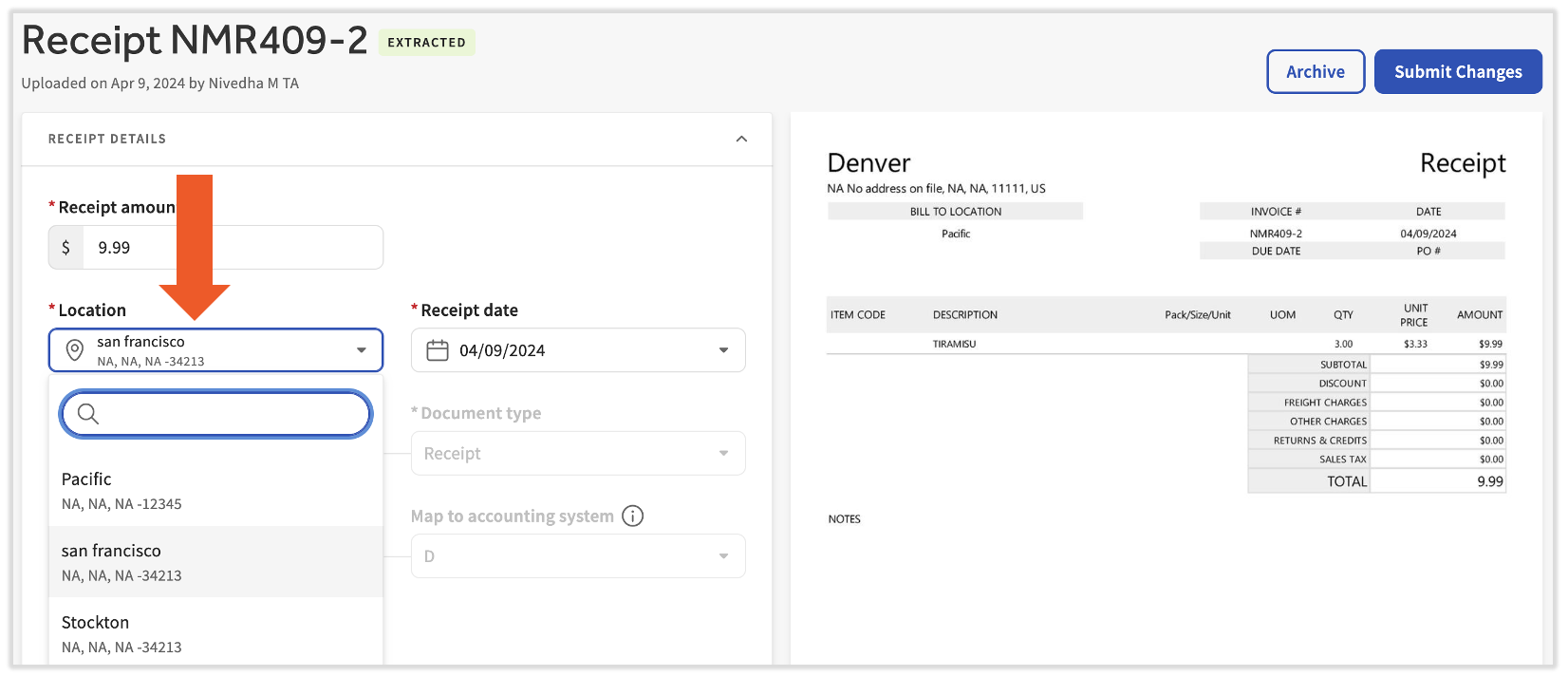
To change an Invoice's location, select the upload from the Invoices table. Select the Location drop-down menu to change locations and select Submit Changes.
To remove an uploaded invoice from xtraCHEF, select the line item and select the Archive button.
If you'd like a file containing all the invoices you've uploaded to your xtraCHEF database, Customer Care can assist you. Contact us via the blue chat button in the lower-right corner of any xtraCHEF page and ask for a bulk invoice image file. We will send you an email with a file link that is valid for one week. Note: This email may take 24 hours or more due to the complexity of this request and the large file size.
Next Steps
Depending on the invoice's status, action may be required on your behalf to usher the document through the reconciliation journey. For more information on the potential actions required (i.e. or ), visit .